Kanban
The Kanban view shows your data as cards in stacks on a board. To move a card to a different stack, drag it. This section gives all the operations for the Kanban view.

Copy a prompt, paste it into NocoAI in any base, and replace the words in [brackets] with your own.
- Create a kanban view of this table stacked by [Status]
- Create a kanban view of [Deals] stacked by [Stage] that shows only my deals
- Add a [Stage] single select field and create a kanban view stacked by it
Kanban View Actions
- Create a New Kanban View
- Rename an Existing Kanban View
- Duplicate a Kanban View
- Remove a Kanban View
- Share a Kanban View
- Lock Kanban View for Edits
Kanban View Operations
- Rearrange Fields Within the Kanban
- Show or Hide Fields Within the Kanban
- Apply Filters to Display Specific Records on the Kanban
- Sort Records on the Kanban by One or More Criteria
- Perform Quick Searches for Specific Data Within Fields
- Export Data to CSV or Excel Format
- Change Cover Image
- Show or Hide field Labels on Cards
Kanban View Stacked-by field Operations
Change Stacked by Field
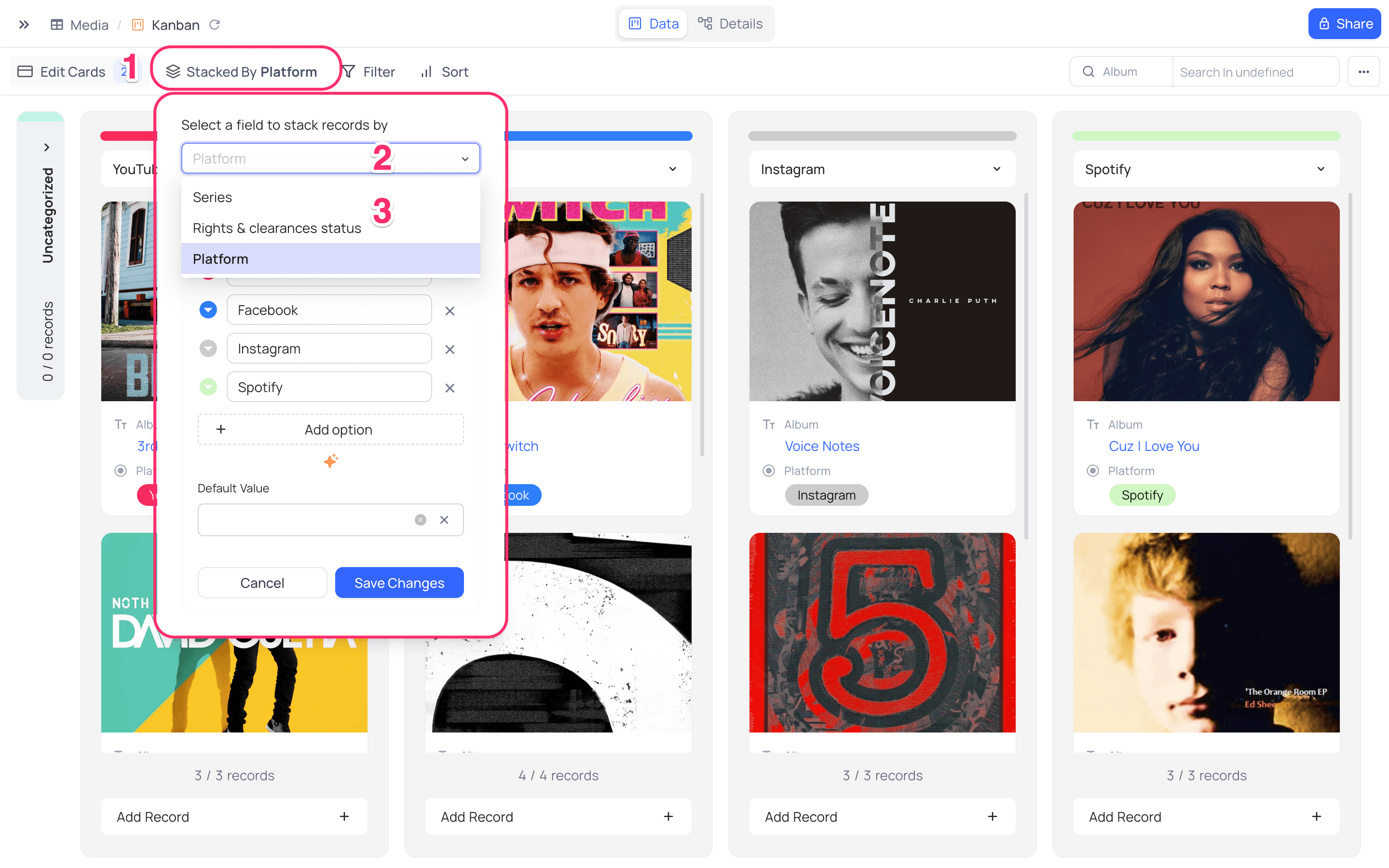
To change the field that stacks the records in the kanban view:
- In the toolbar, click the
Stacked bymenu. - Click the name of the current stacked-by field.
- In the dropdown, select the new field to stack the records by.
Add/modify Stacked-by Field Options
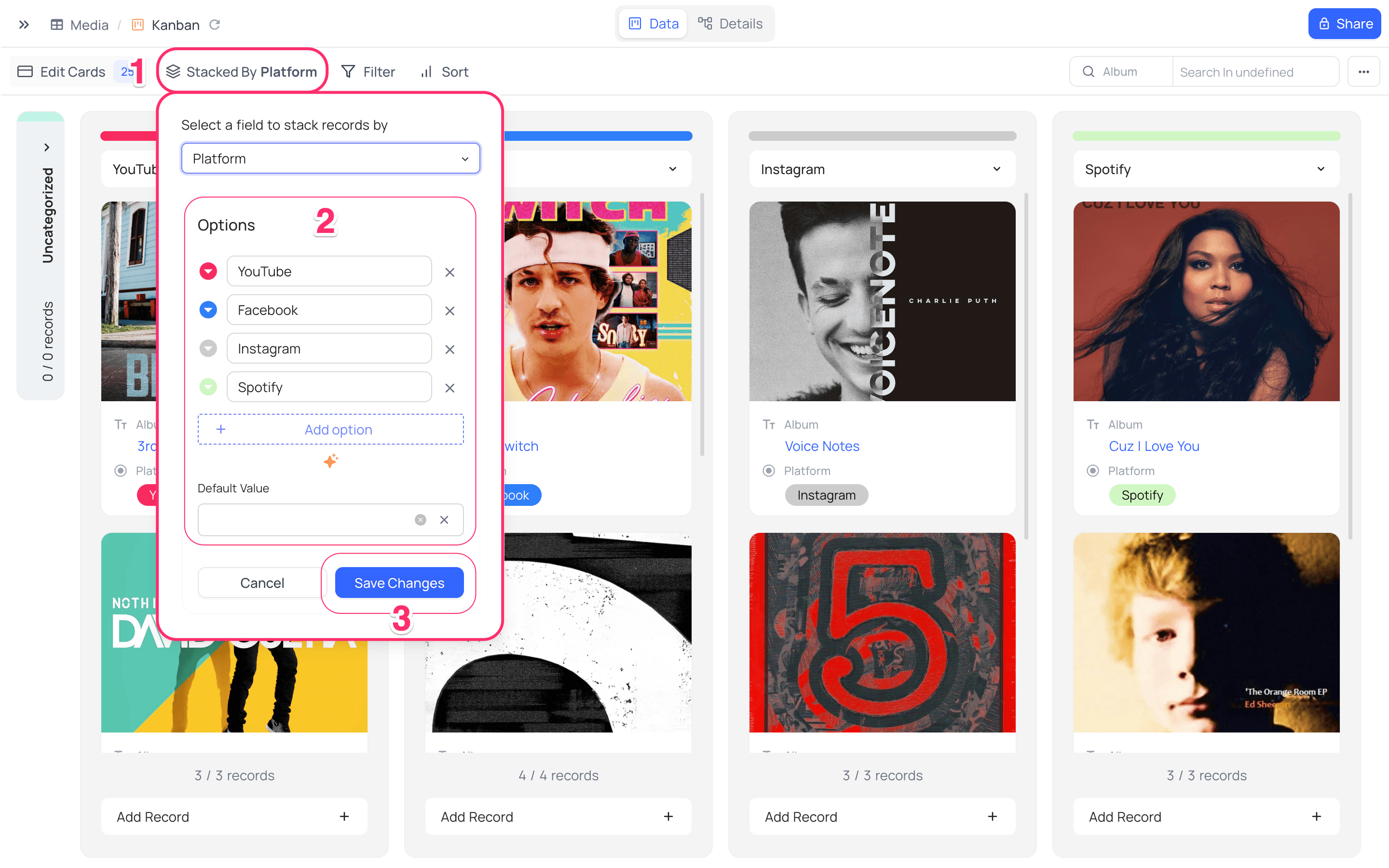
To add or change options on the stacked-by single select field:
- In the toolbar, click the
Stacked bymenu. The dropdown shows allSelect Optionsof this field. - Add or change the options as necessary.
- Click
Save.
Collapse Stack
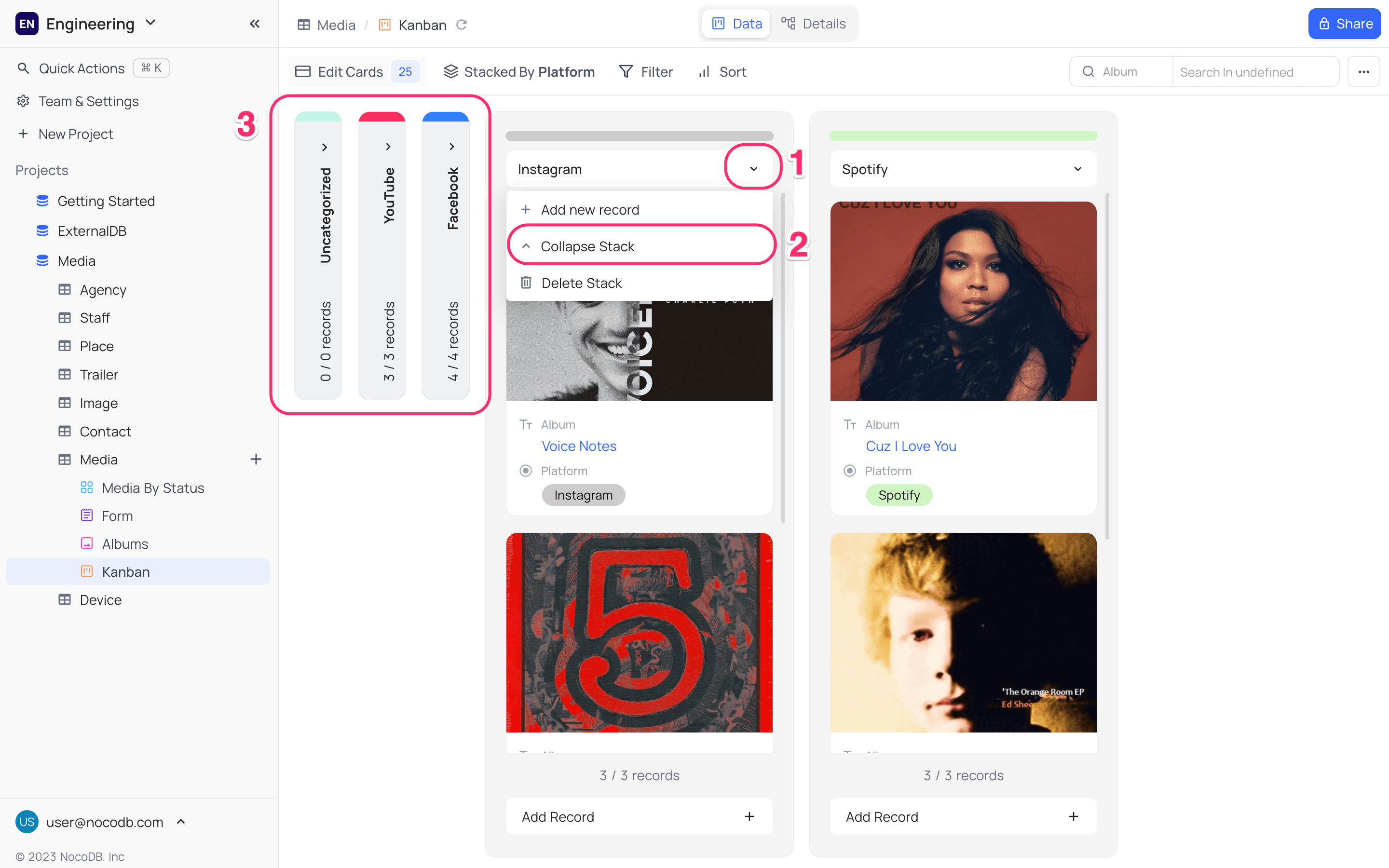
To make the kanban easier to read, collapse a stack:
- On the stack header, click the dropdown icon.
- Select
Collapse Stack. The kanban view shows theCollapsed Stackas a vertical bar, as in the image below.
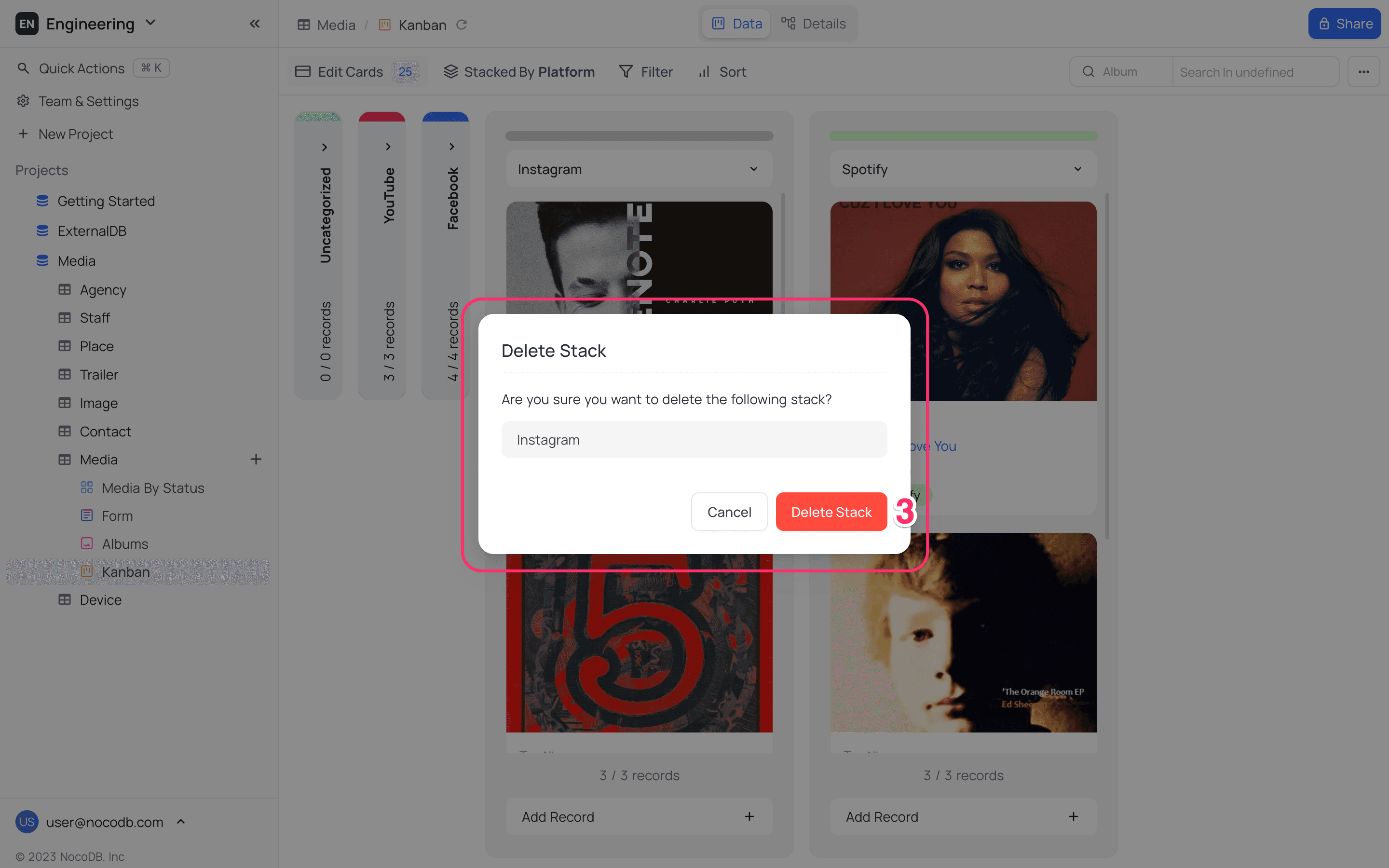
Delete Stack
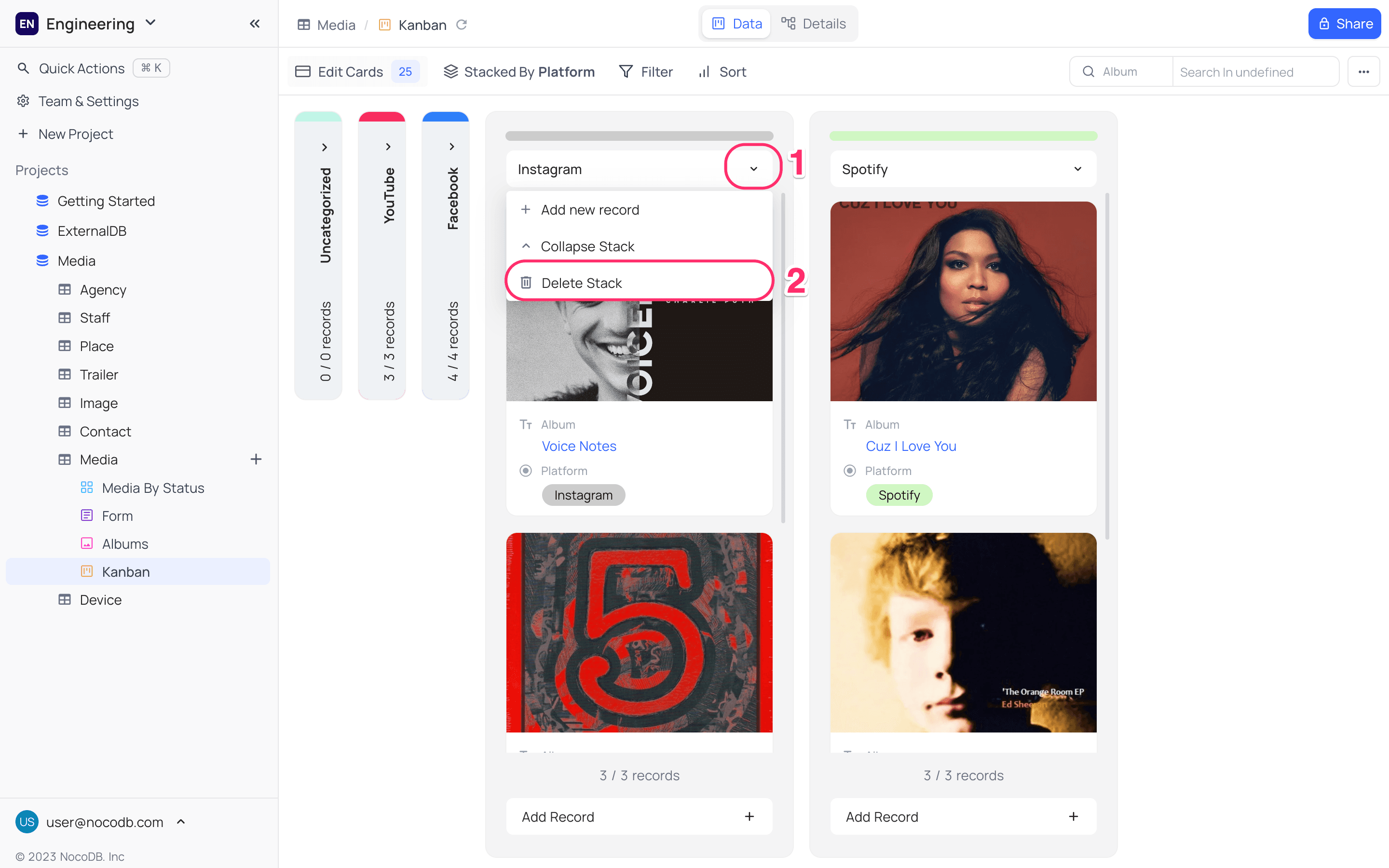
To delete a stack from the kanban view:
- On the stack header, click the dropdown icon.
- Select
Delete Stack. A confirmation dialog opens. - Click
Delete.
Reorder Stacks
To change the order of the stacks in the kanban view, drag a stack to a new position.
Kanban View Record Operations
Move Records within Stacks
To move a record in a stack, drag the card to a new position in the stack. If the view has a sort, the sort sets the order of the cards. A card that you drag goes back to the position that the sort gives it. To arrange cards by hand, remove the sort.
Add a New Record to the Kanban
To add a new record directly to a stack, click the Add Record button in the stack footer. The expanded record view opens. Enter the data for the new record. When you save the record, the kanban view shows it. You can also add a new record to the table, and the kanban view shows it.

Edit an Existing Record on the Kanban
Click the card in the kanban view. The record opens in the expanded record view. Edit the record and save it.
Delete a Single Record from the Kanban
Right-click the card. In the context menu, select Delete.
Related
Last updated on