Filtering Records

Filters show only the records that match specific conditions. NocoDB supports:
- Nested filters: Combine multiple conditions across different fields.
- AND / OR logic: Choose how filters are grouped.
Use filters to see only the records that matter to you.
Copy a prompt, paste it into NocoAI in any base, and replace the words in [brackets] with your own.
- Show only records assigned to me
- Show only records where [Status] is not [Done] and [Due Date] is this week
- Hide records created before [1 January 2026]
- Remove all filters from this view
Add or edit filters
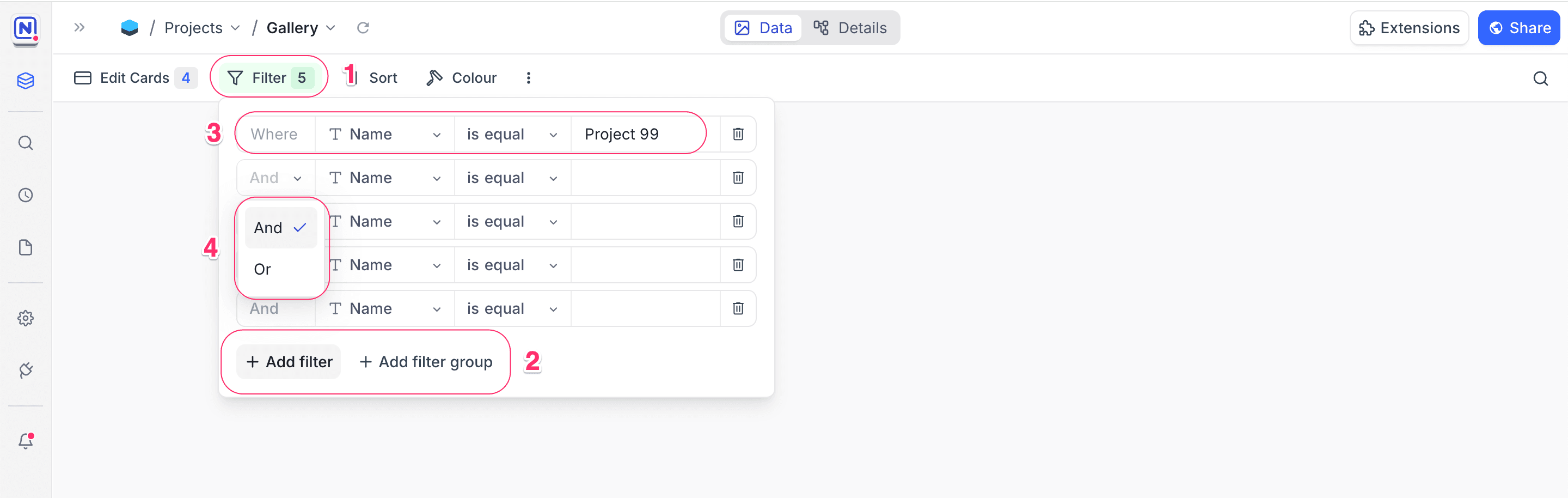
- In the toolbar, click Filter.
- Select Add filter or Add filter group.
- For each filter, select a Field and an Operation. If the operation needs a Value, enter it.
- To refine the results more, combine filters with AND or OR logic.
Group filters
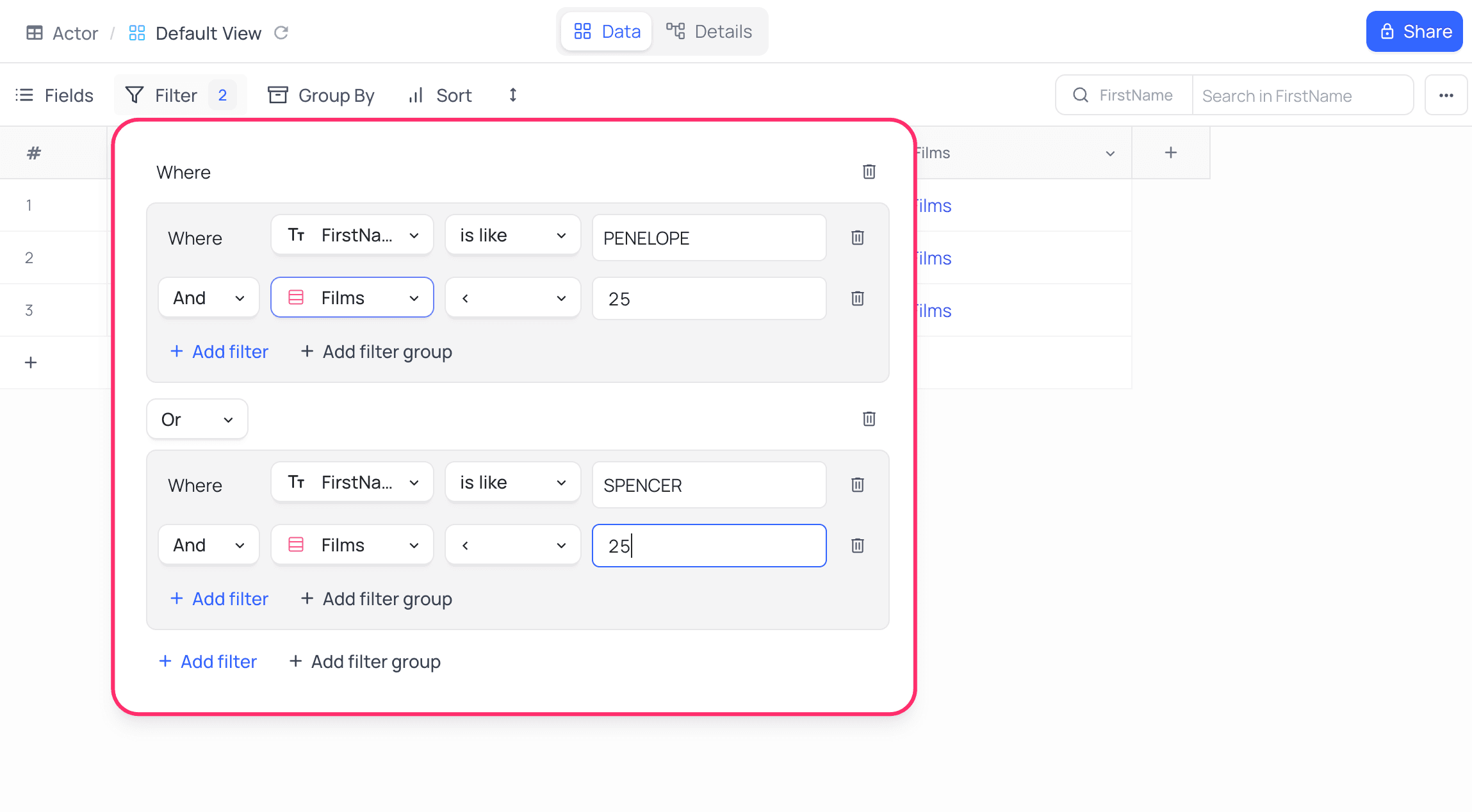
Use a Filter Group to put filters together and build complex, nested conditions. In a group, you combine the filters with AND or OR logic. This gives you more precise control over your data.
To create a filter group:
- In the toolbar, click
Filter. - Select
+ Add filter group.
In a group, you can add individual filters or nest more groups.
Delete filters
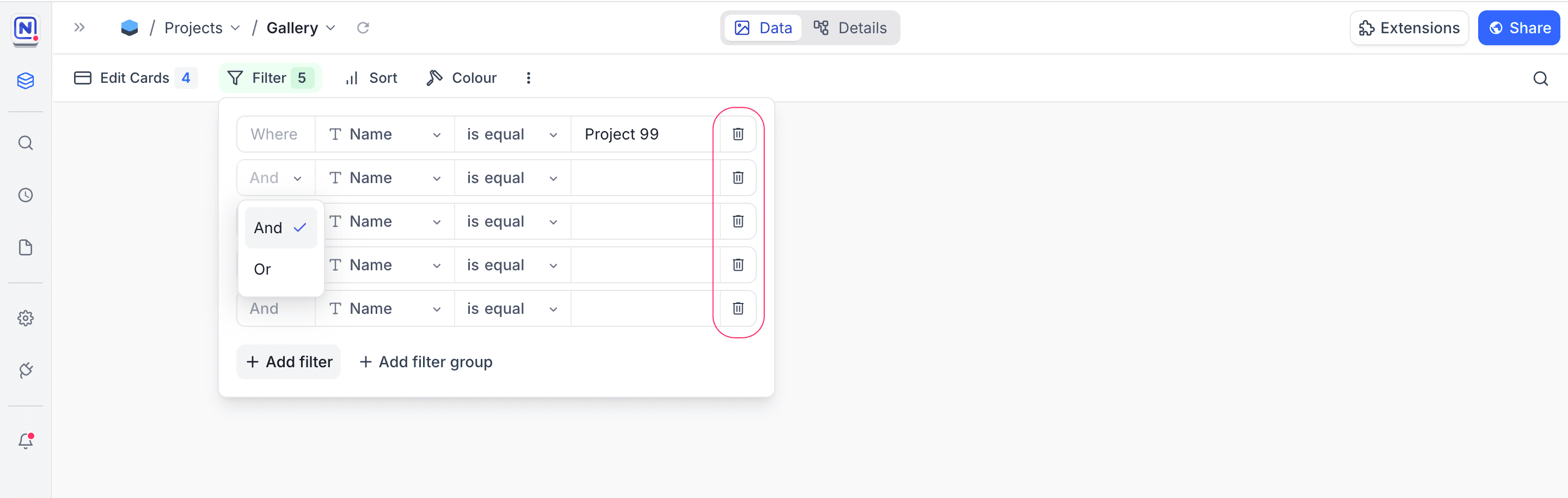
To remove a filter, click the trash / bin icon to the right of the filter.
Filter by current user ☁
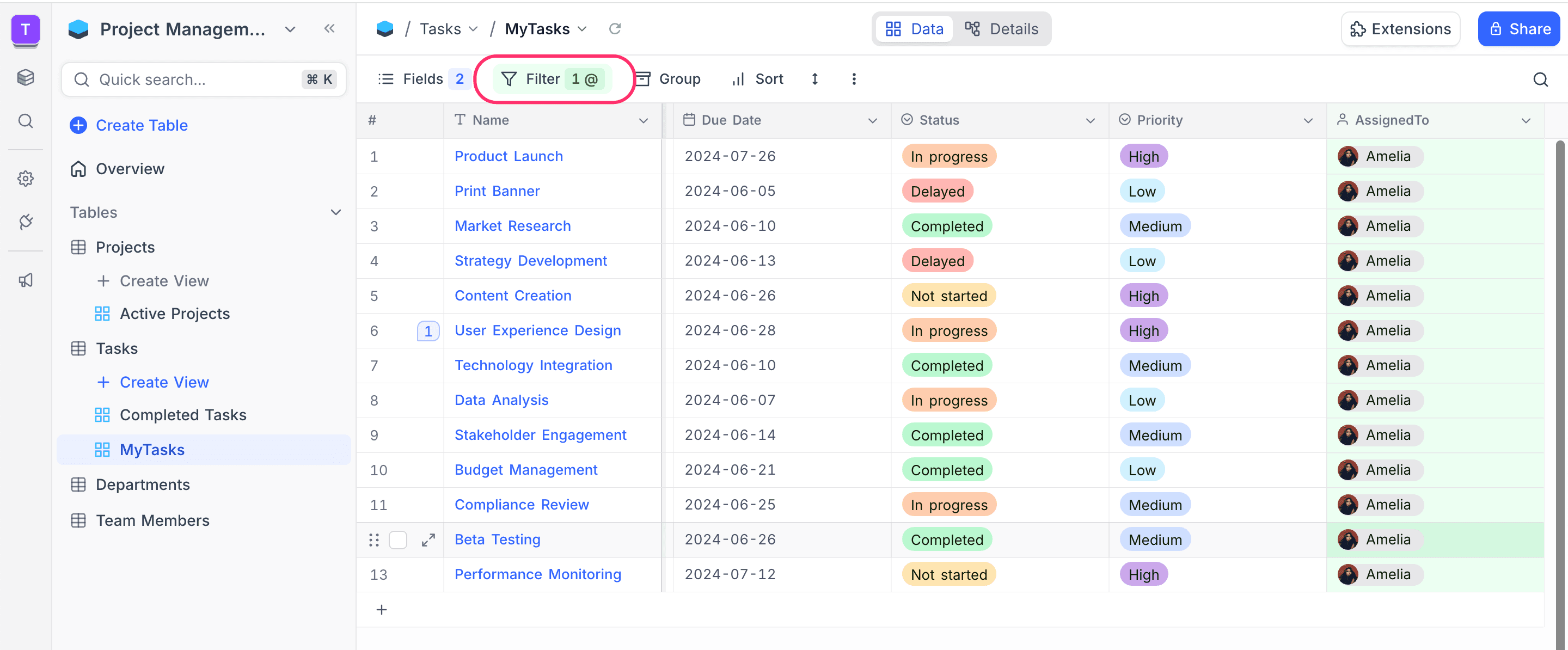
Use the Current User option to filter records by the user who is logged in. This option is available for filters on User fields and fields derived from them (for example, createdBy and updatedBy). Use it to create views that show only the records relevant to the user who views them.
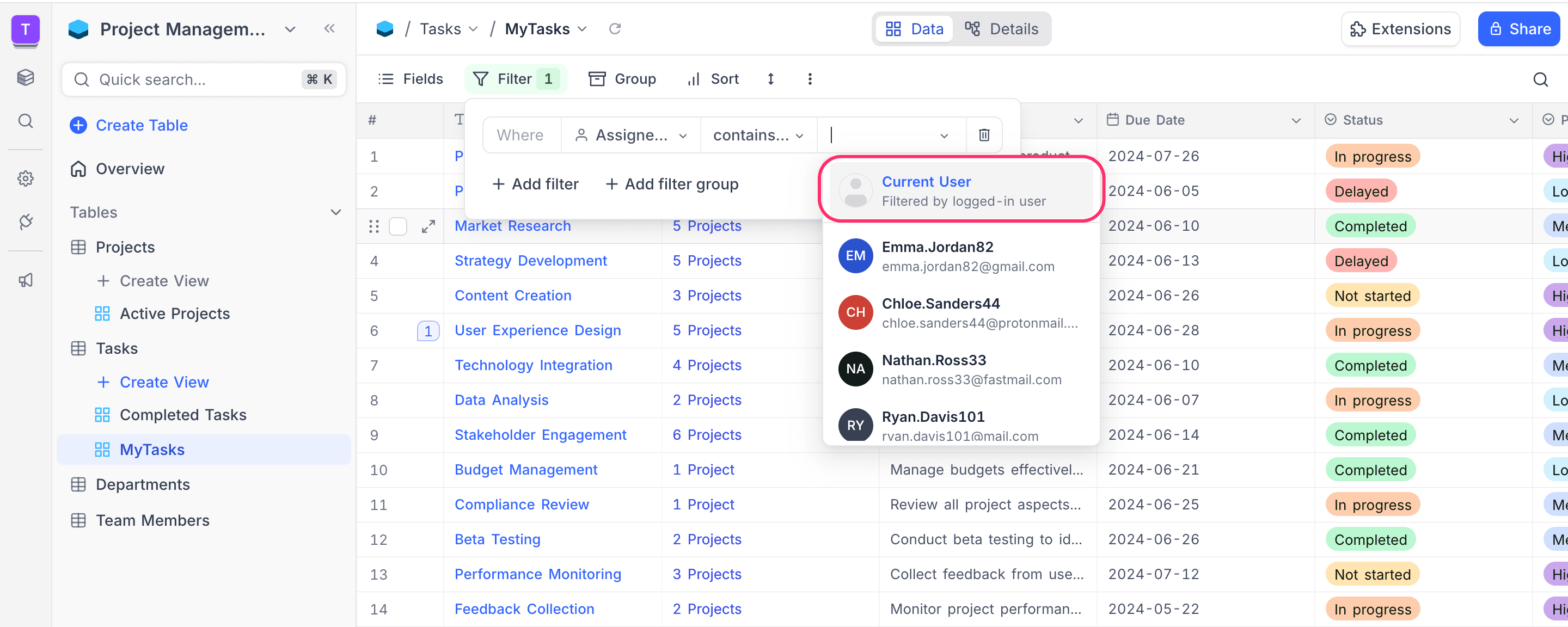
When a dynamic Current User filter is applied, the toolbar shows an @ icon next to the filter count.
Toggle filters ☁
Toggle filters let you turn individual filters off and on for a time without deleting them. Use them to compare filtered and unfiltered views quickly. You can also try different combinations of conditions without building them again each time.
Each filter row has a checkbox on the left side. Clear the checkbox to disable the filter. NocoDB keeps the condition but does not apply it to the view.
When some filters are disabled, the toolbar badge shows the count as enabled/total (for example, 2/5). You always know how many filters are active.
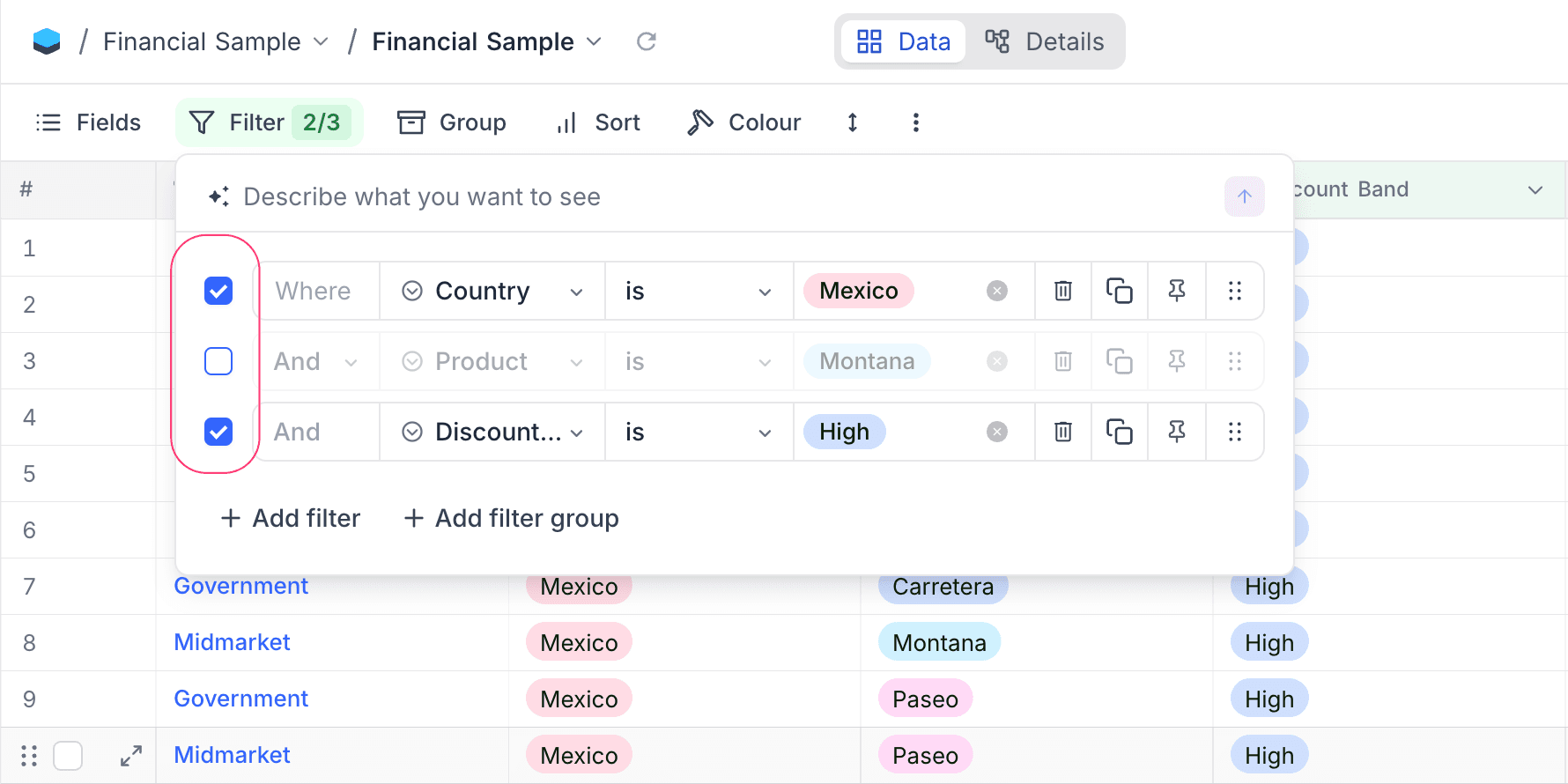
Toggle filters work with individual filters and with filter groups. When you disable a filter group, all filters in that group are also disabled. Disabled filters stay saved in the view. You can enable them again at any time.
Pinned filters ☁
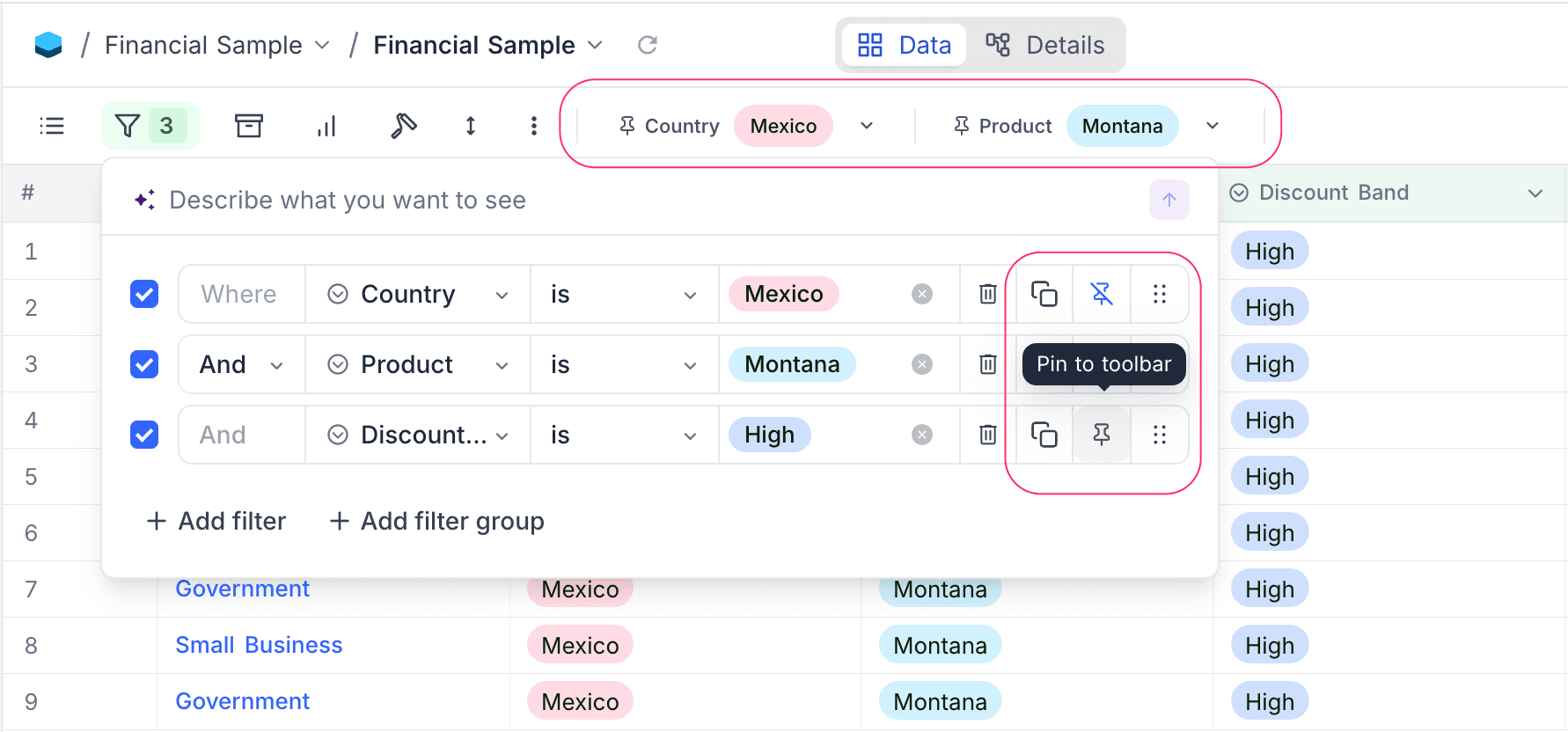
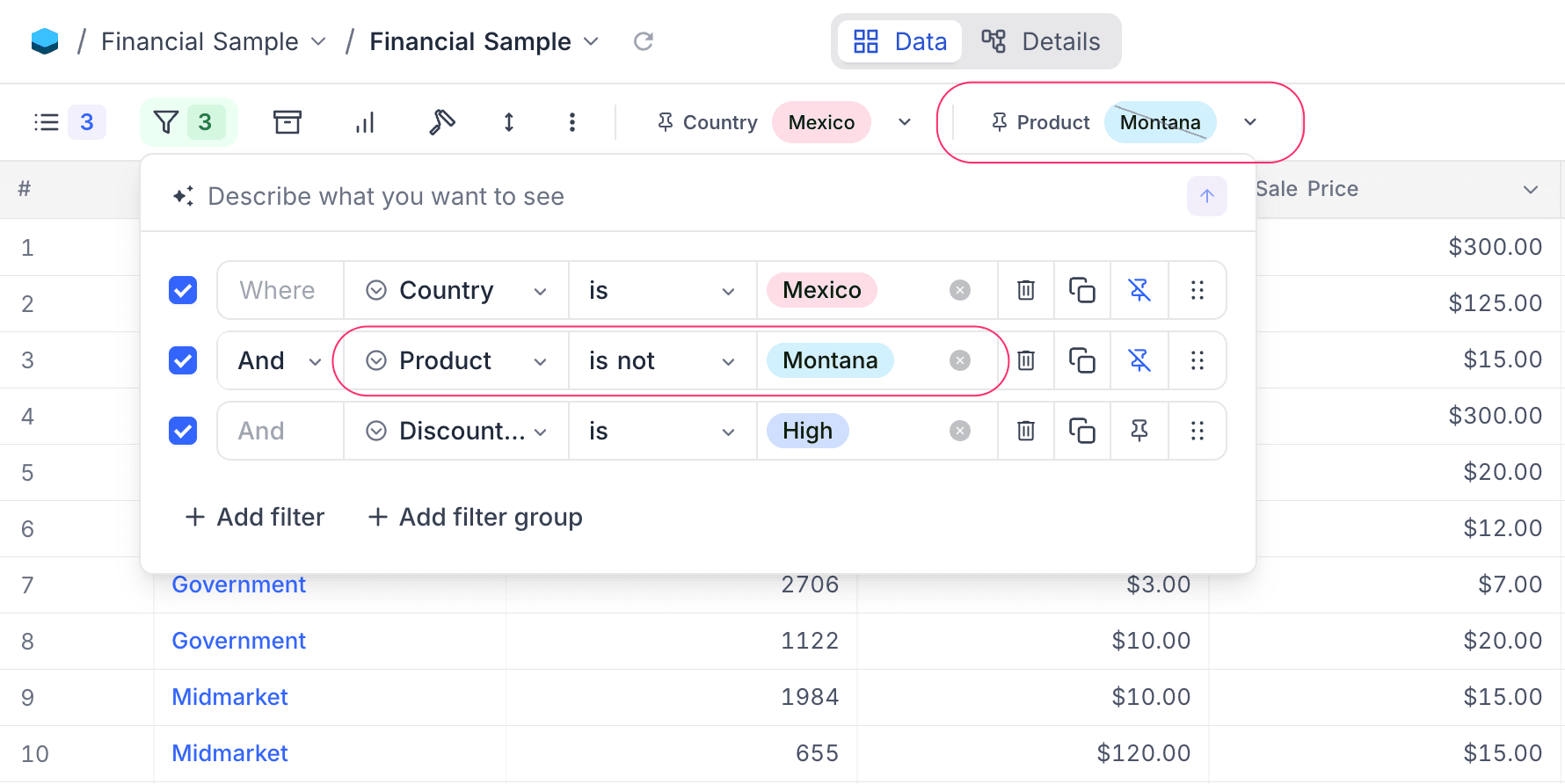
Pinned filters give you one-click access to filters that you use frequently, directly from the toolbar. You do not have to open the filter menu. A pinned filter shows as a compact pill in the toolbar, with the field name and the current value. Click the pill to open a dropdown. In the dropdown, search for a value and change it immediately.
Pin a filter
- In the toolbar, click Filter.
- Find the filter to pin.
- Click the Pin icon to the right of the filter row. The filter shows as a pill in the toolbar.
To unpin a filter, click the Pin icon on the filter row again. The icon is highlighted for pinned filters.
Using pinned filters
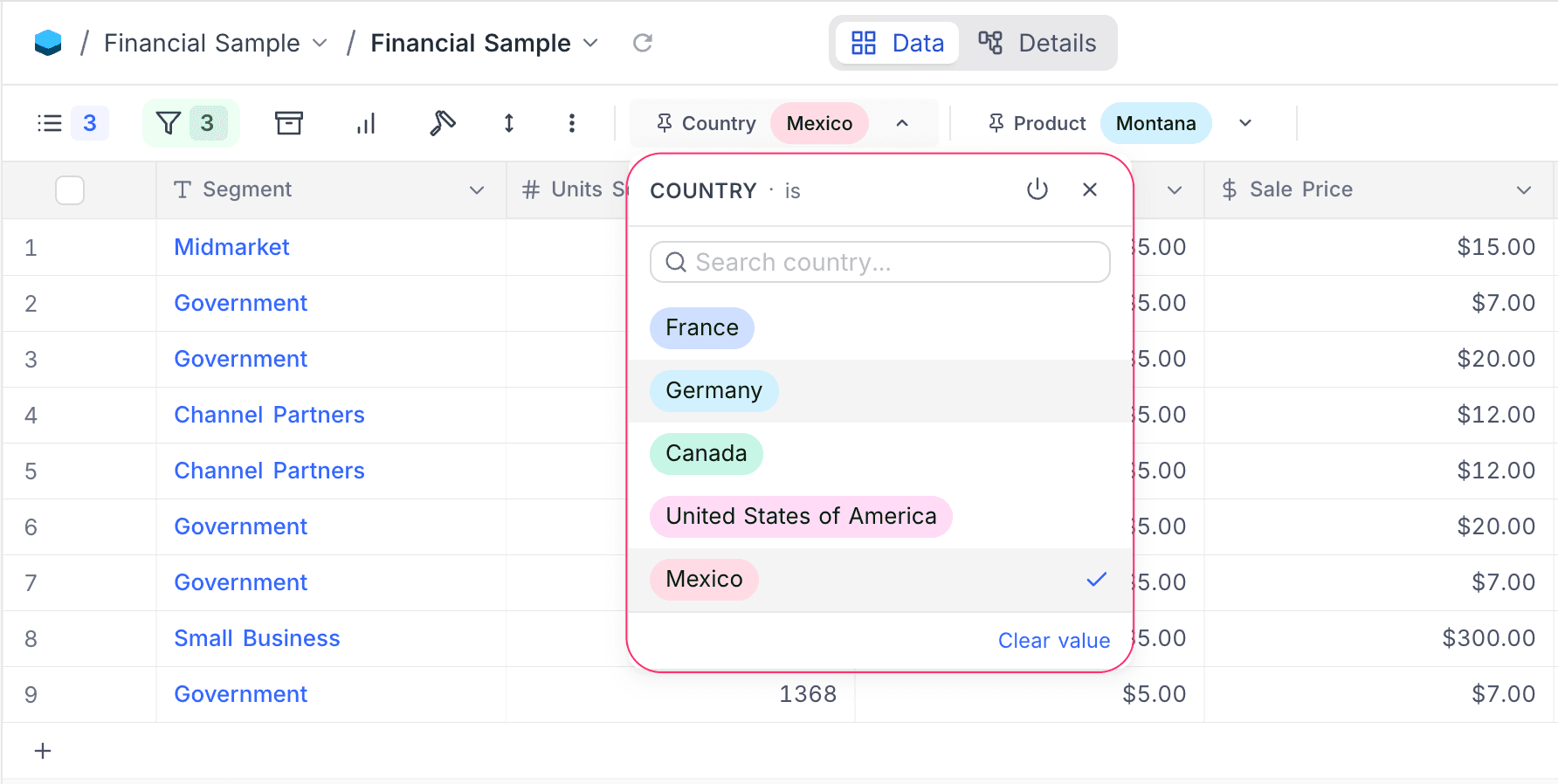
Click a pinned filter pill to open a dropdown panel in the toolbar. In the panel, you can:
- search for values
- select or clear options; NocoDB applies the changes to the view immediately
- click Clear value to reset the filter
Each pill has a toggle icon. Click it to enable or disable the filter without opening the filter menu.
Negated operators
When a pinned filter uses a negated operator (for example, is not or is not any of), the pill shows a diagonal strikethrough line over the selected values. This line helps you see at a glance which filters include values and which filters exclude them.
Supported field types
You can pin filters on these field types:
- Single Select
- Multi Select
- User
- Created By
- Last Modified By
Limitations
- You can pin only one filter for each field. If a field already has a pinned filter, you cannot pin other filters on the same field.
- You cannot pin filter groups. You can pin only individual filters.
Filters for editor role
Editors have full control over filters on views that they can write to: collaborative views and their own personal views. Like creators, they can add, edit, delete, toggle and pin filters.
Some views editors cannot write to: locked views and other users' personal views. On these views, the filter popup shows the saved filters of the view as one read-only list. The "+ Add filter" button is hidden. The edit, delete, toggle and pin controls on each row are also hidden. If the view has no saved filters, the popup shows the empty state "No filters applied".
In publicly shared views, you can use the filters and sorts in the toolbar, but they are not persisted. They reset when you open the shared view again.
Enabling NULL and EMPTY filters
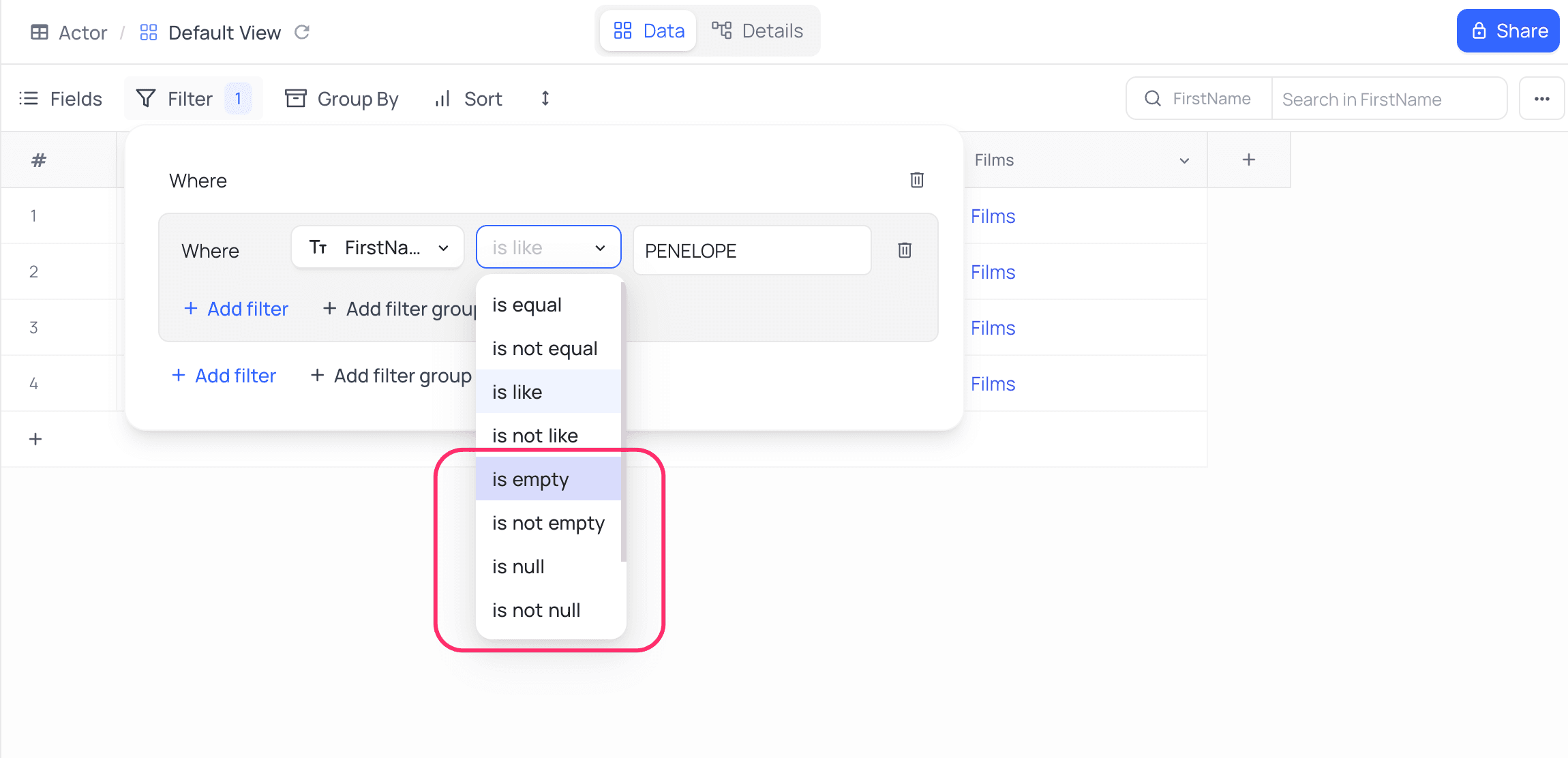
By default, the filter menu hides the filters is null, is not null, is empty and is not empty. To use them, go to Data display and enable Show NULL and EMPTY in Filter.
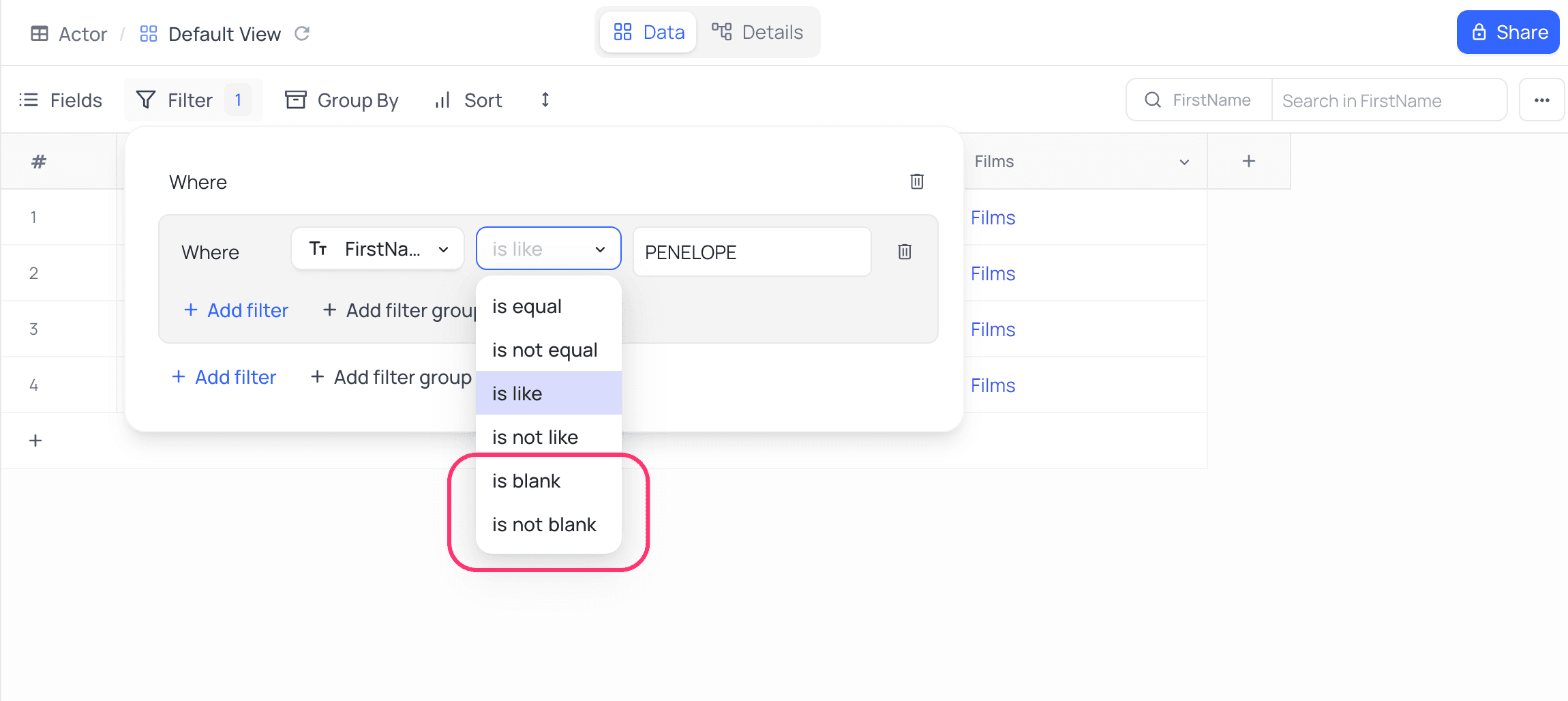
Before you enable the setting:
After you enable it, the menu shows more options, for example is null and is empty. Use them to filter out cells with NULL or empty values.
You can also use the is blank and is not blank filters. They handle both NULL and EMPTY values in one filter.
Related
- Filter records using AI: describe the records you want and NocoAI sets up the filters
Last updated on