Notifications
Notifications in NocoDB tell you about important updates, invitations and activity in your bases and workspaces. You can manage and track all your notifications in one place.
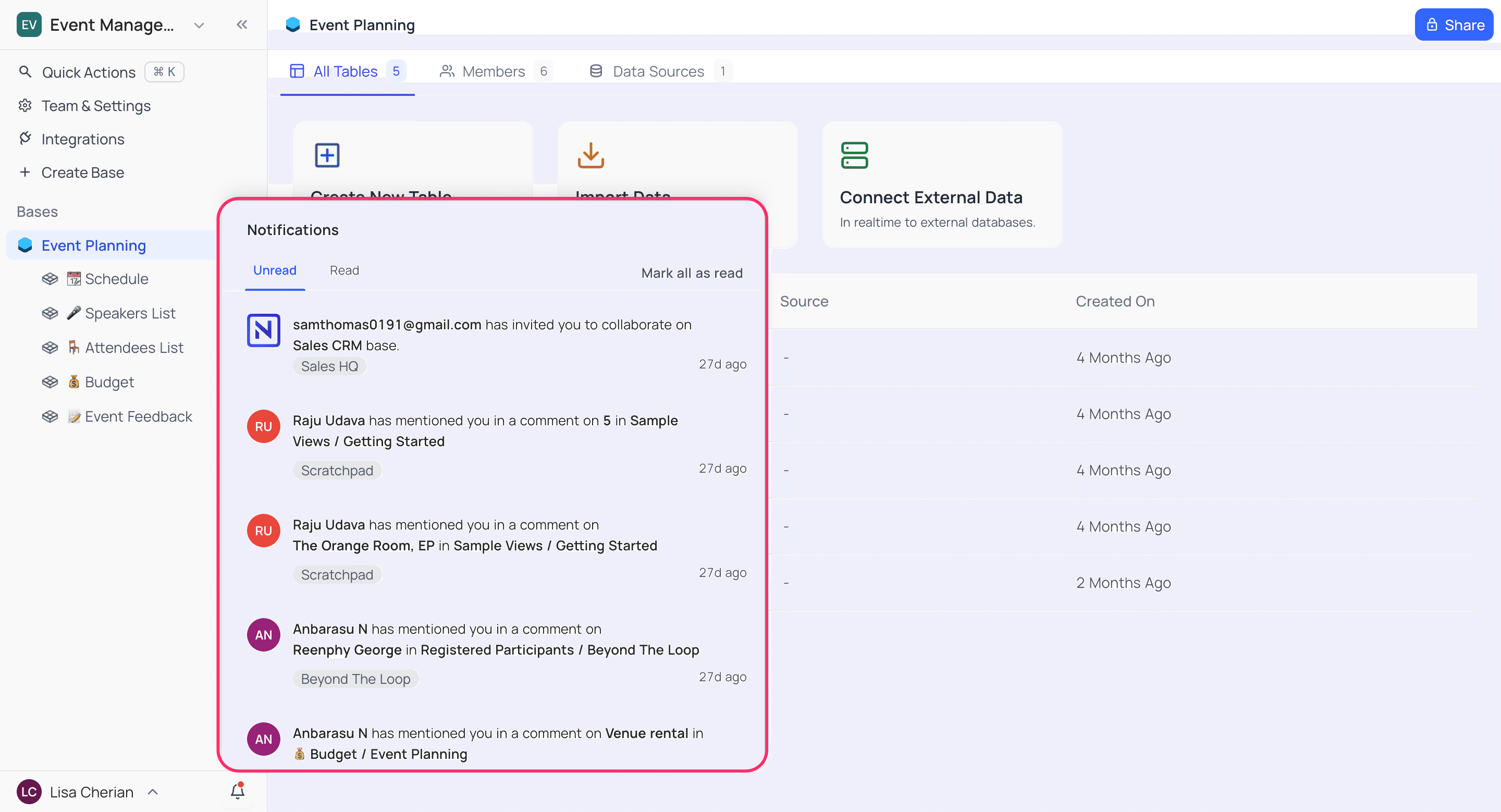
Notification Center
To open the Notification Center, click the bell icon at the bottom of the sidebar. A menu opens and shows all your recent notifications. You get a notification when:
- Someone mentions you in a comment.
- Someone comments on a record that you subscribe to.
- Someone invites you to a workspace.
To be notified about every comment on a record, not just @mentions, subscribe to the record with the comment notification bell in its expanded view.
A red dot on the bell icon indicates that you have new, unread notifications. This visual cue helps you quickly identify when there's something new that needs your attention
Unread and Read Notifications
Notifications are in two sections:
| Section | What it shows |
|---|---|
| Unread | All notifications that you did not see yet. |
| Read | Notifications that you already saw. |
Mark as Read/Unread
You can change the status of your notifications:
| To | Do this |
|---|---|
| Mark as Read | Move the pointer over an unread notification and click the checkmark. To mark all notifications as read, click "Mark all as read" at the top of the menu. |
| Mark as Unread | Move the pointer over a read notification, click the ⋮ menu, and select 'Mark as Unread'. The notification moves back to the 'Unread' section. Use this to see a notification again later. |
Delete Notifications
To delete a read notification, click its ⋮ menu and select 'Delete'. The notification does not show in your list after you delete it. This lets you keep only the information that you need.
Related
Last updated on
Latest product updates?See Changelog