Workspaces
A workspace in NocoDB is where you organize and manage your data with other people. A workspace contains one or more bases. Each base keeps related tables, views and other elements together. To control access, give roles to workspace members.
In a workspace, you can:
- Invite team members to work with you.
- Assign roles to control access.
- Rename or delete the workspace.
Workspace home
When you open a workspace, its home page opens. The left sidebar is the navigation for the workspace:
| Sidebar item | What it does |
|---|---|
| Workspace switcher | Shows at the top of the sidebar, with the active workspace and its plan. Open it to see the workspace ID, go to a different workspace or create a new workspace. |
| Bases | Shows all bases in the workspace, with a count. |
| Invite Members | Shows the members and teams that have access to the workspace, with a member count. |
| Teams | Lets you create and manage teams. |
| Integrations | Shows connections to external systems. |
| Settings | Workspace administration, in the tabs General, Billing, Audits and Single Sign-On (SSO). |
The top bar shows a Workspace / Page breadcrumb and a search box. The search box filters the bases in the workspace. To open the command palette from the search box, press ⌘ K (Ctrl K on Windows).
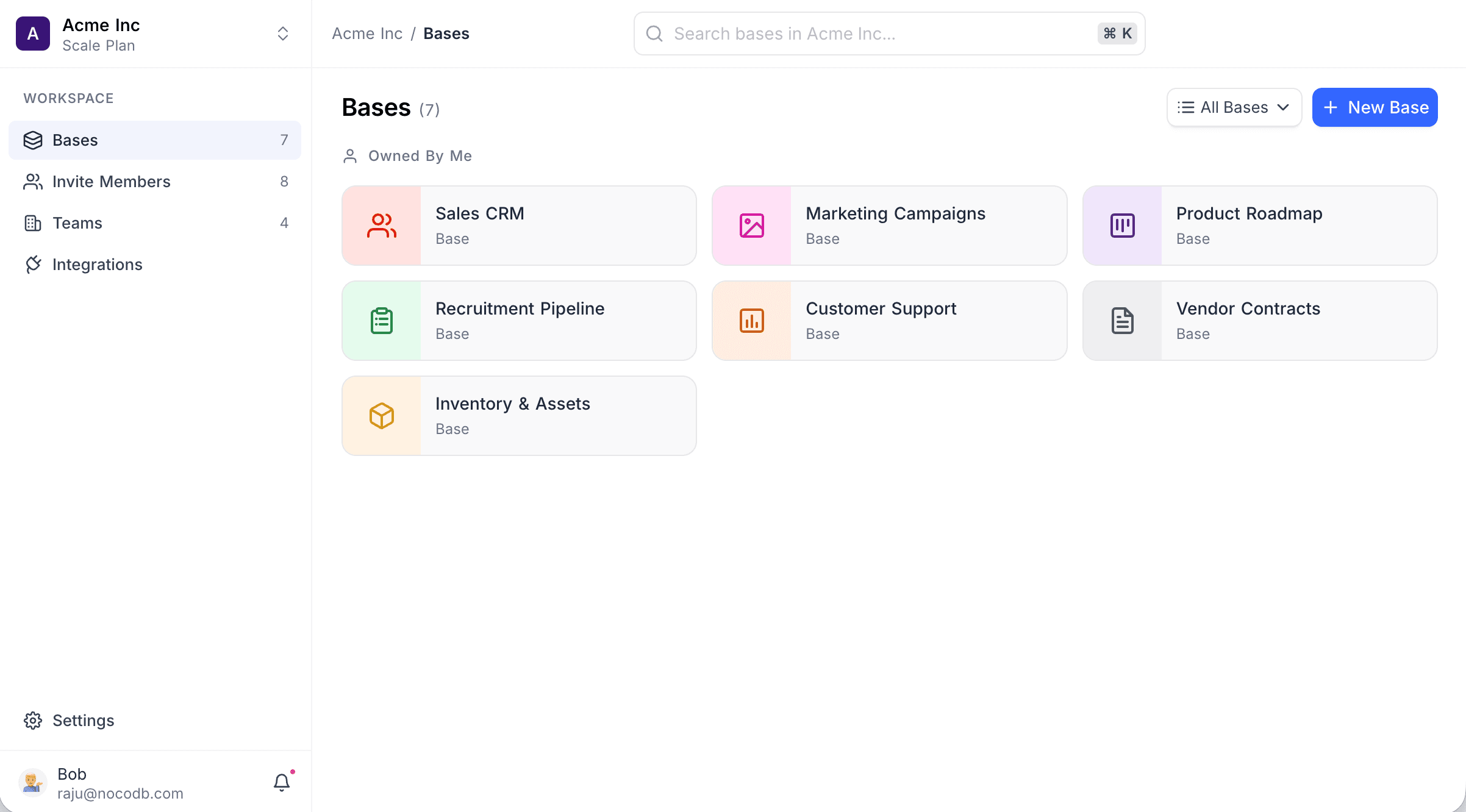
Sidebar items vary by your role, plan, and edition. On self-hosted Community Edition the sidebar shows only Bases, Invite Members, and Integrations; Teams, Settings, and the workspace switcher are not available.
Availability
- All users get a default workspace. Your subscription plan controls if you can create more workspaces. For the features of each plan, refer to the pricing page.
Last updated on
Latest product updates?See Changelog