Upload & Download
NocoDB lets you export data from the spreadsheet grid in several formats. Use the Filter and Sort features with the export to refine your data.
Download Data
To export data from NocoDB as CSV:
- In the toolbar, click the
:icon. The menu of additional table operations opens. - Select Download.
- Select CSV as the file format.
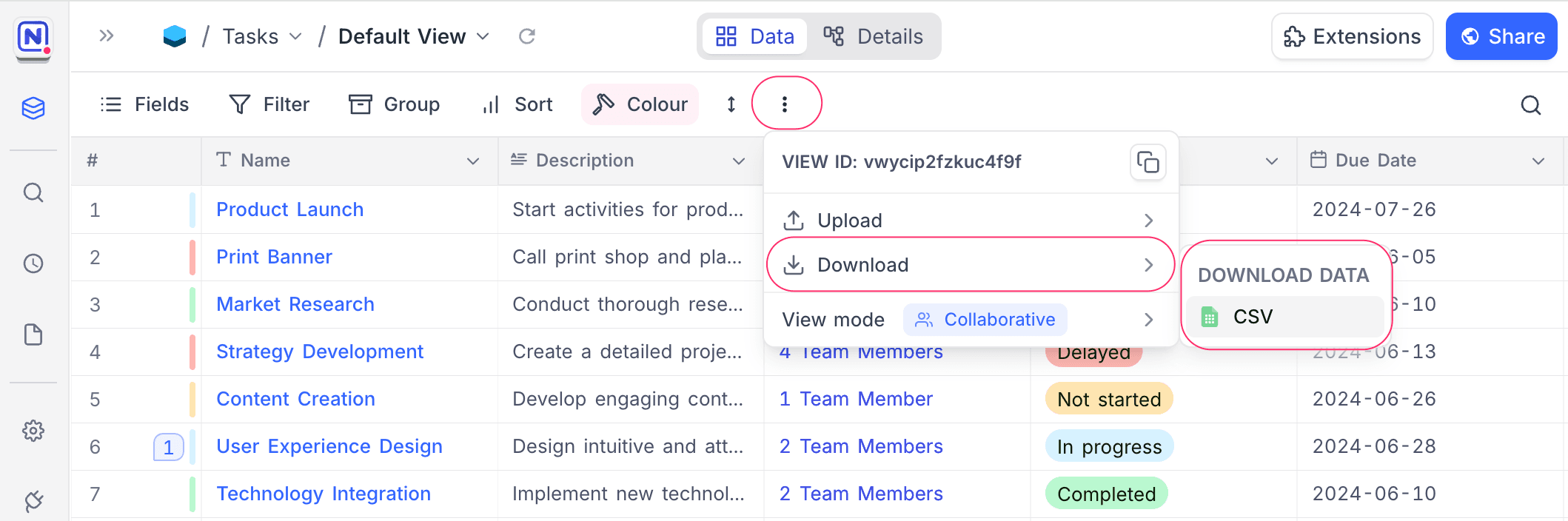
The Download menu has three formats: CSV, JSON and Excel.
Numeric fields in Excel exports
Currency and Decimal fields export to Excel as numbers, not as text. You can sum, sort and chart these cells directly in the spreadsheet.
- The cell number format of each column uses the currency symbol, decimal precision and thousands separator of the field.
- The cell holds the stored value, not the rounded display value.
A Lookup that resolves to a single record of a Currency or Decimal field exports in the same way. A Lookup that returns several records is joined into one text cell.
CSV and JSON exports write currency amounts without a thousands separator. Number and Decimal fields use the same format.
iCalendar (.ics) export
When the active view is a Calendar view, the Download menu shows one more option: iCalendar (.ics). It appears with CSV, JSON and Excel. Select it to export the events of the view as a standard iCalendar (RFC 5545) file. You can import this file into external calendar applications, for example your desktop or mobile calendar.
Each exported event includes a link back to its source record in NocoDB.
Upload Data
To upload data into NocoDB, import CSV files directly into your tables. For more information, refer here.
FAQ
-
I'm having trouble exporting data. It says the pop-up window is blocked.
This problem comes from the browser, not from NocoDB. If you use Chrome, follow these instructions to unblock pop-ups.
Last updated on