Sorting Records

Sorting arranges your data in order:
| Field type | Sort order |
|---|---|
| Text based types | Alphabetical, (A → Z) or (Z → A) |
| Numerical types | Ascending or descending |
NocoDB supports nested sorting. You select the fields and the order in which NocoDB applies them.
Copy a prompt, paste it into NocoAI in any base, and replace the words in [brackets] with your own.
- Sort this view by [Due Date], earliest first
- Sort this view by [Priority], then by [Created] with the newest first
- Remove all sorts from this view
Add or edit sort
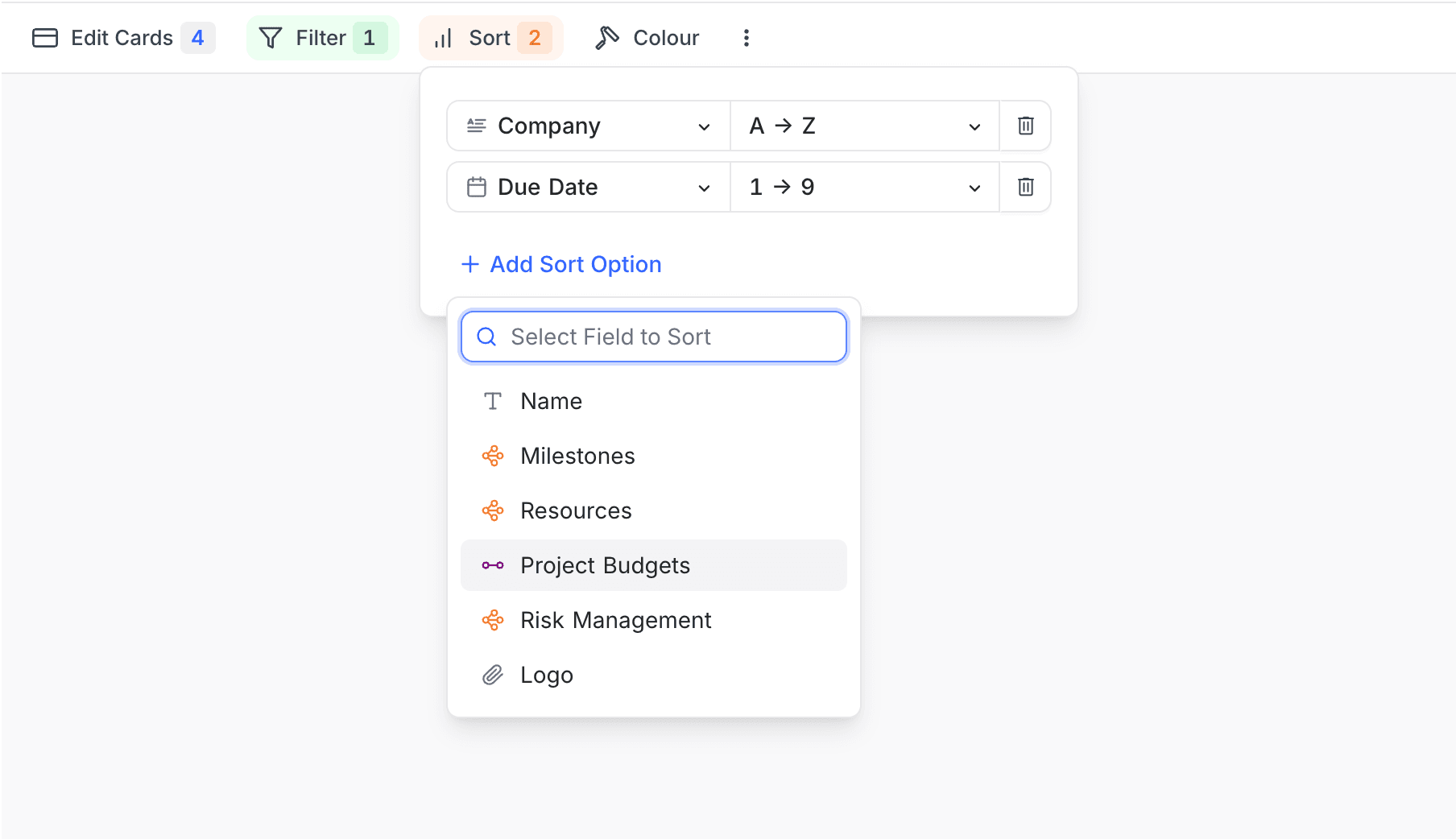
- In the toolbar menu, click
Sort. - Select the
Fieldto sort by. - Set the sort
Direction: ascending or descending. - To sort by more fields, use
+ Add Sort Option.
Enable or disable a sort condition ☁
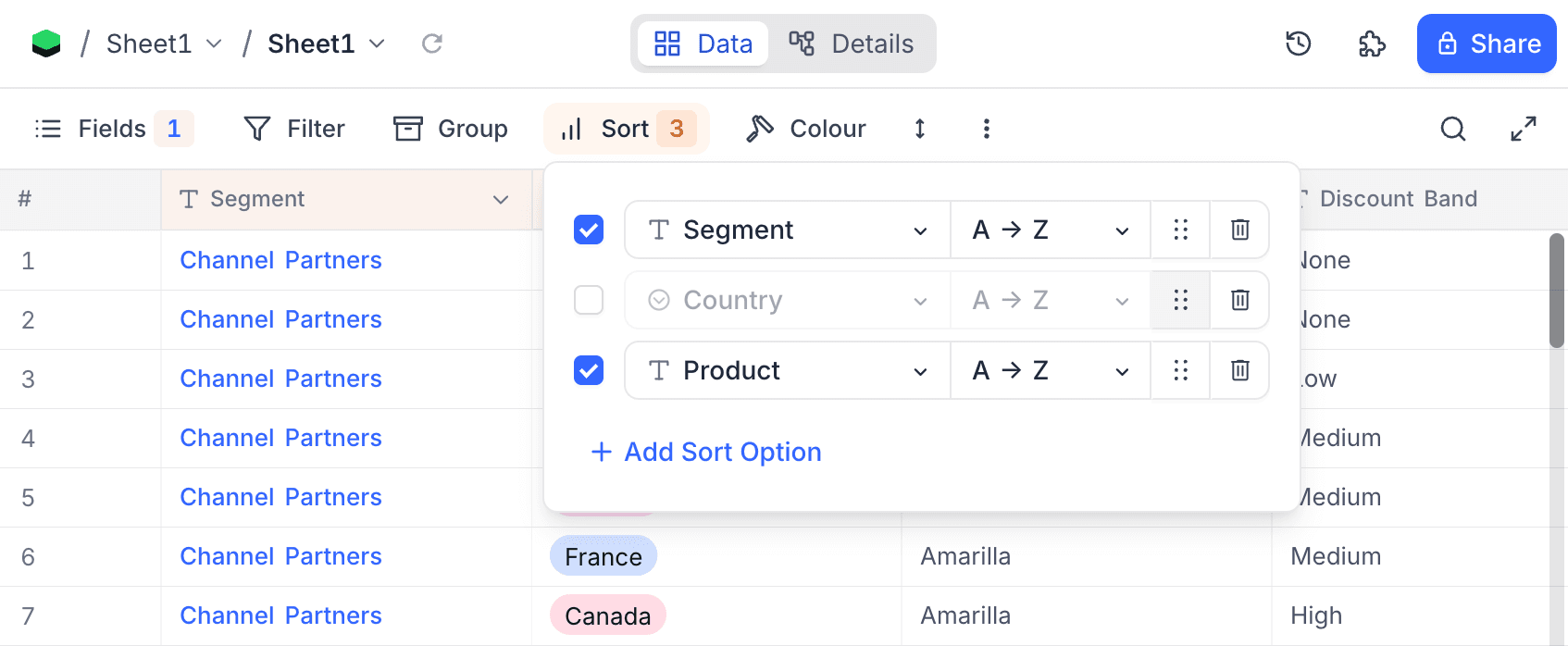
Each sort condition row has a checkbox. Use it to turn the condition off or on without deleting it. Disable a condition to remove it from the sort for a time. Enable it again later to restore the same configuration. In the example below, the Country sort is disabled, and Segment and Product stay active.
Reorder sort conditions ☁
Each sort condition row has a drag handle (the dotted icon next to each row in the image above). Drag a row up or down to change the priority of your sort conditions. NocoDB applies the topmost condition as the primary sort.
Delete sort
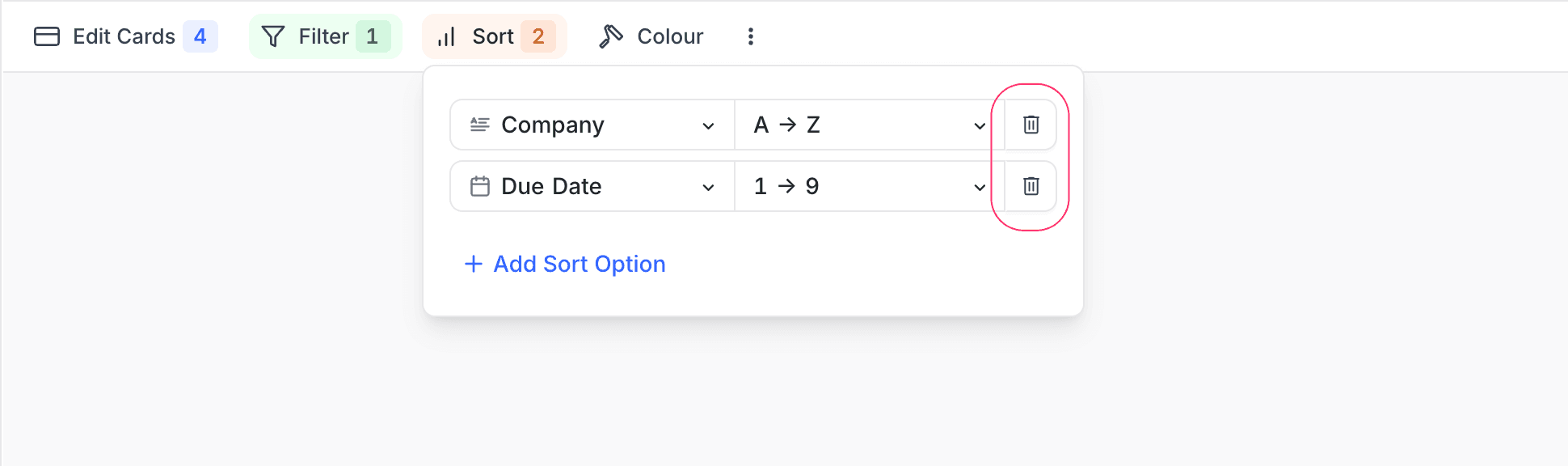
- In the toolbar, click
Sort. - Click the trash / bin icon to the right of the sort to delete.
Last updated on