Hide & Reorder Fields
Use the Fields button in the toolbar to:
- show or hide fields
- change the field order
- change the cover image in Gallery and Kanban views
- show or hide system fields
- add a new field
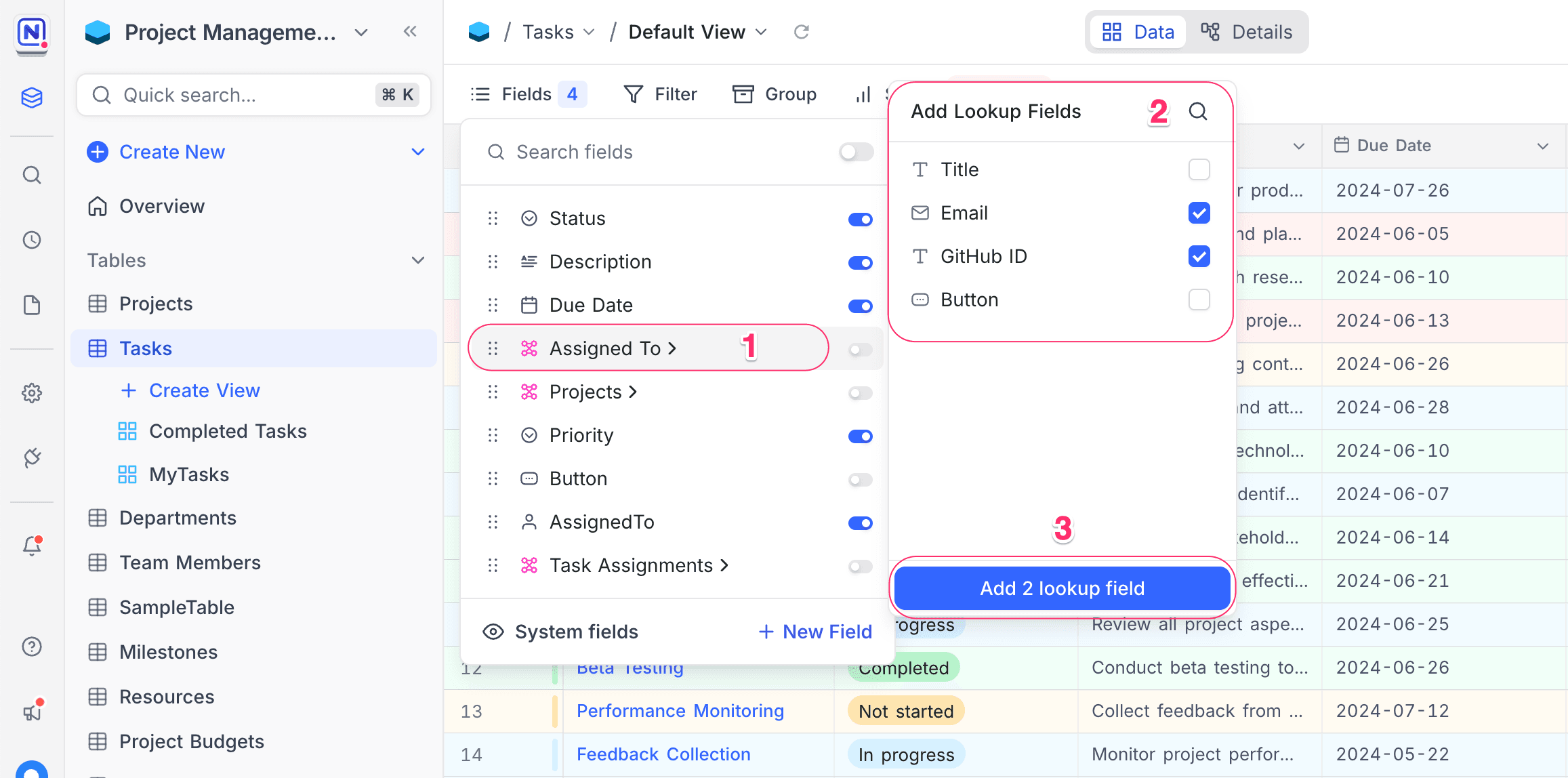
- add a lookup field from an existing relational field

Copy a prompt, paste it into NocoAI in any base, and replace the words in [brackets] with your own.
- Hide [Notes] and [Created By] in this view
- Show only [Name, Status and Owner] in this view
- Show all hidden fields in this view
Show / hide fields
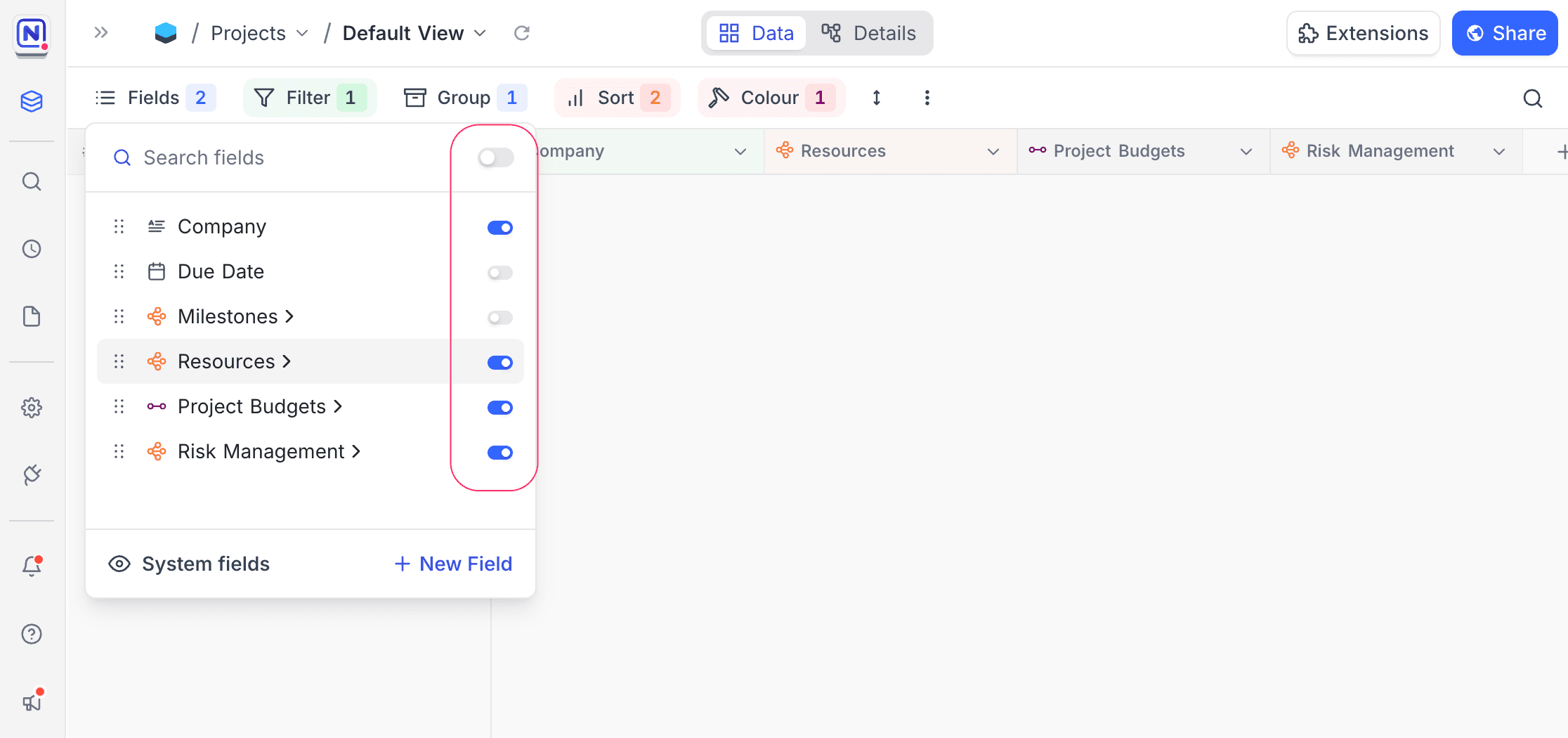
To show or hide a field, open the Fields menu. Then click the toggle next to the field name.
Rearranging fields
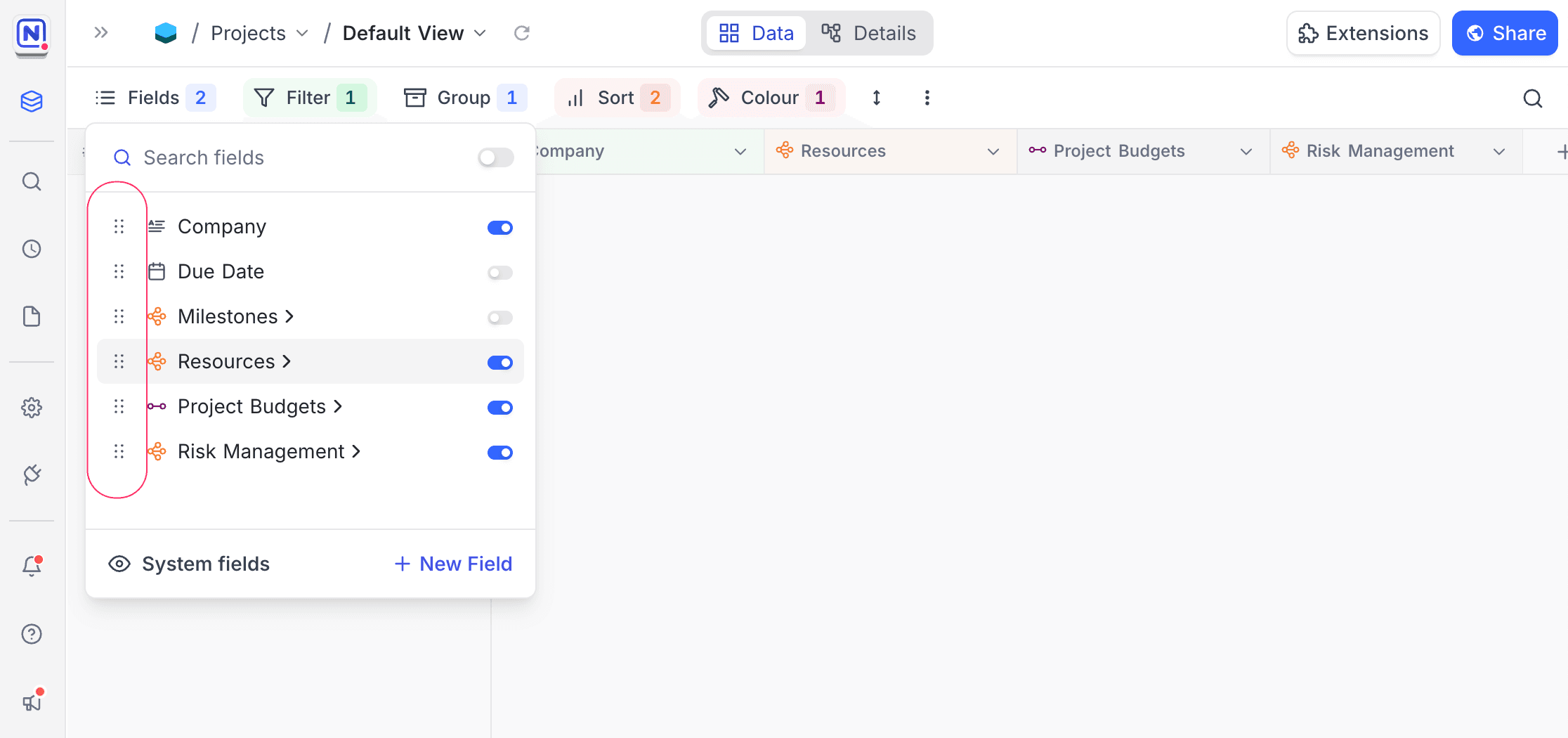
To change the position of a field, open the Fields menu. Then drag the field with the ⋮⋮ (drag icon) next to its name.
Show / hide system fields
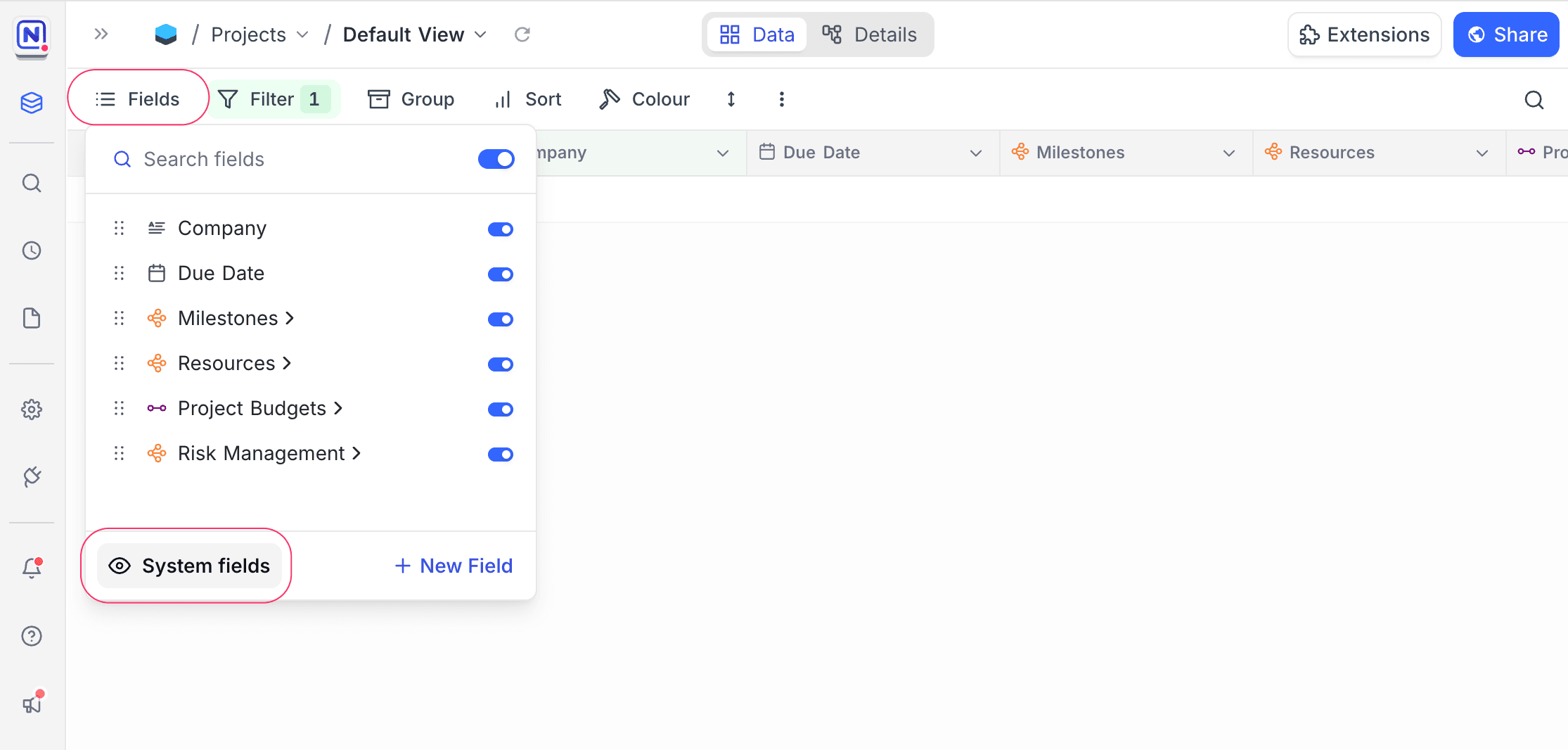
System fields are hidden by default. To show them, select Show system fields.
Change cover field
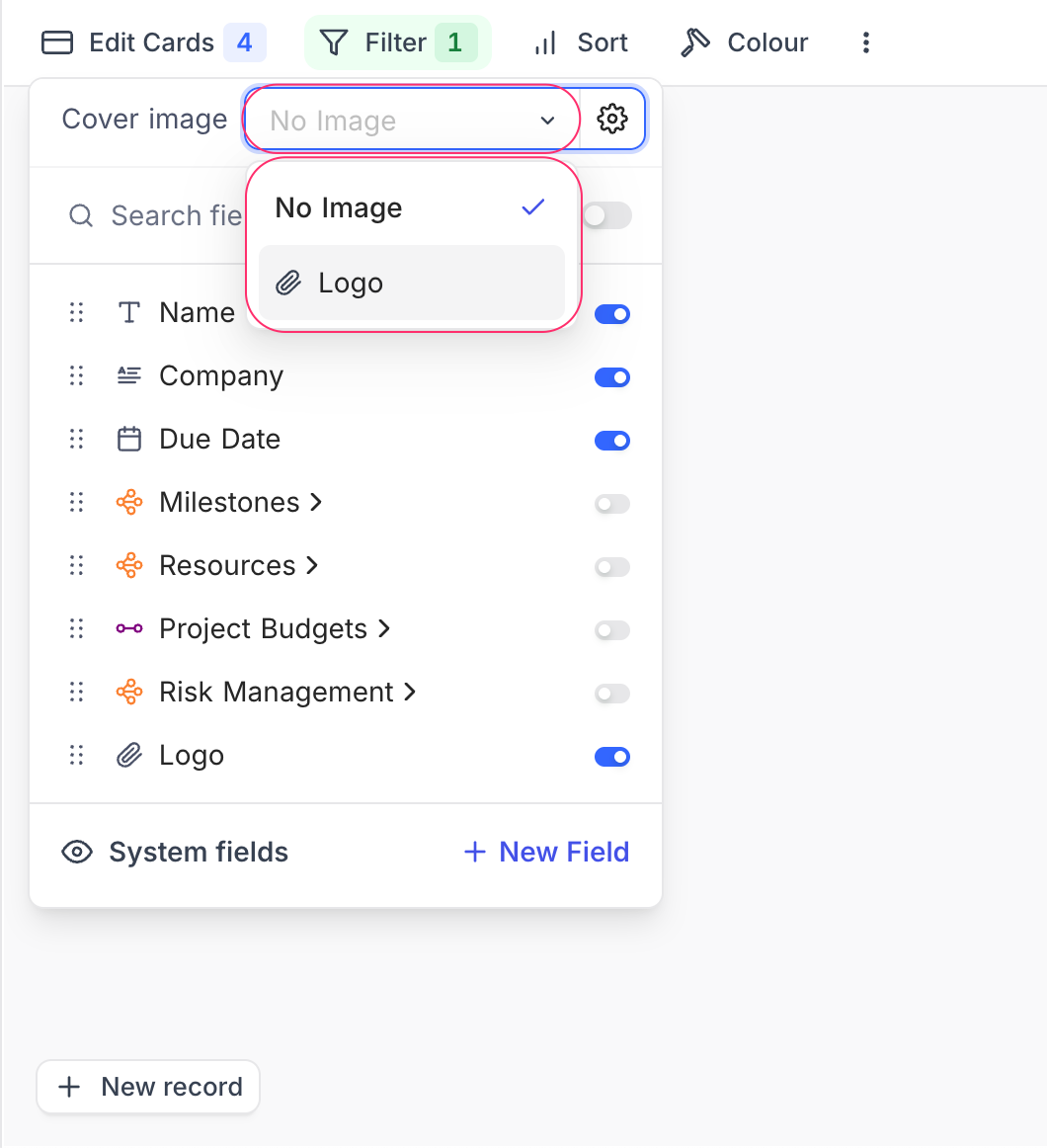
In Gallery and Kanban views, you can change the cover field.
- Open the
Edit Cardsmenu. - Click the
Cover imagefield.
Only Attachment fields can be cover fields. To change how images show, for example Fit image or Cover image, use the Settings button in the same menu.

Add new field
To add a new field, click + New Field at the bottom of the Fields menu. The field creation modal opens. Select the field type and configure its properties.
Add lookup field using existing relational fields
To add a lookup field from an existing relational field:
- In the
Fieldsmenu, click the relational field. A modal opens. - Select the target field for the lookup.
- Click
Add n lookup field(s).
Hide field labels ☁
In Gallery and Kanban views, you can hide the field labels (headers) on each record tile or card. The card layout is then cleaner and more compact. This is useful when you scan cards visually.
Steps
Open the Gallery or Kanban view.
- In the view toolbar, click the More options (⋮) menu.
- Select Hide field header or Show field header.
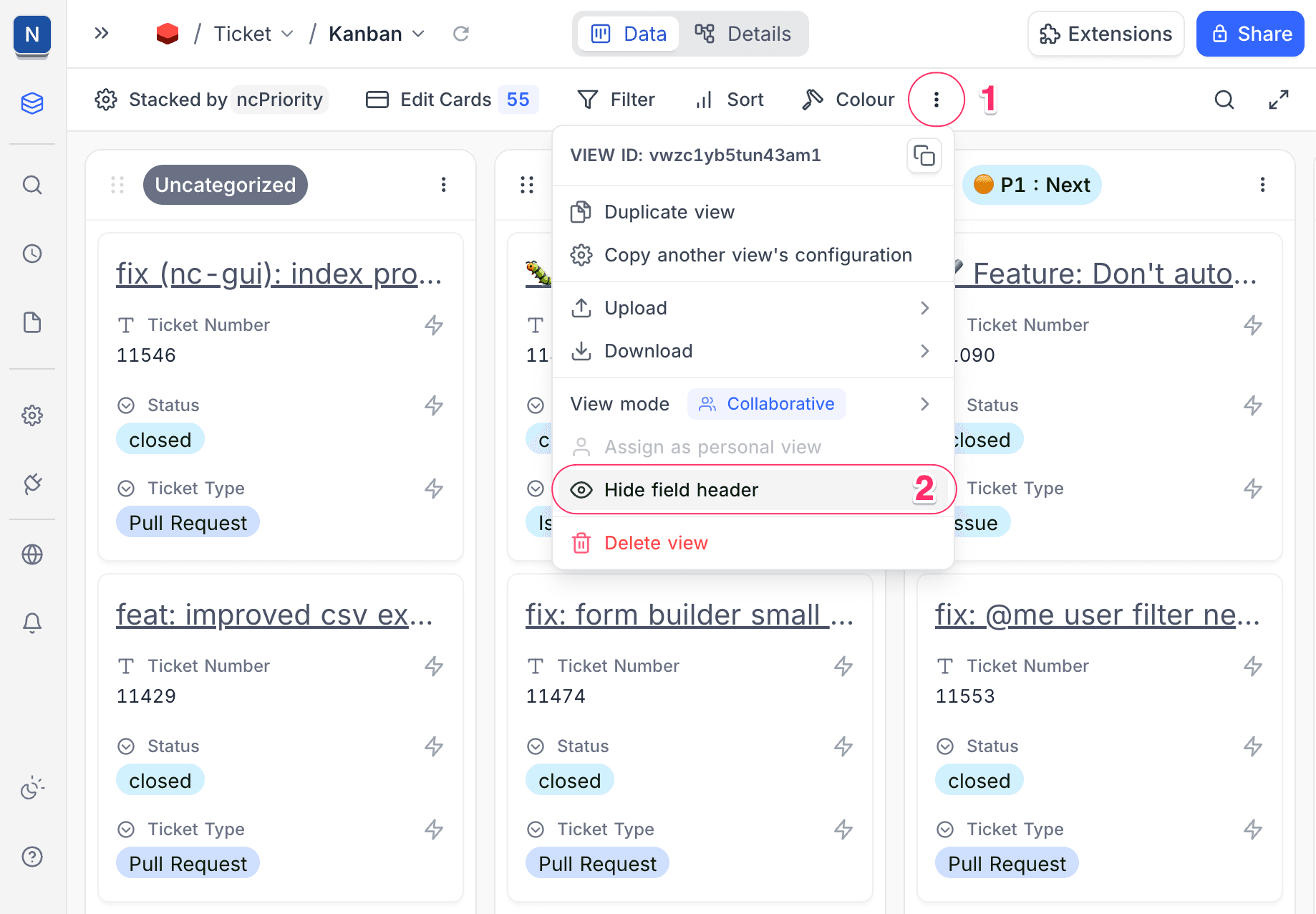
When the setting is on, the record tiles and cards show only field values. Field names (labels) are hidden.
Last updated on