Colouring Records
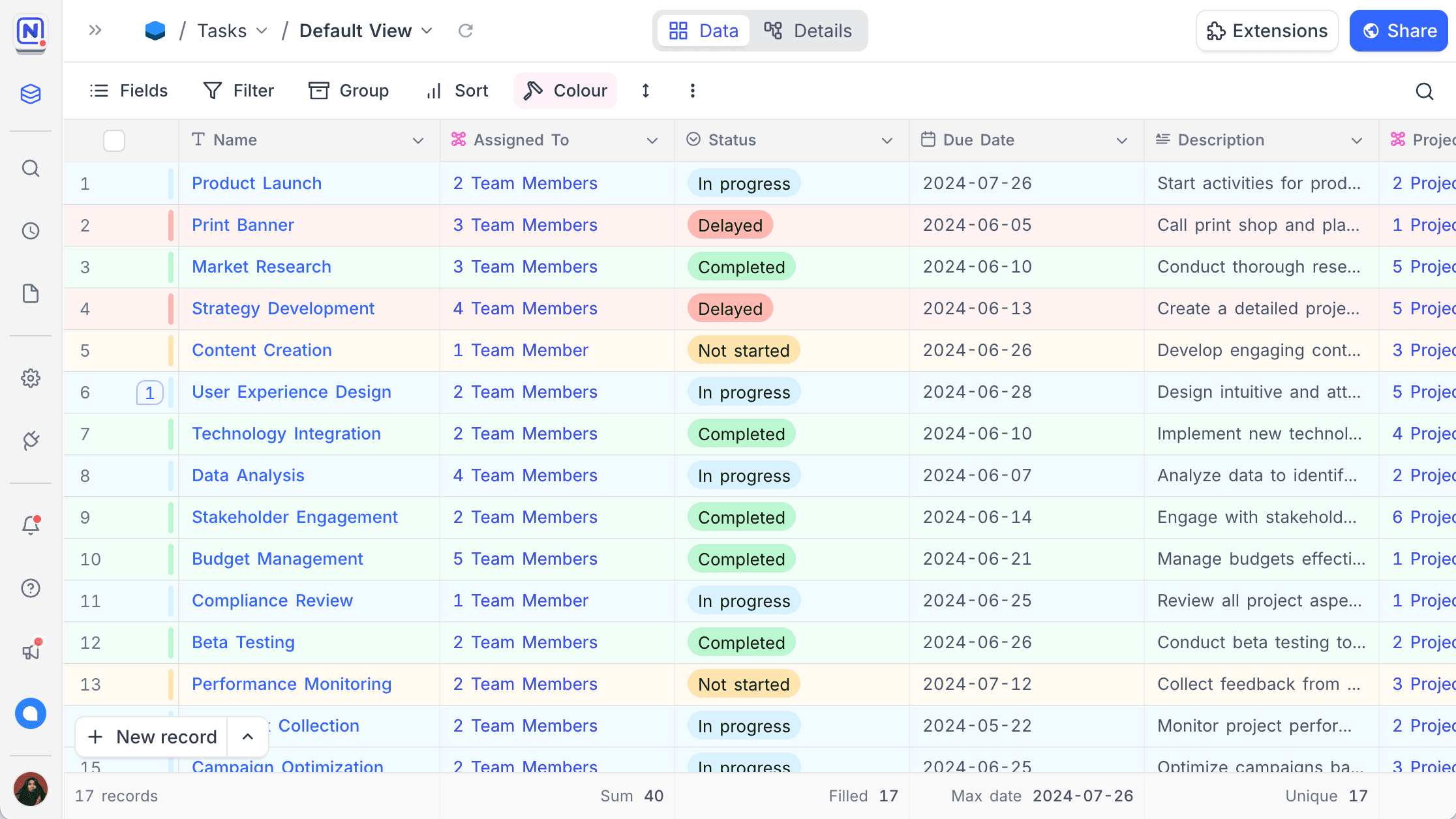
In NocoDB, you can apply colors to records in a table to show differences between them by specific criteria. Use colors to highlight important information or to put records into categories. Record coloring is available for Grid, Gallery, Kanban & Calendar views.
Coloring based on conditions has two modes:
| Mode | What it colors | Plan |
|---|---|---|
| Row colouring | The entire record | Plus plan and higher |
| Cell colouring | A specific field in the record | Business plan and higher |
Coloring applies at the view level. A color configuration in one view does not affect the same record in another view.
Copy a prompt, paste it into NocoAI in any base, and replace the words in [brackets] with your own.
- Create a view that colours rows red when [Due Date] has passed
- Create a view that colours rows by [Priority]
- Create a view that highlights records where [Status] is [Blocked]
Add record colour
To open the record coloring options, click the Colour button in the toolbar of any table view.
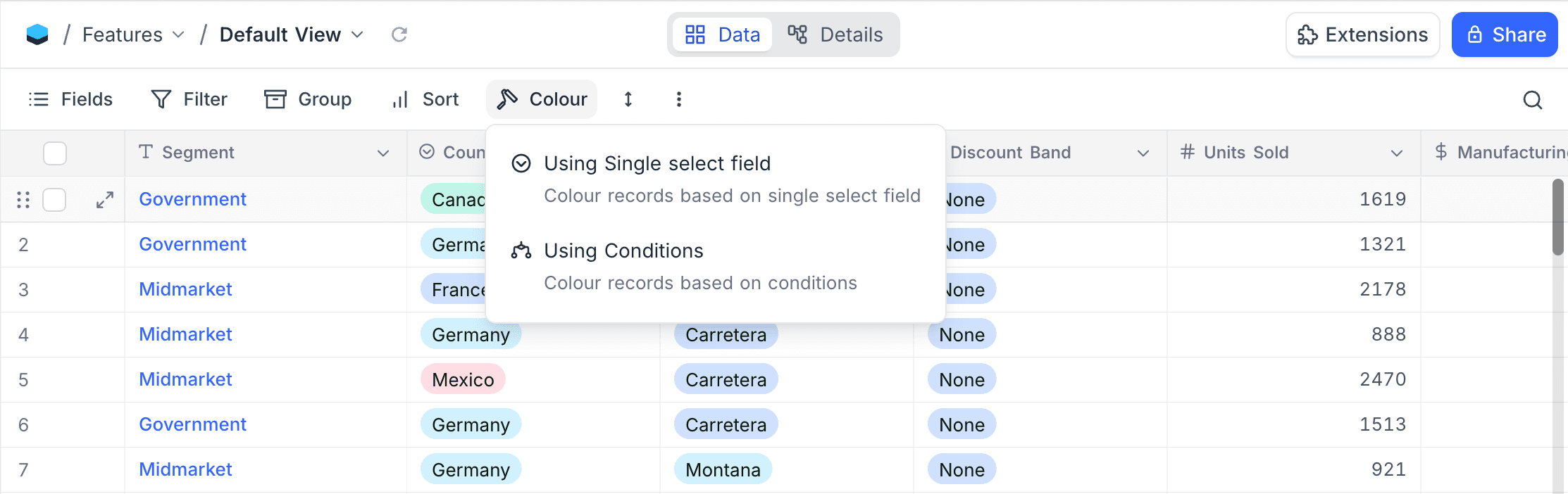
You can color your records based on:
- Single select field
- Conditions
Based on single select field
To color records based on a single select field:
- In the toolbar, click
Colour. - Select
Using Single select field. - From the dropdown menu, select the single select field to use for coloring.
Each record gets the color of its selected option in that field. Records without a value in the selected field are not colored. You cannot change this behavior.
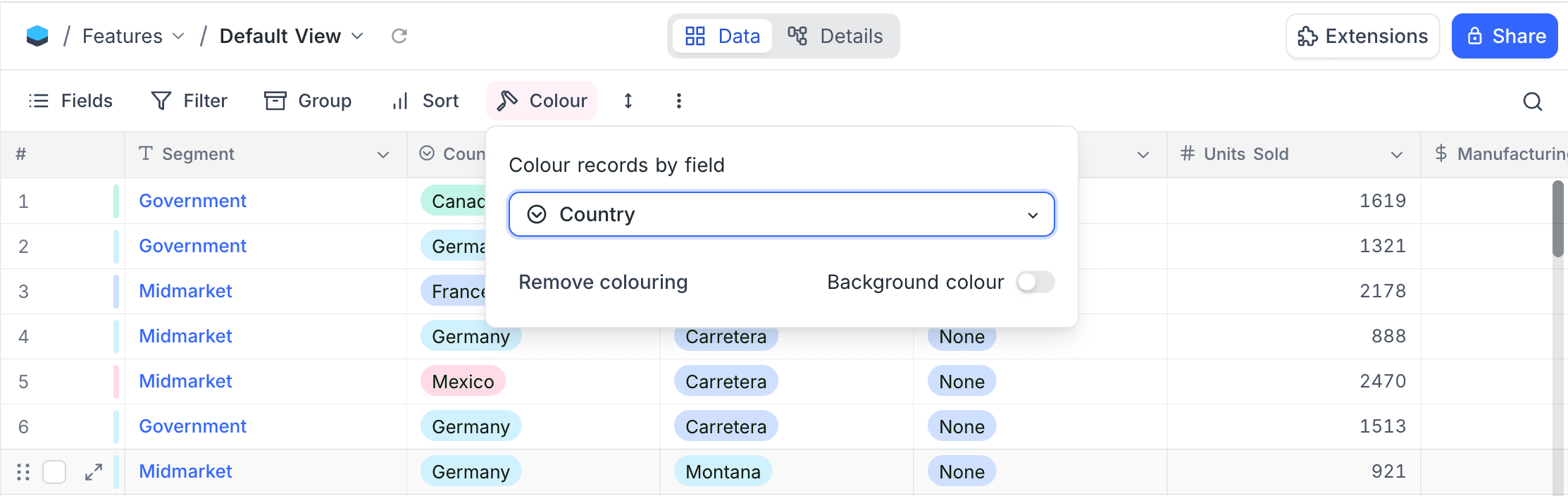
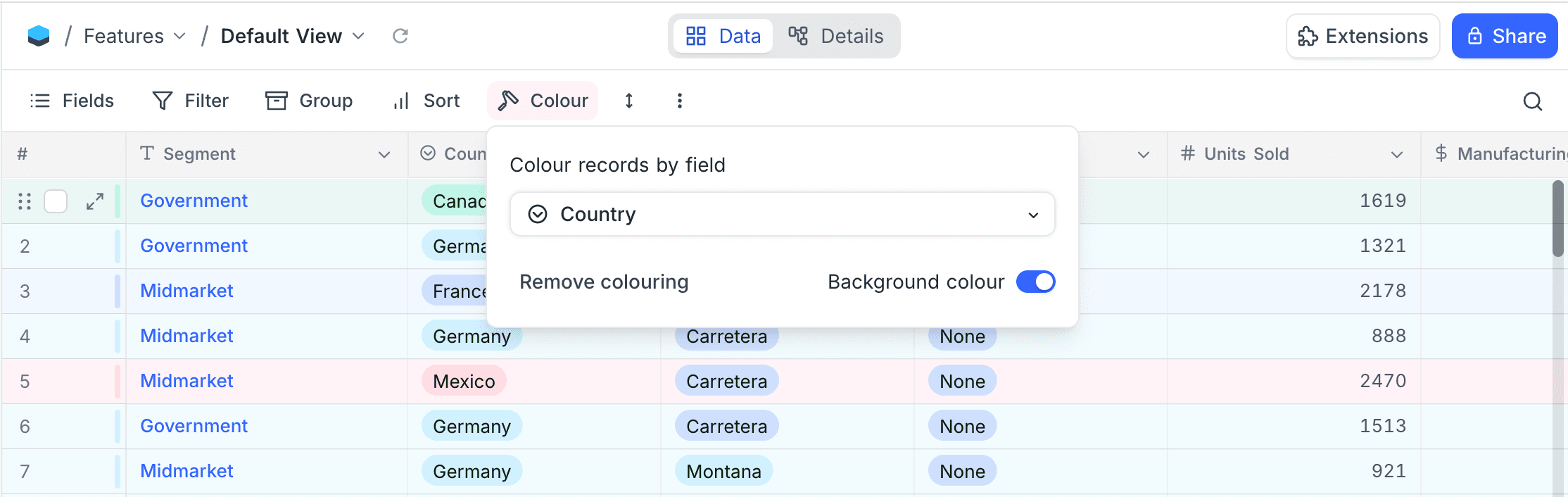
By default, row coloring applies a left border to the records in the table view. To also apply a background color to the records, turn on the Background colour option.
Based on conditions
To color records based on conditions:
- In the toolbar, click
Colour. - Select
Using Conditions. - In the color picker, select the color to apply.
- In the dropdown next to the color picker, select the coloring mode:
RoworCell. - If you selected
Cell, select the target field in the field dropdown that appears. - Configure the conditions for coloring.
You can add multiple conditions to color records by different criteria. NocoDB evaluates the conditions in the order that you add them. The first matching condition will determine the colour of the record or cell.
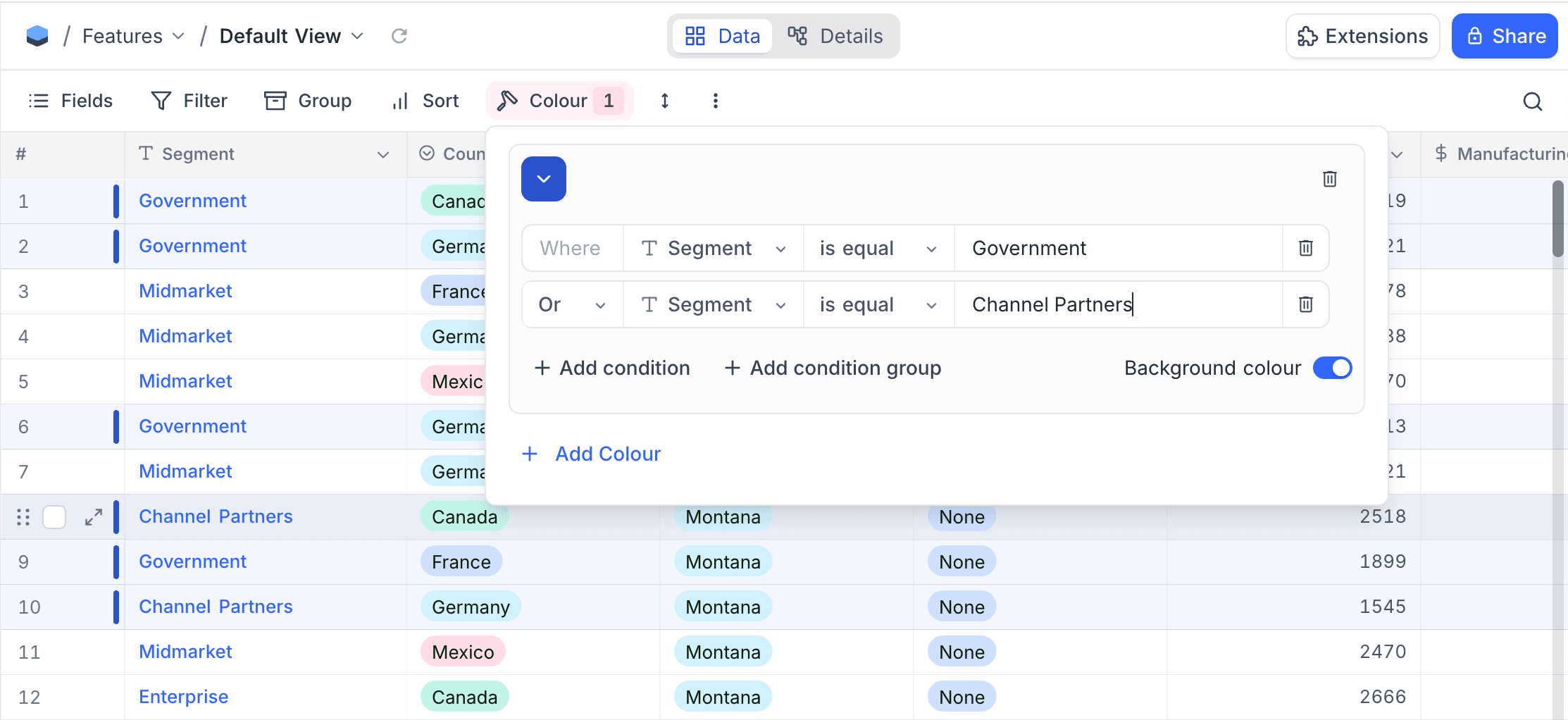
Row colouring
When the coloring mode is Row, the color applies to the entire record. This is the default mode.
By default, row coloring applies a left border to the records in the table view. To also apply a background color to the records, turn on the Background colour option.
Cell colouring
When the coloring mode is Cell, the color applies only to the field that you select. Use this mode to draw attention to one field value without coloring the entire row.
To configure cell coloring:
- In the coloring mode dropdown next to the color picker, select
Cell. - In the field selector that appears, select the target field.
- Configure the conditions.
- If necessary, turn on or turn off the
Background colouroption.
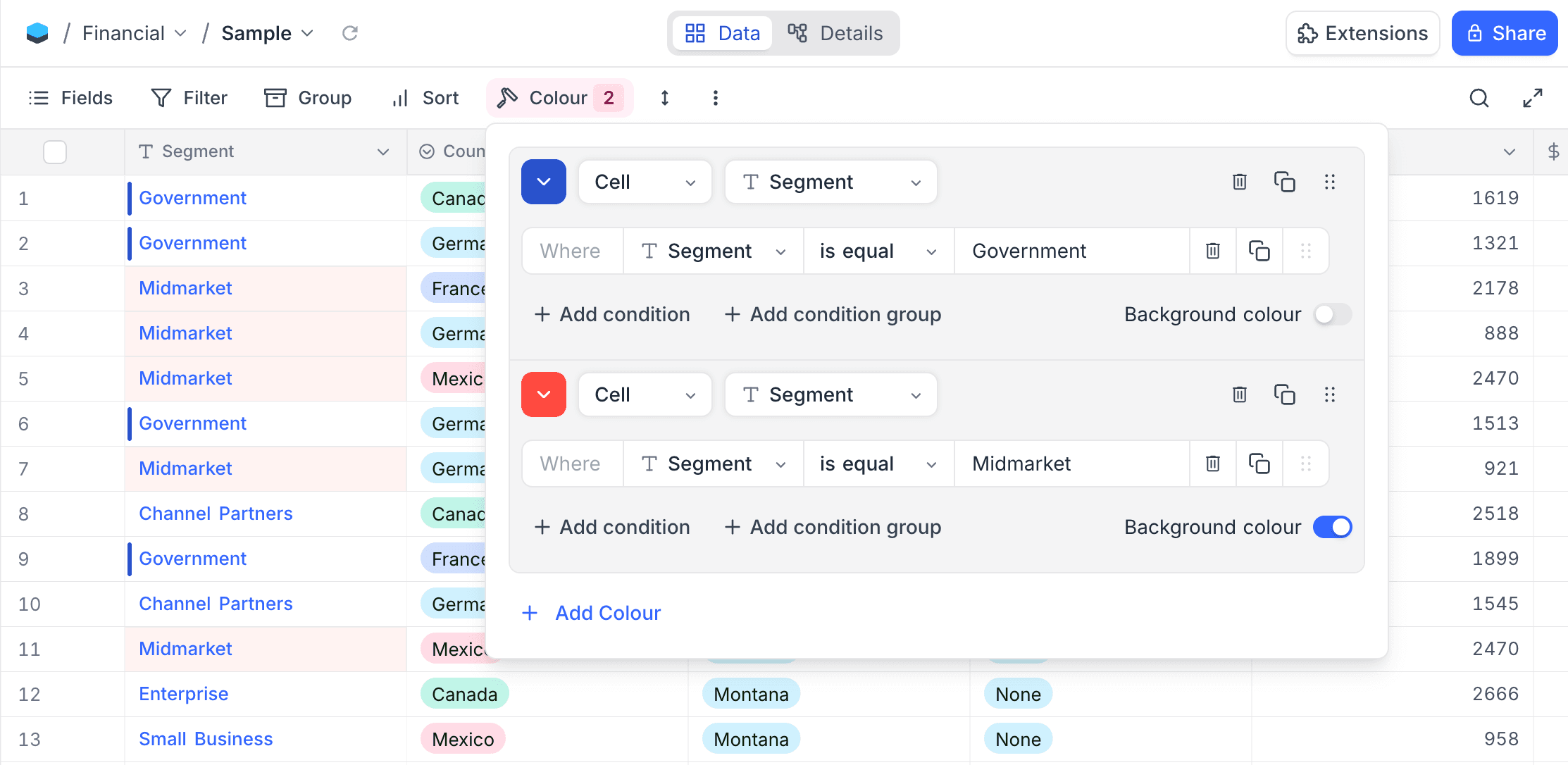
Background colour | Result |
|---|---|
| Enabled | The cell of the selected field is highlighted with the selected color. |
| Disabled | A vertical color indicator bar shows on the left edge of the field. |
Combining row and cell colouring
You can configure row and cell coloring conditions in the same view. You can set each condition to Row or Cell mode independently. When row coloring and cell coloring apply to the same record, the cell color has precedence over the row color for the target field. The other fields show the row color.
Modify record colour
- For coloring based on a single select field, change the color of each option in the single select field. Use the edit-field option.
- For coloring based on conditions, click the
Colourbutton in the toolbar. In the dropdown menu that opens, change the conditions, the coloring mode (RoworCell), the target field and the colors.
You cannot give a single select field option different colors in different views. The color of each option is the same in all views that use that field for coloring.
Remove record colour
To remove the coloring from records in a table view:
Single select field case
- In the toolbar, click
Colour. - Remove the conditions one at a time. Click the
deletebutton next to each condition.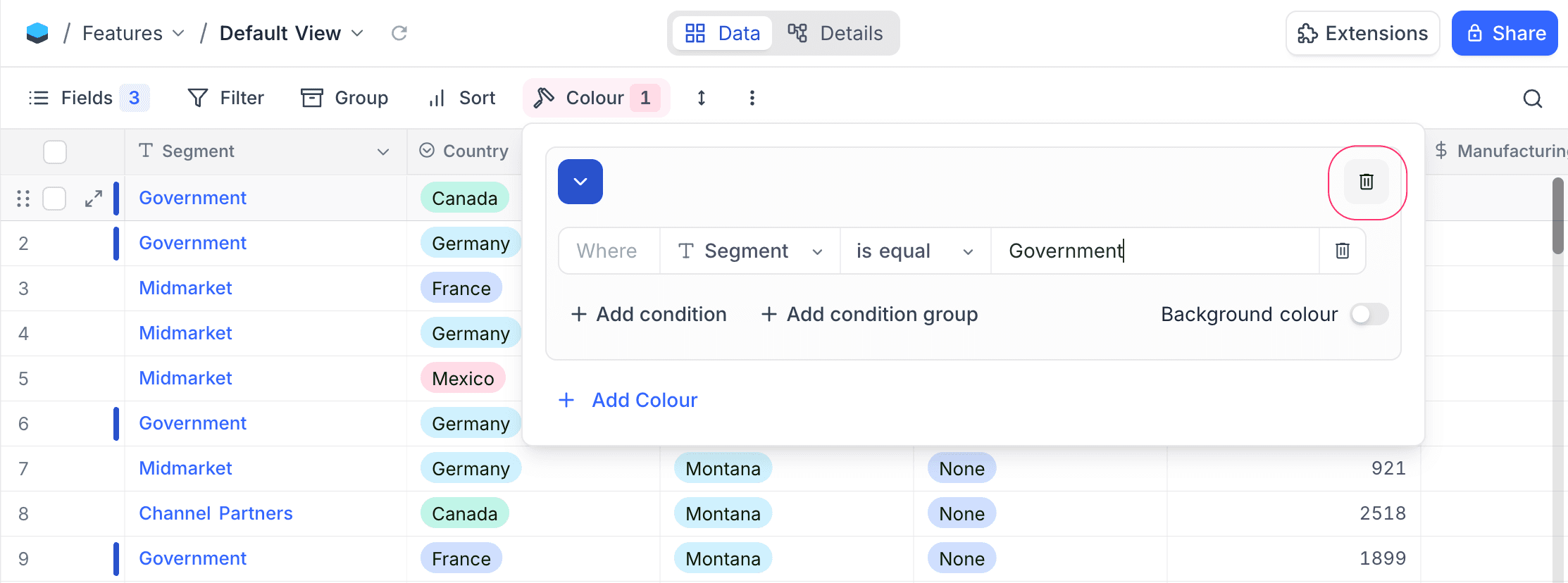
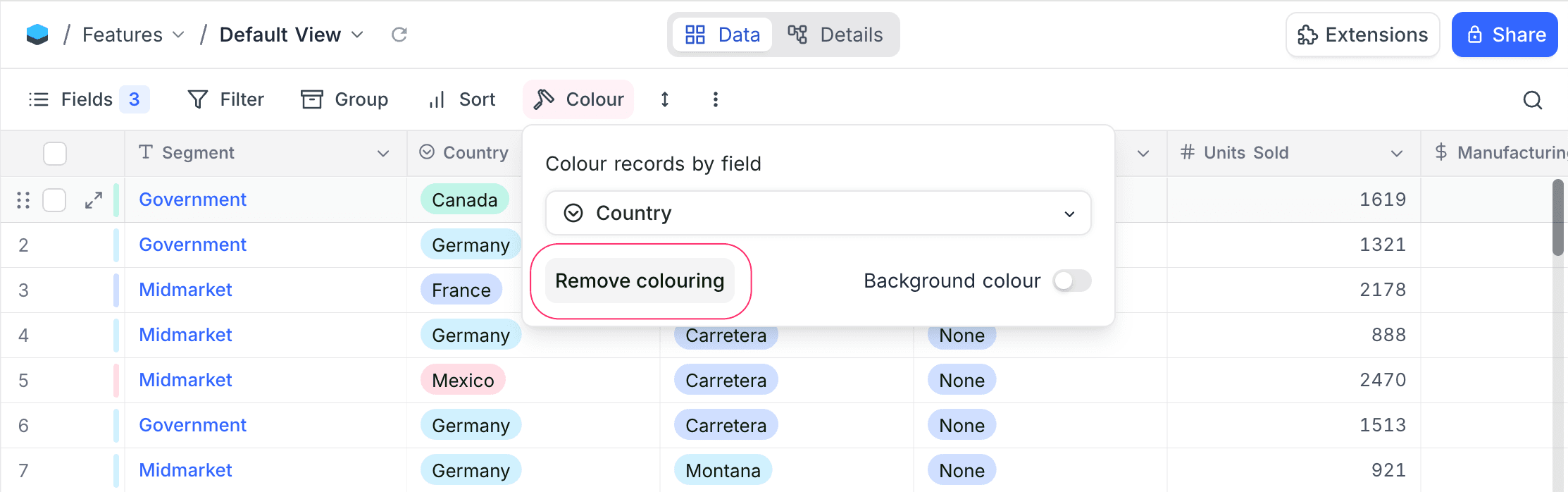
Conditions case
- In the toolbar, click
Colour. - In the dropdown, click "Remove colouring".
Availability
- Row coloring is available on NocoDB Cloud (Plus plan and above). Cell coloring is available on NocoDB Cloud (Business plan and above). Both are available on licensed self-hosted deployments (Business plan and above).
Last updated on