At Table Level
Table permissions in NocoDB control what users can see and what actions they can perform in a table. Visibility sets if a table exists for a user. Record permissions set who can create or delete records in that table.
Table Visibility
Table Visibility sets if a user can find and open a table and its views in a base. When a table is visible, the user can use it as their roles and permissions allow. When a table is not visible, NocoDB treats it as not there for that user.
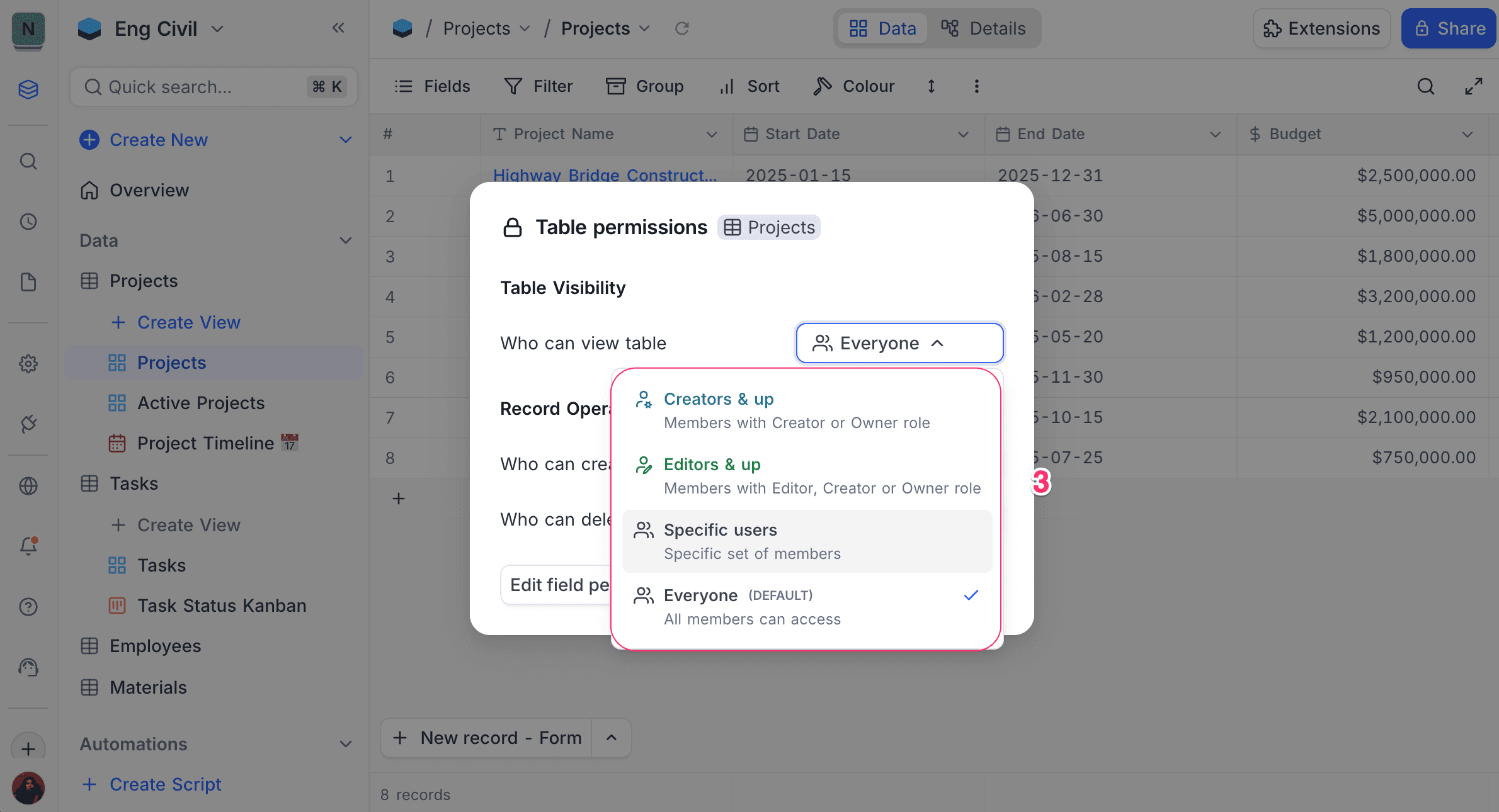
These are the visibility options:
| Option | Who can see the table |
|---|---|
| Creators & up | Members with Creator or Owner roles |
| Editors & up | Members with Editor, Creator, or Owner roles |
| Specific users or teams | Only selected members or teams |
| Everyone | All members of the base (default) |
Note:
- By default, all tables are visible to everyone in the base.
- Table visibility is evaluated before checking record permissions. If a table is not visible to a user, they cannot access it or perform any actions within it, regardless of their record permissions.
- Hidden tables will be excluded from APIs, Automations, Scripts & Extensions that list or access tables.
Configuring Visibility
To configure the visibility of a specific table:
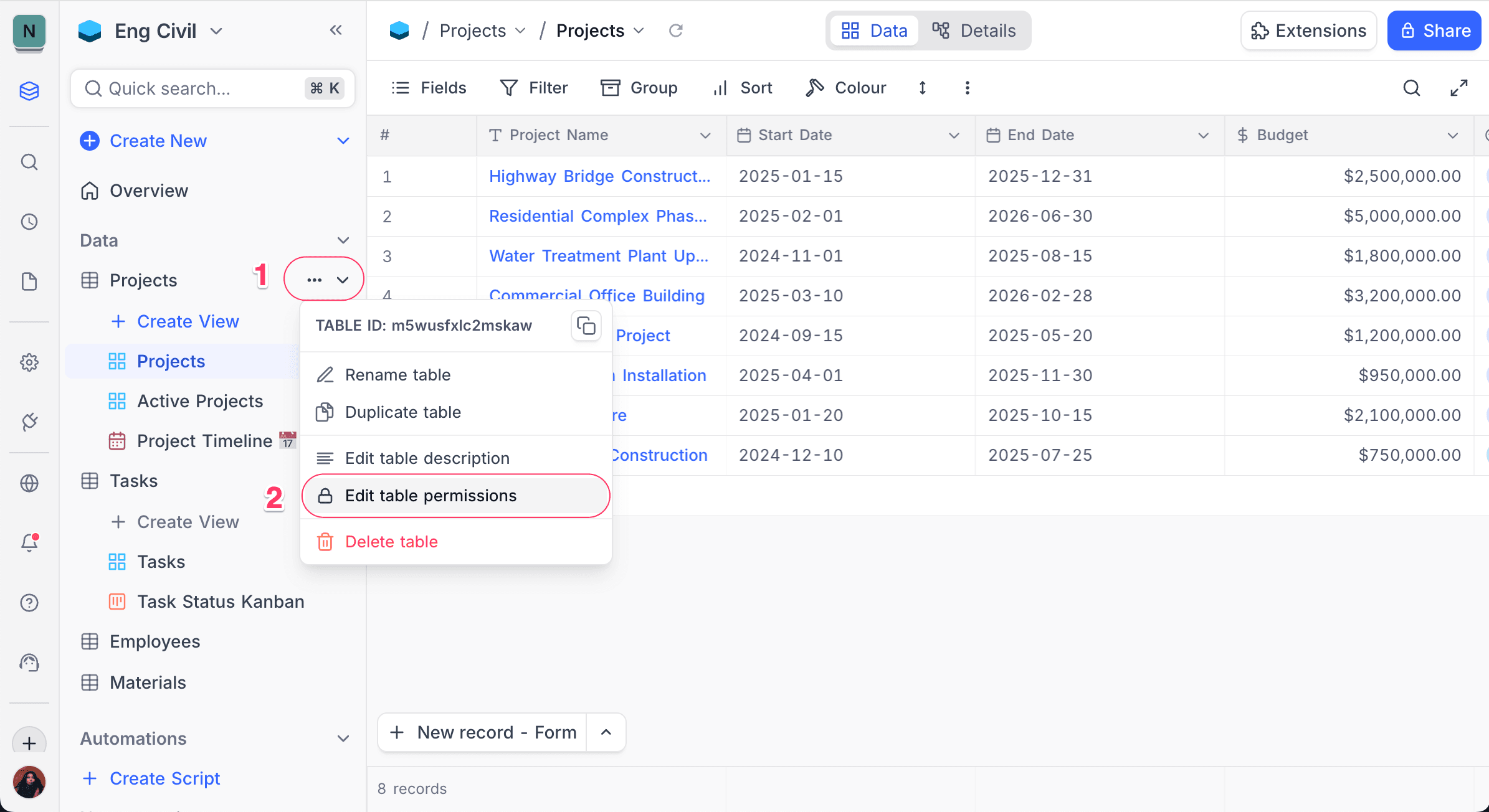
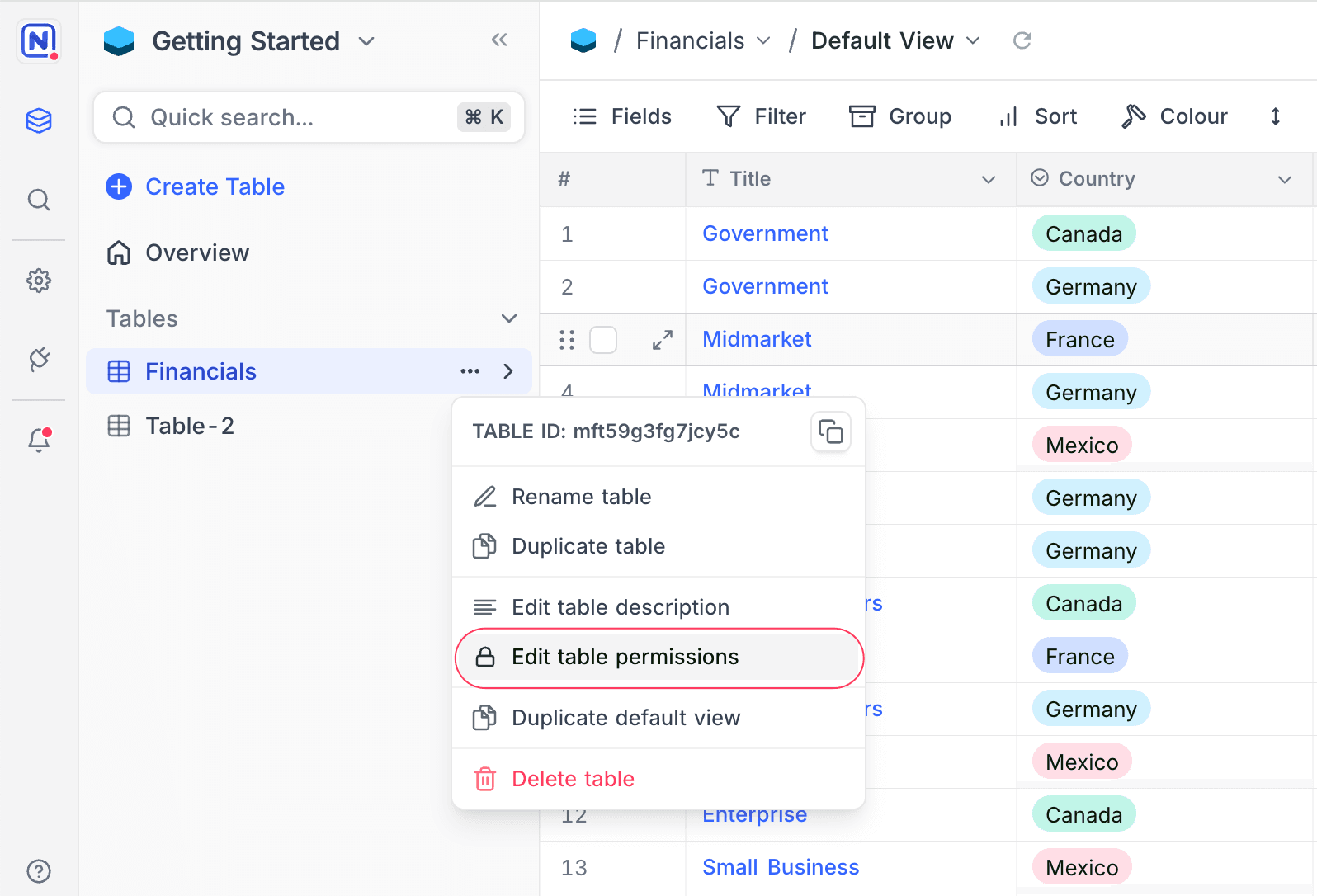
- In the sidebar, click the
⋯icon next to the table name. - Select Edit table permissions.
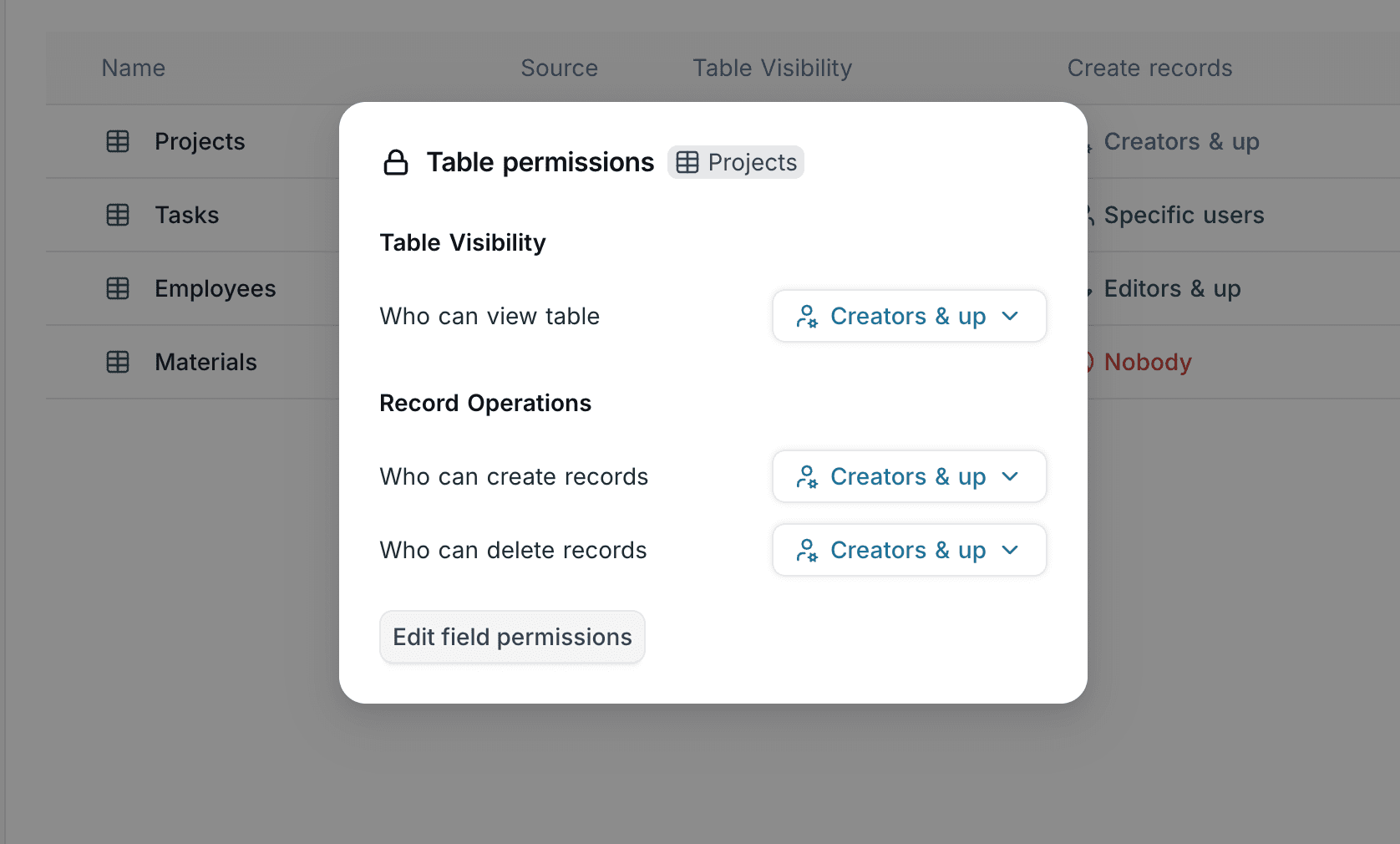
- Use the dropdown menu next to Who can see this table? to set the visibility.
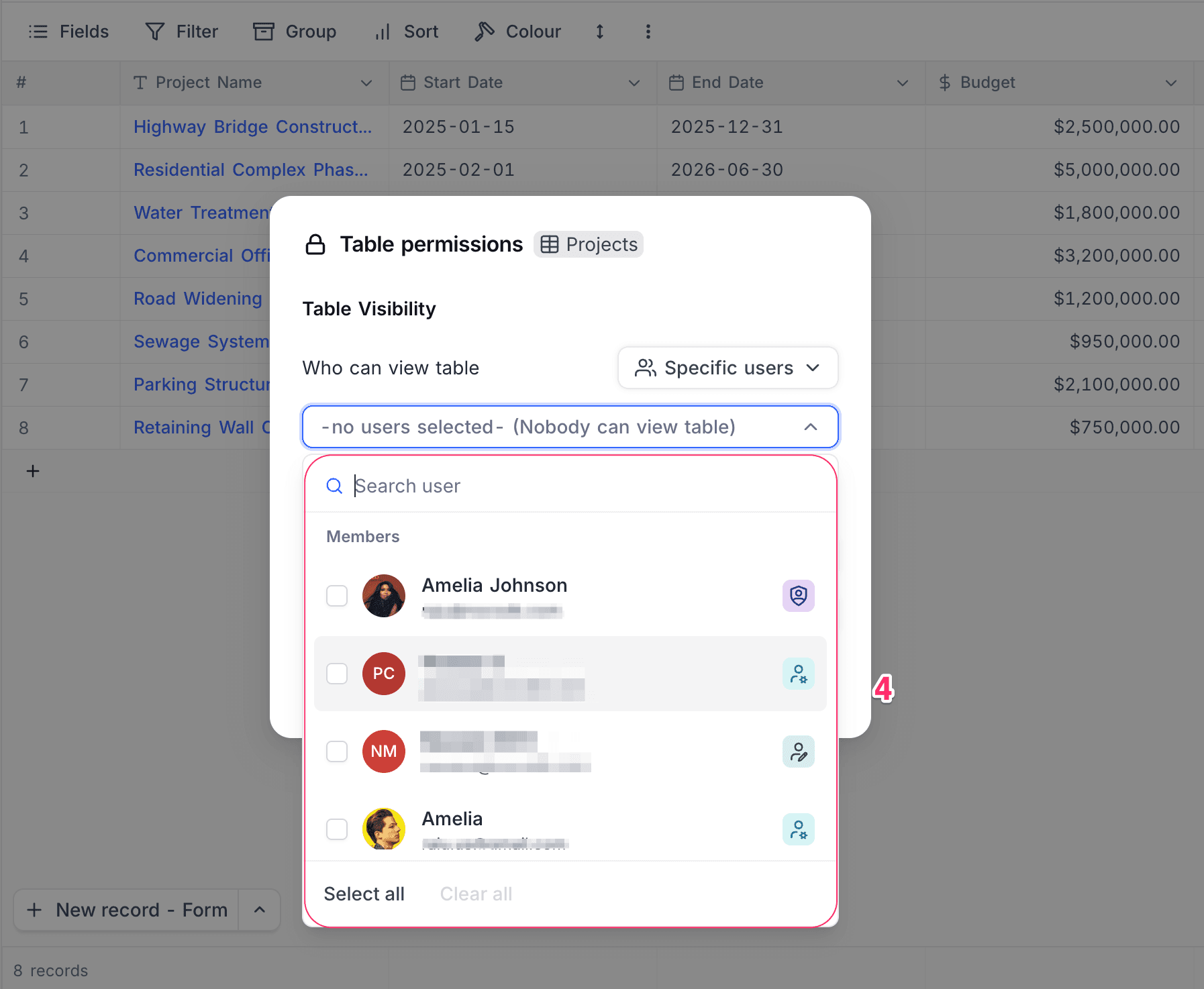
- If you select Specific users or teams, select the members or teams that can access the table.
Only Base Owners can change table visibility settings. Other members do not see this option in the menu.
Visibility Notes
Shared bases and shared views Table visibility applies to shared access. In a shared base or shared view, you can access only the tables with the visibility option Everyone.
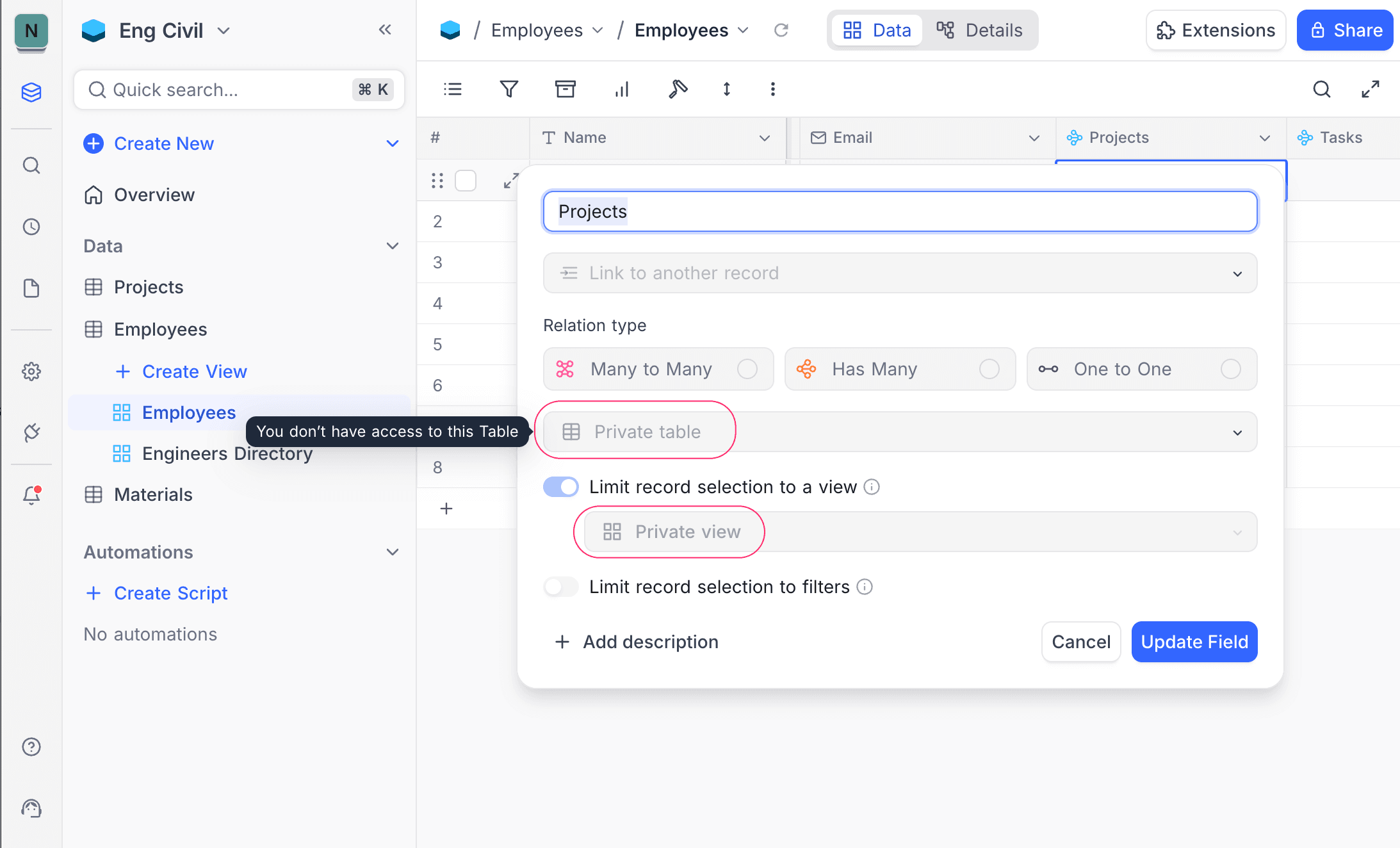
Relational fields When a table is hidden from a user, relational fields that link to that table show only the display values of the linked records. If the role of the user allows it (Editor+), the user can still link or unlink records from the source table. But the user cannot open or access the linked records. Lookup and Rollup fields continue to work and show values from the hidden table. They do not give visibility of, or access to, that table.
For a relational field that links to a hidden table, the edit modal shows the table name as "Private Table" and the view name as "Private View".
Duplicating bases When a user duplicates a base, NocoDB copies only the tables that this user can see. The new base does not include tables that are hidden from that user. Thus, the new base also does not include relational fields that link to hidden tables. Formula fields that refer to these relational fields can show errors because the references are missing.
Table Record Permissions
Table Record Permissions set the actions that a user can do on the records in a table. When you give permission, users can create or delete records as their roles and access levels allow. When you restrict permission, those actions are disabled. The table and its records can still be visible to the user.
Configuring Record Permissions
To set record permissions for a table:
- In the sidebar, click the
⋯icon next to the table name. - Select Edit table permissions.
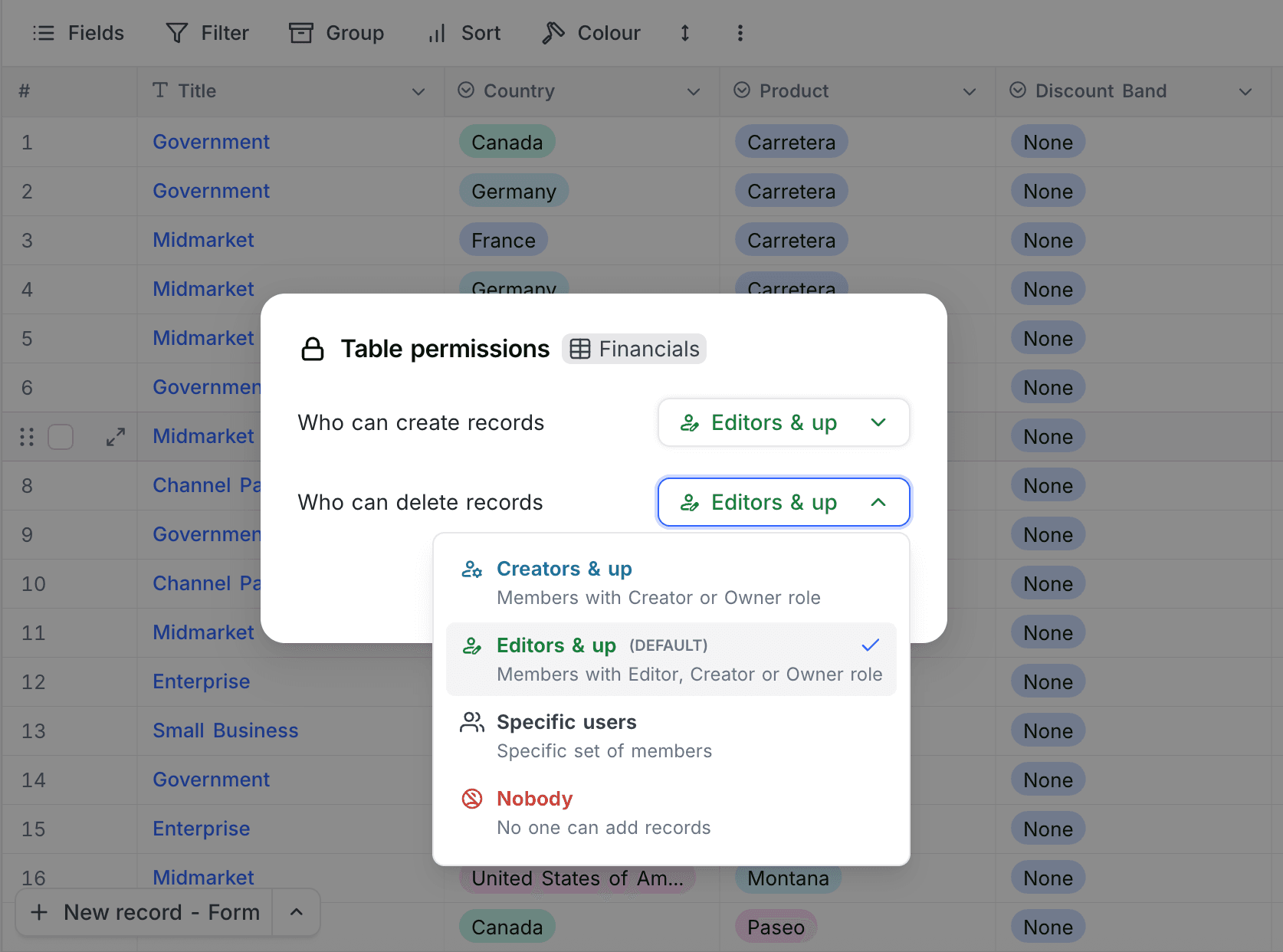
- Use the dropdown menus to set who can:
- Create records
- Delete records
Permission Levels
You can give a different access level to each action (create record or delete record). These are the options:
| Option | Who gets access |
|---|---|
| Editors & up | Members with Editor, Creator, or Owner roles (default) |
| Creators & up | Members with Creator or Owner roles |
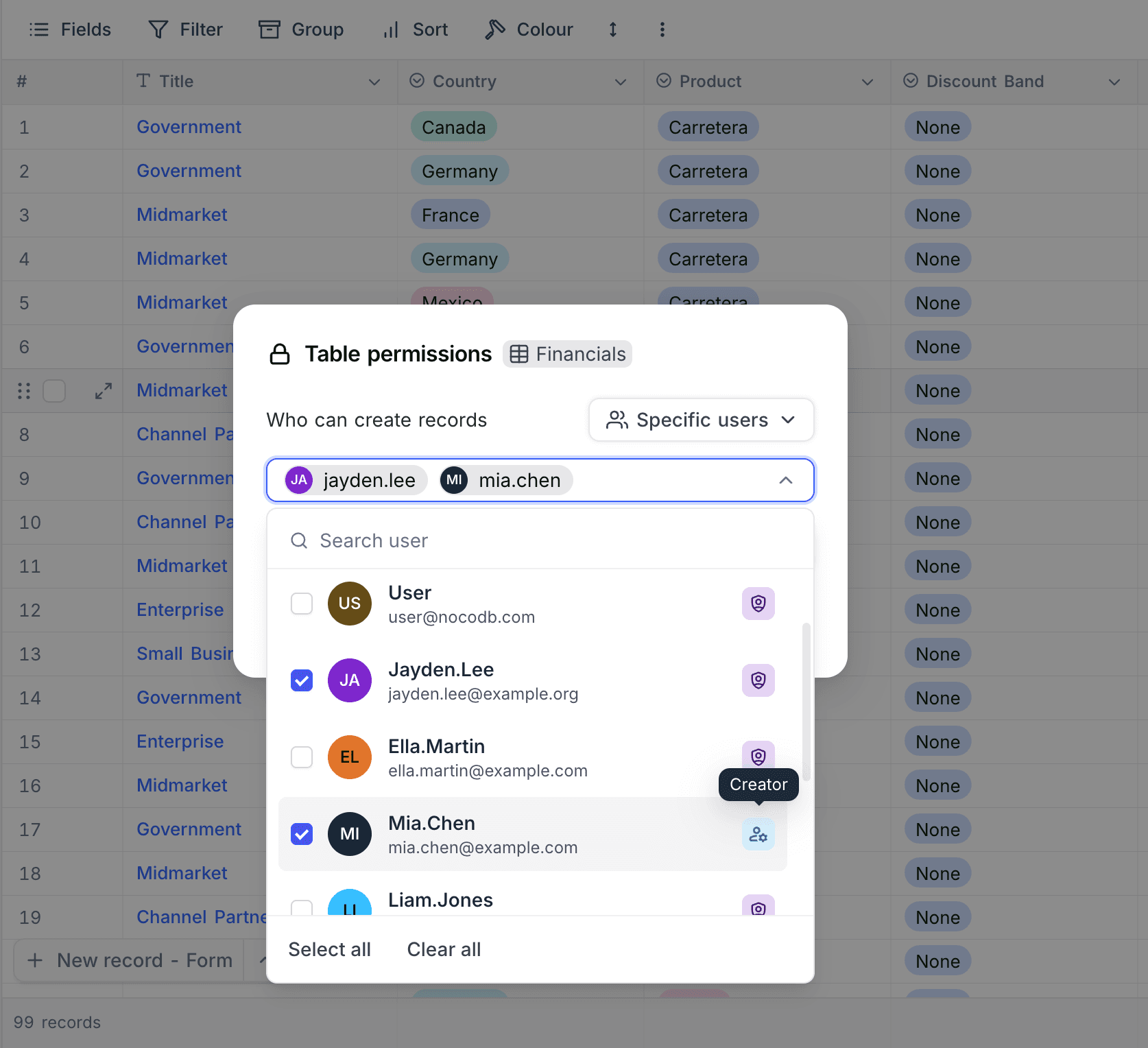
| Specific users or teams | Selected members or teams |
| Nobody | No one can perform this action |
By default, members with the Editor role and higher can create and delete records in a table.
| To | Select |
|---|---|
| Let only creators and owners do the action | Creators & up |
| Stop all record creation or deletion | Nobody |
| Let only selected members or teams do the action | Specific users or teams |
Record Permission Notes
- Table permissions do not control record visibility. Users with access can still see all records. Table permissions control only who can create or delete records.
- Permissions apply at the table level, to all records in the table. You cannot set them for one record or for a subset of records.
- Table permissions are independent of field permissions. You can set each one separately.
- Table permissions also apply to:
- Record creation or deletion through APIs
- Record creation through shared forms
Permissions Overview
The permissions overview shows a summary of all table and field permissions in the base.
To open the permissions overview:
- Go to the base homepage. To do this, click Overview in the sidebar.
- Click the Permissions tab.
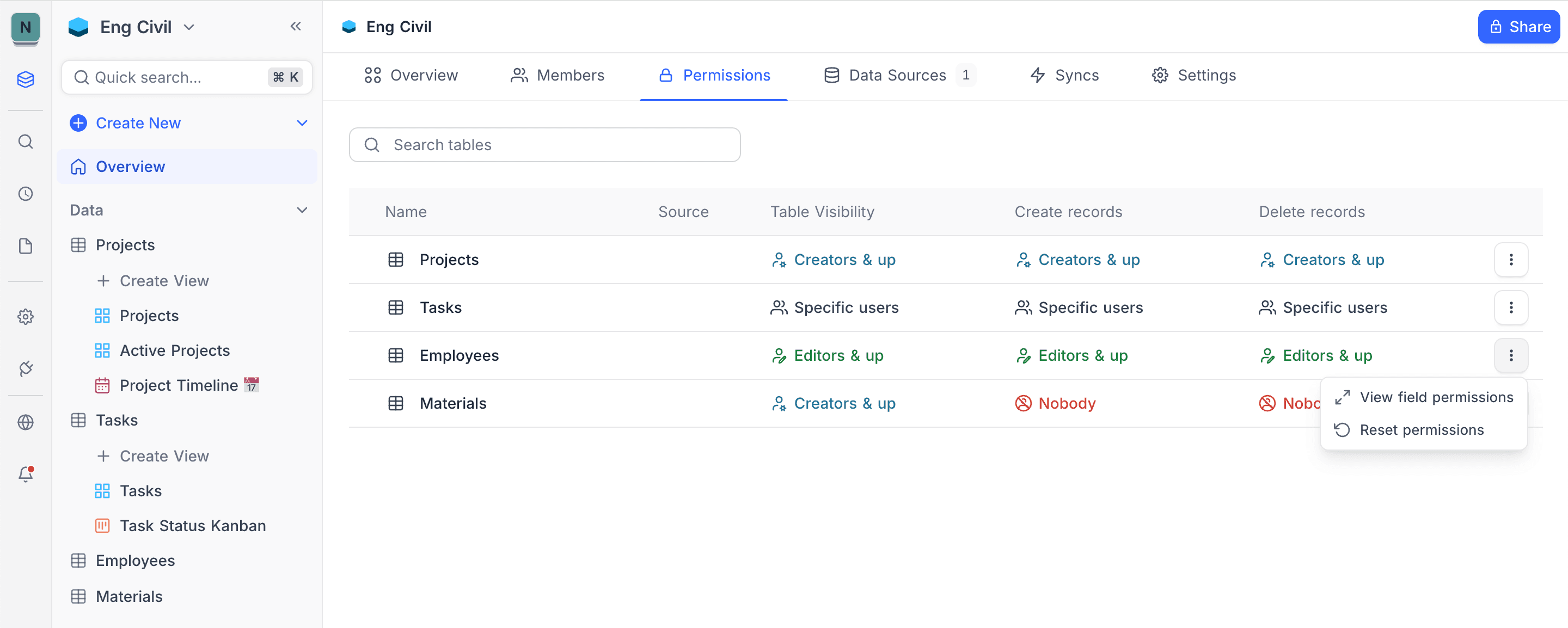
Select the table that you want to examine. The overview shows table permissions and field permissions. It shows who can see the table, who can create records and who can delete records. It also shows the visibility of each field in that table.
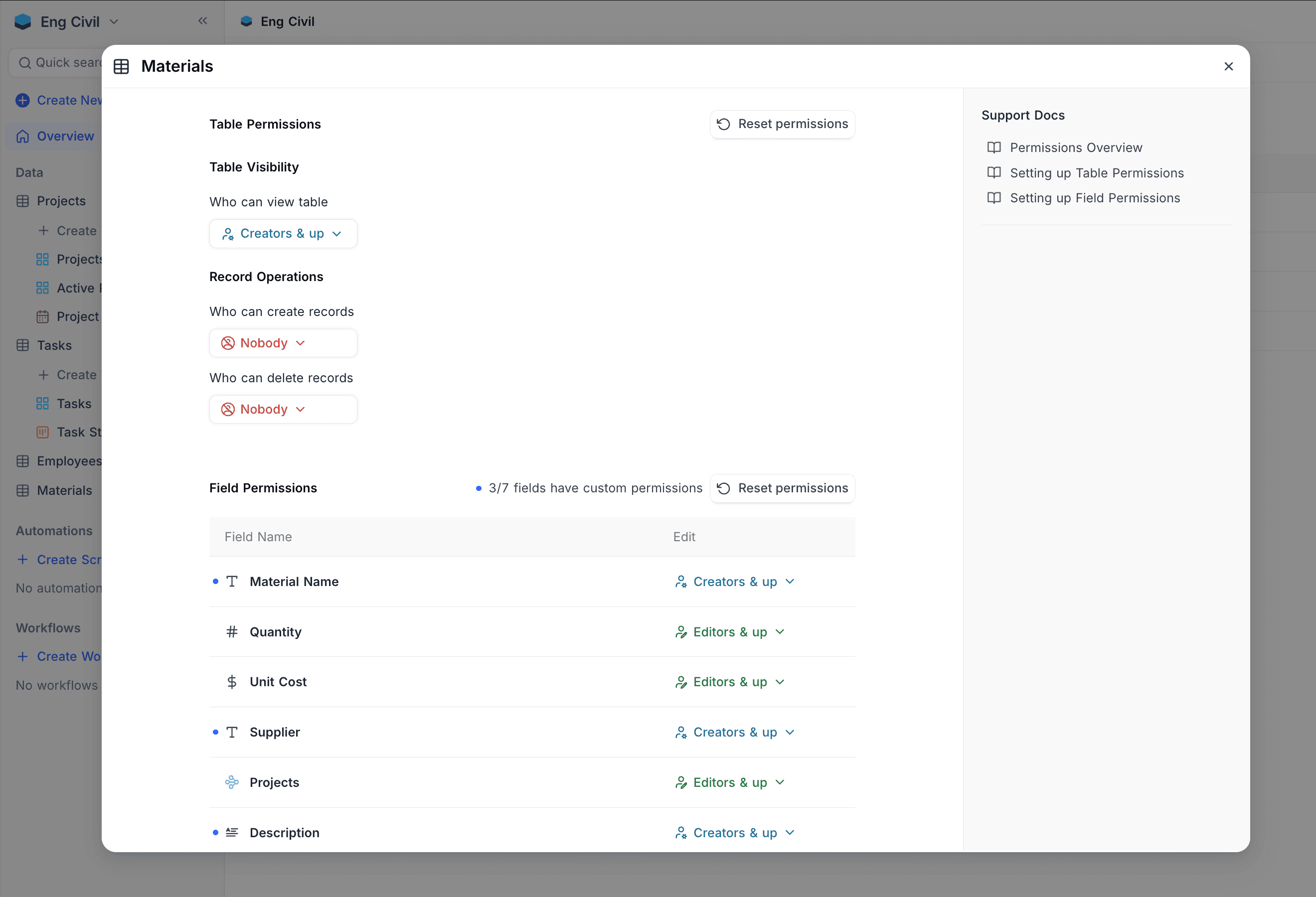
You can also open the Permissions overview from the table or field permission configuration modal.
Availability
- Table Record Permissions are available on NocoDB Cloud (Plus plan and above) and licensed self-hosted deployments (Business plan and above). Table Visibility is available on NocoDB Cloud (Business plan and above) and self-hosted Scale and Enterprise plans.
Last updated on