Filter Records Using AI
Overview
With NocoAI, you describe the data that you want to see in plain English. NocoAI then applies the correct filter conditions. You do not set filter operators, values and conditions manually. Type a description such as "Show high priority tasks due this week", and NocoAI sets up the filters for you.
Use it to narrow down records quickly and to explore data without filter syntax. Non-technical users can also build complex filter conditions with it.
Steps to Filter Records Using AI
-
In the toolbar above your table, click Filter. The filter panel opens.
-
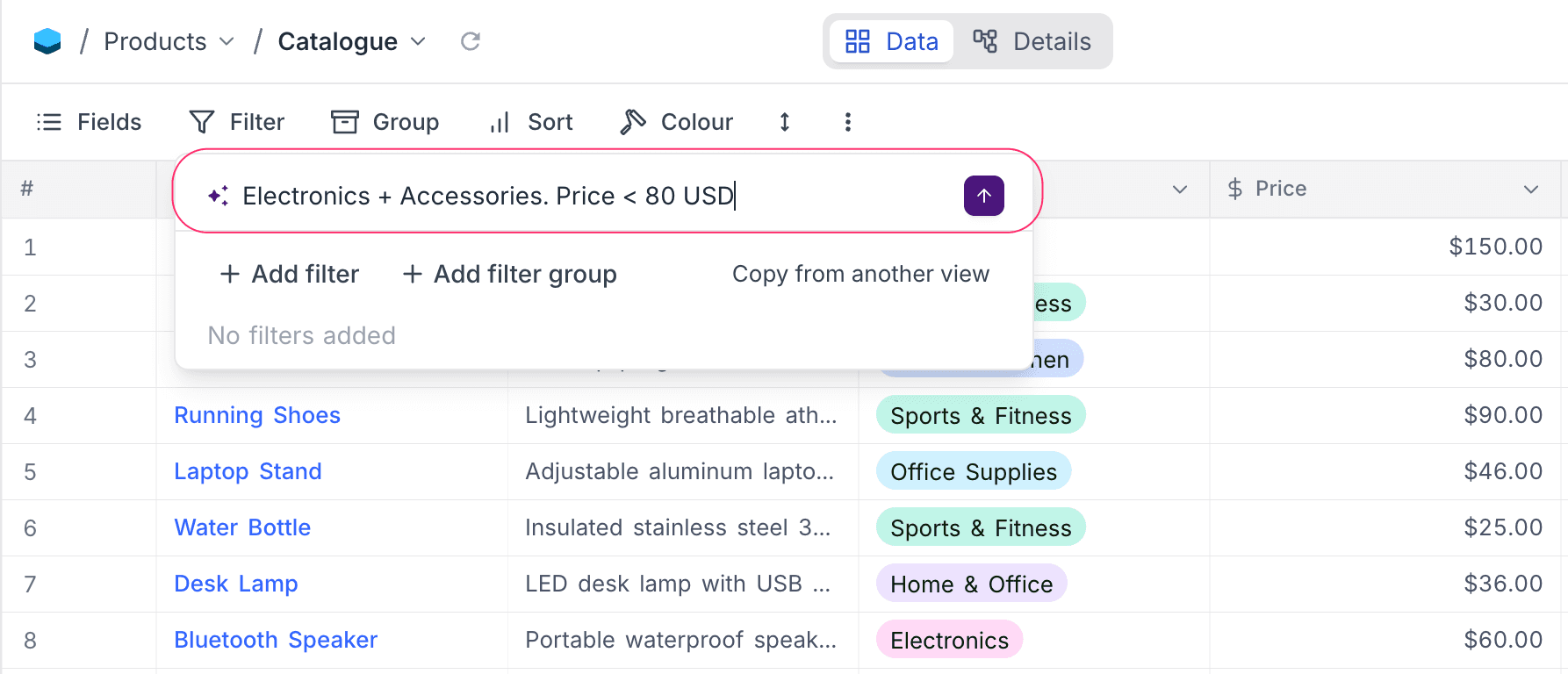
At the top of the filter panel, find the AI text input with the ✨ icon.
-
Type a plain-language description of the records that you want to see.
Example:
Show high priority tasks that are due this week
-
Press Enter or click Send. NocoAI analyzes the structure of your table and generates the filter conditions.
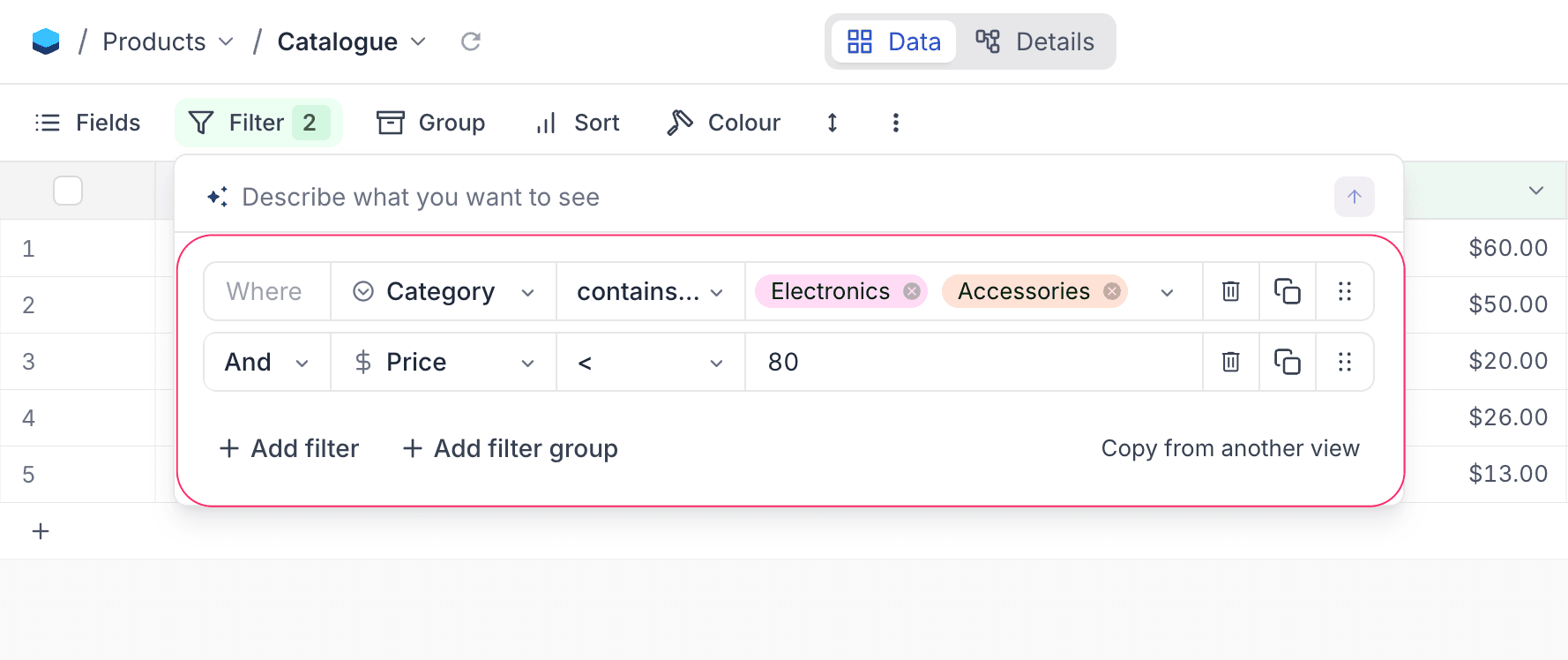
The generated filters appear in the filter panel. NocoAI applies them to your view immediately. You do not need to confirm them.
Supported Actions
NocoAI finds your intent and does one of three filter actions:
| Action | When it's used | Example prompt |
|---|---|---|
| Add | Adds new filters to the existing filters | "Also show rows where Status is Done" |
| Replace | Removes all current filters and applies new filters | "Show only rows where Score is above 80" |
| Clear | Removes all existing filters | "Remove all filters" or "Show everything" |
Supported Filter Types
NocoAI generates filters for many field types:
| Field Type | Example Prompts |
|---|---|
| Text (SingleLineText, Email, URL) | "Title contains meeting", "Title is either A or B" |
| Number (Number, Decimal, Currency, Percent) | "Price is greater than 100", "Score between 50 and 80" |
| SingleSelect / MultiSelect | "Status is either Todo or In progress", "Tags include urgent" |
| Date / DateTime | "Due this week", "Created after 2025-01-01", "Modified today" |
| Checkbox | "Show only checked items", "Where completed is unchecked" |
| Rating | "Rating is 4 or above" |
NocoAI also knows the difference between AND and OR logic:
- "Priority is High and Status is not Done" → AND conditions
- "Title is either Alpha or Beta" → OR conditions
Tips for Better AI Filters
-
Use exact field names when possible
NocoAI compares your words with the column names of your table. Exact names give more accurate results. Example: If your column name is "Due Date", say "Due Date is this week", not "due soon".
-
Be specific about values
For select fields, use the exact option values. Example: "Status is In progress" works better than "status is active" if your options are
Todo,In progress,Done. -
Use keywords for clear/replace
To remove filters, say "clear filters", "remove all filters", "show everything", or "reset". To replace all existing filters, start with "show only ..." or "instead show ...".
-
Start simple, then refine
You can add filters one at a time. Start with "Status is Todo". Then add "also where Priority is High".
-
Match filter type with field type
Make sure that your condition fits the field type. For example, the filter "Price < 50" does not work if the Price field is a text field. Number comparisons work only on number fields.
Example Prompts and Outcomes
| Prompt | Generated Filters |
|---|---|
| "Show high priority tasks" | Priority is equal High |
| "Title is either Alpha or Beta" | Title is equal Alpha OR Title is equal Beta |
| "Status is Todo or In progress" | Status is any of Todo, In progress |
| "Due this week" | Due Date is within next week |
| "Items with no status" | Status is blank |
| "Remove all filters" | All existing filters cleared |
| "Show only rows where Score > 80" | Existing filters replaced with Score > 80 |
What's Next
After you filter records with AI, try more NocoAI capabilities:
- Create Views using AI to set up useful views for your data
- Create Fields using AI to generate relevant columns automatically
- Generate Formulas using AI to automate calculations
Let NocoAI make the filter logic, and focus on your data.
Availability
- AI filters are available on NocoDB Cloud (Plus plan and above). On Cloud, they use credits.
- On self-hosted deployments (Business plan and above), you must configure your own AI integration to use AI.
Last updated on