Base Trash ☁
Base Trash is your safety net for accidental deletions. When you delete an item in a base, the item moves to Base Trash. This applies to records, tables, fields, views, dashboards, widgets, workflows, scripts, and extensions. You can restore the item from Base Trash until someone empties the trash or the retention period ends.
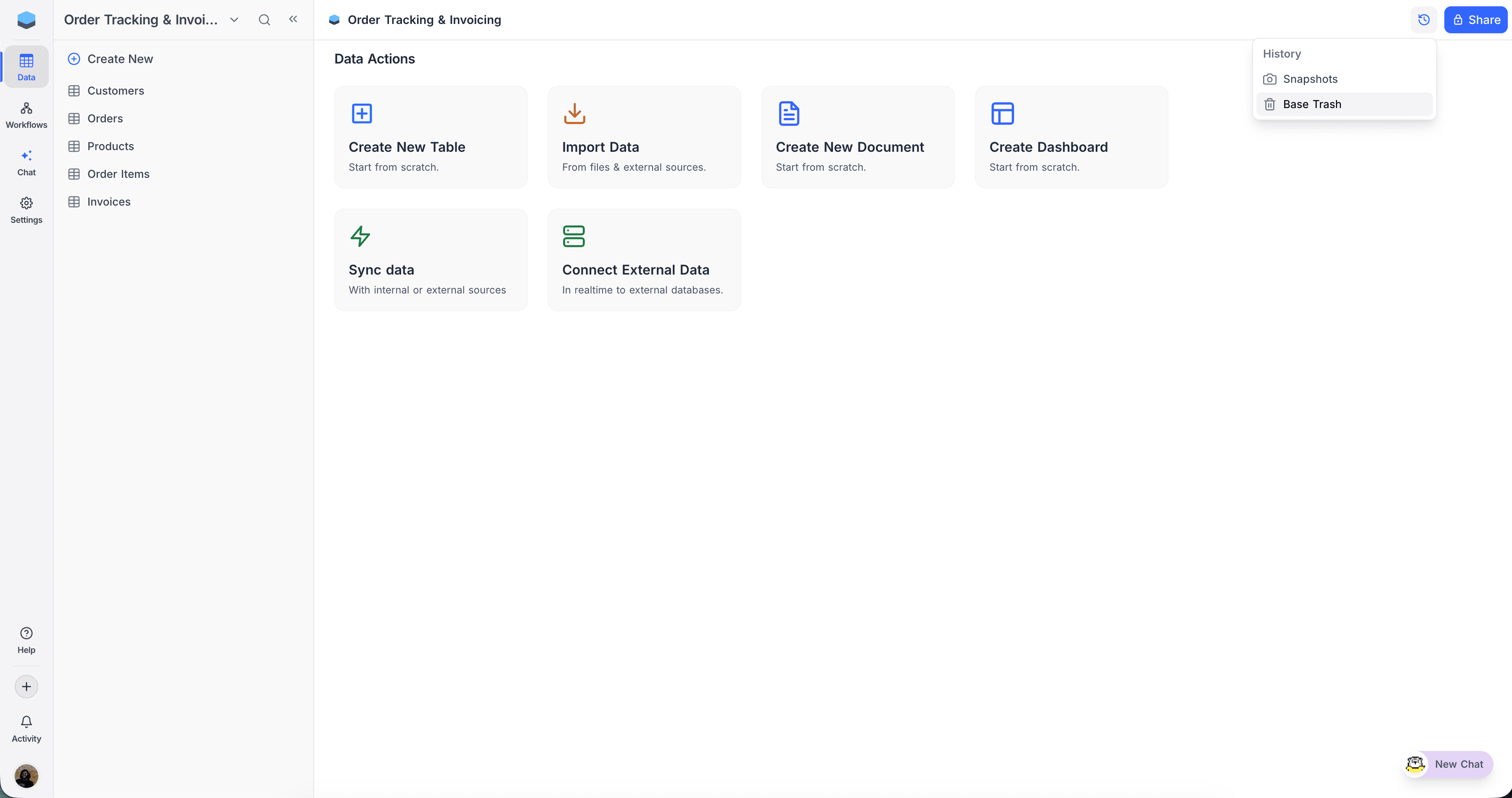
Open Base Trash
- In the topbar, click the History icon.
- Select Base Trash.
Reading the Trash list
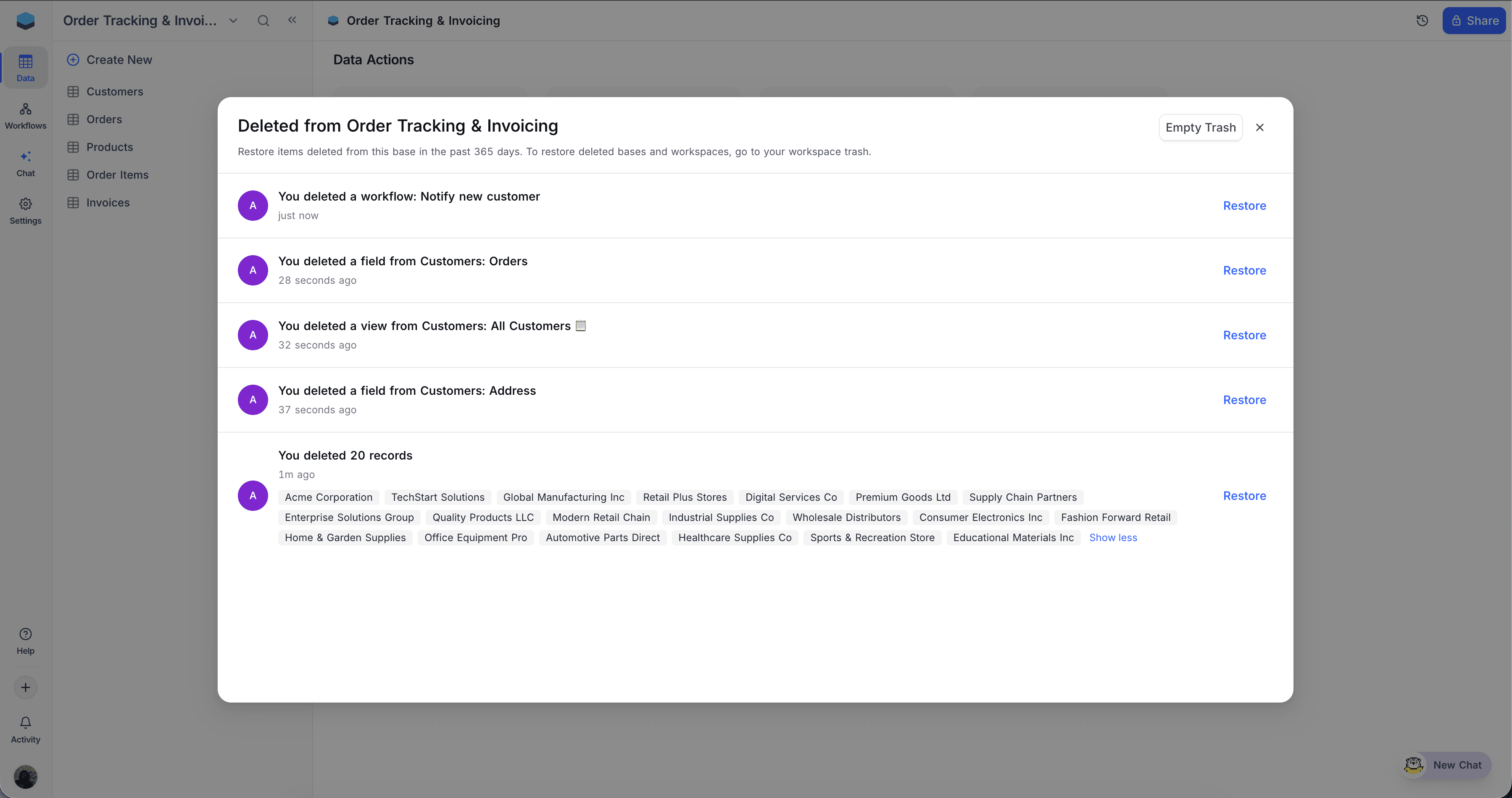
Each deletion shows as one entry in the list. Each entry shows:
| Detail | What you see |
|---|---|
| Who deleted it | To see the name and email of the user, hover over the avatar. |
| When | To see the exact timestamp, hover over the time label. |
| What was deleted | The resource name and its location. For deleted records, a preview shows the primary field for up to eight rows. To see the full batch, click Show all. |
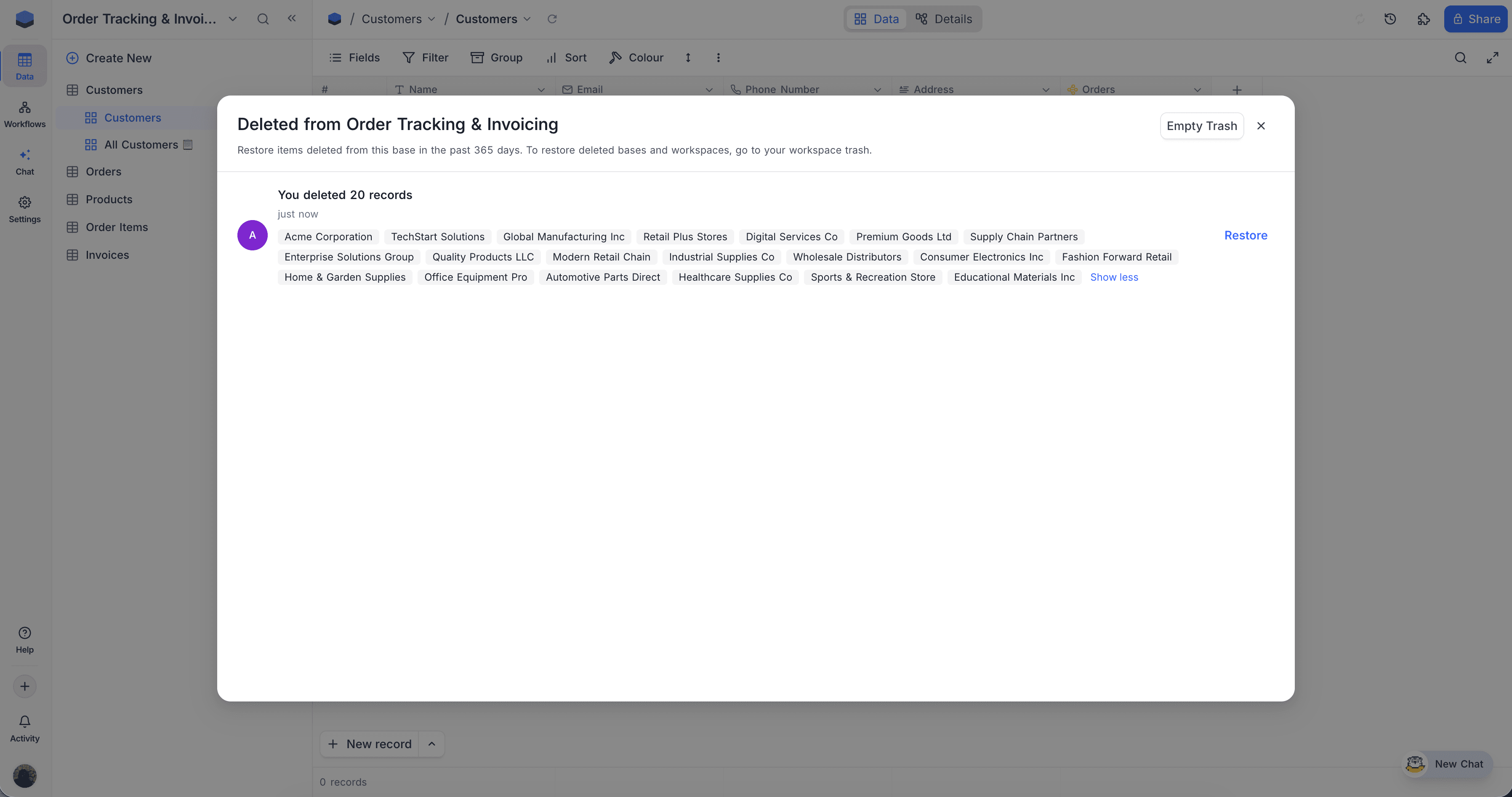
What you can recover
Base Trash covers all items in a base:
| Resource | What gets restored |
|---|---|
| Records | The deleted rows come back with their values and links. A bulk delete shows as one entry, so you can restore a full batch at the same time. |
| Tables | The table comes back with all its views, fields, and records intact. |
| Views | The view returns with its filters, sorts, group-by, and field visibility. |
| Fields | The field comes back with all its cell values. |
| Dashboards & widgets | The dashboard layout and any widgets on it come back as configured. |
| Workflows & scripts | The full definition comes back: triggers, steps, and code. |
| Extensions | The extension comes back with its saved configuration. |
Restoring an entry
Next to the entry that you want back, click Restore. Records go back into the table. Tables, views, and fields go back into the base.
Some things to know:
| Situation | What happens |
|---|---|
| Restoring a table | NocoDB also restores all its views, fields, and records in one step. |
| If a field has been renamed since the record was deleted | The restored value goes into the renamed field, not into a new field. |
| If a field has been deleted since the record was deleted | NocoDB drops that value. The rest of the record still comes back. |
| If a linked record is gone | NocoDB skips that link and restores the other links. |
| If a Single Select or Multi Select option was renamed after the deletion | The restored record uses the current option name. |
When restore can't go through
Sometimes a restore conflicts with the current data. Then a panel opens. It lists the conflicts and gives you three options:
| Option | What it does |
|---|---|
| Cancel | Keeps all items in the Trash. Fix the conflicting records first. |
| Restore the clean ones | Restores all items that have no conflicts. The other items stay in the Trash. |
| Restore anyway | Restores all items. NocoDB clears the conflicting fields on the restored records, so they do not override the current active data. |
You can see three types of conflicts:
| Conflict | Cause |
|---|---|
| Linked record taken | The link that the restored record had now points to another record. For example, a one-to-one slot, or a has-many parent whose child has been linked again. The other record keeps the link. |
| Unique value taken | A field marked Unique on the restored record now has the same value as an active record. |
| Format mismatch | Someone added or tightened a validation rule (Email, URL, or Phone number) after the record was deleted. The stored value does not match the new rule. |
For all three types, Restore anyway clears the conflicting field on the restored record. You can then fix the field manually.
Empty Base Trash
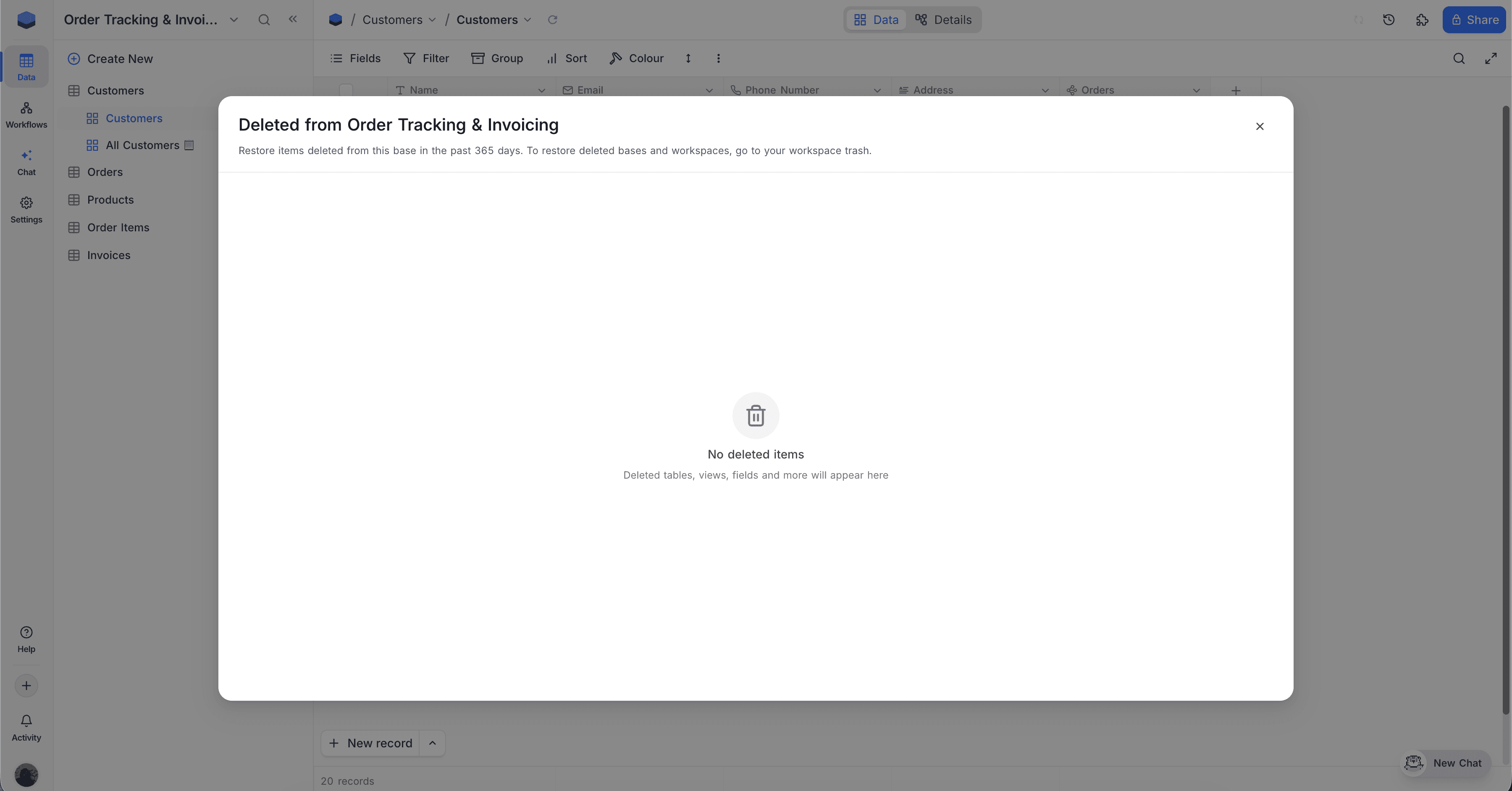
- In the top-right of the dialog, click Empty Trash.
- Confirm the dialog.
Empty Trash permanently deletes everything in the base's Trash: records, tables, views, fields, dashboards, widgets, workflows, scripts, and extensions. There is no undo. For longer-term recovery, use Base snapshots.
Who can do what
| Action | Owner | Creator | Editor | Commenter | Viewer |
|---|---|---|---|---|---|
| Open Base Trash | Yes | Yes | Yes | No | No |
| Restore a record | Yes | Yes | Yes | No | No |
| Restore a table, view, field, dashboard, widget, workflow, script, or extension | Yes | Yes | No | No | No |
| Empty Trash | Yes | No | No | No | No |
| View or change trash settings | Yes | No | No | No | No |
If a base uses row-level security, the same rules apply in Base Trash. If you could not see a record in the live table, you also cannot see it in Base Trash after deletion.
Editors can restore records but can't permanently delete individual entries. To clear them sooner than the retention period, an Owner needs to Empty Trash.
Availability
- Base trash is available on all NocoDB Cloud plans and on licensed self-hosted deployments (Business plan and above). The retention period before automatic cleanup is different for each plan. For plan defaults and per-table overrides, see Trash settings.
Related
Last updated on