Record Level Security
Record-Level Security (RLS) uses filter-based policies to control which records each role, team or user can see in a table. Table permissions and field permissions apply to full tables or columns. RLS applies at the record level, so that users see only the data that is relevant to them.
When to use RLS:
- Sales reps must see only their own deals.
- Regional managers must see the records for the territory of their team.
- Support agents must access only the tickets assigned to them.
- Department heads must see the records across their team hierarchy.
Enabling Record-Level Security
- Open the table where you want to configure RLS.
- In the sidebar, click the
⋯icon next to the table name. - Select Record-Level Security.
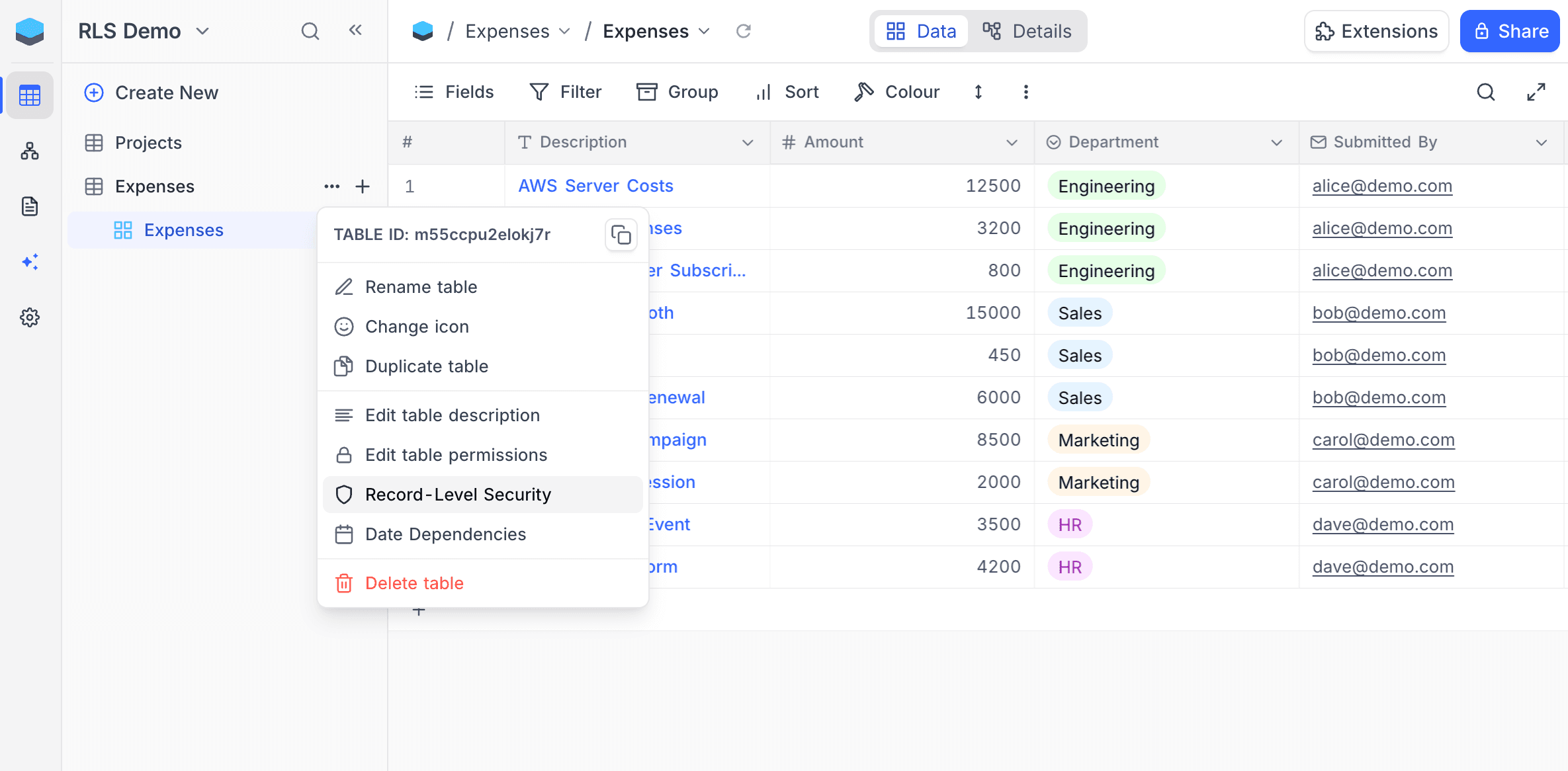
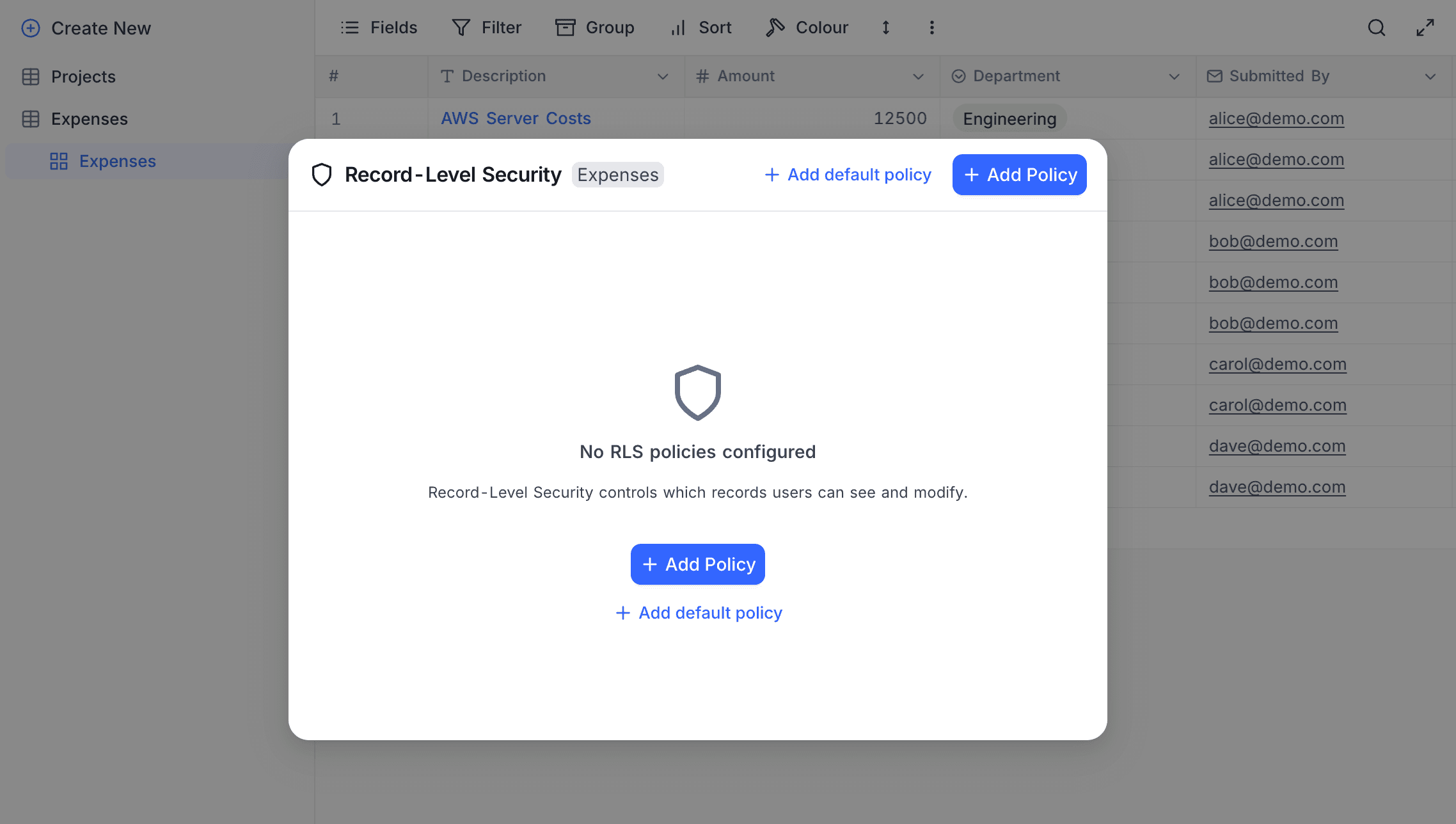
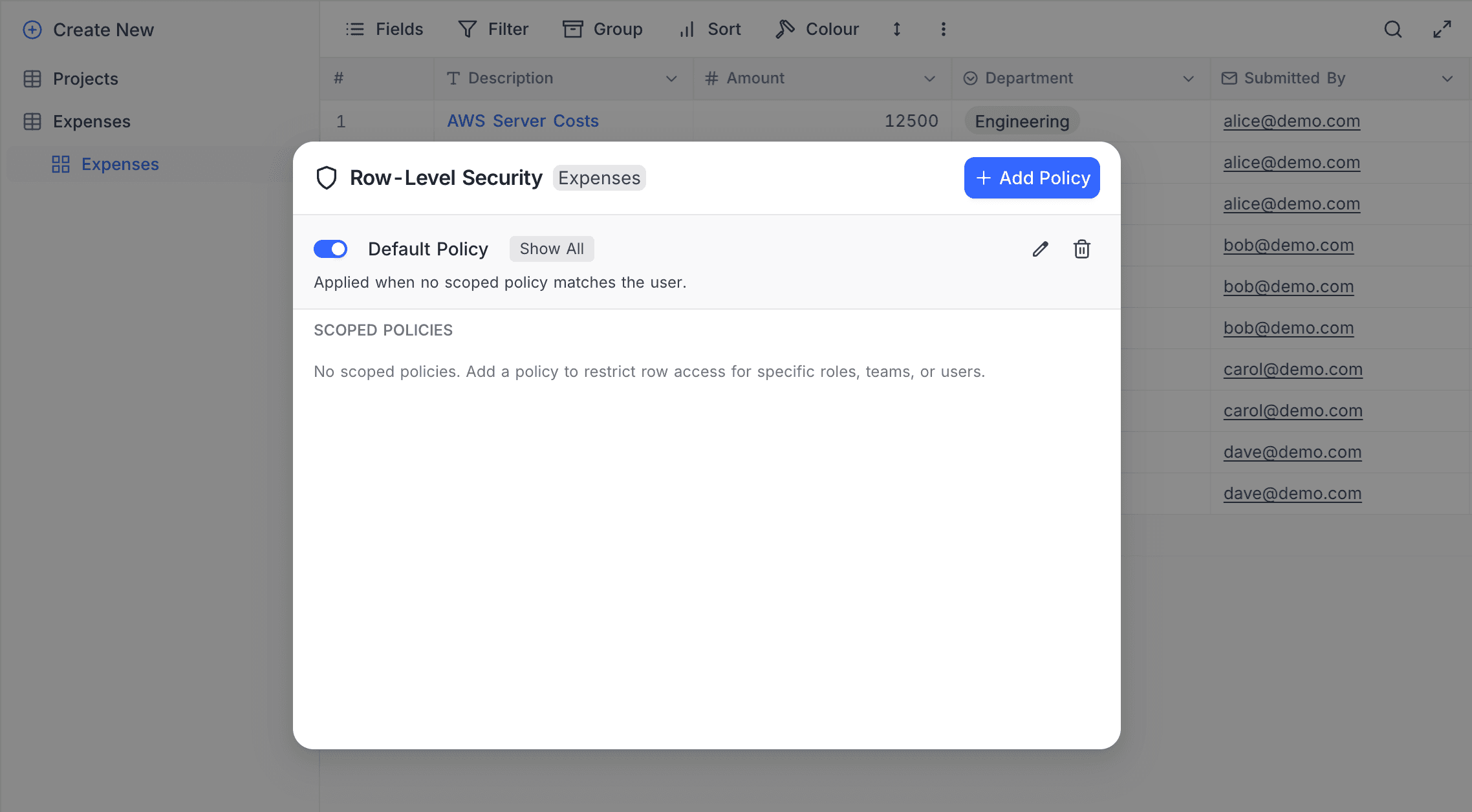
The RLS management panel opens. Create and manage the policies for this table in this panel.
Key Concepts
Policy Types
RLS uses two types of policies:
| Policy type | What it does |
|---|---|
| Default Policy (optional) | A fallback policy. It applies when no scoped policy matches the current user. Each table can have a maximum of one default policy. If there is no default policy, unmatched users can see all records. |
| Scoped Policies | Policies for specific roles, users or teams. A table can have many scoped policies. |
Default Policy Behaviors
The default policy sets what happens when a user does not match a scoped policy:
| Behavior | Effect |
|---|---|
| Show all | All records are visible. No filter applies. |
| Deny all | No records are visible. Access is fully denied. |
| Condition | Filter conditions set which records are visible. |
When a table has no RLS policies, all users can see all records (the same as "Show all").
Subjects
Each scoped policy applies to one or more subjects. Subjects are the roles, users or teams that the policy is for:
| Subject type | Description |
|---|---|
| Role | A base-level role: Viewer, Commenter, Editor, or Creator |
| User | A specific individual member of the base |
| Team | A team group, with configurable hierarchy scope |
For team subjects, you can select the hierarchy scope:
| Scope | The policy applies to |
|---|---|
| Self only | Only the direct members of the selected team. |
| Self and descendants (default) | The members of the selected team and of all its sub-teams. |
Filter Conditions
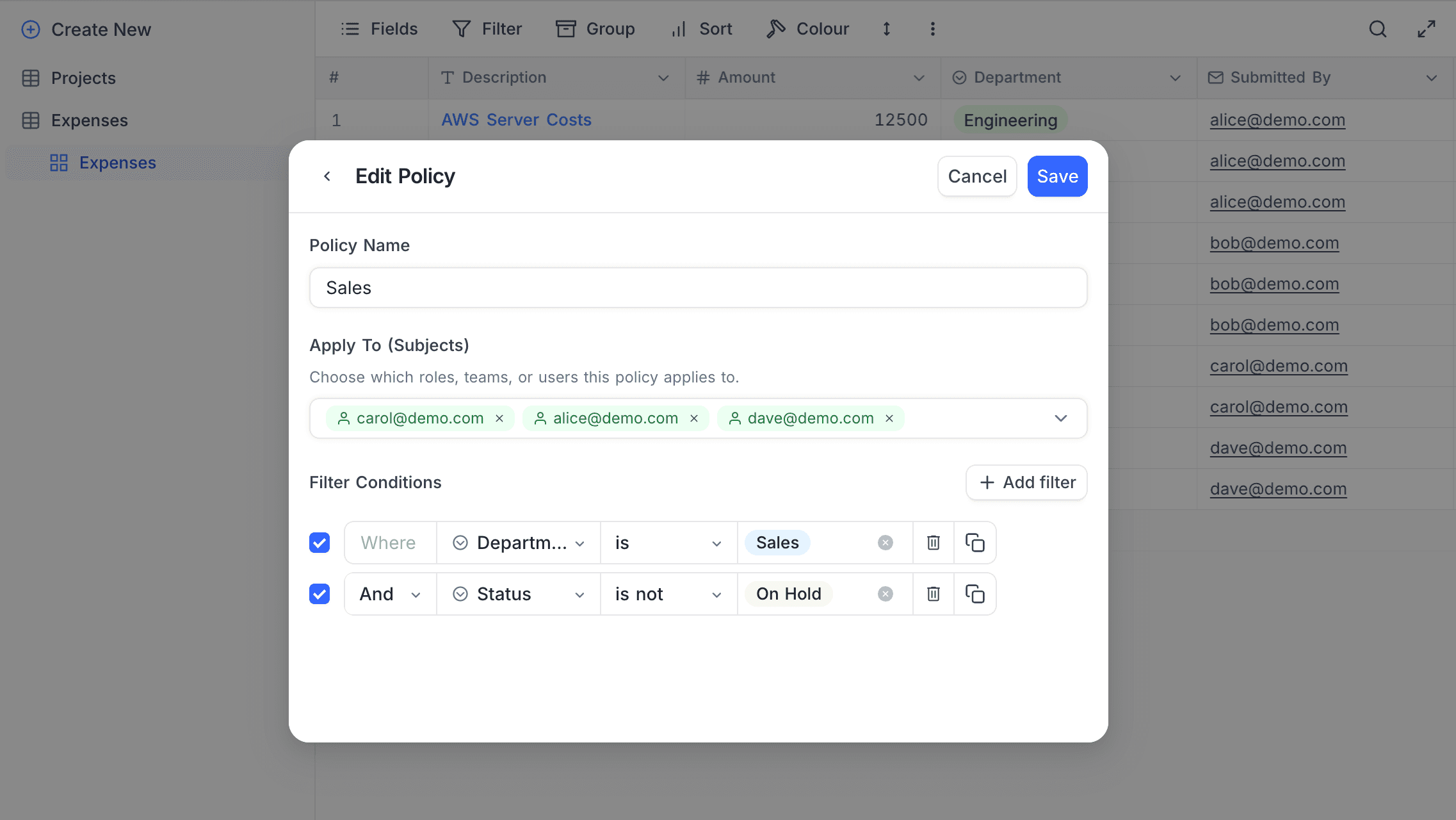
Policies use the standard NocoDB filter builder to set conditions. Users who match the subjects of a policy see only the records that match its filter conditions.
Filters support all standard operators (equals, contains, greater than and others). They can refer to any field in the table. You can also make nested filter groups with AND/OR logic.
RLS filters can also refer to the system fields Created by, Last modified by, Created time and Last modified time. Usual view filters do not show these fields.
Dynamic Values
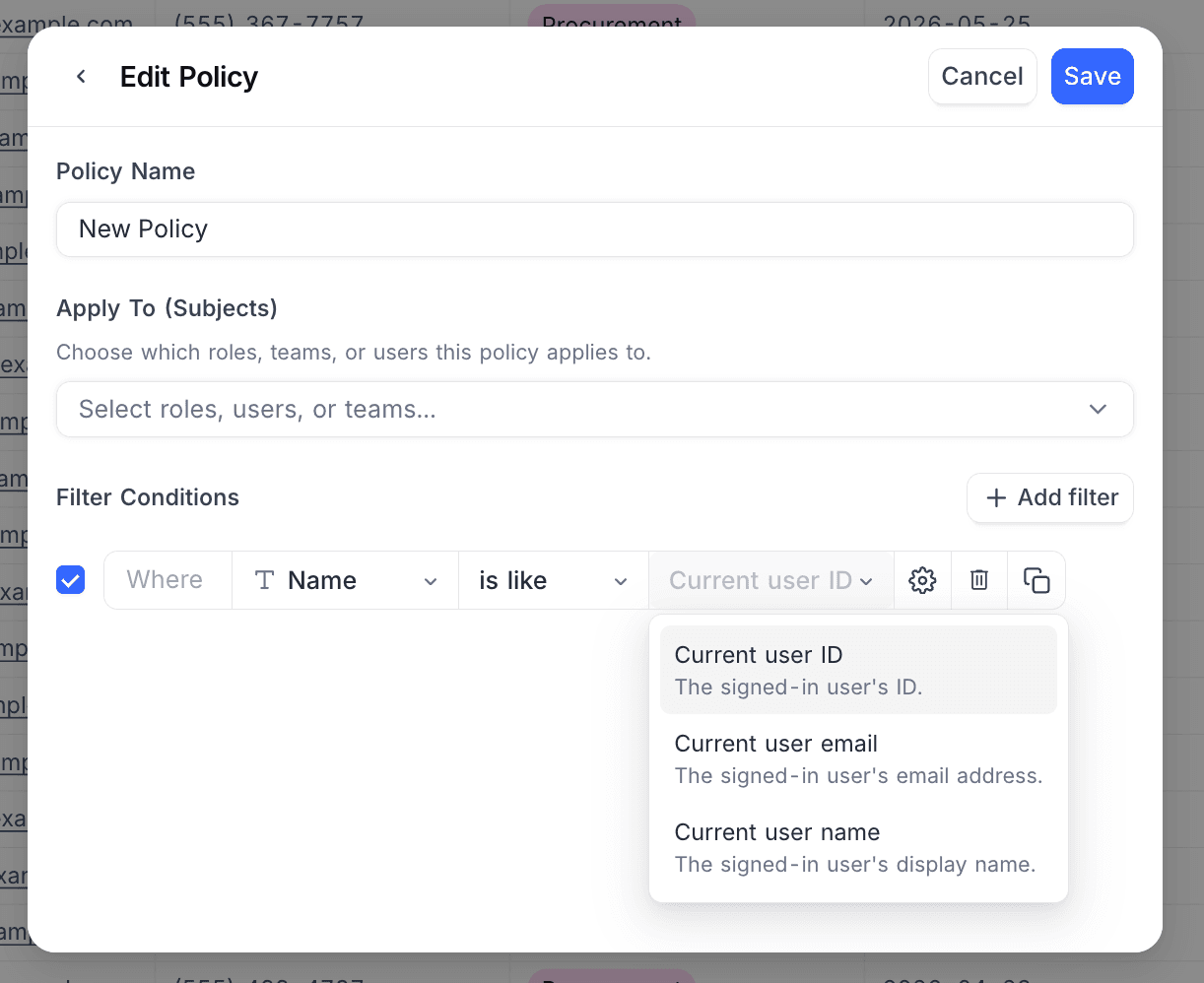
In a condition, you can refer to the user who sees the data, not a fixed value. NocoDB gets a dynamic value from the signed-in user each time the policy runs. Thus, one policy covers all people in the workspace. You do not need a copy for each person.
To use a dynamic value:
- At the end of a filter condition, click the settings icon.
- Select Dynamic value.
- Select a value from the list.
| Dynamic value | Resolves to |
|---|---|
| Current user ID | The signed-in user's ID |
| Current user email | The signed-in user's email address |
| Current user name | The signed-in user's display name |
| My teams | IDs of the teams the user belongs to directly |
| My teams and sub-teams | IDs of the user's teams plus every team beneath them |
| My team names | Names of the teams the user belongs to directly |
| My team and sub-team names | Names of the user's teams plus every team beneath them |
| Members of my teams | Everyone in the user's teams and sub-teams |
The list shows only the values that fit the condition. Thus, you do not always see all entries.
The field type sets which values show:
| Field type | Values in the list |
|---|---|
| User, Created by, Last modified by | The user-ID values |
| Current user email | |
| Single select, Multi select | The team-name values |
| Text fields | All values |
The operator limits the list more. Each team value gives a list, so team values show only with the multi-value operators: contains any of, does not contain any of, contains all of and does not contain all of. Single-value operators, such as is equal, show only the current-user values.
Policy Resolution Order
When a user asks for data from a table with RLS, NocoDB examines the policies in this order:
- Check scoped policies: The user can match one or more scoped policies (by role, user ID or team membership). If so, NocoDB combines the filters of those policies with OR logic and applies them.
- Fall back to default policy: If no scoped policy matches, NocoDB applies the default policy behavior (show all, deny all or condition-based filter).
- No policies configured: If the table has no RLS policies, all records are visible.
NocoDB combines RLS filters with the view filters by AND logic. Thus, a record is visible only if it matches both the view filter and the RLS policy filter.
Managing Policies
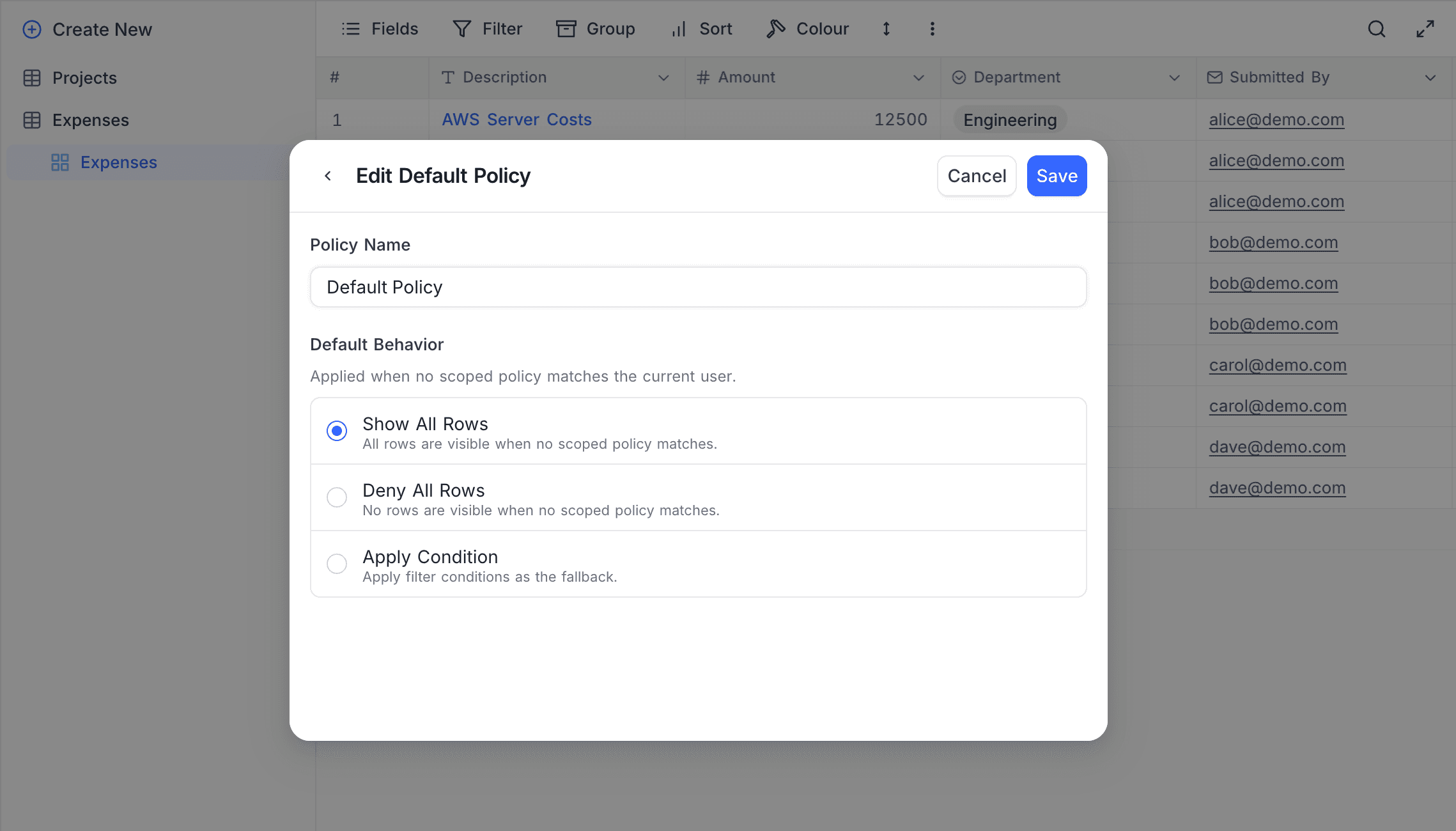
Creating a Default Policy
- Open the RLS panel for the table.
- Click Add Default Policy.
- Select the default behavior:
- Show all: Unmatched users see all records.
- Deny all: Unmatched users see no records.
- Condition: Set filter conditions for unmatched users.
- If you selected Condition, use the filter builder to set the filter conditions.
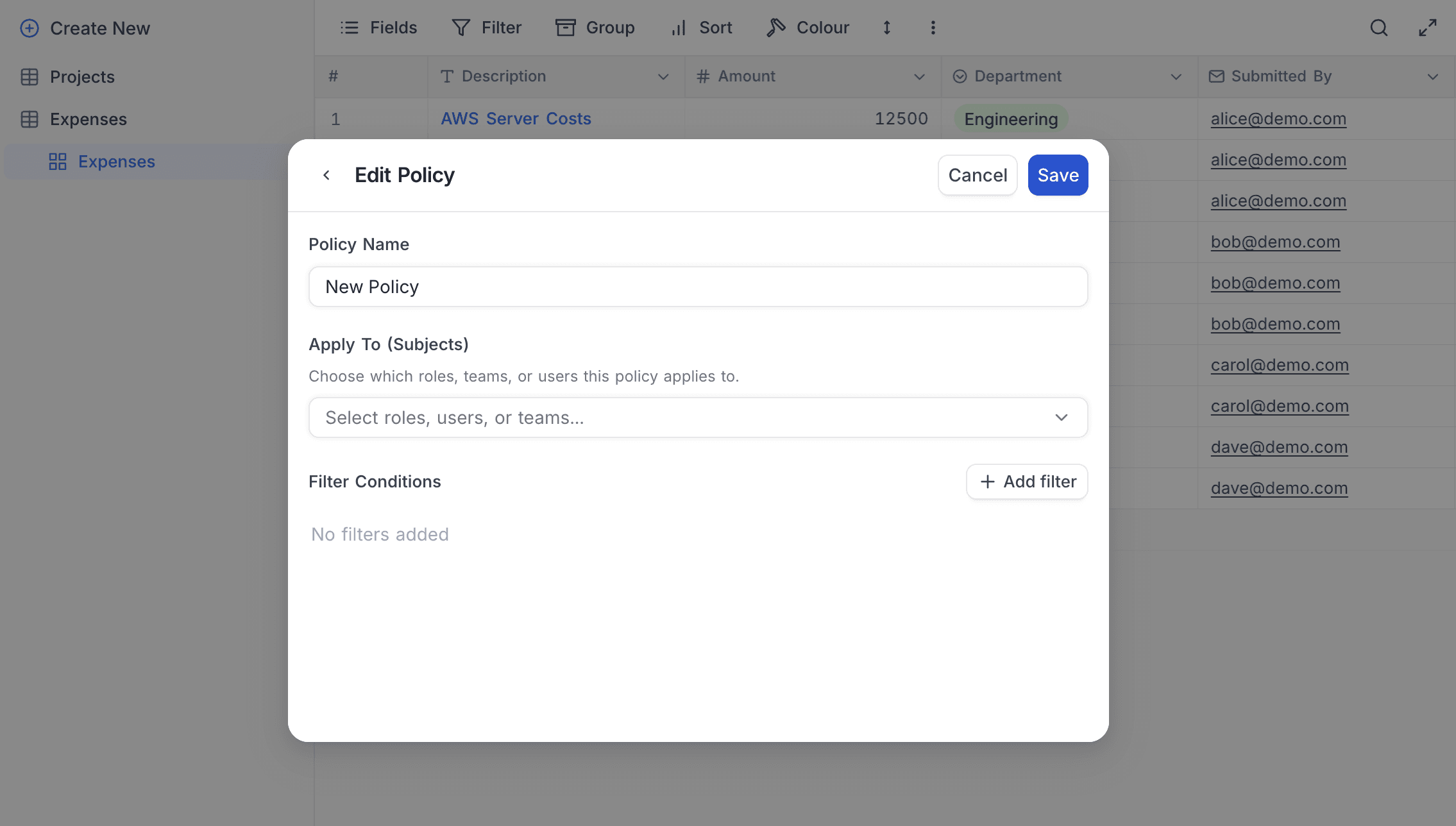
Creating a Scoped Policy
- Open the RLS panel for the table.
- Click Add Policy.
- Type a policy name (for example, "Sales reps see own deals").
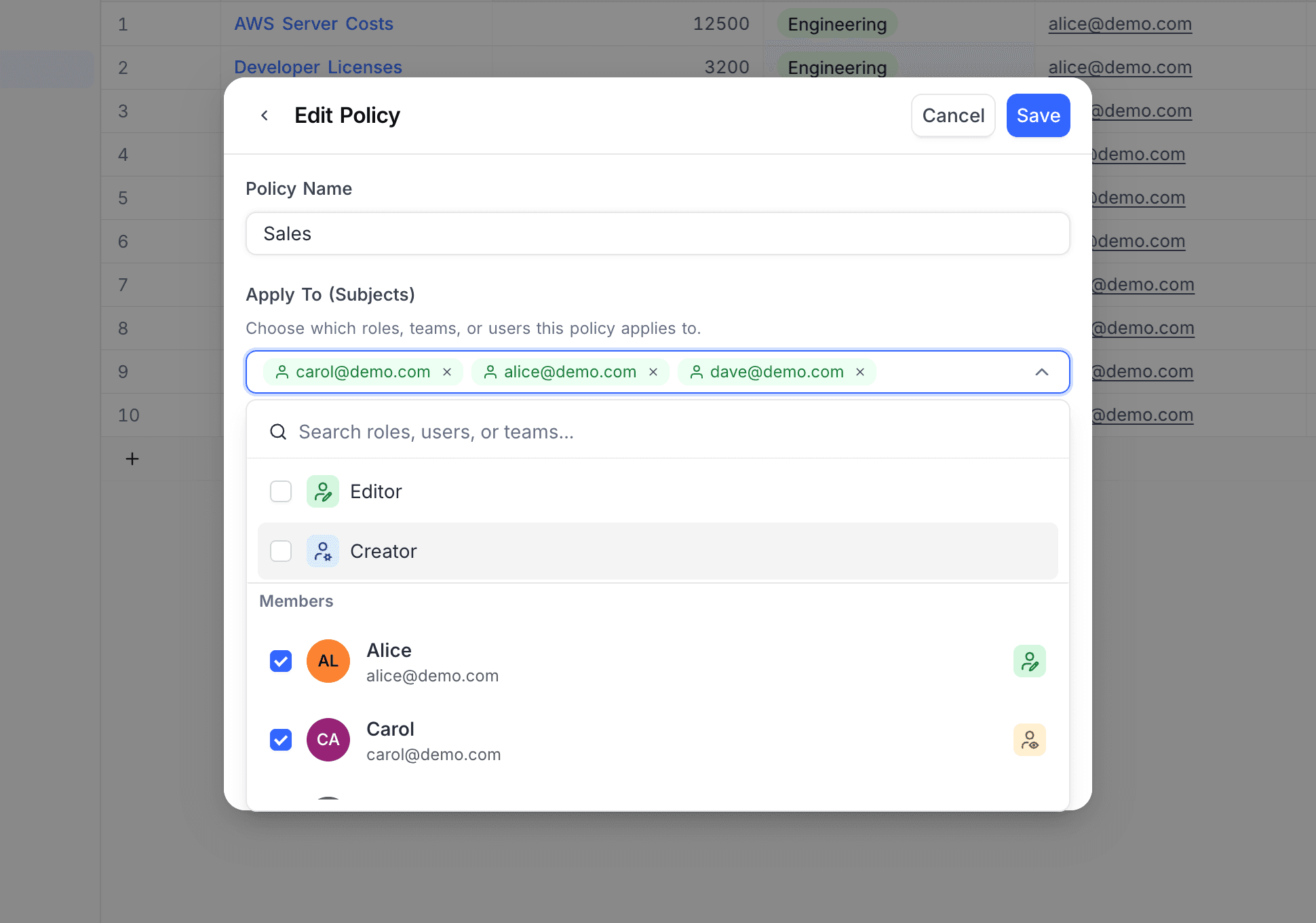
- In the Apply To section, select the subjects of this policy:
- Select from Roles, Members (users) or Teams.
- You can select many subjects of different types.
- For teams, select the hierarchy scope (self only or self and descendants).
- Set the filter conditions that control which records are visible.
- Save the policy.
Enabling and Disabling Policies
Each policy has an enable/disable toggle. NocoDB ignores disabled policies. A disabled policy keeps its configuration, but it does not change which records are visible.
Editing and Deleting Policies
- To edit a policy, click the edit icon next to it in the policy list. Change the name, subjects or filter conditions.
- To delete a policy, click the delete icon. Then confirm the deletion.
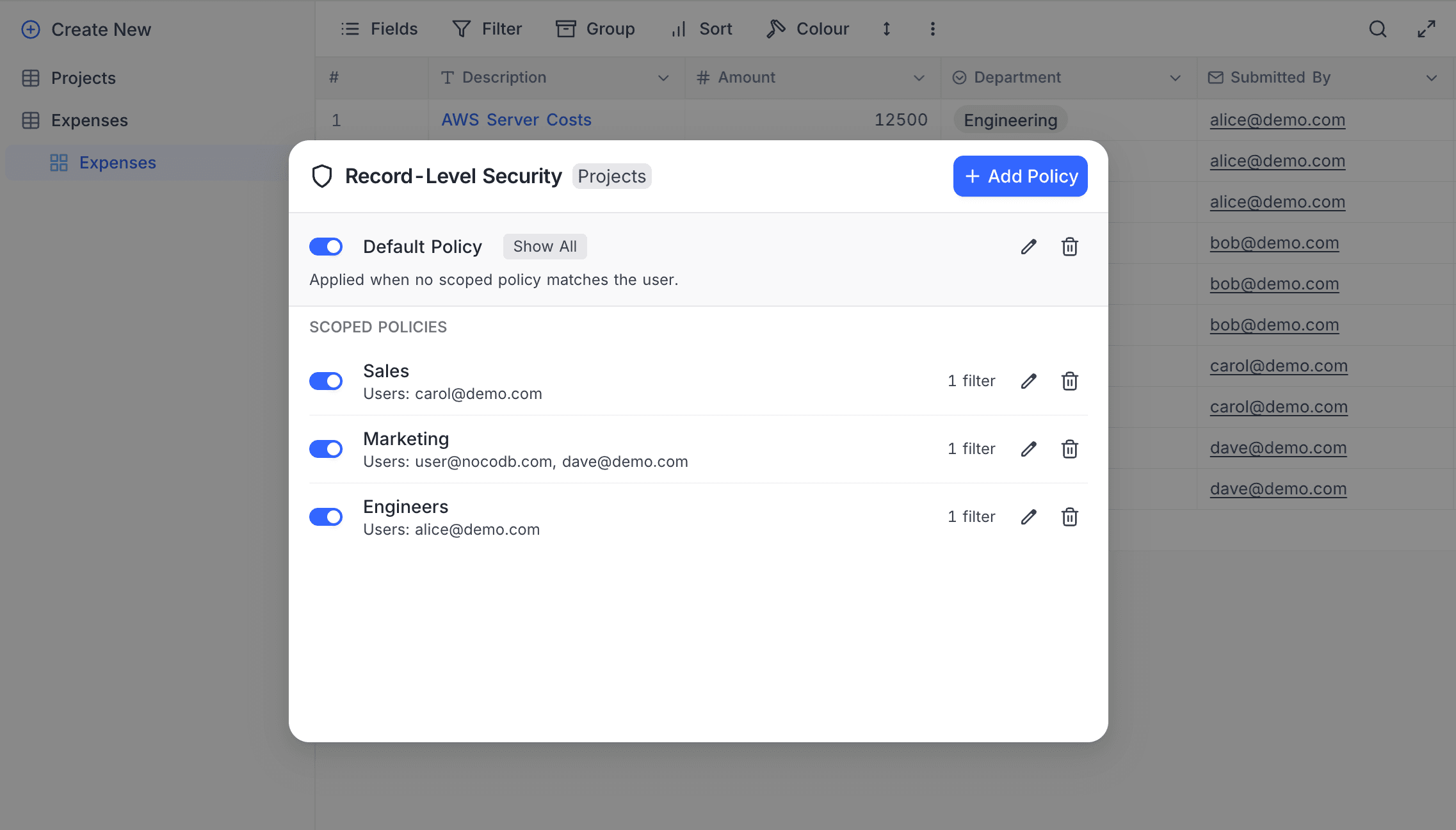
Example: Sales Pipeline
A "Sales Pipeline" table keeps track of the deals of a sales organization:
| Field | Type | Description |
|---|---|---|
| Deal Name | Single line text | Name of the deal |
| Value | Currency | Deal value |
| Stage | Single select | Pipeline stage (Lead, Qualified, Proposal, Closed Won, Closed Lost) |
| Assigned To | Email of the assigned sales rep | |
| Region | Single select | Sales region (North, South, East, West) |
Goal: Sales reps see only their own deals. Regional sales managers see the deals in their region. By default, all other users are blocked.
Policy 1: Default Policy — Deny All
Create a default policy with the behavior Deny all. A user who does not match a scoped policy then cannot see records.
Policy 2: Sales Reps See Own Deals
| Setting | Value |
|---|---|
| Policy name | Sales reps – own deals |
| Apply to | Role: Editor |
| Filter | Assigned To is equal Current user email (dynamic value) |
Sales reps (with the Editor role) see only the deals assigned to them. The filter uses a dynamic value, so this one policy covers all reps. For each rep, NocoDB compares Assigned To with the email address of that rep.
Policy 3: Regional Managers See Team Deals
| Setting | Value |
|---|---|
| Policy name | Managers – regional deals |
| Apply to | Team: North Sales Team (self and descendants) |
| Filter | Region is equal North |
Members of the North Sales Team (and its sub-teams) see all deals in the North region. Create similar policies for the other regions.
How It Works
| User | Matching policy | What the user sees |
|---|---|---|
| Alice (Editor role, Assigned To: alice@company.com) | Policy 2 | The dynamic value gives her own address. She sees only the deals where Assigned To = alice@company.com. All other reps that match this policy see their own deals in the same way. |
| Bob (member of North Sales Team) | Policy 3 | All deals where Region = North. |
| Carol (VP of Sales, Creator role, not matched by any scoped policy) | Default policy | Creators are not subjects in a scoped policy, so the default policy applies. Carol sees no records. To give Carol full access, add Creator as a subject in a scoped policy with a "show all" condition. Or change the default policy to Show all and restrict the other users. |
| Dave (Viewer role, not in any sales team) | Default policy (Deny all) | No scoped policy matches. Dave sees nothing. |
Notes and Limitations
- Permissions required: Only base Owners and Creators can create, edit or delete RLS policies.
- Per-table limit: The number of scoped policies for each table has a configurable limit. The default policy does not count toward this limit.
- Fail-closed: If an error occurs while NocoDB examines the policies, NocoDB denies access. Thus, a system error never shows records.
- API and views: RLS policies apply to all views of the table and to API calls. No interface gives access to records that RLS filters out.
- Table visibility first: NocoDB applies RLS only after table visibility. If a table is hidden from a user, RLS does not apply. The user cannot access the table at all.
- View filter interaction: RLS filters combine with view filters by AND logic. A record is visible only if it matches both the view filter and the RLS policy filter.
- Real-time updates: Policy changes apply immediately for all connected users.
Related topics
Availability
- Record-level security is available on NocoDB Cloud (Scale plan and above) and licensed self-hosted deployments (Scale plan and above).
Last updated on