Create Base
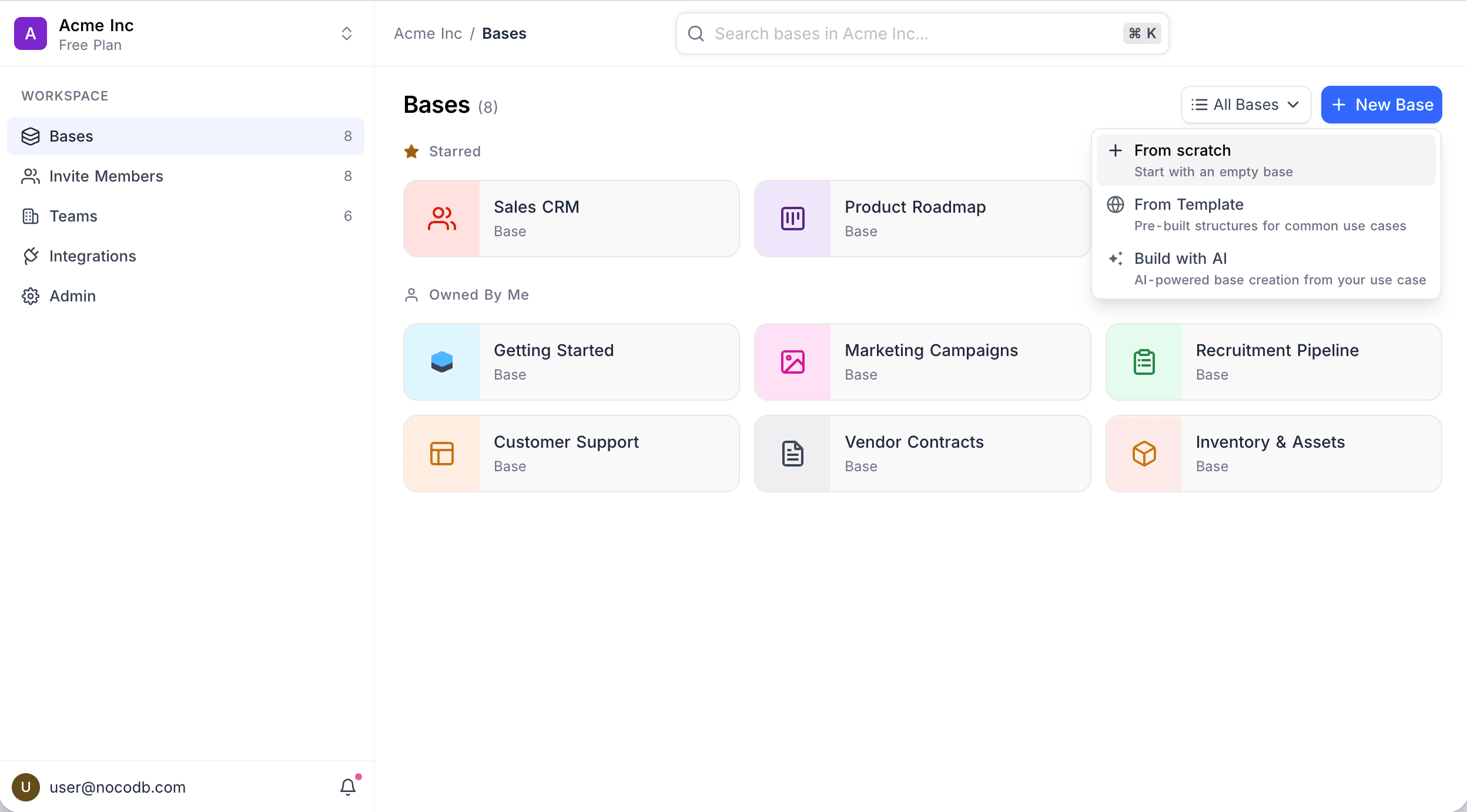
On the workspace Bases page, click New Base. These options show:
| Option | What it does |
|---|---|
| From Scratch | Starts an empty base. |
| From Template | Uses a pre-built structure for a common use case. |
| Build with AI | Uses AI to create a base from your use case. |
Ask NocoAI
Copy a prompt, paste it into NocoAI in any base, and replace the words in [brackets] with your own.
- Build a base to manage [our hiring pipeline]
- Build a base for [a marketing team] with linked tables for [campaigns, content and channels]
- Build a base like [a simple CRM], with a kanban view and a dashboard
- Build a base from the attached spreadsheet, splitting it into linked tables where it makes sense
From Scratch
- Click New Base → From Scratch.
- Type a name for the base.
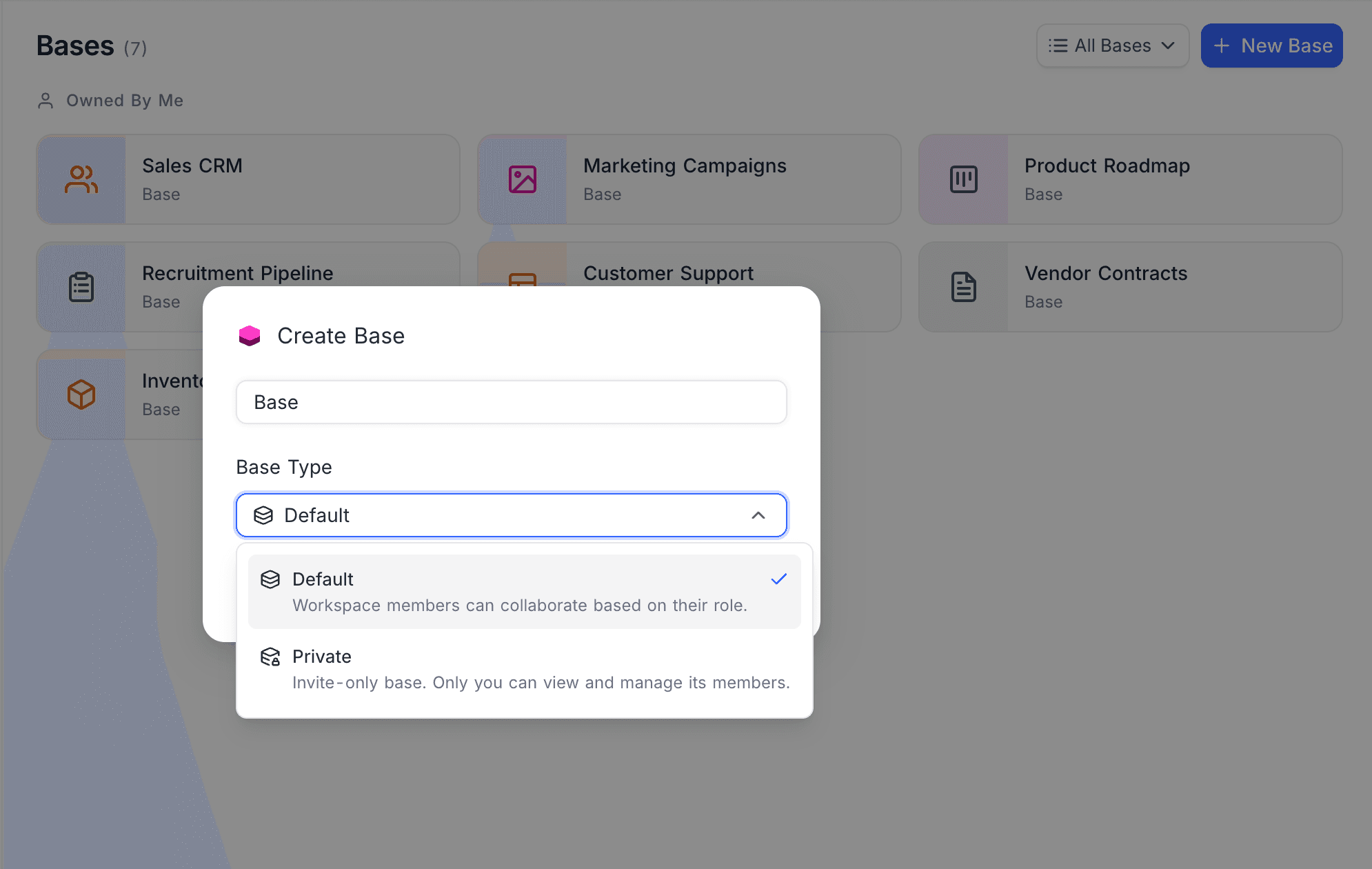
- Select a Base Type:
- Default: Workspace members can work in the base based on their role.
- Private: Only invited members can access the base. Only you can see and manage its members. Refer to Private Base.
- Click Create Base.
Private bases are available on NocoDB Cloud (Business plan and above) and licensed self-hosted deployments (Scale plan and above).
From Template
- Click New Base → From Template.
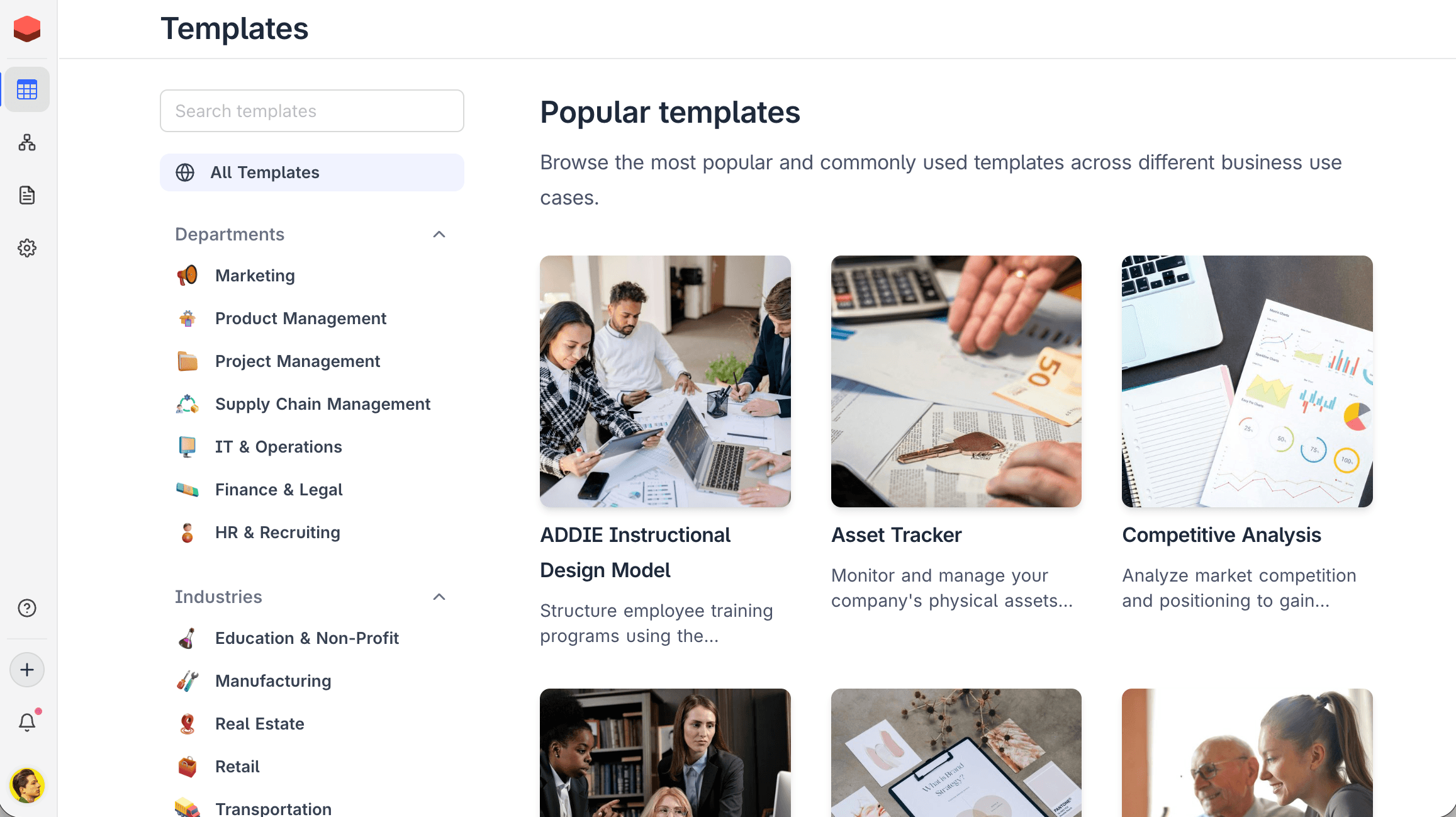
- Browse the templates by Departments or by Industries:
- Departments: Marketing, Project Management, Supply Chain, Finance & Legal, HR & Recruiting.
- Industries: Education, Manufacturing, Real Estate, Retail, Transportation.
- Select a template. A preview of its structure shows.
- Click the template to create the base.
Build with AI
AI base creation is available on NocoDB Cloud (Plus plan and above), where usage is metered by credits. On self-hosted deployments, AI base creation requires configuring your own AI integration (Business plan and above).
- Click New Base → Build with AI.
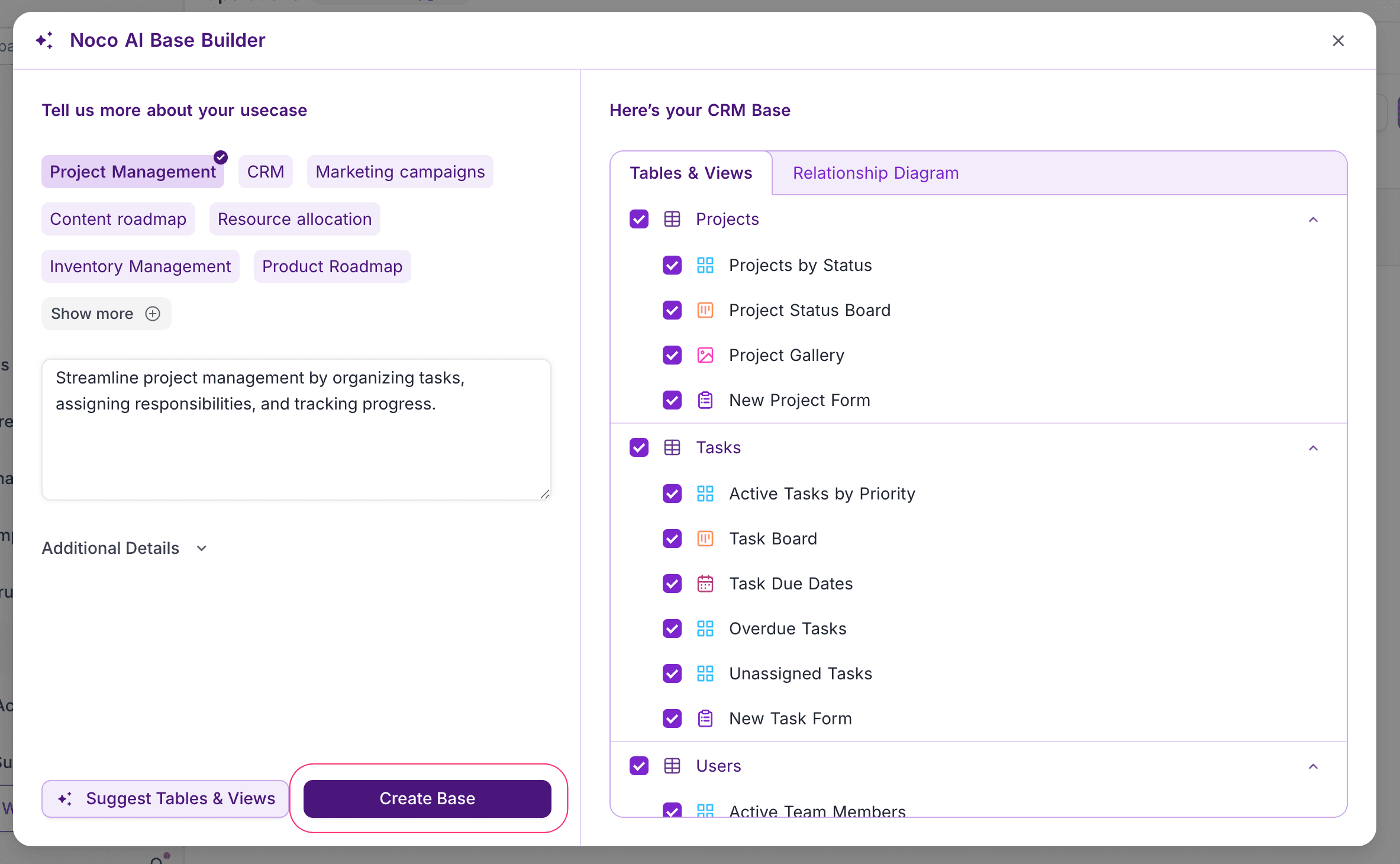
- Select a use case (for example, Project Management, CRM or Marketing campaigns), or describe what you need.
- Examine the suggested tables, views and relationships.
- Click Create Base.
For more information, refer to NocoAI base creation.
When you create a base, you become its owner. Only base owners can delete a base.
After NocoDB creates the base, the Base Dashboard opens. Add tables and data from there.
Last updated on
Latest product updates?See Changelog