Share Base
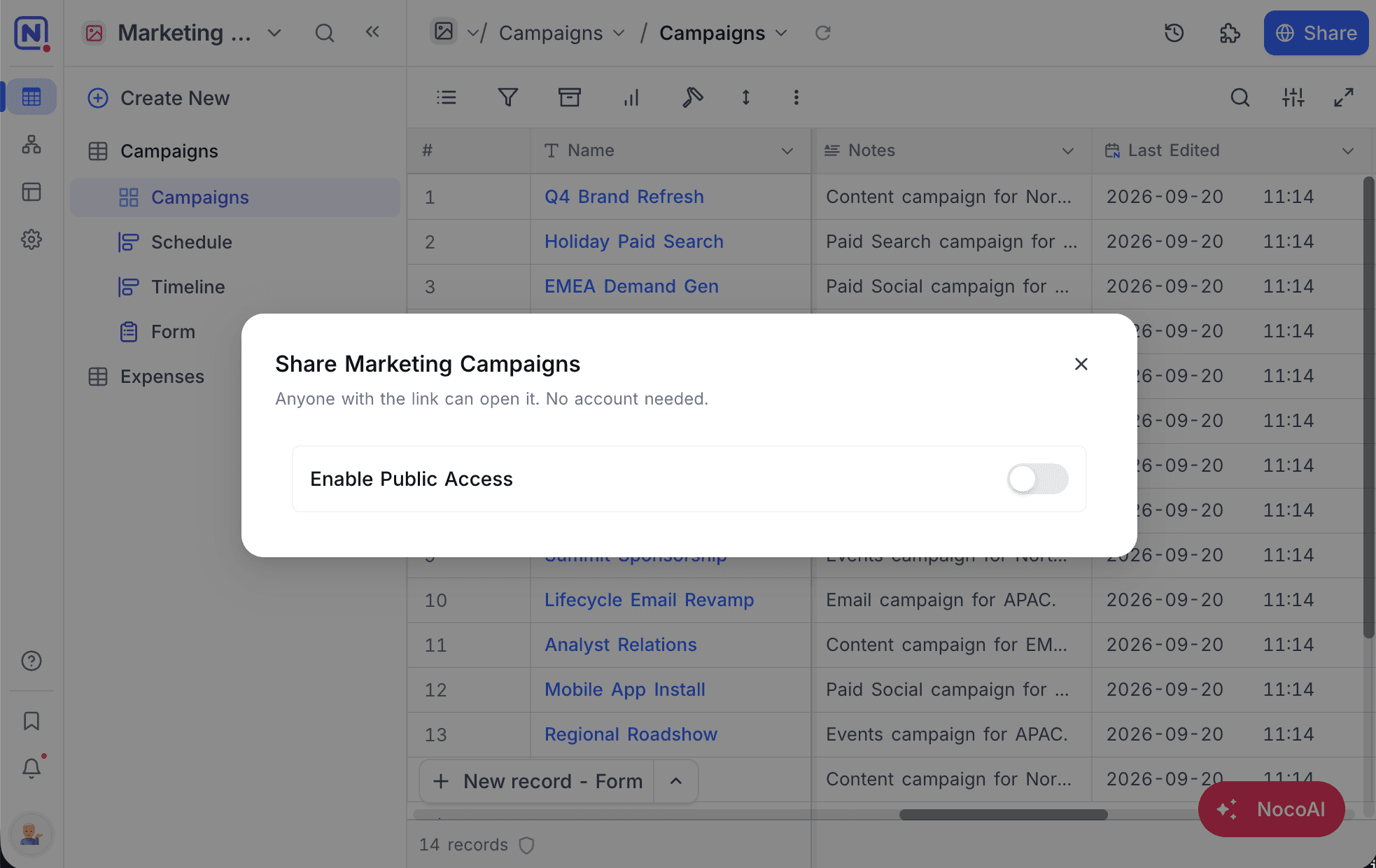
Enable public access
To share a base:
- In the sidebar, right-click the base. Or open the base context menu from the toolbar.
- Click
Share base. - Turn on the
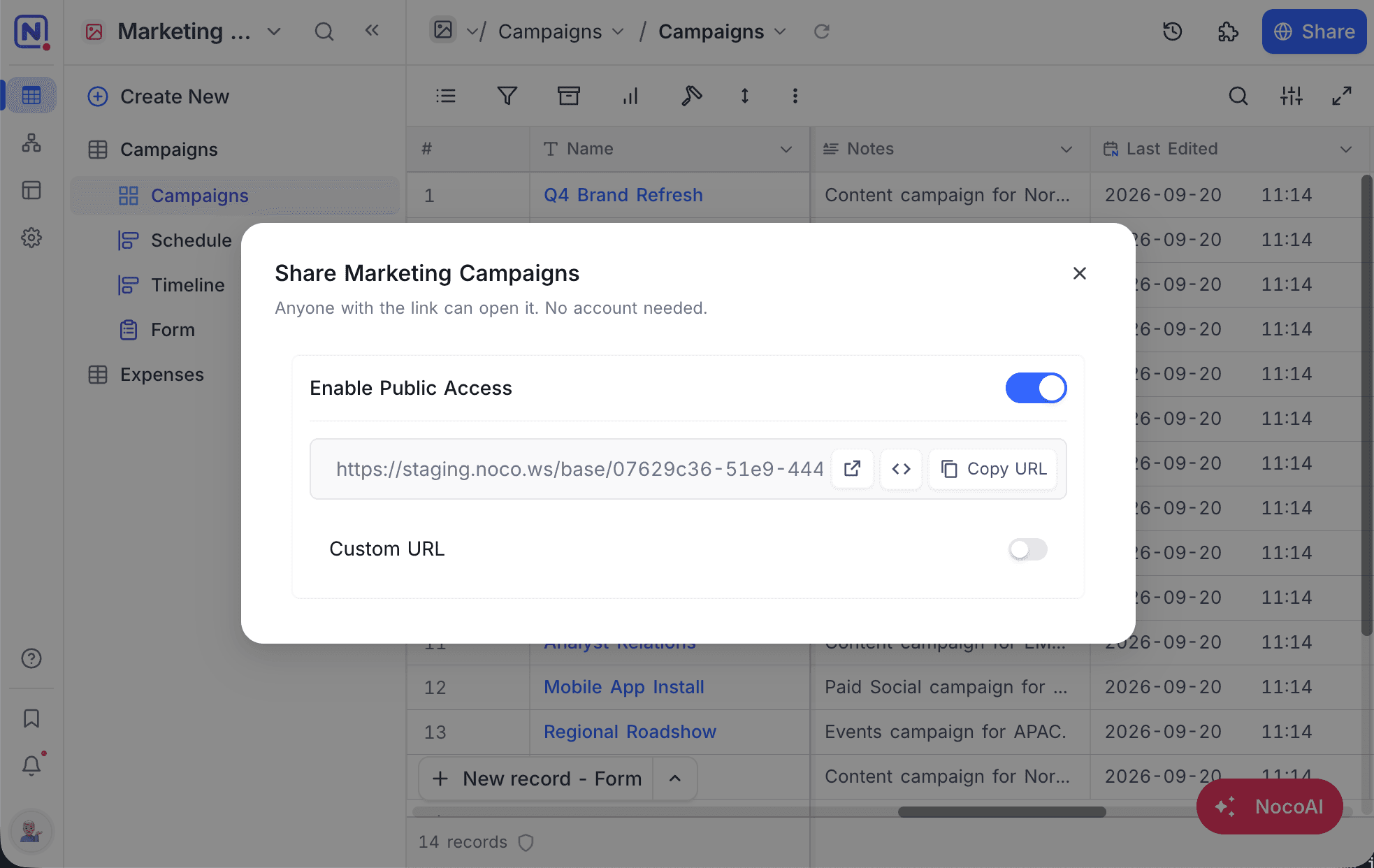
Enable Public Accessswitch. NocoDB makes a shareable link. - Click
Copy URLto copy the link.
Share button in the top right corner opens the invite dialog, which adds people as members of the base. Publishing a read-only link to the whole base is done from Share base in the base context menu, and is available to base Owners and Creators.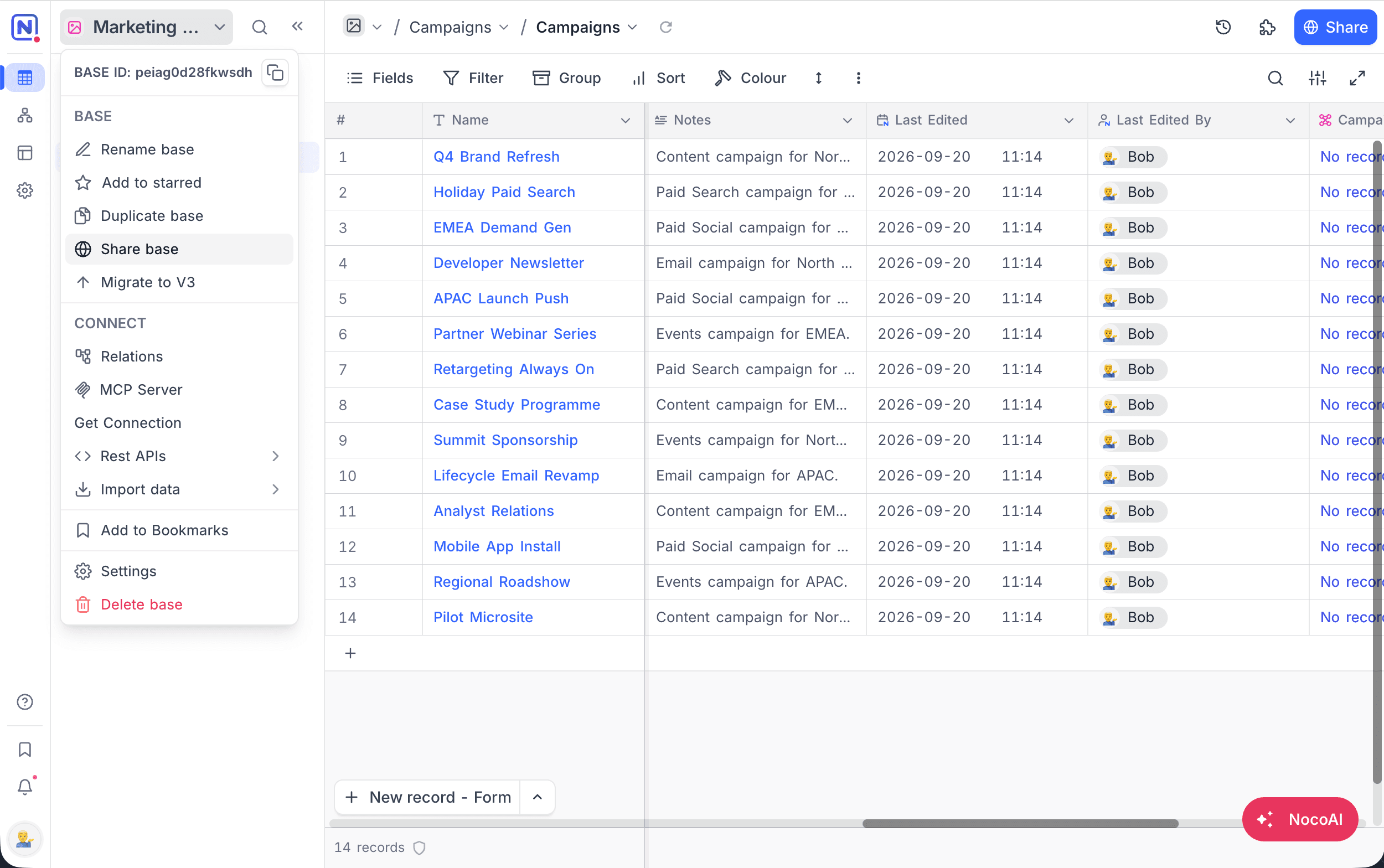
Copy Base
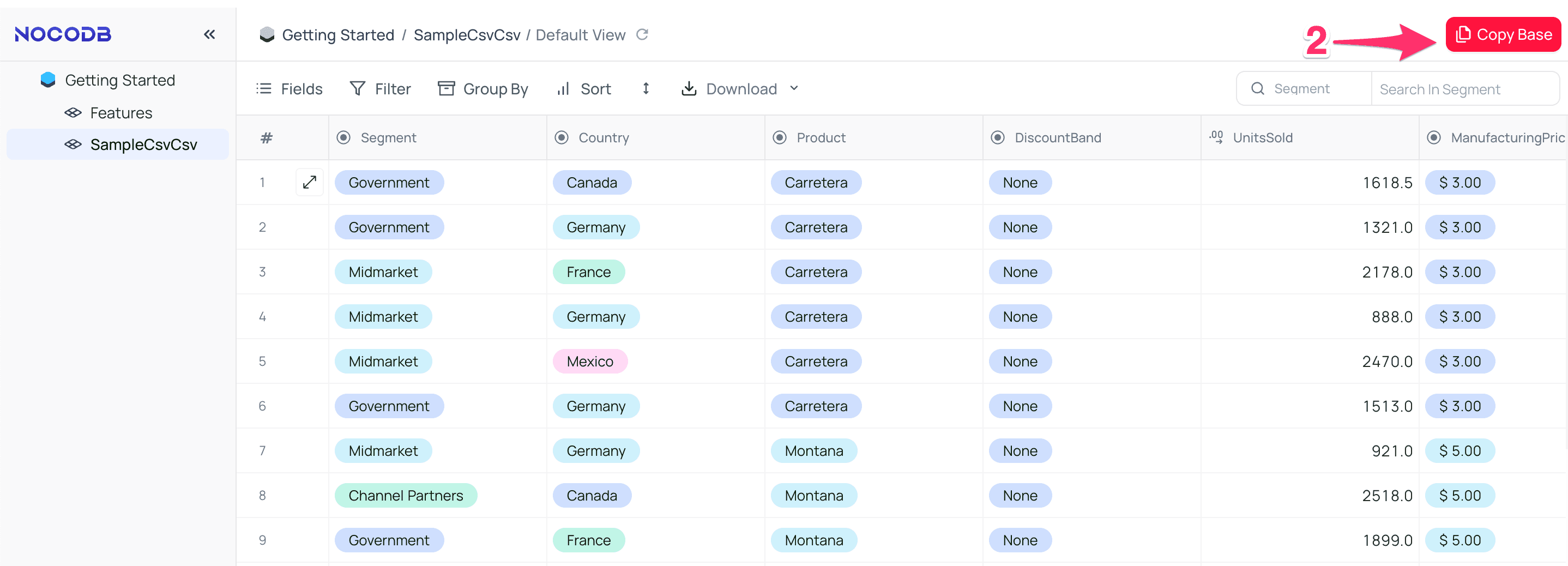
With Copy base, a person with the shared link can import a copy of the base into their own workspace. You can also use it to make a base into a template for new bases. To copy a base:
- Open the shared base URL that you want to copy.
- In the top right corner of the toolbar, click
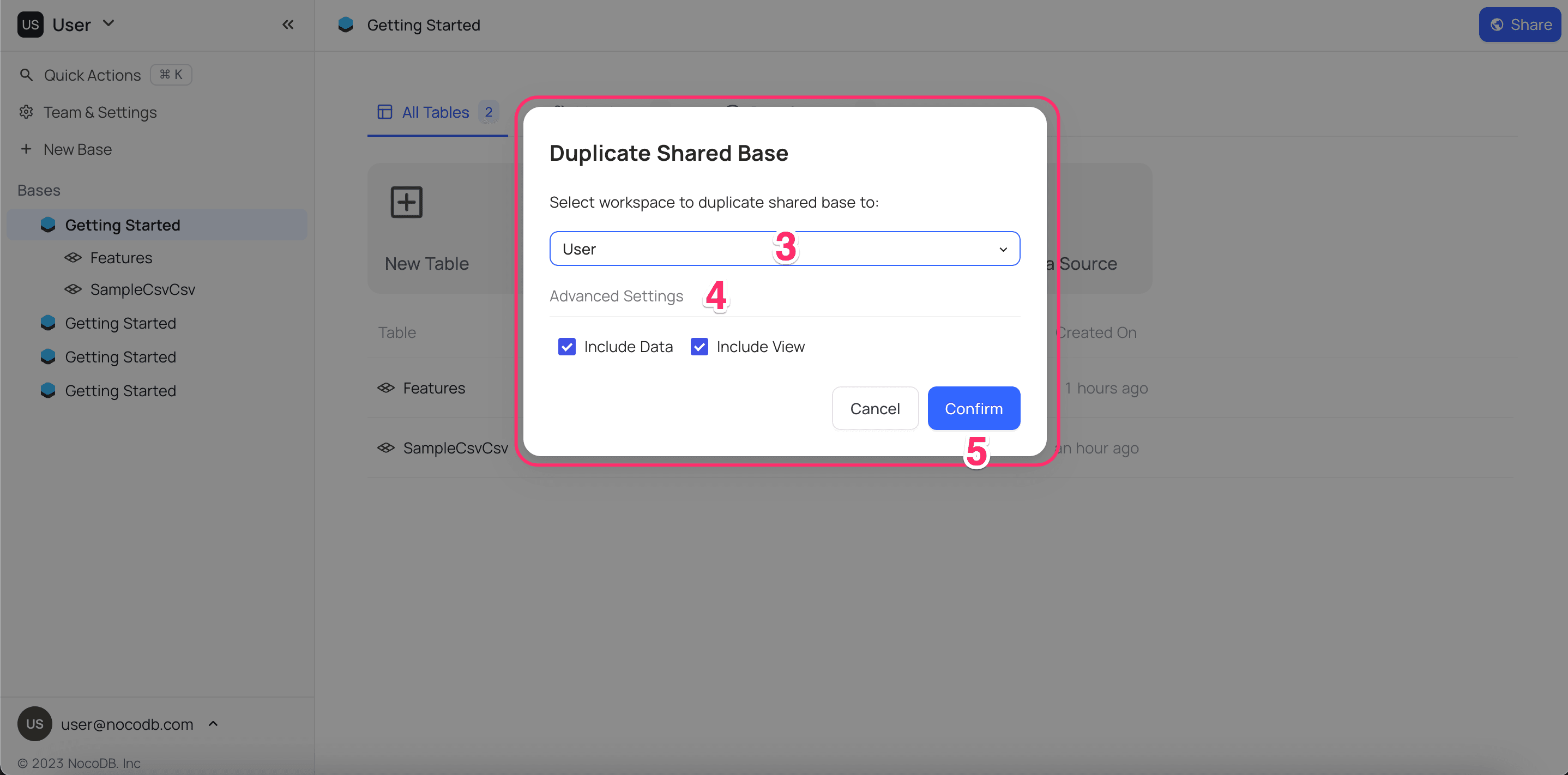
Copy base. A modal opens. - Select the workspace for the copy.
- Select if the copy includes data and views.
- Click
Copy base.
Modify Share base
When you update (regenerate) the shared base configuration, the old link stops working and NocoDB makes a new link. To do this:
- From the base context menu, open
Share base. - Turn off
Enable Public Access. Sharing stops. - Turn on
Enable Public Accessagain. NocoDB makes a new link.
Disable Share base
To disable the shared link:
- From the base context menu, open
Share base. - Turn off
Enable Public Access.
The current share link stops working.
Custom URL
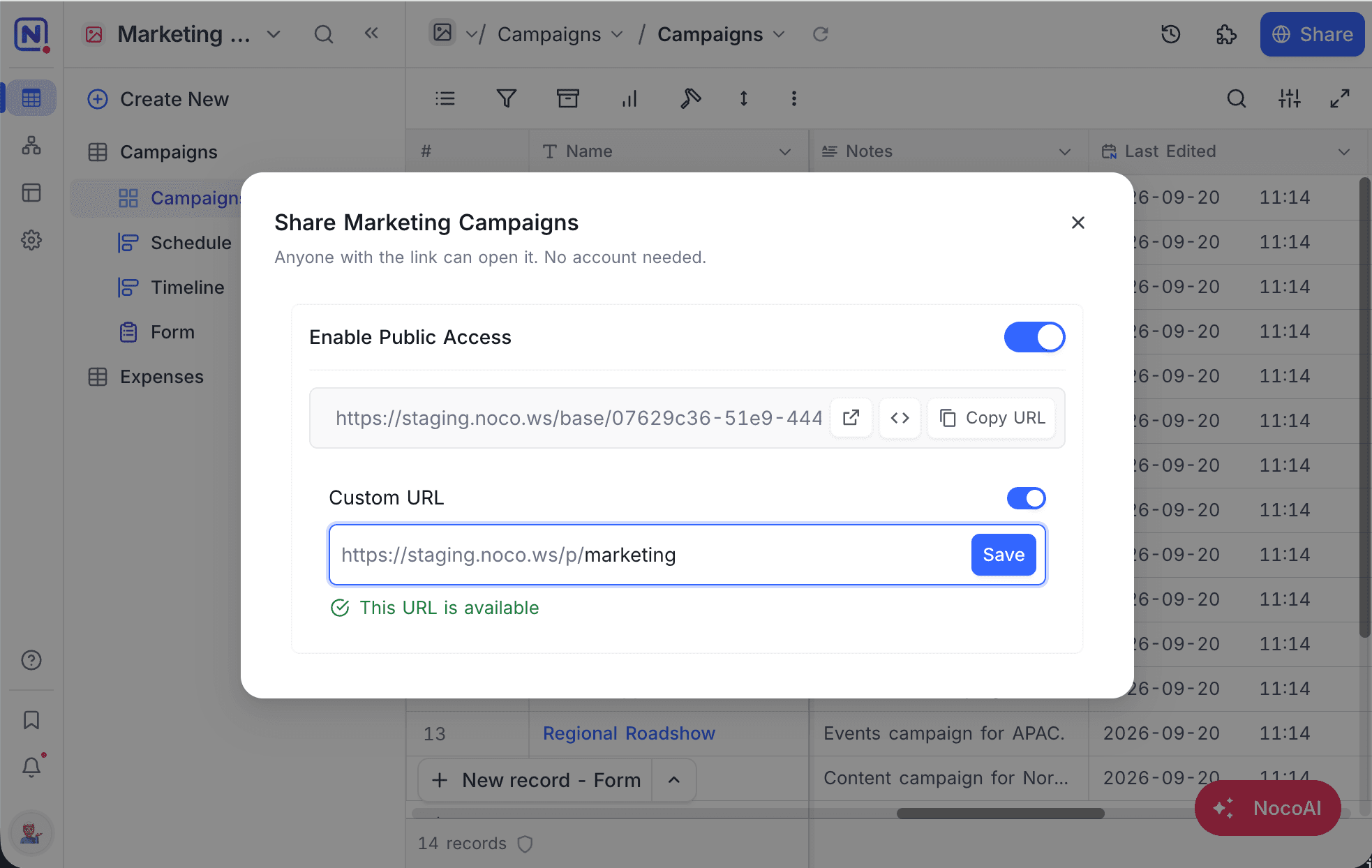
You can set a custom identifier for the shared base URL. The custom URL must be unique. Do not use special characters such as /, ? or #.
To set a custom URL:
- Turn on the
Custom URLoption. - In the input field, type a custom value. If the custom URL is already in use, NocoDB asks you to select a different one.
- Click
Save.
Embeddable Frame
You can embed the shared base in another application with an HTML IFRAME.
To get the iframe code:
- From the base context menu, open
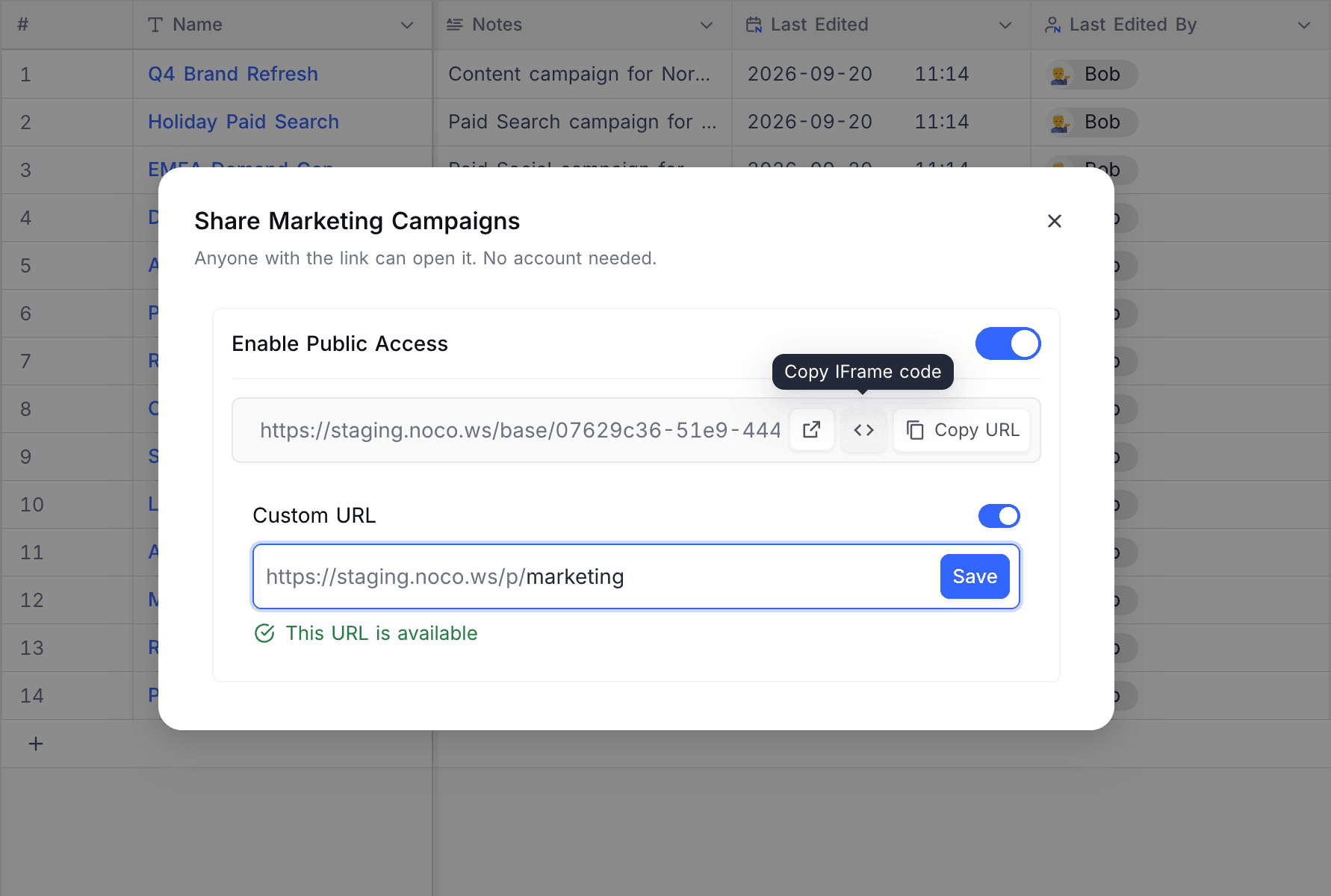
Share base. - Click
<>(labelledCopy IFrame code). NocoDB copies the embed snippet.
The snippet looks like this:
<iframe src="https://app.nocodb.com/base/07629c36-51e9-444c-b1ed-0b30e8e6e1ad" width="100%" height="100%" style="border: none;"></iframe>Change width, height and style to fit the page that holds the iframe.
This is an example of a complete HTML document that embeds the base:
<!DOCTYPE html>
<html>
<head>
    <title>Sample iFrame Example</title>
</head>
<body style="height:100vh; margin:0">
<iframe src="https://app.nocodb.com/base/07629c36-51e9-444c-b1ed-0b30e8e6e1ad" width="100%" height="100%" style="border: none;"></iframe>
</body>
</html>Last updated on