Actions on Record
Copy a prompt, paste it into NocoAI in any base, and replace the words in [brackets] with your own.
- Set [Status] to [Done] for every record assigned to [person]
- Delete the records where [Status] is [Cancelled]
- Fill in the empty [Country] values based on [City]
- Find duplicate records by [Email]
Keyboard navigation within Grid view
A selected cell can be in one of these states:
| State | How to get it | Arrow keys |
|---|---|---|
Select state | Click the cell one time. | Move to the adjacent cells. |
Edit state | Double-click the cell. | Move the cursor in the cell. |
- To go directly to edit state, double-click a cell.
- In Select state, press
Enterto go to edit state. - Press
Escto exit edit state. - In Edit state, press
Enterto save the changes.
For some cells, edit state shows a picker. For example, a Single Select cell shows a picker with options. In a picker, use the arrow keys to move between options.
Keyboard shortcuts for cell navigation
| Key | Behavior |
|---|---|
⌘ ↑ | Go to the first record in this field (on the same page) |
⌘ ↓ | Go to the last record in this field (on the same page) |
⌘ C | Copy the cell contents to the clipboard |
⌘ V | Paste the clipboard contents into the cell |
Enter | Put the cell in focus in EDIT mode. Opens the modal or picker of the cell, if any. |
Esc | Exit cell EDIT mode |
Delete | Clear the cell |
Space | Expand the current record |
← → ↑ ↓ | Move between cells: left, right, up, down |
Tab | Move to the next cell to the right. On the last cell, move to the start of the next record. |
Update Record
To start editing a cell, do one of these:
- Double-click the cell.
- Click the cell and start typing. This clears the previous content.
- Click the cell and press
Enter.
NocoDB saves the change automatically when the cell loses focus or when you stop editing.
Duplicate Record
Right-click a record and select Duplicate record. NocoDB adds a copy of the row in place, with the same field values.
Bulk Update Records ☁
- Select the records that you want to update.
- Right-click the index field area (the first column of the grid view).
- Select
Update selected records.
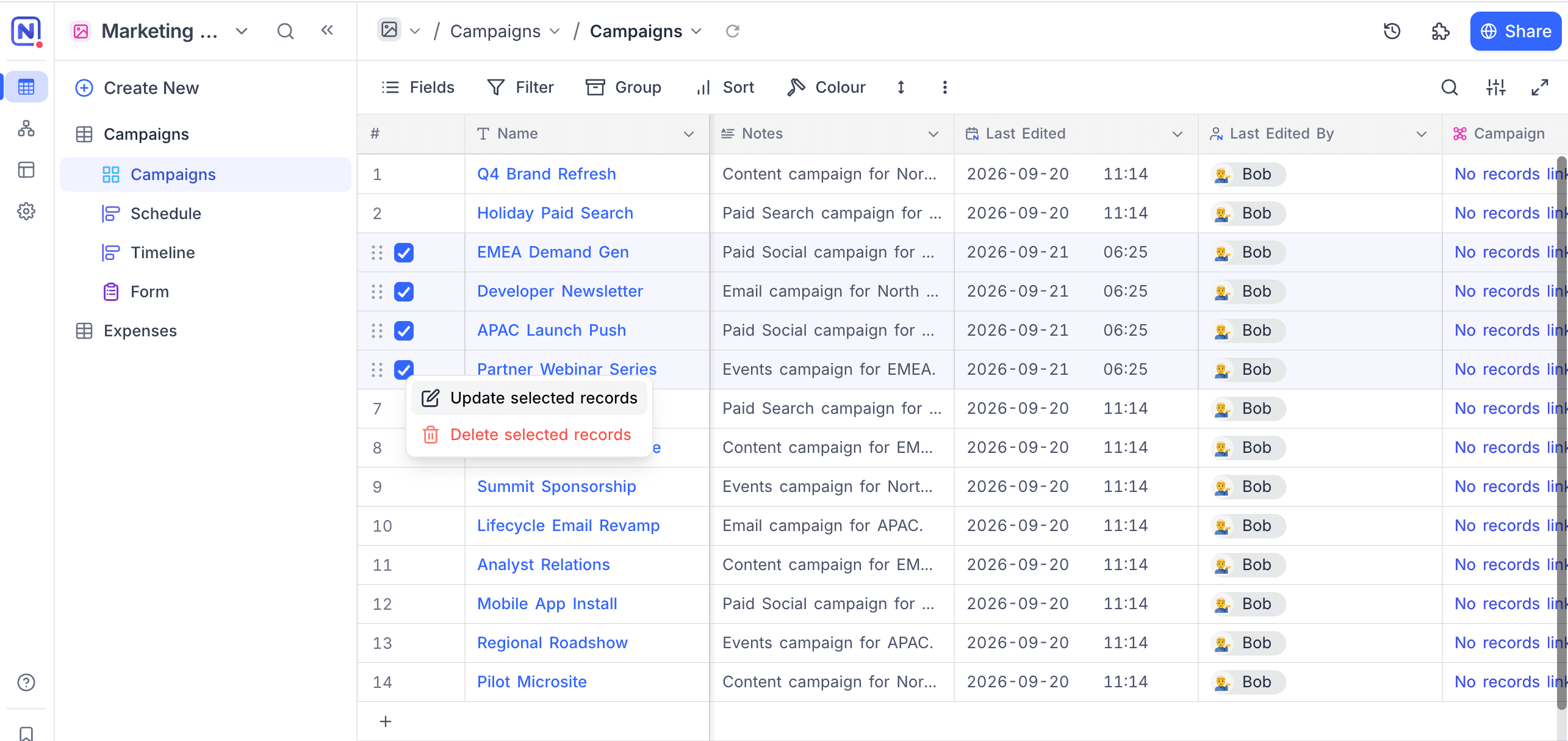
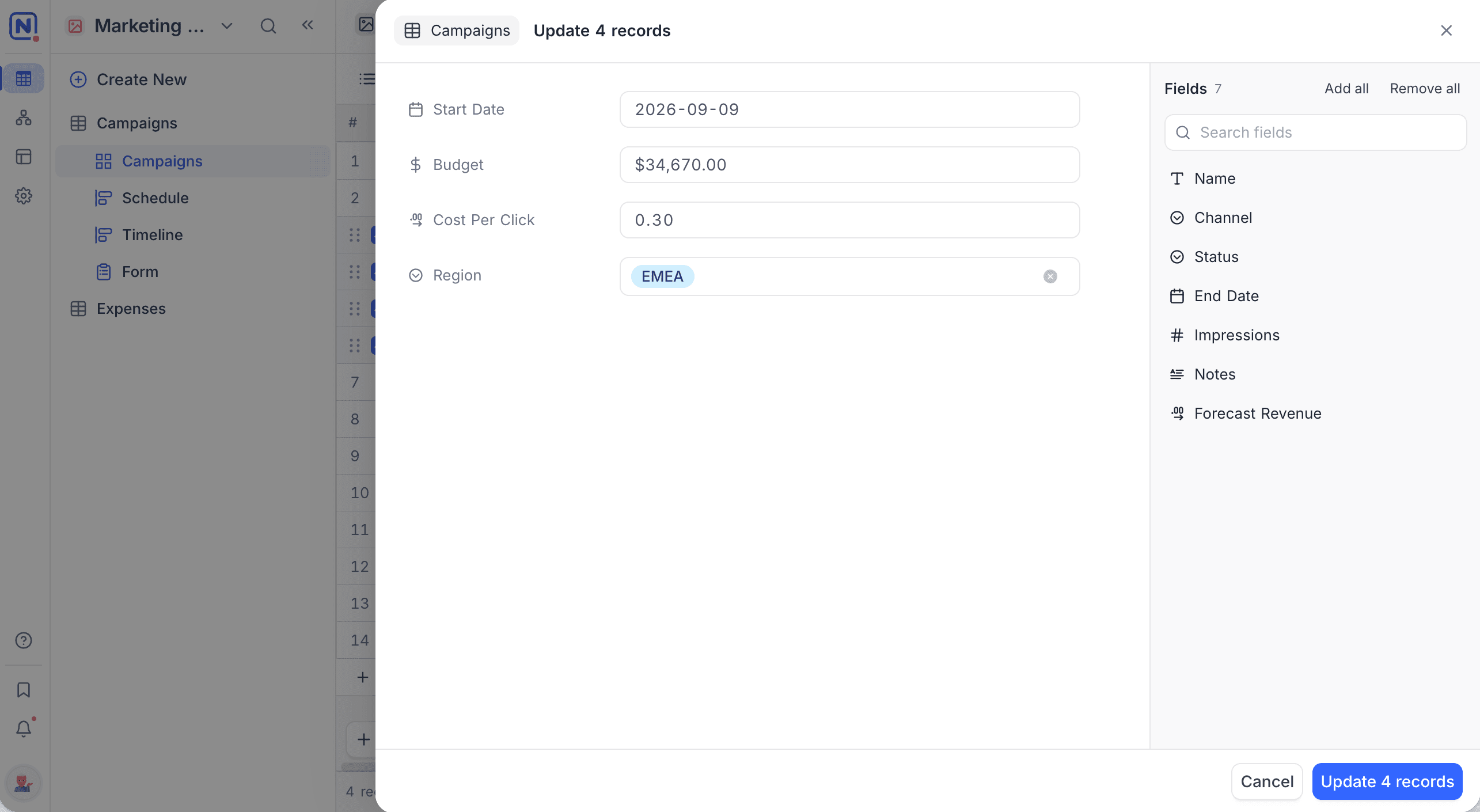
The Update <n> records panel opens.
- In the
Fieldslist on the right, click a field to add it, or clickAdd all. The list shows every field that you can update, with a count next to the heading. In a wide table, use theSearch fieldsbox to find a field. - On the left, enter the new value for each field.
Remove allclears the list. - Click
Update <n> records.
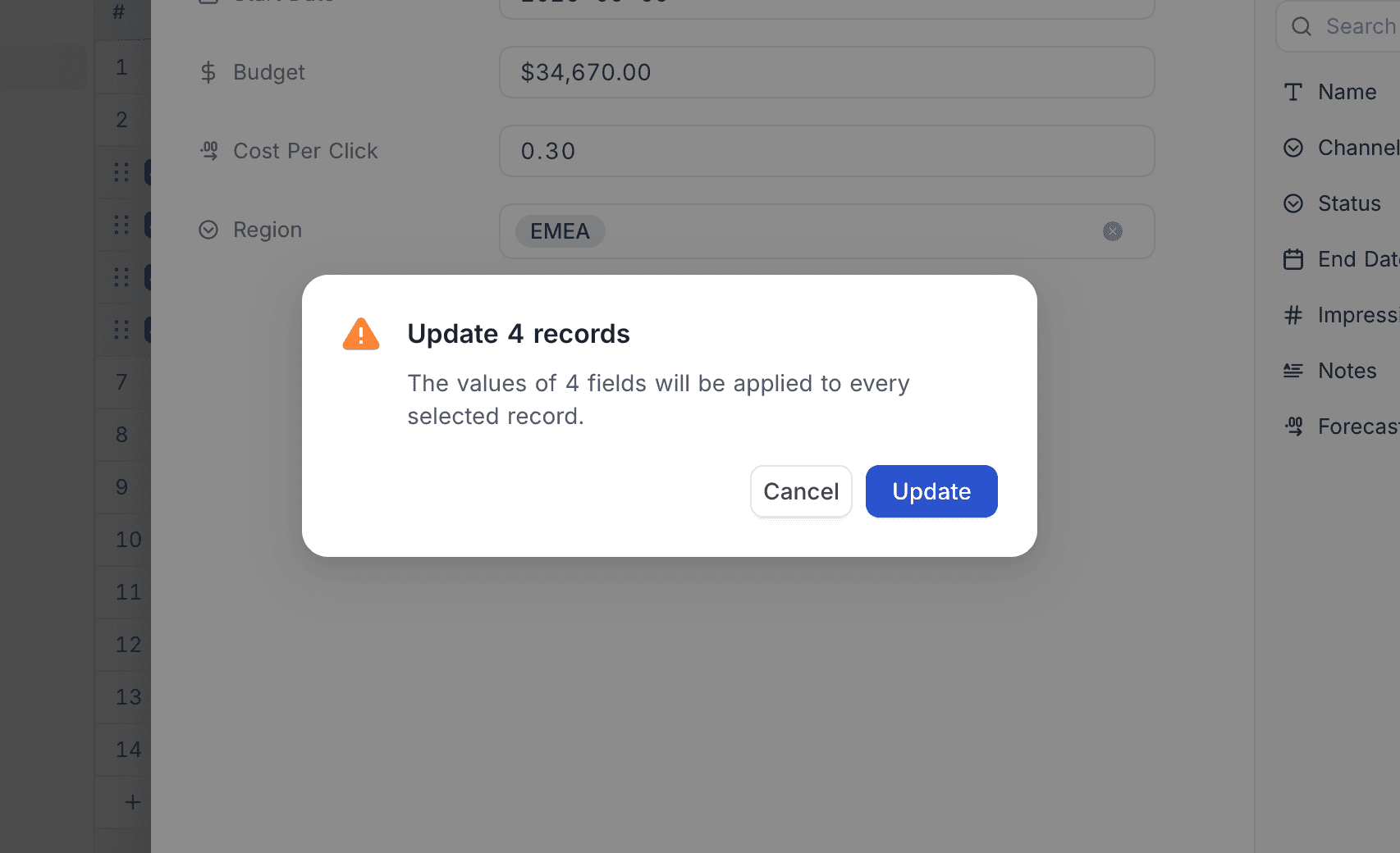
- A confirmation dialog opens. Click
Update. NocoDB applies the values.
Delete Record (Single)
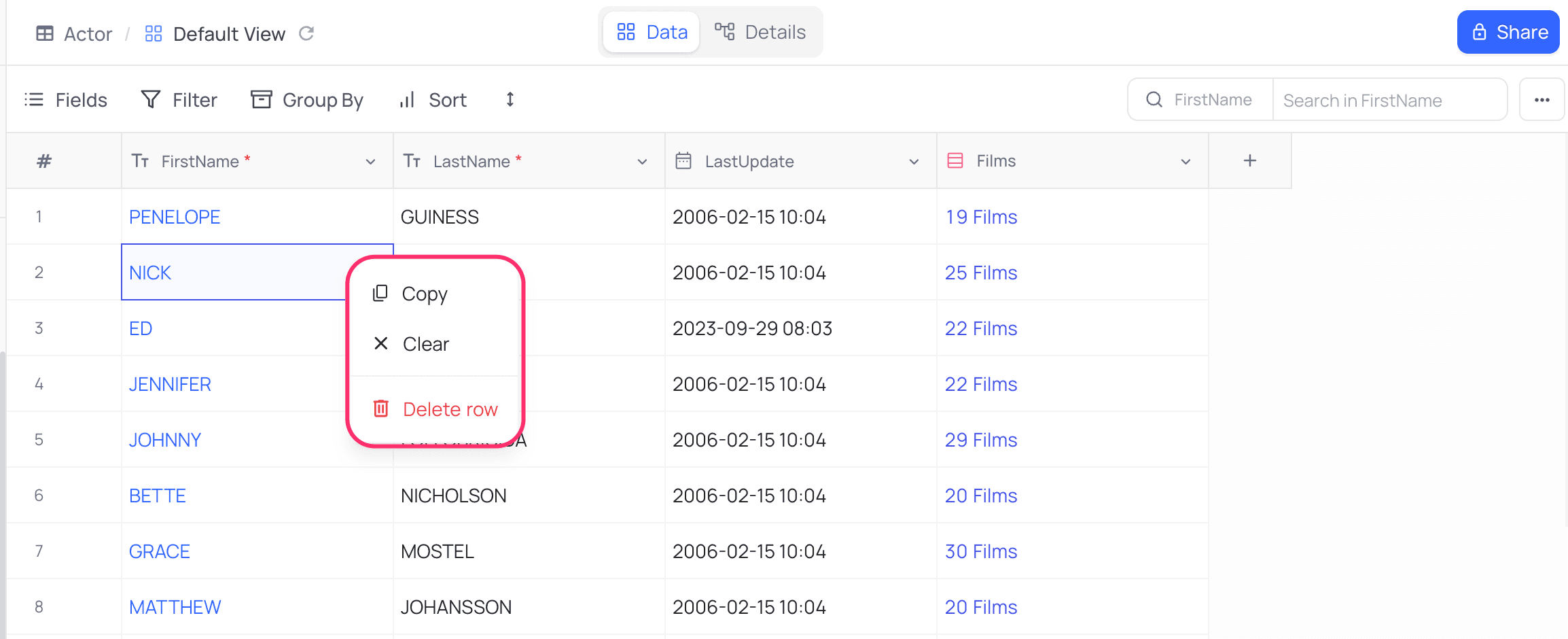
Right-click a record. In the cell context menu, select Delete Record.
Delete Record (Bulk)
- Select the records with the checkboxes in the first column.
- Right-click the selection.
- In the context menu, select
Delete Selected Records.
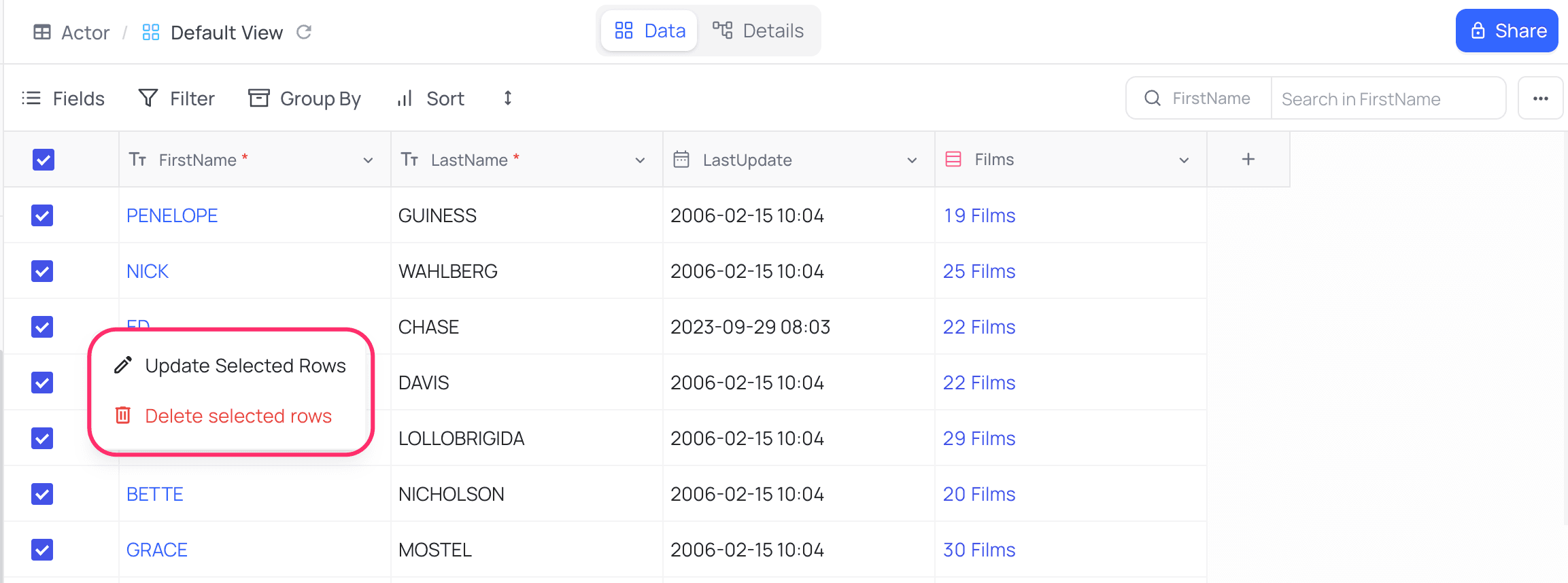
NocoDB moves deleted records to the base Trash, with other deleted items such as tables, views, and fields. You can restore them or delete them permanently from there. For details, refer to Base trash.
Drag and Drop to reorder records
To reorder records, drag a record to a new position. Use the drag icon on the left side of the record.
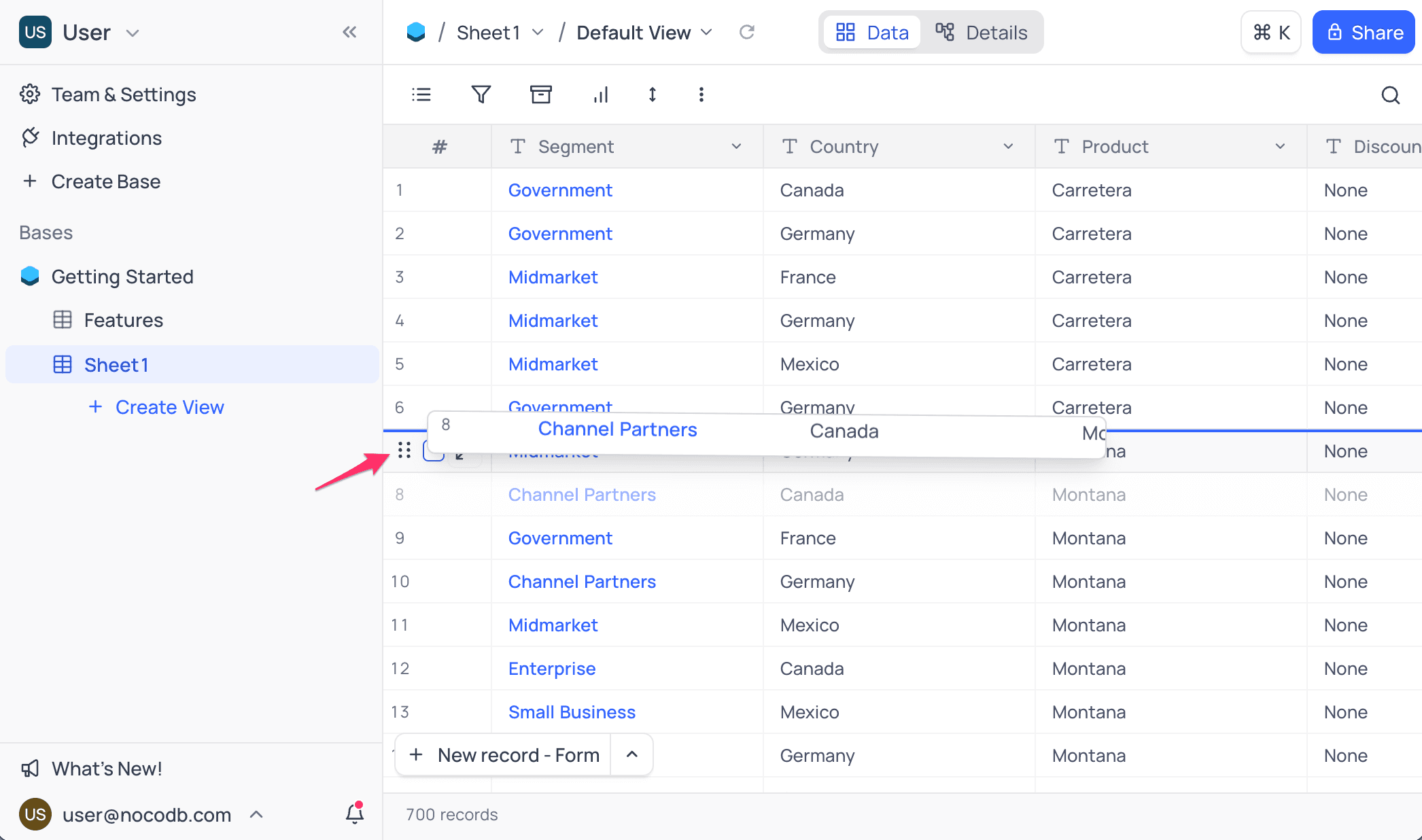
- You cannot currently drag and drop many records at one time.
- You cannot currently drag and drop records in Group-by view.
Last updated on