Import Airtable to NocoDB
Before you begin
You need a valid Airtable Personal Access Token and a Shared Base ID / URL.
Access import modal
You can open the Import from Airtable modal in two ways.
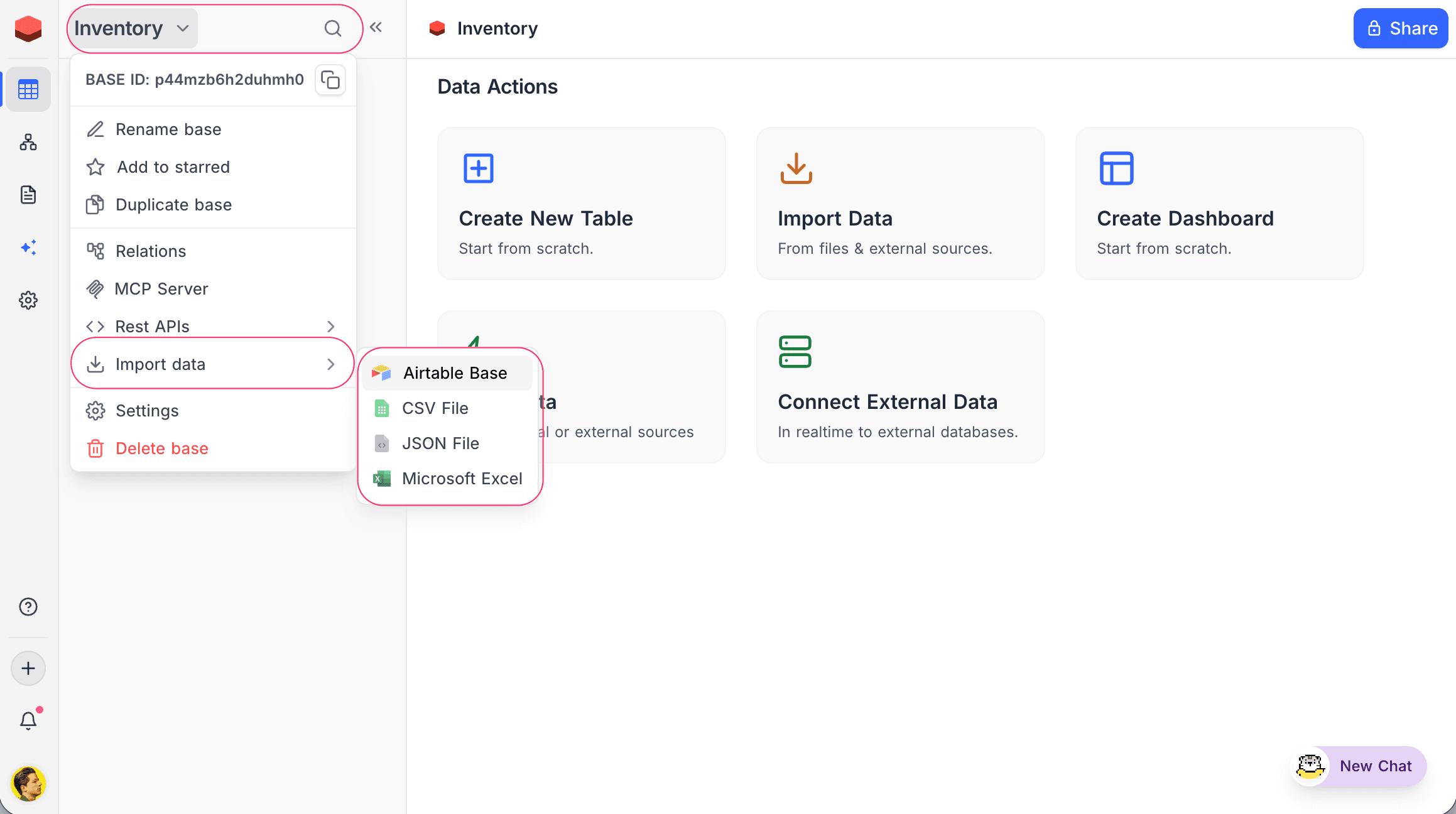
From the base context menu:
- In the sidebar, click the base name. The context menu opens.
- Select Import data → Airtable Base.
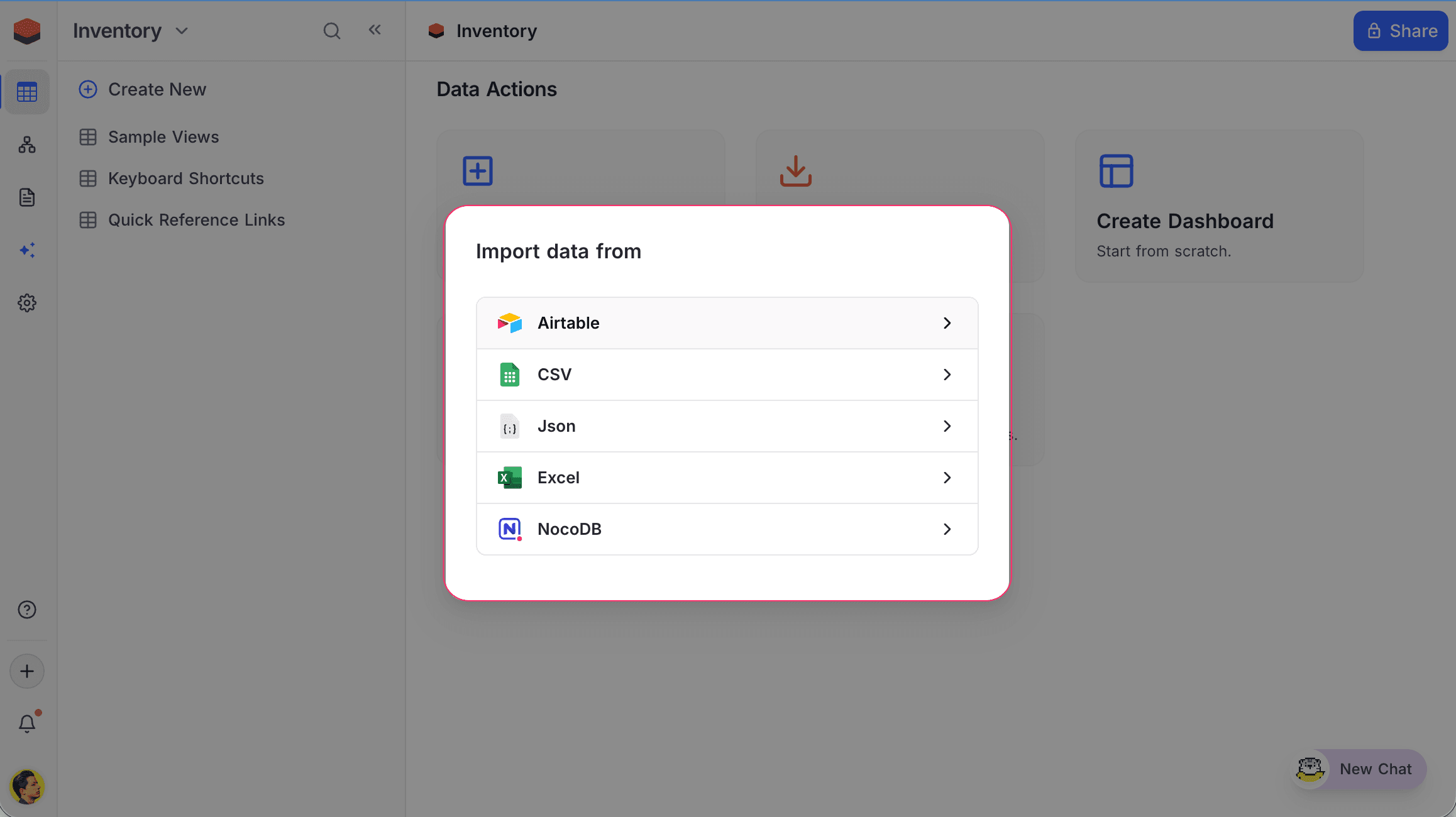
From the base dashboard:
- On the base dashboard, click Import Data.
- Select Airtable.
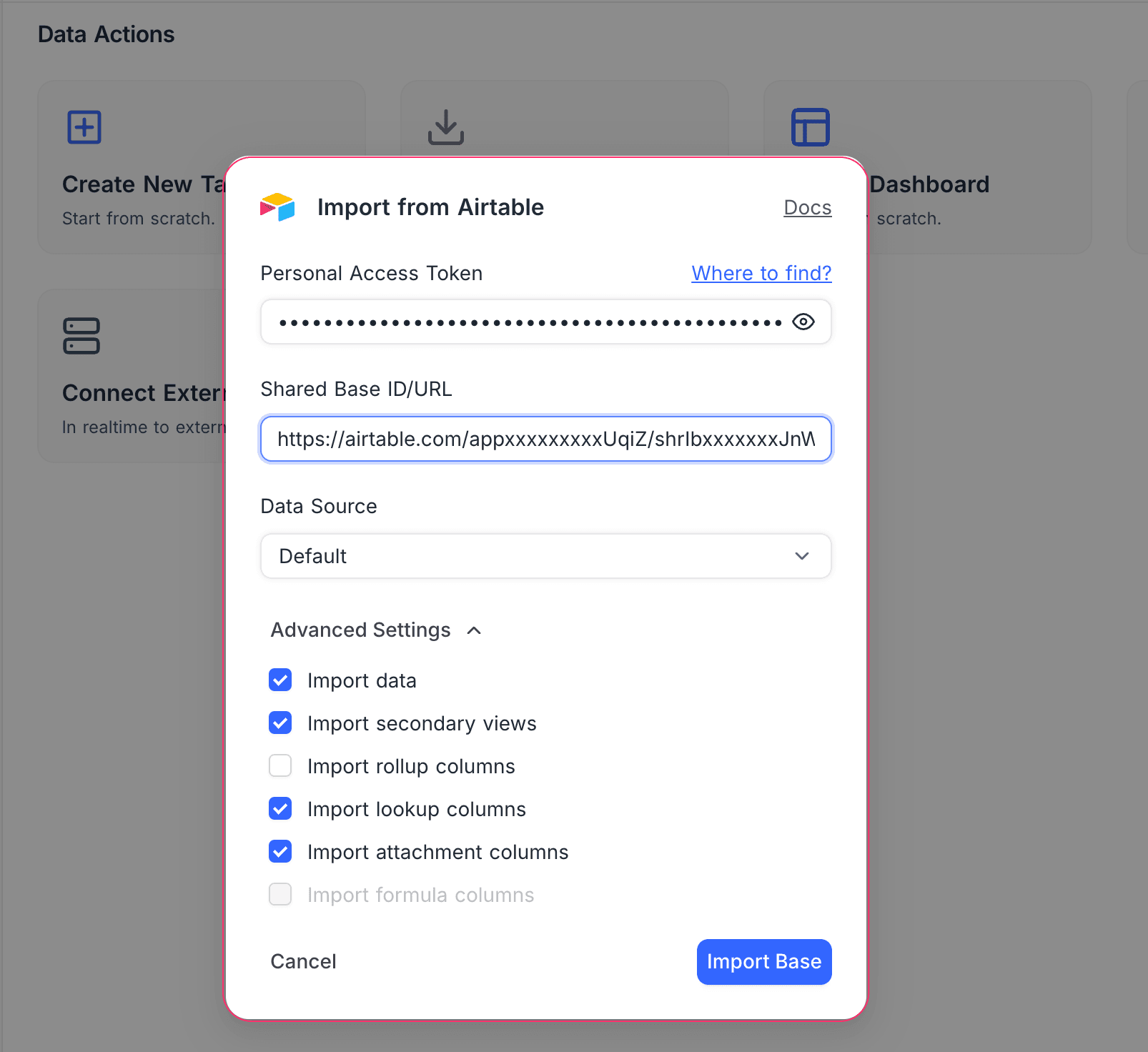
Configure and import
- Enter your Personal Access Token.
- Enter your Shared Base ID / URL.
- Select a Data Source (Default or an external connection).
- If necessary, configure the Advanced Settings.
- Click Import Base.
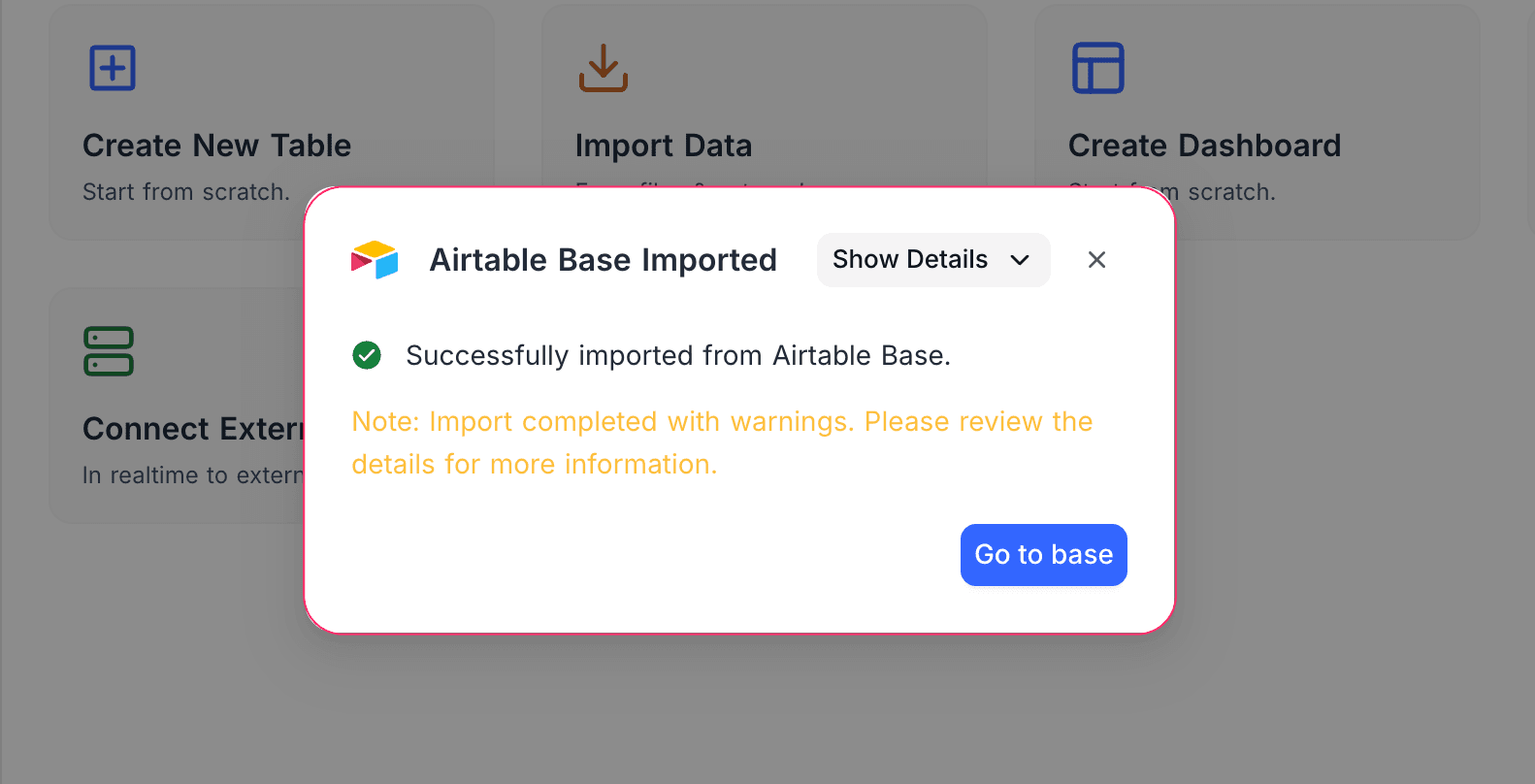
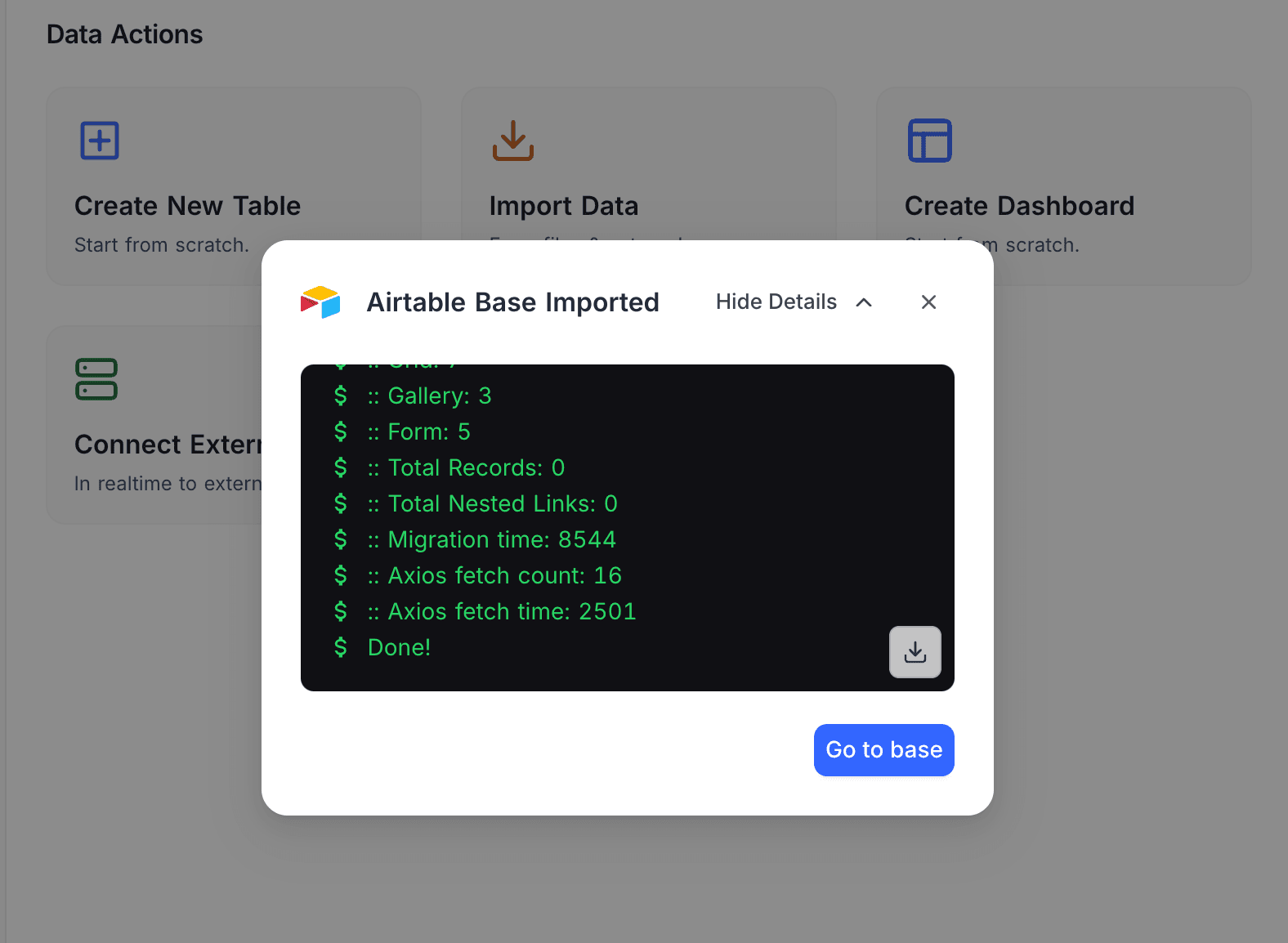
When the import is complete, the Airtable Base Imported confirmation shows. To see the import log, click Show Details. To start work in the base, click Go to base.
Advanced settings
| Setting | What it does |
|---|---|
| Import data | When off, NocoDB imports only the schema (tables and views), without records. |
| Import secondary views | When off, NocoDB imports only the primary grid view of each table. |
| Import rollup columns | Turns the import of Rollup fields on or off. |
| Import lookup columns | Turns the import of Lookup fields on or off. |
| Import attachment columns | Turns the import of Attachment fields on or off. |
| Import formula columns | NocoDB does not support the import of Formula fields at this time. The setting is greyed out. |
Import report
The import does not stop at the first item that it cannot copy. NocoDB imports these items one at a time:
- links
- lookups
- views
- the fields, filters, sorts and groups of each view
When an item does not import, NocoDB records it and continues with the other items. Only a table that NocoDB cannot create stops the import.
At the end, the import shows the number of items in each of these categories:
| Category | Meaning |
|---|---|
| skipped | NocoDB did not import the item. |
| approximated | NocoDB imported the item, but it works differently from the Airtable original. |
| failed | NocoDB tried to import the item, and the import was rejected. |
Click Download report to save these items as a CSV file, with one row for each item. Each row gives the kind, category, table, view, field, Airtable field type and reason.
The report shortens a long list. The counts still include all items. The full list is in the import log, under Show Details.
Get Airtable Credentials
Create Personal Access Token
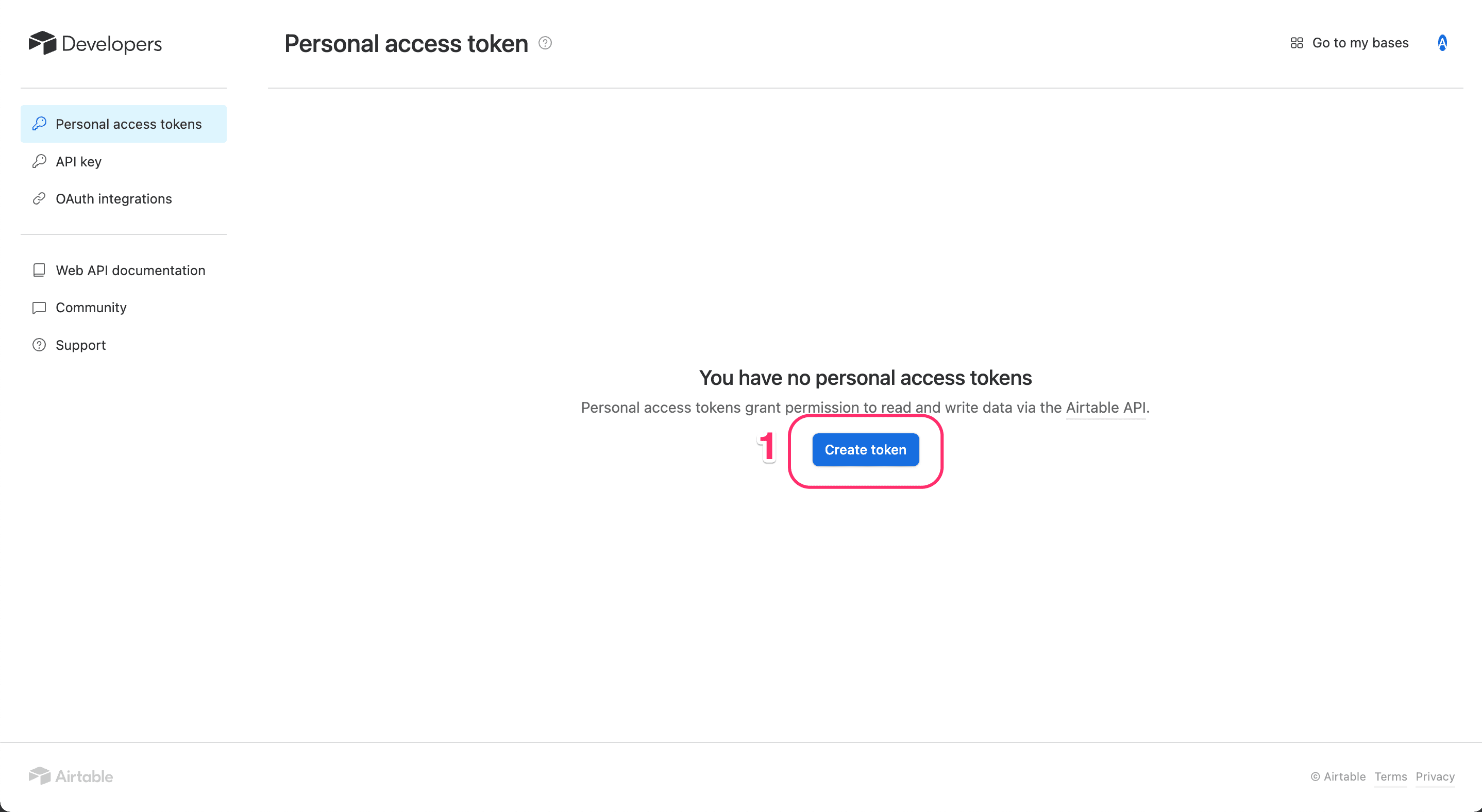
- Go to the Airtable Create Tokens page.
- Click Create token.
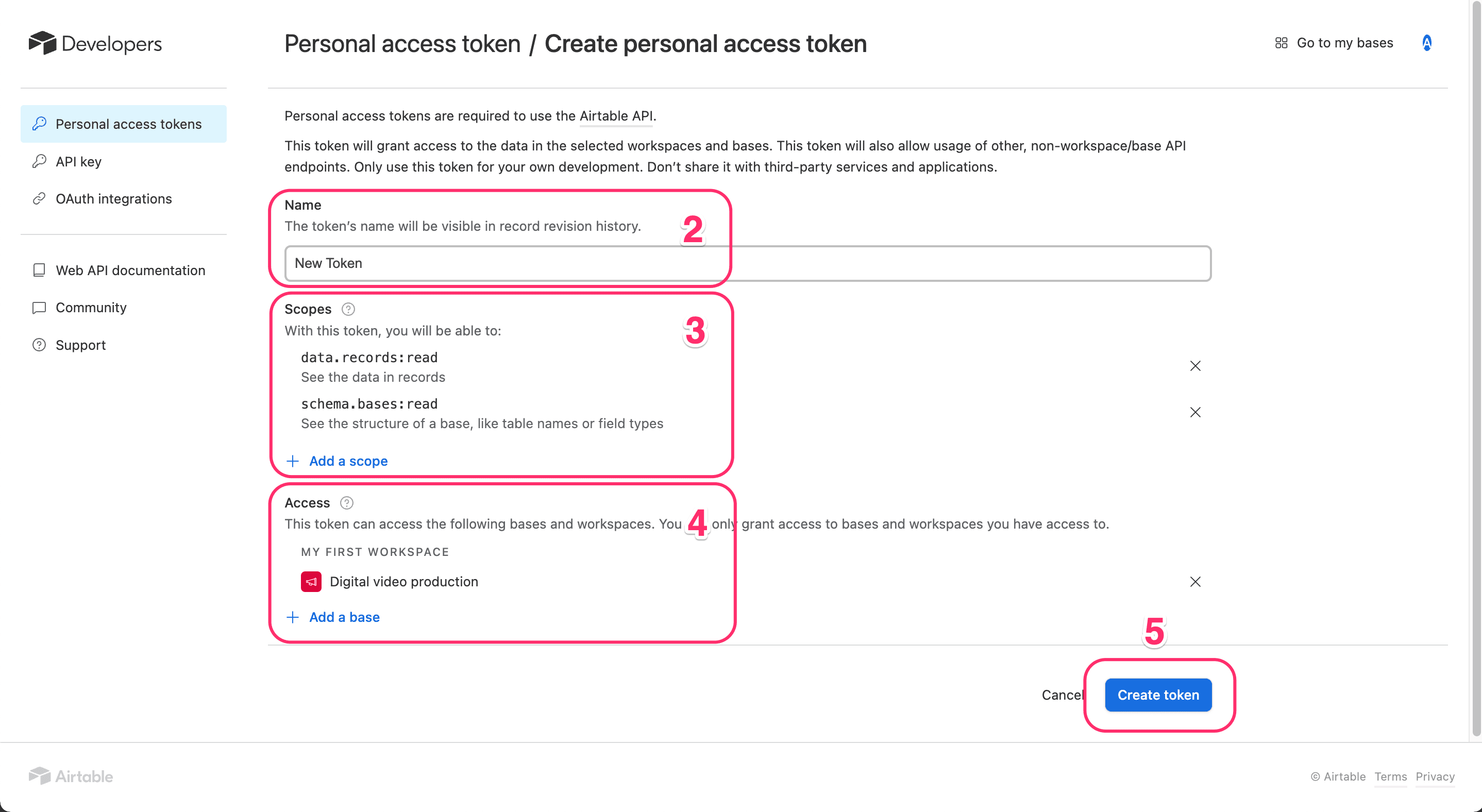
- Type a name for the token.
- Add the necessary access scope. The minimum scope is
data.records:read. - Select the base that you want to import.
- Click Create token.
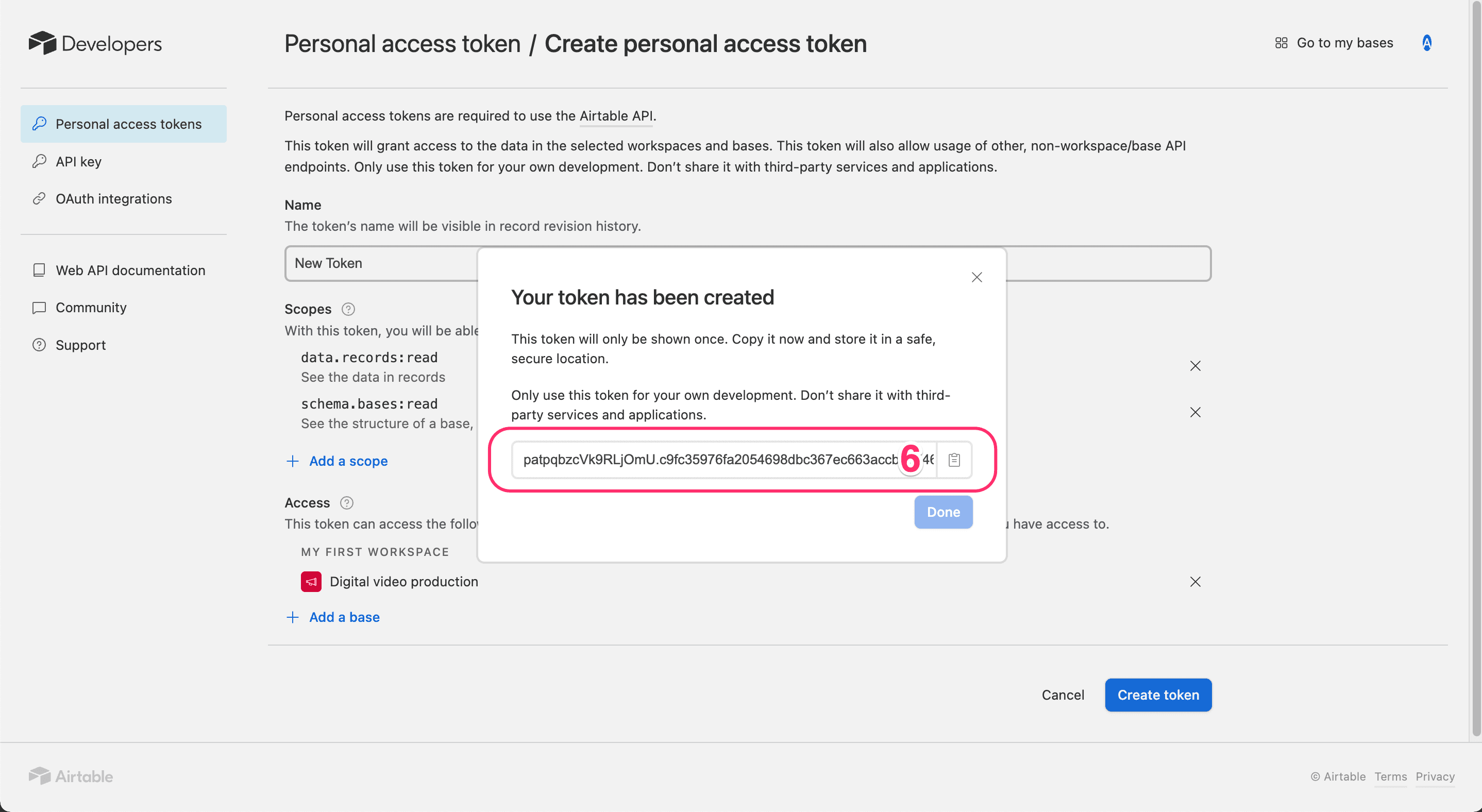
- Copy the token.
For more information, refer to the Airtable Personal Access Token guide.
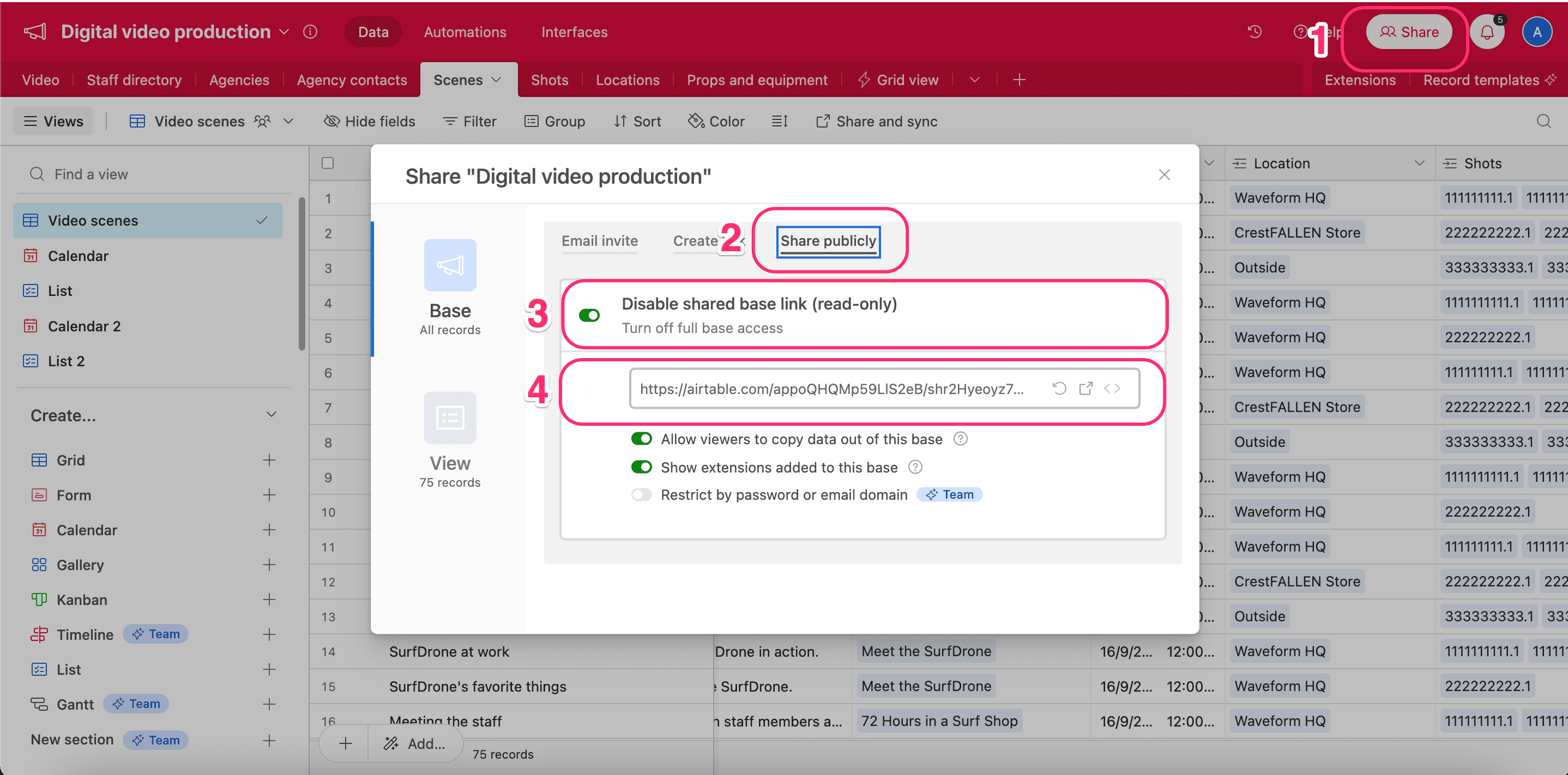
Retrieve Share Base ID / URL
- In Airtable, open the Share menu of your base.
- Open the Share Publicly tab.
- Turn on Turn on full base access.
- Copy the shared base URL.
For more information, refer to Airtable's share link guide.
Last updated on