Base Collaboration
Invite Members to Base
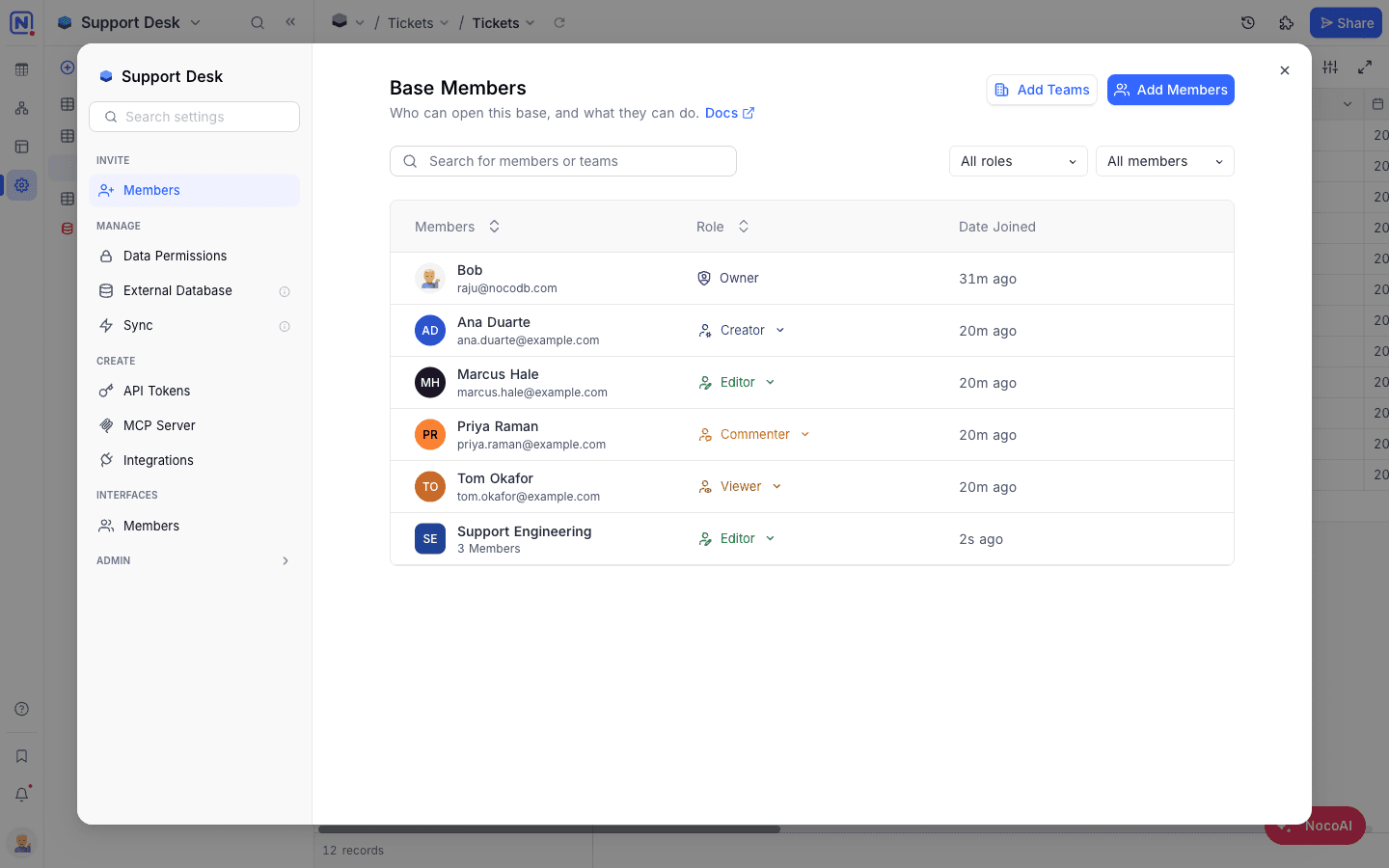
- Open the base and go to Base Settings → Invite → Members.
- Click Add Members.
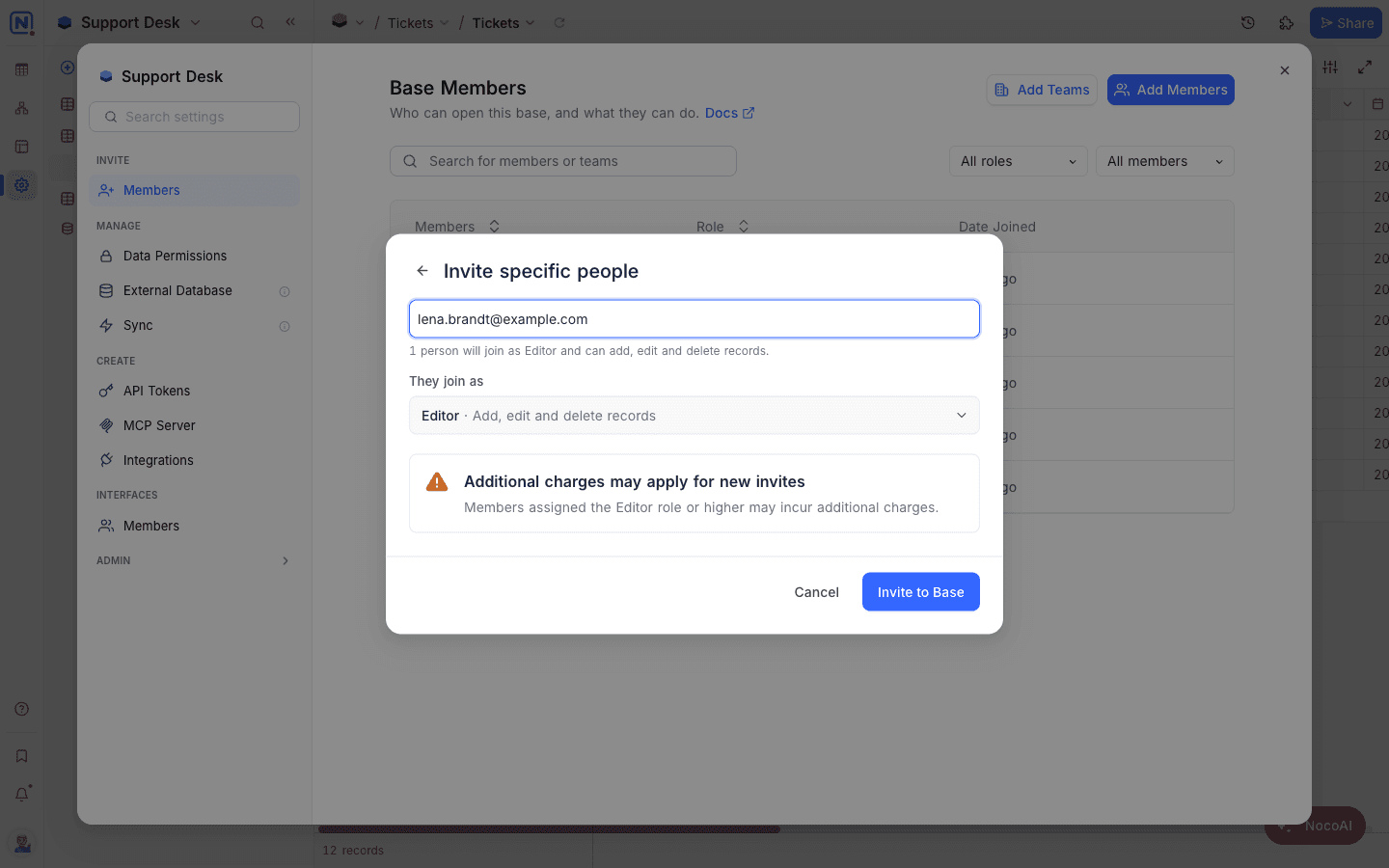
- Click the field under Invite specific people.
- Type one or more email addresses. Separate them with commas or spaces.
- Below They join as, select a role. All people in this invite get this role. The default role is Editor.
- Click Invite to Base.
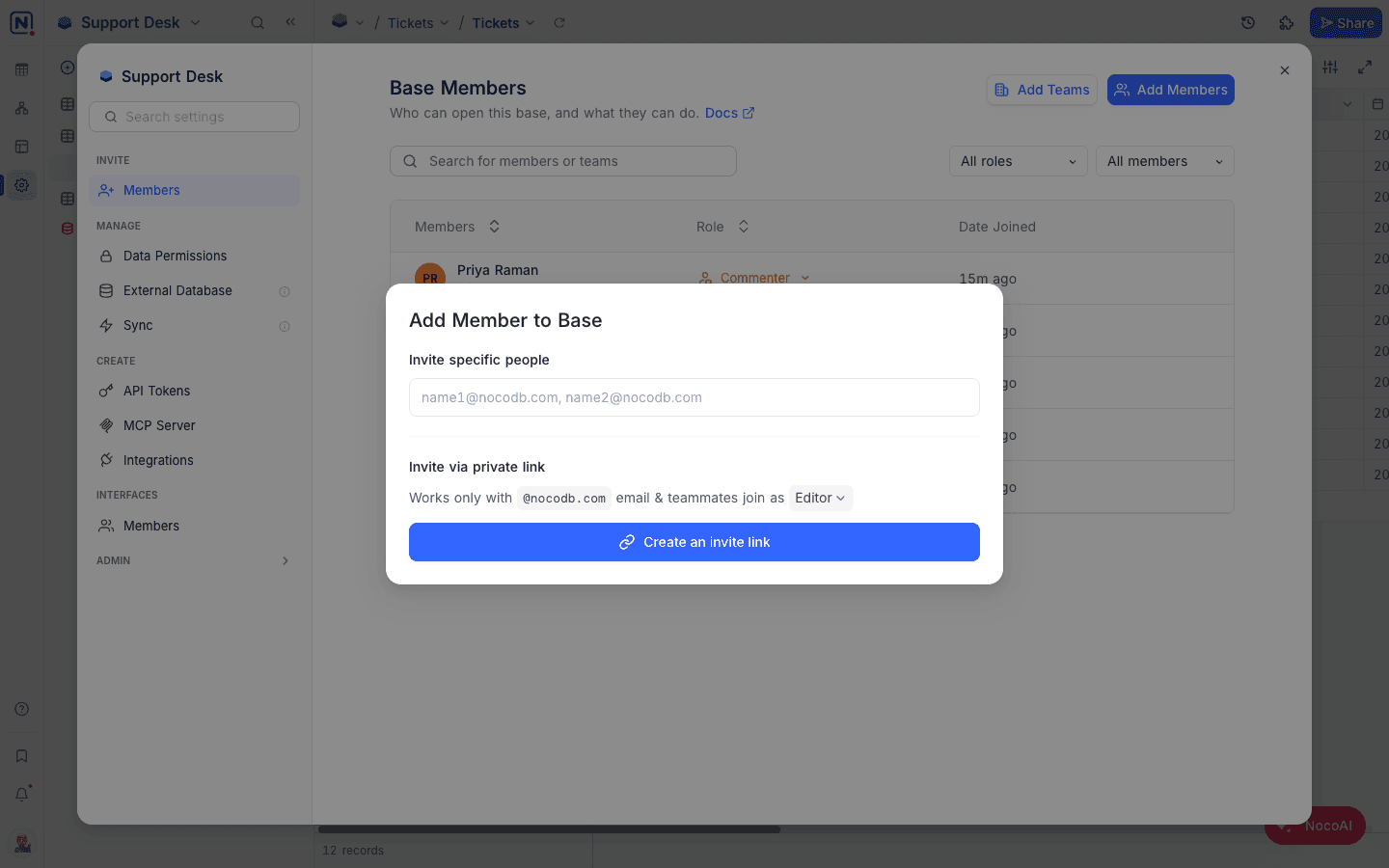
To invite people with a link and not one address at a time, use Invite via private link in the same dialog:
- Select a role.
- Click Create an invite link. Anyone who opens the link can use it to join this base.
A link gives access to this base only. To limit a link to an email domain, manage several links, or delete a link, see invite links.
Workspace members get their workspace role in the base, unless they have a base role. You can also invite users to a base only, without access to the full workspace. This is ideal for external partners or temporary contributors.
Invite Teams to Base ☁
- Open the base and go to Base Settings → Invite → Members.
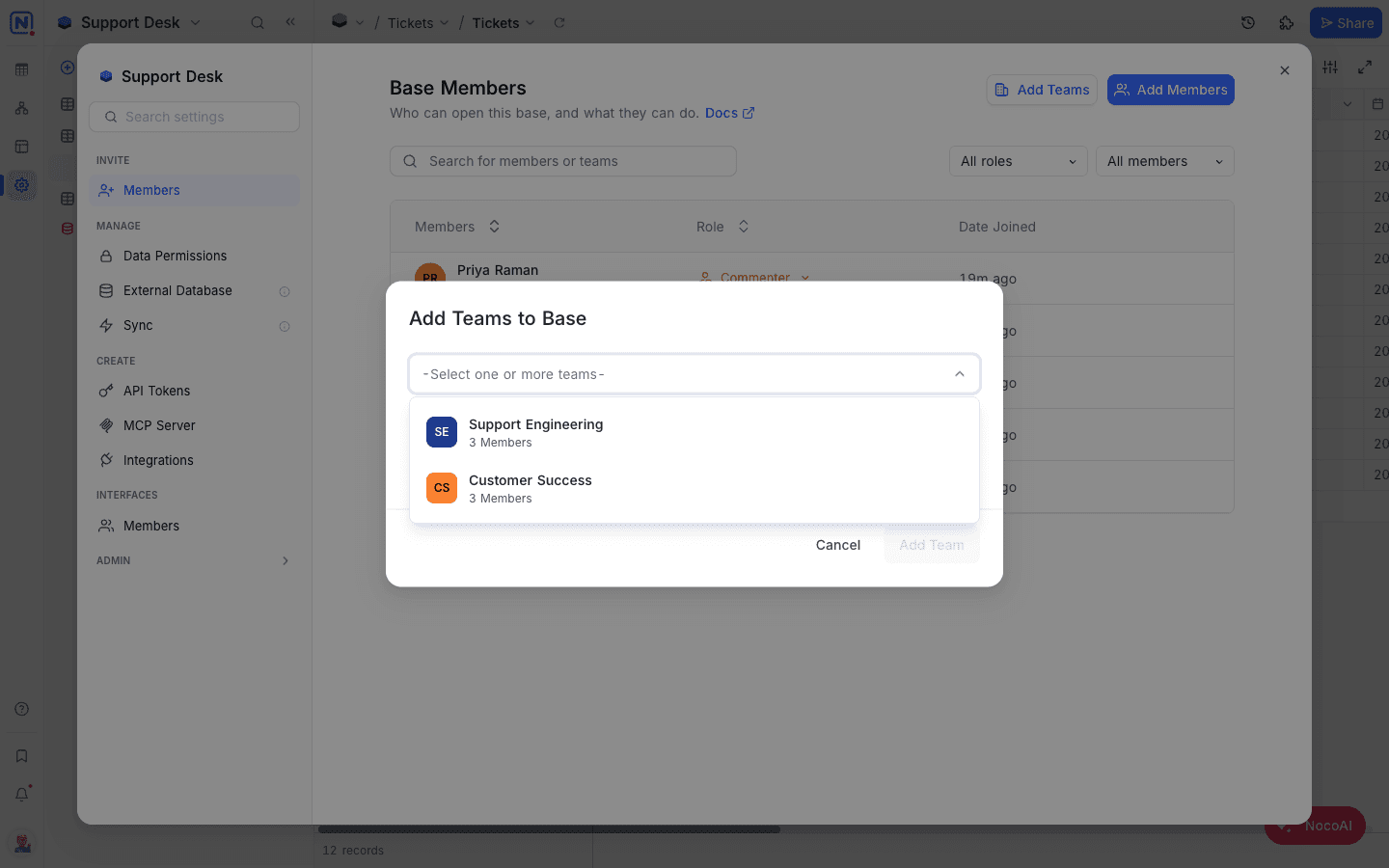
- Click Add Teams.
- From the dropdown, select one or more teams.
- Select a role: Editor, Commenter, Viewer, or No Access.
- Click Add Teams.
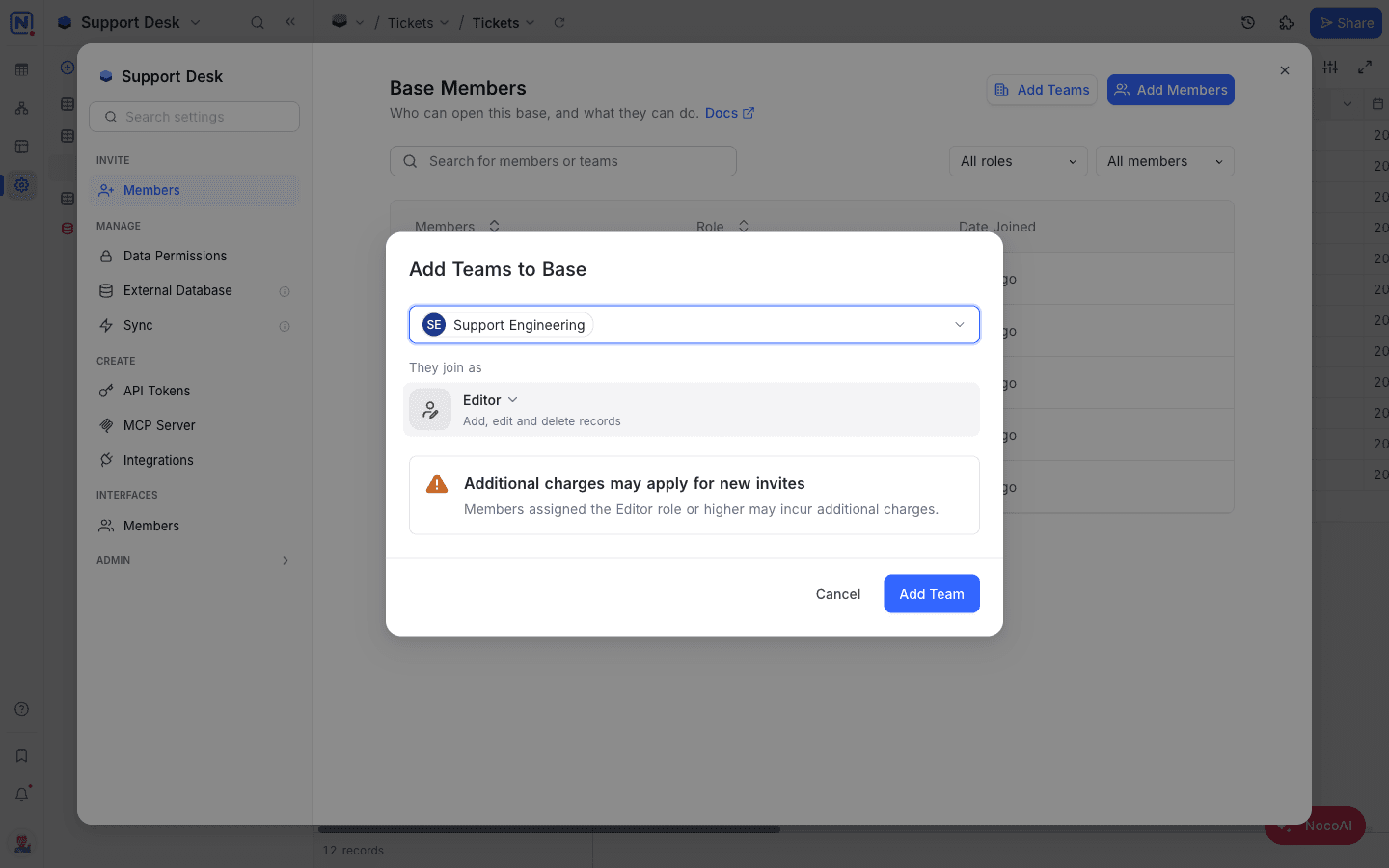
To learn more about creating and managing teams, refer to the Teams documentation.
List Base Members and Teams
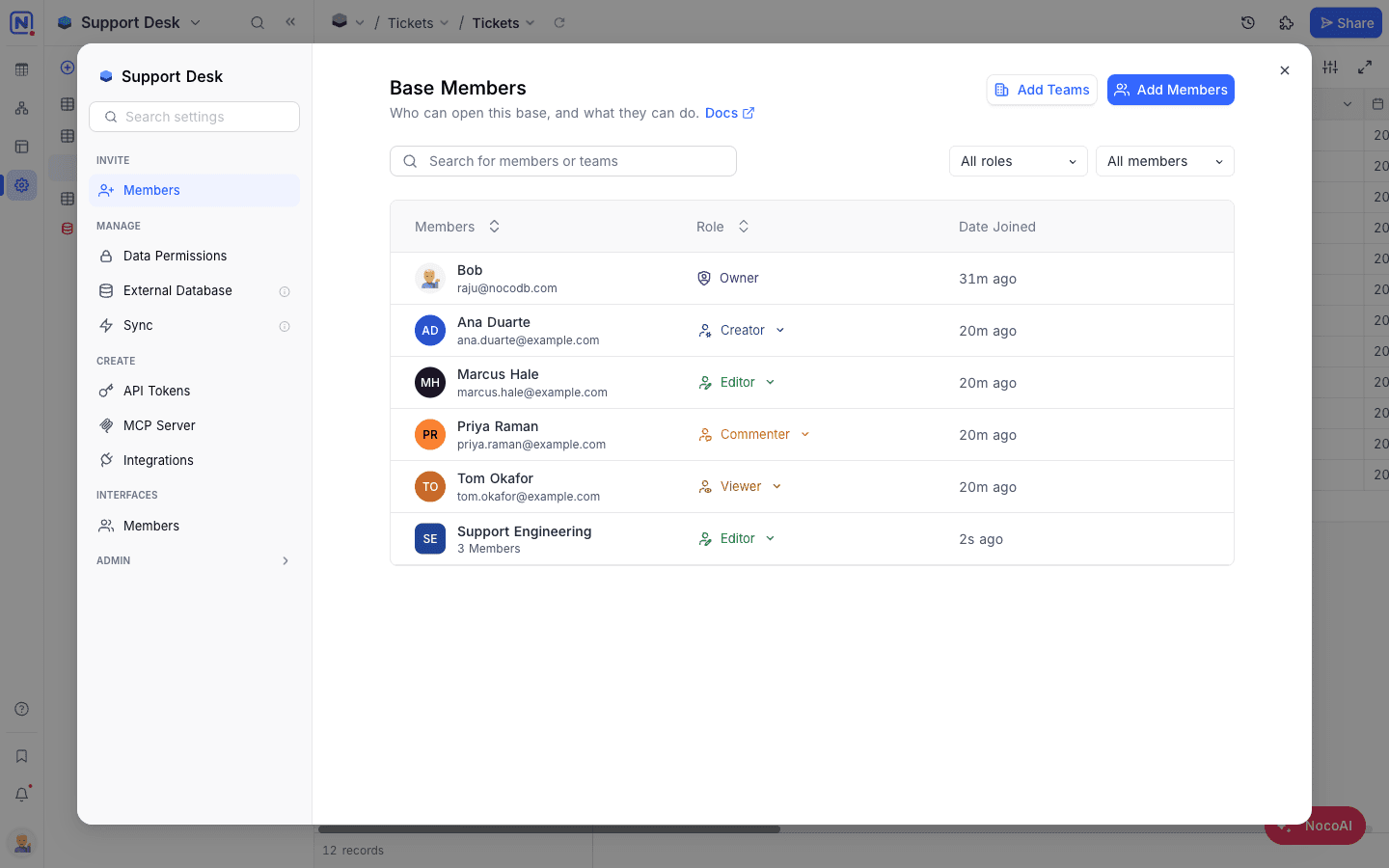
The Members page shows all users and teams that have access to the base, with their role and the date they joined. If a role comes from the workspace, it has the label Role inherited from workspace.
Modify Roles for Members or Teams
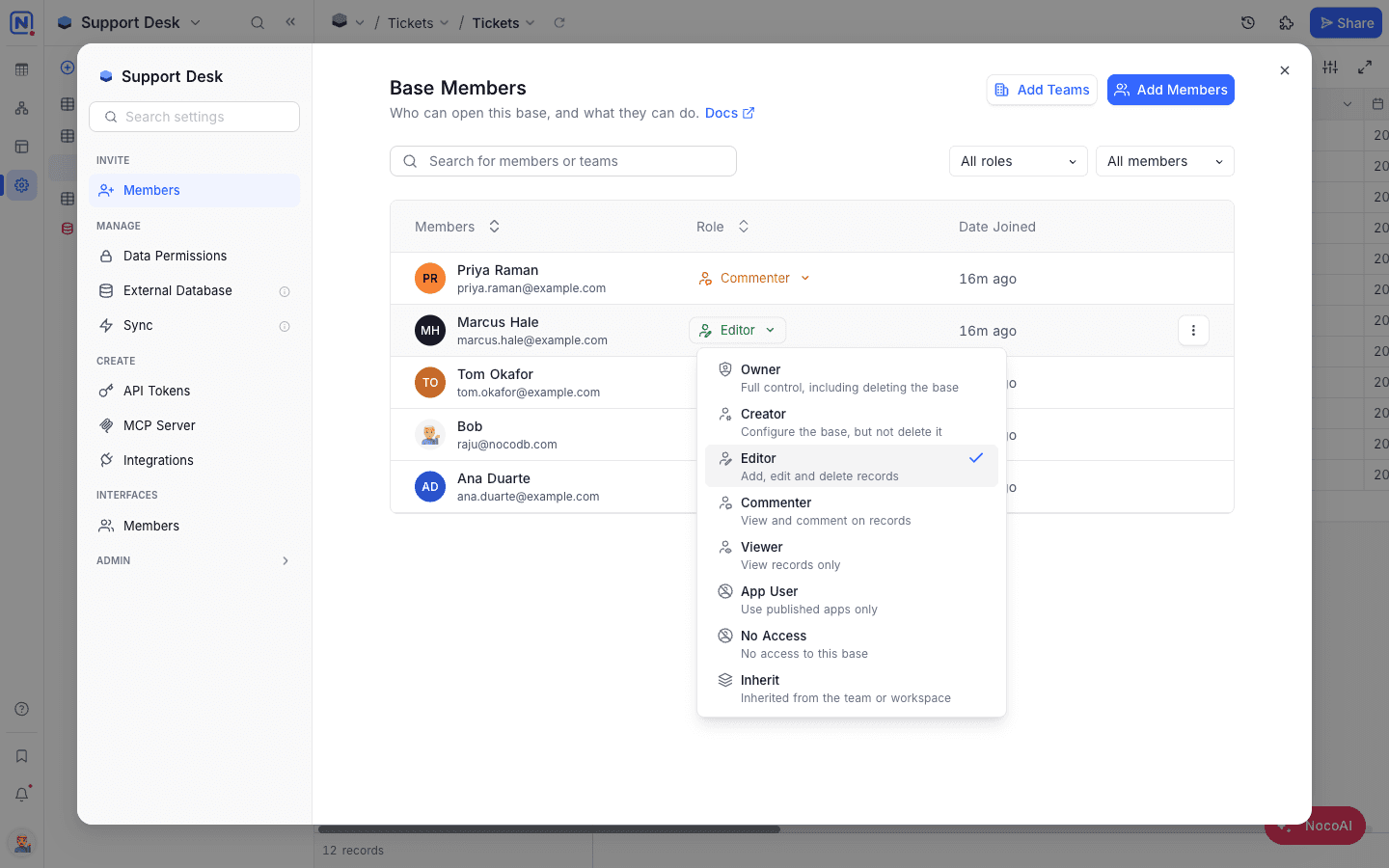
- Click the role dropdown next to the member or team.
- Select a new role: Owner, Creator, Editor, Commenter, Viewer, App User, No Access, or Inherit. Each role shows a one-line description. The change applies immediately.
Role Precedence
NocoDB uses these rules when a user gets roles from teams and from individual access:
| The user has | The role that applies |
|---|---|
| An individual role and a team role | The individual role |
| A workspace role and a base role | The base role |
| Roles from two or more teams | The highest team role |
Learn more about effective role resolution.
Remove or Revoke Base Access
Deny Access
To block a user or team from the base:
- Click the role dropdown next to the member or team.
- Select No Access.
Revoke Explicit Assignment
To remove a base-level role and use the workspace or team role again:
- Click the role dropdown next to the member or team.
- Select Inherit.
Availability
- Teams are available on NocoDB Cloud (Business plan and above) and on licensed self-hosted deployments (Scale plan and above).
Related
Last updated on