Table Tools
Creators use the Tools panel to manage the table structure and connect to external systems. To open it, click the Tools button in the view toolbar.
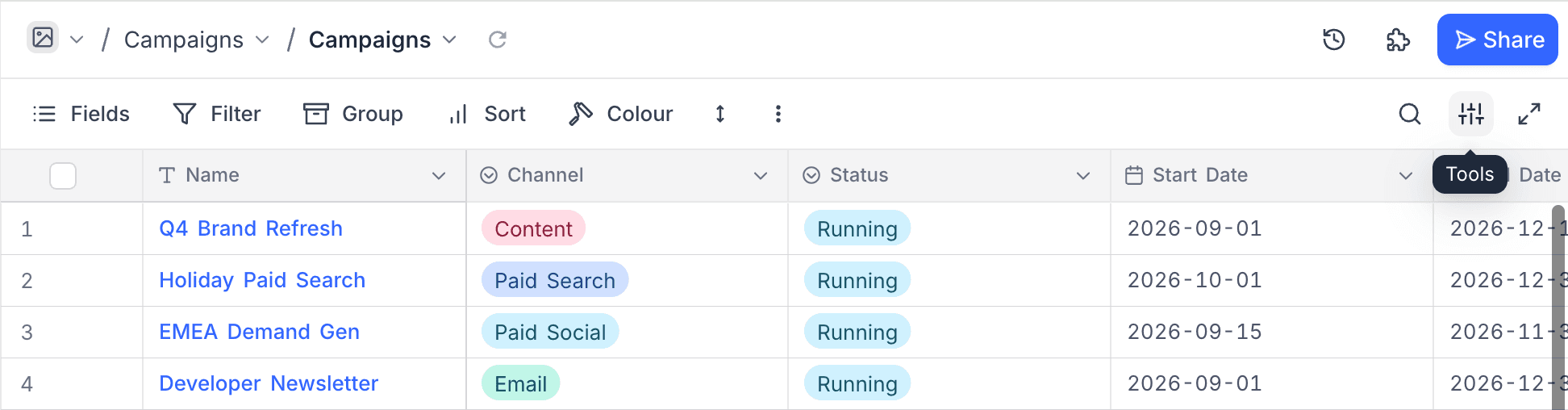
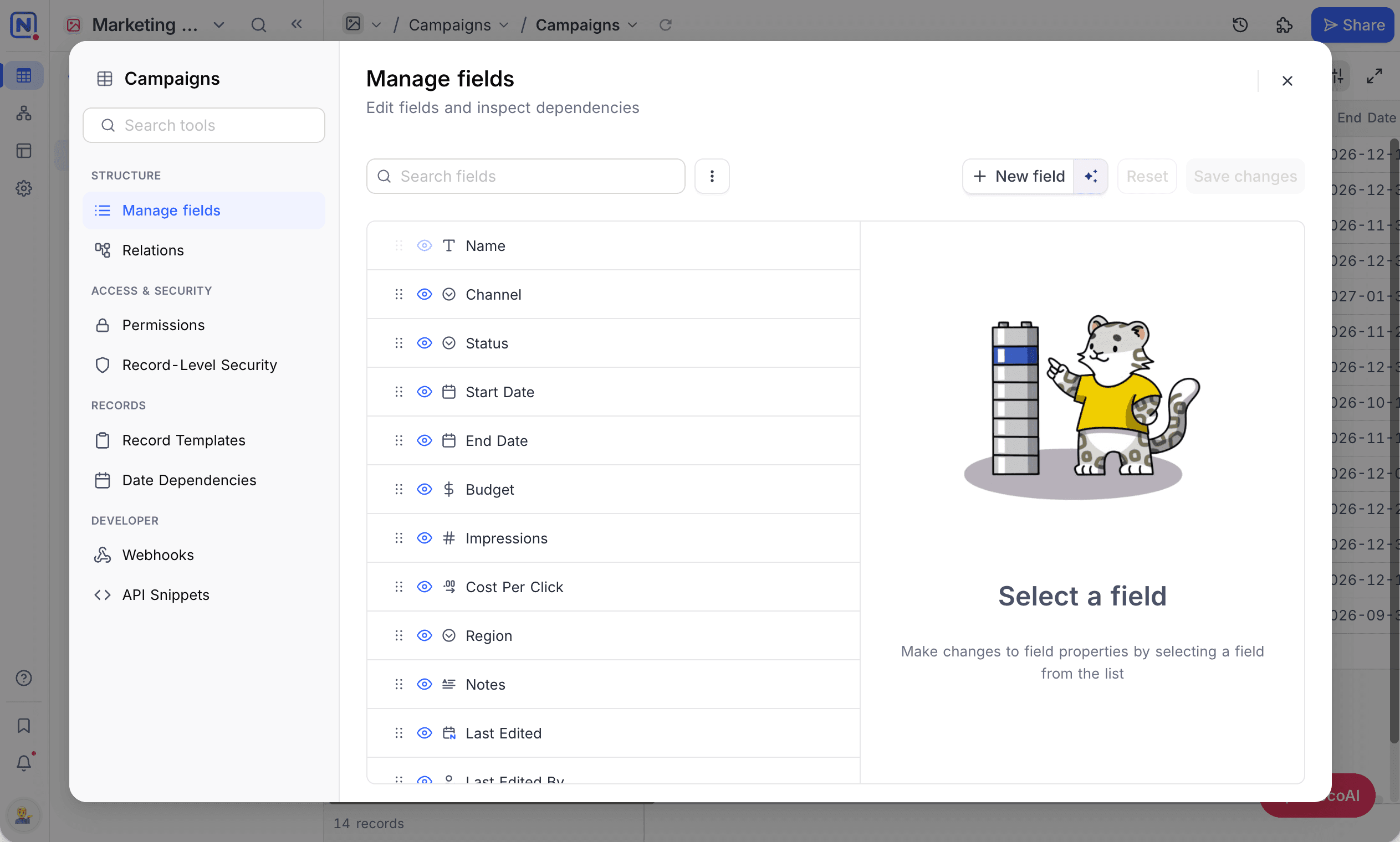
The left rail of the panel lists the table tools in groups:
| Group | Tools |
|---|---|
| Structure | Manage fields, Relations |
| Access & security | Permissions, Record-Level Security |
| Records | Record Templates, Date Dependencies |
| Developer | Webhooks, API Snippets |
The tools that you see depend on your edition, plan, and role. Permissions, Record-Level Security, Record Templates, and Date Dependencies are paid-plan features.
If your plan does not include a tool, the tool opens an upgrade prompt. The prompt names the plan that includes the tool. A workspace owner can upgrade from the prompt. Other users can send a request to the owner.
To go to a tool quickly, use the Search tools box at the top of the rail.
Fields
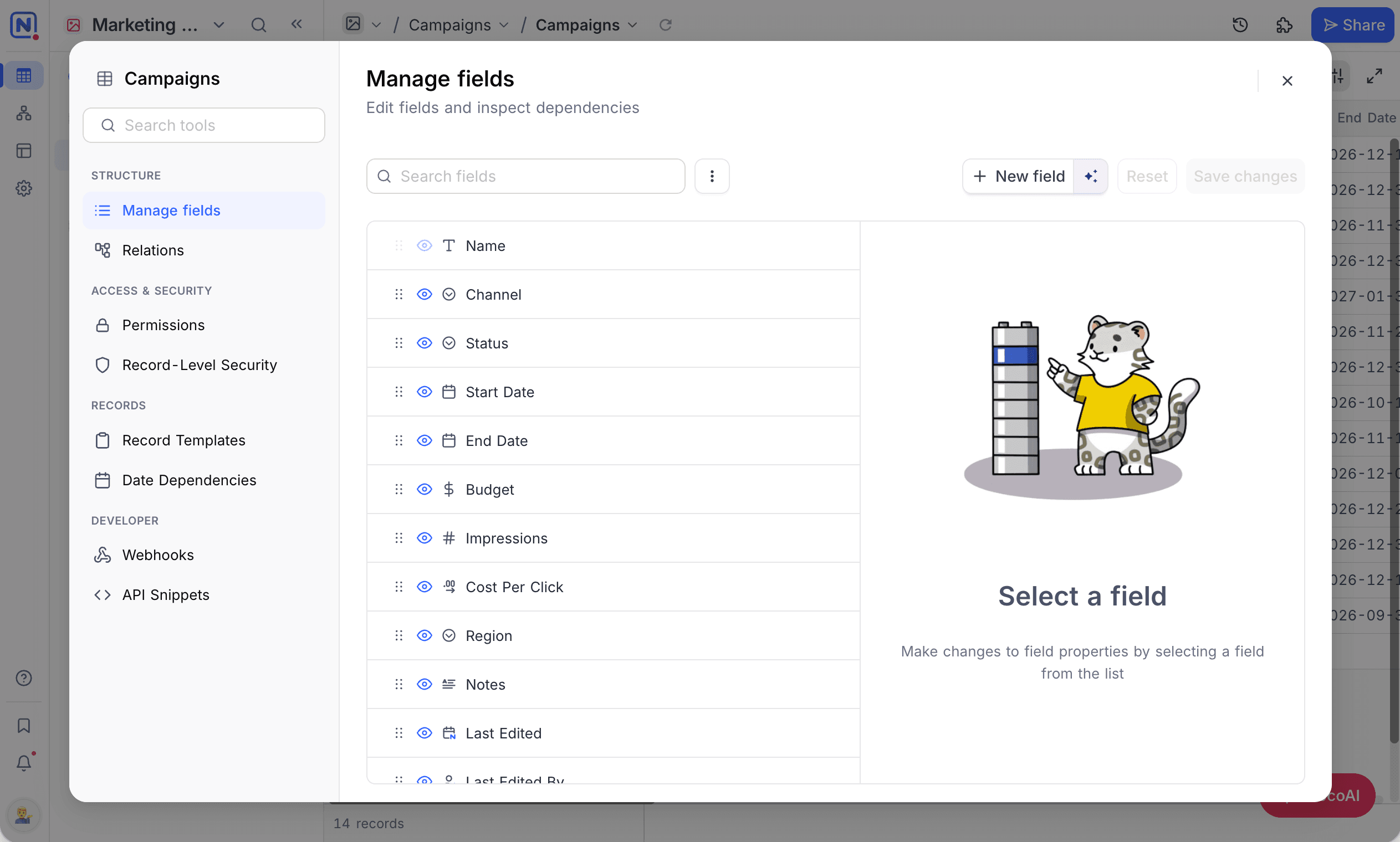
Use the multi-field editor to manage all your fields in one place. You can add, edit, delete, or reorder fields. For more details, refer to the multi-field editor.
Permissions
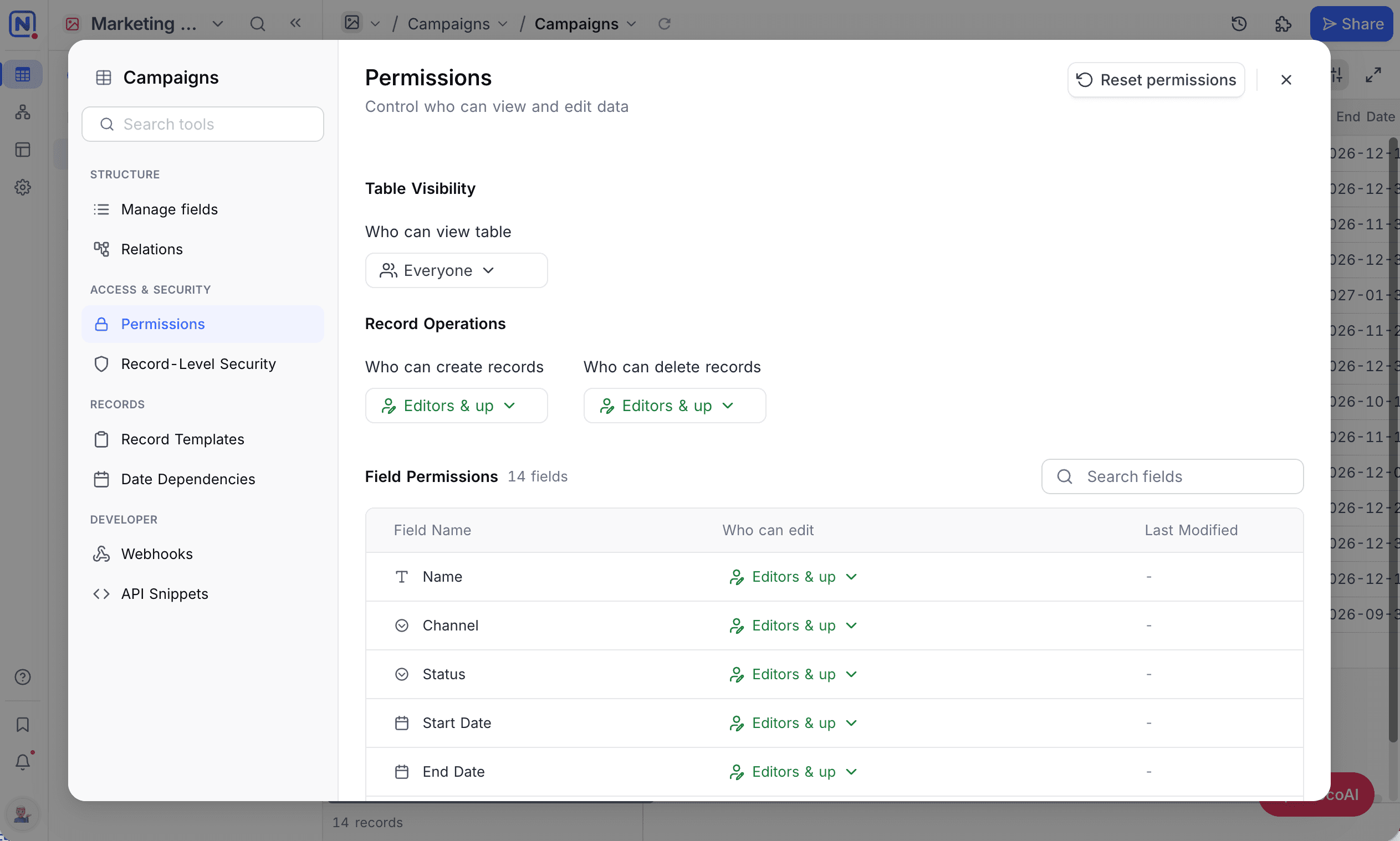
Control who can add or delete records in your table, and who can edit fields. For more details, refer to Table permissions and Field permissions.
Record-Level Security
Define filter-based policies that control which records each role, team, or user can see in a table. Table permissions apply to the full table. These policies apply to each record. For example, a sales rep sees only their own deals. To learn how to write policies and how NocoDB evaluates them, refer to Record Level Security.
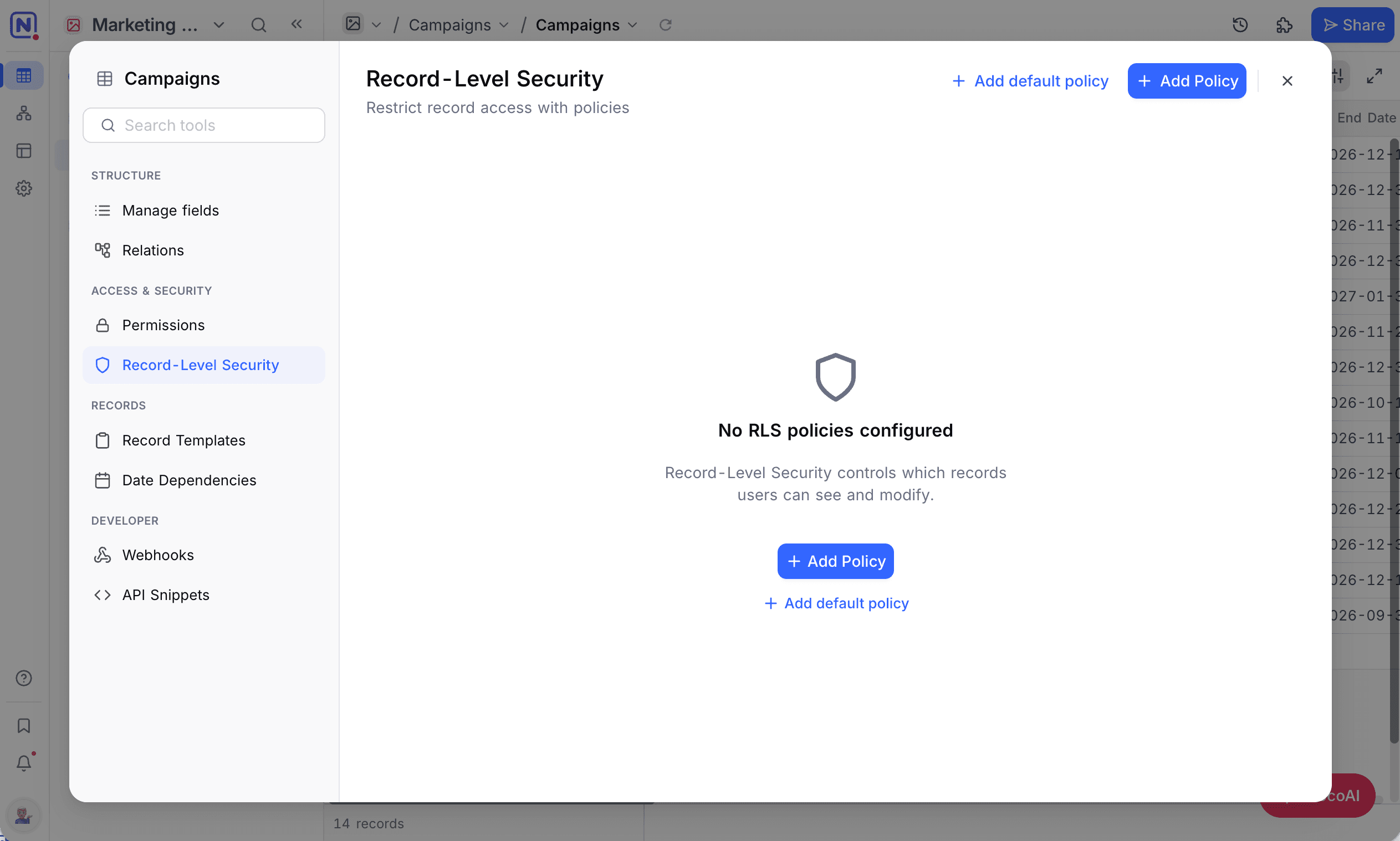
A policy names the roles, teams, users, or agents that it applies to. It then sets the condition that a record must meet for them to see it.
Relations
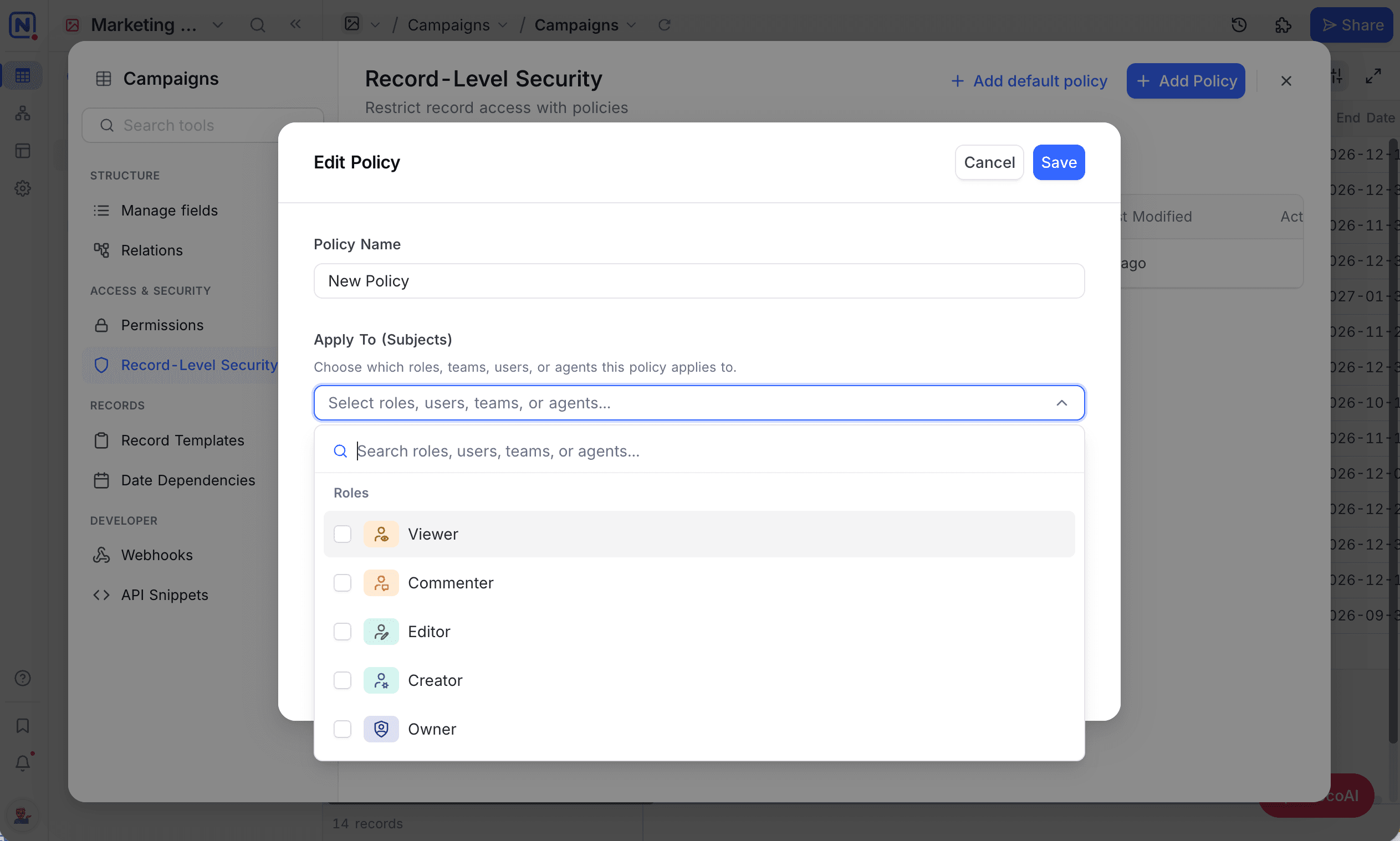
Use the Entity Relationship Diagram (ERD) to see and manage how tables connect. The ERD helps you:
- Design your schema
- Make sure of data integrity
- Improve query performance
The diagram shows this table and the tables that it links to. Base relations opens the same diagram for all tables in the base.
Record Templates
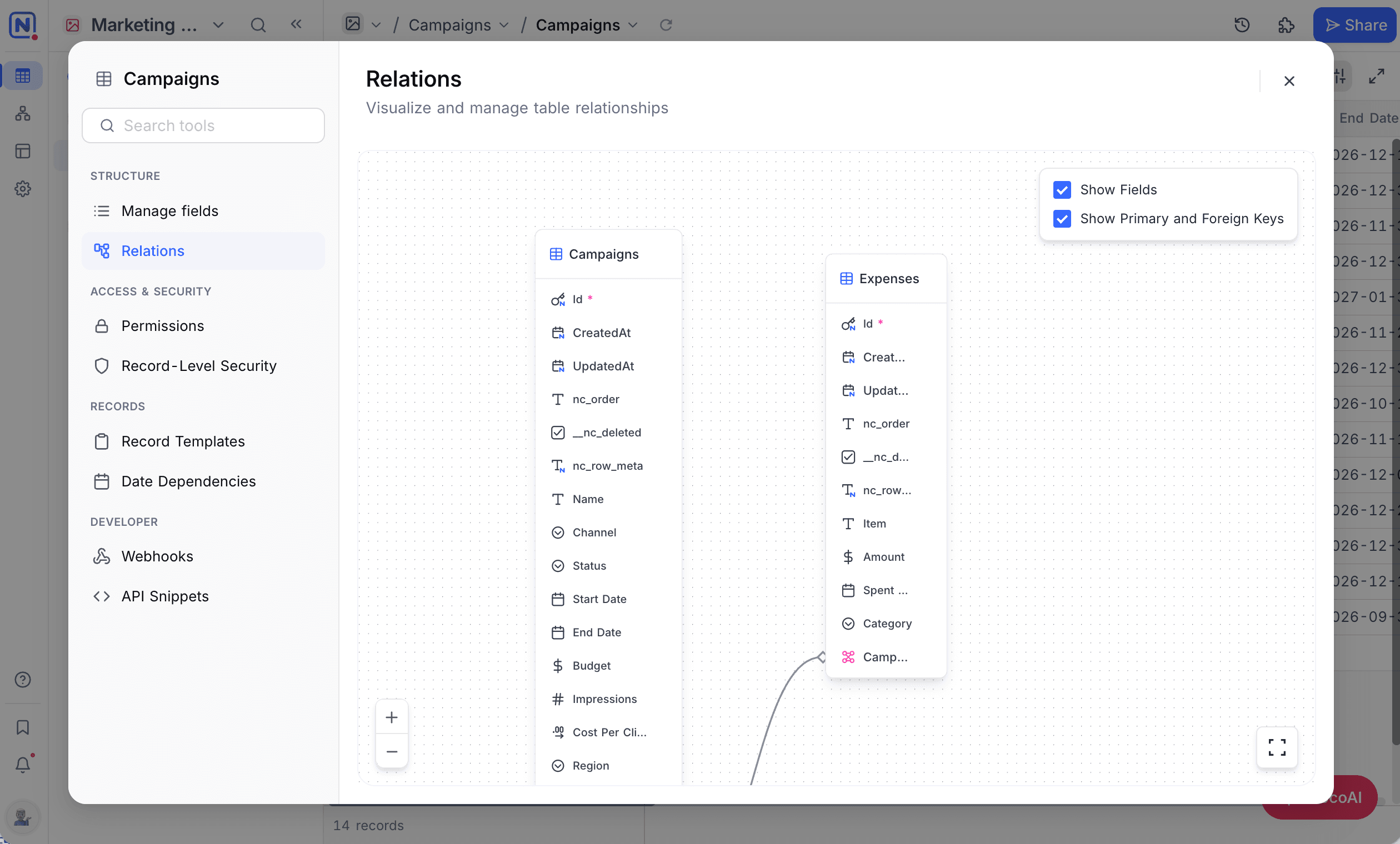
Save a set of pre-filled field values, and use it again each time you add a record. A template can include linked records up to three levels deep. Use it when you often create records with the same values. For the full setup, refer to Record Templates.
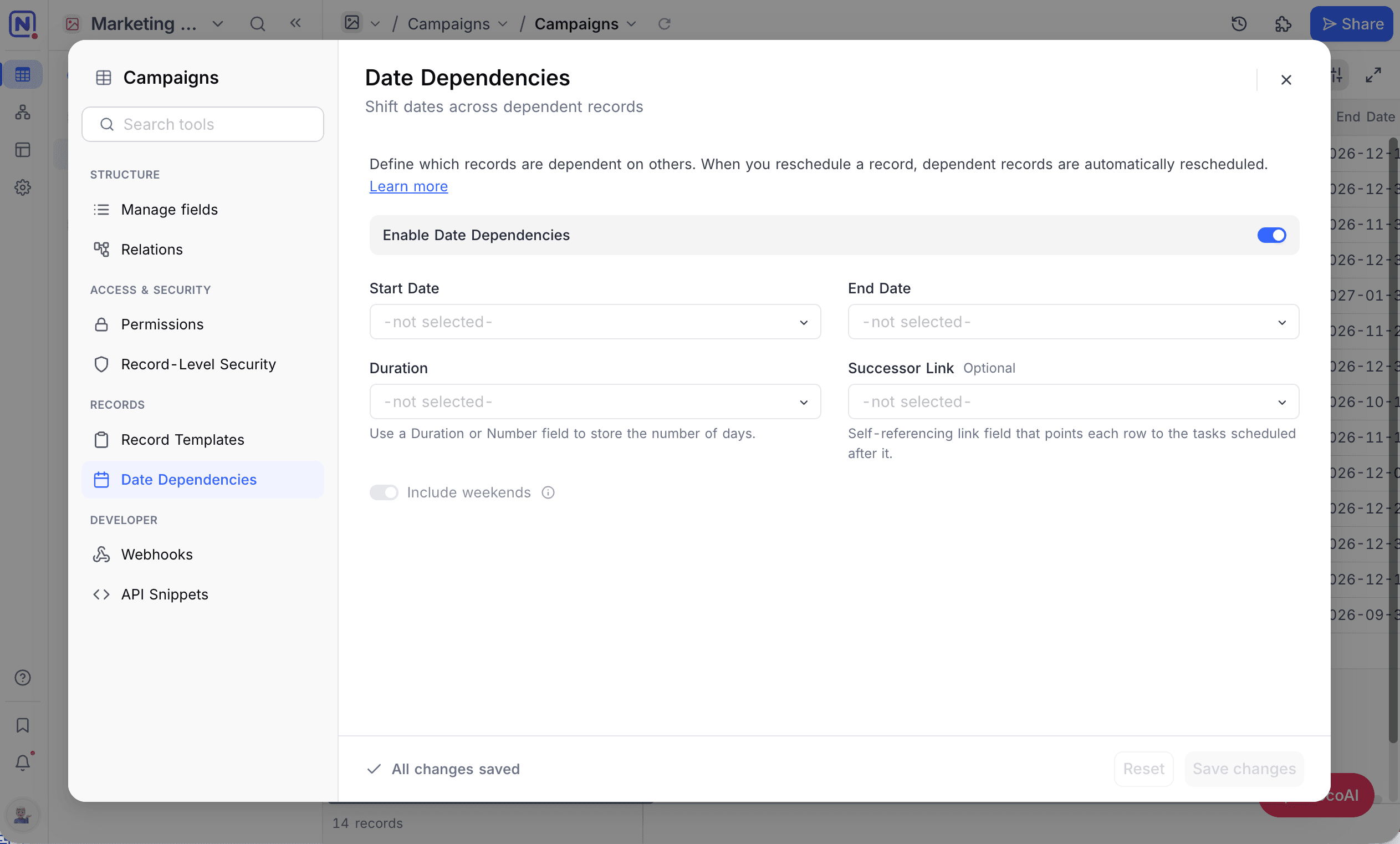
Date Dependencies
Define which records depend on other records. When you reschedule one record, the others move too. If a design phase is a week late, the development and QA records after it move with it. For the requirements and configuration, refer to Date Dependencies.
API Snippet
Use prebuilt REST API examples to work with your table from code, in Shell, JavaScript, Python, and more. Use them to connect NocoDB to your applications quickly.
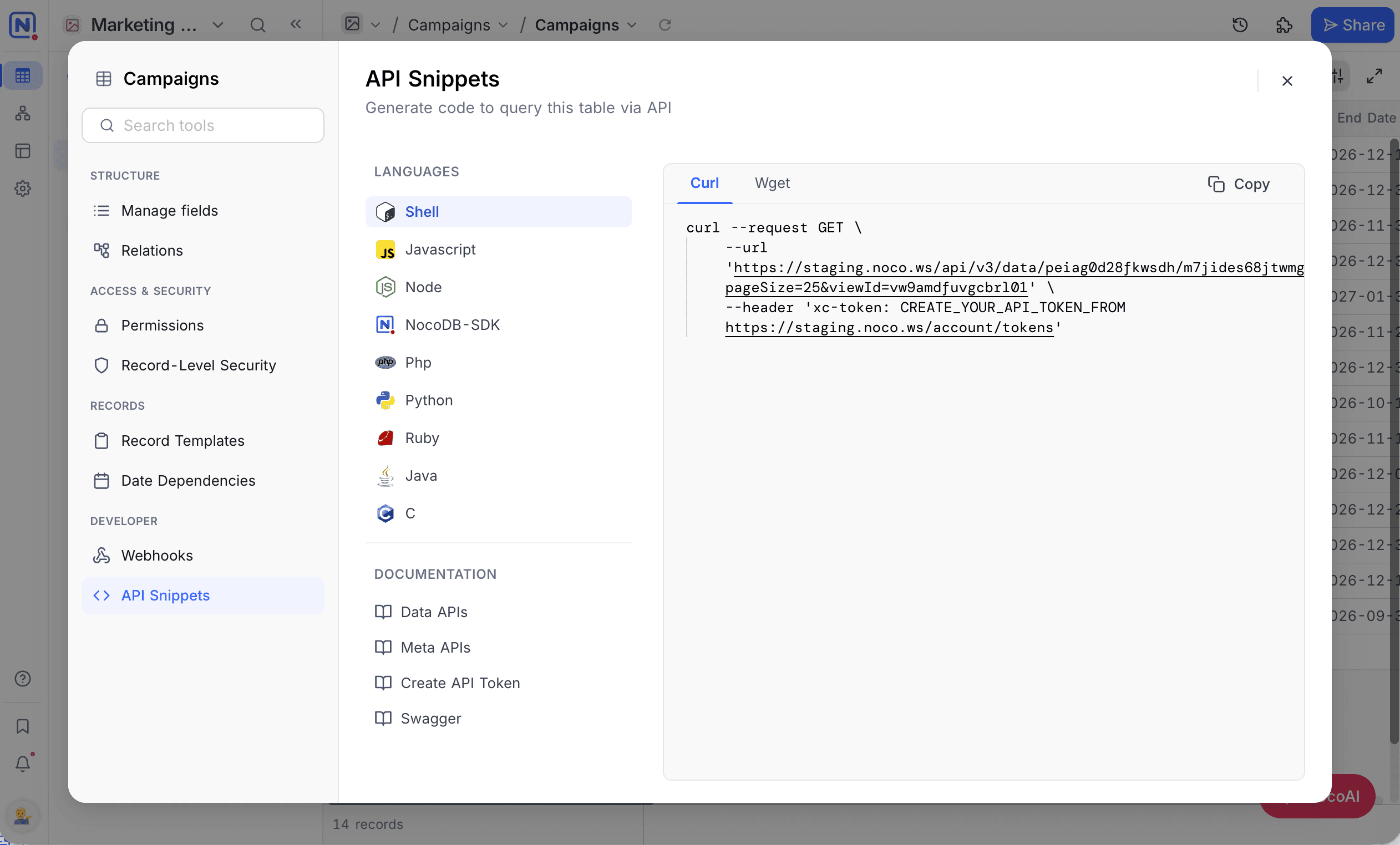
Supported languages
- Shell: cURL, wget
- JavaScript: Axios, Fetch, jQuery, XHR
- Node: Axios, Fetch, Request, Native, Unirest
- NocoDB SDK: JavaScript, Node
- Python: http.client, requests
- PHP, Ruby, Java, C
Webhooks
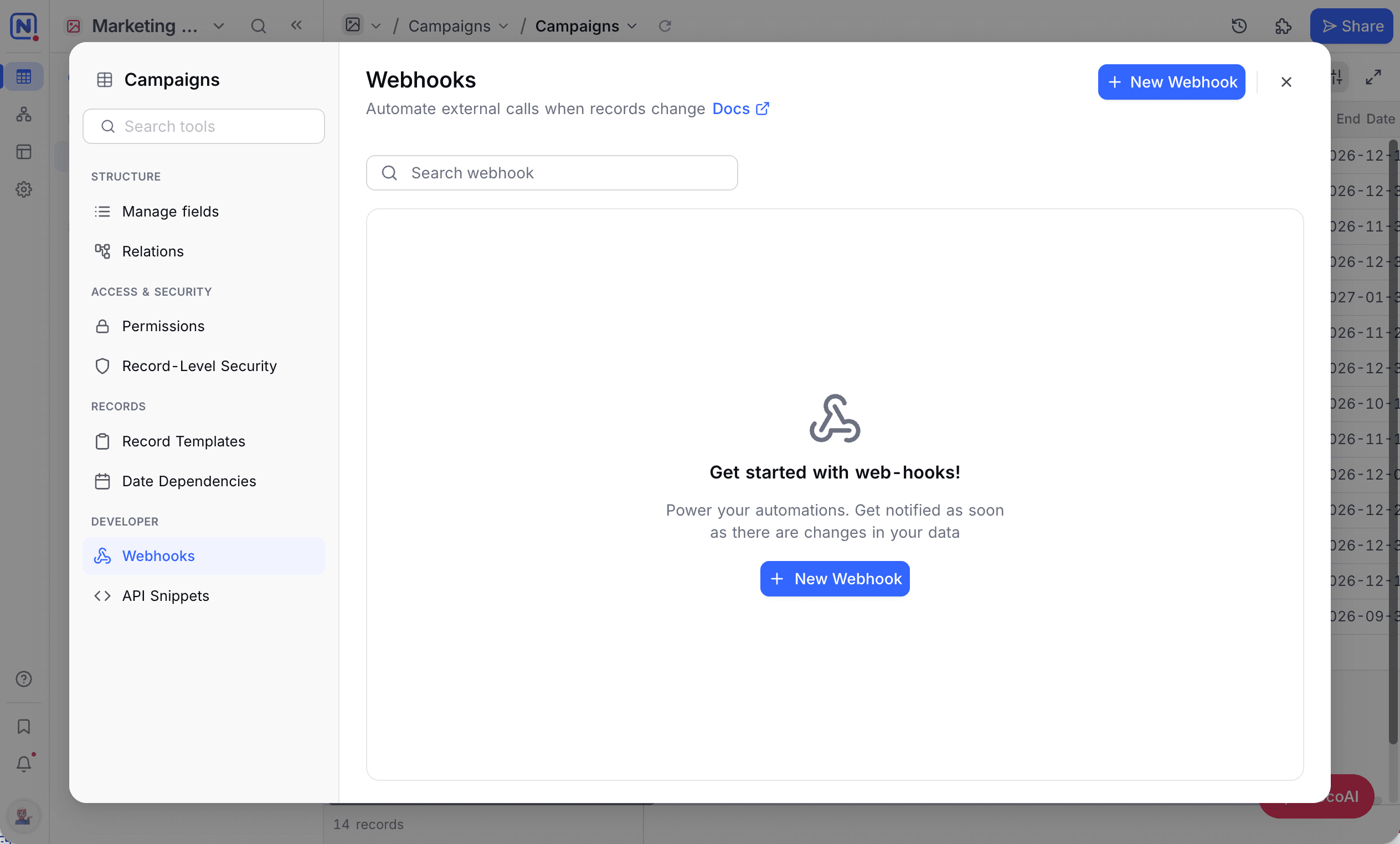
Set up real-time triggers for record changes. Use webhooks to:
- Send instant alerts
- Automate external workflows
- Sync data across platforms
- Handle batch updates
Availability
- The
Toolsbutton is not available on shared views, shared bases, or in mobile mode.
Last updated on