Create Table
Ask NocoAI
Copy a prompt, paste it into NocoAI in any base, and replace the words in [brackets] with your own.
- Create a table for [projects] with the fields a team would need
- Create a table called [Events] with [name, date, location and capacity]
- Create a table for [invoices] and link it to [Customers]
- Suggest tables that are missing from this base
Create a new table
To create a table from scratch:
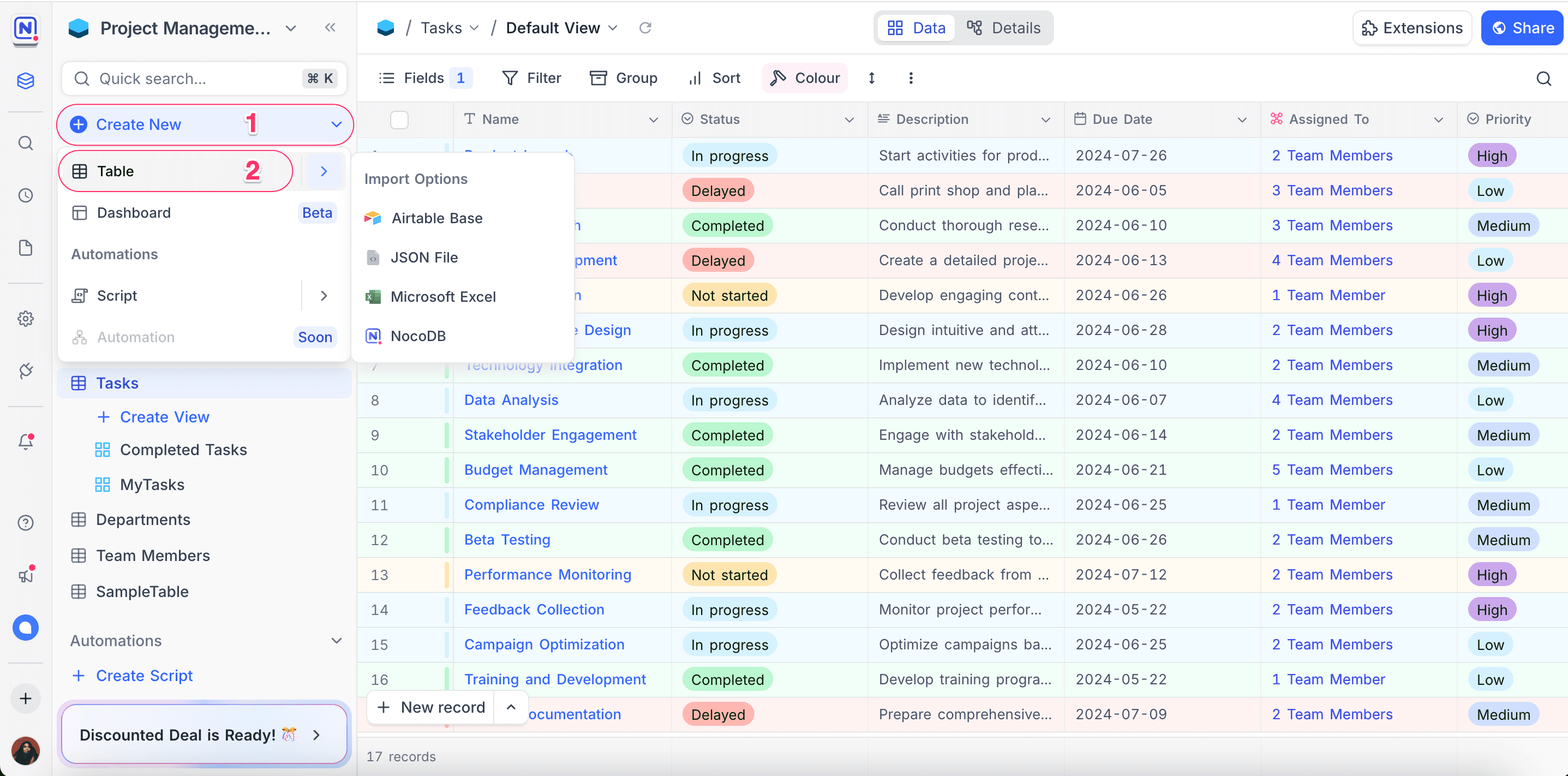
- In the left sidebar, click + Create New.
- In the dropdown, select Table. A modal opens.
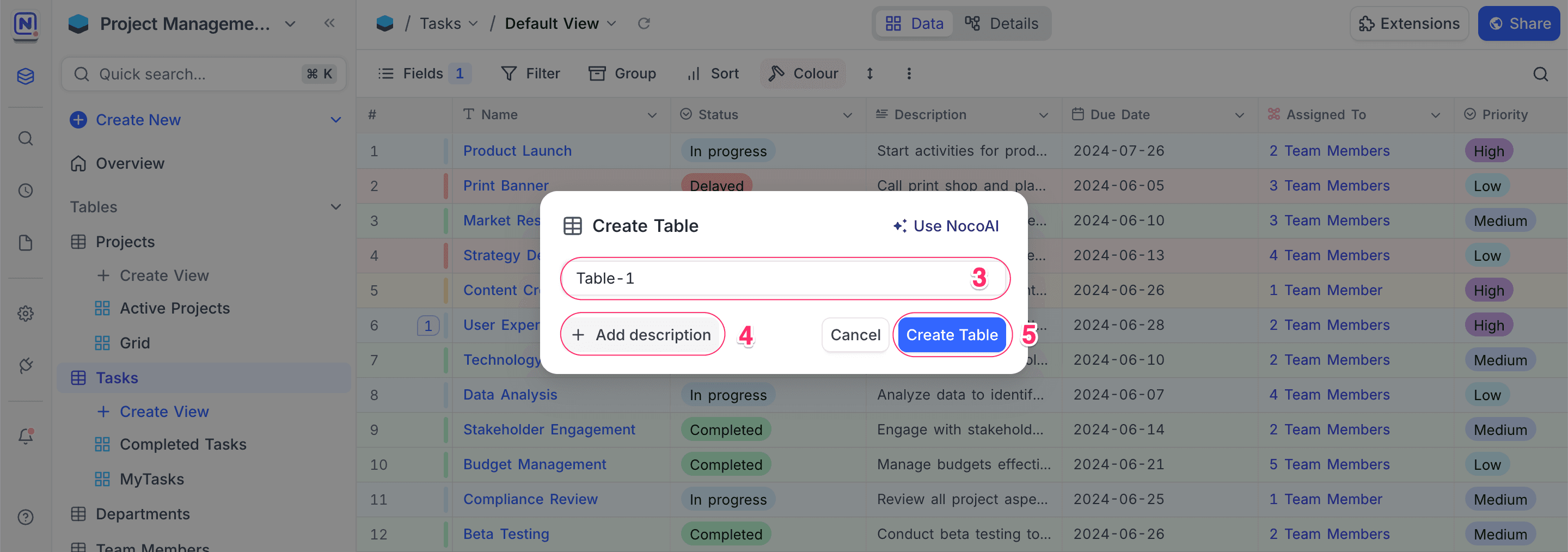
- (Optional) Enter a name for the table.
- (Optional) Click Add Description to add more context or details.
- Click Create Table.
Creating table Using AI
Creating tables with AI is available on NocoDB Cloud only (Plus plan and above). On NocoDB Cloud, credits meter the usage. On self-hosted deployments, you must configure your own AI integration to use AI (Business plan and above).
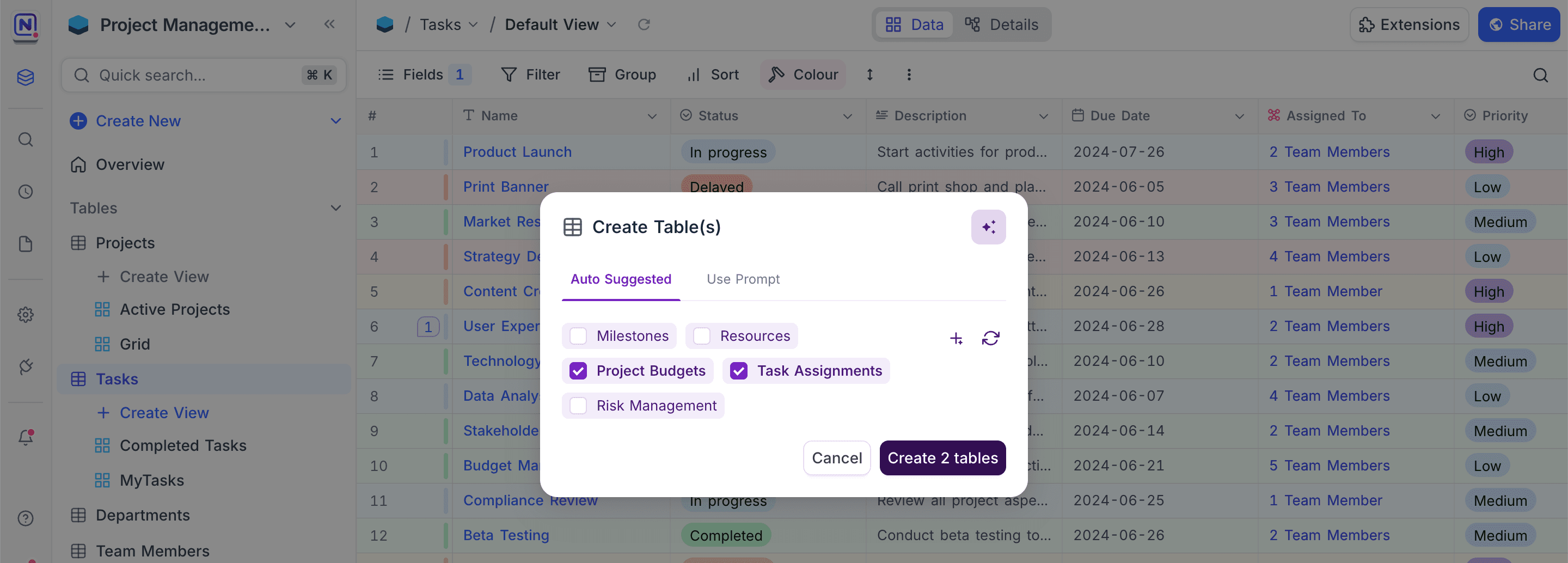
NocoAI can suggest tables from your current schema and context. The new tables include relevant fields. NocoAI links them to existing tables where applicable. You can then expand your database structure quickly, without defining each table and its relationships manually.
For more details, refer to the NocoAI documentation.
Last updated on
Latest product updates?See Changelog