Record Templates
Record Templates are reusable sets of pre-filled field values for a table. When you use a template, NocoDB creates a new record with all the values that you defined. This includes linked records up to three levels deep. Use templates when you often create records with the same field values. You then do not need to enter the same information again and again.
Manage Templates
Use the Manage Templates modal to see, create, edit, enable, disable, and delete all record templates for all tables in the current base.
To open the modal:
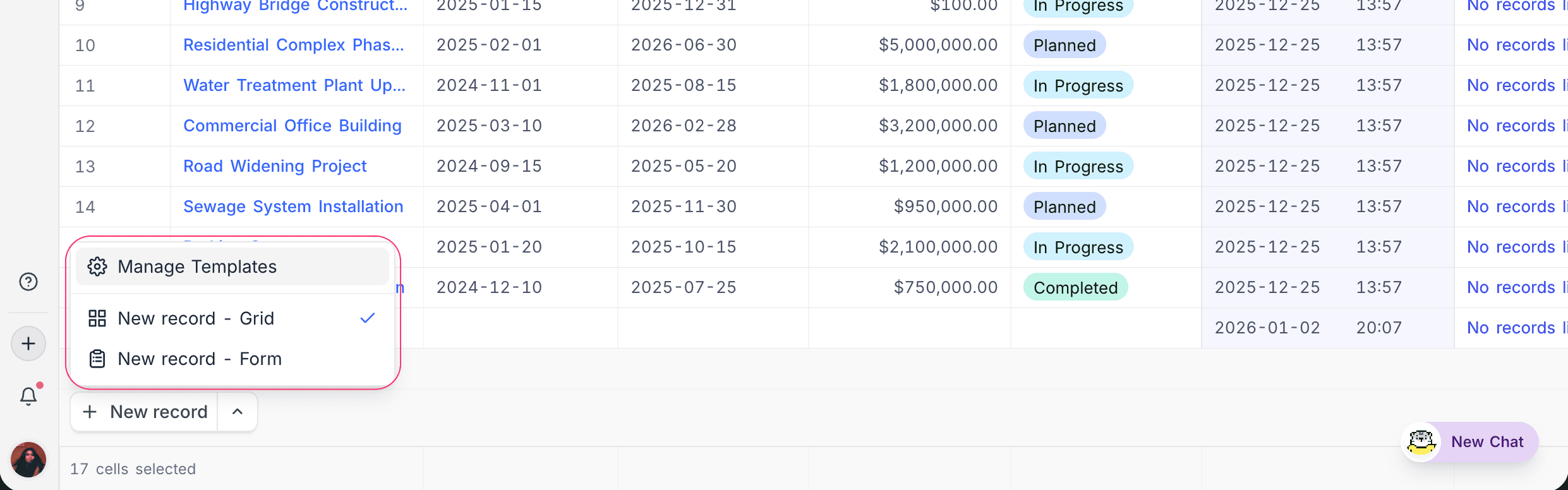
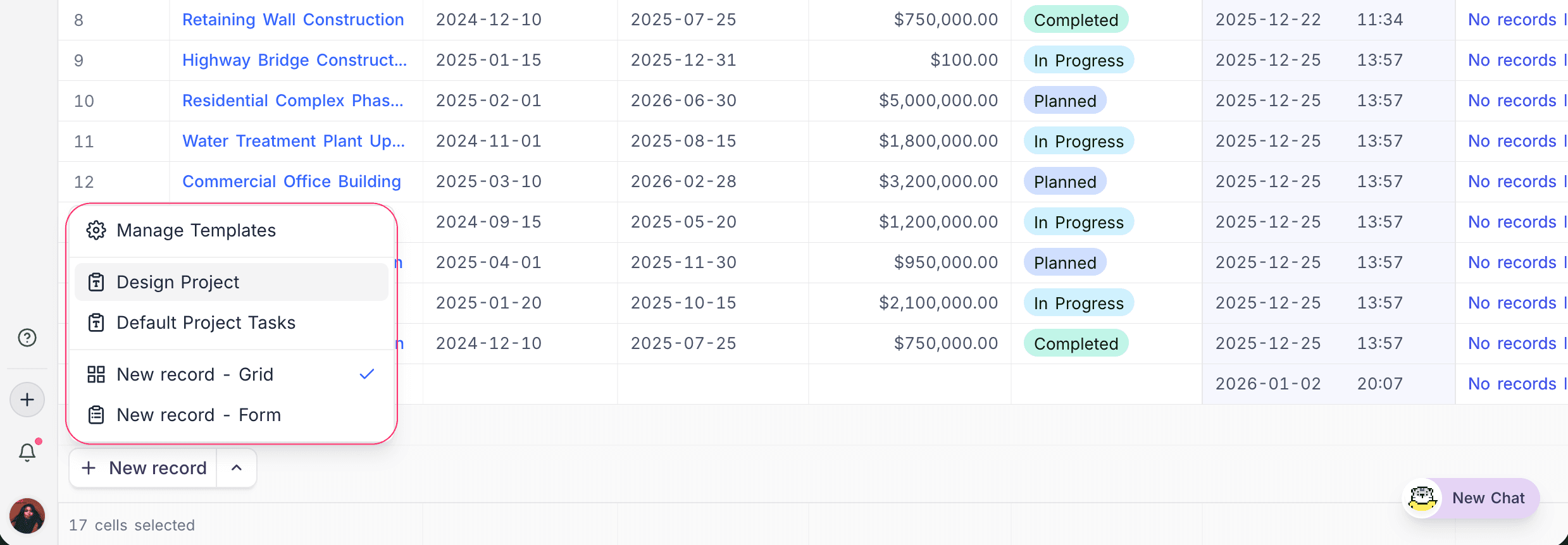
- At the bottom of the grid view, click the up-arrow on the
New Recordbutton. - Select
Manage Templates.
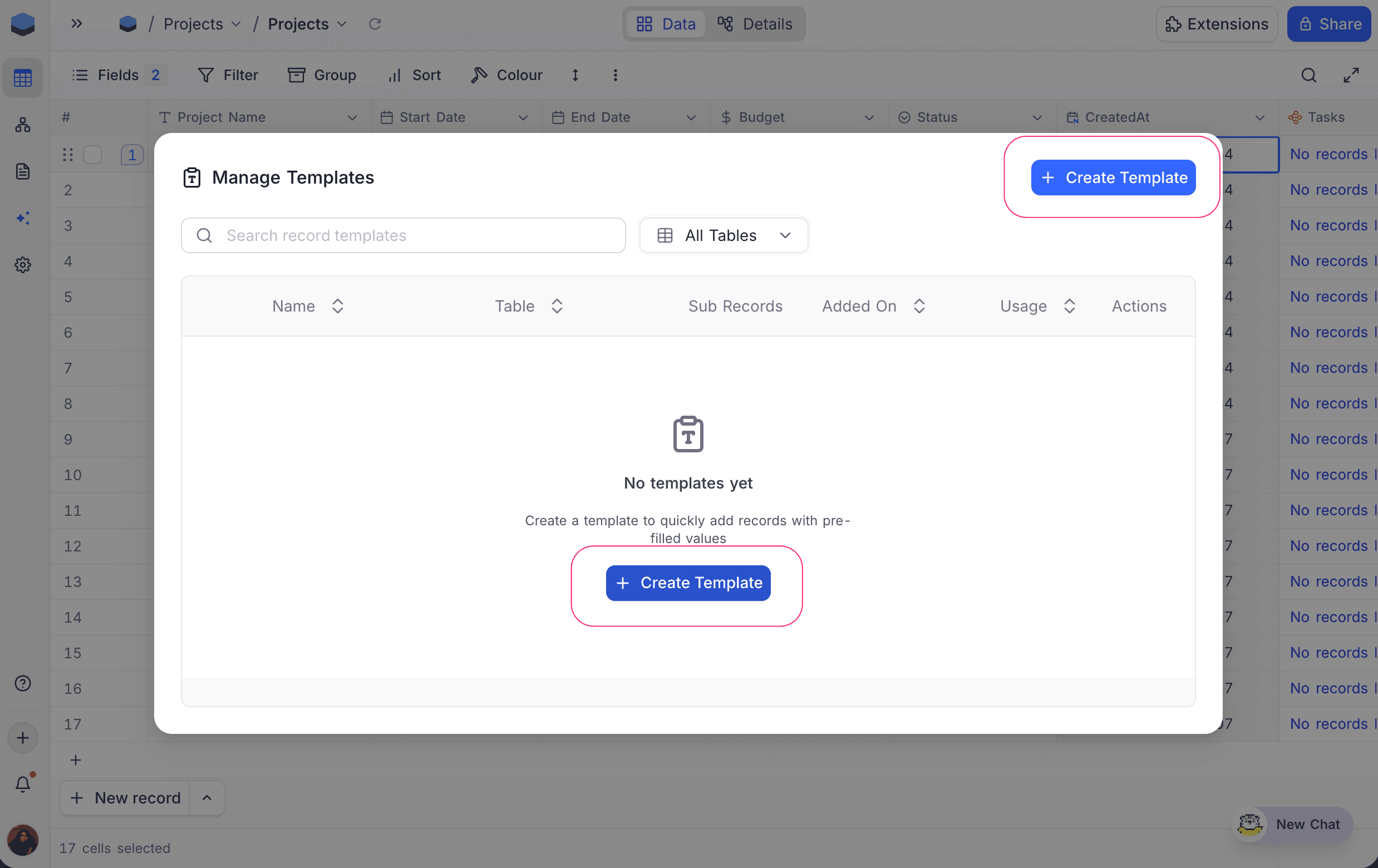
If there are no templates yet, the modal is empty and asks you to create your first template.
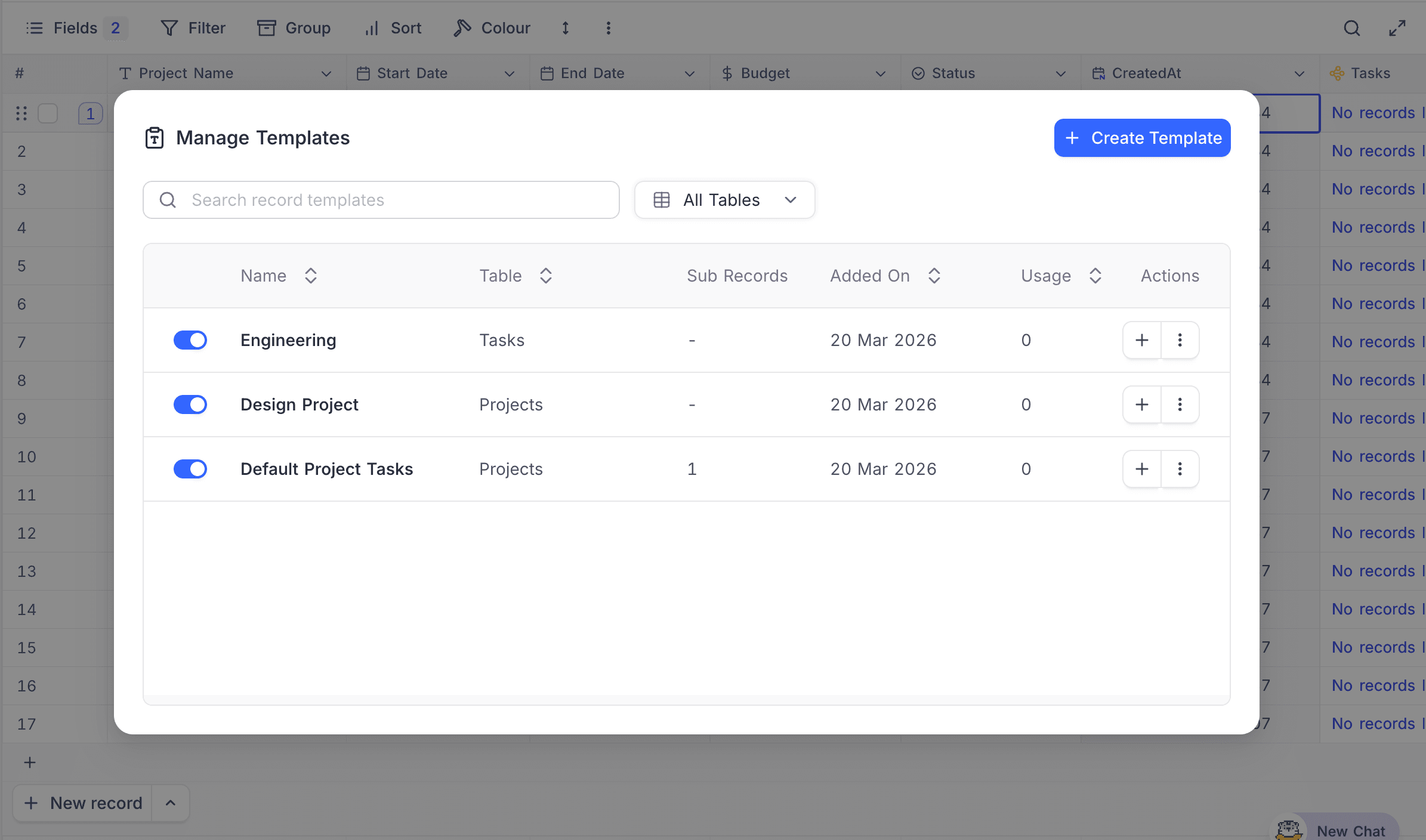
When templates exist, the modal shows a table with these columns:
| Column | What it shows |
|---|---|
| Enabled | A toggle to enable or disable a template. The add-new-row menu does not show disabled templates, but the manager still shows them. |
| Name | The template name. It must be unique in the table. |
| Table | The table of the template. |
| Sub Records | The number of linked sub-records (blueprints) in the template. |
| Added On | The date that the template was created. |
| Usage | The number of times that the template was used. |
| Actions | Use (+), Edit, or Delete the template. |
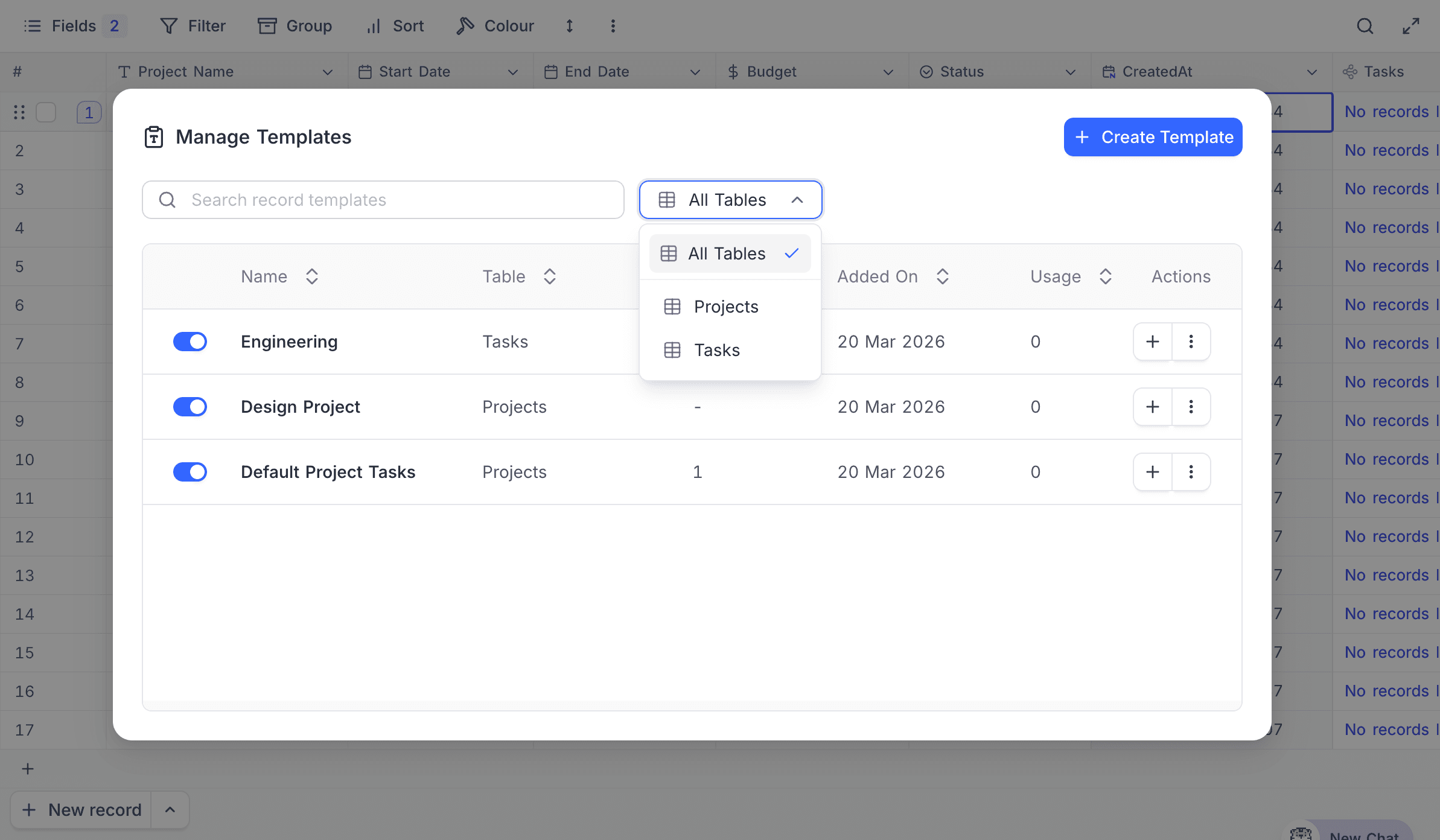
To search templates by name, use the search bar. To filter templates by table, use the table filter dropdown.
Create a template
- Open the
Manage Templatesmodal. - Click the
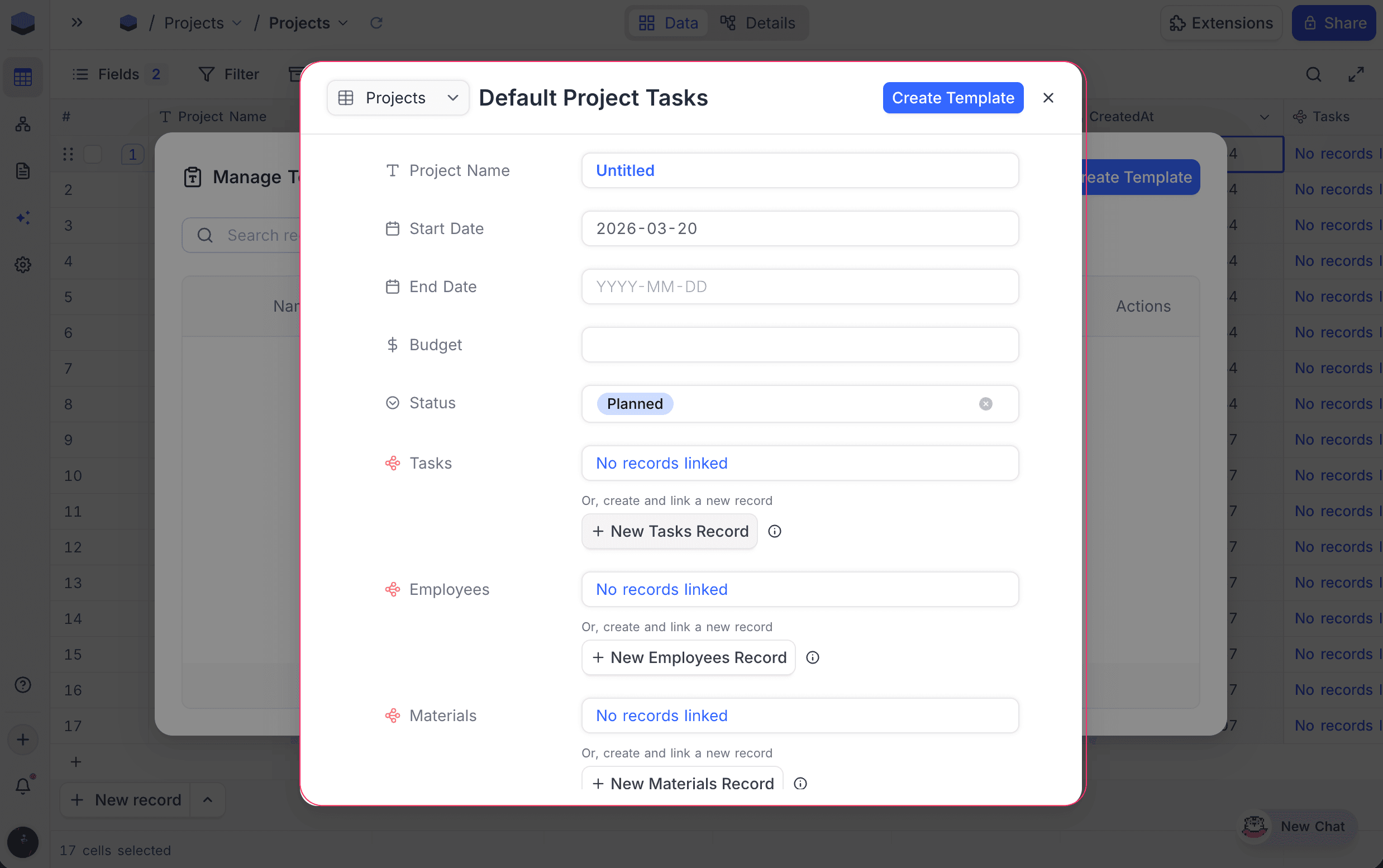
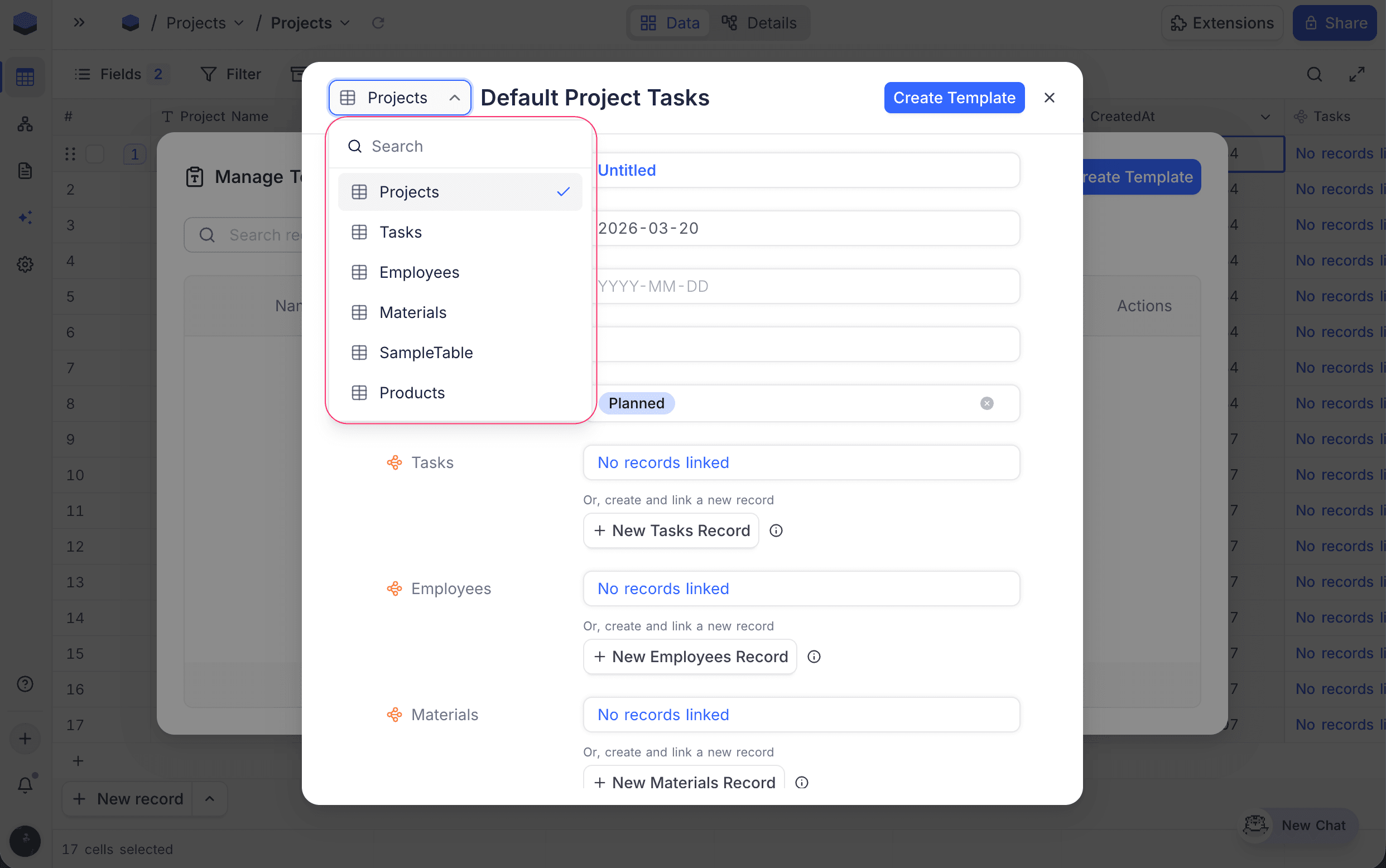
Create Templatebutton. - In the table selector dropdown at the top left, select the table for the template.
- Enter a template name. The name must be unique in the table.
- Enter default values for the fields that you want to pre-fill. Fields that you leave empty stay blank.
- Optional: set linked record fields to include sub-records. Refer to Sub-records.
- Click
Create Template. NocoDB saves the template.
Edit a template
- Open the
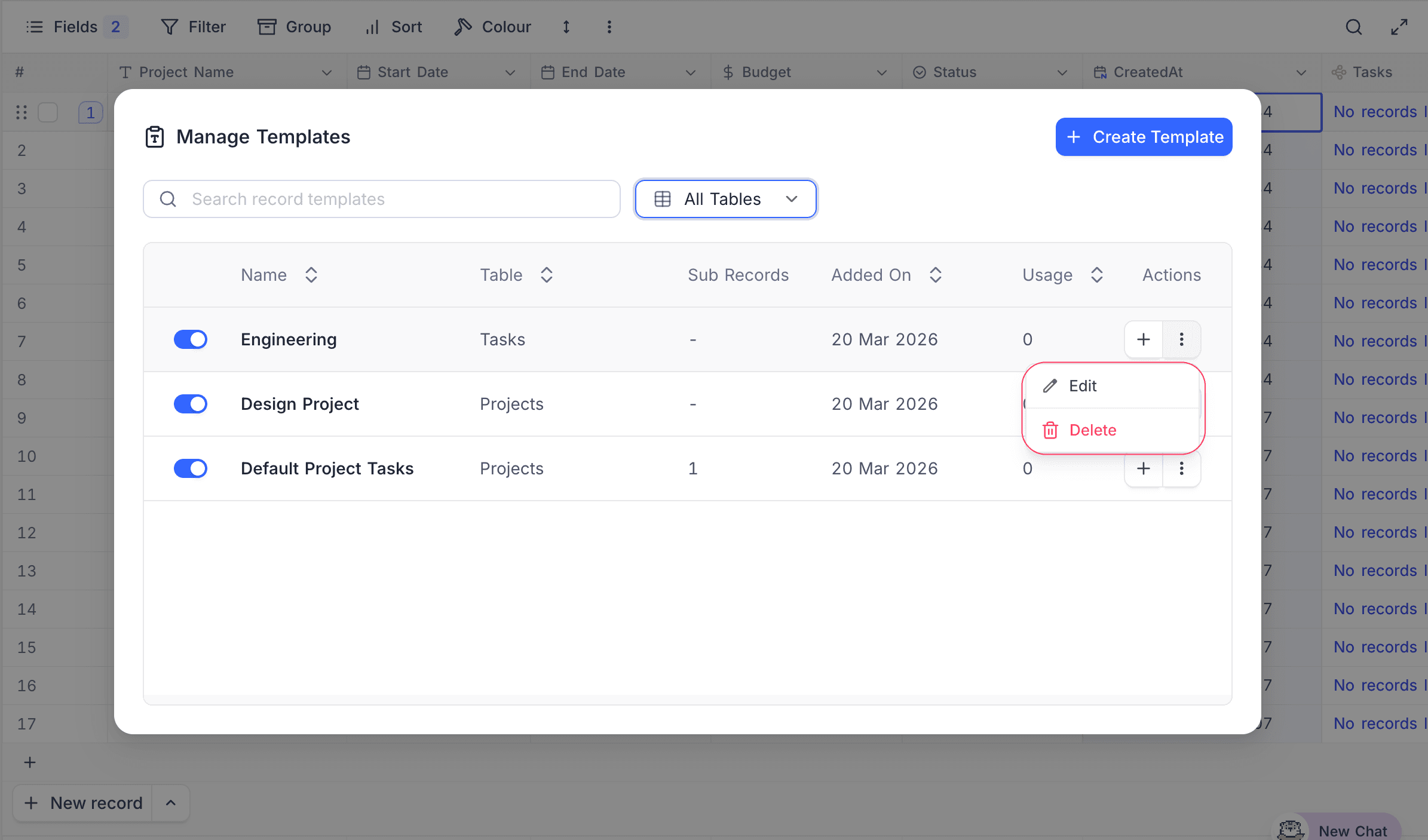
Manage Templatesmodal. - On the template row, click the context menu (
⋮). - Select
Edit. - Change the template name, field values, or linked record configuration.
- Click
Save Template. NocoDB applies the changes.
Delete a template
- Open the
Manage Templatesmodal. - On the template row, click the context menu (
⋮). - Select
Delete. A dialog opens. - Confirm the deletion.
Use a template
You can create a new record from a template in two ways:
From the Manage Templates modal
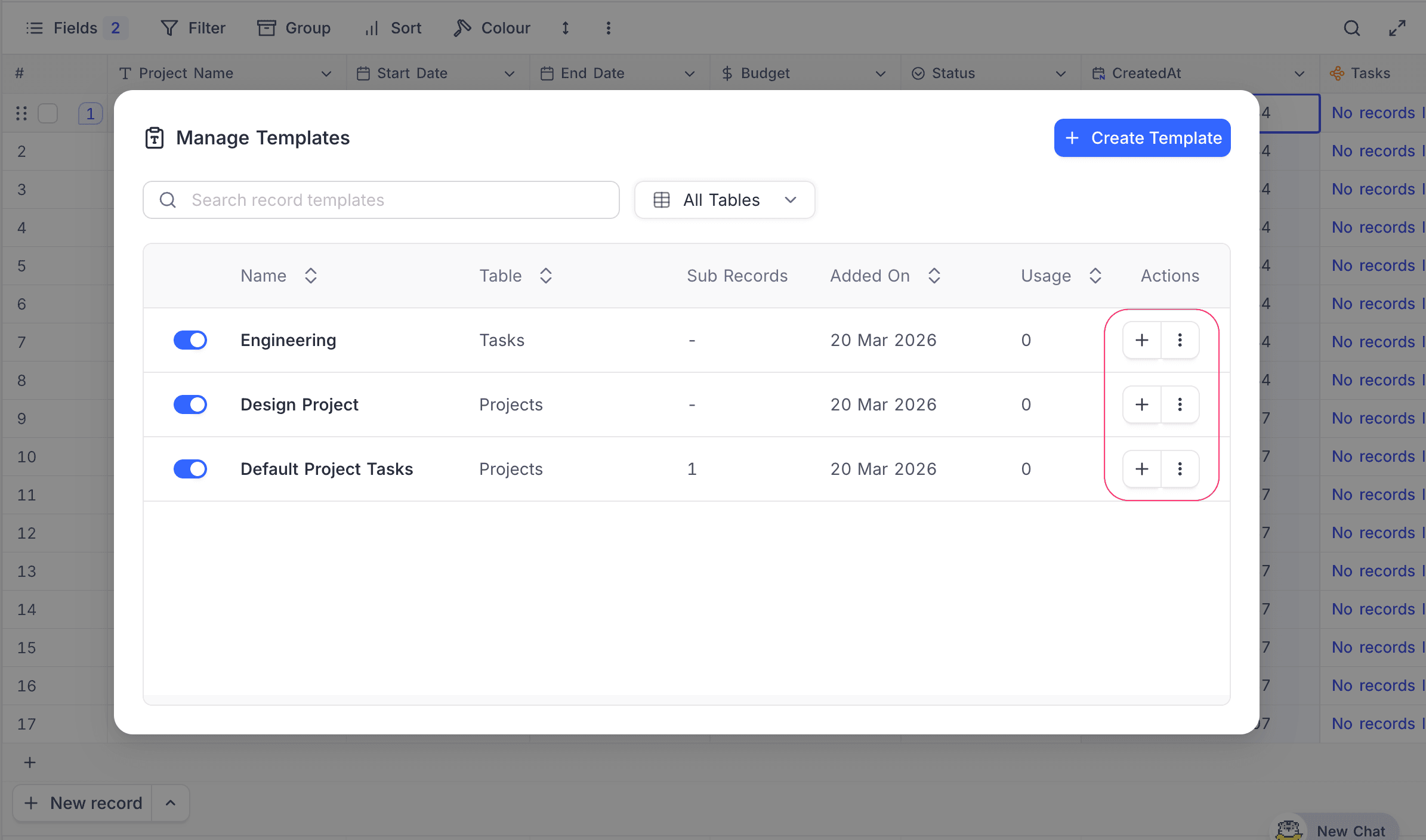
In the manager, click the Use (+) action button next to a template. NocoDB creates a new record in the table of the template, with all the pre-filled values.
From the Add New Row menu
- At the bottom of the grid view, click the up-arrow on the
New Recordbutton. The list shows only the enabled templates for the current table. - Select a template. NocoDB creates a new record with the pre-filled values of the template.
Sub-records (Blueprints)
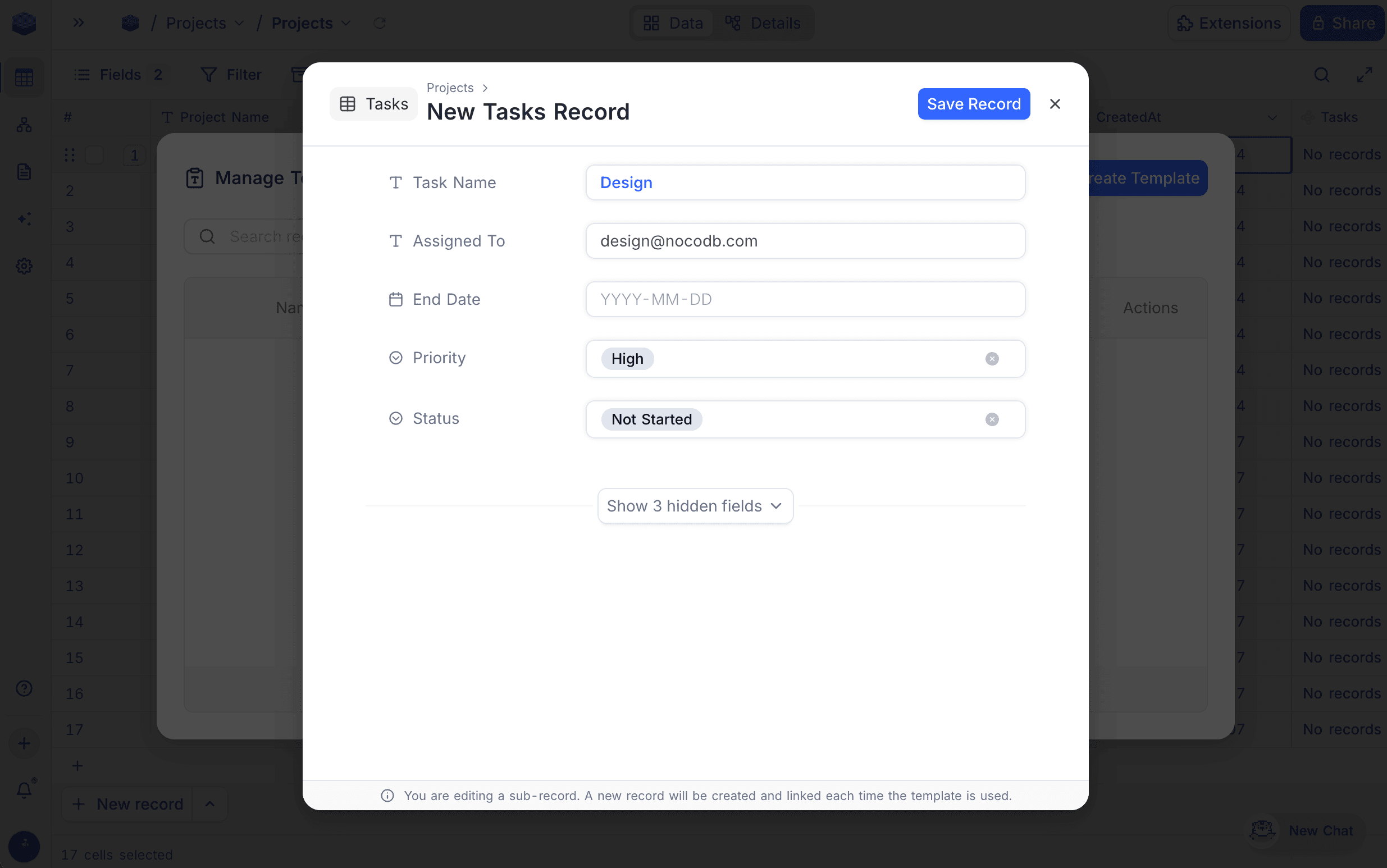
Record templates can include sub-records for linked record fields (Link to Another Record). When you use a template, NocoDB automatically creates the linked records with the main record.
Sub-records can be nested up to 3 levels deep. For example, a Project template can include linked Task records, and each Task record can include linked Subtask records.
To add sub-records to a template:
- When you create or edit a template, click
+ New <Table> Recordbelow a linked record field. - Enter the field values for the sub-record. A banner at the bottom tells you that you are editing a sub-record. NocoDB creates and links this sub-record each time you use the template.
- To add more nested sub-records, do the same steps, up to 3 levels.
Enable / Disable a template
To enable or disable a template, use the toggle in the Enabled column of the Manage Templates modal. Disabled templates:
- Are not shown in the add-new-row template dropdown.
- Stay visible in the Manage Templates modal. You can enable them again at any time.
Availability
- Record Templates is available on NocoDB Cloud (Plus plan and above) and licensed self-hosted deployments (Business plan and above).
Related
Last updated on