At Field Level
Field permissions in NocoDB control who can edit the values in a specific field of a table. Use them to protect sensitive data, or to make sure that only authorized users can change some information.
Enabling Field Permissions
To set field permissions for a table:
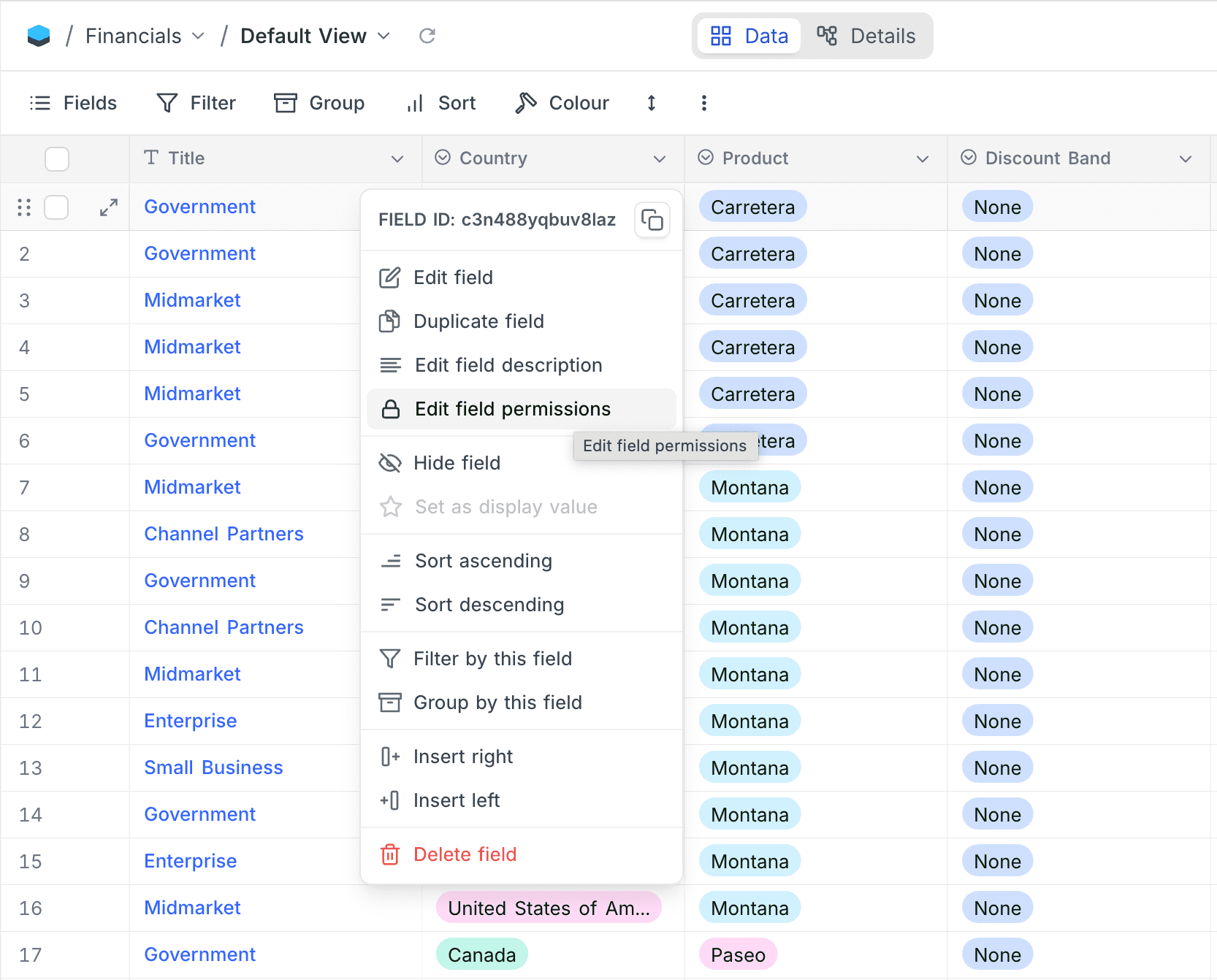
- On the field header, open the field context menu.
- Select Edit field permissions.
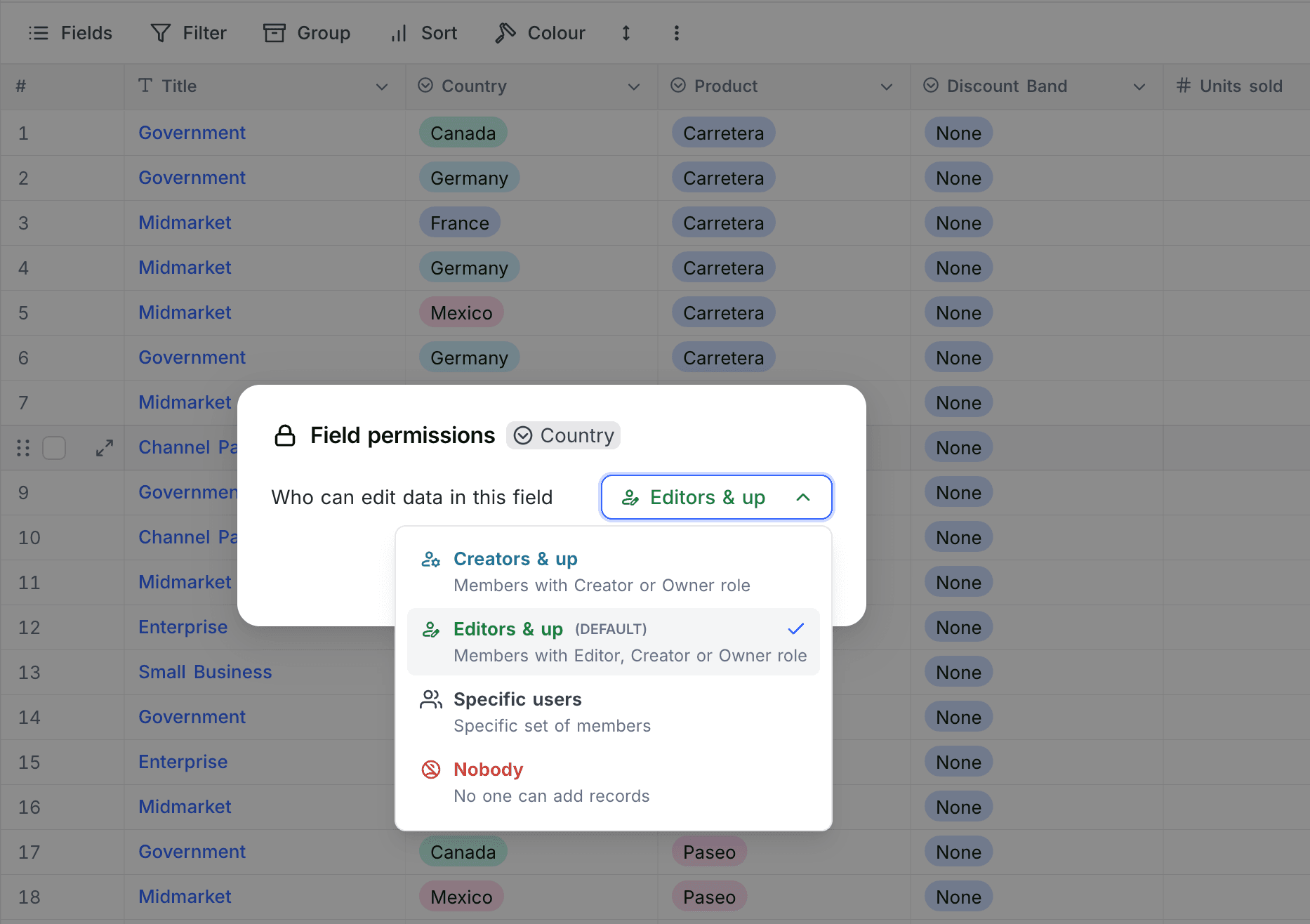
- Use the dropdowns to set who can edit the field.
Permission Levels
You can give a different level of access to each field. These are the options:
| Option | Who gets access |
|---|---|
| Editors & up | Members with Editor, Creator, or Owner roles (default) |
| Creators & up | Members with Creator or Owner roles |
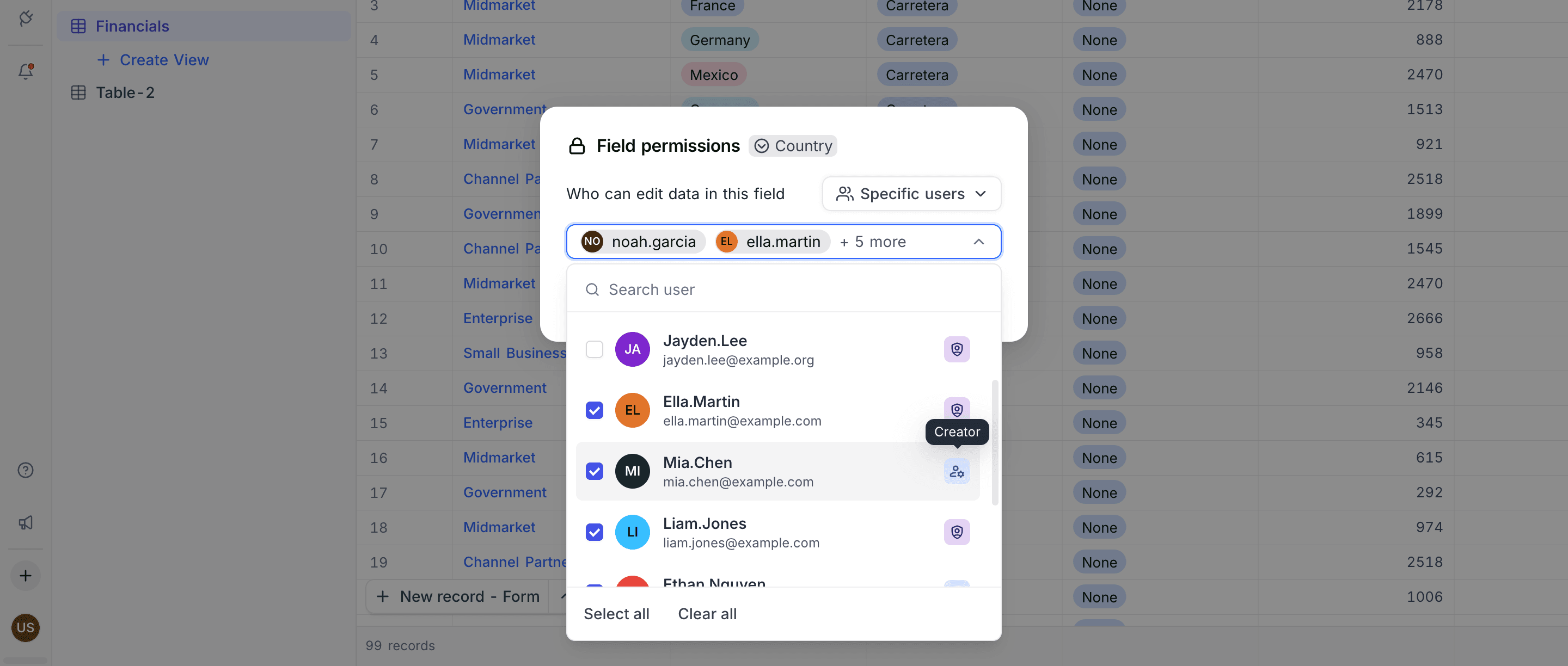
| Specific users | Selected members or teams |
| Nobody | No one can edit this field |
By default, users with the Editor role and higher can edit data in all fields of a table.
| To | Select |
|---|---|
| Stop editors from editing values in this field | Creators & up |
| Stop all users from editing values in this field | Nobody |
| Let only selected members or teams edit this field | Specific users |
Additional Notes on Field Permissions
- Field permissions do not control field visibility. Users with access can still see all field data. Field permissions control only who can edit the values in a field.
- Permissions apply at the field level, to all records in the table for that field. You cannot set them for one record or for selected records.
- Field permissions are independent of table permissions. You can set field permissions without table permissions, and the opposite.
- Field permissions also apply to API calls and shared forms. Users cannot change field values through these interfaces without permission.
- You can set field permissions for all field types except the types below. These are calculated or system fields, and you cannot edit them directly:
- Formula, Rollup, Lookup, Created By, Last Updated By, Created At, Last Updated At, Button, QR Code, Barcode
- For Link to Another Record (LTAR) fields, only the permission of the LTAR field in the source table controls editing (adding and removing links). NocoDB does not use the LTAR permissions of the related table.
- Example: Country has many Cities. A user has permission to edit the LTAR field in the Country table. This user can add or remove links to City records from the Country table. This is true even if the user does not have edit permission for the matching LTAR field in the City table.
Permissions Overview
The permissions overview shows a summary of the current table and field permissions in one table.
To open the permissions overview:
- Go to the base homepage. To do this, click
Overviewin the sidebar. - Click the Permissions tab.
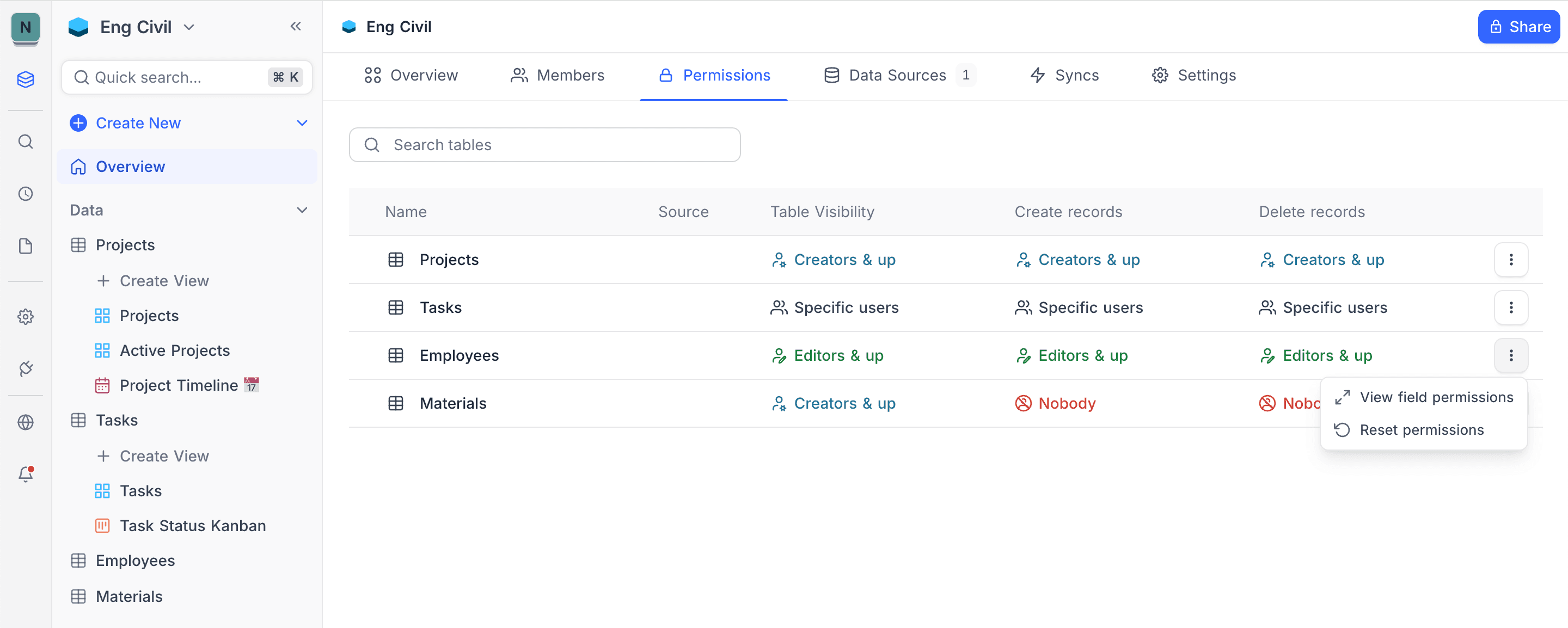
Then select the table that you want to see. The overview shows field permissions and table permissions. You can see who can create or delete records in each table. You can also see which fields are editable, and by whom.
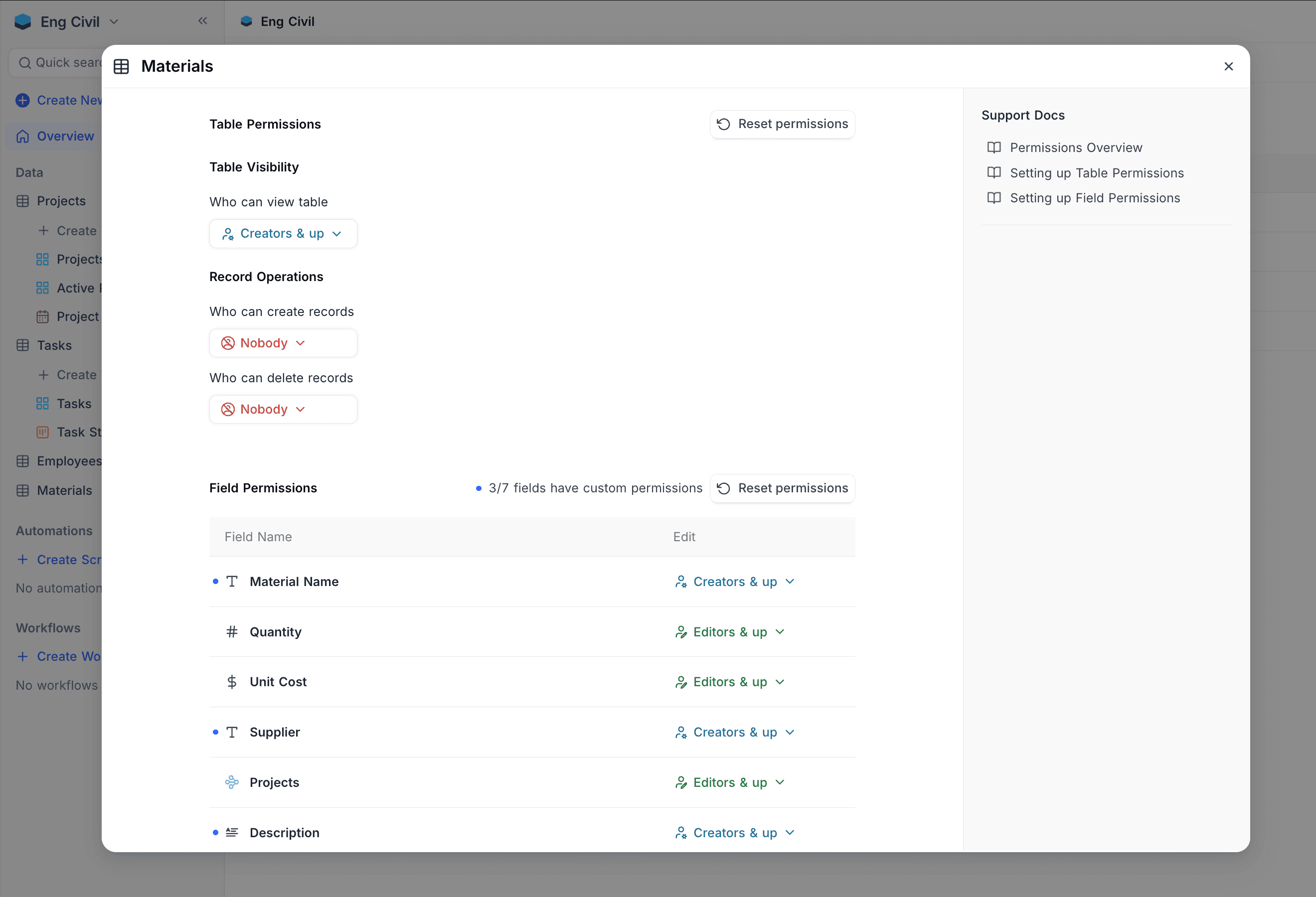
You can also open Permissions overview from the table or field permission configuration modal.
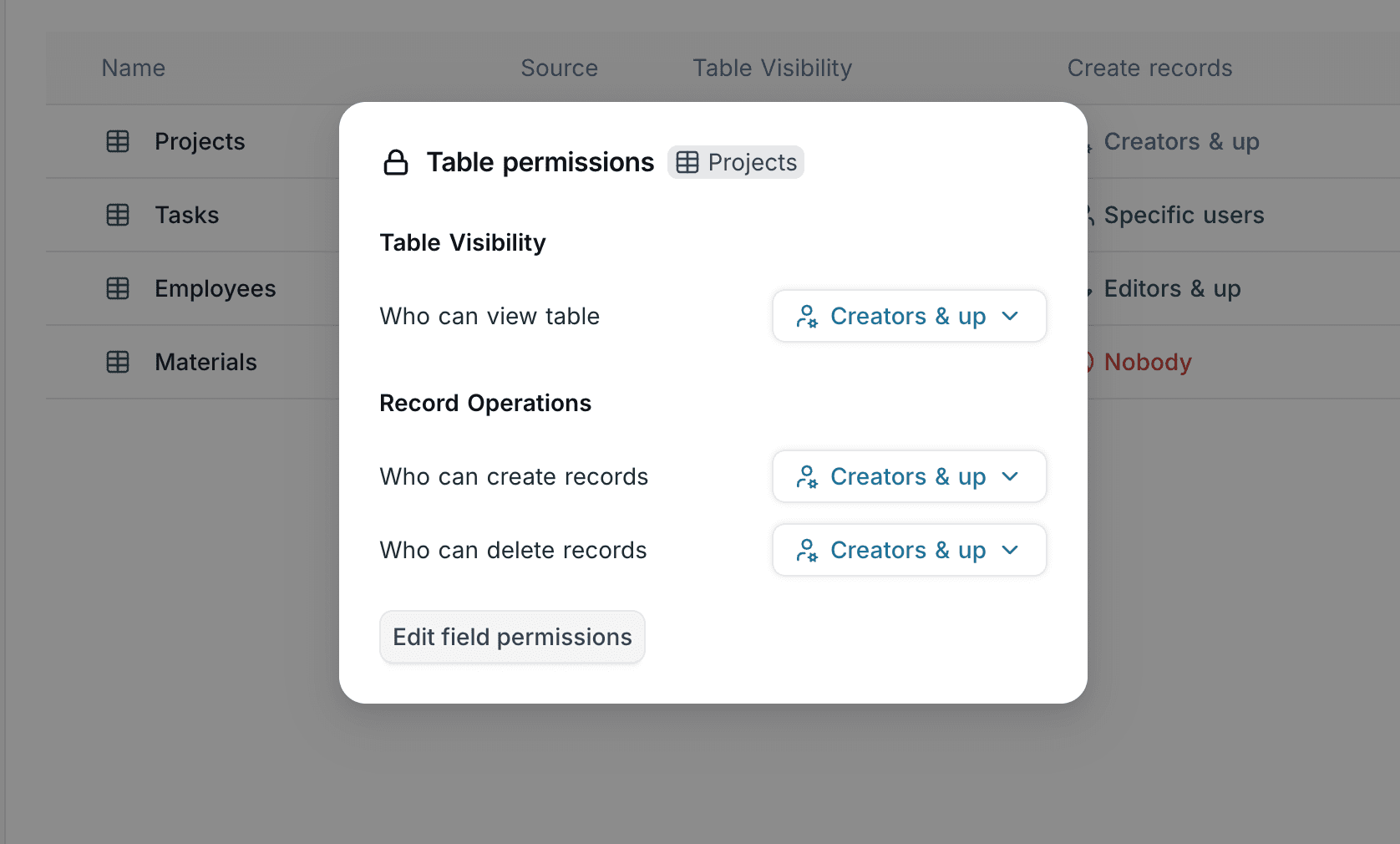
Availability
- Field permissions are available on NocoDB Cloud (Plus plan and above) and licensed self-hosted deployments (Business plan and above).
Last updated on