Actions on Table
Copy a prompt, paste it into NocoAI in any base, and replace the words in [brackets] with your own.
- Rename this table to [new name]
- Add a short description to this table explaining what it is for
- Delete the [table name] table
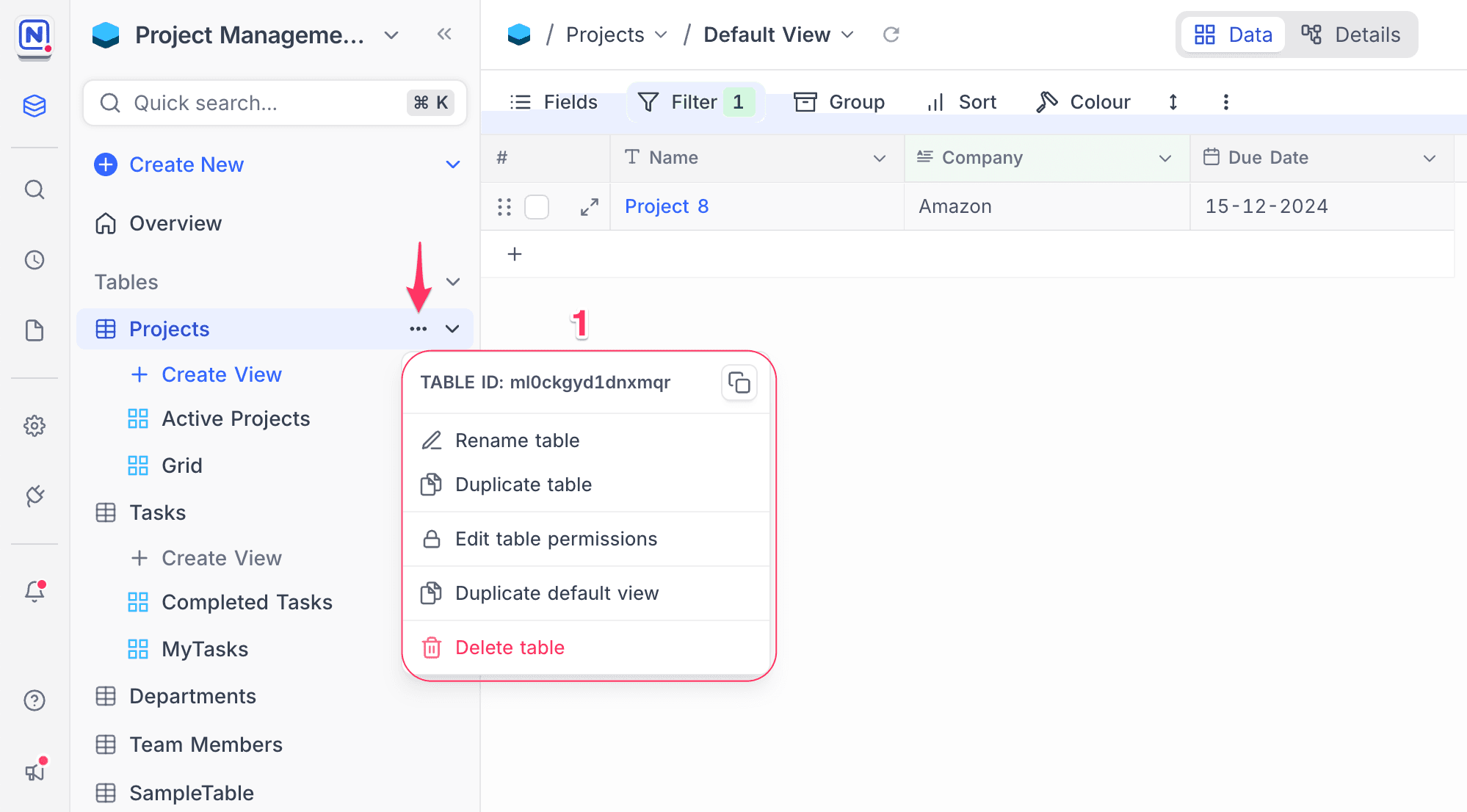
Rename table
- In the left sidebar, click the
...(ellipsis) next to the table name. - In the context menu, select
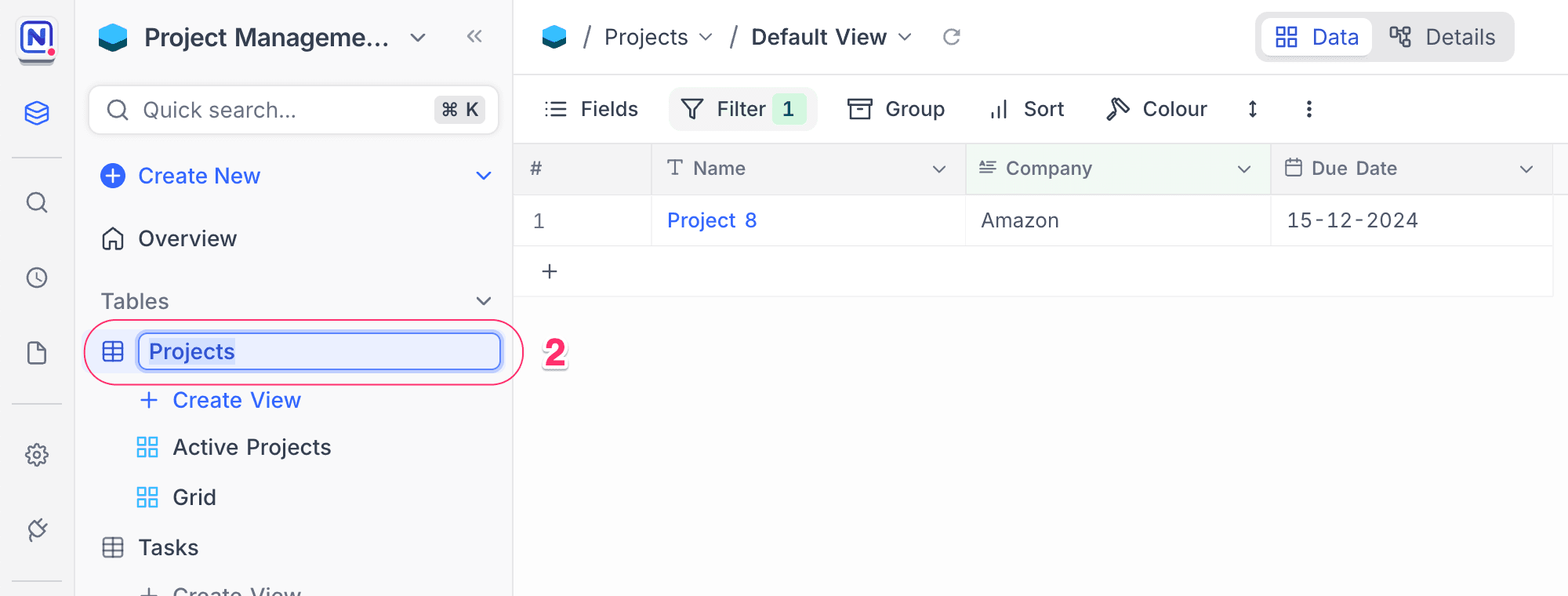
Rename table. An input field opens.- You can also double-click the table name in the left sidebar to edit it.
- Enter the new name for the table.
- Press
Enter, or click outside the input field. NocoDB saves the name.
Change table icon
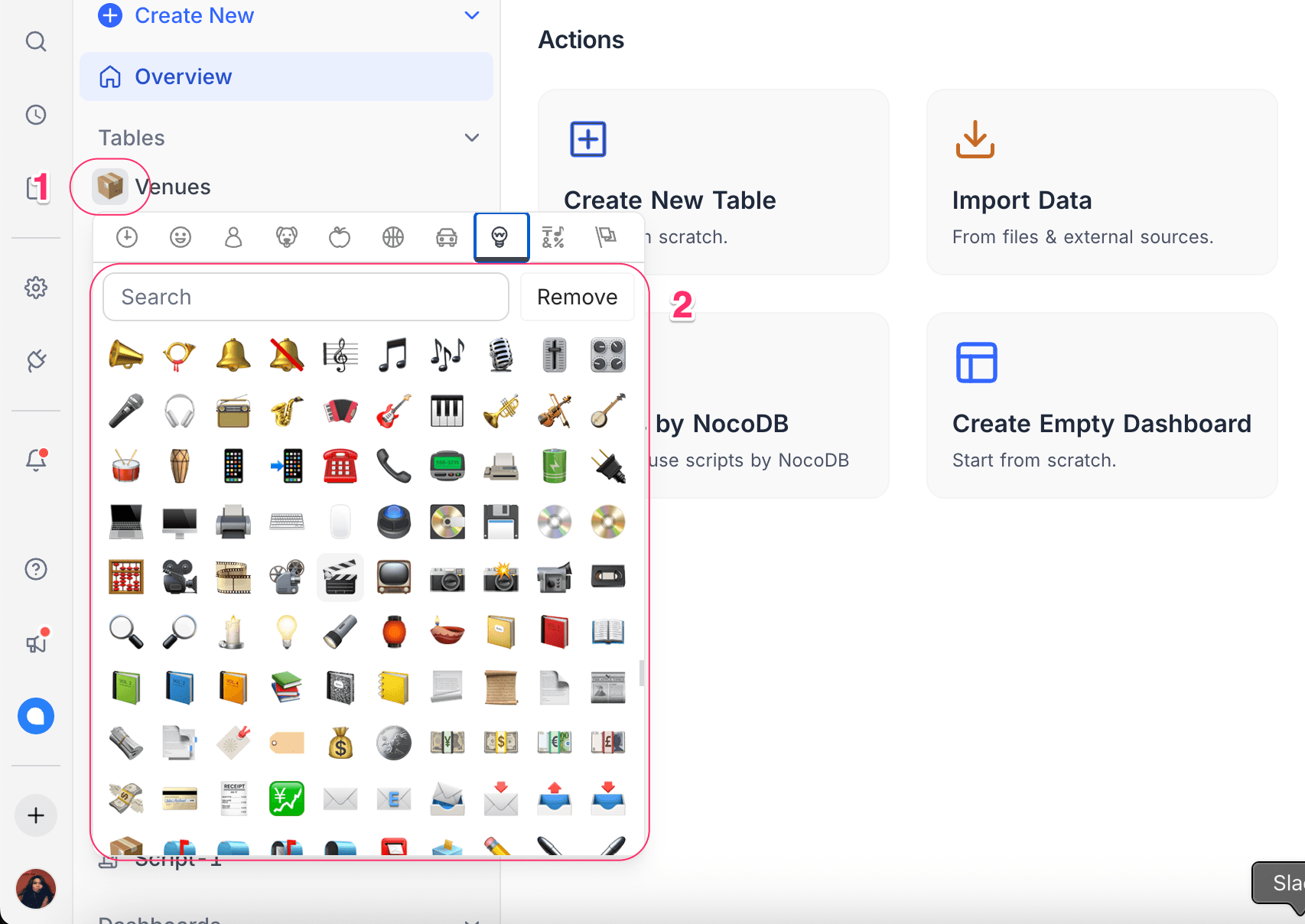
- Click the current table icon next to the table name in the left sidebar.
- Select a new icon.
Duplicate table
- In the left sidebar, click the
...(ellipsis) next to the table name. - Select
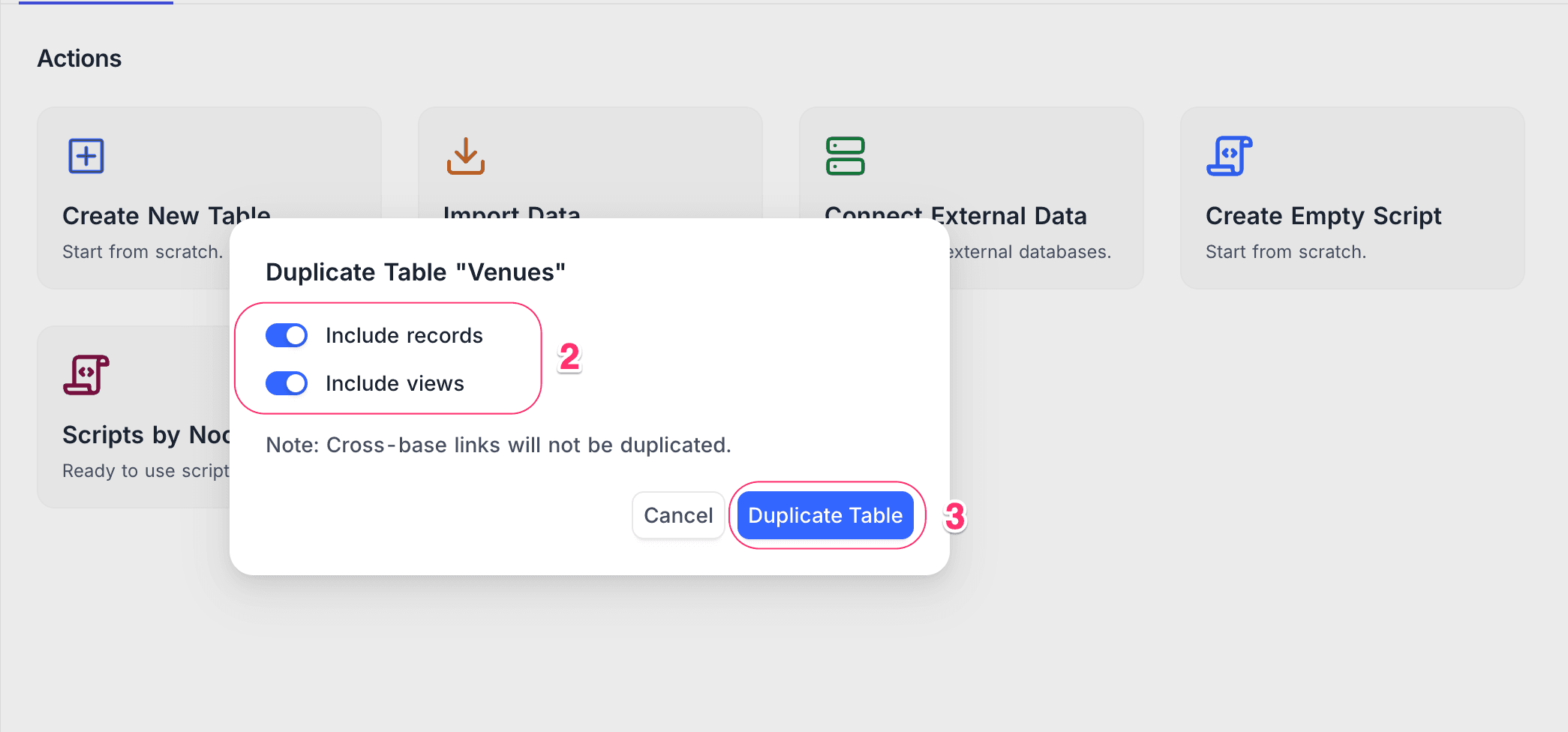
Duplicate table. A dialog opens. - (Optional) In the dialog:
- Use Include data to copy the table with or without its records.
- Use Include views to copy the table with or without its saved views.
- Click Duplicate Table. NocoDB creates a new table with your selected options.
Additional notes
- NocoDB creates the duplicate table in the same base as the original table.
- The name of the duplicate table ends with
Copy. - The duplicate table option is not available for
External DBbases.
Delete table
- In the left sidebar, click the
...(ellipsis) next to the table name. - Select
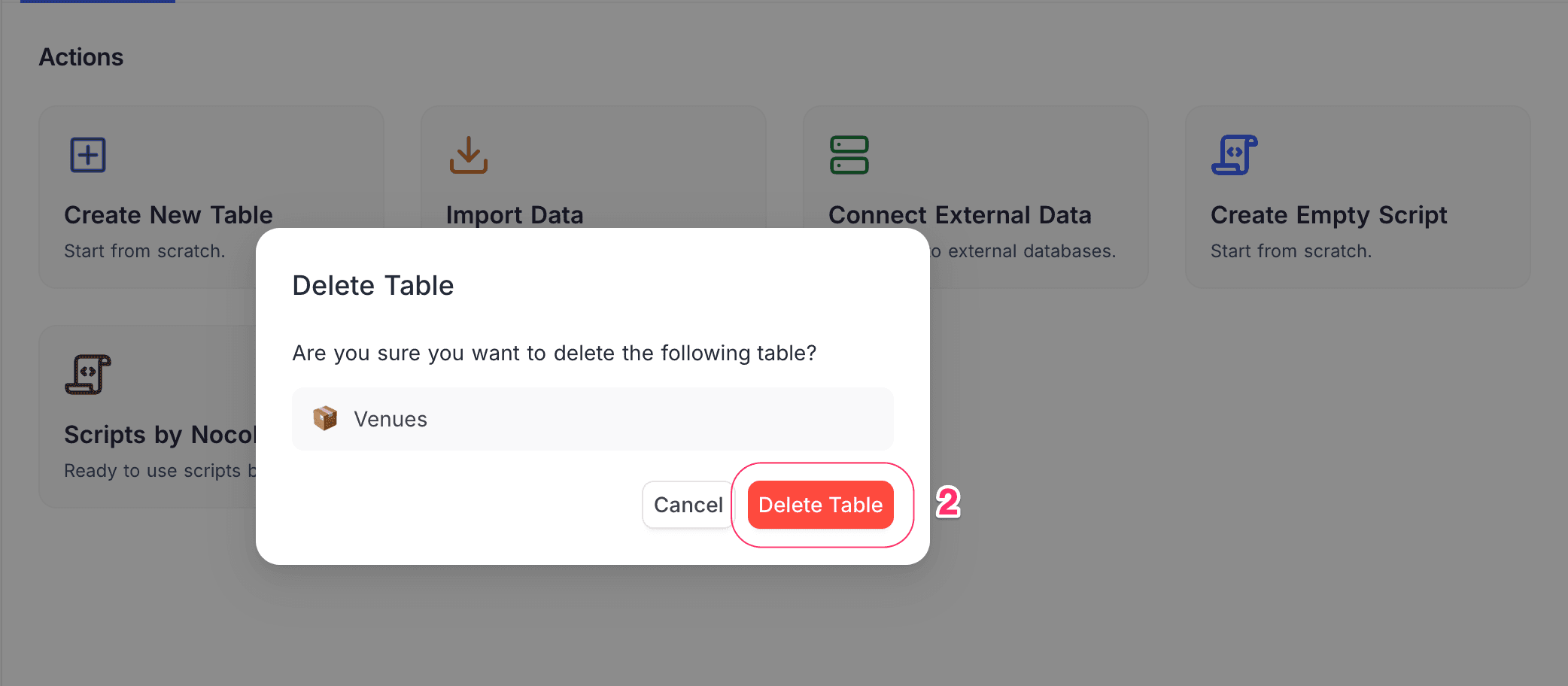
Delete table. A confirmation dialog opens. - Click
Delete Table.
Add / edit table description
To add a table description, do one of these:
- In the table creation modal, click
Add Description. - In the table context menu, click
Edit Description.
To see the description, hover over the info icon next to the table name in the left sidebar. The description shows as a tooltip.
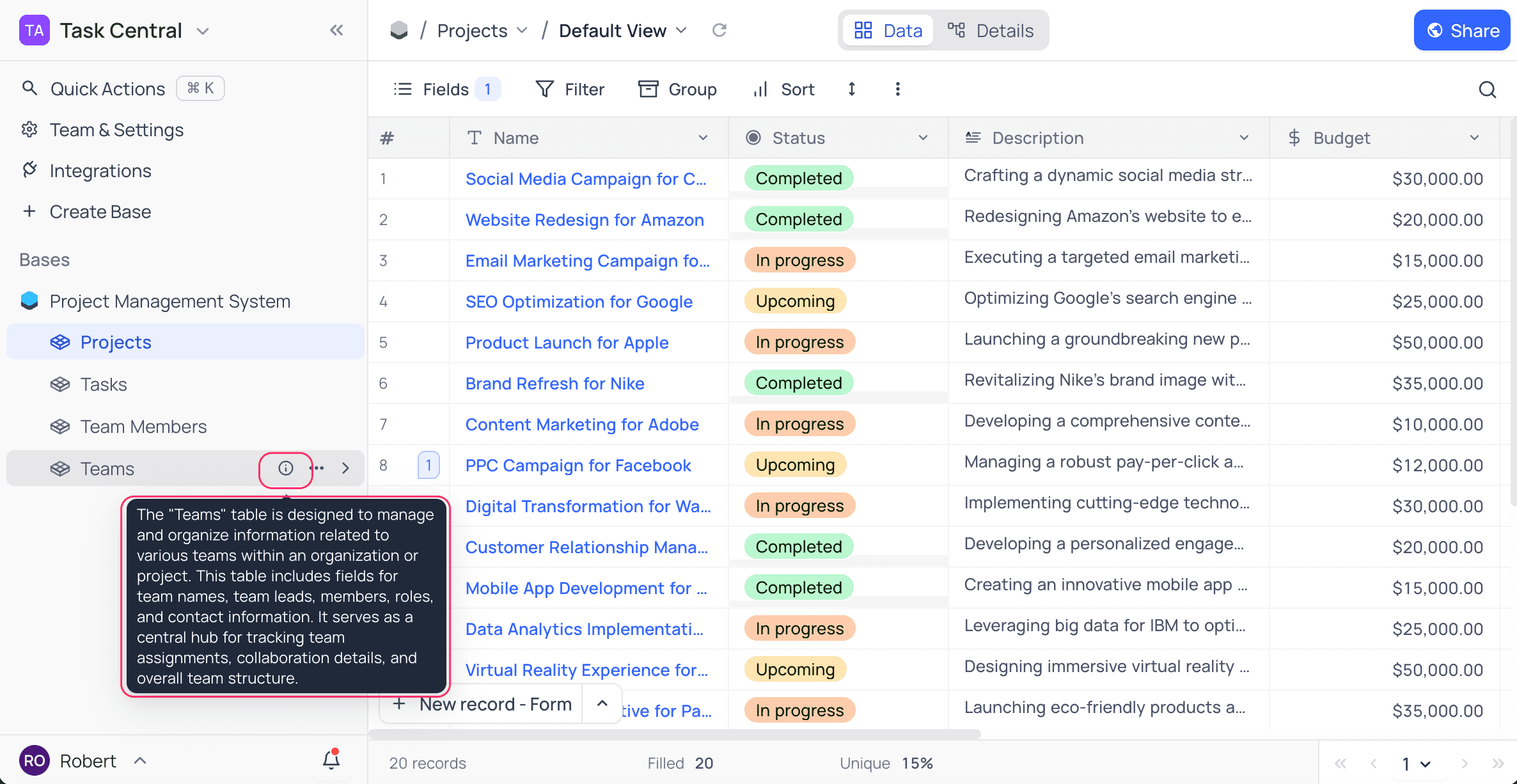
Table permissions
Use table permissions in NocoDB to control who can create or delete records in each table. For more details, refer to table permissions.
Find table ID
Each table in NocoDB has a unique ID in its base. The ID starts with m, short for model.
When you open a table, the table ID is in the URL.
Example:
https://app.nocodb.com/#/wqd7e84kkpg8169/pqh6trao813gar7/mxo5v3uj1l1xjpzIn this example, the table ID is: mxo5v3uj1l1xjpz
To copy the table ID, click the ... (ellipsis) next to the table name and select Copy Table ID.
Usage: Use the table ID in API calls, scripts, and integrations that must point to a specific table.
Last updated on