Views
Views in NocoDB let you customize how your data shows. Each view has its own sorting, filtering and field visibility. Each view keeps its own configuration, so a change to one view does not affect the other views.
Use views to organize and visualize data. You can make a different view for each workflow or team member.
Copy a prompt, paste it into NocoAI in any base, and replace the words in [brackets] with your own.
- Create a kanban view of this table grouped by [Status]
- Create a view that shows only my records
- Create a calendar view of this table using [Date]
- Which views does this table have, and what does each one show?
Supported View Types
- Grid View
- Form View
- Gallery View
- Kanban View
- Calendar View
- List View ☁
- Map View ☁
- Timeline View ☁
- Gantt View ☁
For a quick overview of NocoDB Views, watch the video below:
View Permission Types
You can apply permissions to each view. By default, all views are Collaborative. To see or change the permission type of a view, open the View Toolbar Menu as shown below.
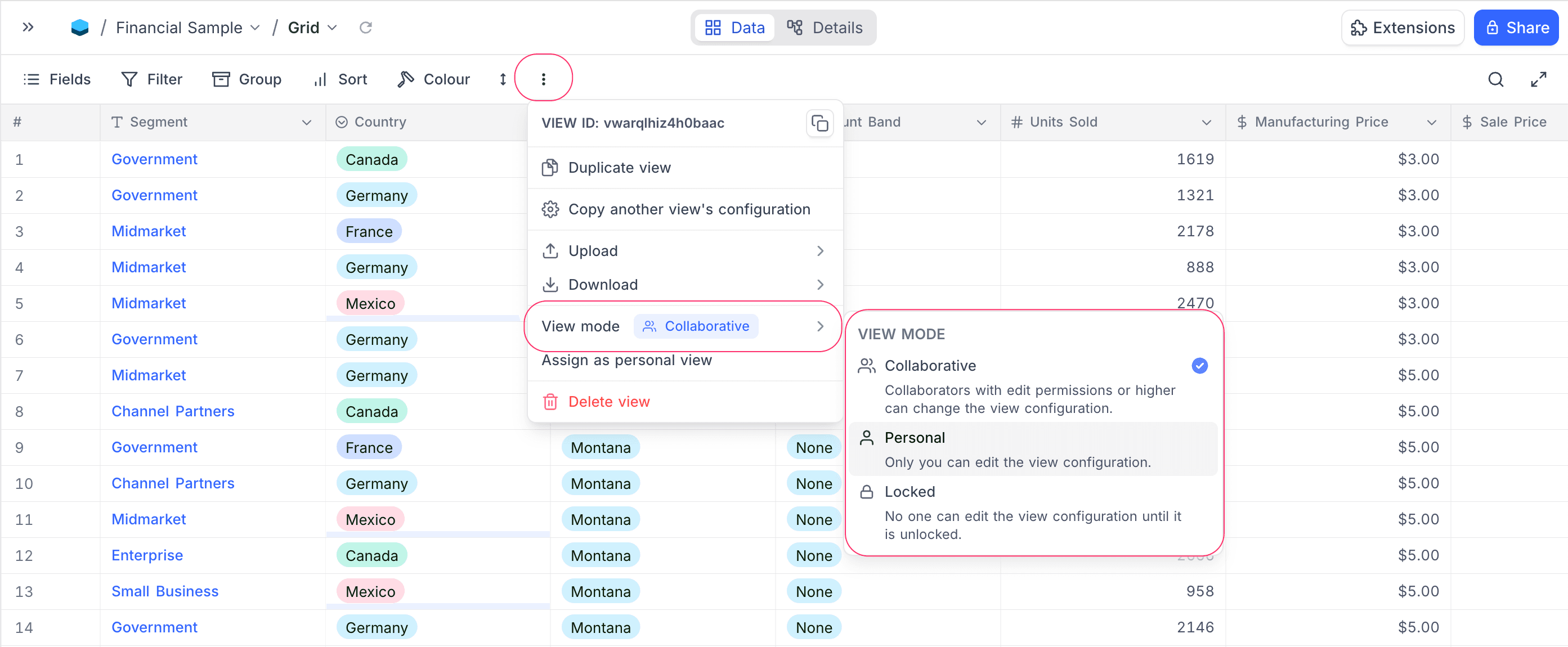
View configurations include these items in the toolbar:
- Field visibility
- Field order
- Field width
- Filters
- Sorts
- Groups
- Row Colors
- Row Height
The role of the member sets toolbar access:
| Role | Toolbar access |
|---|---|
| Editor, Creator, Owner | Yes, by default |
| Commenter, Viewer | No |
Collaborative Views (Default)
By default, views are Collaborative. Members with edit permissions or higher can change the view configurations. In this mode, all members with toolbar access can change view configurations, for example field visibility, order, filters, sorts, groups, colors and row height.
Locked Views
In a Locked View, no one can edit the view configurations until the view is unlocked. Members can read data, but they cannot change view settings or content. Use this mode to share a consistent data presentation with others and prevent accidental changes.
For more information, refer to Locking and Unlocking Views.
Personal Views ☁
In Personal Views, only the owner controls the view configurations. Other members keep read-only access. This mode is similar to Locked Views, but the view owner (and base creators/owners) can change the configuration.
- Any Editor, Creator, or Owner can convert a collaborative view into a personal view. The member who converts the view becomes its owner.
- The owner can convert the view back to Collaborative at any time. This clears the ownership assignment.
- Only base Creators or Owners can do these actions:
- make a view the personal view of another user
- transfer ownership to a different user
- switch a view into or out of Locked mode
- If an older view has no assigned owner, the base owner is the owner by default.
For more information, refer to Personal Views.
Organizing Views with Folders
When a table has many views, you can put related views into collapsible View Folders in the left sidebar. Use folders to organize views by purpose (for example, "Reports", "Data Entry", "Team Views"). Folders do not affect the data or the configuration of the views in them.
General Notes
- When you open a table, NocoDB shows the first common (non-personal) view by default. This view can be Collaborative or Locked.
- Each table must have at least one common (non-personal) grid view. You cannot delete the last common view or convert it into a personal view.
- The first common (non-personal) grid view of the source table sets the field display order for linked records.
Good to know
- A View shows data from a table. When you update records in one view, all other views of the same table show the update.
Last updated on