Create Webhook
Accessing webhook page
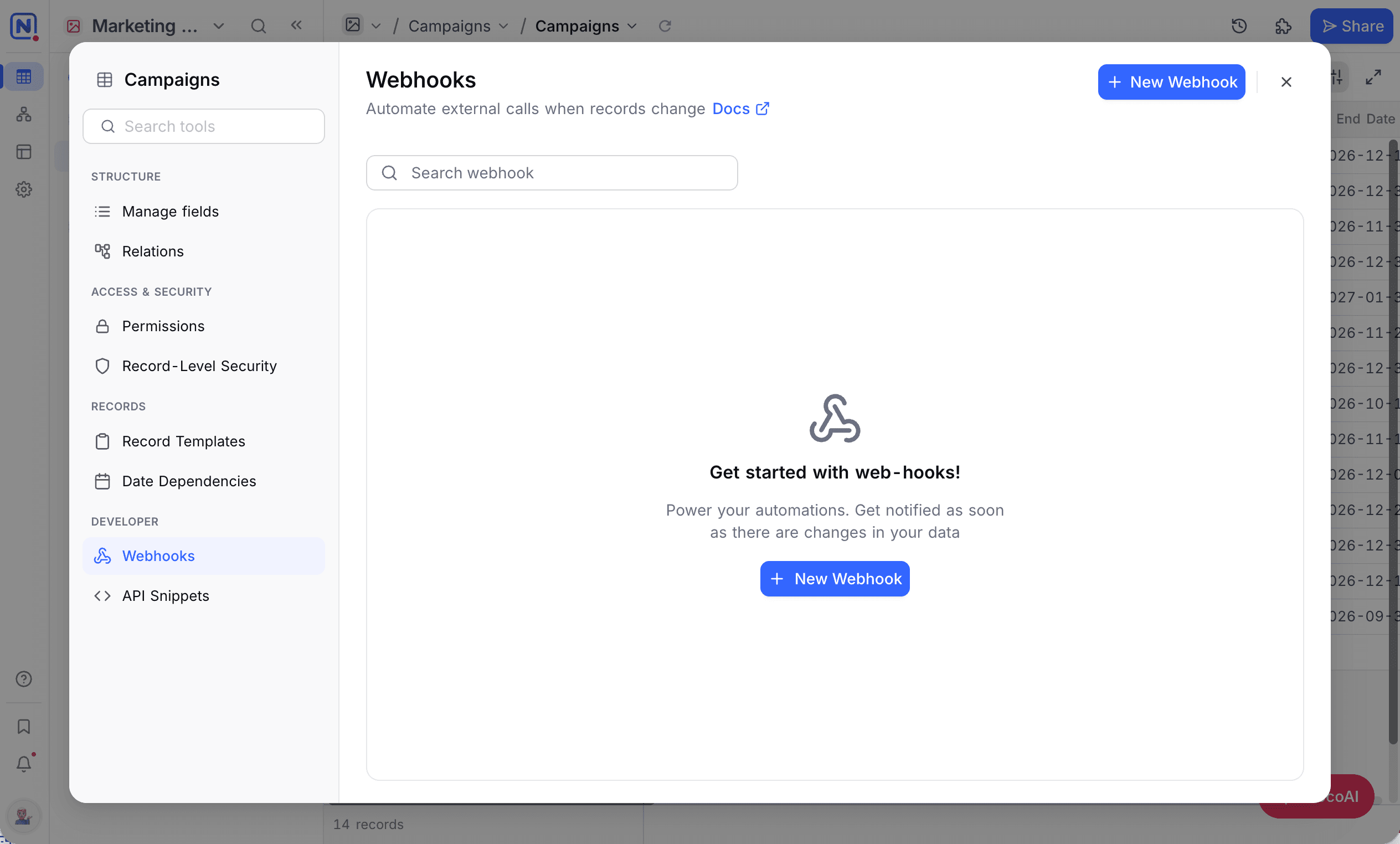
- In the left sidebar, click the table for the webhook.
- In the toolbar, open
Tools. - Click
Webhooks. - Click
Add New Webhook.
Configuring webhook
-
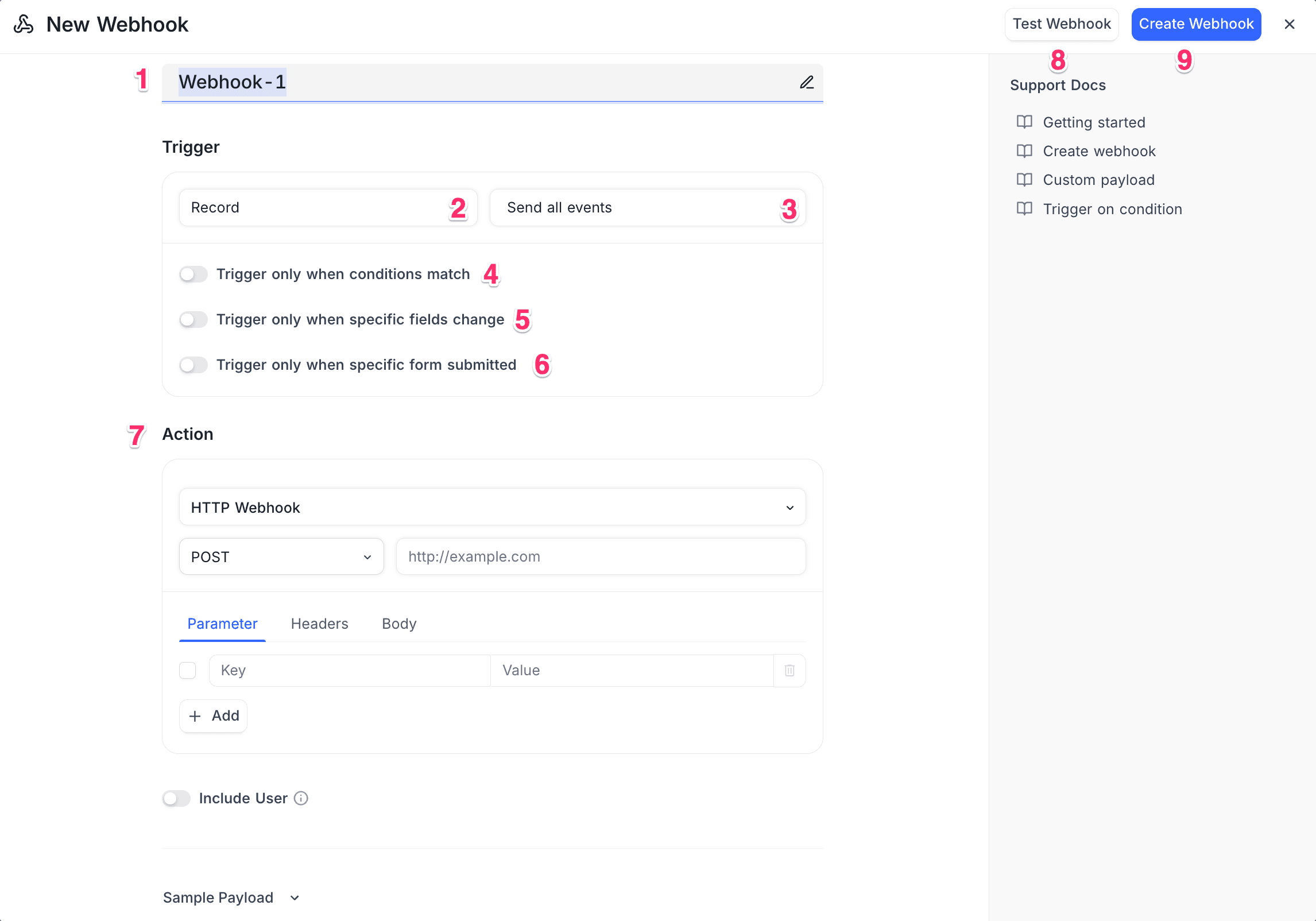
Name the webhook - Enter a clear & descriptive name.
-
Select the Trigger Source type:
Trigger Source type View, Field, and Comment are only available in the paid plans, in both cloud & self-hosted.- Record - Triggers when a record is inserted, updated or deleted. If you select “Send me everything”, it triggers for all these actions.
- View - Triggers when a view is created, updated or deleted. If you select “Send me everything”, it triggers for all these actions.
- Field - Triggers when a field is created, updated or deleted. If you select “Send me everything”, it triggers for all these actions.
- Comment - Triggers when a comment on a record is added, edited, deleted, resolved or reopened. For the comment filters and payload, refer to Comment trigger.
- Manual Trigger / Button Trigger - Triggers when a user clicks a button that is configured for the webhook.
-
Select the Trigger Event type. For the events of each source, refer to the table here.
-
[Optional] Trigger based on condition: details here
Conditions are only applicable for Record trigger source events- Specify the condition that triggers the webhook.
- You can select multiple conditions.
- If you select no condition, the webhook triggers for all records.
-
[Optional] Trigger for updates in specific fields: details here
This is only applicable for RecordAfter Updateevent.- Select the fields that trigger the webhook.
- If you select no field, an update to any field triggers the webhook.
-
[Optional] Trigger only when specific form submitted: details here
This is only applicable for RecordAfter Insertevent.- Select the form that triggers the webhook.
-
Webhook Action: Select the action that the webhook does when it triggers. The action is one of these:
-
HTTP Request: Send an HTTP request to a specified URL. You can configure the HTTP method, headers, parameters and body of the request.
- Method & URL: Specify the endpoint that the webhook calls when it triggers. Select one of these HTTP methods: GET, POST, PUT, DELETE, PATCH and HEAD.
- Headers & Parameters: Configure the request headers & parameters.
- Body: Configure the request body. Use handlebar syntax to access and change the data. For example,
{{ json event }}gives the complete event data. This is the default behavior if you do not configure a body.
-
Run Script: Run a custom script with the built-in scripting engine of NocoDB. Write JavaScript code to do actions when the webhook triggers.
- Script: Select the script that runs when the webhook triggers. To create and manage scripts, use the
Scriptstab in the left sidebar.
- Script: Select the script that runs when the webhook triggers. To create and manage scripts, use the
-
-
[Optional] Click the Test webhook button. NocoDB sends a sample payload, so you can make sure that the parameters are correct.
-
Click Create Webhook. NocoDB creates the webhook.
Trigger Source and Event
You configure a NocoDB webhook with a trigger source and an event type. The table below shows the available combinations:
| Trigger Source | Trigger Event | Description |
|---|---|---|
| Record | Send Me Everything | Triggers on any record insert, update, or delete operation |
| After Insert | Triggers after one or more records are inserted | |
| After Update | Triggers after one or more records are updated | |
| After Delete | Triggers after one or more records are deleted | |
| View | Send Me Everything | Triggers on any view create, update, or delete operation |
| After Create | Triggers after a view is created | |
| After Update | Triggers after a view is updated | |
| After Delete | Triggers after a view is deleted | |
| Field | Send Me Everything | Triggers on any field create, update, or delete operation |
| After Create | Triggers after a field is created | |
| After Update | Triggers after a field is updated | |
| After Delete | Triggers after a field is deleted | |
| Comment | Comment Added | Triggers after a comment is added to a record |
| Comment Edited | Triggers after a comment is edited | |
| Comment Deleted | Triggers after a comment is deleted | |
| Comment Resolved | Triggers after a comment thread is resolved | |
| Comment Reopened | Triggers after a resolved comment thread is reopened | |
| Button Trigger | N/A | Triggers when a button field is clicked |
For more information on Button Trigger webhooks with the Button field, refer to the Button field documentation.
Record After Update also fires for updates that apply to all records in a view at once, for example updates from the Bulk Update extension. For NocoDB to send these webhooks, the table must have a primary key. Above 10,000 matched records, NocoDB sends the webhook without the previous values of the updated records.
Comment trigger
The Comment trigger source fires when a comment on a record is added, edited, deleted, resolved or reopened. When you configure the webhook, select the comment events to listen for.
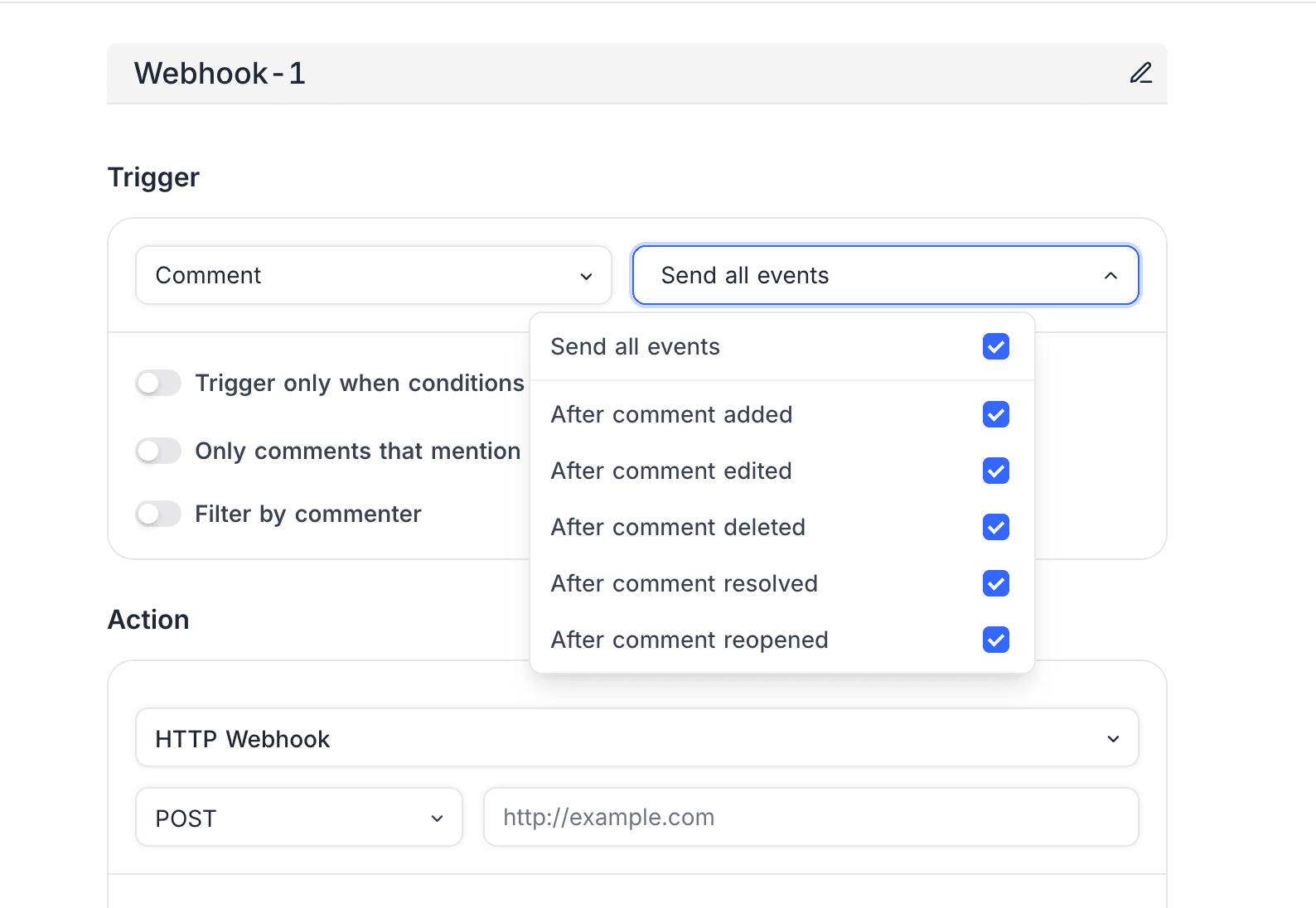
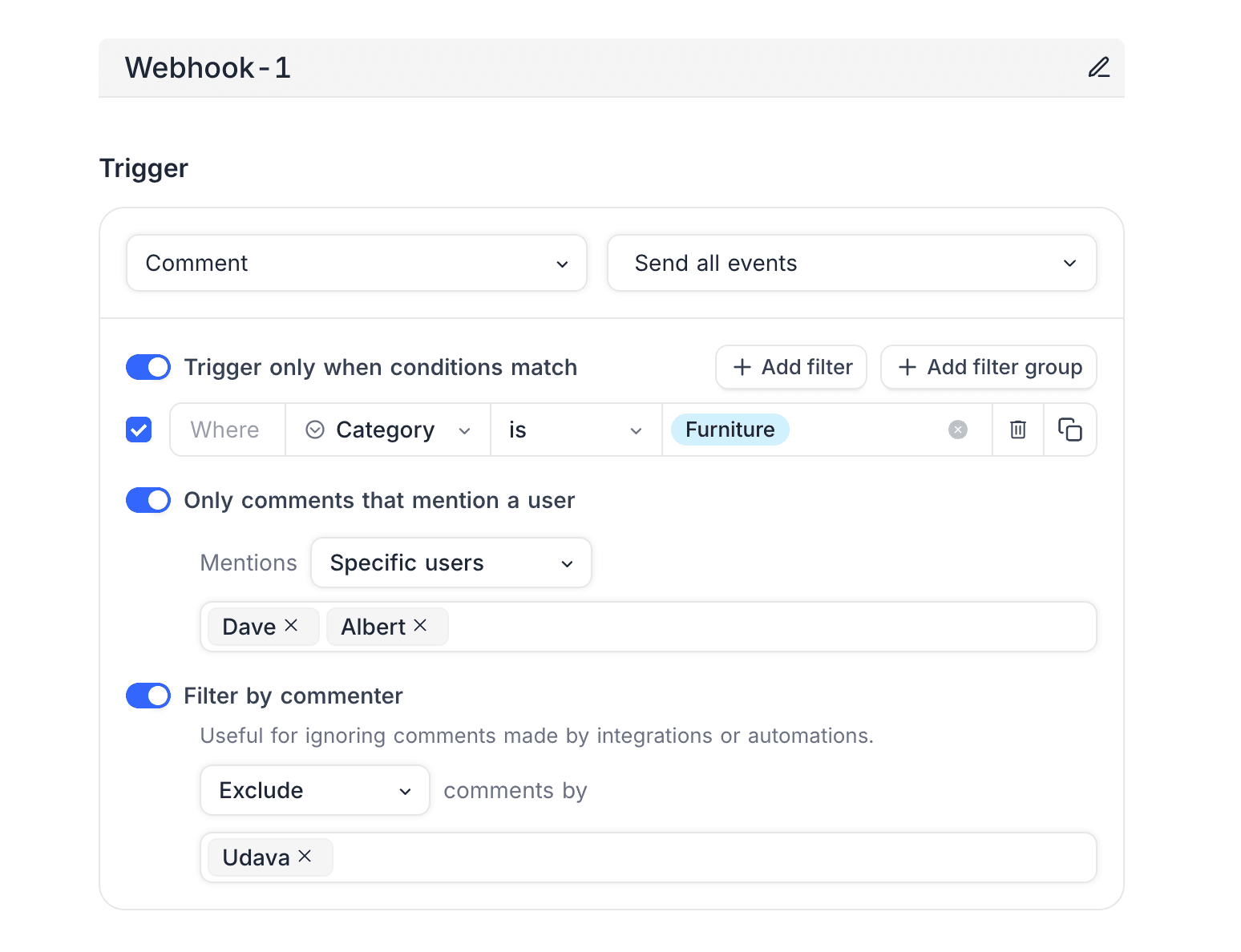
Comment triggers have their own filters that limit when the webhook runs:
| Filter | What it does |
|---|---|
| Only comments that mention a user | Limits the trigger to comments that @mention someone. Under Mentions, select Anyone to fire on any mention. Select Specific users to fire only when the selected users are mentioned. |
| Filter by commenter | Select Include or Exclude for comments by specific commenters. Use Exclude to ignore comments from integrations or automations. |
| Trigger only when conditions match | Uses the standard condition builder. The webhook fires only when the parent record of the comment matches the specified conditions. |
The webhook payload includes:
- the comment (
id,body,body_plain,author) - the
parent_comment_id - the parent
record(idanddisplay_value) - the
mentionsarray
Edited comments also include a previous block. Resolved or reopened comments include a resolution block.
{
  "type": "comment.insert",
  "id": "b2c9c6a1-4a1f-4e2a-9d0c-1e6f0a3d5b21",
  "version": "v3",
  "data": {
    "table_id": "mbmppjnstflsqq1",
    "base_id": "p1a2b3c4d5e6f7g",
    "comment": {
      "id": "cmt_sample_comment_id",
      "body": "Looks good @(usr_sample_user_id|user@example.com|Sample User)",
      "body_plain": "Looks good @Sample User",
      "author": {
        "id": "usr_sample_user_id",
        "name": "Sample User",
        "email": "user@example.com"
      },
      "created_at": "2026-07-09T10:40:20.998Z",
      "updated_at": "2026-07-09T10:40:20.998Z"
    },
    "parent_comment_id": null,
    "record": {
      "id": 1,
      "display_value": "Task-1"
    },
    "mentions": [
      {
        "id": "usr_sample_user_id",
        "name": "Sample User",
        "email": "user@example.com"
      }
    ]
  }
}
Run Script action ☁
The Run Script action runs custom JavaScript code in NocoDB each time a webhook triggers. Use it when NocoDB must process or transform data internally. The script runs in the secure scripting engine of NocoDB. It automatically gets an event object (refer to the example below) with the webhook context, for example the details of a record creation, update or deletion.
/*
  Update record on trigger; This script updates the 'Department' and 'Employment Status' fields when a new record is inserted. Note the usage of `cursor.row` to access the record that triggered the webhook.
*/

const record = cursor.row;

// Exit if no record found (safeguard)
if(!record) {
  return
}

// Get the table
const table1 = base.getTable("Employee")

// Update the record
await table1.updateRecordAsync(record.id, {
  "Department": "New Hire",
  "Employment Status": "Active"
})
For a detailed guide to create and manage scripts, refer to the Scripts documentation. Note that you cannot use scripts that ask for user input (for example, input.textAsync()) in a webhook. Webhooks run in the background without user interaction.
Webhook with conditions
You can configure NocoDB webhooks with a record trigger to trigger only when specific conditions are met. For example, trigger a webhook only when the Status field is set to Complete. You can define multiple conditions with logical operators like AND or OR. For example, trigger the webhook on record update only when Status is Complete and Priority is High.
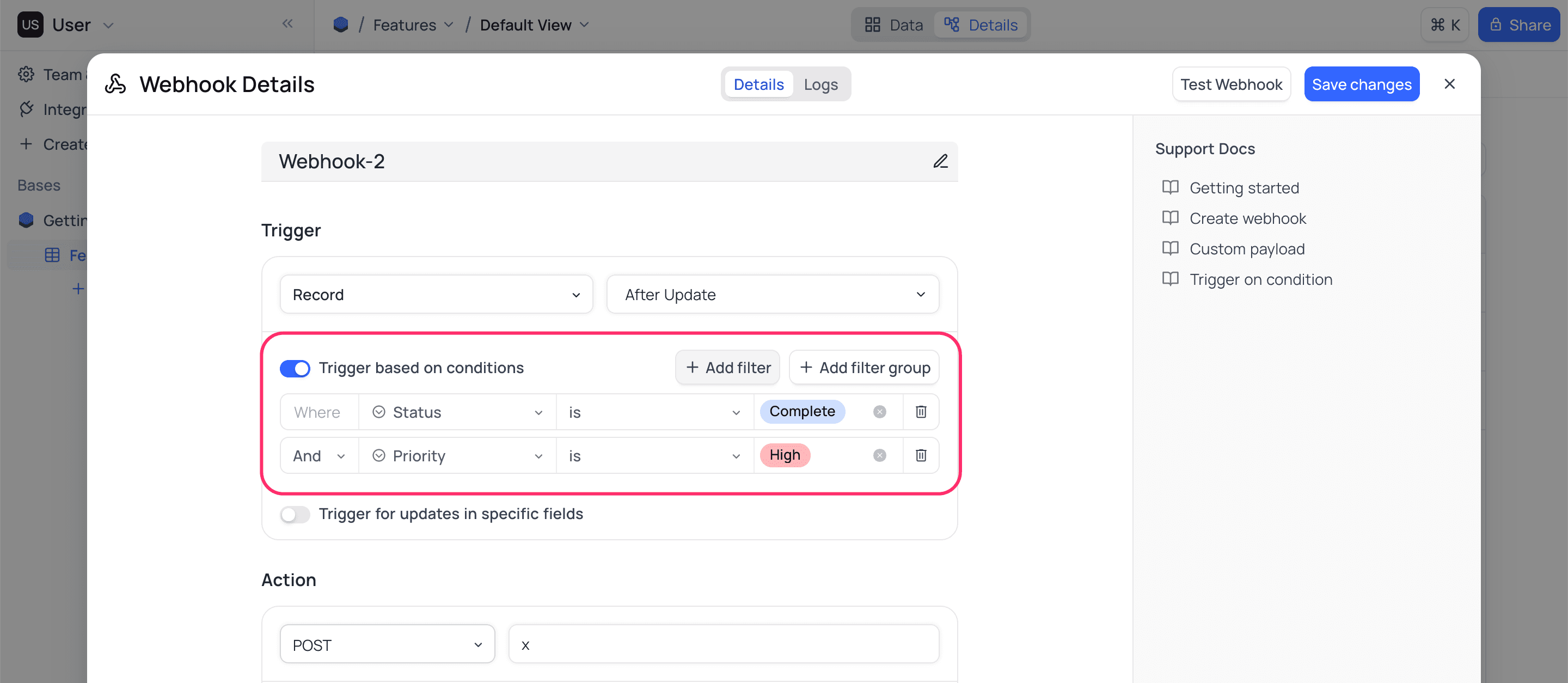
A webhook triggers only if the condition changes from not met to met during a record event. The table uses the example above:
| Record before the update | Update | Result |
|---|---|---|
Status = Complete and Priority = Low | Priority = High | The webhook triggers. The condition was not met before the update, and it is met after it. |
Status = Complete and Priority = High (the condition is already met) | Unrelated fields | The webhook does not trigger. |
In short, a webhook is triggered only when the condition changes from false (old record) to true (new record).
Webhook on field changes ☁
For the After Update event, you can configure the webhook to trigger only when certain fields are updated. For example, trigger the webhook only when Status is updated. You can also configure multiple fields.
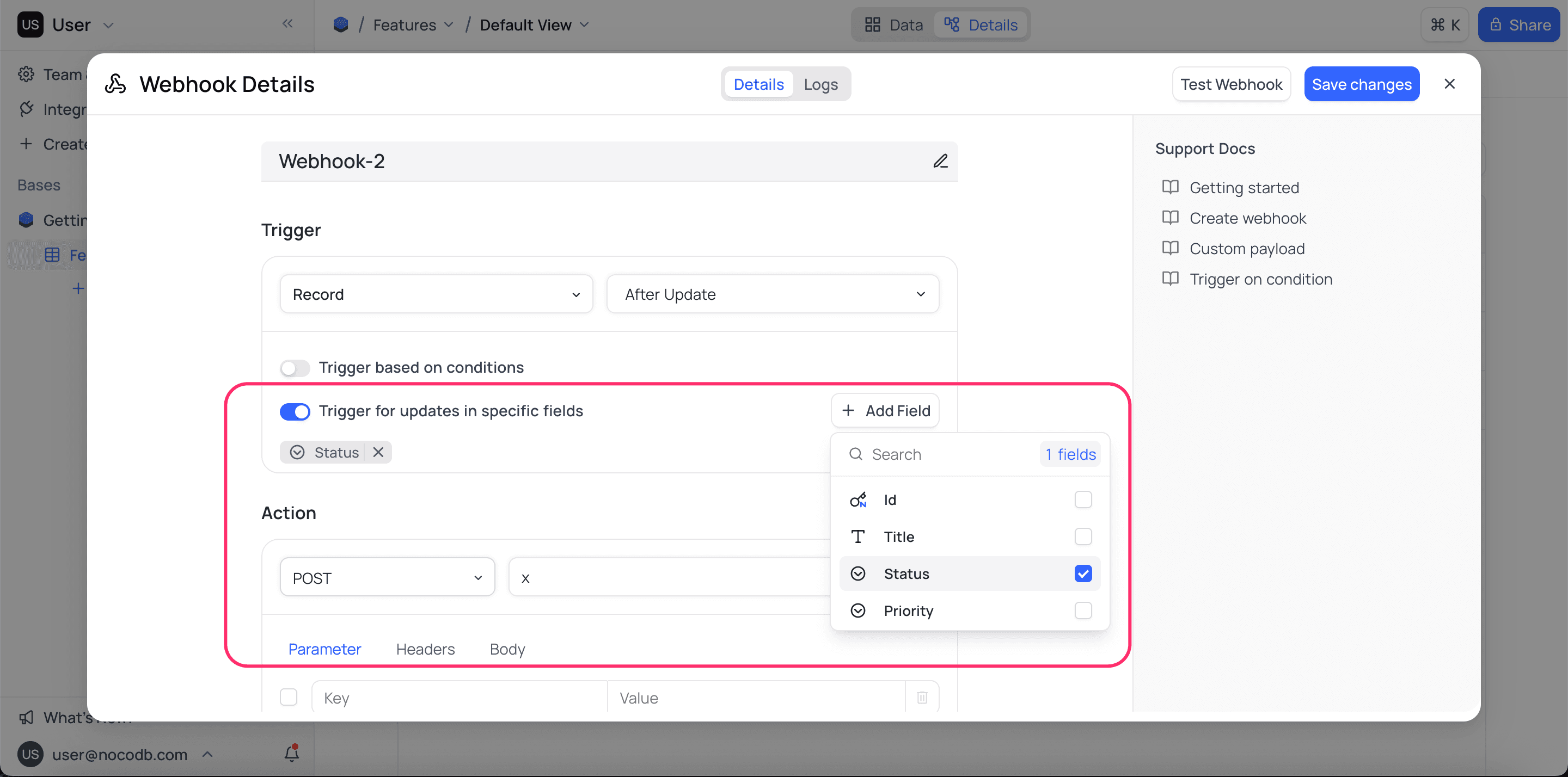
Webhook on specific form submission ☁
For the After Insert event, you can configure the webhook to trigger only when a specific form is submitted. For example, if a table has multiple forms, you can trigger the webhook only when Form A is submitted.
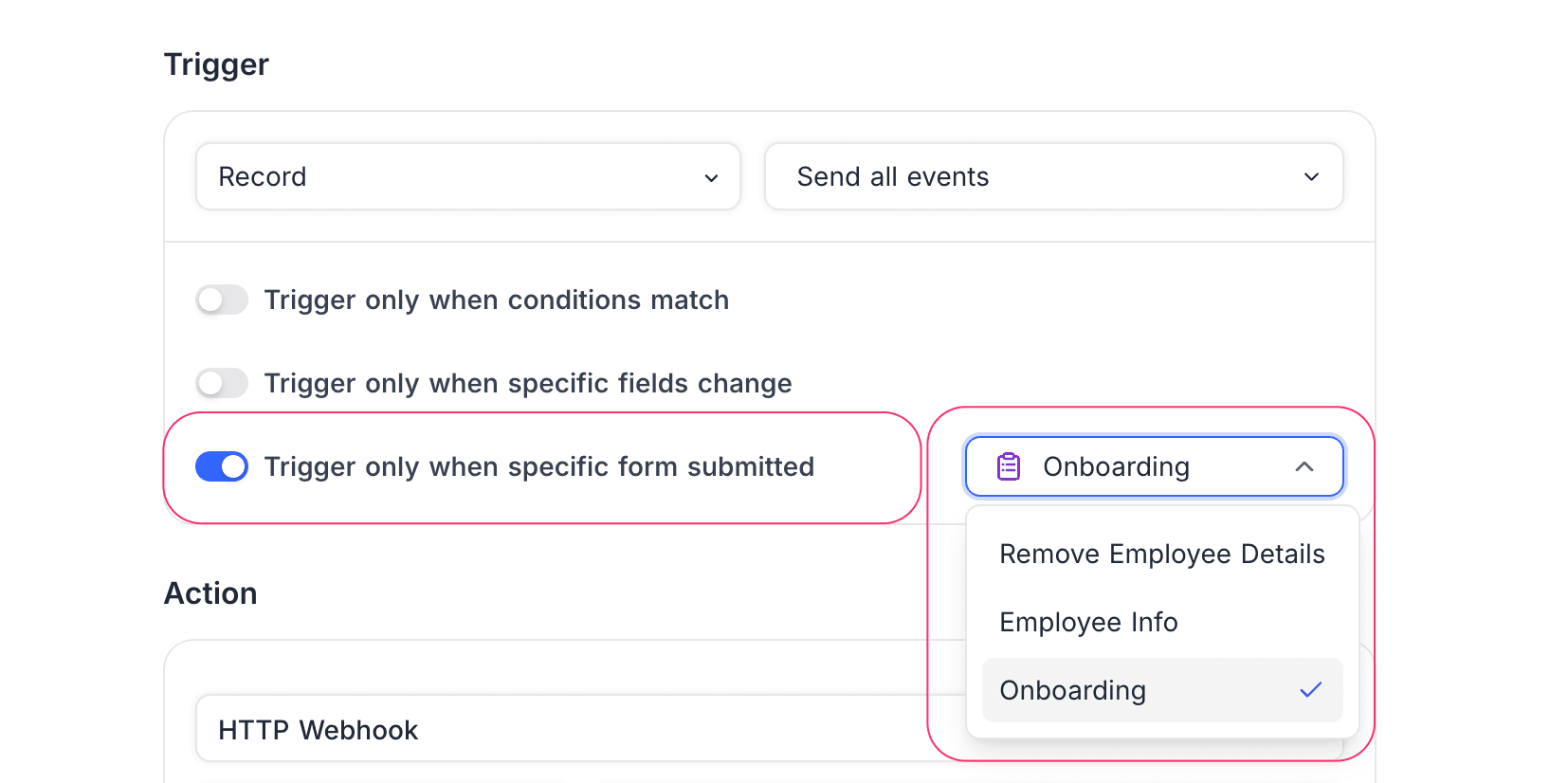
Webhook with custom payload
A custom payload gives you full control of the body that a webhook sends when an event triggers. You can send the entire event object, a specific field or a compact row summary. You can also transform rows into the arrays/objects that downstream services expect.
In a custom payload, NocoDB gives the current event as event. NocoDB processes custom payloads with Handlebars-like expressions and a built-in json helper (examples below).
Example event object
This is a sample webhook event object that NocoDB sends after a record is inserted.
{
  "type": "records.after.insert",
  "id": "0698517a-d83a-4e72-bf7a-75f46b704ad1",
  "version": "v3",
  "data": {
    "table_id": "m969t01blwprpef",
    "table_name": "Table-2",
    "view_id": "vwib3bvfxdqgymun",
    "view_name": "Table-2",
    "rows": [
      {
        "Id": 1,
        "Tags": "Sample Text",
        "CreatedAt": "2024-04-11T10:40:20.998Z",
        "UpdatedAt": "2024-04-11T10:40:20.998Z"
      }
    ]
  }
}
In a custom payload, you usually access paths like event.data.table_name or event.data.rows.[0].Tags.
Adding a custom payload
To add a custom payload, open your webhook in the NocoDB UI. Then:
- Click the Body tab.
- Enter your template with Handlebars expressions and the
jsonhelper. - Create/update the webhook, or use the Test Webhook action to check the rendered output.
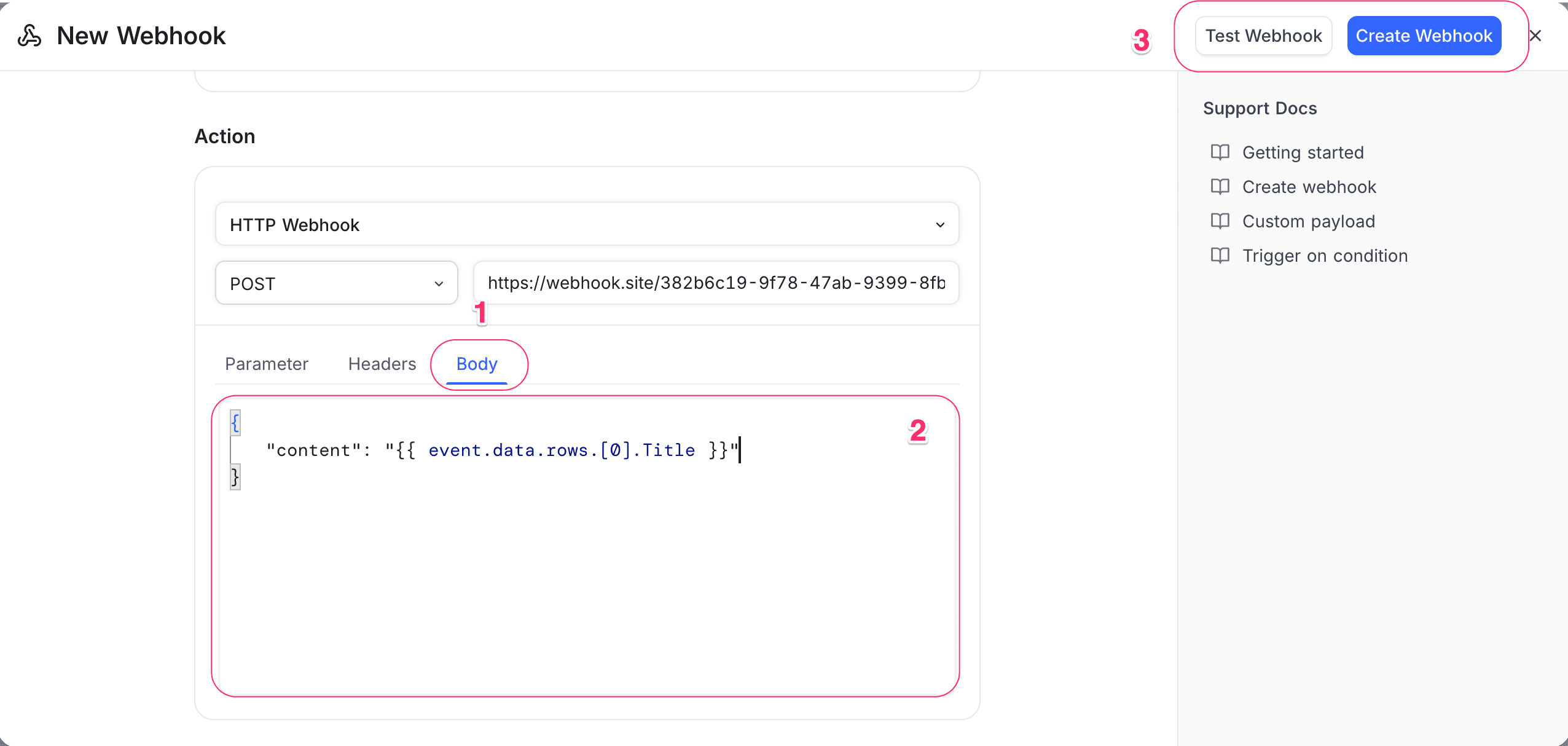
Content-Type header in your webhook configuration (commonly application/json).The json helper safely serializes values into valid JSON: strings, objects and arrays. It makes sure that quoting and escaping are correct, which prevents common errors with quotes, newlines or special characters. For example, {{ json event }} outputs the full event object. {{ json event.data.rows.[0].Title }} safely inserts a single field as a JSON string. The json helper is the most reliable way to put dynamic values in webhook payloads.
Handlebars expressions let you access and change data dynamically in templates, as the json helper does for serialization. You can:
- refer to fields with dot or bracket notation
- iterate over arrays with
{{#each ...}} - include content conditionally with
{{#if ...}}
For more information, refer to the Handlebars documentation.
Examples
Use these common webhook payload templates as a starting point:
- Full event object: Sends the complete event data as JSON
{
  "event": {{ json event }}
}- Single field value:
Sends just the
Titlefield of the first row
{
  "content": {{ json event.data.rows.[0].Title }}
}- Compact row summary: Sends all fields of the first row as a JSON object
{
  "row": {{ json event.data.rows.[0] }}
}- All rows as array: Sends all rows in the event as a JSON array
{
  "rows": {{ json event.data.rows }}
}- Custom object with metadata: Sends an object with table name, row count, and all rows
{
  "table": {{ json event.data.table_name }},
  "count": {{ json event.data.rows.length }},
  "rows": {{ json event.data.rows }}
}- Custom text with field value:
Sends a simple message including the
Titlefield
{
  "message": "New record created with title: {{ event.data.rows.[0].Title }}"
}- Handlebar logic example: Sends different payloads based on whether rows exist
{{#if event.data.rows.length}}
{
  "hasRows": true,
  "rows": {{ json event.data.rows }}
}
{{else}}
{
  "hasRows": false
}
{{/if}}- Multiple rows with formatting:
Sends all rows with only
IdandTitle, formatted as a JSON array
{
  "records": [
    {{#each event.data.rows}}
      {{#if @first}}{{else}},{{/if}}
      {
        "Id": {{ Id }},
        "Title": {{ json Title }}
      }
    {{/each}}
  ]
}
Webhook response sample
Record trigger
{
  "type": "records.after.insert",
  "id": "c245c528-8759-4e10-b7d5-e2626dd7c321",
  "version": "v3",
  "data": {
    "table_id": "mbmppjnstflsqq1",
    "table_name": "Features",
    "rows": [
      {
        "Id": 4,
        "CreatedAt": "2025-05-07 17:18:37+00:00",
        "UpdatedAt": null,
        "Title": "Task-2",
        "Status": "Ongoing",
        "Priority": "Low"
      }
    ]
  }
}
{
"type": "records.after.update",
"id": "f5e6a827-fb37-4a04-8cd9-be7831f9d897",
"version": "v3",
"data": {
"table_id": "mbmppjnstflsqq1",
"table_name": "Features",
"previous_rows": [
{
"Id": 3,
"CreatedAt": "2025-05-07 17:18:33+00:00",
"UpdatedAt": null,
"Title": null,
"Status": null,
"Priority": null
}
],
"rows": [
{
"Id": 3,
"CreatedAt": "2025-05-07 17:18:33+00:00",
"UpdatedAt": "2025-05-07 17:18:37+00:00",
"Title": "Task-1",
"Status": "Complete",
"Priority": "High"
}
]
}
}{
"type": "records.after.delete",
"id": "4cad2ff8-9ee6-4889-8c85-9969361a1df0",
"version": "v3",
"data": {
"table_id": "mbmppjnstflsqq1",
"table_name": "Features",
"rows": [
{
"Title": "Task-2",
"Id": 2,
"Status": "Ongoing",
"Priority": "Low"
},
{
"Title": "Task-1",
"Id": 3,
"Status": "Complete",
"Priority": "High"
}
]
}
}View trigger
{
  "type": "view.after.create",
  "id": "2f62c921-4dcc-4f37-8e3d-fd3612aaf269",
  "version": "v3",
  "data": {
    "table_id": "ma334932sjnwp3e",
    "table_name": "AllTypes",
    "views": [
      {
        "id": "vw45okb4letthls6",
        "table_id": "ma334932sjnwp3e",
        "title": "Grid-1",
        "type": "grid",
        "lock_type": "collaborative",
        "created_at": "2025-09-22 06:51:13+00:00",
        "updated_at": "2025-09-22 06:51:13+00:00",
        "description": "Grid view sample description",
        "created_by": "usq6o3vavwf0twzr",
        "fields": [
          {
              "field_id": "cc5i4wkzktyqedh",
              "show": true
          },
          {
              "field_id": "ct41ytilwlxf7u3",
              "show": true
          },
          {
              "field_id": "cmbcaa8aoxtpdr9",
              "show": true
          }
        ],
        "options": {
          "row_height": "short"
        }
      }
    ]
  }
}
{
"type": "view.after.update",
"id": "08faf0d1-6c02-4f66-8851-2e6405c6c76b",
"version": "v3",
"data": {
"table_id": "ma334932sjnwp3e",
"table_name": "AllTypes",
"previous_views": [
{
"id": "vw45okb4letthls6",
"table_id": "ma334932sjnwp3e",
"title": "Grid-1",
"type": "grid",
"lock_type": "collaborative",
"created_at": "2025-09-22 06:51:13+00:00",
"updated_at": "2025-09-22 06:51:13+00:00",
"description": "",
"created_by": "usq6o3vavwf0twzr",
"fields": [
{
"field_id": "cc5i4wkzktyqedh",
"show": true
},
{
"field_id": "ct41ytilwlxf7u3",
"show": true
}
],
"options": {
"row_height": "short"
}
}
],
"views": [
{
"id": "vw45okb4letthls6",
"table_id": "ma334932sjnwp3e",
"title": "Grid-1 Renamed",
"type": "grid",
"lock_type": "collaborative",
"created_at": "2025-09-22 06:51:13+00:00",
"updated_at": "2025-09-22 07:08:29+00:00",
"description": "",
"created_by": "usq6o3vavwf0twzr",
"fields": [
{
"field_id": "cc5i4wkzktyqedh",
"show": true
},
{
"field_id": "ct41ytilwlxf7u3",
"show": true
}
],
"options": {
"row_height": "short"
}
}
]
}
}{
"type": "view.after.delete",
"id": "af6a6298-91e9-4642-a729-93fb0eae9d61",
"version": "v3",
"data": {
"table_id": "ma334932sjnwp3e",
"table_name": "AllTypes",
"views": [
{
"id": "vw45okb4letthls6",
"table_id": "ma334932sjnwp3e",
"title": "Grid-1 Renamed",
"type": "grid",
"lock_type": "collaborative",
"created_at": "2025-09-22 06:51:13+00:00",
"updated_at": "2025-09-22 07:08:29+00:00",
"description": "",
"created_by": "usq6o3vavwf0twzr",
"fields": [
{
"field_id": "cc5i4wkzktyqedh",
"show": true
},
{
"field_id": "ct41ytilwlxf7u3",
"show": true
}
],
"options": {
"row_height": "short"
}
}
]
}
}Field trigger
{
  "type": "field.after.create",
  "id": "2e97d383-1d94-48d7-8214-3a7fd013c801",
  "version": "v3",
  "data": {
    "table_id": "ma334932sjnwp3e",
    "table_name": "AllTypes",
    "fields": [
      {
        "id": "cqxah2exzt1lxbz",
        "table_id": "ma334932sjnwp3e",
        "title": "Financial Quarter",
        "type": "SingleSelect",
        "default_value": "'Q1'",
        "system": false,
        "options": {
          "choices": [
            {
              "title": "Q1",
              "color": "#cfdffe",
              "id": "shs9oq0ddo1ecnq"
            },
            {
              "title": "Q2",
              "color": "#d0f1fd",
              "id": "s65lkpm9822w8t7"
            },
            {
              "title": "Q3",
              "color": "#c2f5e8",
              "id": "swg8jzbgh99t36f"
            },
            {
              "title": "Q4",
              "color": "#ffdaf6",
              "id": "s9duce07erlzq5n"
            }
          ]
        },
        "description": "Specifies quarter in which this task is required to be included."
      }
    ]
  }
}
{
"type": "field.after.update",
"id": "6a4c9326-0bdc-4920-9089-6340394340b4",
"version": "v3",
"data": {
"table_id": "ma334932sjnwp3e",
"table_name": "AllTypes",
"previous_fields": [
{
"id": "cqxah2exzt1lxbz",
"table_id": "ma334932sjnwp3e",
"title": "Financial Quarter",
"type": "SingleSelect",
"default_value": "'Q1'",
"system": false,
"options": {
"choices": [
{
"title": "Q1",
"color": "#cfdffe",
"id": "shs9oq0ddo1ecnq"
},
{
"title": "Q2",
"color": "#d0f1fd",
"id": "s65lkpm9822w8t7"
},
{
"title": "Q3",
"color": "#c2f5e8",
"id": "swg8jzbgh99t36f"
},
{
"title": "Q4",
"color": "#ffdaf6",
"id": "s9duce07erlzq5n"
}
]
},
"description": "Specifies quarter in which this task is required to be included."
}
],
"fields": [
{
"id": "cqxah2exzt1lxbz",
"table_id": "ma334932sjnwp3e",
"title": "Financial Quarter",
"type": "SingleSelect",
"default_value": "'Quarter-1'",
"system": false,
"options": {
"choices": [
{
"title": "Quarter-1",
"color": "#cfdffe",
"id": "shs9oq0ddo1ecnq"
},
{
"title": "Quarter-2",
"color": "#d0f1fd",
"id": "s65lkpm9822w8t7"
},
{
"title": "Quarter-3",
"color": "#c2f5e8",
"id": "swg8jzbgh99t36f"
},
{
"title": "Quarter-4",
"color": "#ffdaf6",
"id": "s9duce07erlzq5n"
}
]
},
"description": "Specifies quarter in which this task is required to be included."
}
]
}
}{
"type": "field.after.delete",
"id": "8b2b293f-a926-4280-b116-493ac197ba10",
"version": "v3",
"data": {
"table_id": "ma334932sjnwp3e",
"table_name": "AllTypes",
"fields": [
{
"id": "cqxah2exzt1lxbz",
"table_id": "ma334932sjnwp3e",
"title": "Financial Quarter",
"type": "SingleSelect",
"default_value": "'Quarter-1'",
"system": false,
"options": {
"choices": [
{
"title": "Quarter-1",
"color": "#cfdffe",
"id": "shs9oq0ddo1ecnq"
},
{
"title": "Quarter-2",
"color": "#d0f1fd",
"id": "s65lkpm9822w8t7"
},
{
"title": "Quarter-3",
"color": "#c2f5e8",
"id": "swg8jzbgh99t36f"
},
{
"title": "Quarter-4",
"color": "#ffdaf6",
"id": "s9duce07erlzq5n"
}
]
},
"description": "Specifies quarter in which this task is required to be included."
}
]
}
}Manual trigger
{
  "type": "records.manual.trigger",
  "id": "551a2010-d658-4185-a050-cf3fca56a5a9",
  "version": "v3",
  "data": {
    "table_id": "mzo4r3zrbcph43i",
    "table_name": "Features",
    "rows": [
      {
        "Id": 1,
        "Title": "dstala",
        "CreatedAt": "2024-08-12 11:56:15+00:00",
        "UpdatedAt": "2024-08-12 11:56:48+00:00",
        "Button": {
          "type": "url",
          "label": "Button",
          "url": "https://github.com/dstala"
        },
      }
    ]
  }
}
Discord Webhook
You can configure a Discord webhook to send messages to a Discord channel. The Discord request body must contain content, embeds or attachments. If it does not, the request fails. Below is an example of a Discord webhook payload. For more information, refer here.
{
  "content": "Hello, this is a webhook message",
  "embeds": [
    {
      "title": "Webhook",
      "description": "This is a webhook message",
      "color": 16711680
    }
  ]
}
To send the complete event data to Discord, use this payload:
{
  "content" : {{ json ( json event ) }}
}
You can also customize the payload as necessary. For example, to send only the Title field to Discord, use this payload. Note that the Discord channel shows the value of content.
{
   "content": "{{ event.data.rows.[0].Title }}"
}
Environment Variables
In the self-hosted version, you can configure these environment variables to customize the webhook behavior.
- NC_ALLOW_LOCAL_HOOKS: Lets webhooks call localhost based links. Default: false
For more information about environment variables, refer here
Last updated on