Bulk Update
Overview
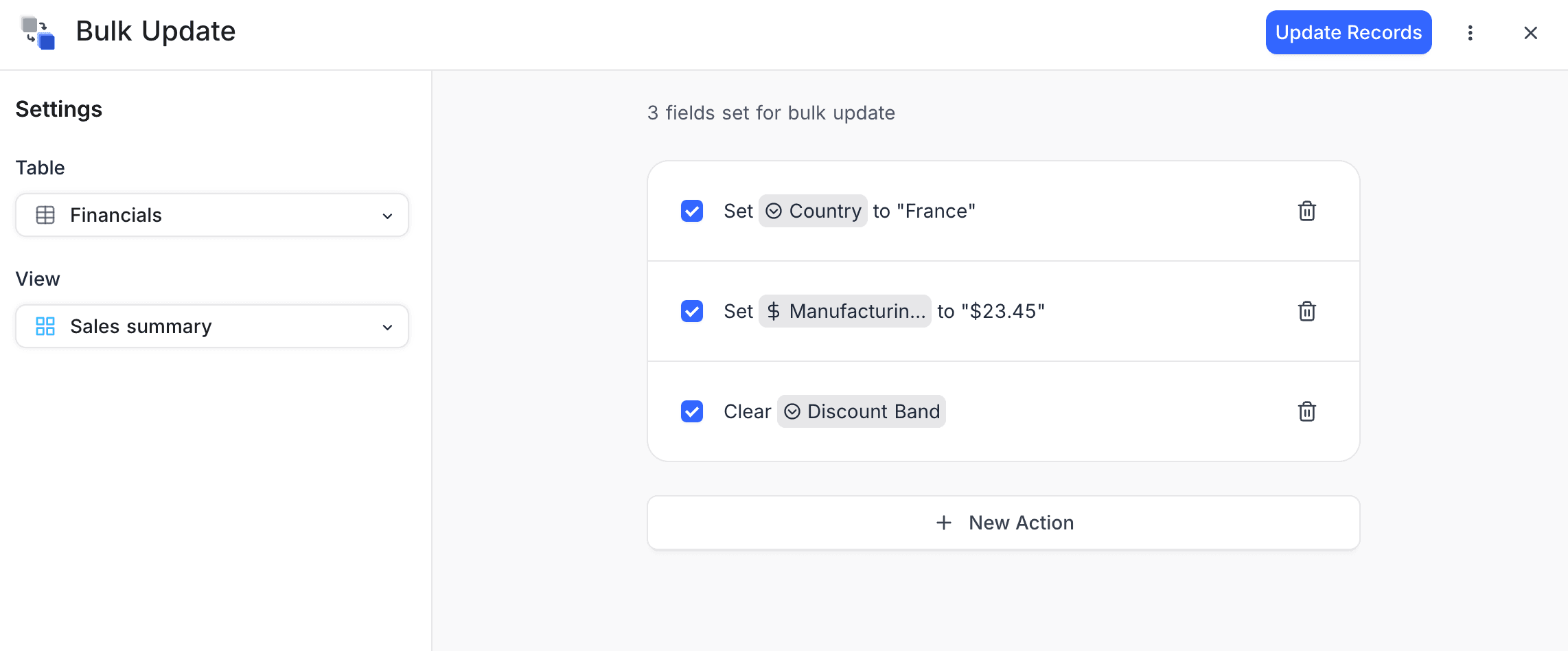
The Bulk Update extension changes many records in a selected table view at the same time. You do not edit each row separately. You define updates for fields and apply them to all records in the view with one action. This saves time and prevents manual errors.
Updating Records
To update many records in a table:
- Select the table and the view that you want to update.
- Click the New Action button.
- Select the Field that you want to update.
- Select an Update Type:
- Set Value: Set a specific value for the field.
- Clear Value: Clear the field value.
- If you selected Set Value, enter the Value to apply.
- Click the Update Records button. A confirmation dialog shows the number of fields and records to update.
- Review the details.
- Click Confirm Update.
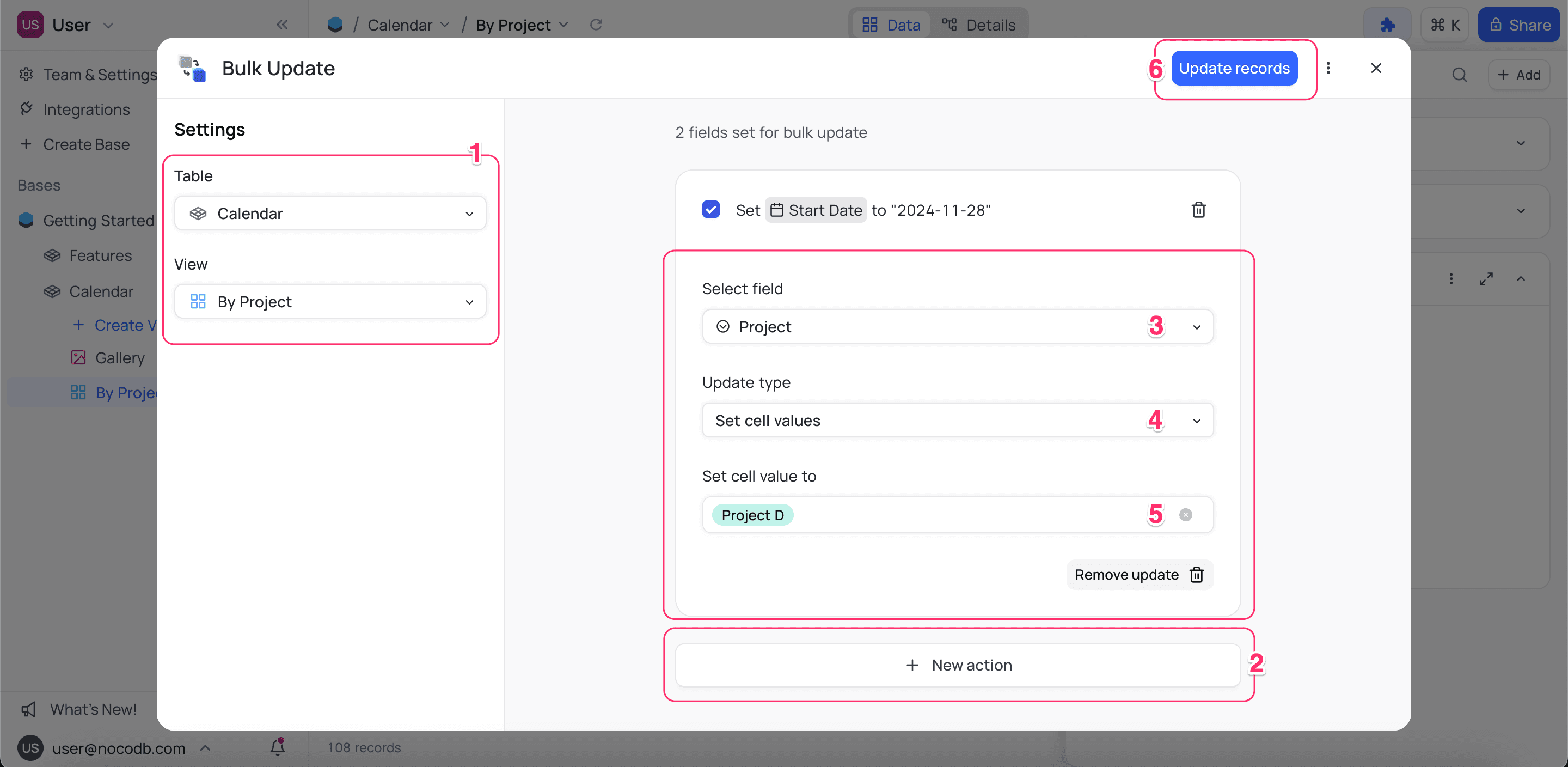
You can add more than one action to update different fields in the table.
A bulk update changes all records in the current view, also the records that are not on the screen. Views are filtered representations of the same data. Thus, a record that is in more than one view shows the update in all those views. The update applies only to records in the selected view. It does not change records outside that view.
Managing Actions
The Actions section shows the update actions that you added. You can do these tasks:
| Task | How |
|---|---|
| Edit | Click the action item in the list and make the changes. |
| Delete | Click the delete icon next to the action item. |
| Disable | Turn off the switch next to the action item. A disabled action does not apply to the records. |
In a configured Bulk Update extension, click Update Records again to do the same batch update again. Use this when you must apply the same changes to many records in the future.
Last updated on