NocoDB Sync
NocoDB Sync mirrors a Grid view from one base into another base as a read-only table. The mirrored table follows the source. It updates automatically when the source changes, or on demand. Teams that use the data stay current without exports or manual rebuilds.
Creating a Sync
Create the sync in the destination base. This is the base that gets the live copy. You can open the Create sync dialog from two places:
-
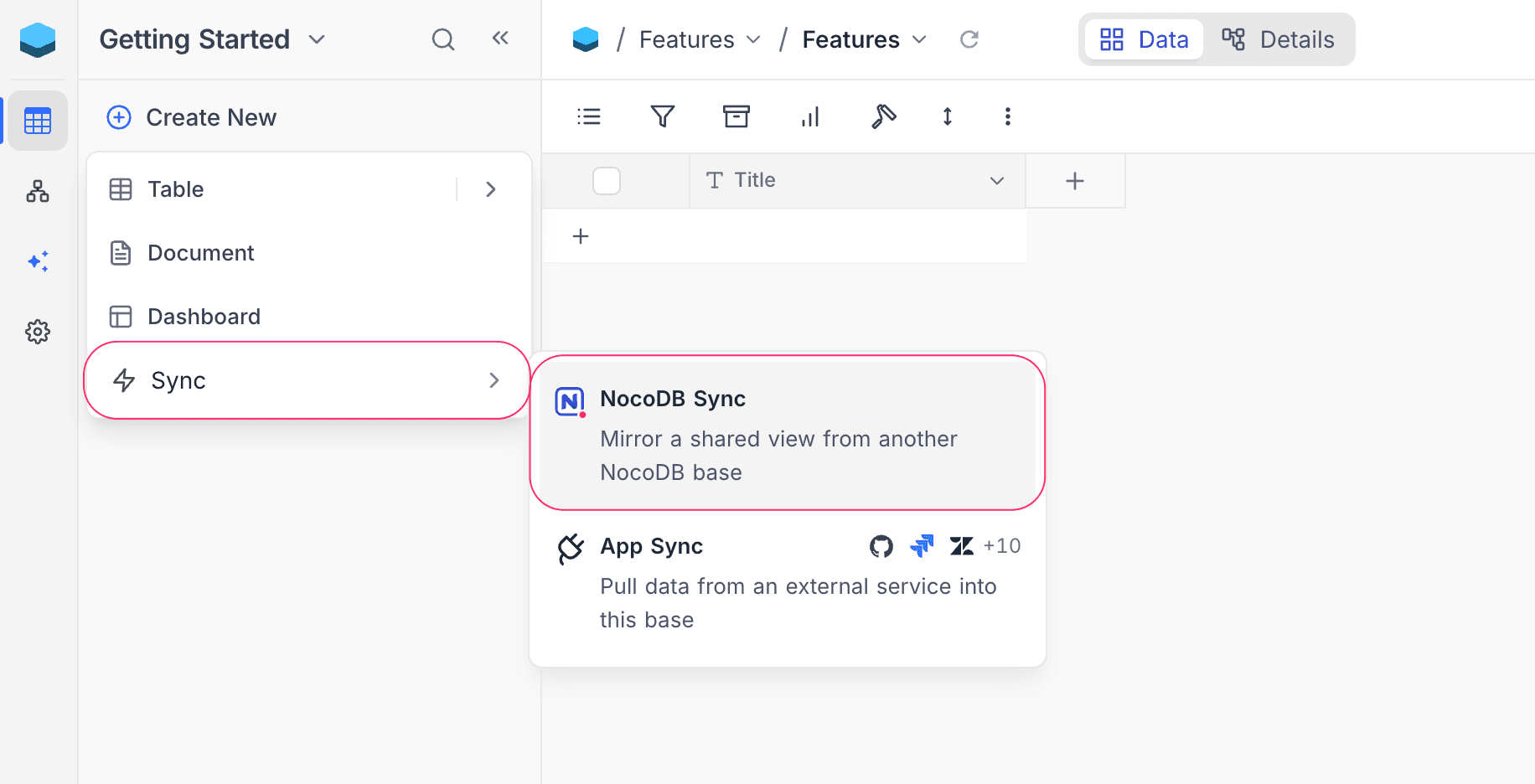
Sidebar: Click + Create New, hover over Sync, and select NocoDB Sync. The Sync entry is a submenu with two options: NocoDB Sync (mirror a view from another NocoDB base) and App Sync (get data from an external service).
-
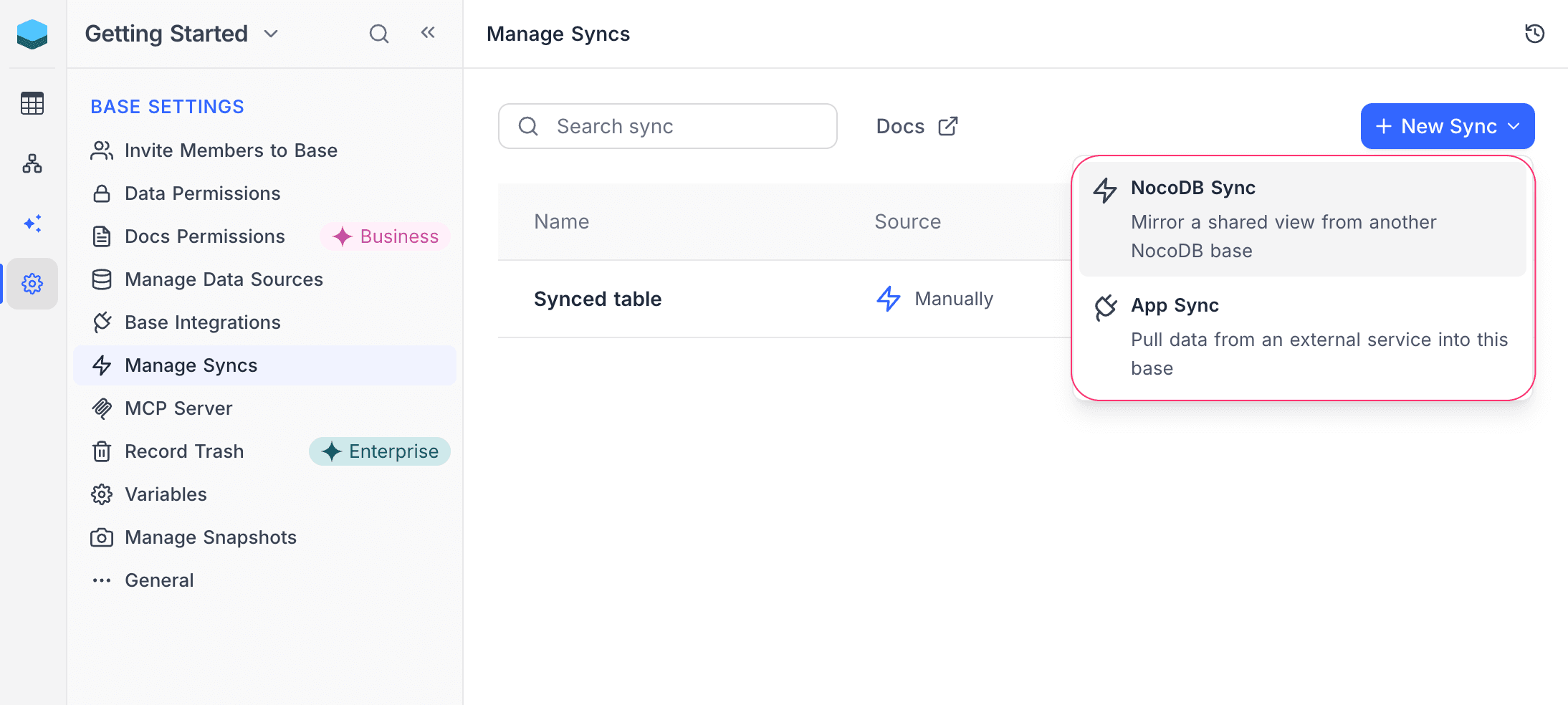
Base settings: Open Settings → Manage → Sync, then click + New Sync → NocoDB Sync.
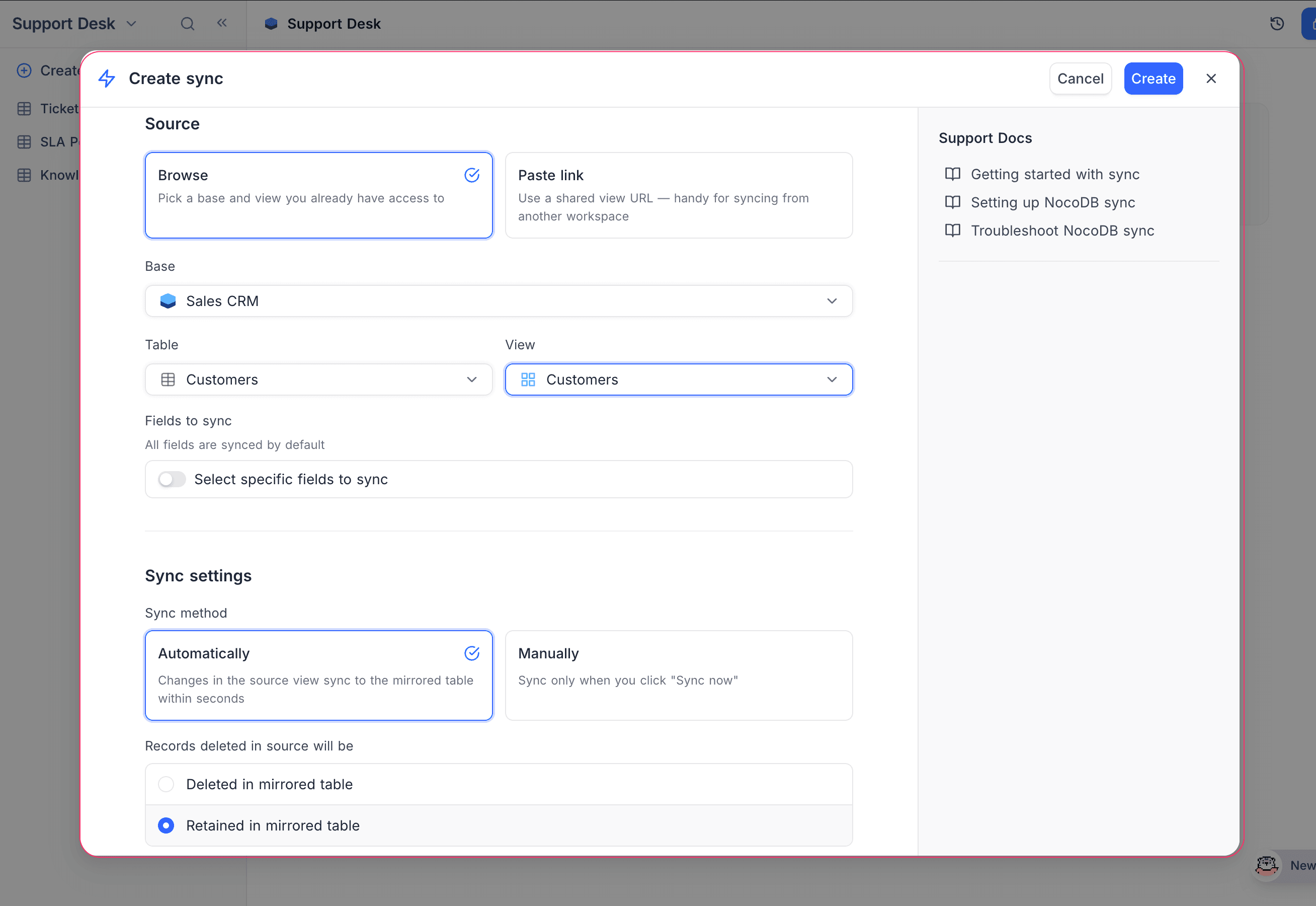
The dialog has three sections: General, Source and Sync settings.
General
Enter a Sync name. By default, NocoDB also uses this name as the title of the mirrored table.
Source
Select the Grid view to mirror. The source view must have Allow sync turned on (refer to Sharing a View for Sync). There are two source modes:
-
Browse: Go down through Base → Table → View in the bases that you can access in this workspace. The view picker shows only Grid views.
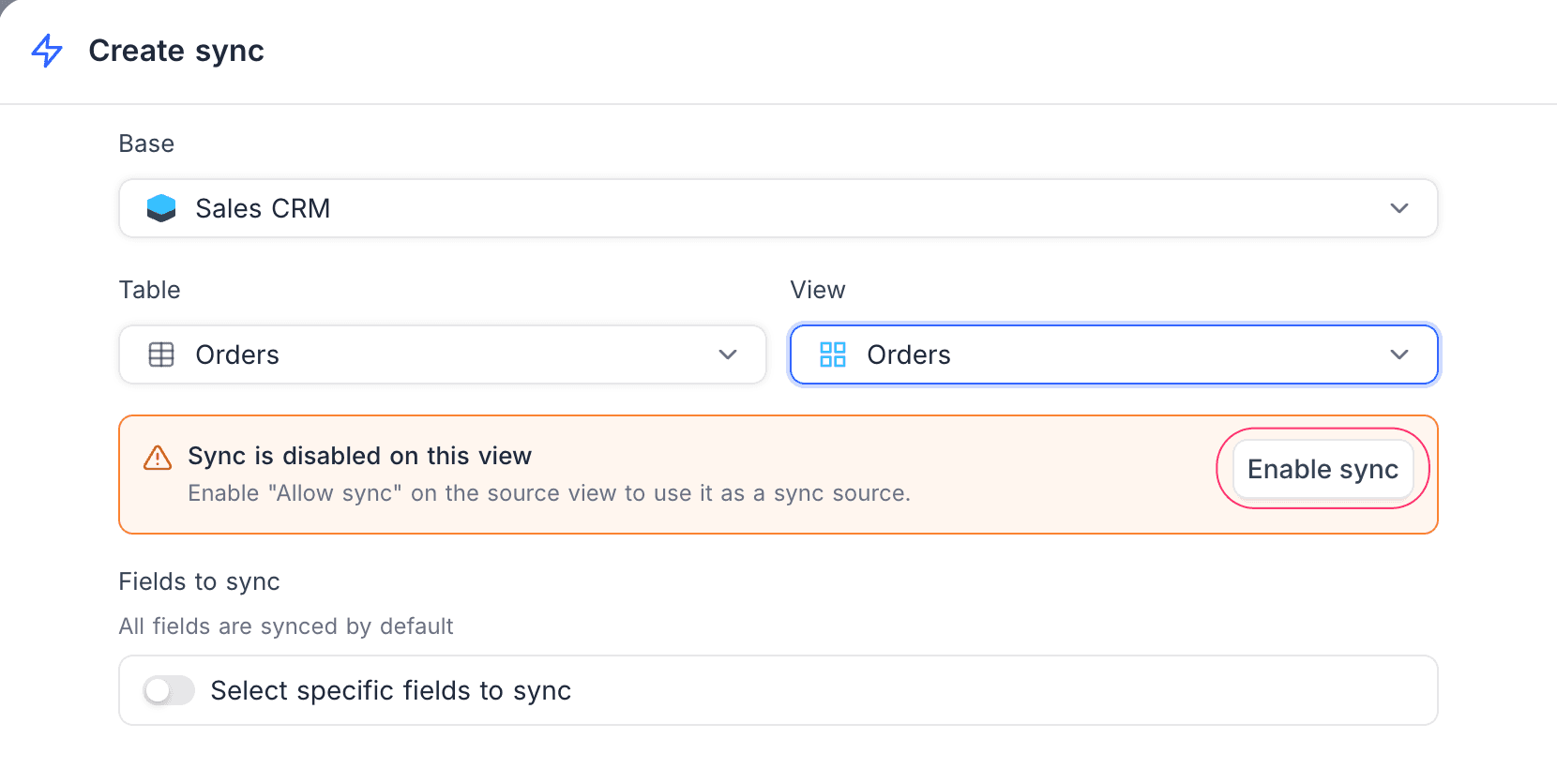
If the selected view does not have Allow sync turned on, the dialog shows an Enable sync button. Click it to turn the option on without leaving the dialog.
-
Paste link: Paste a shared view URL. If the link has a password, enter the password too. Use this mode to sync from a base in another workspace. The dialog finds the source of the link and shows it.
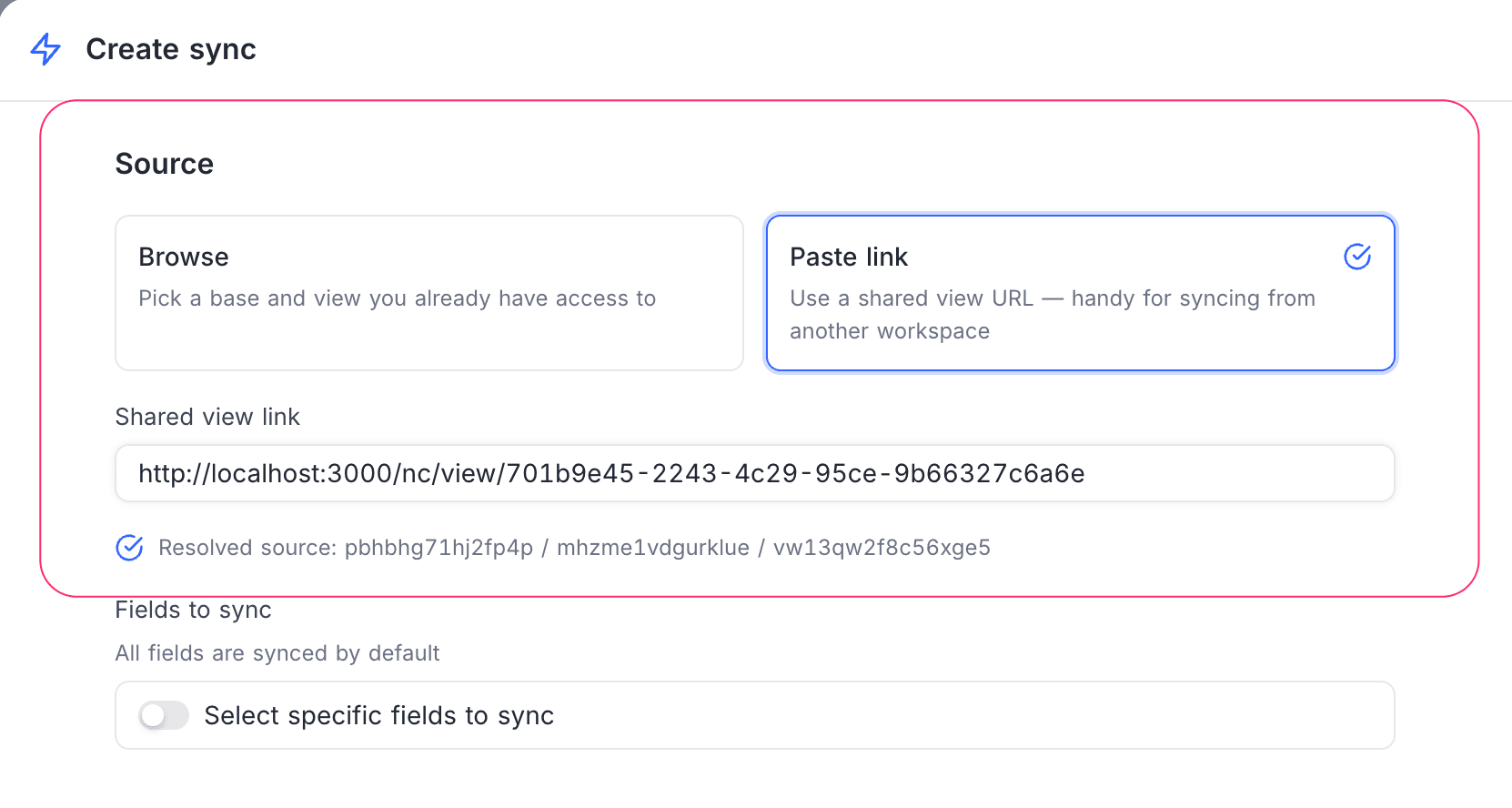
Fields to sync
By default, NocoDB mirrors all fields in the source view. When you add, remove or change the type of a field at the source, the mirrored table changes automatically.
To select only some fields, turn on Select specific fields to sync:
- The primary field is always included.
- You cannot select field types that cannot sync: Barcode, QR Code and Button.
- For linked record fields, select a Grid view of the related table. NocoDB then copies those records into a companion mirrored table, and the link stays in the destination. The related view must also have Allow sync turned on. If you select no related view, the field becomes text: the primary fields of the linked records, separated by commas.
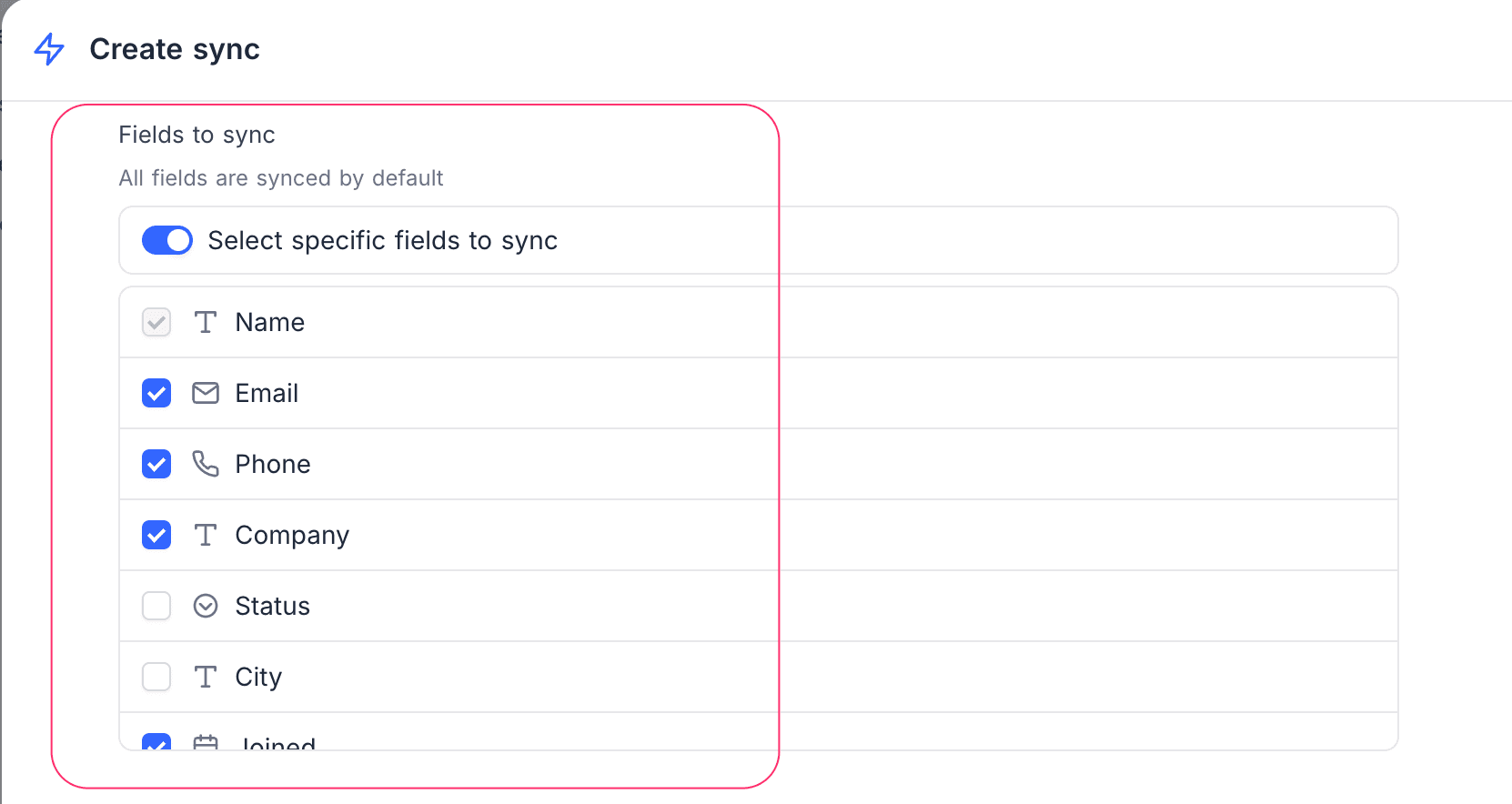
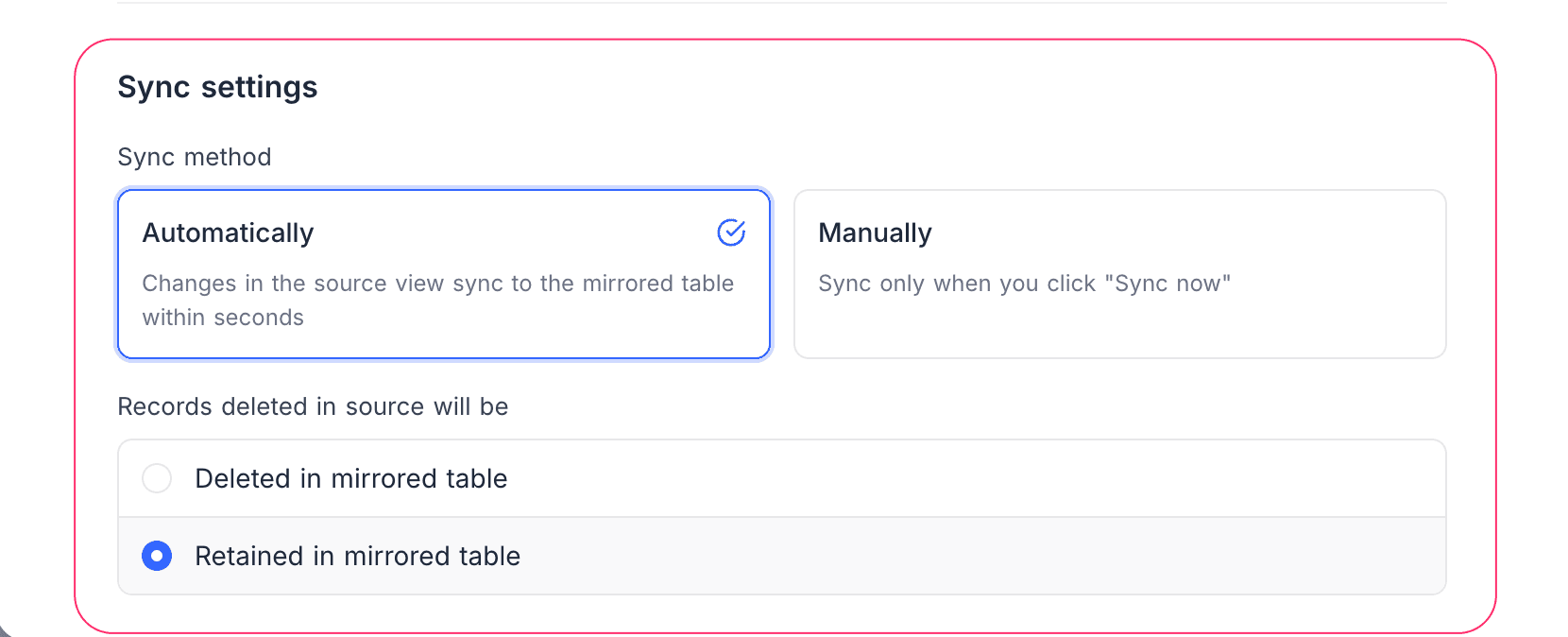
Sync settings
| Setting | Option | Result |
|---|---|---|
| Sync method | Automatically | Changes at the source go to the destination in a few seconds. Available on NocoDB Cloud (Business plan and above) and self-hosted Scale and Enterprise plans. On lower paid plans, this option shows an upgrade prompt, and the form uses Manually by default. |
| Manually | The destination updates only when someone clicks Sync now. | |
| Records deleted in source will be | Retained in mirrored table (default) | The mirrored row stays, so the destination keeps the history. |
| Deleted in mirrored table | NocoDB also removes the row from the destination, so the destination is an exact mirror. |
A record counts as deleted at the source in two cases: someone removes it from the source table, or the source view filters it out.
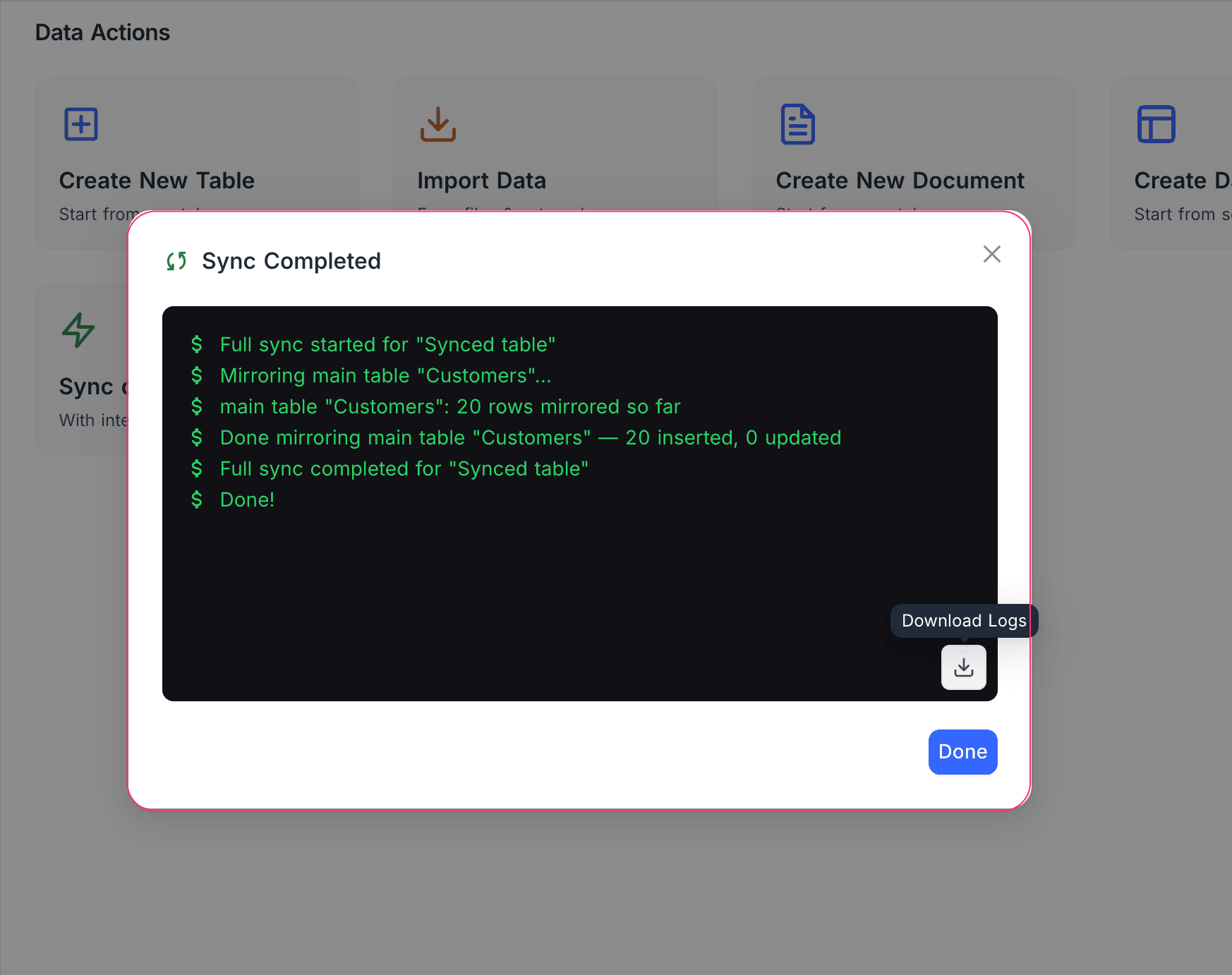
Click Create. A progress panel shows while NocoDB copies the data for the first time. When the copy is complete, you can download the logs and close the panel.
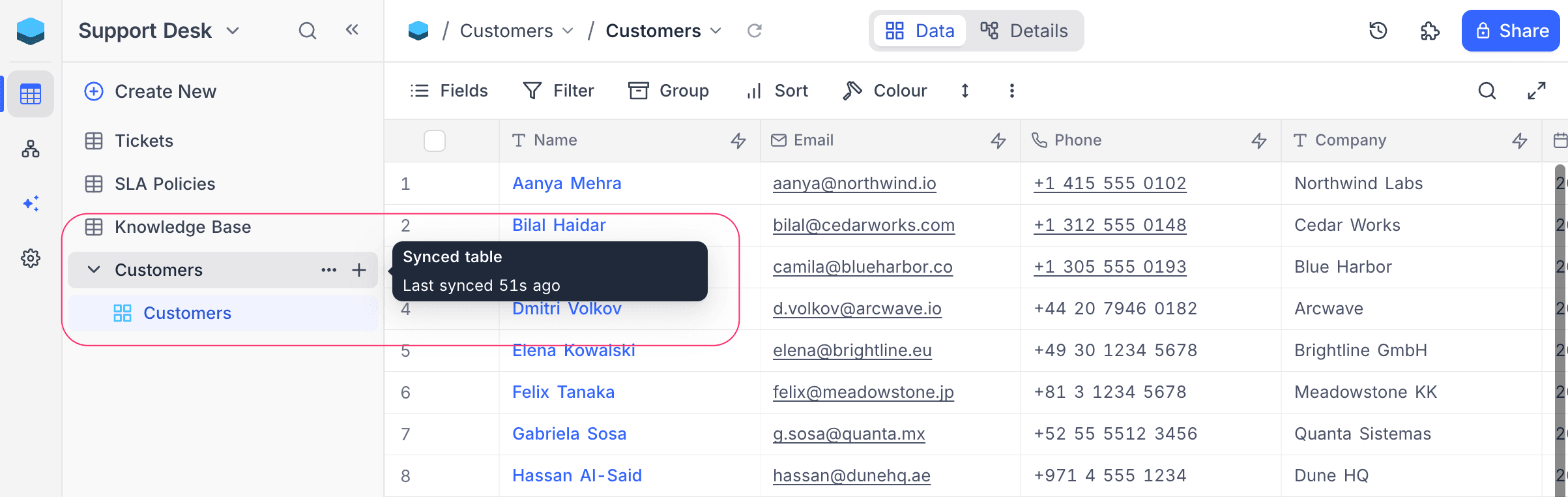
The mirrored table shows in the destination sidebar with a lightning-bolt icon. If the sync copies linked records, the companion mirrored table also shows.
Sharing a View for Sync
Before another base can mirror a view, the owner of the source view must share it.
- Open the source table.
- Switch to the Grid view that you want to share.
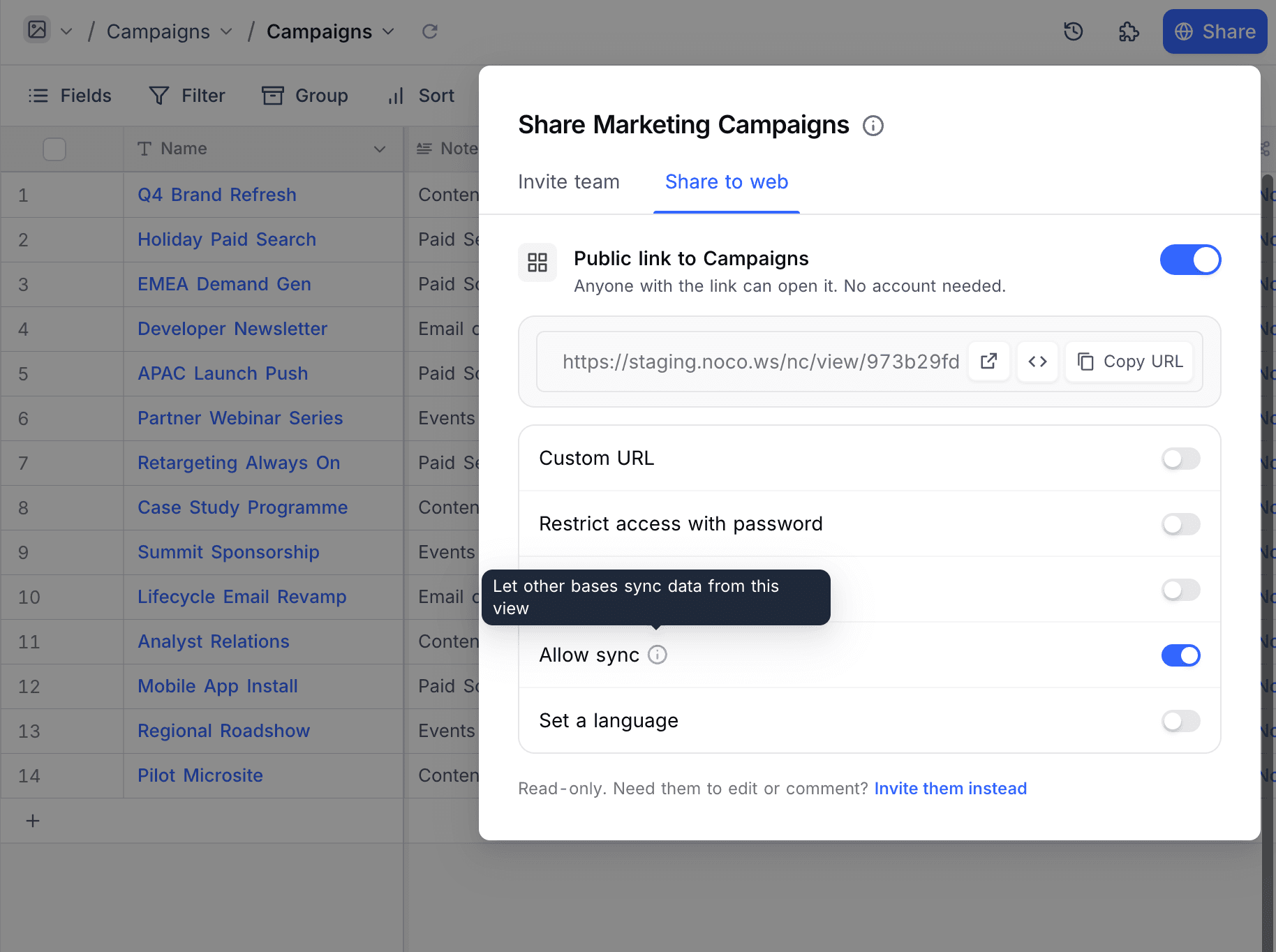
- In the top bar, click Share.
- Open the Share to web tab.
- Turn on Public link to <view name>.
- Turn on Allow sync.
- Optional: Turn on Restrict access with password. Each person who creates a sync from this link then needs the password.
- Send the shared view link to the team that will create the sync. If you set a password, send the password too.
Refer to Share View for the other options on that tab.
Allow sync is available only on Grid views with public sharing turned on. You cannot use Form, Kanban, Gallery, Calendar or Map views as a sync source.
Working with the Mirrored Table
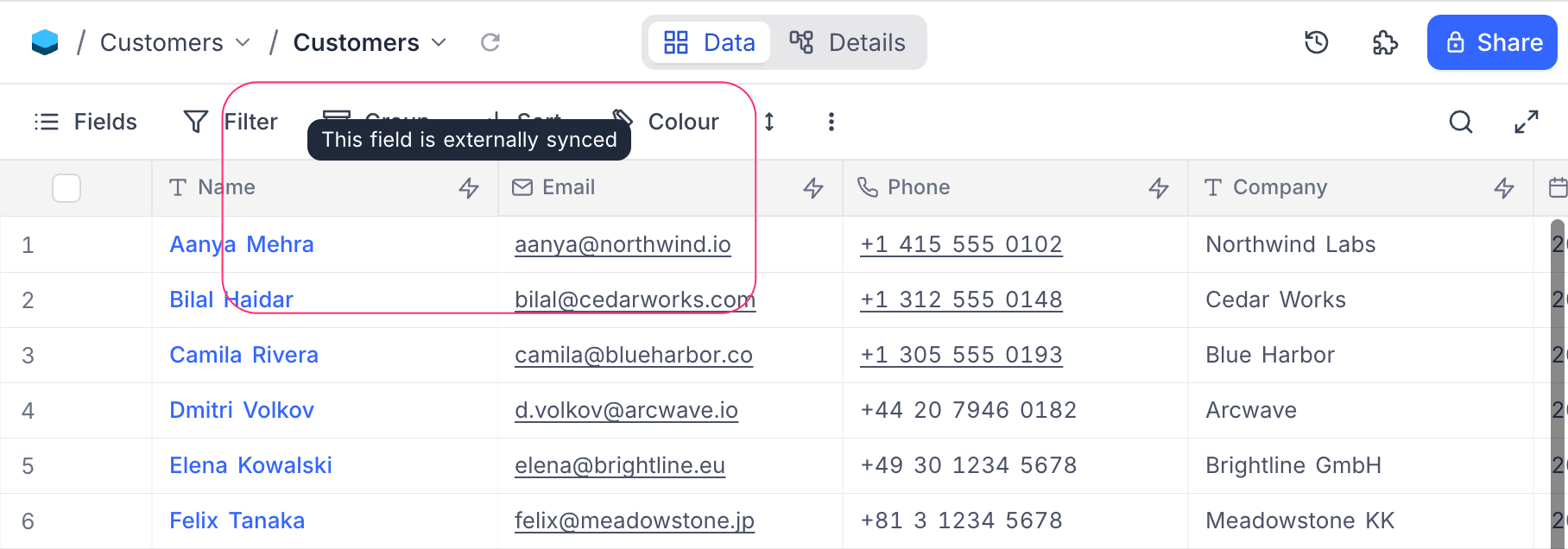
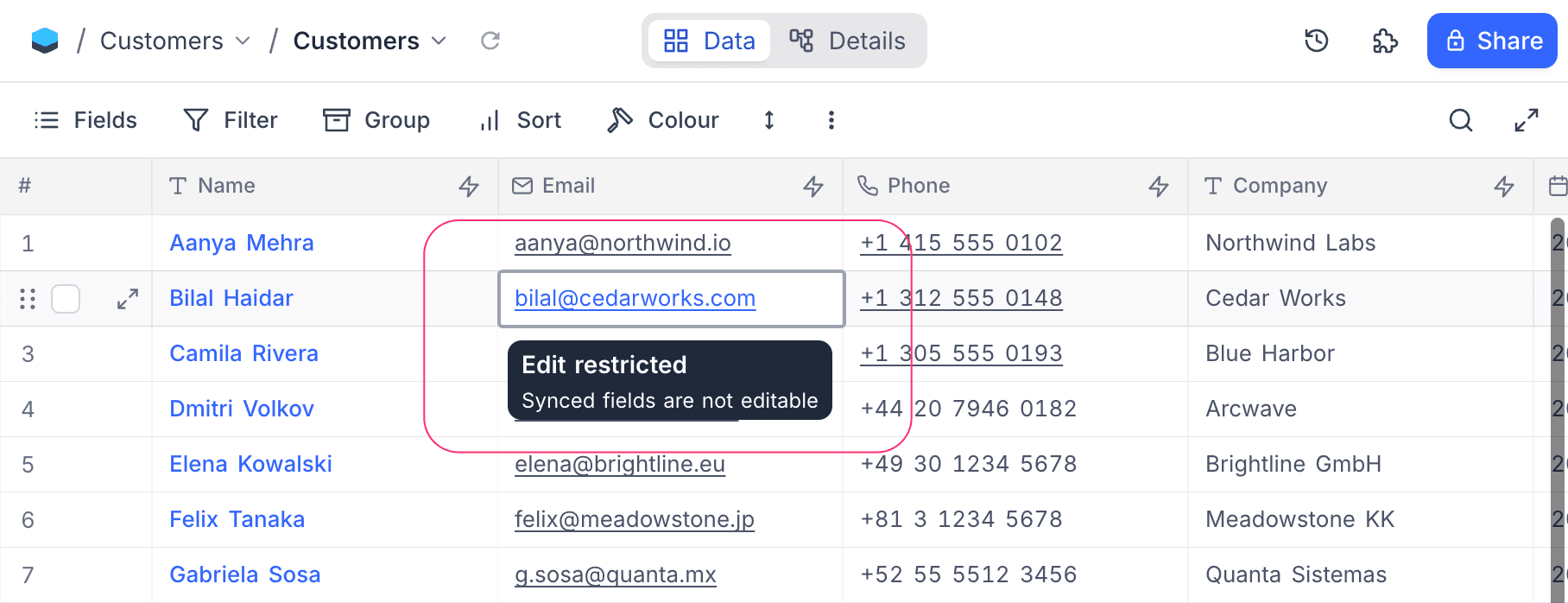
Mirrored fields are read-only and update automatically. To change a value, edit it at the source.
In most other ways, the mirrored table works like a regular table. You can add fields that do not sync, create your own views and filters, and link other tables to it.
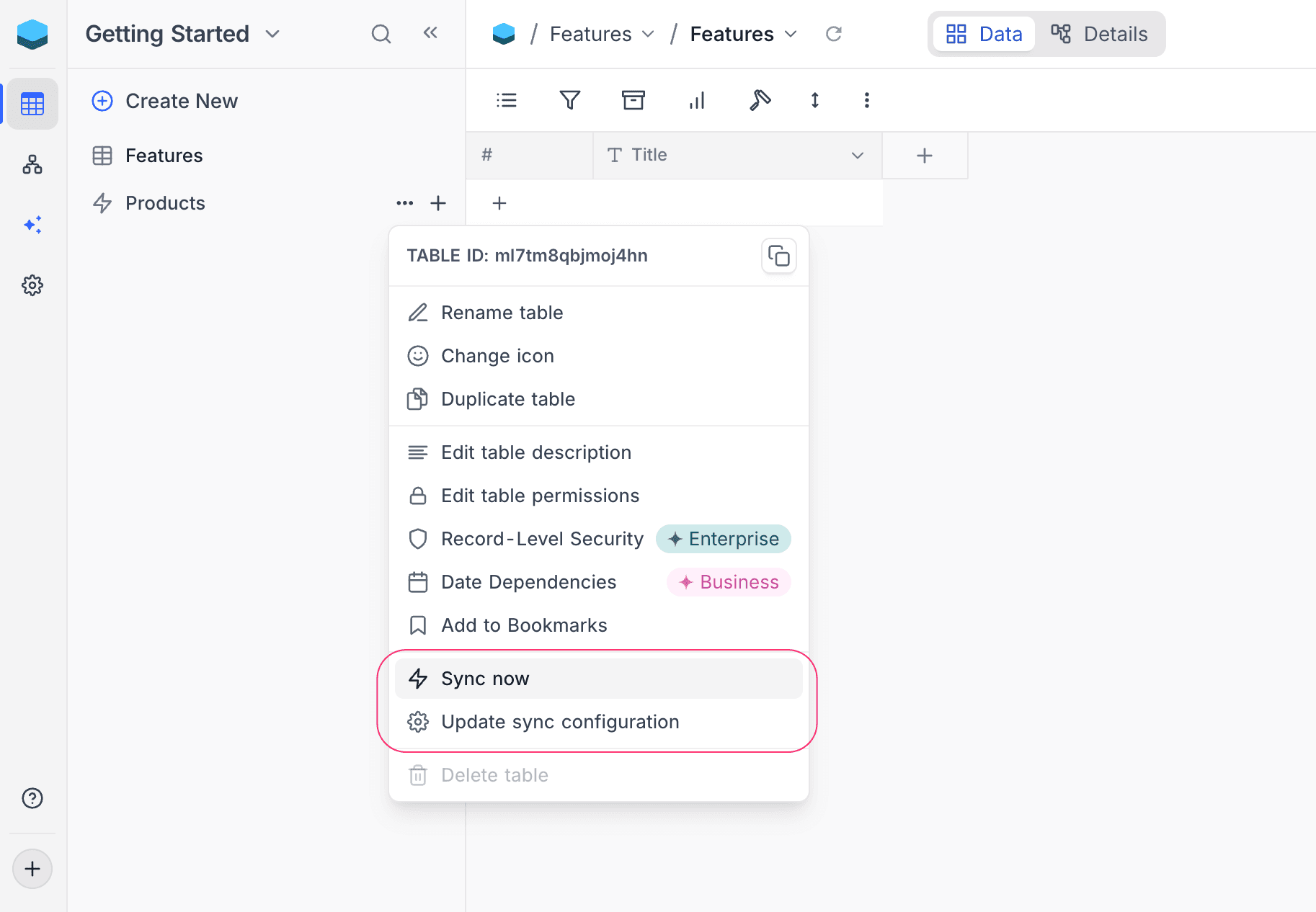
Right-click a mirrored table in the sidebar to get sync actions without opening Manage → Sync:
| Action | Result |
|---|---|
| Sync now | Starts an update from the source immediately. |
| Update sync configuration | Opens the edit dialog of the sync (refer to Editing a Sync). |
You cannot do these operations on synced tables:
- Insert, duplicate, delete or paste records.
- Rename synced fields, change their type or set default values on them.
- Create Form views.
Also, field and table permissions do not apply to synced columns or tables.
Managing Syncs
Settings → Manage → Sync lists all syncs in a base. The columns are Name, Source (shows the sync method), Status and Last trigger.
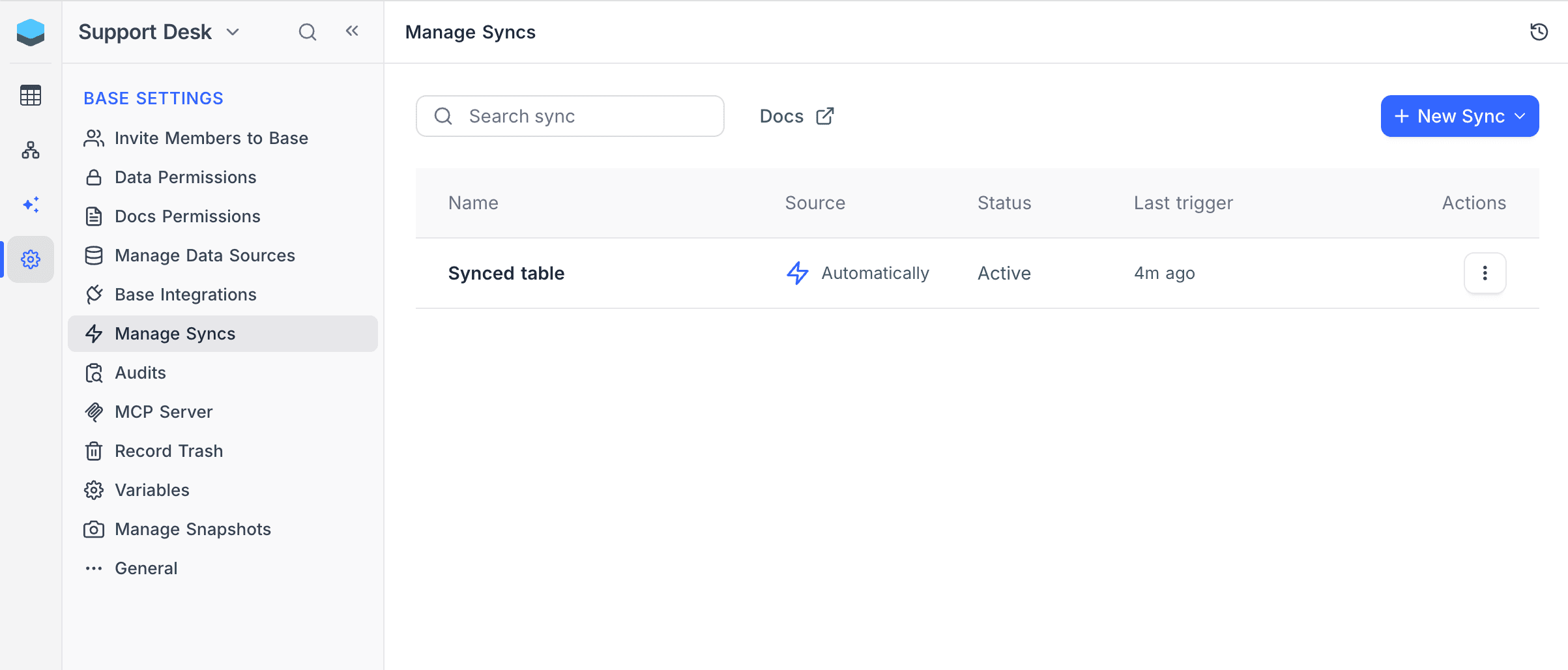
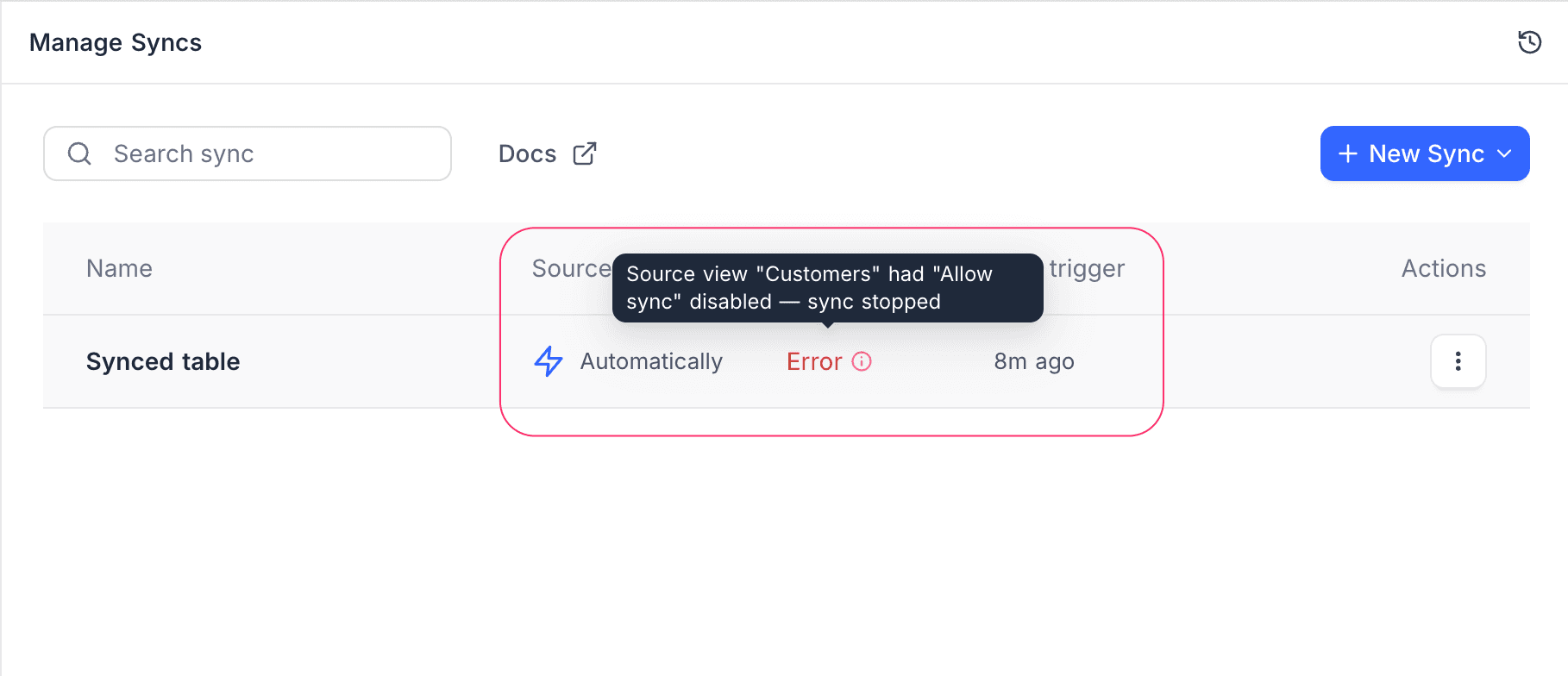
Each sync has one of these states:
| Status | What it means |
|---|---|
| Active | The sync is healthy. Source changes go through automatically, or on demand for manual syncs. |
| Syncing | A first copy or a new update is in progress. |
| Paused | The sync is stopped until someone resumes it. |
| Error | The last update failed. Hover over the status to see the error. |
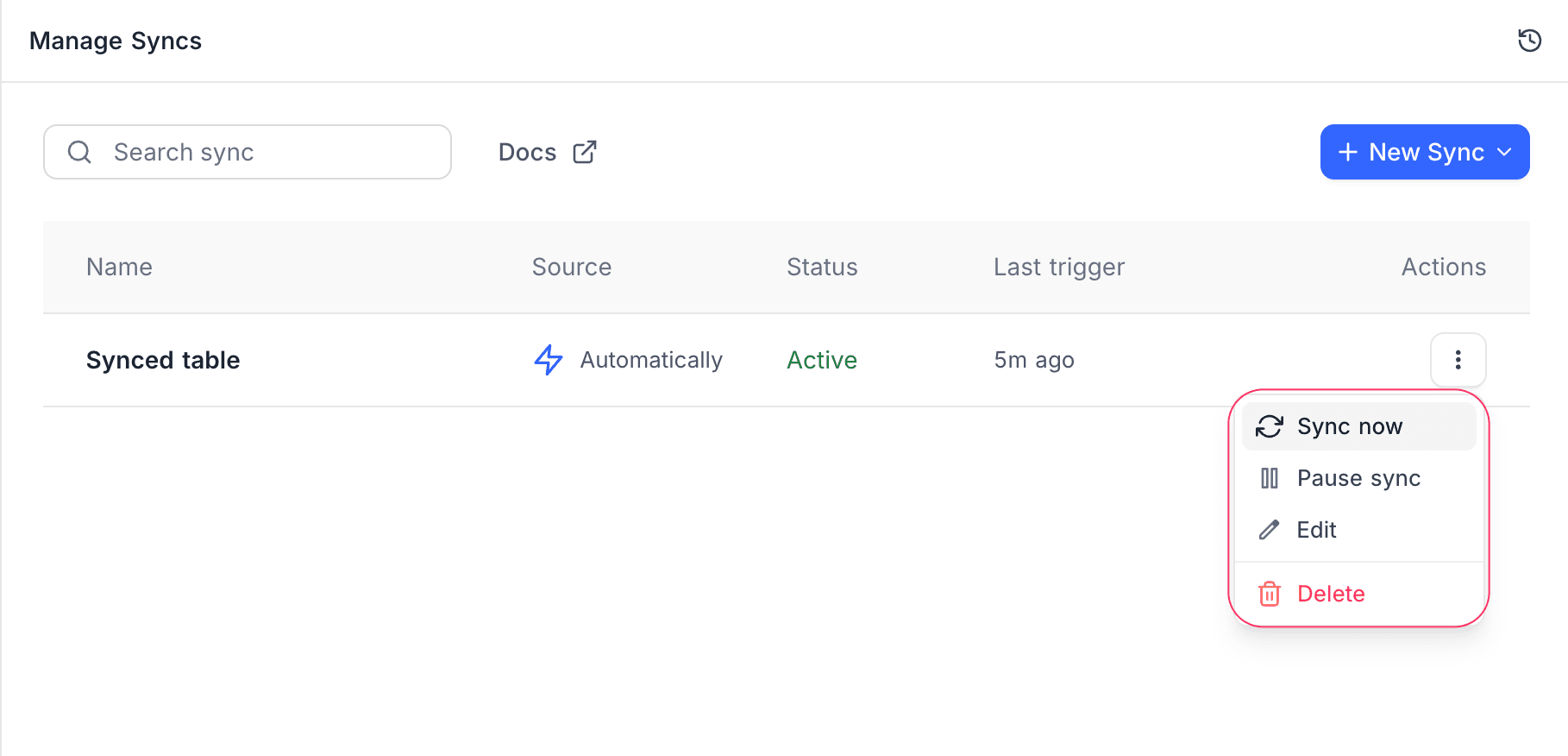
The three-dot Actions menu on each row has these actions:
| Action | Result |
|---|---|
| Sync now | Starts an update immediately. |
| Pause sync | Stops updates until you resume the sync. |
| Resume sync | Starts updates again after a pause. When the sync has the Error state, this action is Retry sync. |
| Edit | Refer to Editing a Sync. |
| Delete | Refer to Deleting a Sync. |
The actions are disabled while a sync updates.
Editing a Sync
In the Actions menu, click Edit. You can change:
- Sync name
- Sync method
- Records deleted in source will be
- Source view: Connect the sync to a different Grid view of the same source table. The new view must have Allow sync turned on. This change starts a full new sync from the new view.
- Fields to sync: Add or remove fields, or change the selected views for linked records.
In edit mode, you cannot change the source mode, the source base or the source table. You can only change the source view in the same table.
Sometimes the source cannot be recovered. For example, someone deleted the source table, or the main column mapping of the sync is missing. Then the edit dialog goes into a recovery state, and the only available action is Delete sync.
Deleting a Sync
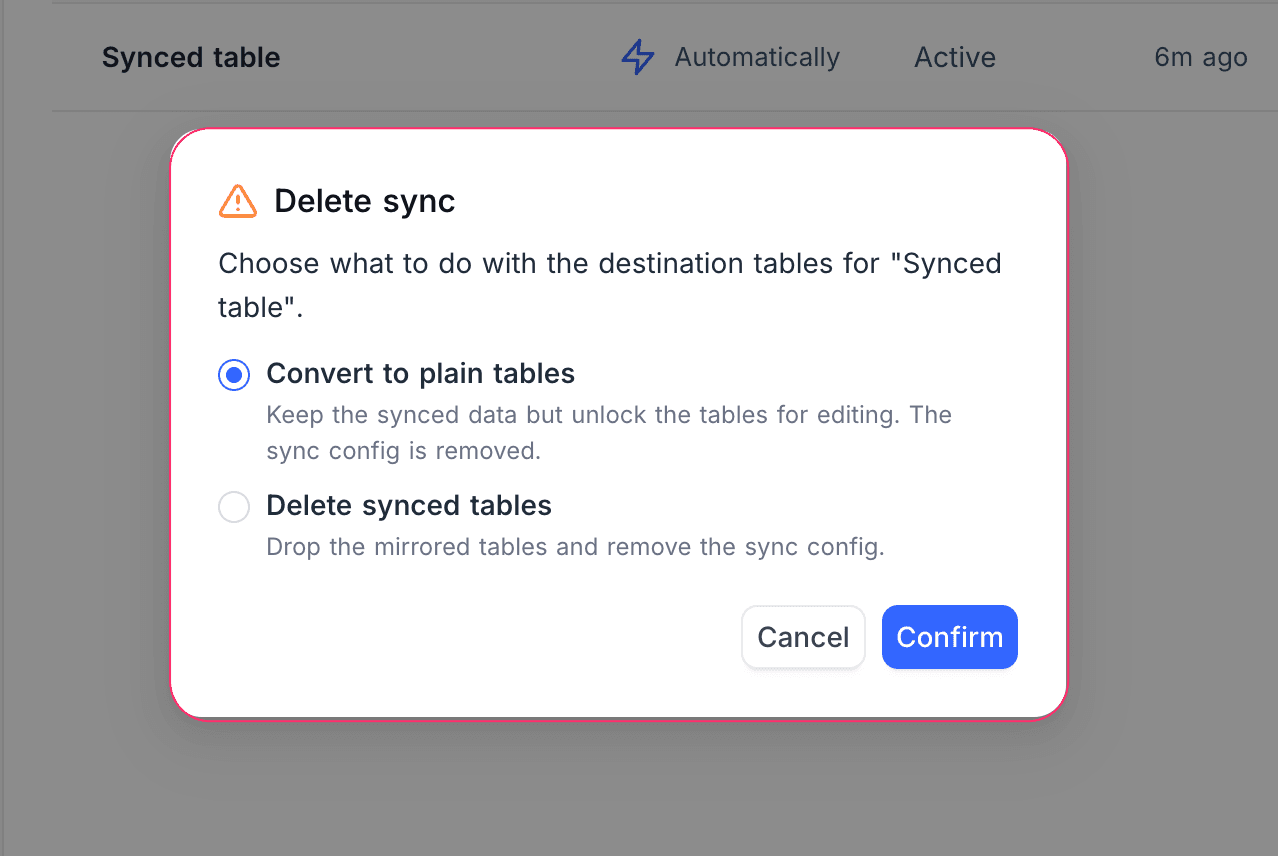
In the Actions menu, click Delete. The dialog asks what to do with the mirrored tables:
| Option | Result |
|---|---|
| Convert to plain tables | Keeps the mirrored data, unlocks it for editing and removes the sync configuration. The tables stop getting updates from the source. |
| Delete synced tables | Deletes the mirrored tables and removes the sync configuration. |
Both options have no effect on the source.
Field Type Mapping
Most field types keep their own type in the mirrored table. Some field types change:
| Source field type | In the mirrored table |
|---|---|
| Formula, Rollup, User (single/multi), Created by, Last modified by, UUID | Plain text |
| Lookup | Plain text (long) |
| Created time, Last modified time | Date/time |
| AutoNumber | Number |
| Links (the link-counter field) | Number |
| Linked record (with a related view picked) | Linked record (companion mirrored table is created) |
| Linked record (no related view picked) | Plain text (comma-separated primary fields) |
| Barcode, QR Code, Button | Not synced |
NocoDB does not mirror cross-base links or custom links from the source. If you need them in the destination, create them again on the mirrored table.
Availability
- Plan availability: NocoDB Sync is available on NocoDB Cloud (Plus plan and above) and licensed self-hosted deployments (Business plan and above). Automatic (real-time) sync requires NocoDB Cloud (Business plan and above) or self-hosted Scale and Enterprise plans. On lower paid plans, you can still create a sync and update it on demand with Sync now.
Last updated on