Create Record
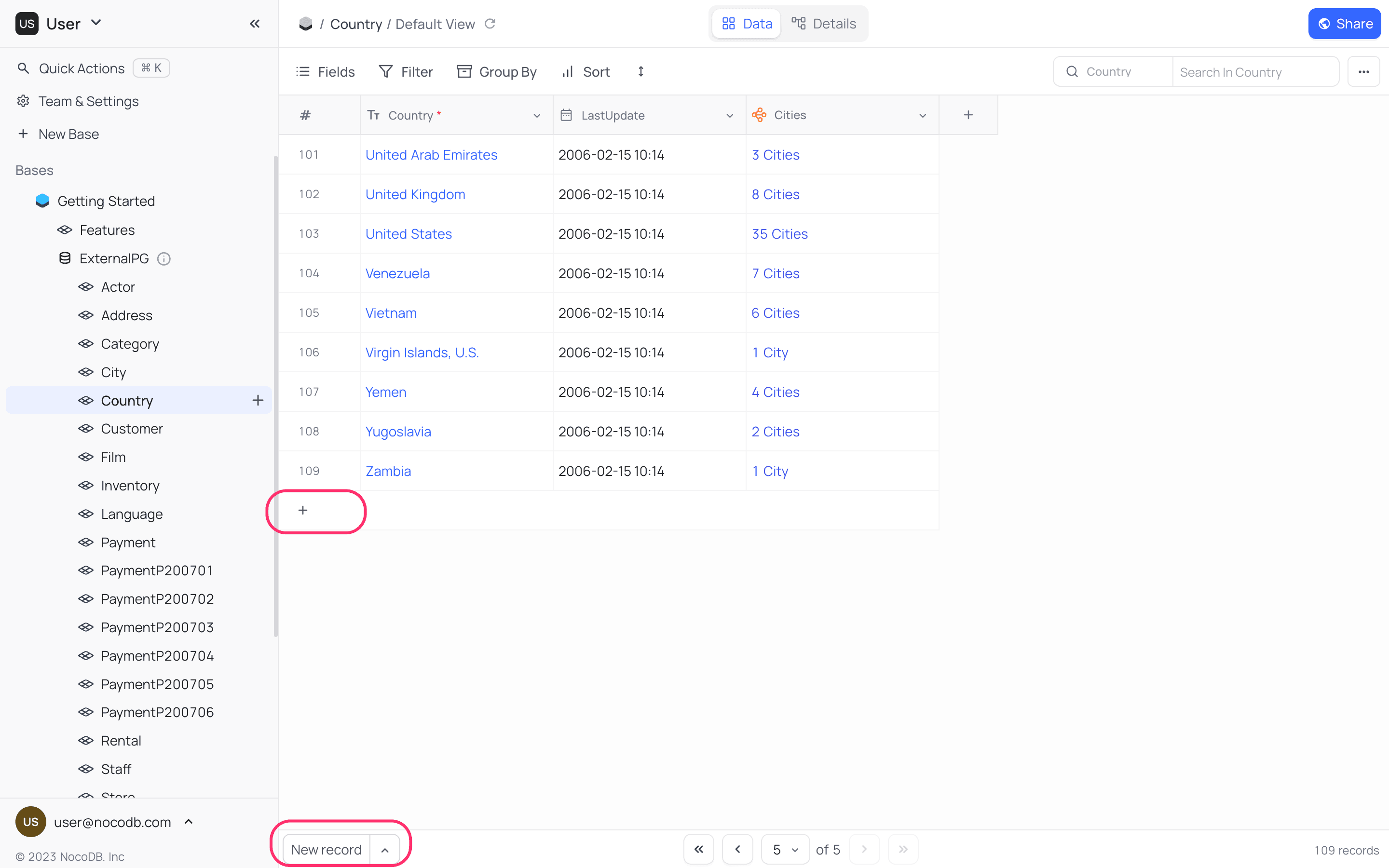
To add a record, click the New Record button in the bottom left corner of the grid view. By default, this button adds an empty record at the end of the grid view. To fill a field, click the cell and enter the value.
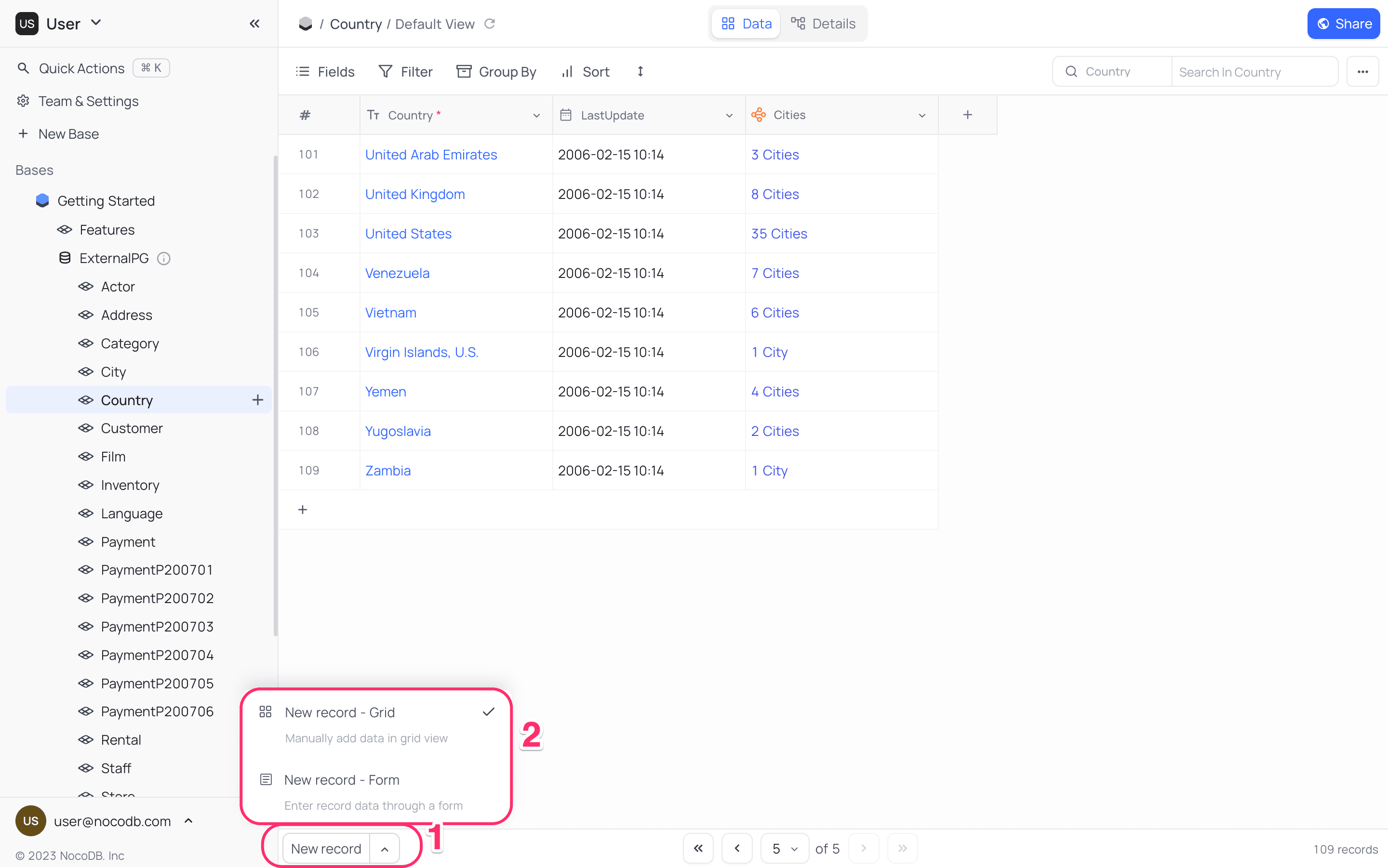
You can also use a form to fill the fields of a record. To add a record with a form:
- Click the up-arrow in the
New Recordbutton. The options for a new record open. - Select
New Record - Form. TheNew Recordbutton now adds new records with a form.
Ask NocoAI
Copy a prompt, paste it into NocoAI in any base, and replace the words in [brackets] with your own.
- Add a record with [Name] set to [Acme Inc] and [Status] set to [Active]
- Add [5] realistic sample records to this table
- Create records from the list in the attached file
Insert Anywhere
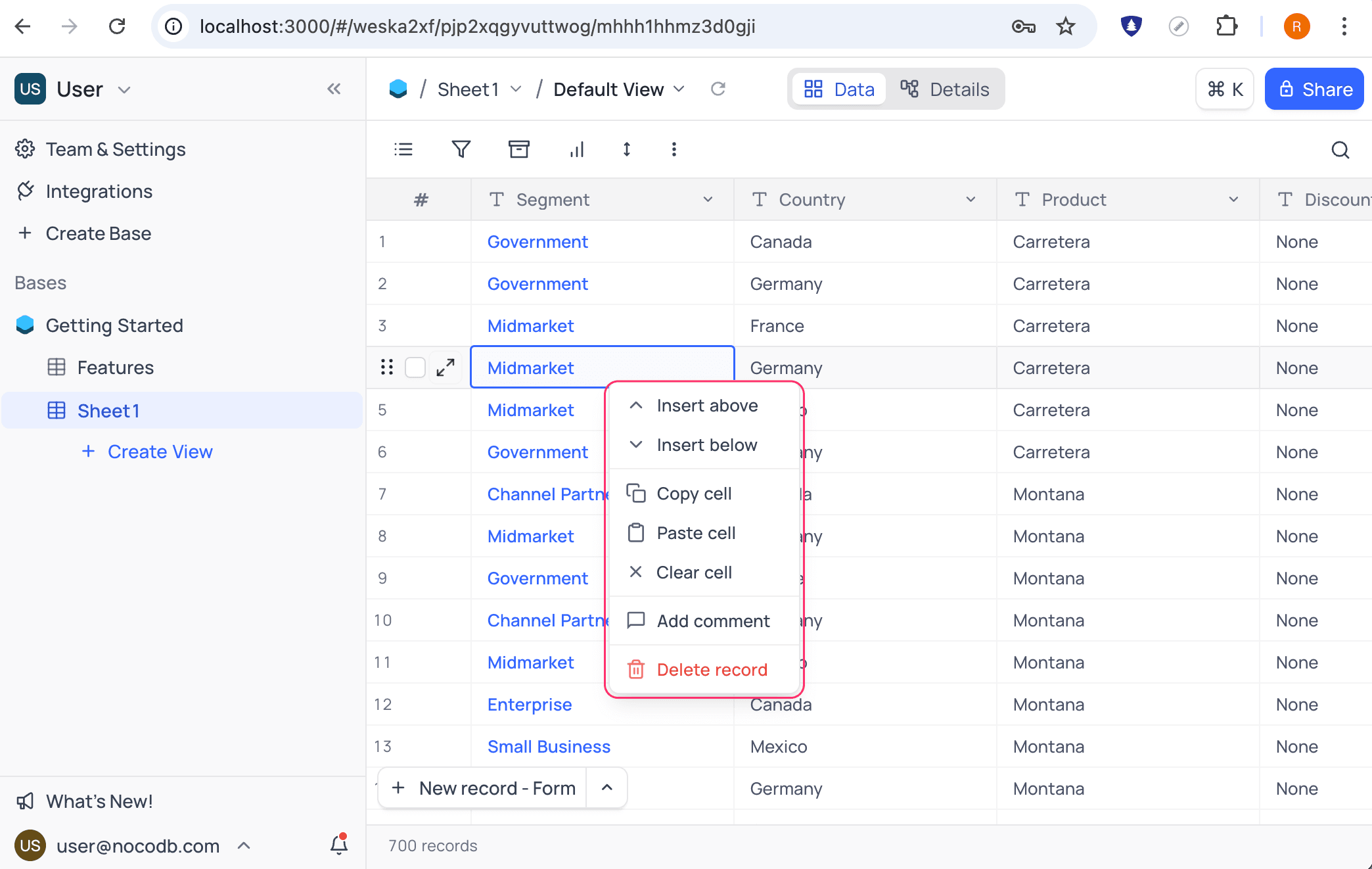
You can insert a record anywhere in the grid view from the right-click context menu.
- Right-click a record.
- Select
Insert aboveorInsert below. An empty record is added above or below the selected record.
Good to know
- To add an empty record, you can also click the
+icon in the last record of the grid view. - On the last record, press
Enterto add an empty record to the grid view. - To set the
New Recordbutton back to its default, click the up-arrow in theNew Recordbutton and selectNew Record - Grid.
Related
Last updated on
Latest product updates?See Changelog