Create Tables Using AI
Overview
Describe your system in plain language, and NocoAI generates tables with their fields and relationships. Use it to start a new database structure quickly. You can also use it to add new modules to an existing base.
Steps to Create Tables Using AI
-
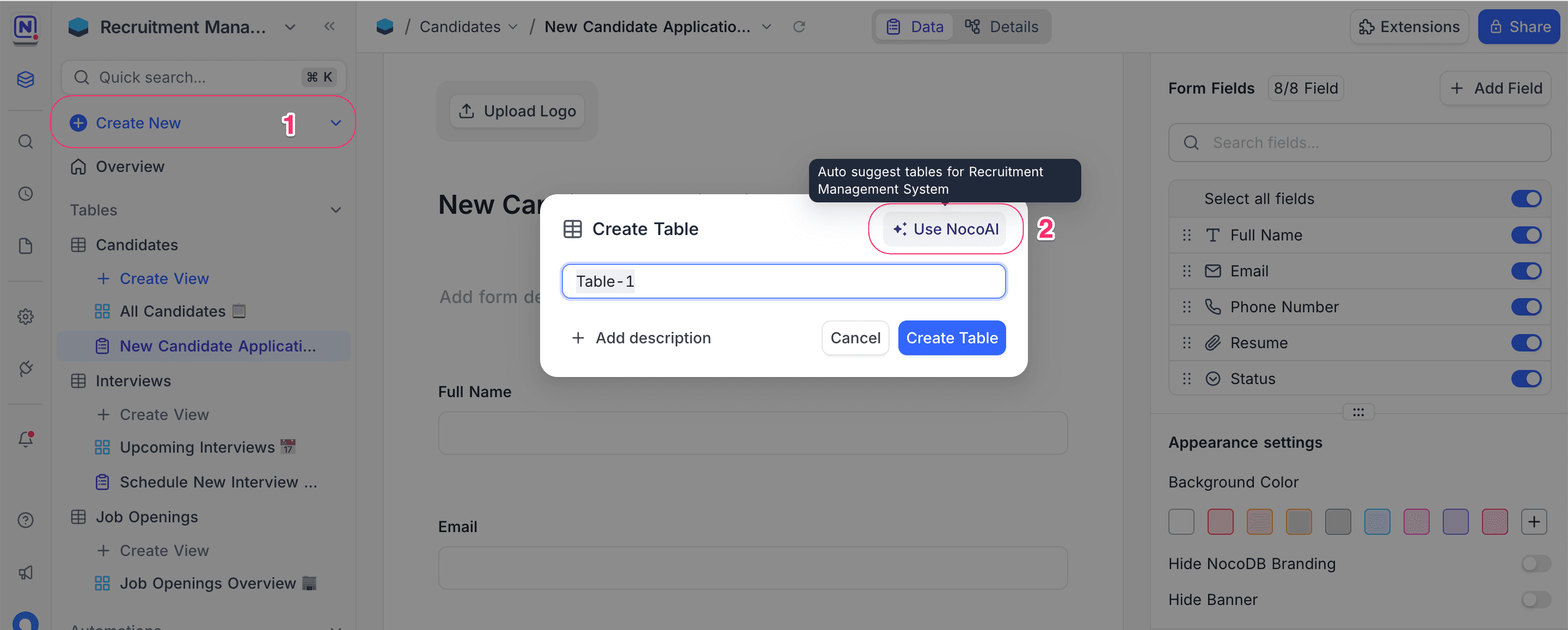
In the left sidebar, click + Create New.
-
Select Table. The Create Table modal opens.
-
In the dialog, click ✨ Use NocoAI. The AI-assisted process starts.
-
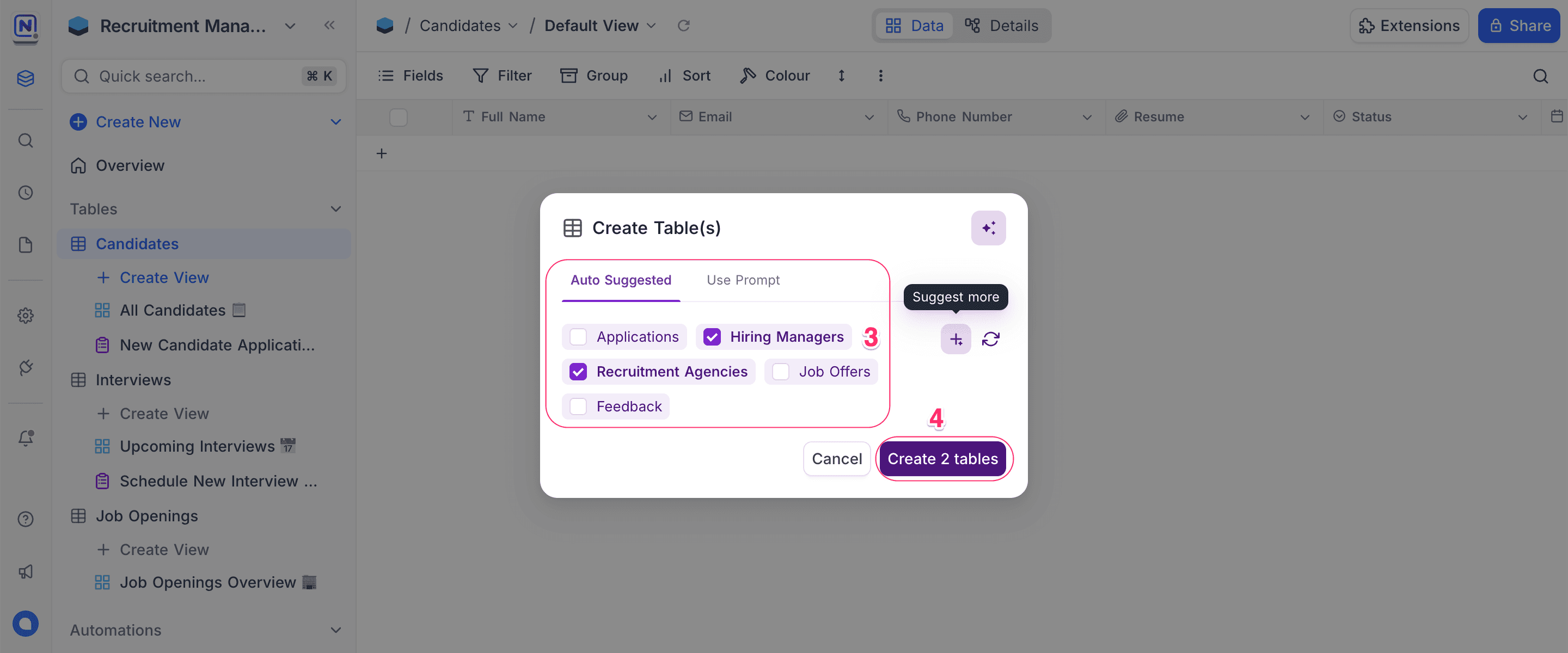
Select a suggestion mode:
Mode What it does Auto Suggested NocoAI suggests a set of tables based on your current schema and context. Use Prompt (Coming Soon) Describe the tables that you want in your own words. -
In the list, select the tables that you want.
-
Click Create [X] Tables. NocoAI creates the tables.
Tips for Better AI Suggestions
-
Use meaningful table names in your base
The AI uses the existing names and structures to recommend relevant tables. -
Think in entities
Think about the business objects that you want to manage and how they connect. For example: Candidates, Applications, Feedback, Agencies. -
Preview and refine
If the suggestions are not accurate, click Suggest More to get new suggestions. -
Add new modules incrementally
Use NocoAI for different parts of your app, for example one time for recruiting and one time for feedback. This builds your schema step by step.
What's Next
After you create your tables:
- Use NocoAI View Suggestions to generate meaningful views
- Create Fields using AI to automatically generate relevant fields for each table
NocoAI gives you a fast start. You can then customize everything to meet your needs.
Availability
- AI table creation is available on NocoDB Cloud (Plus plan and above). On Cloud, it uses credits.
- On self-hosted deployments (Business plan and above), you must configure your own AI integration to use AI.
Last updated on