Two-Factor Authentication ☁
Two-factor authentication (2FA) adds a second layer of security to your NocoDB account. After you enter your password, you also enter a time-based one-time code. An authenticator app on your phone gives you this code.
Setting up 2FA
Prerequisites
- Sign in to NocoDB with email and password. If you signed in with Google or another identity provider, sign out. Then sign in again with email and password.
- Install an authenticator app that supports TOTP. For example: Google Authenticator, Microsoft Authenticator, Authy, or 1Password.
Steps
- In the bottom-left corner, click your avatar. Then select Account Settings.
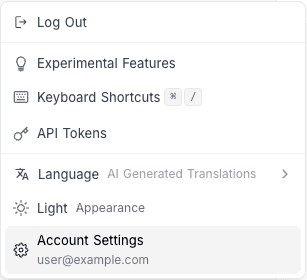
- Go to the Security tab.
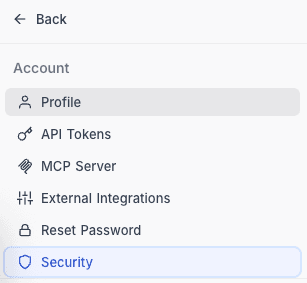
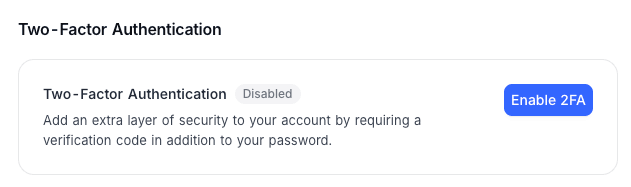
- Click Enable 2FA.
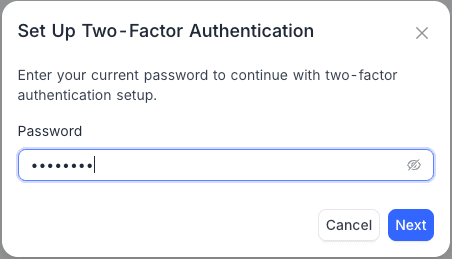
- Enter your current password. Click Next.
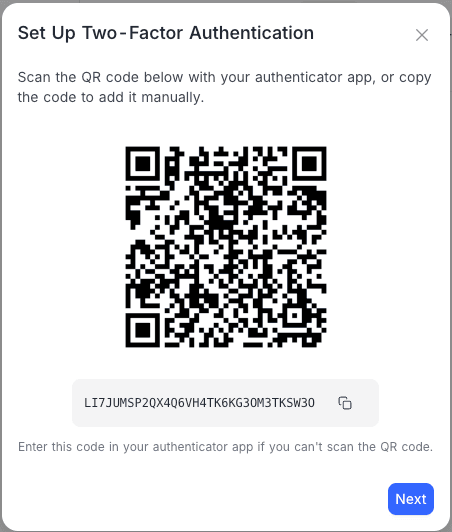
- Open your authenticator app and scan the QR code on the screen. If you cannot scan the QR code, click the copy button next to the manual entry key. Add the key to your authenticator app manually. Click Next.
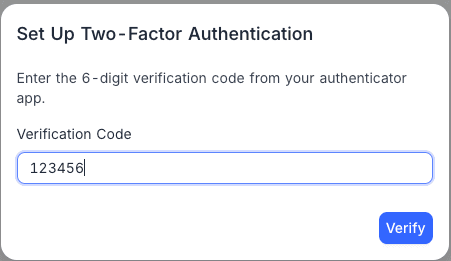
- Enter the 6-digit verification code from your authenticator app. Click Verify.
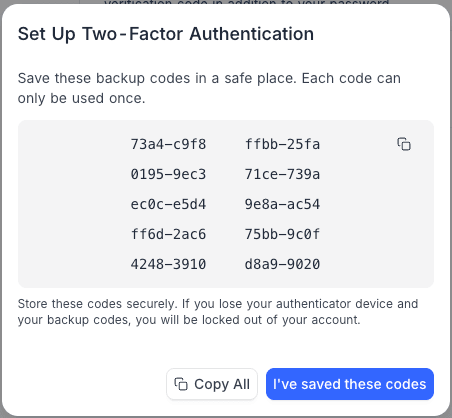
- NocoDB shows 10 one-time backup codes. Copy or write these down immediately and keep them in a safe place. You can use each code only once. To complete the setup, click I've saved these codes.
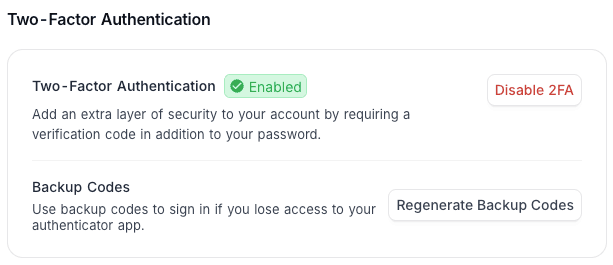
2FA is now active on your account.
Signing in with 2FA
When 2FA is enabled, each sign-in has a second verification step after your password.
- Enter your email and password.
- On the Two-Factor Authentication screen, enter the current 6-digit code from your authenticator app. Click Verify.
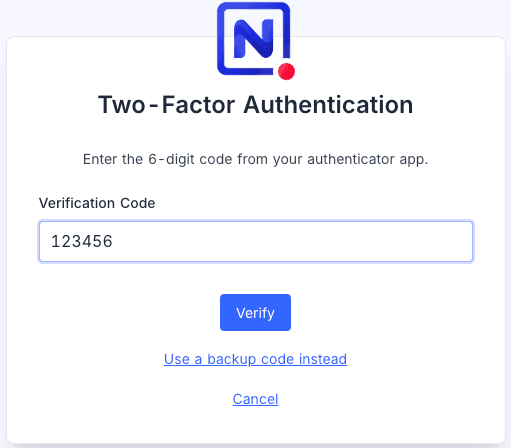
- If you cannot use your authenticator app, click Use a backup code instead. Enter one of your saved backup codes (in
xxxx-xxxxformat). Click Verify. To go back to the authenticator code view at any time, click Use authenticator code instead.
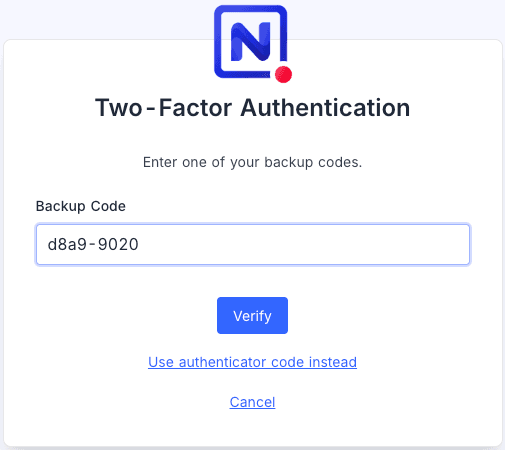
- To stop the sign-in and go back to the login screen, click Cancel.
Backup codes
Backup codes are emergency access codes. Use them when you cannot use your authenticator app, for example when you lose your phone or uninstall the app.
- You get 10 backup codes when you enable 2FA.
- You can use each code only once. A successful sign-in uses up the code.
- Codes have the
xxxx-xxxxformat. When you enter a code, NocoDB ignores dashes, spaces, and letter case.
Regenerating backup codes
Do these steps if you used most of your backup codes, or if you think that someone else knows them:
- Go to Account Settings > Security.
- Click Regenerate Backup Codes.
- To verify your identity, enter a current 6-digit code from your authenticator app.
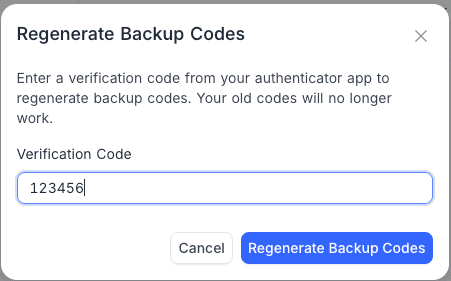
- Your old backup codes stop working immediately. NocoDB shows the new codes.
- Copy and save the new codes. Then click I've saved these codes.
Disabling 2FA
- Go to Account Settings > Security.
- Click Disable 2FA.
- Read the warning. To confirm, click Disable 2FA.
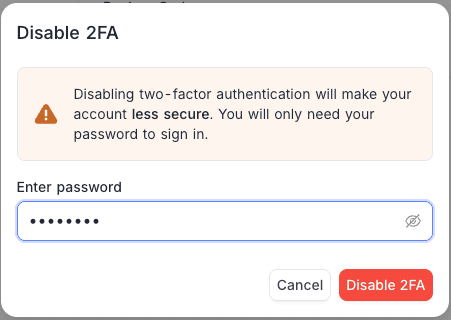
NocoDB permanently deletes your TOTP secret and all backup codes. If you enable 2FA again later, you do the full setup again. You get a new secret and new backup codes.
Troubleshooting
"Invalid verification code"
- Make sure that the clock on your device is correct. TOTP codes depend on the time. A clock difference of 30 seconds can cause codes to fail. Turn on automatic time sync on your device.
- Make sure that you enter the code for the correct account. The label in your authenticator app must show "NocoDB".
- Codes change every 30 seconds. If a code is about to expire, wait for the next code.
Lost access to authenticator app and no backup codes
Contact your NocoDB workspace administrator or system admin. An admin can disable 2FA on your account from the backend. If you cannot use your authenticator app and all your backup codes, you cannot recover access yourself.
"Too many failed attempts"
After 5 failed verification attempts in a row, NocoDB locks your account for 15 minutes. Wait until the lockout period ends, then try again. Before you try again, make sure that the clock on your device is synced correctly.
Migrating to a new phone
Before you change devices:
- If your authenticator app has cloud backup or multi-device sync (for example, Authy, Microsoft Authenticator, 1Password), your codes move to the new device automatically.
- If it does not, disable 2FA on NocoDB and change devices. Then enable 2FA again and scan the new QR code on your new phone.
- As an alternative, keep your backup codes available. Sign in with a backup code. Then disable 2FA and enable it again to set up the new device.
Good to know
- You can enable two-factor authentication only when you sign in with email and password. If you signed in with Google, SAML, OIDC, or another identity provider, that provider manages your authentication. 2FA is then not available in NocoDB.
Availability
- Two-factor authentication is available on all NocoDB Cloud plans and on licensed self-hosted deployments (Business plan and above).
Last updated on