In Community Edition
Some Account settings features are available only in NocoDB Community Edition. This article describes these features.
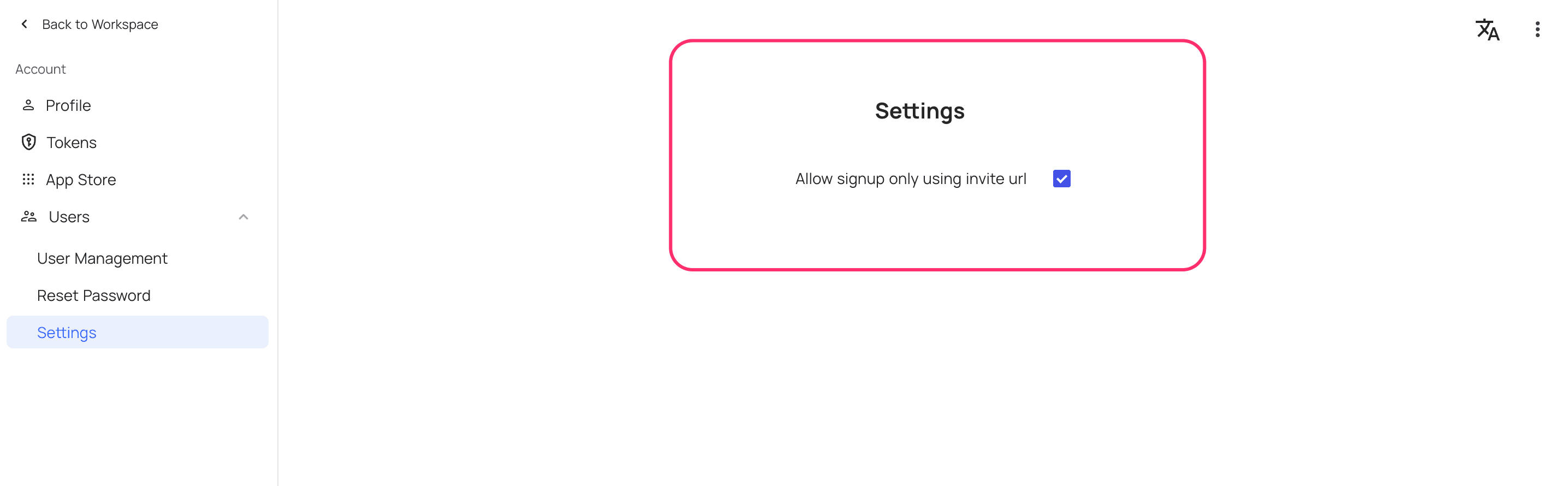
Enable / Disable Signup
By default, signup without an invitation is disabled. A super admin can change this setting in the UI.
Self-Hosted Licenses
Use the Self-Hosted Licenses section in your NocoDB Cloud account to purchase and manage licenses for your self-hosted instances.
In your NocoDB Cloud account, go to Account → Self-Hosted Licenses.
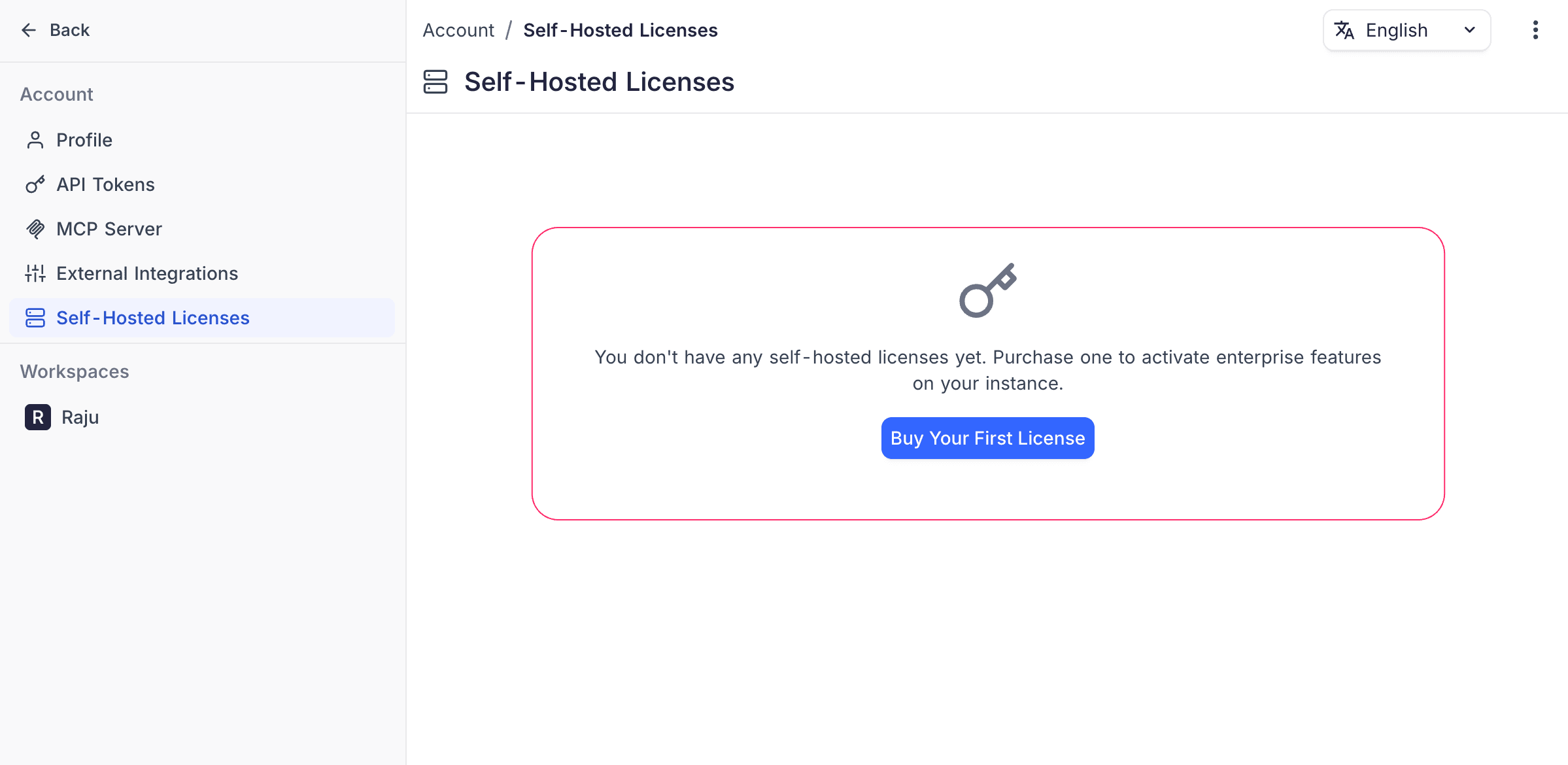
If you have no licenses, click Buy Your First License to start. The list shows each existing license with its plan, status, billing period, and license key.
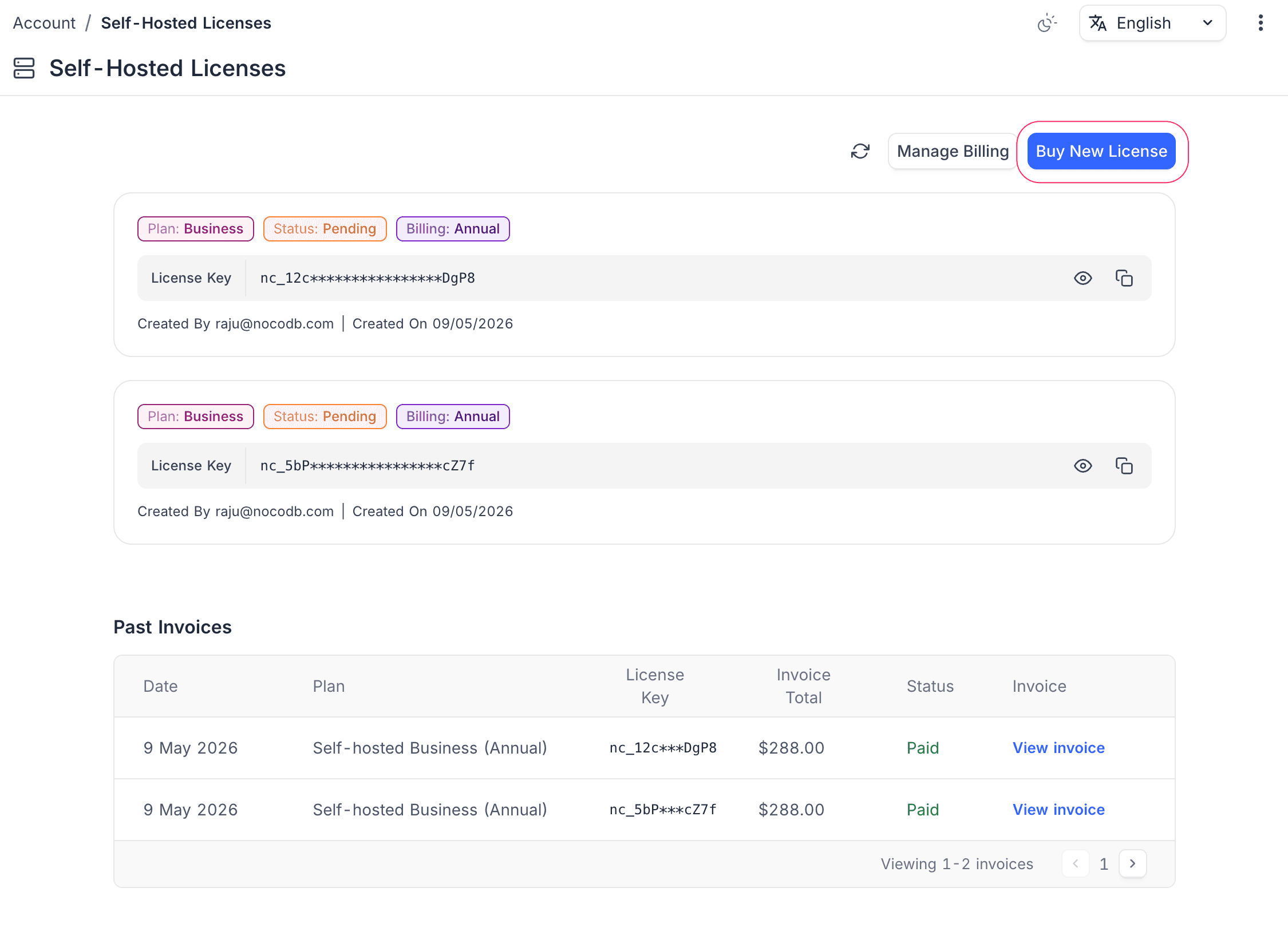
On this page, you can do these actions:
| Action | What it does |
|---|---|
| Copy | Copies your license key. Use it to activate the license on your self-hosted instance. |
| Sync | Syncs licenses from Stripe if the page does not show a purchase. Use the sync icon. |
| Manage Billing | Opens the Stripe billing portal, where you see subscriptions, invoices, and payment methods. |
| Buy New License | Purchases an additional license for another instance. |
To purchase a license, see Purchase a License. To activate it on your instance, see License Activation.
App Store
The App store lists the available integrations for NocoDB. Install and configure these integrations from the App store.
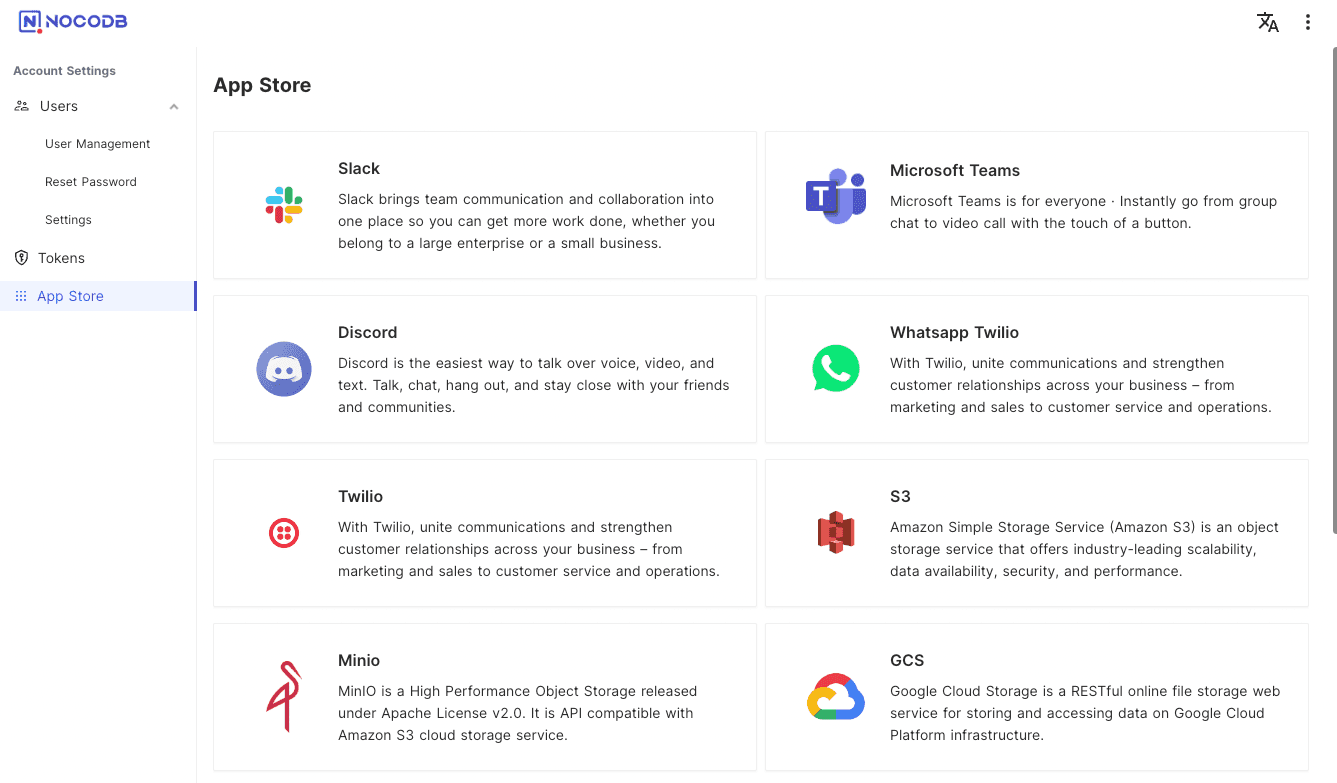 The integrations are in three main categories.
| Category | App Name |
|---|---|
| Chat | Microsoft Teams Discord Twilio Whatsapp Twilio Mattermost Slack |
| SMTP MailerSend AWS SES | |
| Storage | AWS S3 Minio Google Cloud Storage Spaces Backblaze B2 Vultr Object Storage OvhCloud Object Storage Linode Object Storage UpCloud Object Storage Scaleway Object Storage |
Last updated on