Sign Out of Other Devices ☁
If you signed in on a device that you no longer have, or you think that someone else is signed in to your account, you can end every other session from your account settings. The device that you are using stays signed in.
Steps
-
In the bottom-left corner, click your avatar. Then select Account Settings.
-
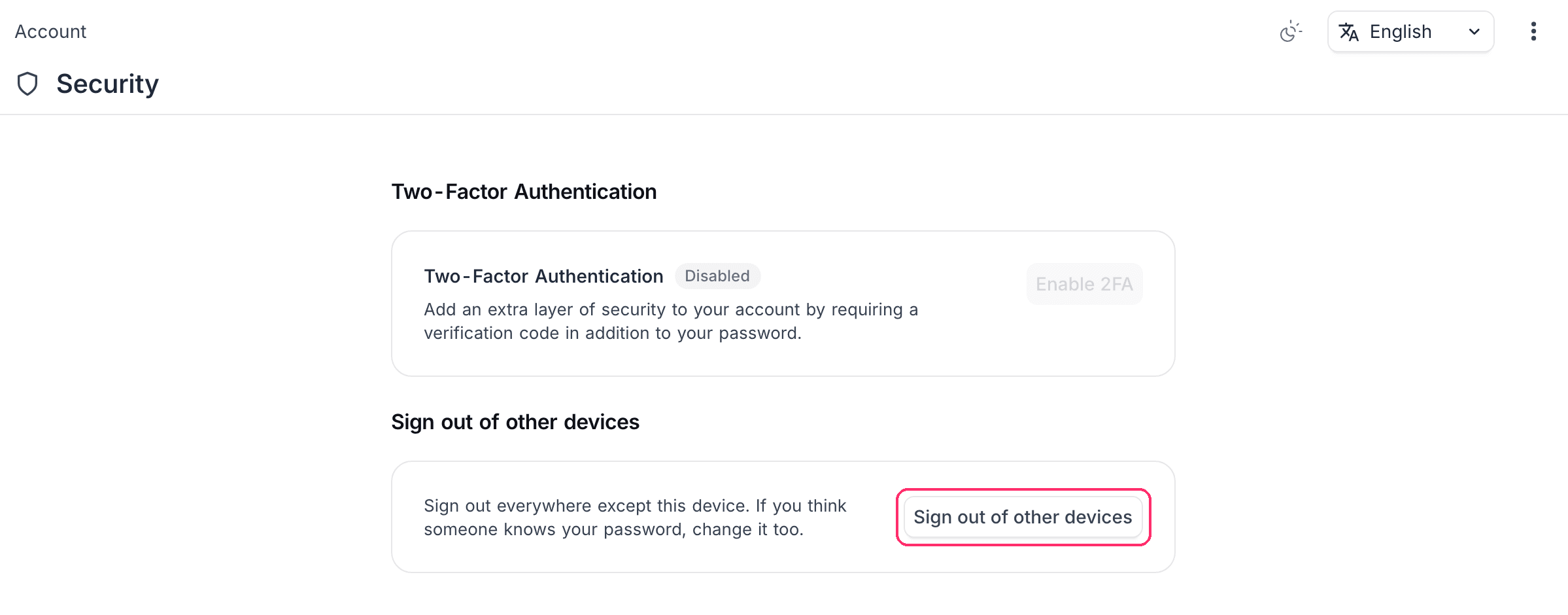
Go to the Security tab.
-
Click Sign out of other devices.
-
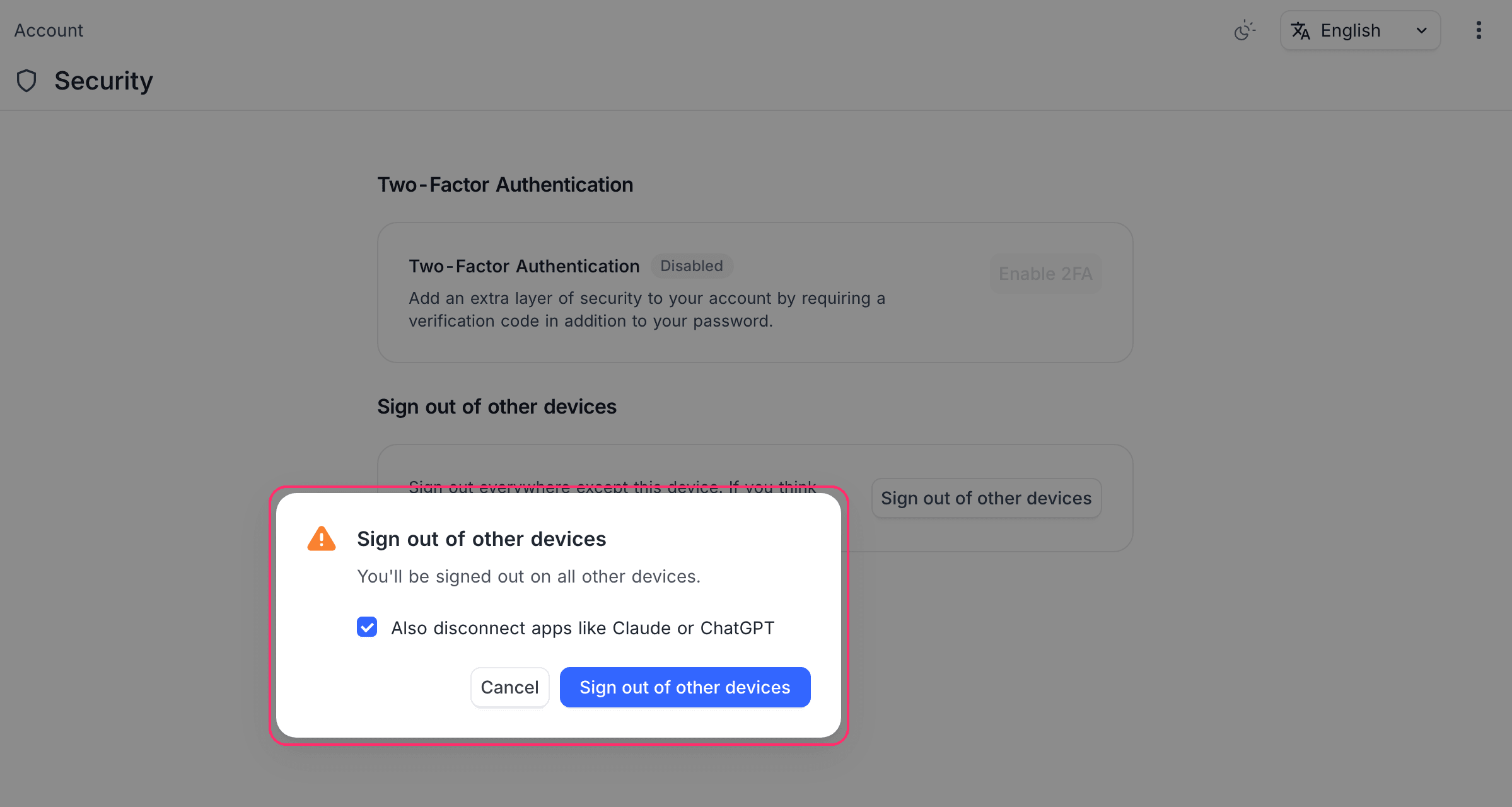
In the confirmation dialog, keep Also disconnect apps like Claude or ChatGPT selected to disconnect the apps that you authorized with OAuth, such as MCP clients. Manual MCP connections that use a token stay connected. Clear it to leave those apps connected.
-
Click Sign out of other devices.
Every other browser and app session ends immediately. API tokens are not affected: to revoke one, refer to API Tokens.
Changing your password
Changing your password signs you out on every other device as well. You stay signed in on the device where you change the password. To also revoke the apps that you authorized with OAuth and delete your API tokens and MCP tokens, select Also disconnect apps when you change it. If you think that someone knows your password, change it in addition to signing out the other devices.
Availability
Sign out of other devices is available on NocoDB Cloud, on all plans. Self-hosted deployments do not show it.
Related
Last updated on