Ticketing
Ticketing Sync imports issues, tickets, comments, users and team information from external platforms. It uses a predefined schema for all ticketing data. The data stays consistent, also when the sources use different names or different fields.
The supported sources are:
- GitHub
- GitLab
- Zendesk
- Linear
- Freshdesk
- Bitbucket
- Chatwoot
- YouTrack
You can sync all tables in the Ticketing schema or only specific tables:
| Option | Result |
|---|---|
| All tables | You get the full context and all relationships. |
| Only specific tables | The sync takes less time and uses fewer resources. Select the tables that your workflow needs. |
Available Tables
Each table has a fixed set of fields, so the structure is the same for all sources. App Sync also adds link fields that connect the tables as necessary. The Ticket and User tables are always included. The Comment and Team tables are optional.
Ticket
This table holds a ticket, issue, case or task from the source platform. Key fields include:
| Field | What it holds |
|---|---|
| Description | The summary or full content of the ticket. |
| Ticket Number | The unique identifier from the source system. |
| Due Date | The target completion date. |
| Priority | The urgency, for example Low, Medium, High, or values specific to the platform. |
| Status | The current stage, for example Open, In Progress or Closed. |
| Tags | The labels or metadata on the ticket. |
| Ticket Type | The category, for example Bug, Feature, Task or Case. |
| URL | The direct link to the ticket in the source app. |
| Is Active? | Shows if the ticket is active now. |
| Completed At | The timestamp when the ticket was closed or resolved. |
This table has links to Users, Teams and Comments. The links depend on the structure that the connected source has.
User
This table holds the people in the ticketing system, for example creators, reporters, agents, assignees or contributors. Key fields include:
| Field | What it holds |
|---|---|
| The email of the user. | |
| URL | The link to the user profile in the external system. |
Users are linked to Tickets and Comments where applicable.
Comment
This table holds discussion entries, updates or notes on Tickets. Key fields include:
| Field | What it holds |
|---|---|
| Body | The full comment text. |
| URL | The link to the comment in the source system. |
Comments are linked to both Tickets and Users.
Team
This table holds the groups, departments or squads in the external platform. Key fields include:
| Field | What it holds |
|---|---|
| Description | The summary or name of the team. |
| Members | The users in the team. |
Teams can have links to Tickets or Users. This depends on what the source supports.
Metadata Fields
Each synced table in the Ticketing category has a set of metadata fields. These fields record the lifecycle, state and origin of each record. They show how data moves from the external source into NocoDB. Use them for traceability, debugging and audits.
App Sync manages these metadata fields automatically. They are read-only.
| Field | What it holds |
|---|---|
| RemoteId | The unique identifier of the record in the external source system. |
| RemoteCreatedAt | The timestamp when the record was first created in the source. |
| RemoteUpdatedAt | The timestamp of the most recent update in the source. |
| RemoteDeleted | Shows if the record was deleted in the source platform. App Sync uses this field mostly when the delete behavior is set to Ignore. |
| RemoteDeletedTime | The timestamp when the record was deleted in the source, if applicable. |
| RemoteRaw | The raw payload from the provider for that record. Use it for troubleshooting, verification or advanced integrations. |
| RemoteNamespace | The origin project, workspace or repository. The value depends on the provider. It helps in setups with many projects, for example in GitHub, GitLab, Bitbucket or Zendesk groups. |
| RemoteSyncedAt | The last time that NocoDB synced this record. |
| SyncConfigId | An internal reference to the sync configuration for this record. |
| SyncRunId | The sync run that last updated this record. |
| SyncProvider | The external service that the record came from, for example GitHub, GitLab or Zendesk. |
Source Specific Details
Each supported ticketing platform has its own characteristics and field mappings. Read the details for your source before you configure the Ticketing sync.
GitHub
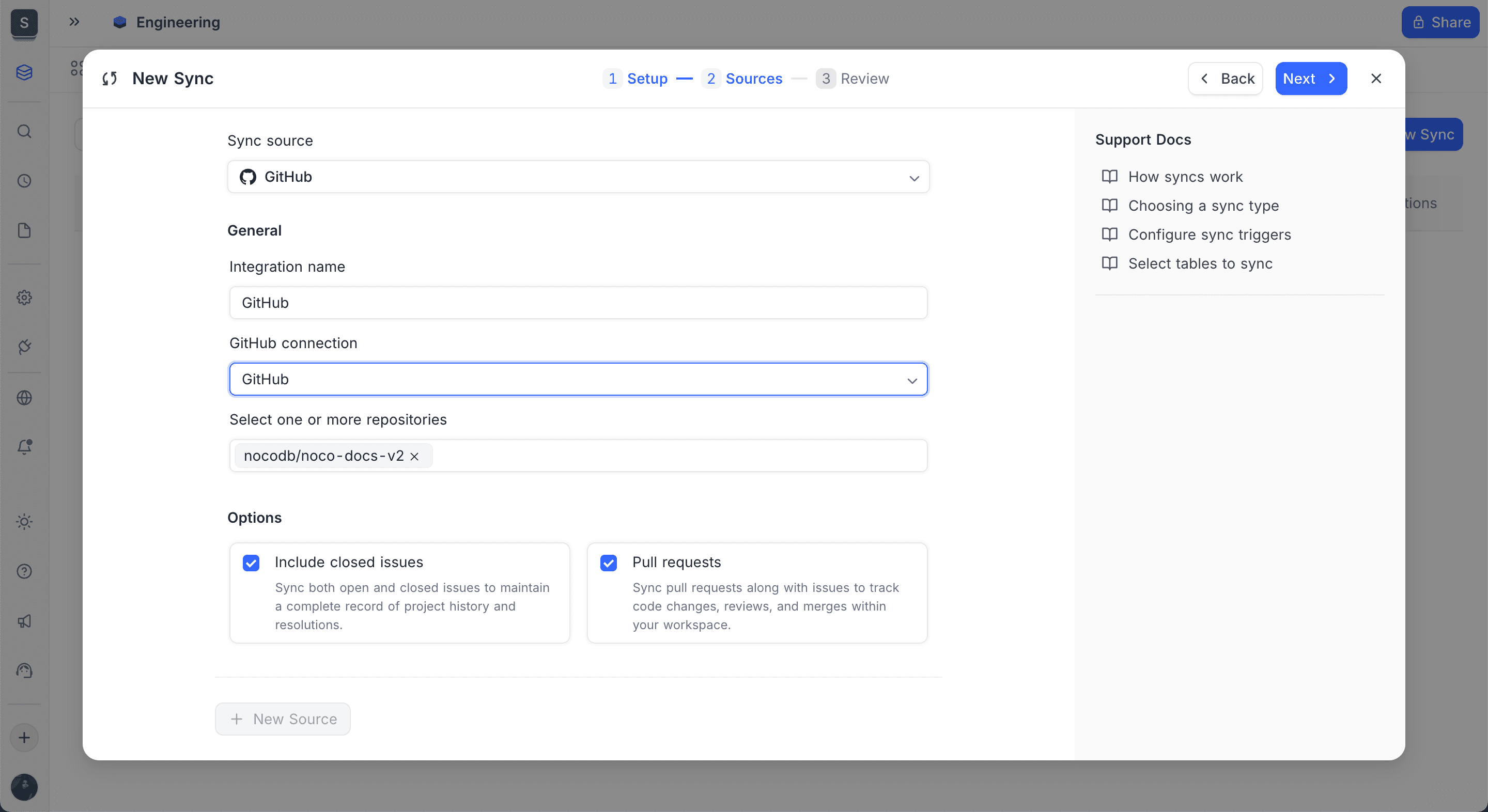
GitHub integration brings issues, pull requests and related project activity into your NocoDB workspace. Connect your GitHub account and select the repositories to track. App Sync then keeps your tables updated with the latest data.
After you select GitHub as the sync source, you can:
-
Connect using an existing GitHub integration Authenticate one time and use the connection again in many syncs. You can use OAuth or a Personal Access Token.
-
Choose one or more repositories Get data from any repository that you manage or collaborate on. You can select many repositories to collect their issues and PRs in one NocoDB base.
-
Include closed issues (optional) Sync open and closed issues to keep a complete project history. The Ticket table marks the closed issues.
-
Sync pull requests (optional) Sync PRs together with issues to track code reviews, merges and engineering workflows. Each PR becomes a ticket with a different type.
GitLab
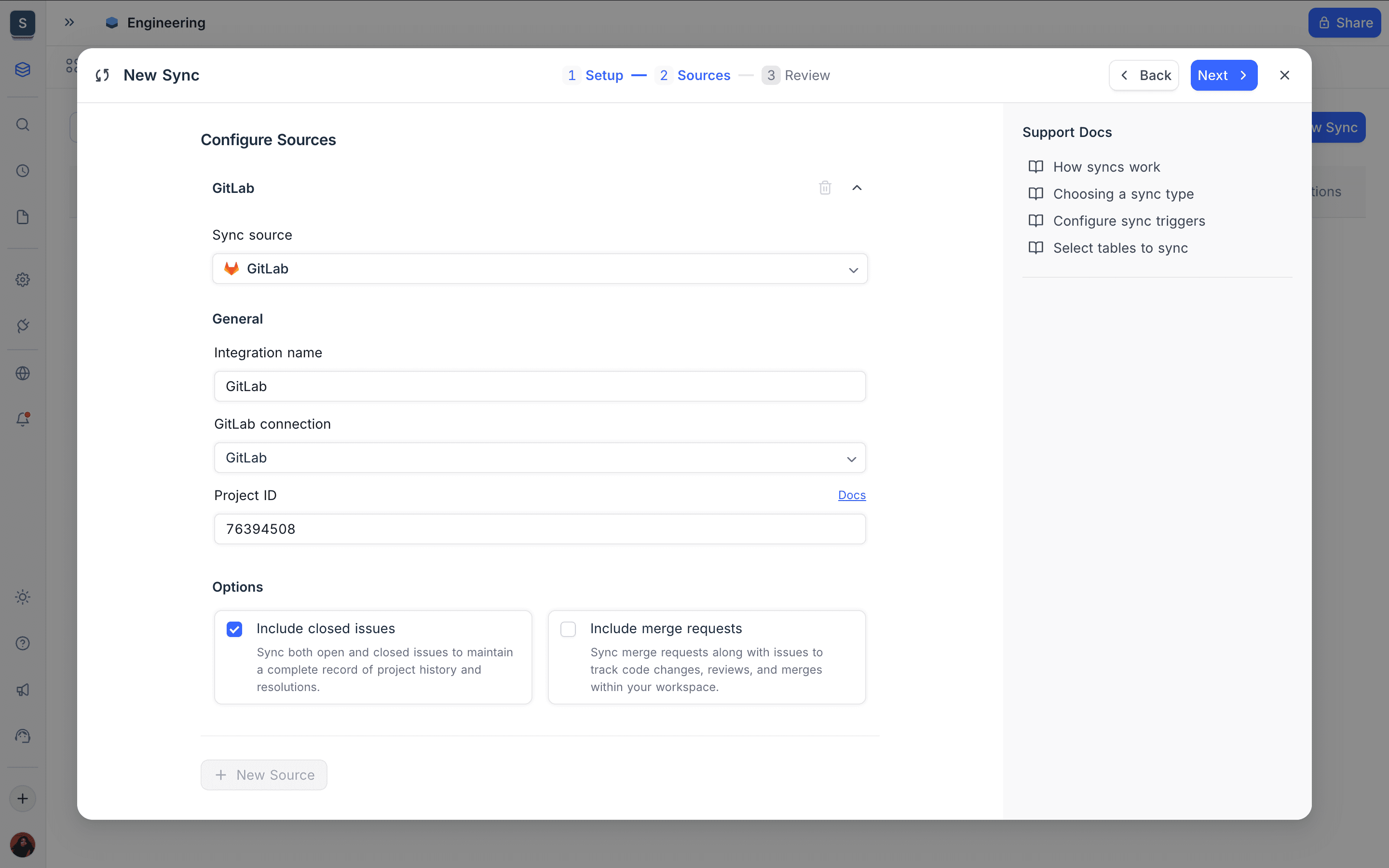
GitLab integration syncs project activity into your NocoDB workspace. This includes issues, merge requests, comments and more.
After you select GitLab as the sync source, you can:
-
Connect using an existing GitLab integration Authenticate one time and use the connection again in many projects and syncs. You can also set up a new connection with OAuth or a Personal Access Token.
-
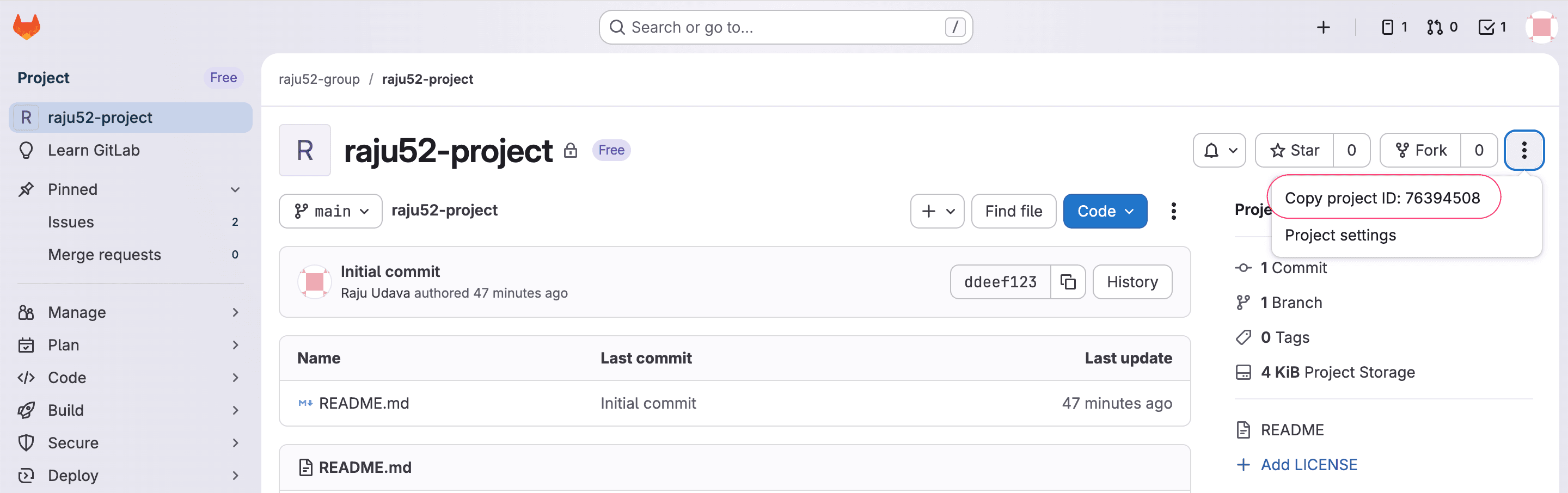
Provide a GitLab Project ID Point the sync to any GitLab project that you manage or contribute to. NocoDB validates the project and gets its data automatically.
-
Include closed issues (optional) Sync open and closed issues to keep a complete history of progress, decisions and resolutions.
-
Include merge requests (optional) Sync merge requests together with issues to track reviews, approvals and code changes in your workspace.
Zendesk
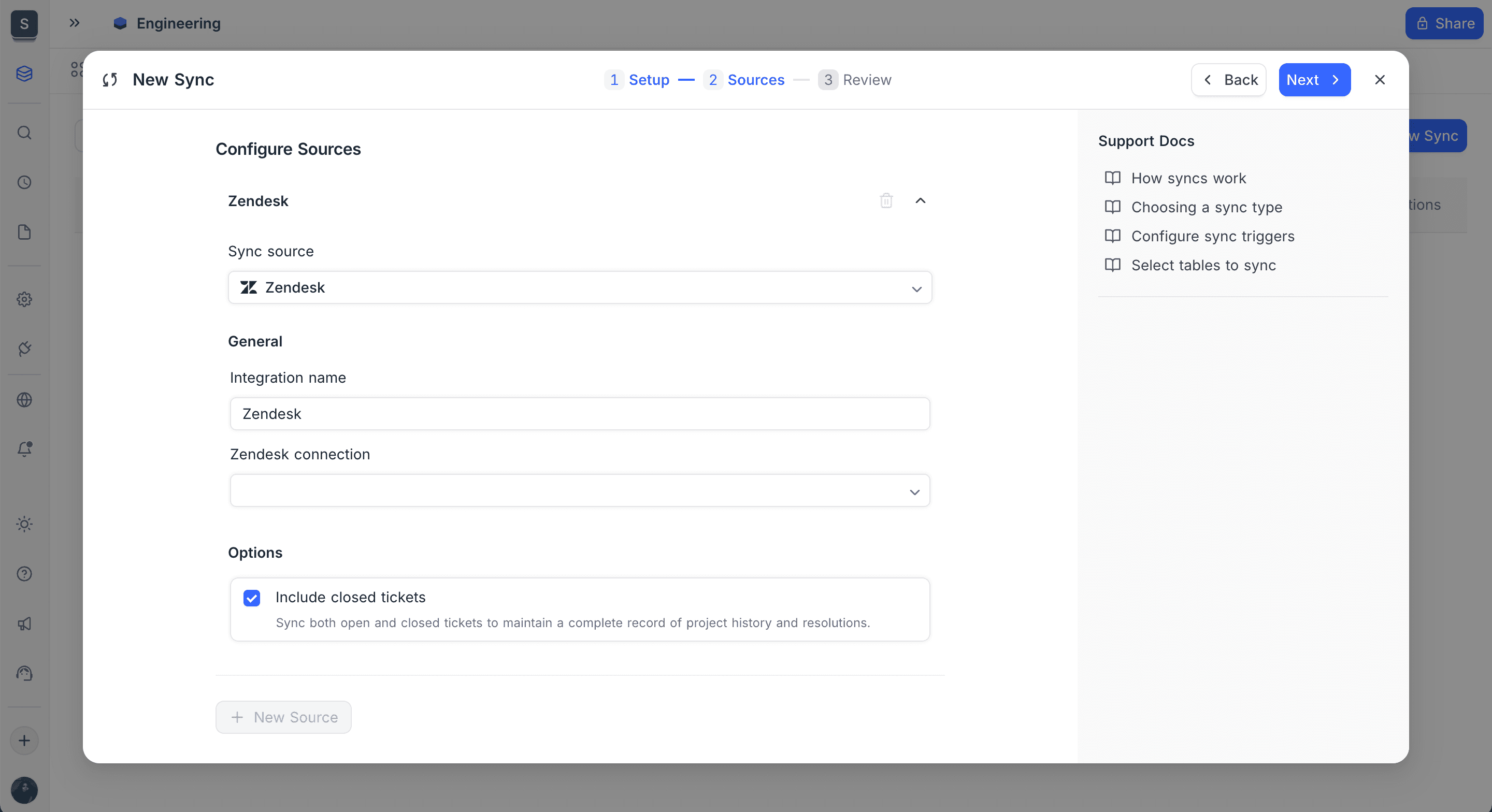
Zendesk integration brings your support operations into NocoDB. Your teams can analyze tickets, measure response trends and connect support data with internal workflows. App Sync keeps your Zendesk tickets updated in a structured format that you can query.
After you select Zendesk as the sync source, you can:
-
Connect using an existing Zendesk integration Authenticate one time and use the connection again in many sync configurations.
-
Define your integration name Give the sync a clear label in your workspace. This helps most when you manage many Zendesk accounts or environments.
-
Include closed tickets (optional) Sync open and closed tickets to keep a complete history of customer conversations, resolutions and team performance.
With Zendesk as a source, you keep all support data in one place. You can audit ticket history, build dashboards and compare support patterns with product issues. Teams can then make decisions earlier.
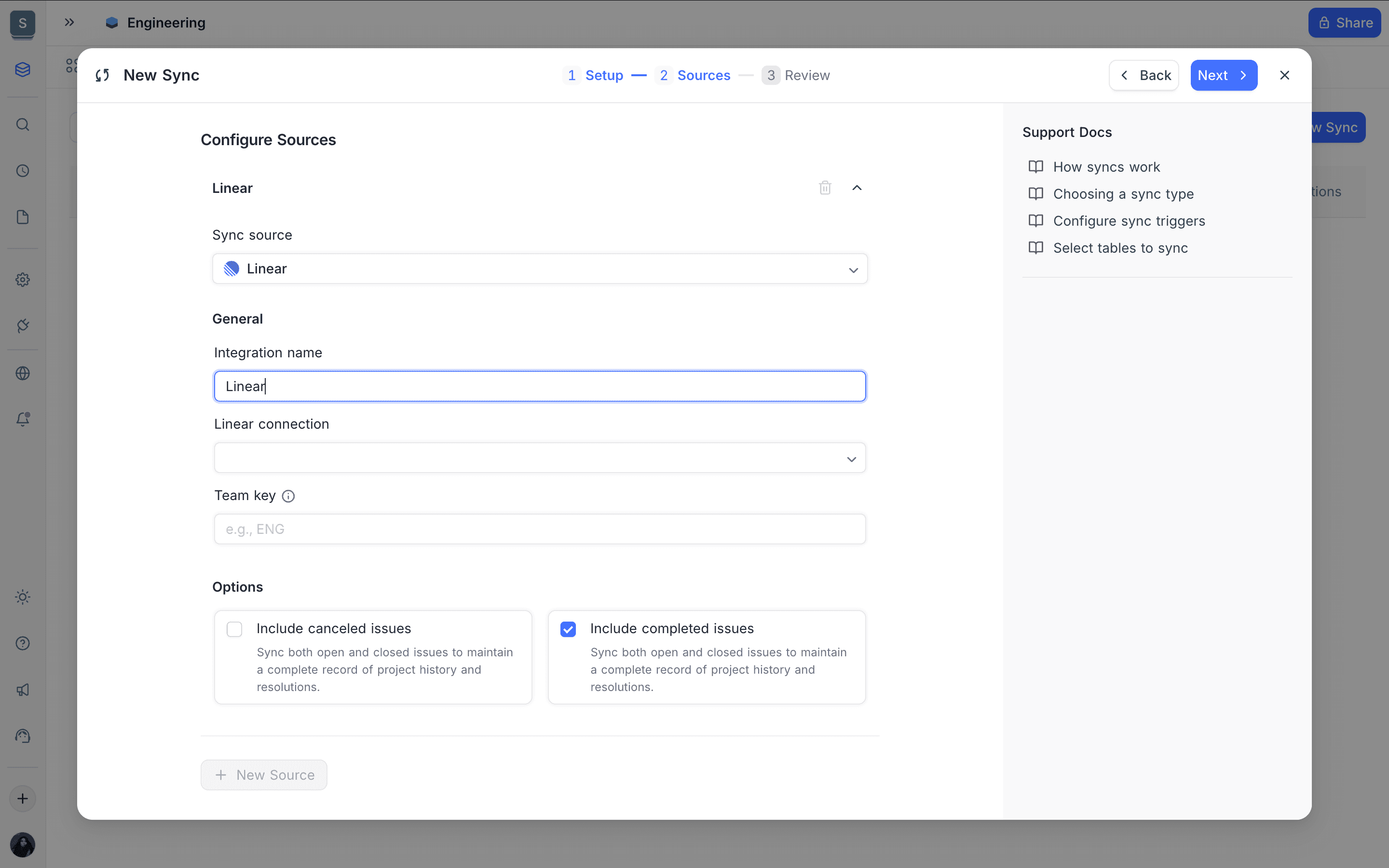
Linear
Linear sync brings your product, engineering and project workflows into NocoDB. You can analyze issues, track delivery patterns and build custom reports on your Linear data.
When you set up a Linear sync, you can:
-
Select your Linear connection Authenticate one time and use the connection again in different sync configurations.
-
Specify a team key Enter the Linear team identifier (for example, ENG) to get issues from one team. This keeps the data of different teams or departments separate. To find your team key, go to Linear → Settings → Teams, select your team, and copy the Team Identifier (for example, ENG).
-
Configure issue inclusion options
- Include canceled issues Sync canceled issues to keep a complete history of project changes and priority decisions.
- Include completed issues Sync completed issues for better analytics on delivery timelines, resolutions and sprint outcomes.
With Linear as a source, you keep product and engineering data in one place. Teams can compare progress with other tools, audit the issue lifecycle and build custom dashboards that show the real project progress.
Freshdesk
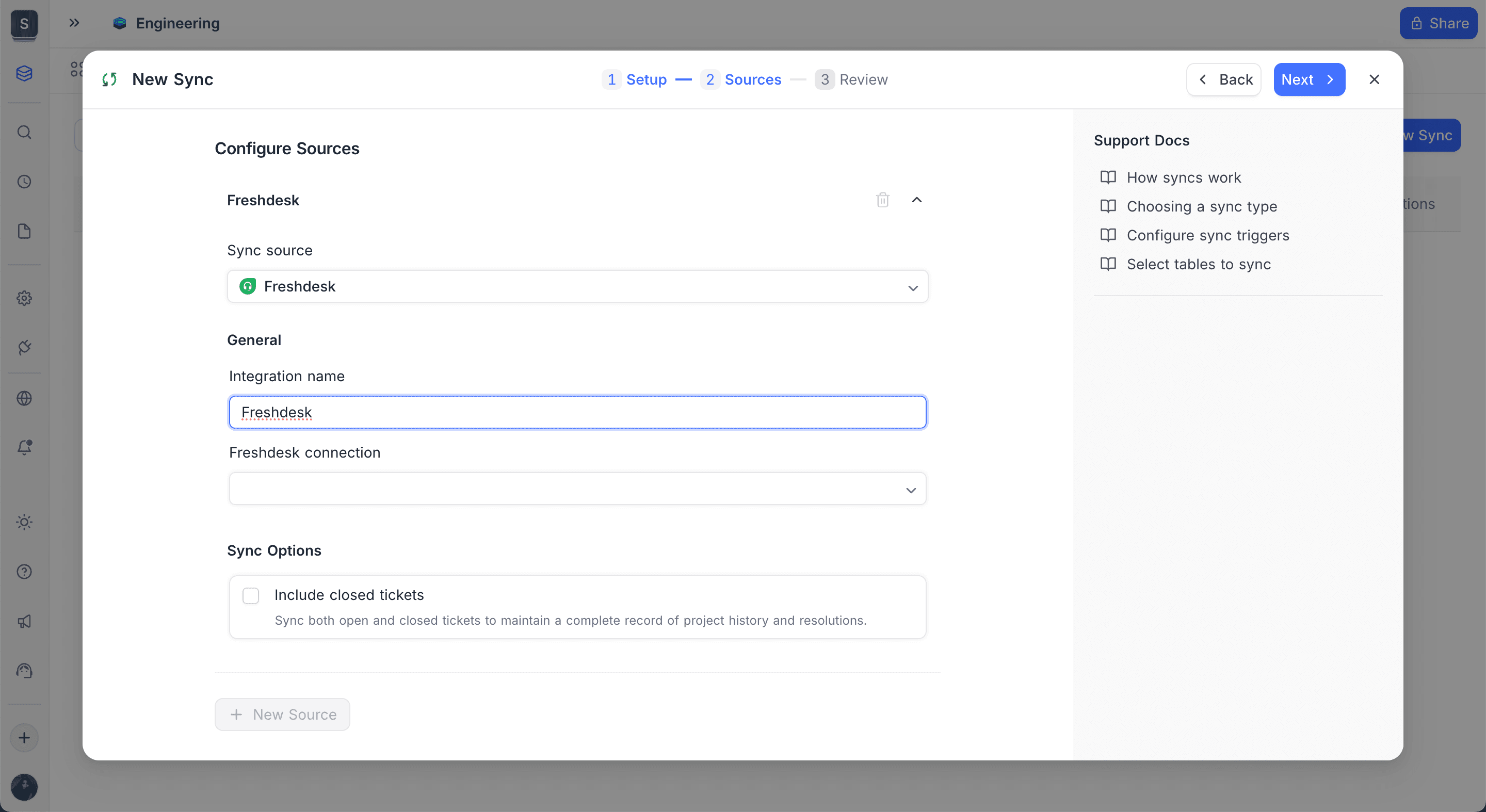
Freshdesk integration syncs your customer support tickets, agents and conversations into NocoDB. Your team can analyze support trends, measure performance and connect customer data with internal workflows.
When you configure a Freshdesk sync, you can:
-
Connect using an existing Freshdesk integration Authenticate one time and use the connection again in many sync configurations. You can also set up a new connection with your Freshdesk domain and API key.
-
Include closed tickets (optional) Sync open and closed tickets to keep a complete history of customer interactions and resolutions.
Bitbucket
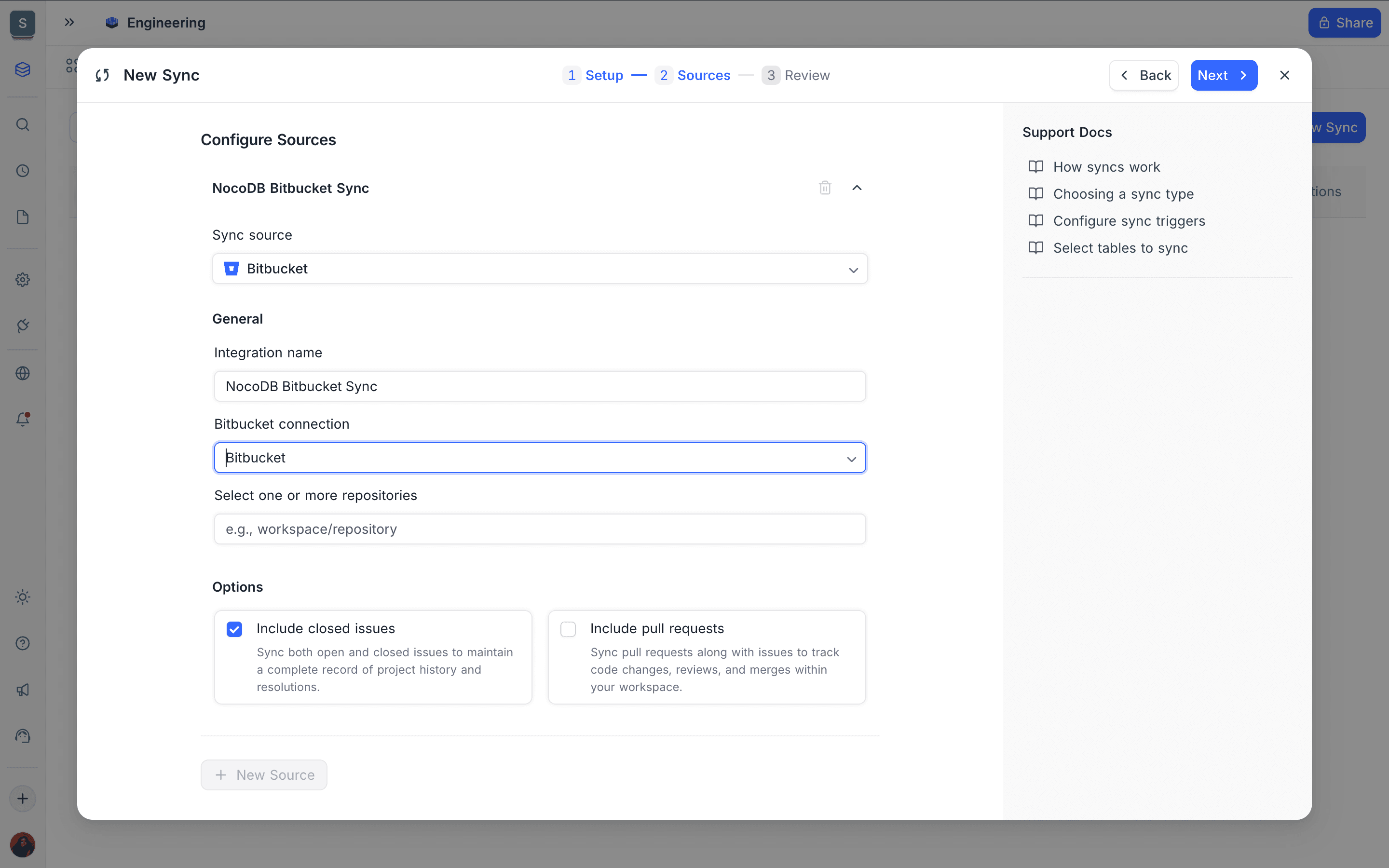
Bitbucket integration syncs issues, pull requests and related project activity into your NocoDB workspace. Your team can track development progress, analyze issue trends and build custom reports.
When you set up a Bitbucket sync, you can:
-
Connect using an existing Bitbucket integration Authenticate one time and use the connection again in many syncs. You can use OAuth or an App Password.
-
Choose one or more repositories Get data from any repository that you manage or collaborate on. You can select many repositories to collect their issues and pull requests in one NocoDB base.
-
Include closed issues (optional) Sync open and closed issues to keep a complete project history. The Ticket table marks the closed issues.
-
Sync pull requests (optional) Sync pull requests together with issues to track code reviews, merges and engineering workflows. Each pull request becomes a ticket with a different type.
Chatwoot
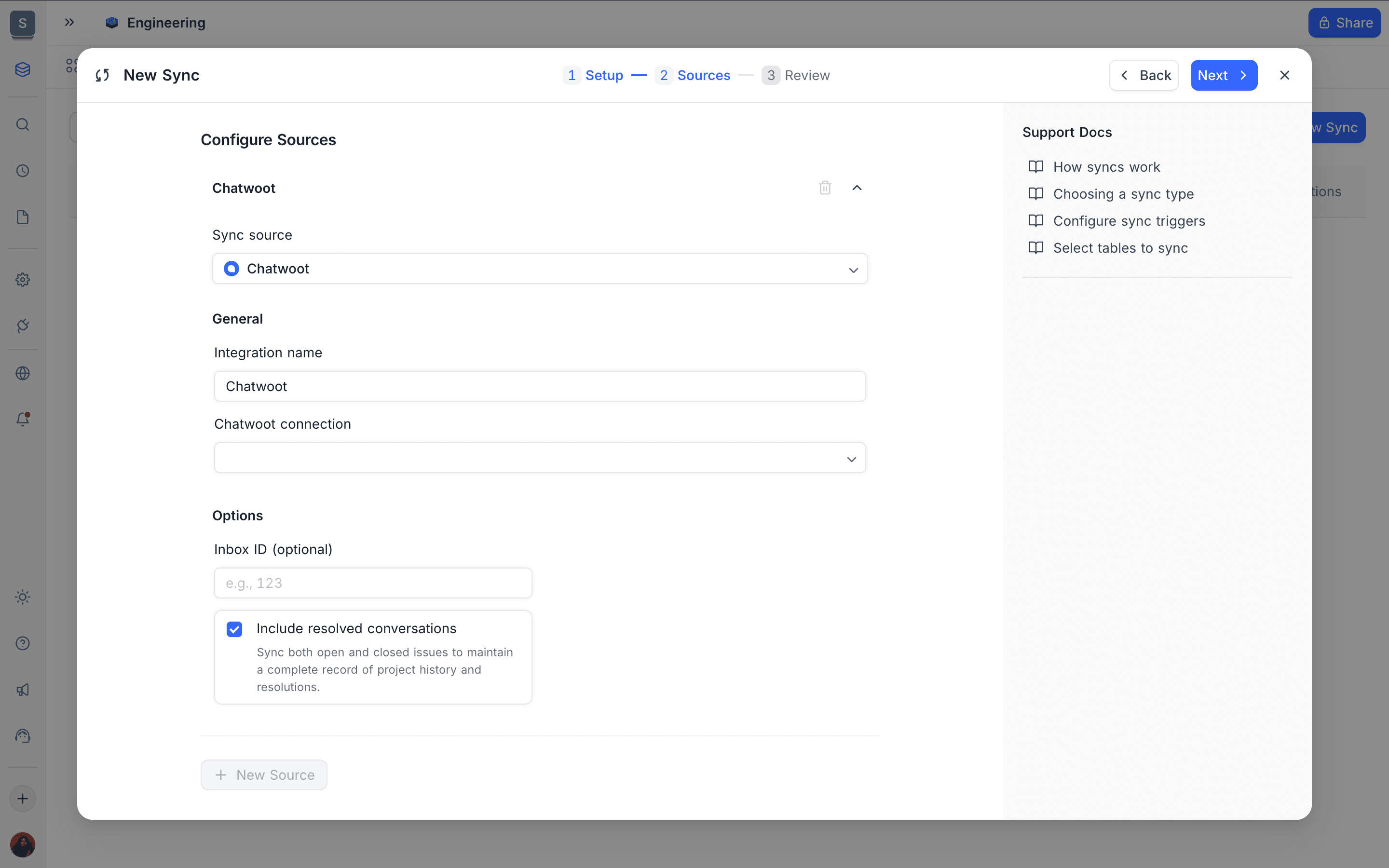
Chatwoot integration syncs conversations, messages, users and teams into NocoDB. Your team can analyze customer interactions, measure response trends and connect communication data with internal workflows.
When you configure a Chatwoot sync, you can:
-
Connect using an existing Chatwoot integration Authenticate one time and use the connection again in many sync configurations. You can also set up a new connection with your Chatwoot instance URL and API key.
-
Include resolved conversations (optional) Sync open and resolved conversations to keep a complete history of customer interactions and resolutions.
YouTrack
YouTrack integration syncs issues, comments and users from your YouTrack instance into NocoDB. You can report on backlog health, track resolution times and combine issue data with other tables.
When you configure a YouTrack sync, you can:
-
Connect using an existing YouTrack connection Authenticate one time with your YouTrack URL and a permanent token. Then use the connection again in many sync configurations.
-
Choose one or more projects Select from the projects that the token can access. The list does not show archived projects. Issues from all selected projects go into the same Ticket table.
-
Include resolved issues (optional) This option is on by default. Turn it off to sync only unresolved issues.
-
Add an additional query (optional) Use any YouTrack search query to limit the sync, for example
Type: Bug Subsystem: Backend. The sync applies the query together with the selected projects. -
Map custom field names Each YouTrack project has its own custom field names. Use these settings to tell the sync which custom field to read:
| Setting | Ticket value | Default |
|---|---|---|
| State field | Status | State |
| Priority field | Priority | Priority |
| Type field | Ticket Type | Type |
| Assignee field | Assignees | Assignee |
| Due date field | Due Date | Due Date |
Each issue becomes a Ticket. The readable issue ID (for example PROJ-42) becomes the Ticket Number, and the YouTrack tags go into Tags. Issue comments become Comments, linked to their Ticket. YouTrack users become Users, linked as Creator and Assignees.
Availability
- App Sync is available on NocoDB Cloud (Plus plan and above) and licensed self-hosted deployments (Business plan and above).
Last updated on