Calendar
Calendar Sync brings your calendar events into NocoDB as a structured table that you can query. Use it to build a schedule dashboard, report on meeting load, or join event data with the rest of your workspace. Calendar Sync keeps a read-only copy of your events up to date at all times.
Current supported sources include:
- Google Calendar
- Outlook Calendar
- CalDAV (Apple iCloud, Fastmail, Nextcloud, and other CalDAV servers)
All three sources use the same setup steps and make the same Event table. You can mix them in one base and report across them together. Each sync tracks one calendar. To bring in another calendar, add another sync.
Calendar Sync uses one Event table. Thus, setup has no All Tables / Select Tables choice. The Event table is always included, and App Sync makes no relationships.
Available Tables
Event
Represents one calendar event. Each synced event maps to one record. The initial sync expands recurring events into individual occurrences, so each occurrence shows as its own record.
Key fields include:
| Field | Description |
|---|---|
| Title | The event summary. This is the display (primary) field. |
| Start / End | The start and end date-time of the event. All-day events use dates without a time. |
| All Day | Checked when the event has no specific time (a full-day event). |
| Recurring Event | Checked when the record is an occurrence of a recurring series. |
| Recurring Event ID | The identifier that links an occurrence to its recurring series. |
| Status | The event status: confirmed, tentative, or cancelled. |
| Show as | Shows if the event marks you as Busy or Free. |
| Visibility | The event visibility: default, public, private, or confidential. |
| Event Type | The source event type, such as default, birthday, focusTime, fromGmail, outOfOffice, or workingLocation. (Google Calendar only.) |
| Location | The event location text. |
| Description | The event description or notes. |
| Creator / Organizer | The email addresses of the person who created the event and of the organizer. |
| Attendees | A comma-separated list of attendee names or emails. |
| Attendee Count | The number of attendees on the event. |
| My Response | Your RSVP status: needsAction, accepted, declined, or tentative. |
| Attachments | The titles and links of files attached to the event. (Google Calendar only.) |
| Created / Updated | When the event was created and last changed in the source. |
| Event ID / iCalUID | The source event identifiers. |
| Event Link | A direct link that opens the event in the source calendar. |
| Meeting Link | The video meeting URL (for example, a Google Meet link), when present. |
| Meeting Provider | The name of the conferencing solution, when present. |
| Color | The color identifier of the event from the source calendar. (Google Calendar and CalDAV; Outlook Calendar does not provide this.) |
The Event table has the same fields for every source. If a source does not give a value, App Sync creates the field but leaves it empty. Thus, views and formulas that you build on one calendar keep working when you add another calendar.
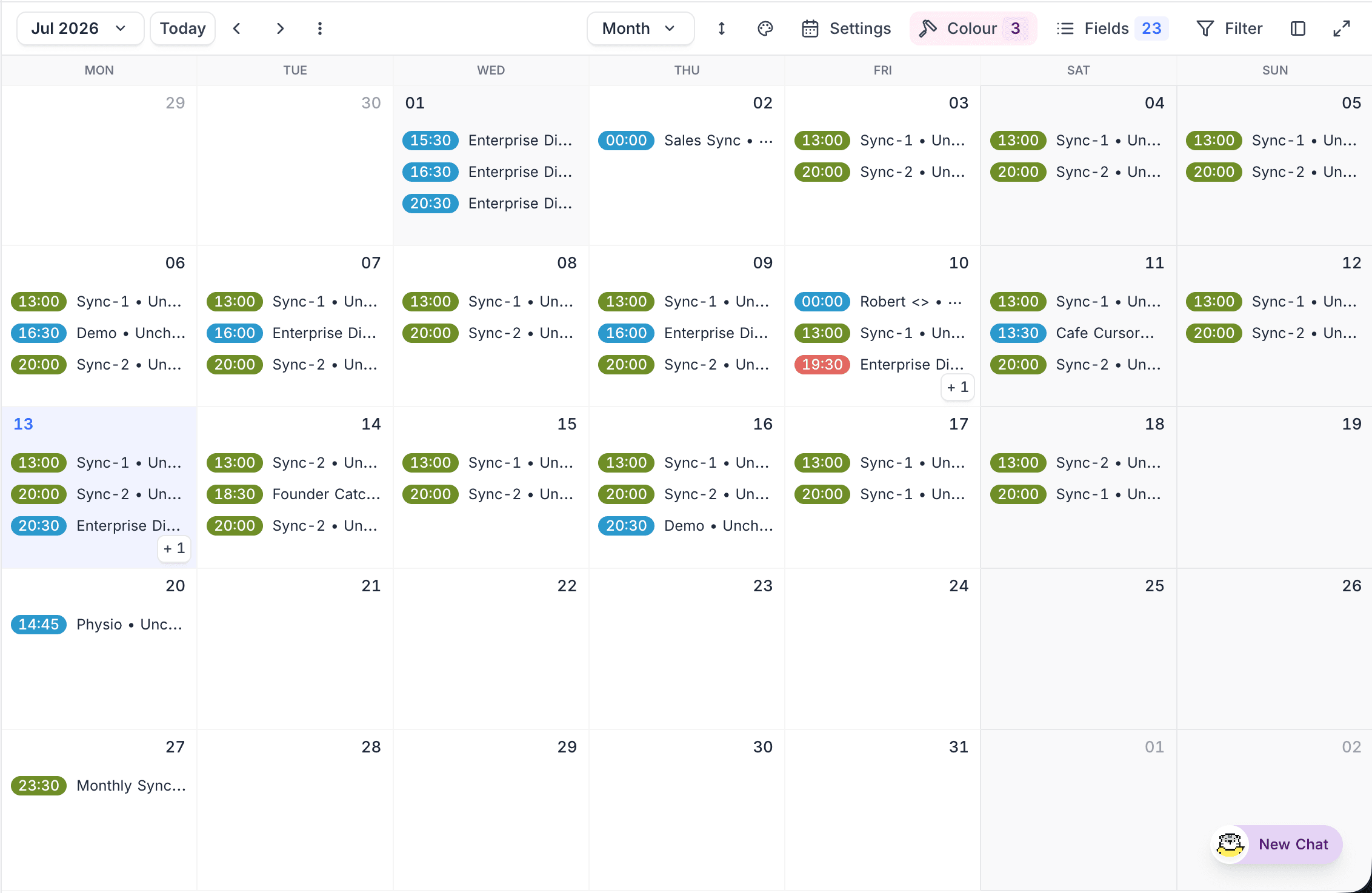
Calendar view and event button
On the first sync, Calendar Sync configures the Event table automatically, so you can use the synced events immediately:
- Calendar view – Calendar Sync creates a Calendar view with the name Calendar. The view is organized by the Start field and shows only the Title, so the timeline stays easy to read.
- Open Event button – An Open Event button field opens the Event Link of the event in the source calendar. Use it to go from a record directly to the original event.
Metadata Fields
Each synced record in the Calendar category includes a set of metadata fields. These fields track the lifecycle, state, and origin of each record. They show how data flows from the external source into NocoDB. They are important for traceability, debugging, and audit requirements.
App Sync manages these metadata fields automatically. They are read-only.
| Field | Description |
|---|---|
| RemoteId | The unique identifier of the event in the source calendar. |
| RemoteCreatedAt | The timestamp when the event was first created in the source. |
| RemoteUpdatedAt | The timestamp of the most recent update in the source. |
| RemoteDeleted | Shows if the event was deleted (cancelled) in the source calendar. App Sync uses this especially when the delete behavior is set to Ignore. |
| RemoteDeletedTime | The timestamp when the event was deleted in the source, if applicable. |
| RemoteRaw | The raw payload from the provider for that event. Use it for troubleshooting, verification, or advanced integrations. |
| RemoteNamespace | The source calendar that the event came from. |
| RemoteSyncedAt | The last timestamp when NocoDB synced this record. |
| SyncConfigId | An internal reference to the sync configuration for this record. |
| SyncRunId | The sync run that last updated this record. |
| SyncProvider | The external service (Google Calendar, Outlook Calendar, or CalDAV) that the record came from. This is useful when a base has events from more than one calendar source. |
Source Specific Details
Google Calendar
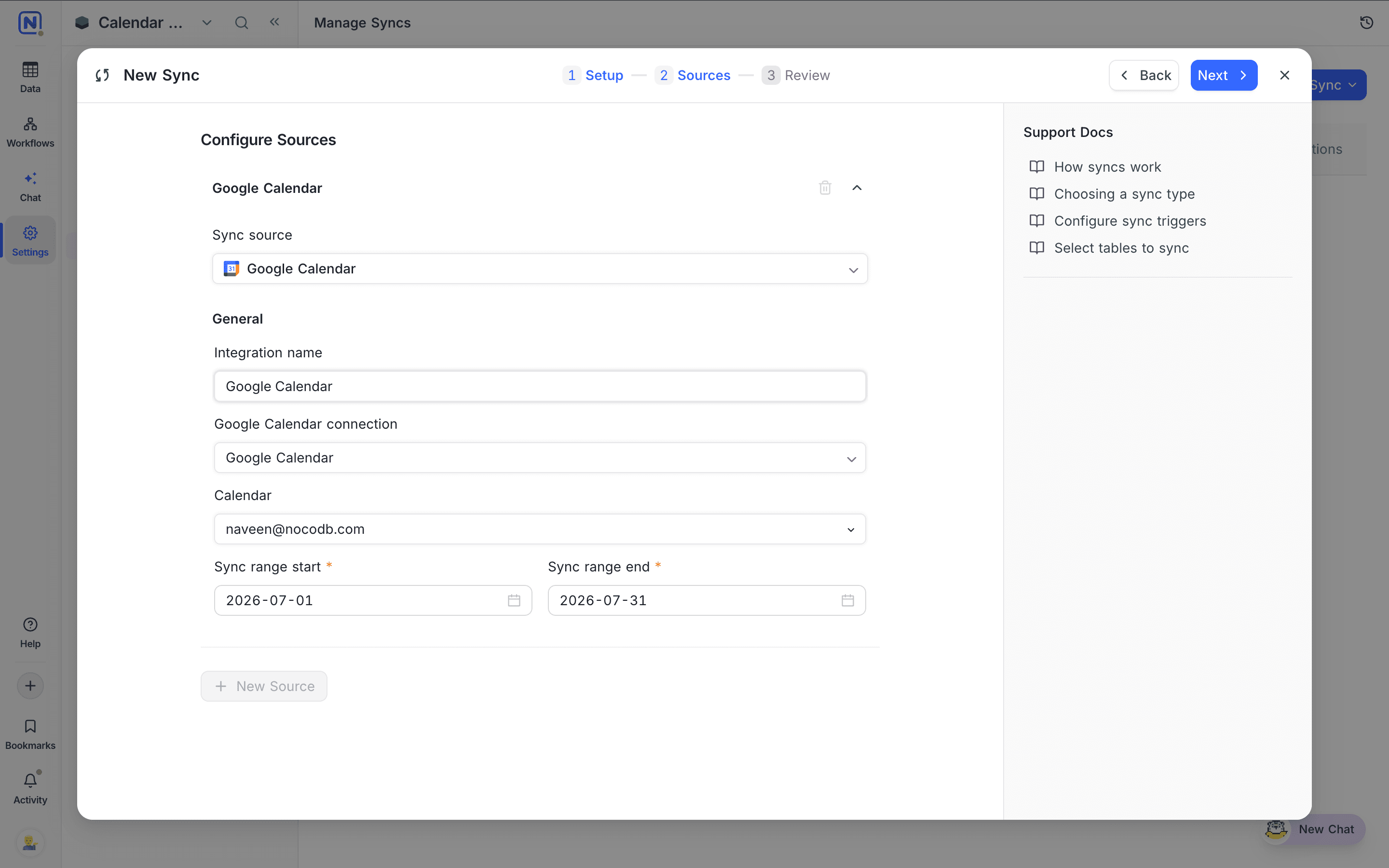
Use the Google Calendar integration to pull events from any calendar in your Google account into NocoDB. Connect your Google account one time and select the calendar to track. App Sync then keeps the Event table updated with the latest changes.
After you select Google Calendar as the sync source, configure these settings:
| Setting | Description |
|---|---|
| Integration name | A name for this sync source. It identifies the source in the sync configuration. |
| Google Calendar connection | Select an existing Google Calendar connection. Or create one: authenticate with Google (through OAuth). NocoDB asks for read-only access to your calendars. You can use the connection again in more than one sync. |
| Calendar | Select the calendar to sync from the calendars on your account, for example your primary calendar or a shared calendar that you can access. Each sync tracks one calendar. |
| Sync range start | App Sync syncs only events that end on or after this date. This sets the lower limit of the initial sync window. |
| Sync range end | App Sync syncs only events that start on or before this date. This sets the upper limit of the initial sync window. |
After the initial import, Google Calendar syncs incrementally. Each run asks Google only for the changes since the previous run, including cancellations. If you make the sync range wider later, the next run does a new full import. This import gets the newly included events.
Outlook Calendar
The Outlook Calendar integration pulls events from any calendar in your Microsoft account, including work and school accounts. Connect one time and select a calendar. App Sync then keeps the Event table up to date.
After you select Outlook Calendar as the sync source, configure these settings:
| Setting | Description |
|---|---|
| Integration name | A name for this sync source. It identifies the source in the sync configuration. |
| Outlook Calendar connection | Select an existing Outlook Calendar connection. Or create one: authenticate with Microsoft (through OAuth). NocoDB asks for read-only access to your calendars. You can use the connection again in more than one sync. Personal Microsoft accounts and work or school accounts are both supported. |
| Calendar | Select the calendar to sync from the calendars on your account. Each sync tracks one calendar. |
| Sync range start | App Sync syncs only events that end on or after this date. |
| Sync range end | App Sync syncs only events that start on or before this date. |
Like Google Calendar, Outlook Calendar syncs incrementally after the initial import. Later runs transfer only the events that changed.
CalDAV
CalDAV is an open calendar standard. Apple iCloud, Fastmail, Nextcloud, and many other providers support it. Use it to sync a calendar from any CalDAV server, including servers that have no dedicated NocoDB integration.
After you select CalDAV as the sync source, configure an Integration name, a CalDAV connection, a Calendar, and a Sync range start and Sync range end. These are the same as for the other sources.
A CalDAV connection does not use OAuth, as Google and Outlook do. When you create a CalDAV connection, you give a server URL and credentials:
| Setting | Description |
|---|---|
| Server URL | The base URL of the CalDAV server. The default is Apple iCloud (https://caldav.icloud.com). For Fastmail, Nextcloud, and others, replace it with the URL of your provider. |
| Username | The account username, usually your email address (for example you@icloud.com). |
| App-specific password | CalDAV providers usually require an app-specific password, not your normal account password. For iCloud, generate one at appleid.apple.com. iCloud rejects a regular Apple ID password. |
Availability
- App Sync is available on NocoDB Cloud (Plus plan and above) and licensed self-hosted deployments (Business plan and above).
Last updated on