App Sync
App Sync is a built-in integration layer in NocoDB. Use it to bring data from external systems directly into your workspace. It syncs records from third-party platforms and keeps your NocoDB tables updated at all times. You do not need manual imports or custom scripts.
App Sync currently supports six categories:
| Category | What it syncs |
|---|---|
| Ticketing | Issues, tickets, and related activity from platforms such as GitHub, GitLab, Bitbucket, Zendesk, Linear, Freshdesk, Chatwoot, and YouTrack. |
| HRIS | Employee data from HR systems such as BambooHR. |
| CRM | Account, contact, and user data from CRM platforms such as HubSpot. |
| File Storage | File and folder metadata from Google Drive, Dropbox, and Box. |
| Calendar | Calendar events from Google Calendar, Outlook Calendar, and CalDAV servers such as Apple iCloud, Fastmail, and Nextcloud. |
| Custom | Mirrors tables from your own PostgreSQL, MySQL, or Microsoft SQL Server databases. You have full control over which tables and columns sync. (Custom requires the Business plan and above, on both NocoDB Cloud and self-hosted deployments.) |
Future releases will add more sync categories, such as Accounting and ATS (Applicant Tracking System). These will add to the types of systems that you can bring into NocoDB.
App Sync is simple to set up, supports scheduled syncs, and is highly reliable. Thus, your workspace always shows the most recent data from your external sources. App Sync is flexible, scalable, and easy to use for technical and non-technical users.
How Sync Works
App Sync uses predefined schemas for each category, such as Ticketing. This gives the same structure across all supported sources. When you configure a sync, App Sync automatically creates more than one table (such as Ticket, User, Comment, and Team for Ticketing). App Sync also creates all necessary relationships between these tables automatically. These mirror the hierarchy and links of the connected source system.
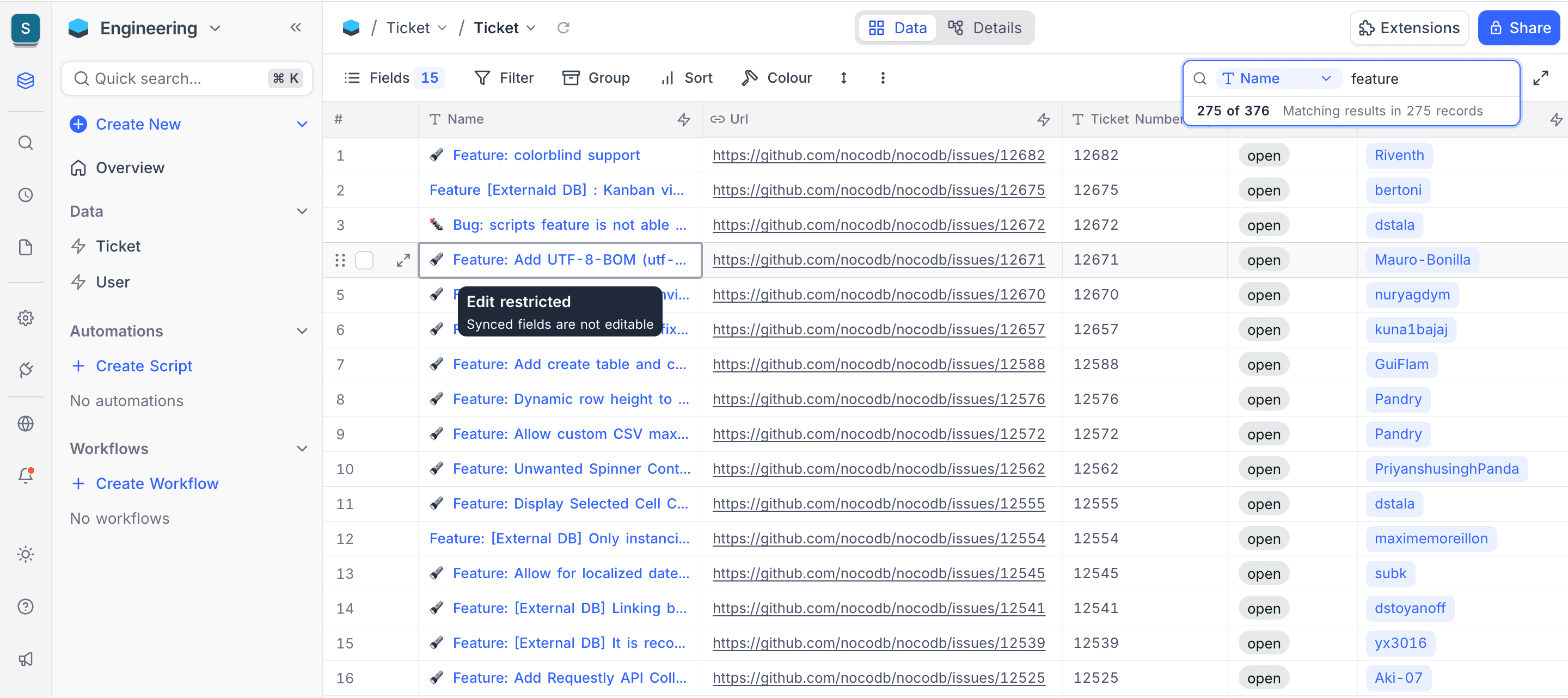
Sync table fields that App Sync creates are read-only, because the sync is strictly one-way: from the source system into NocoDB. Fields from the external source have a flash icon (⚡), and you cannot remove them. You also cannot delete sync tables.
The schema for each sync category is predefined, but the available fields can be different for each source. Different platforms use different names, or do not give all fields. App Sync maps the available fields from the source to the predefined schema, so the structure stays the same.
You can extend sync tables with your own custom fields. Apart from the read-only synced fields, sync tables work like regular NocoDB tables. You can share them with collaborators, use them in views, and link them to other tables.
Currently, each sync category supports one external source at a time. When multi-source support comes, NocoDB will act as a Unified API layer across all connected systems. You will then query, analyze, and build on data from many platforms through one consistent interface. This will make integrations much simpler and make App Sync more powerful in complex environments.
Sync fields fully support standard operations, such as filtering, sorting, grouping, and searching. You can create views, dashboards, and reports with synced data, as with any other NocoDB table.
Sync Types
App Sync has two sync modes that manage how data is fetched from external platforms. Use them to balance performance, accuracy, and API usage for your operational needs.
Incremental Sync
Incremental sync gets only the records that were created or updated since the last successful sync. This gives faster sync cycles, minimal load on the external source, and less API usage. Thus, it is the recommended option for routine, scheduled syncs. Incremental sync tracks the timestamps or version markers that the source system gives.
Full Sync
Full sync imports the entire dataset from the external source again during each run. Use this mode when historical data needs correction. Also use it when the source system does not reliably give incremental change information. Full sync makes sure that data is completely accurate. But it takes more time and can use many resources, especially for large datasets. Use it occasionally, or together with incremental sync.
Sync Trigger
Use two trigger modes to control when App Sync syncs data: manual and scheduled.
Manual Sync
Manual sync lets you start the sync on demand. Use it when you want immediate updates. For example: after you change the configuration, when you test a new integration, or when you verify data after you change fields or relationships. Manual sync gives you full control, and you do not wait for the next scheduled run.
Scheduled Sync
Scheduled sync updates data automatically at regular intervals. Your NocoDB tables stay current without manual work. Scheduled sync supports these frequencies:
| Frequency | Description |
|---|---|
| Every 15 minutes | Keeps near-realtime mirrors of sources that change fast. Available on the self-hosted Enterprise plan. |
| Hourly | Runs one time every hour. Use it for active systems where data changes frequently. |
| Daily | Runs one time every 24 hours. Use it for datasets that change less, or for reporting use cases. |
Source Record Delete Handling
This setting controls what NocoDB does when a record is deleted in the external source. Use it to keep records for history, or to keep your tables exactly the same as the source system.
Ignore
When the setting is Ignore, NocoDB retains the record, even if it is deleted at the source. App Sync does not remove the record. It marks the record to show that it was deleted in the external system. Use this mode to keep the full history and continuous reports. It also prevents broken dependencies with linked records.
Delete
When the setting is Delete, NocoDB removes records in sync tables when they are deleted at the source. This option keeps your NocoDB tables fully synchronized and consistent with the external platform.
Add new Sync
To add a new App Sync integration to your base, do these steps:
- On the base overview page, open the
Synctab. - Click the
+ New Syncbutton.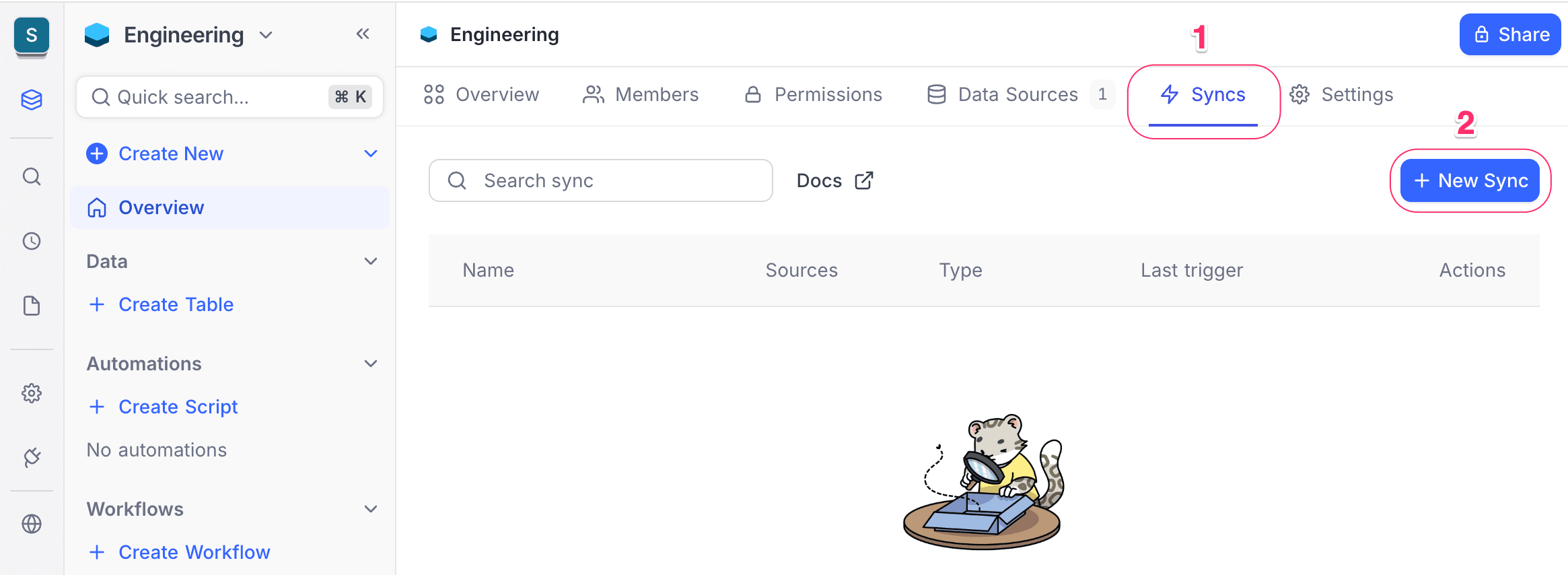
- Sync Setup : General configurations
- Sync name: Type a name for your sync integration.
- Sync type: Select Incremental or Full sync mode.
- Sync trigger: Select Manual or Scheduled sync. For a scheduled sync, select the frequency.
- On delete: Select Ignore or Delete. This sets what happens when records are deleted at the source.
- Sync Setup : Category & Sync scope
- Select a category: Ticketing, HRIS, CRM, File Storage, Calendar, or Custom to sync from an external database.
- For predefined-schema categories, select All Tables or Select Tables. App Sync always includes the essential tables (such as Ticket and User for Ticketing). Some categories (such as Calendar) have only one table, so this choice does not appear.
- For Custom syncs, one more Schema step appears after the source step. In this step, you map the columns of each table to NocoDB field types. For the full procedure, refer to Custom Sync.
- Click the
Nextbutton.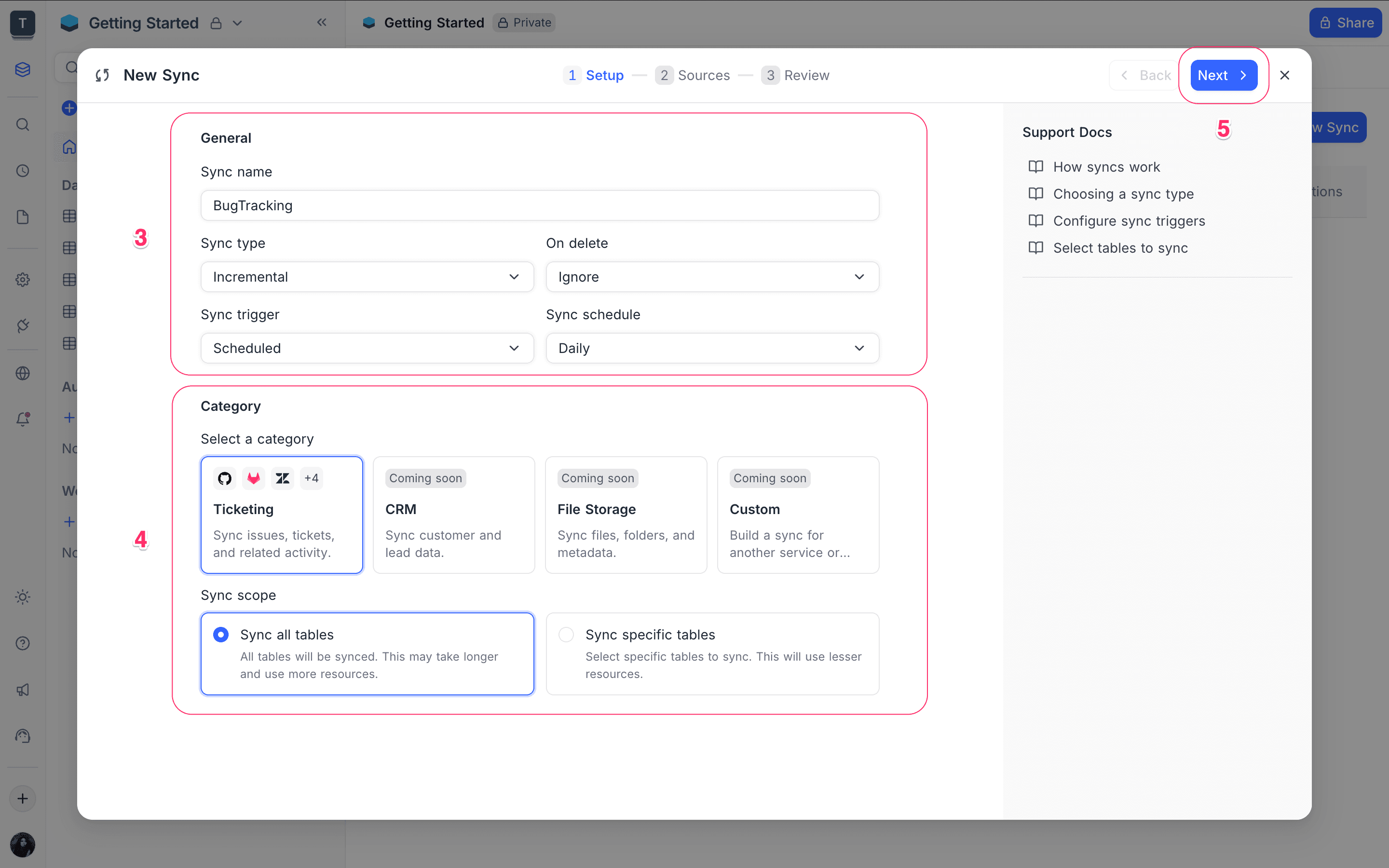
- Sync Source
- Select the external platform to connect with.
- (Optional) Type a name for the integration.
- Authenticate NocoDB and give it access to your data on the selected platform. Create a new connection, or select an existing one for the integration source. Generate API tokens or OAuth credentials, as the platform requires.
- More configuration options can appear for the selected source. For example, you can specify repositories for Git-based platforms, or select projects for ticketing systems.
- Click the
Nextbutton.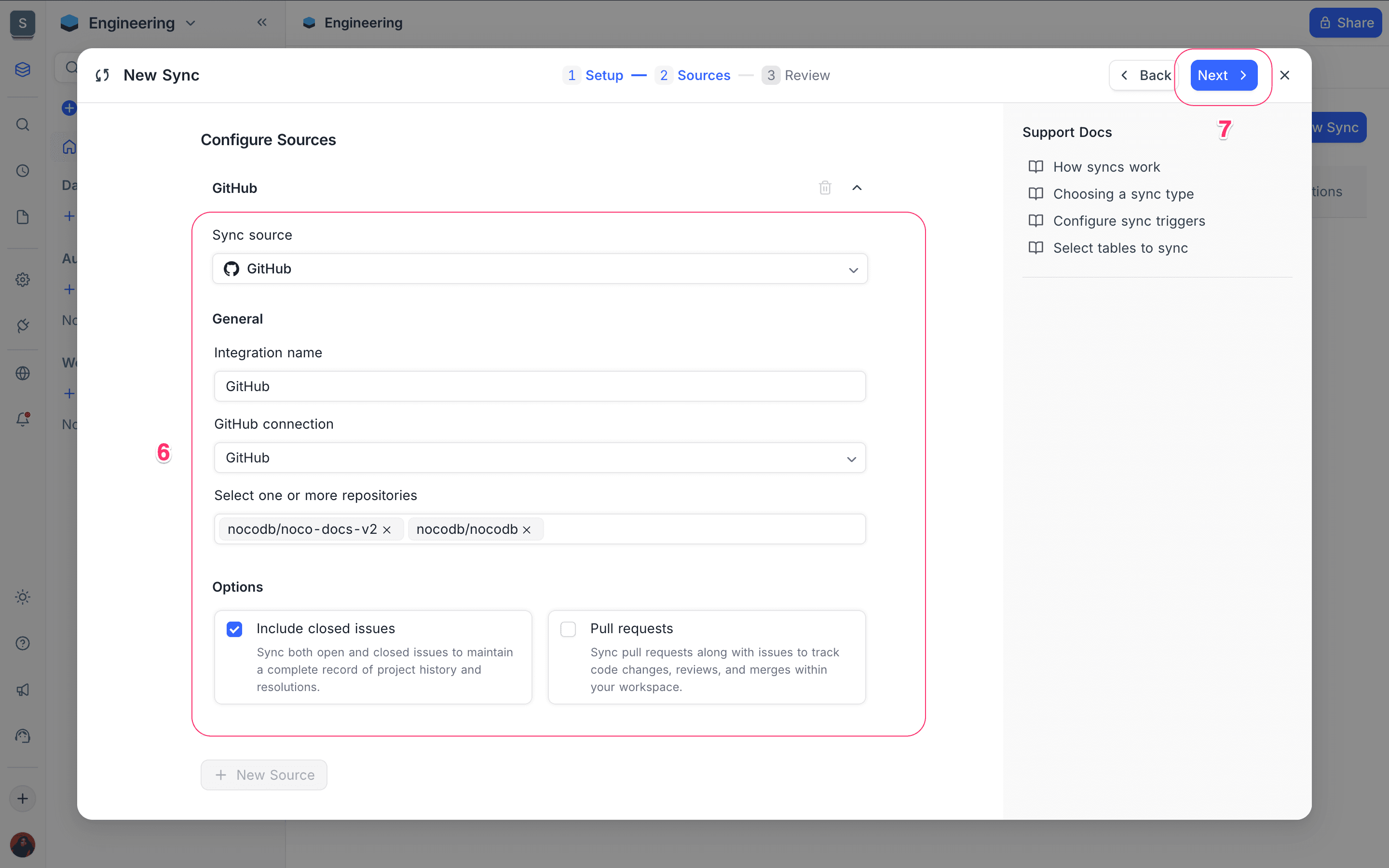
- Sync Review
- Review all configurations from the previous steps.
- If all configurations are correct, click the
Create Syncbutton. NocoDB creates the sync.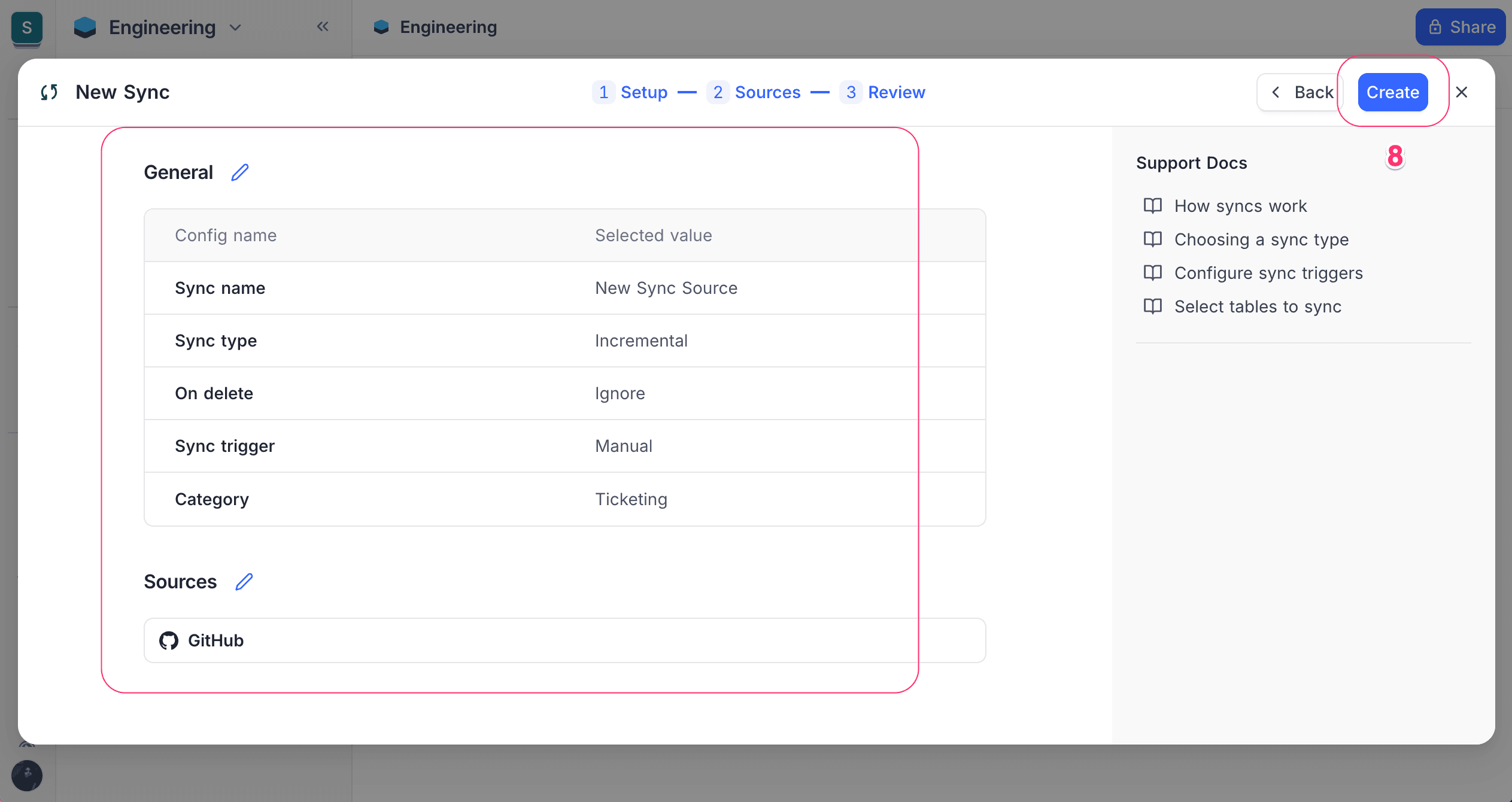
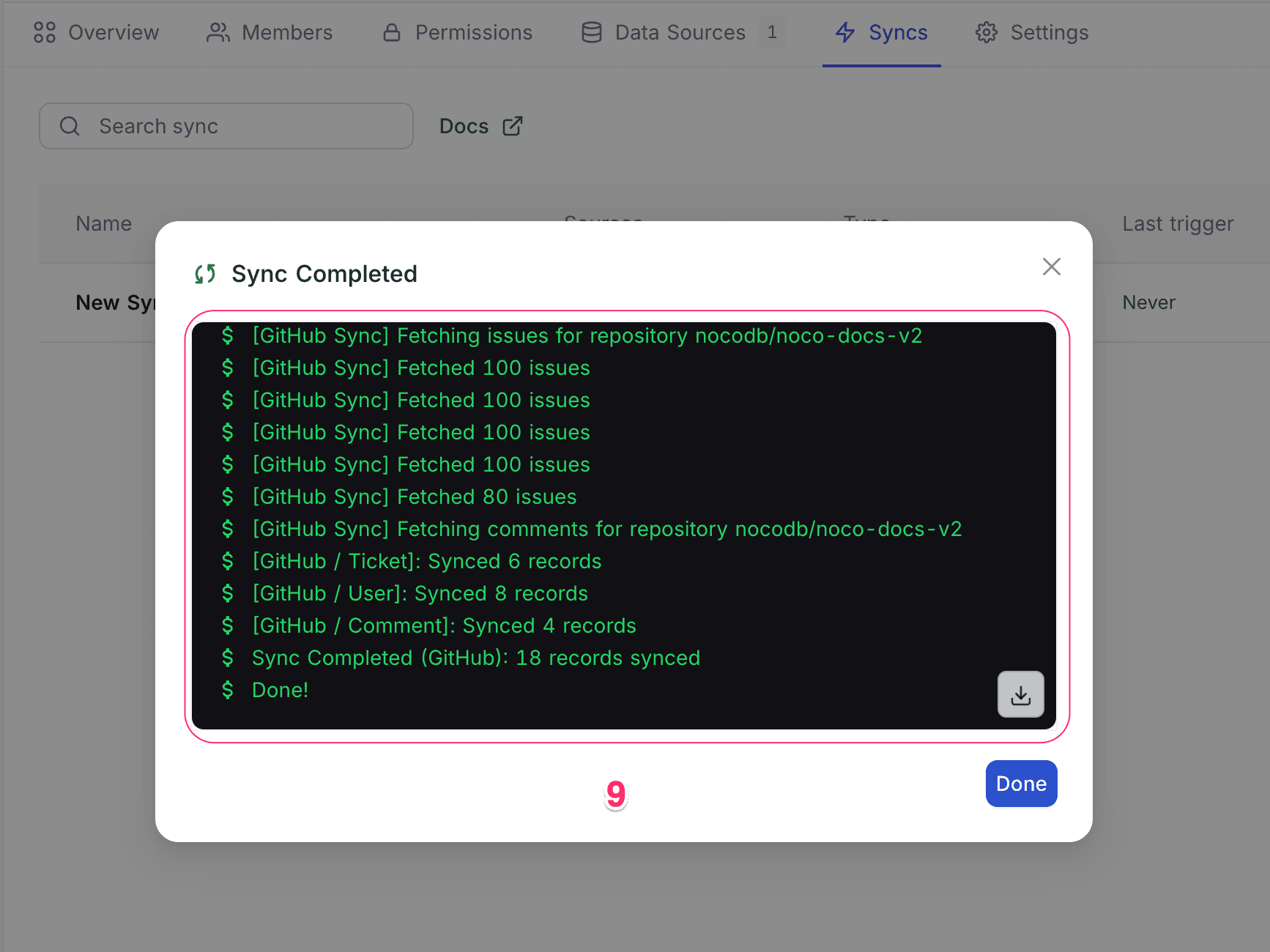
- Logs show the progress of the initial sync. When the sync is complete, the sync tables are available in your base.
Edit Sync
To edit an existing App Sync integration, open the sync tab from the base overview page. Then do these steps:
- Click the sync that you want to edit.
- Change the configurations in the sync setup or sync source steps. You cannot change some fields after you create the sync, such as Sync category & Sync scope.
- Click the
Update Syncbutton. NocoDB applies the changes.
Delete Sync
To delete an existing App Sync integration, open the sync tab from the base overview page. Then do these steps:
- Click the
Actionsbutton of the sync that you want to delete. - In the dropdown menu, select
Delete Sync. - Select what happens to the destination tables:
- Convert to plain tables: NocoDB keeps the synced data and unlocks the tables, so you can edit them. It removes only the sync configuration.
- Delete synced tables: NocoDB deletes the sync tables and removes the sync configuration.
Availability
- App Sync is available on NocoDB Cloud (Plus plan and above) and licensed self-hosted deployments (Business plan and above).
Related
- NocoDB Sync: mirror a Grid view from another NocoDB base
Last updated on