Upload Data from CSV
Overview
The Upload data from CSV extension in NocoDB imports data from CSV files directly into existing tables. Use it to add new records and update existing records. You can also map CSV columns to NocoDB fields precisely.
Importing Data
Modes of Import
The Import CSV Extension has two modes of data import:
1. Add Records: Imports all records from the CSV file as new entries in the selected table. It does not change existing records.
2. Merge Records: Updates existing records that match on a merge field (a unique field used for matching). It can also add new records. This mode has these options:
| Option | What it does |
|---|---|
| Create New Records Only | Adds only new records from the CSV. It does not update existing records. It uses the merge field to find which records are new. |
| Update Existing Records Only | Updates only records that are already in the table, matched on the merge field. It does not add new records. |
| Create and Update Records | Adds new records and updates existing records as necessary, matched on the merge field. |
Merge Field: The merge field is the key field that matches records in the CSV file with records in the NocoDB table for updates. Usually, this is the Primary Key or another unique identifier. Composite keys are not supported.
Field Mapping: Map CSV columns to the related fields in the NocoDB table. You can import only the fields that you need.
Steps to Import
To import data from a CSV file into NocoDB:
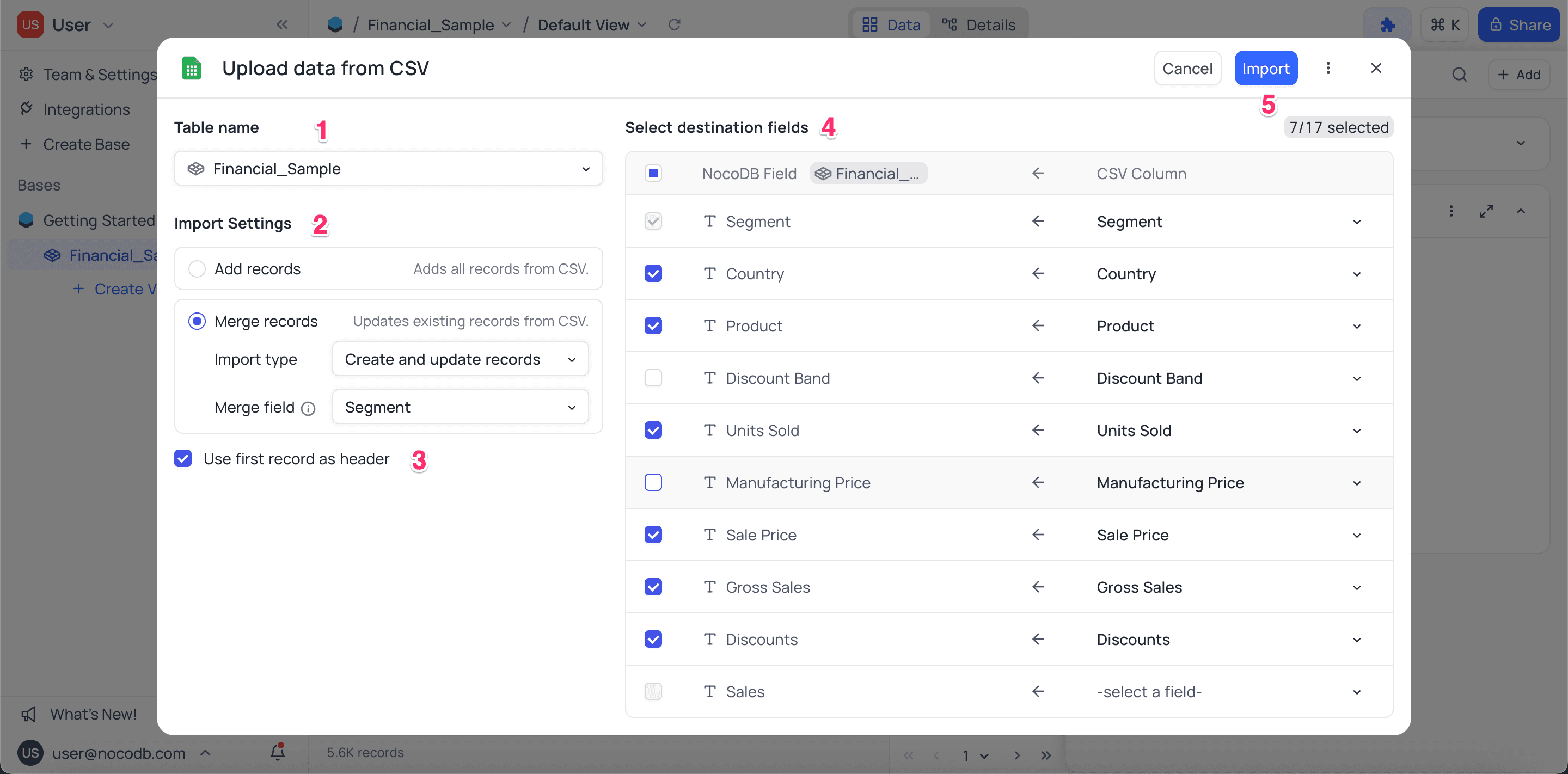
- Drag your CSV file into the Import CSV Extension area, or upload it.
- Select the table to import the data into. By default, the current active table is selected.
- Select the mode of import:
- Add Records or
- Merge Records with one of the following Import Types:
- Create New Records Only
- Update Existing Records Only
- Create and Update Records
- Set the Merge Field (for Merge Records mode): Select the field that matches CSV records with existing table records.
- Use first record as header: If the first row of the CSV file has the column headers, enable this option. The headers then become the field names.
- Map the columns from the CSV file to the related fields in the NocoDB table.
- Click the Import button. The import starts.
Post-Import Summary
When the import is complete, NocoDB shows a summary with:
- The number of new records added
- The number of existing records updated
- Any records left unchanged
This process imports your data accurately and efficiently.
Last updated on