Page Designer
Overview
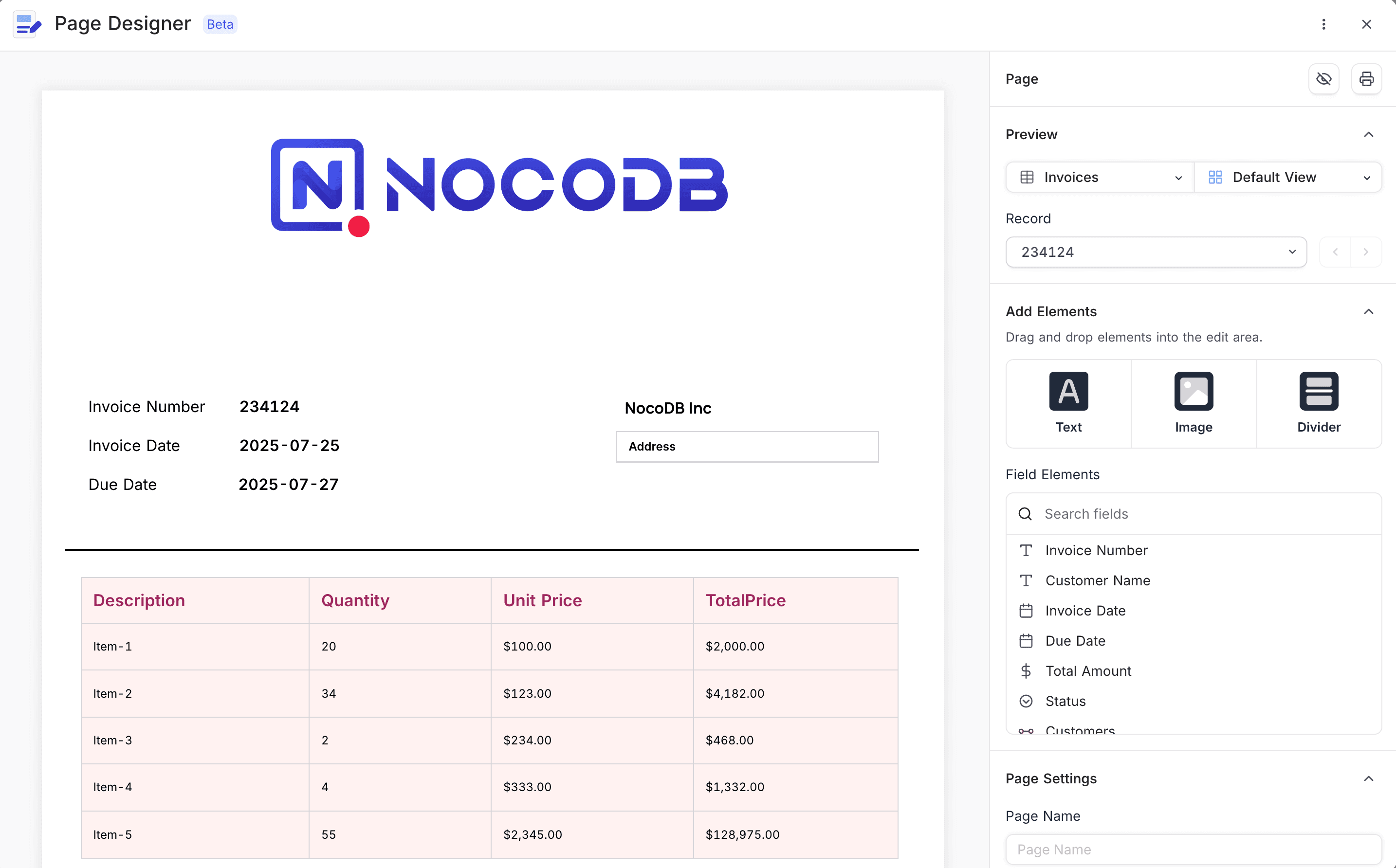
The Page Designer extension makes printable and shareable (PDF) visual layouts from your database records. You put text, images and dynamic field data together on a freeform design canvas. Frequent uses are invoices, reports, certificates and summaries.
Use this feature to change structured table data into branded, formatted documents in NocoDB.
Key Features
- Drag-and-drop Builder: Add text, images, tables and dividers to customize your page layout.
- Record-specific Rendering: Fields fill automatically with data from the selected record.
- Supports Linked Records: Show data from related tables as a table, a list or inline text.
- Full Design Control: Change the font, alignment, borders, colors and more for each element.
- Print & PDF Export: Preview your design and export it directly to PDF.
How to Access
To start:
- In your NocoDB instance, open Page Designer from the Extensions menu.
- Select the table and view that supply the records.
- Select a record. Use it to preview and design the layout interactively.
Designing Your Page
The canvas on the left shows a preview of your document layout. Use the sidebar on the right to add and arrange elements.
Add Elements
To add components to your layout, drag them onto the canvas:
| Element | Description |
|---|---|
| 🅰️ Text | Add static or dynamic text (linked to table fields). |
| 🖼️ Image | Add image blocks, such as logos or banners. |
| ➖ Divider | Insert horizontal lines for visual separation. |
Bind Field Data
Under Field Elements, drag database fields onto the canvas. On the canvas, these fields fill automatically with values from the selected record. To format these fields, use the sidebar options (font size, color, alignment and others).
Field Configuration
For most field types, you can set:
| Setting | Description |
|---|---|
| Font settings | Customize font family, size, line height, and color |
| Alignment | Set horizontal and vertical alignment |
| Border & Radius | Add borders and set corner radius |
| Background color | Set background color for the field |
Linked Records
Use the Linked Records section to show related table data in one of three formats:
- Inline: Shows the data as plain text.
- List: Shows the entries in a vertical list.
- Table : Shows fields from the related table as a structured table with columns and rows.
For linked records in table format, you can select which fields to show and customize their visibility.
Table Configuration
| Column | Options |
|---|---|
| Enable/Disable fields | Toggle visibility per field |
| Font settings | Customize font family, size, line height, and color |
| Table Header styling | Set separate font size and line height for headers |
| Background color | Set background color for the table |
Record Preview
Use the Record selector in the sidebar to change between records. You can then preview the design with real data.
Page Settings
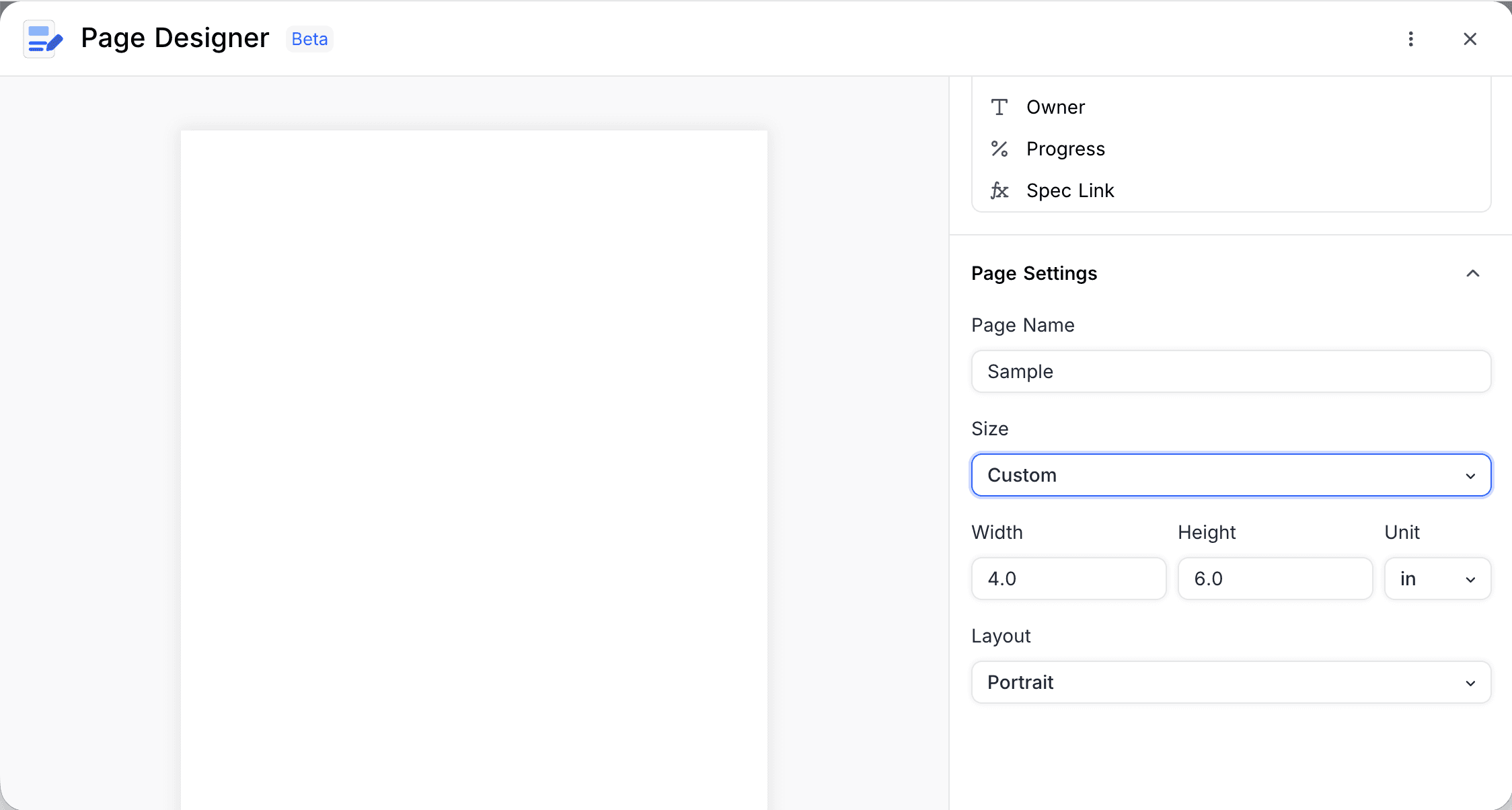
- Page Name: Give your page a name that is easy to find. Page Designer uses this name when you export or print.
- Page Size: Select a preset page size. Or select the Custom page type and enter your own Width and Height. Use the unit selector to set the dimensions in inches or centimetres.
- Print / Export: To make PDFs or printouts, use the print icon in the top-right corner.
Managing Designs
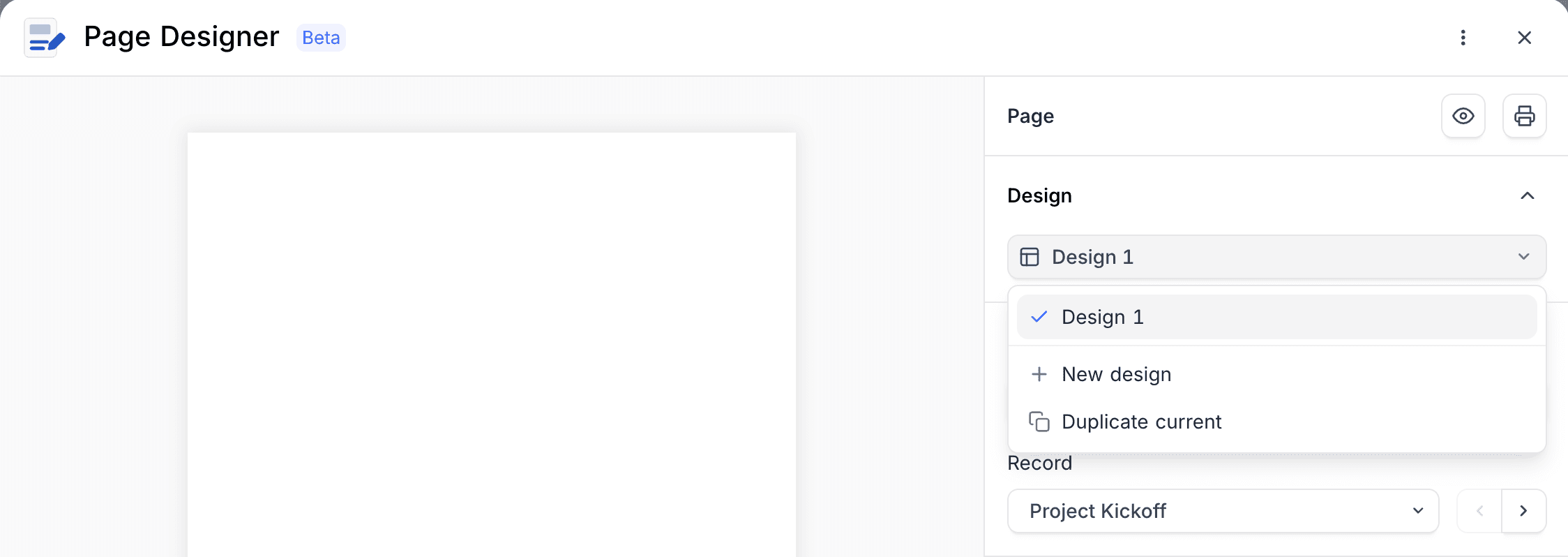
You can keep several named designs in one Page Designer instance. To change between them, use the design switcher dropdown. In the dropdown, you can do these actions:
- Switch designs: Select a different saved design. It loads onto the canvas.
- New design: Start a new design. Your existing designs stay.
- Duplicate current: Make a copy of the current design to use as a starting point.
Key Use Cases
- 🧾 Invoices & Quotes
- 📄 Client Reports & Status Sheets
- 🎓 Certificates & Badges
- 📊 Internal Summaries for review meetings
Limitations (Beta)
- The Page Designer is in Beta. Small rendering problems can occur in some browsers. Help us improve it: report the bugs that you find and send your suggestions.
Last updated on