Text
This page gives the configuration options of the Text widget in NocoDB dashboards. This widget shows descriptions, instructions, notes, or disclaimers. Use it to add context or guidance next to your charts.
Ask NocoAI
Copy a prompt, paste it into NocoAI in any base, and replace the words in [brackets] with your own.
- Add a text widget at the top that explains what this dashboard tracks
- Add a text widget with a heading for each section of this dashboard
- Update the text widget to include [who to contact about this data]
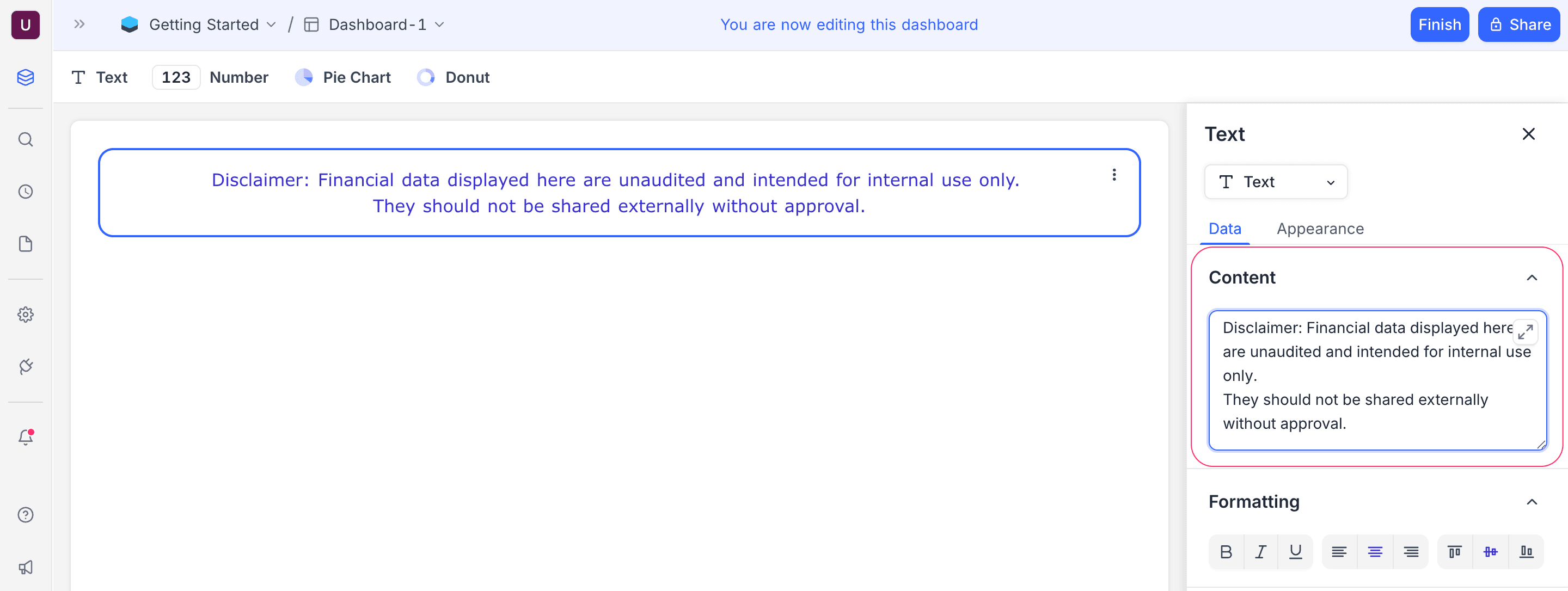
Content
Type the text to show. For example:
- Instructions for dashboard users
- Explanatory notes for data insights
- Compliance or legal disclaimers
- Motivational or status updates for teams
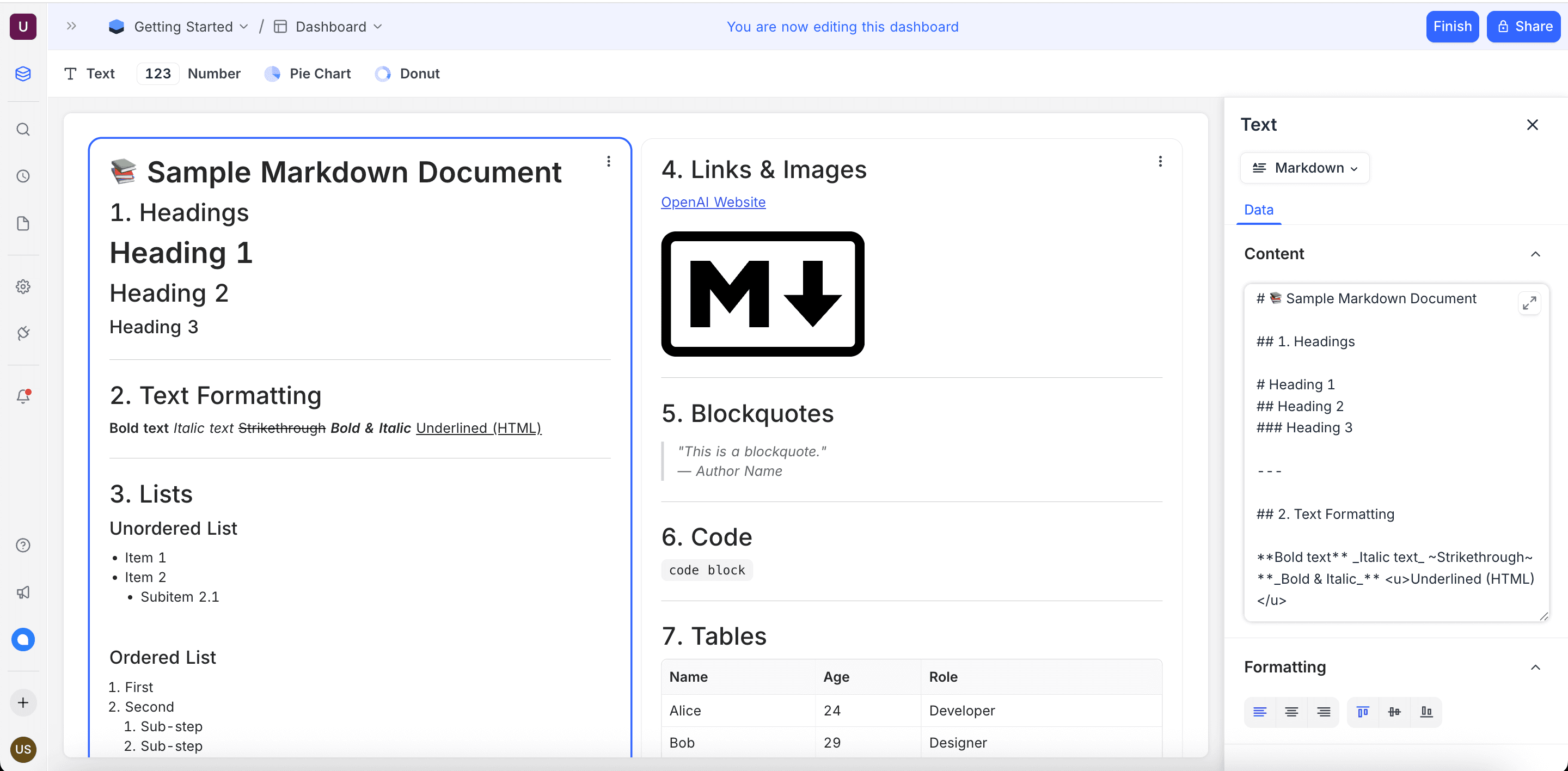
Select one of two content modes:
- Markdown: Use markdown syntax for headings, lists, links, images, blockquotes, code, and tables. For the supported markdown syntax, refer to the Markdown Guide.
- Text: Use the inline editor to style the text directly.
Formatting
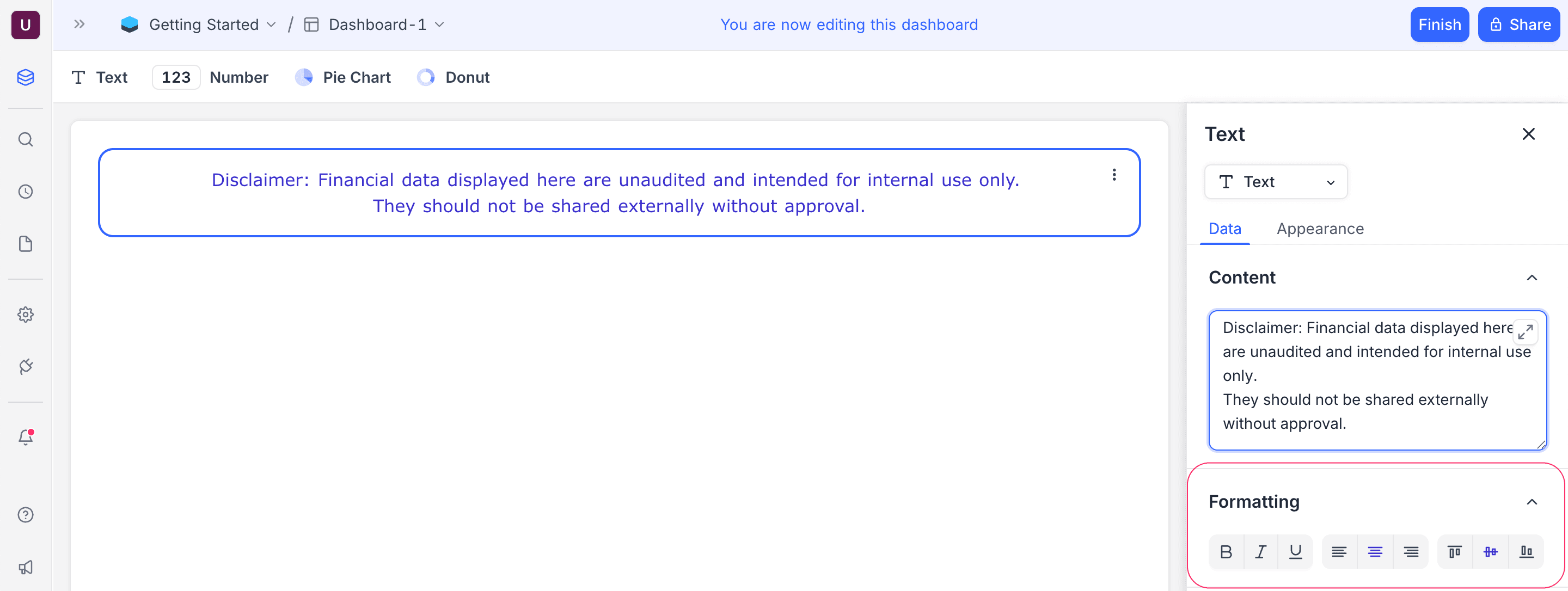
Use the inline editor to style your text:
- Bold, Italic, and underline for emphasis.
- Horizontal alignment (left, center, right).
- Vertical alignment (top, middle, bottom).
Appearance
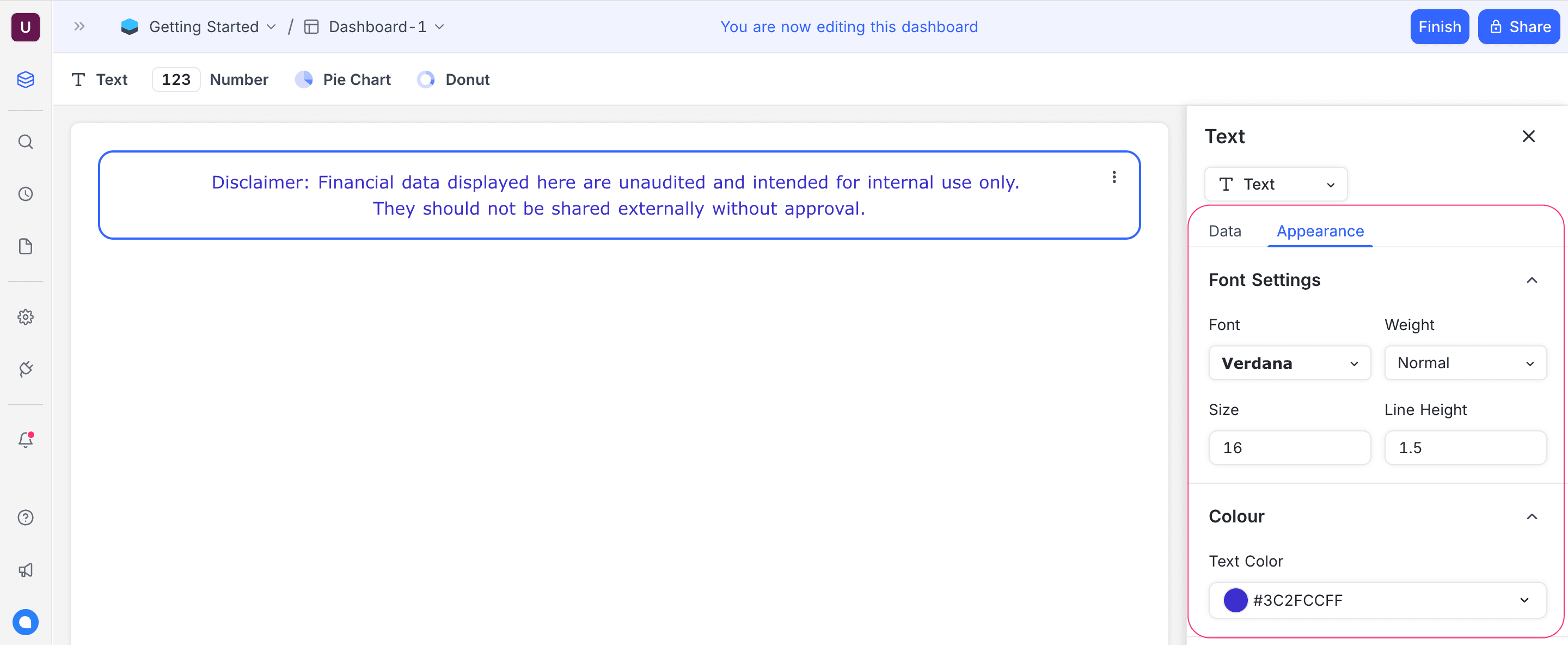
Change how the text shows in the widget:
Appearance options are available only when the content mode is set to Text.
- Font: Select a font family.
- Weight: Set the text thickness (for example, Light, Medium, Bold).
- Size: Set the font size for your layout.
- Line Height: Set the space between lines, to make the text easier to read.
- Text Color: Select a color to highlight your content.
Last updated on
Latest product updates?See Changelog