Workspace Collaboration
Workspace collaboration in NocoDB controls who can use a workspace. You add people as members or as teams, and each member or team gets a workspace role. The role sets what they can do in the workspace and in its bases.
Invite Members to Workspace
Invite members to a NocoDB workspace from the Members page.
- In the workspace sidebar, click Invite Members. The Members page opens.
- Click Add Members. The Invite to Workspace dialog opens.
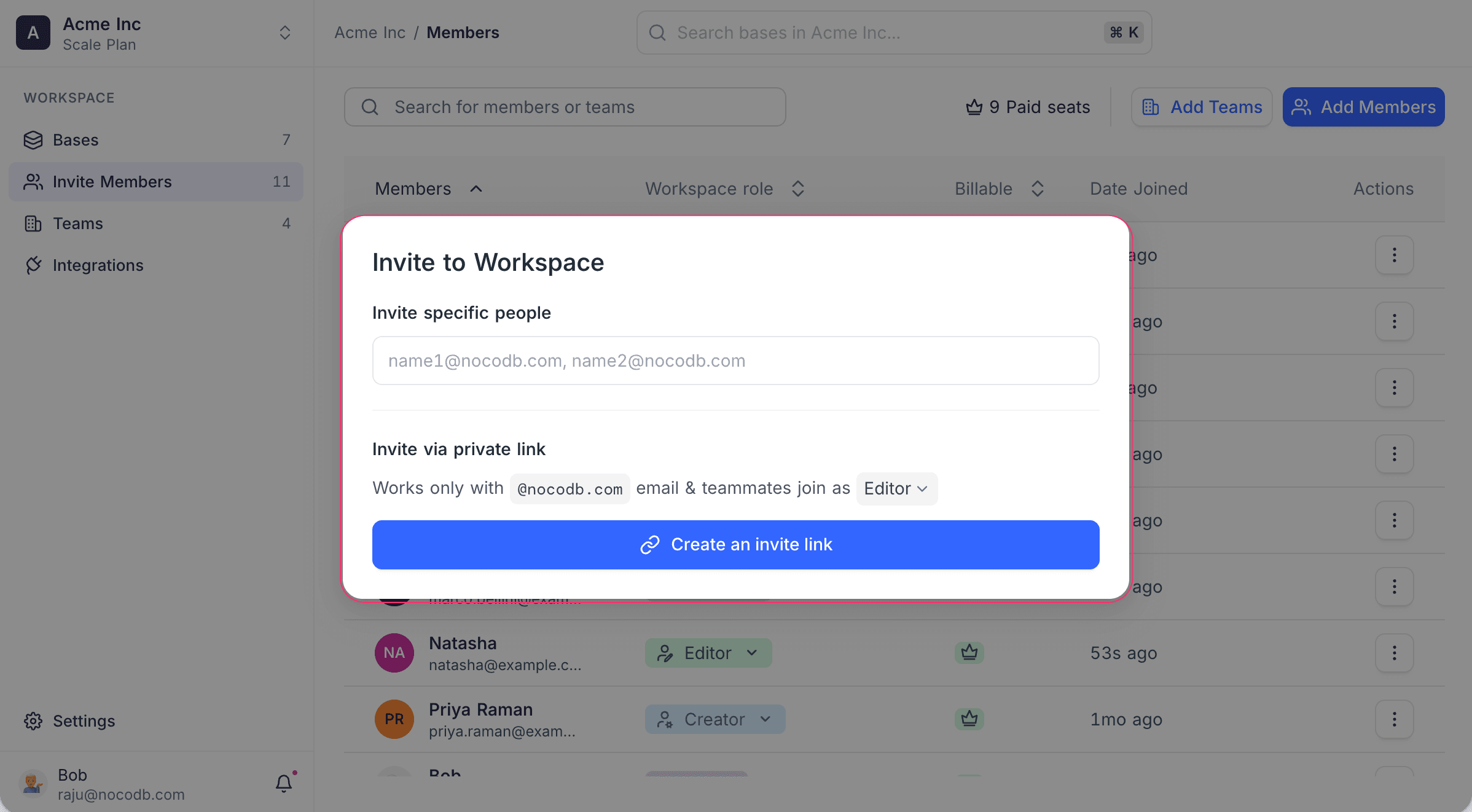
- Click the field below Invite specific people.
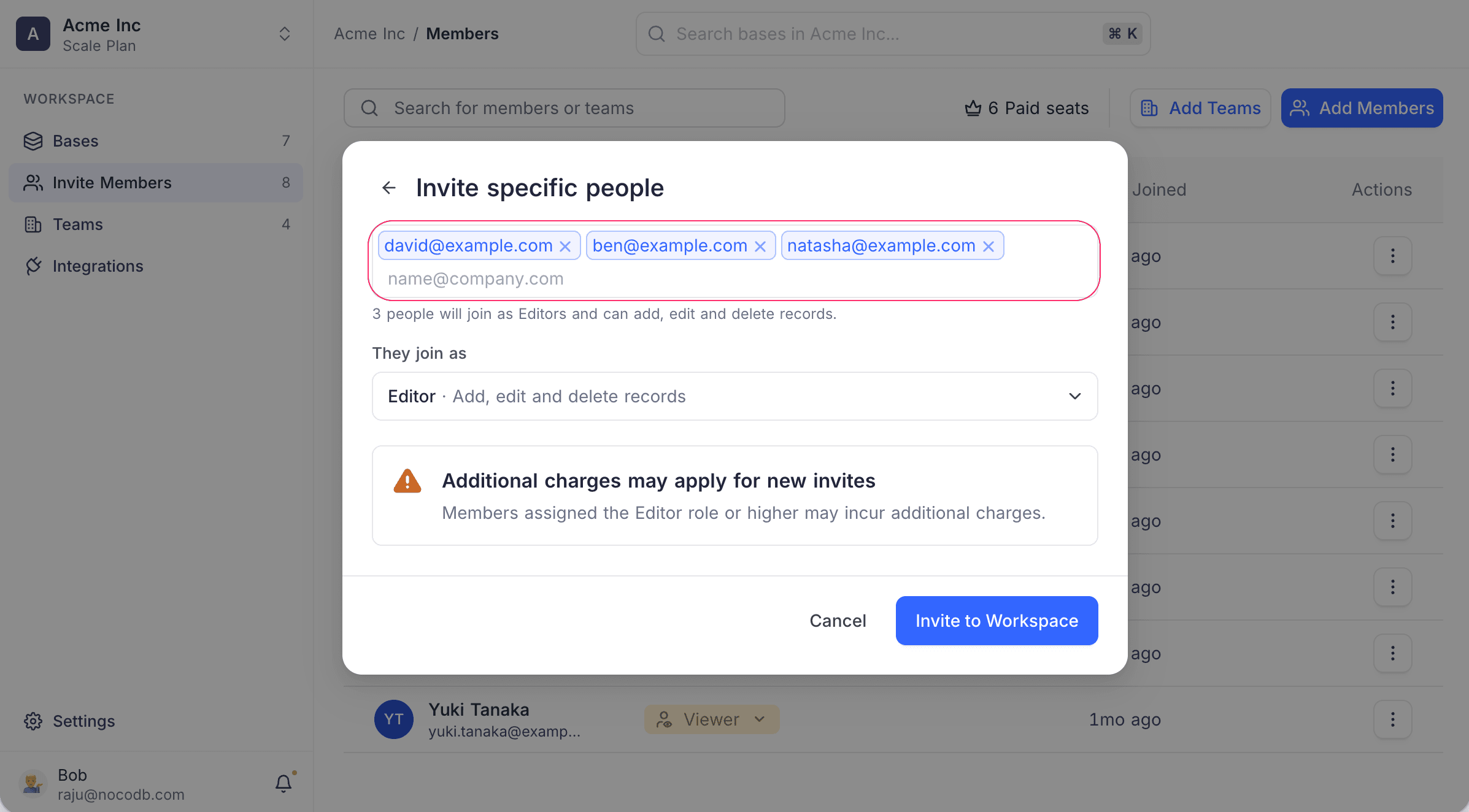
- Type one or more email addresses.
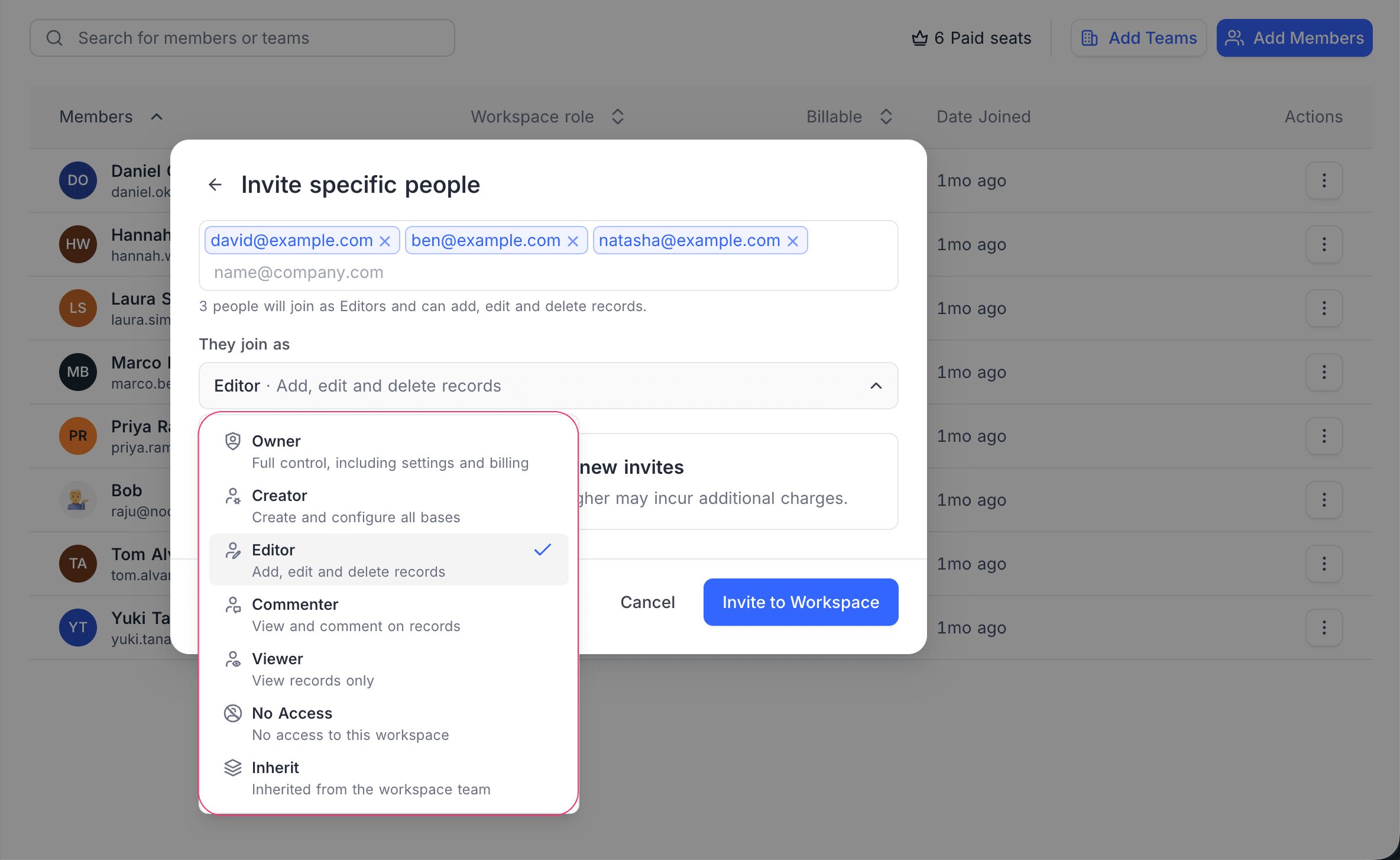
- Below They join as, select a role. All people in this invite get this role.
- Click Invite to Workspace.
To invite many people with one link, use Invite via private link in the same dialog. Refer to invite links.
Invite Teams to Workspace ☁
A team invite gives one workspace role to all members of a NocoDB team.
- In the workspace sidebar, click Invite Members. The Members page opens.
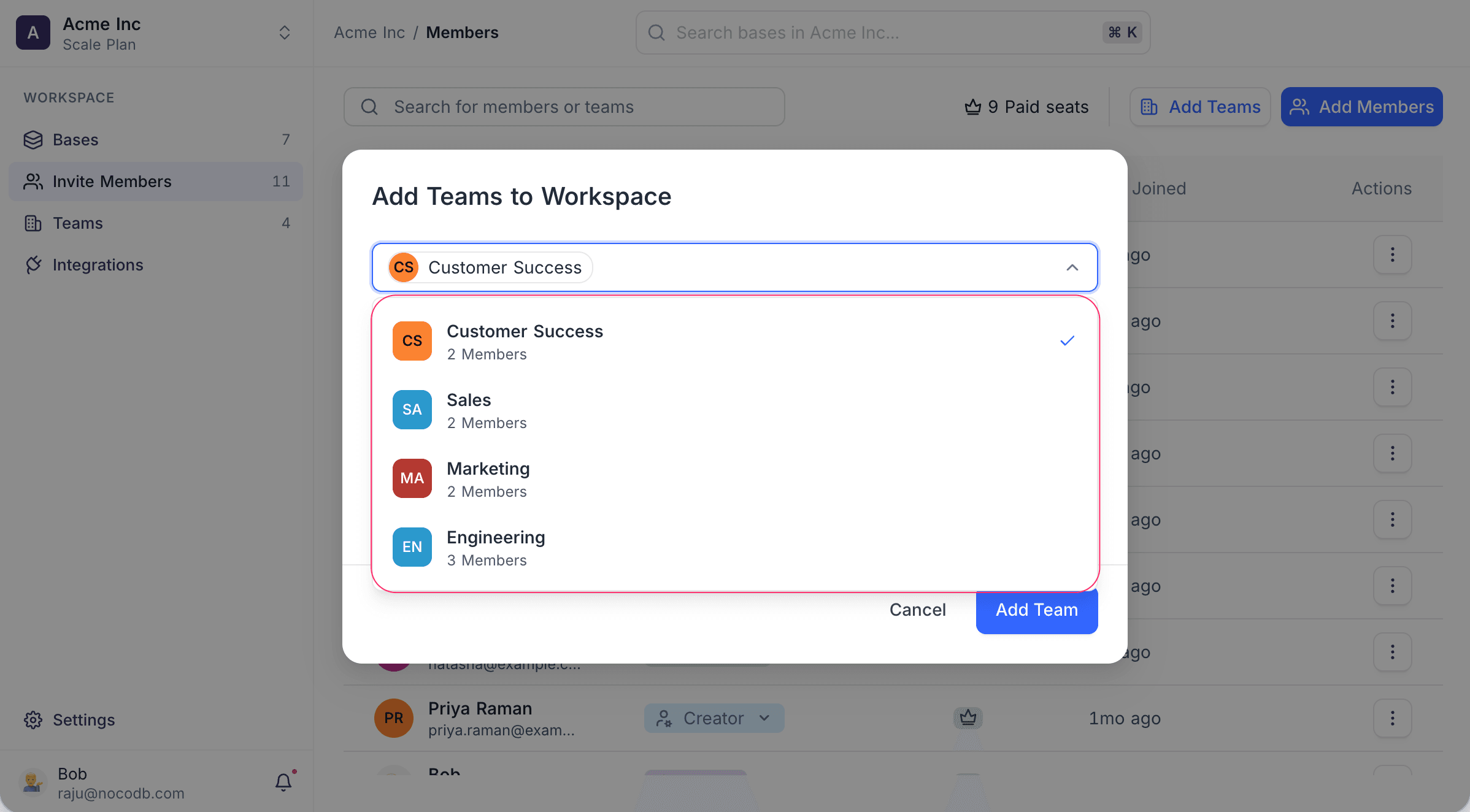
- Click Add Teams. The Add Teams to Workspace dialog opens.
- Select one or more teams. The list shows the number of members in each team.
- Below They join as, select the role for the teams.
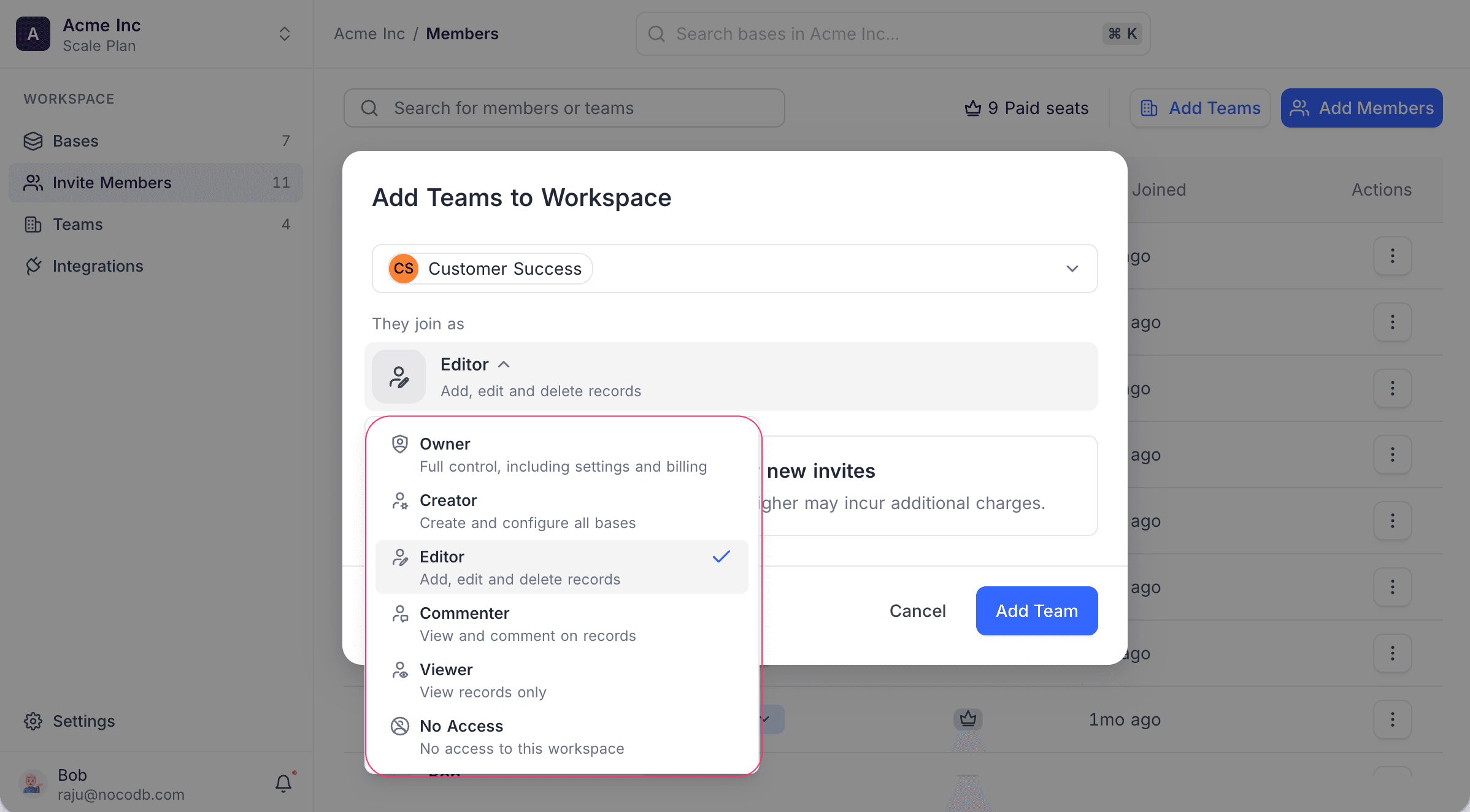
- Click Add Team. If you select more than one team, the button shows Add Teams.
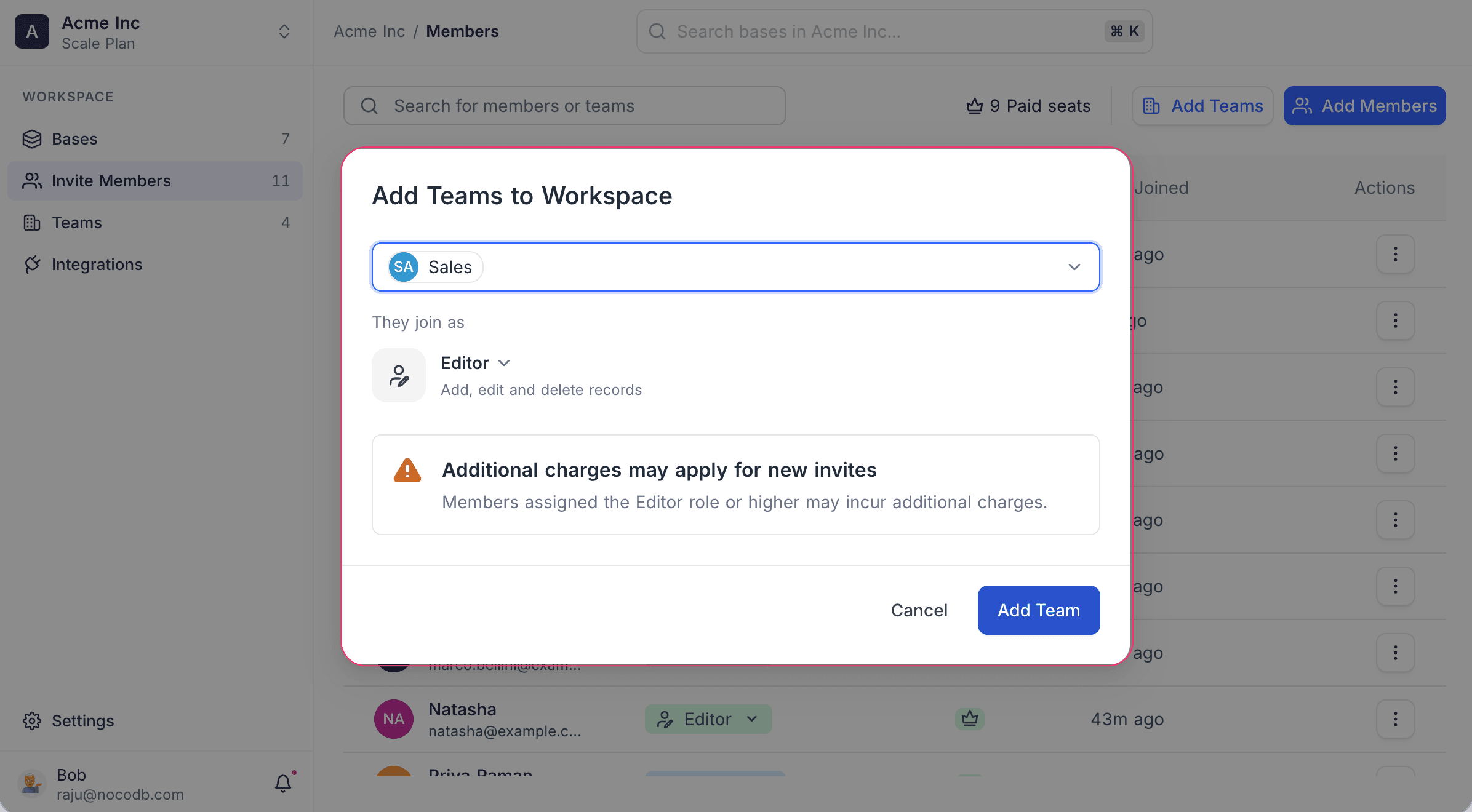
Each member of the team gets the team's workspace role. An explicit workspace role or a base role for that member replaces the team role. Refer to Role Precedence.
To create and manage teams, refer to the Teams documentation.
List Workspace Members and Teams
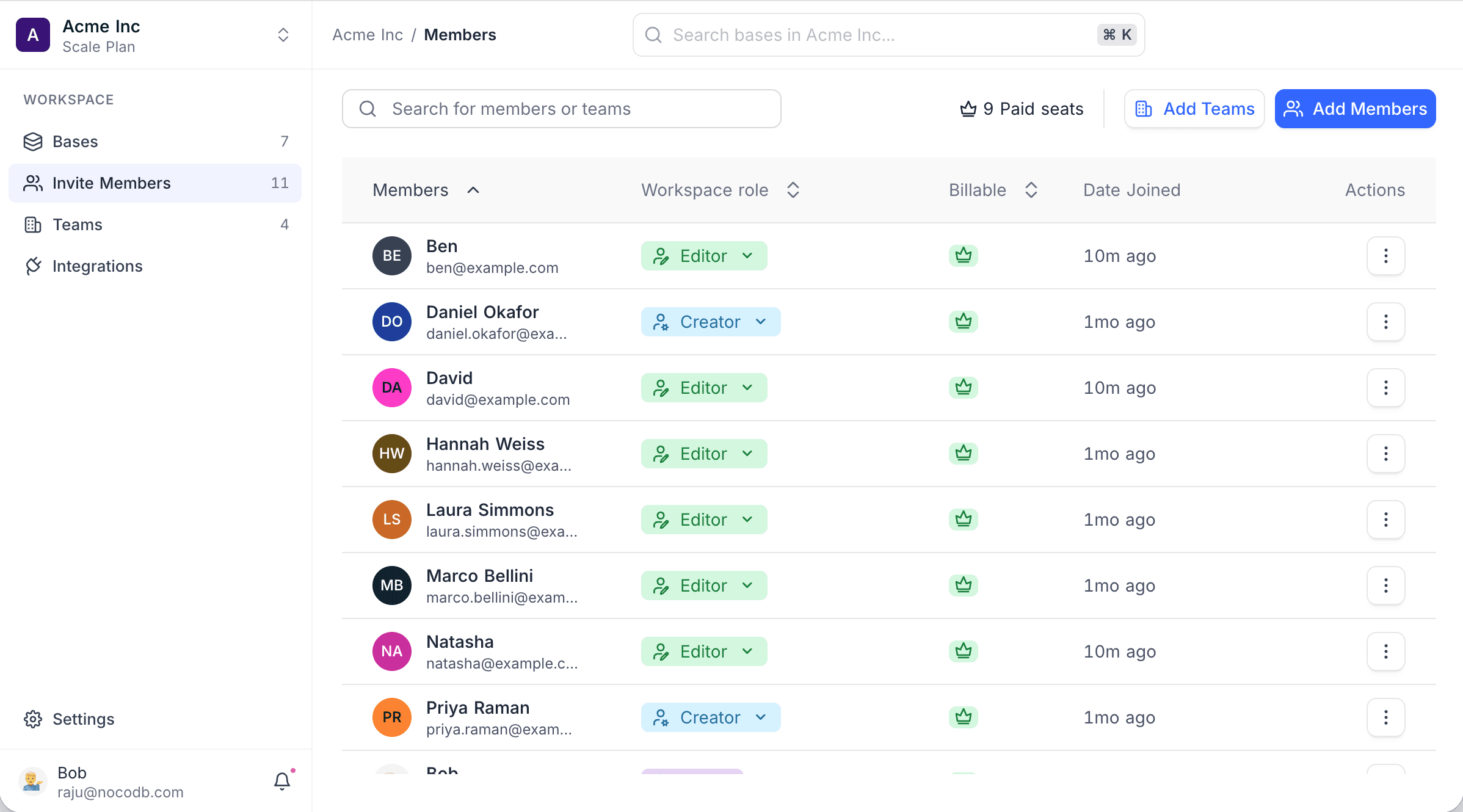
The Members page shows all members and teams that have access to the workspace. All workspace members can see this page.
| Column | What it shows |
|---|---|
| Members | For a member: the name and the email. For a team: the name and the number of members. |
| Workspace role | The workspace role of the member or team. |
| Billable | A crown if the member uses a paid seat. |
| Date Joined | The date that the member joined the workspace. |
| Actions | A menu to remove the member or team and to copy its ID. |
The page header shows the number of paid seats that the workspace uses. On Community Edition and on self-hosted deployments without a license, the Billable column and the seat count show Editor seat instead.
Why a member is billable
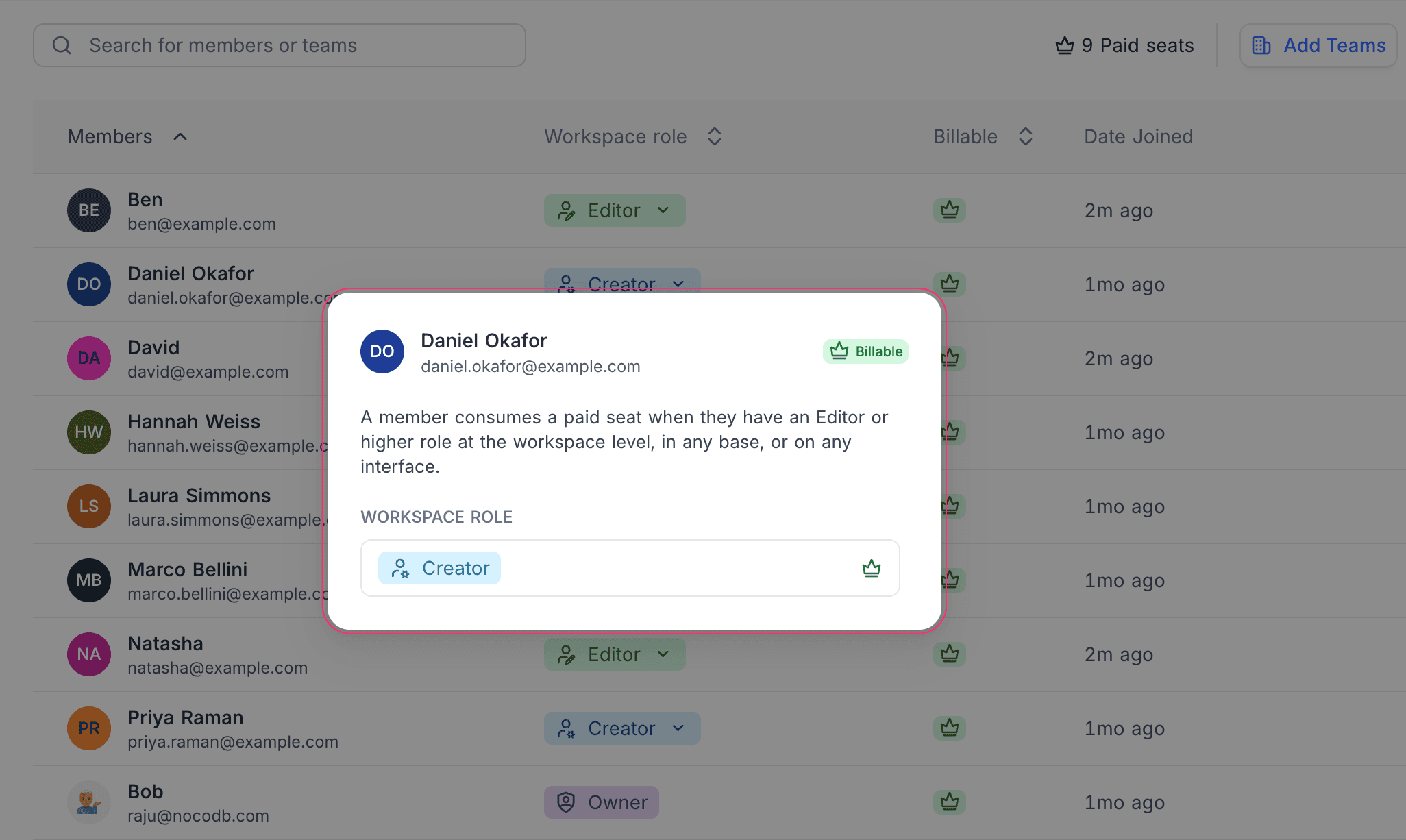
A member uses a paid seat when the member has the role Editor or a higher role in one of these places:
- the workspace
- a base
- an interface
For example, a member with the workspace role Viewer is billable if that member is Editor in one base. To see the assignment that makes a member billable, click the crown in the Billable column.
Modify Roles for Members or Teams
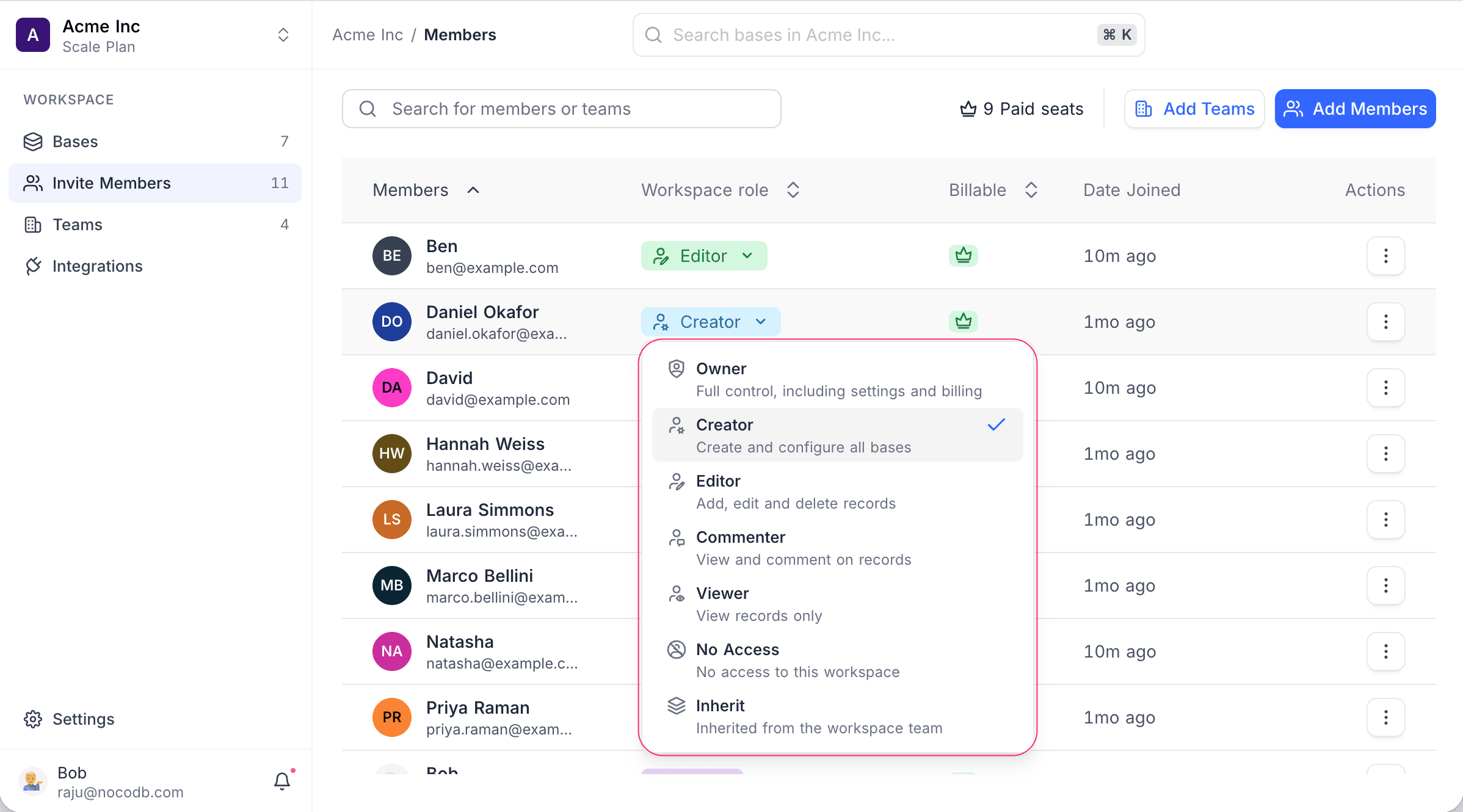
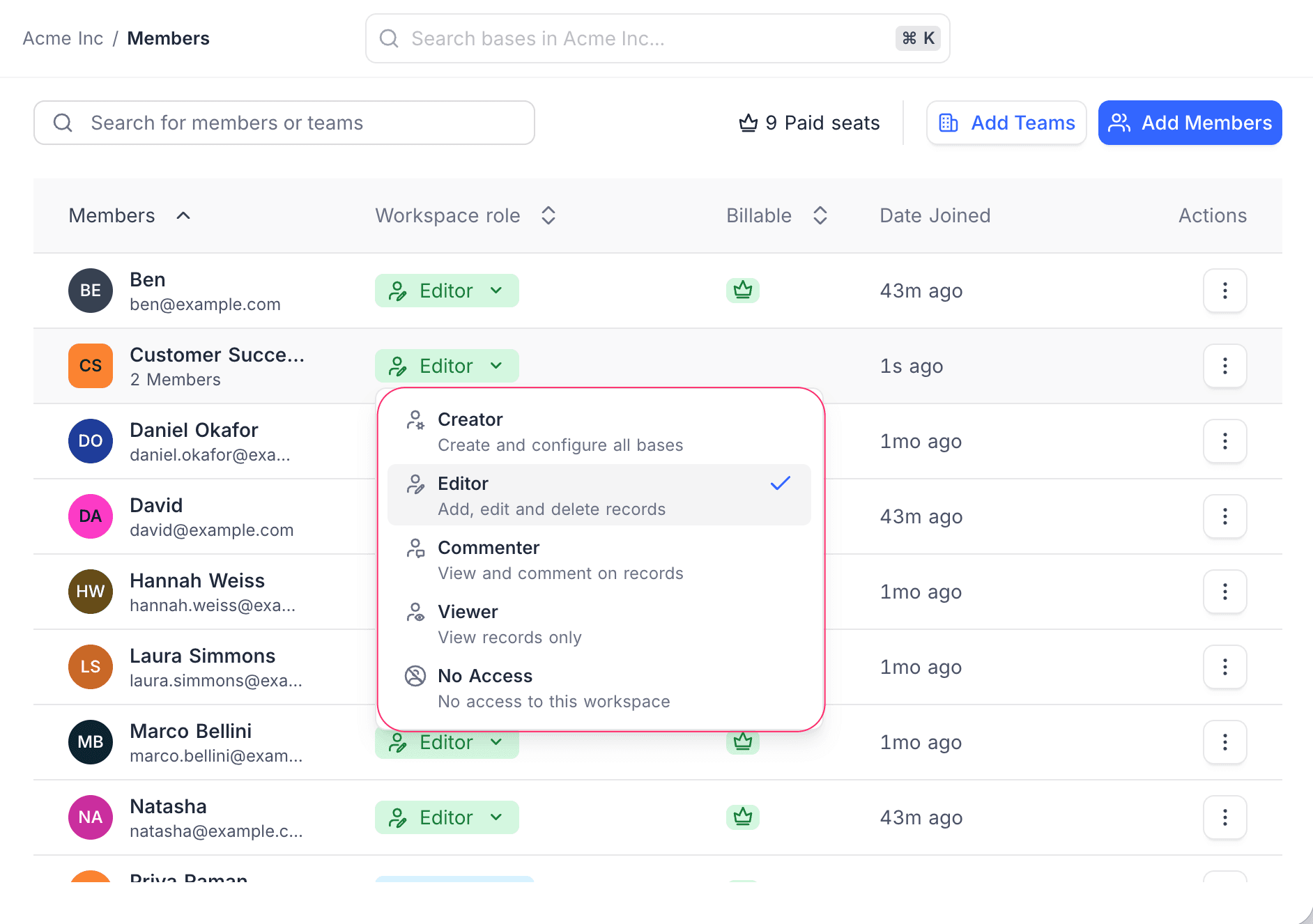
Change the workspace role of a member or a team on the Members page.
- In the Workspace role column, click the role of the member or team.
- Select the new role. Each role shows a short description, and a check mark shows the current role.
Role Precedence
NocoDB uses these rules when a user gets roles from more than one source:
| The user has | The role that applies |
|---|---|
| An individual workspace role and a team role | The individual workspace role |
| A workspace role and a base role | The base role, in that base |
| Roles from two or more teams | The highest team role |
For more examples, refer to the Teams effective role resolution documentation.
Remove Members or Teams from Workspace
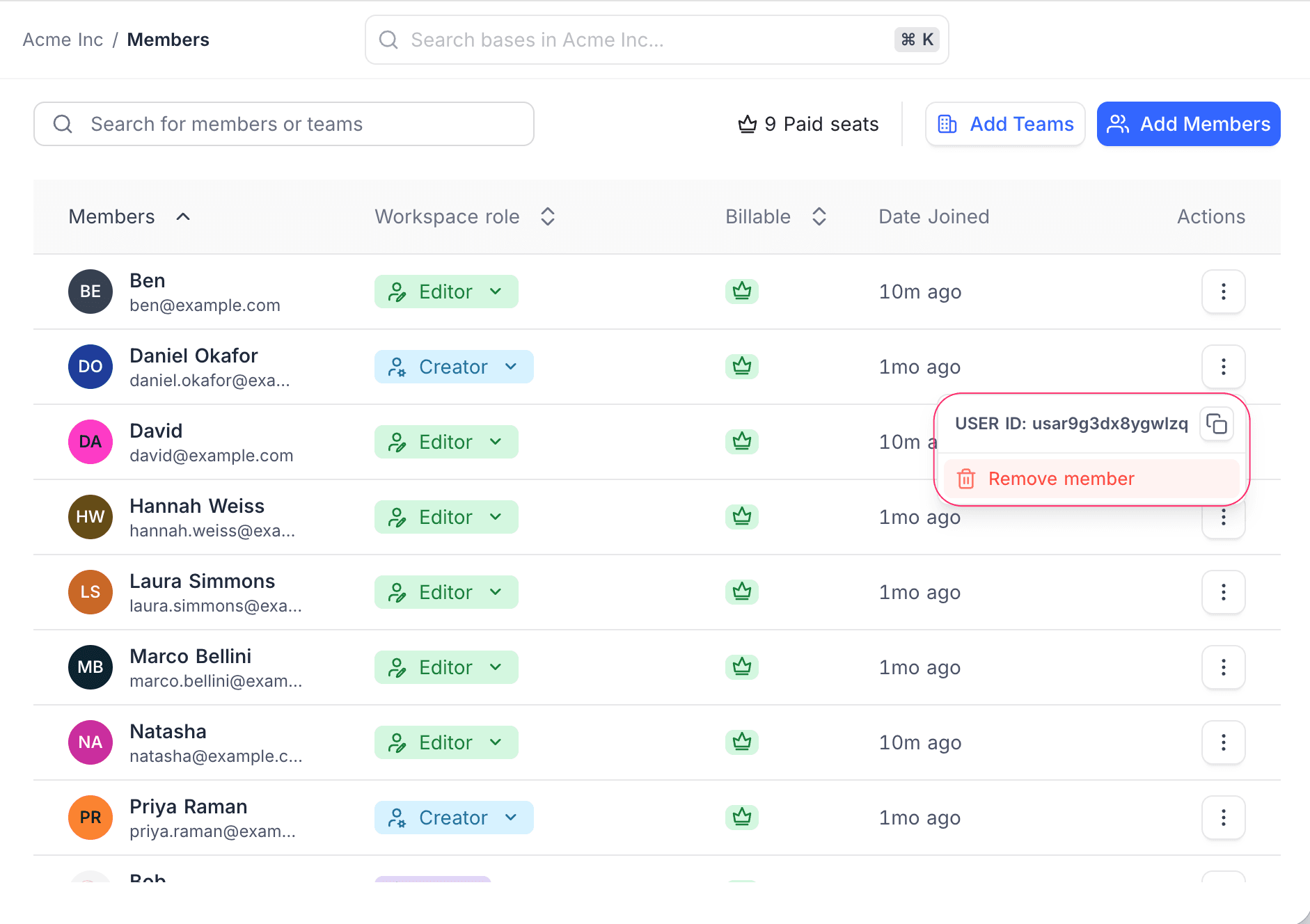
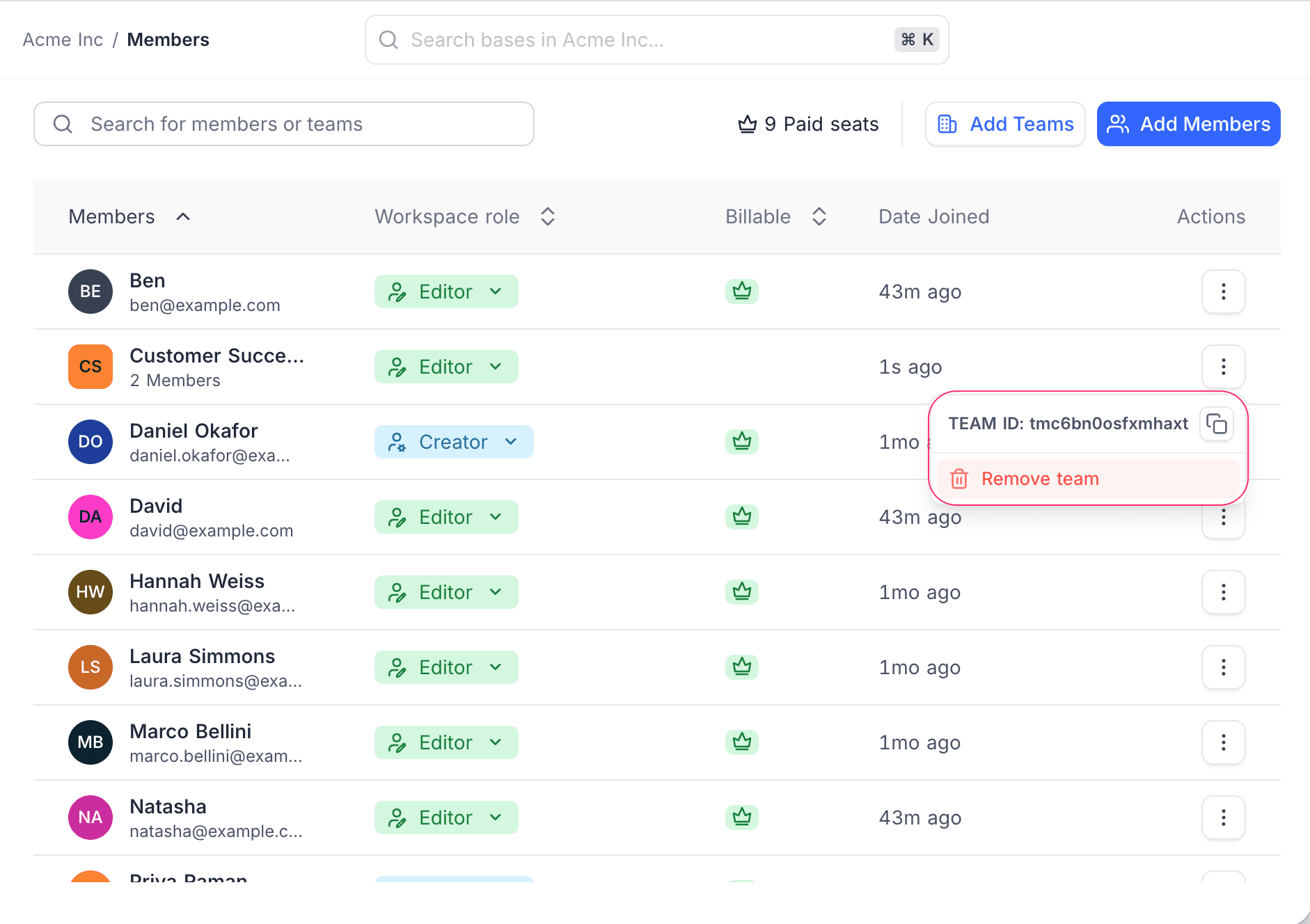
Remove a member or a team from a NocoDB workspace with the menu in the Actions column.
- In the Actions column, click
⋮next to the member or team. - Click Remove member or Remove team.
The same menu shows the user ID or the team ID. Click the copy button to copy the ID for use with the API.
Best Practice
Use these rules to manage access in a large NocoDB workspace:
- Invite all users to the workspace with the role Inherit. Each user then gets access from their team roles and base roles.
- Make one team for each department or work group.
- Change the role of a team, not the roles of single members.
For more rules, refer to Teams best practices.
Good to know
- You can give a member or team a role that is the same as your workspace role or lower. You cannot give a role that is higher than your role.
- You cannot give a team the role Owner or Inherit. The team role list shows Owner, but you cannot select it.
- Only the workspace owner or the workspace creator can remove members and teams.
- On paid plans, the roles Editor and higher use a paid seat. The roles Commenter, Viewer and No Access do not use a paid seat. Before you send an invite that adds a paid seat, the dialog shows Additional charges may apply for new invites.
Availability
- Teams are available on NocoDB Cloud (Business plan and above) and on licensed self-hosted deployments (Scale plan and above).
Related
Last updated on