At Dashboard Level
Dashboard permissions control who can see and who can edit each dashboard. They use the same permission system as tables and fields. For example, give access to a finance dashboard only to the people who use it. Or let all members see a company dashboard, and let only its maintainers edit it.
Configuring Dashboard Permissions
-
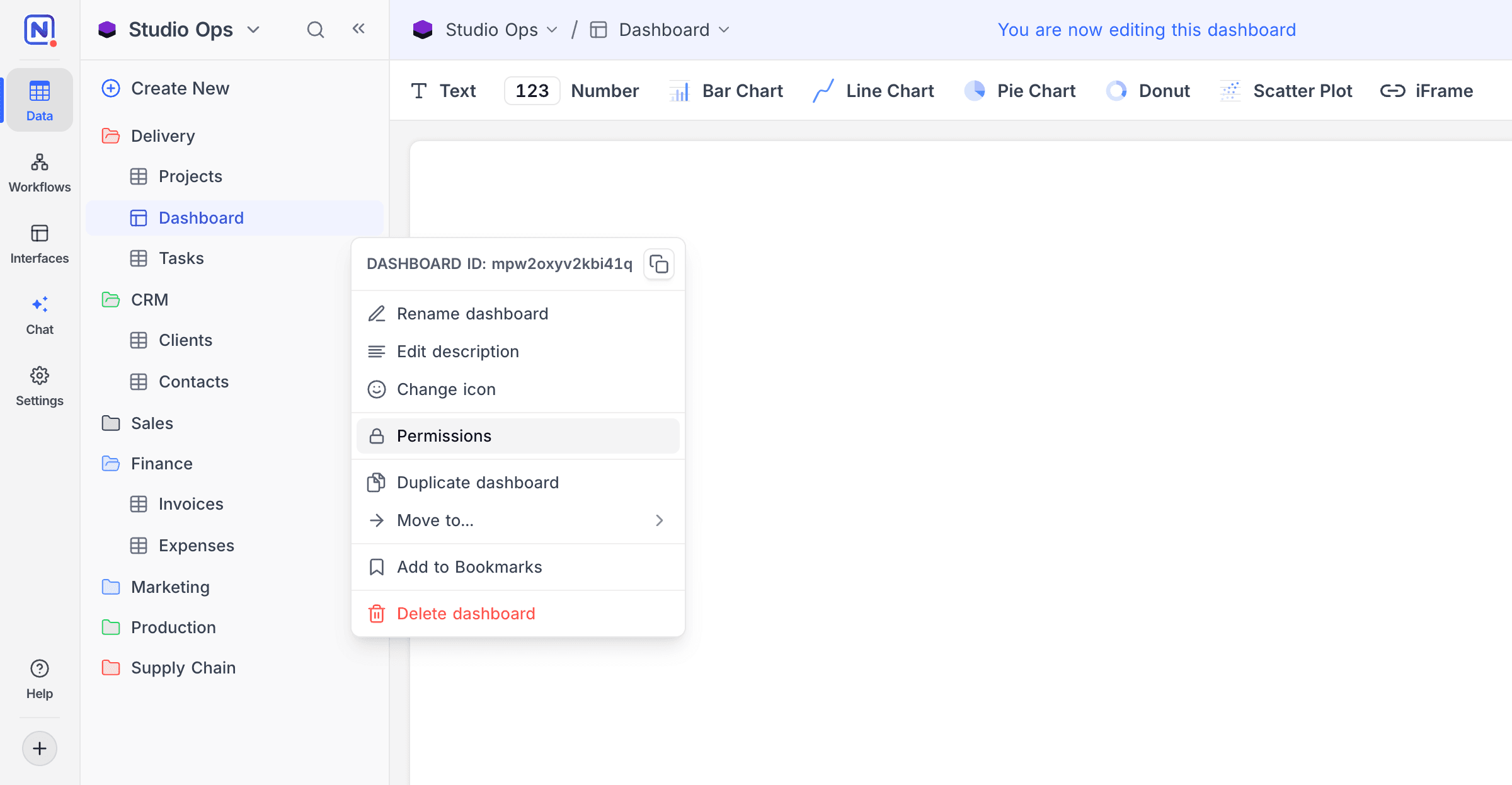
In the sidebar, click the
⋯icon next to the dashboard name. -
Select Permissions.
-
Use the dropdowns to set:
- Dashboard Visibility: who can see this dashboard
- Dashboard Editing: who can edit this dashboard and its widgets
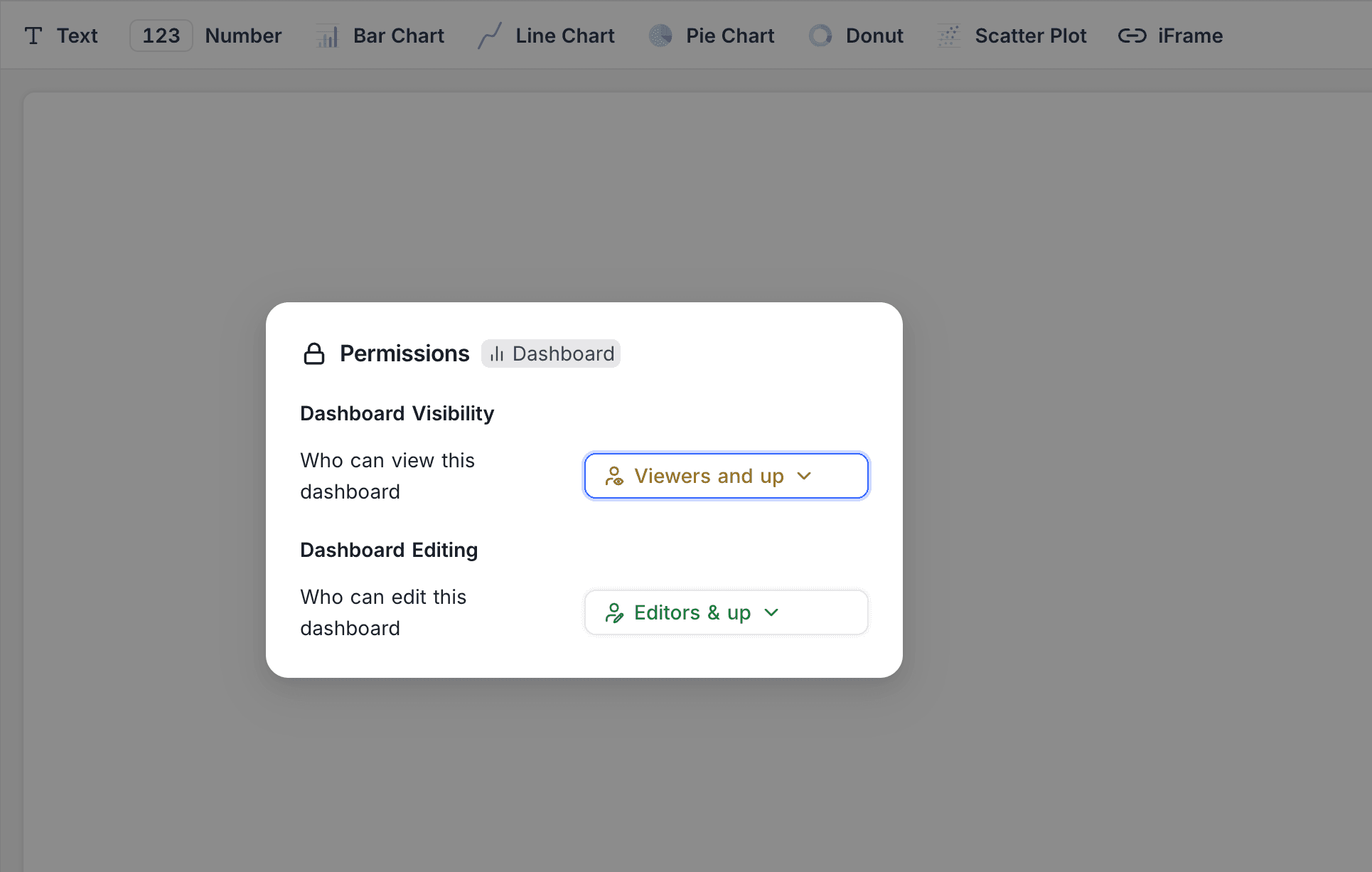
You can limit each permission by role (such as Viewers and up or Editors & up), or to specific users or teams. This is the same permission system that table permissions use. To remove a custom setting, click Reset to default.
Notes
- If a dashboard is hidden from a user, NocoDB treats it as not there for that user. The dashboard does not show in the sidebar. APIs and AI features that list dashboards do not include it.
- Editing permissions apply to the dashboard and all its content. This includes adding, changing or removing widgets and their filters.
- Base Owners always keep access. Thus, nobody can lock a dashboard so that no one can reach it.
- While a dashboard has custom visibility permissions, you cannot share it publicly. To share the dashboard publicly, reset visibility to default.
Availability
- Only base Owners and Creators can configure dashboard permissions.
Last updated on
Latest product updates?See Changelog