Connect to a Data Source
To connect an external Database as a new Data Source for NocoDB:
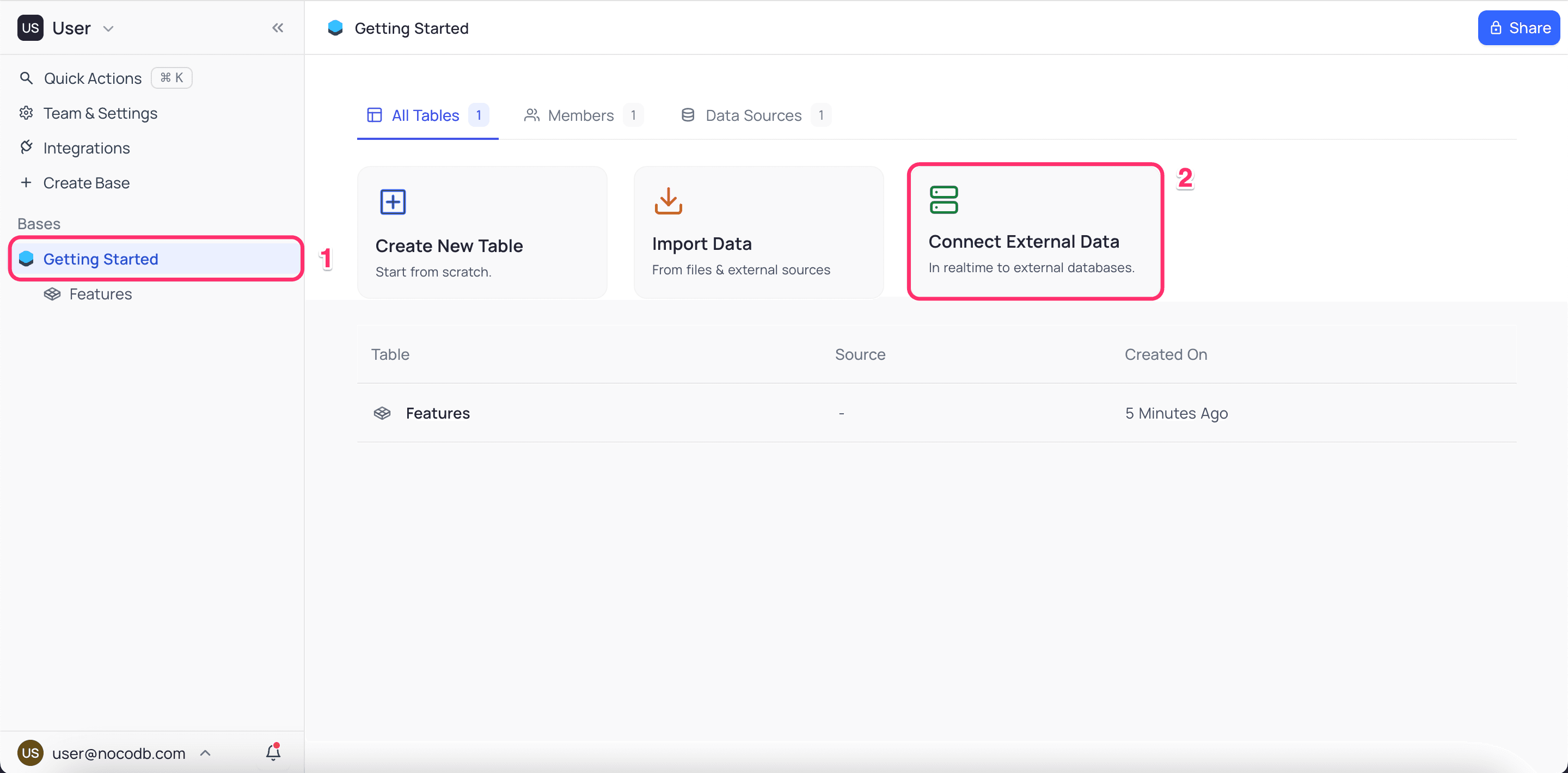
- In the left sidebar, click the Base name. The Base homepage opens.
- Click the Connect External Data button.
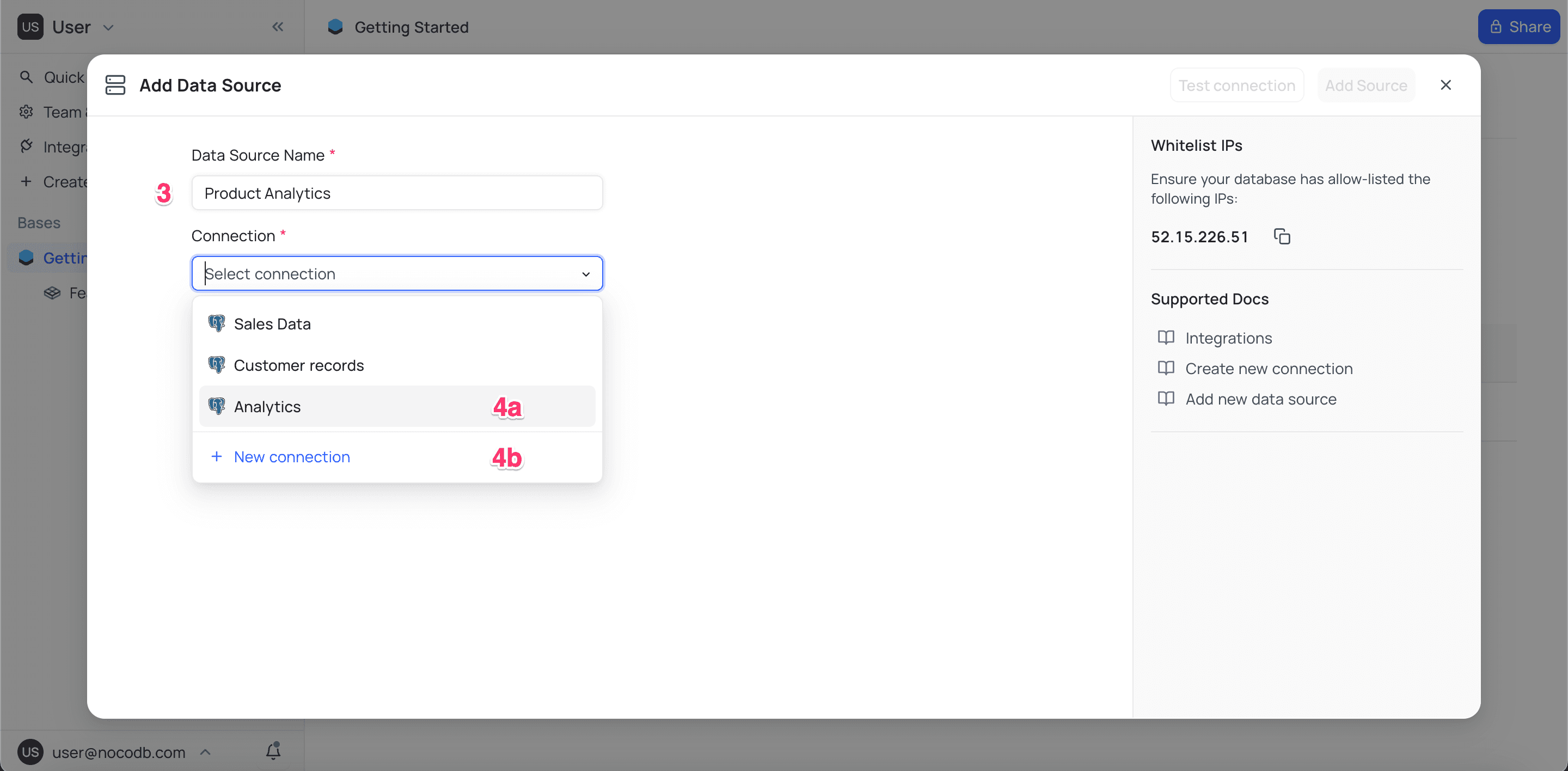
- Enter a name for the data source.
- Select a connection. The connection supplies the credentials for the database. Do one of these:
(a) Select a connection from the dropdown list of available connections.
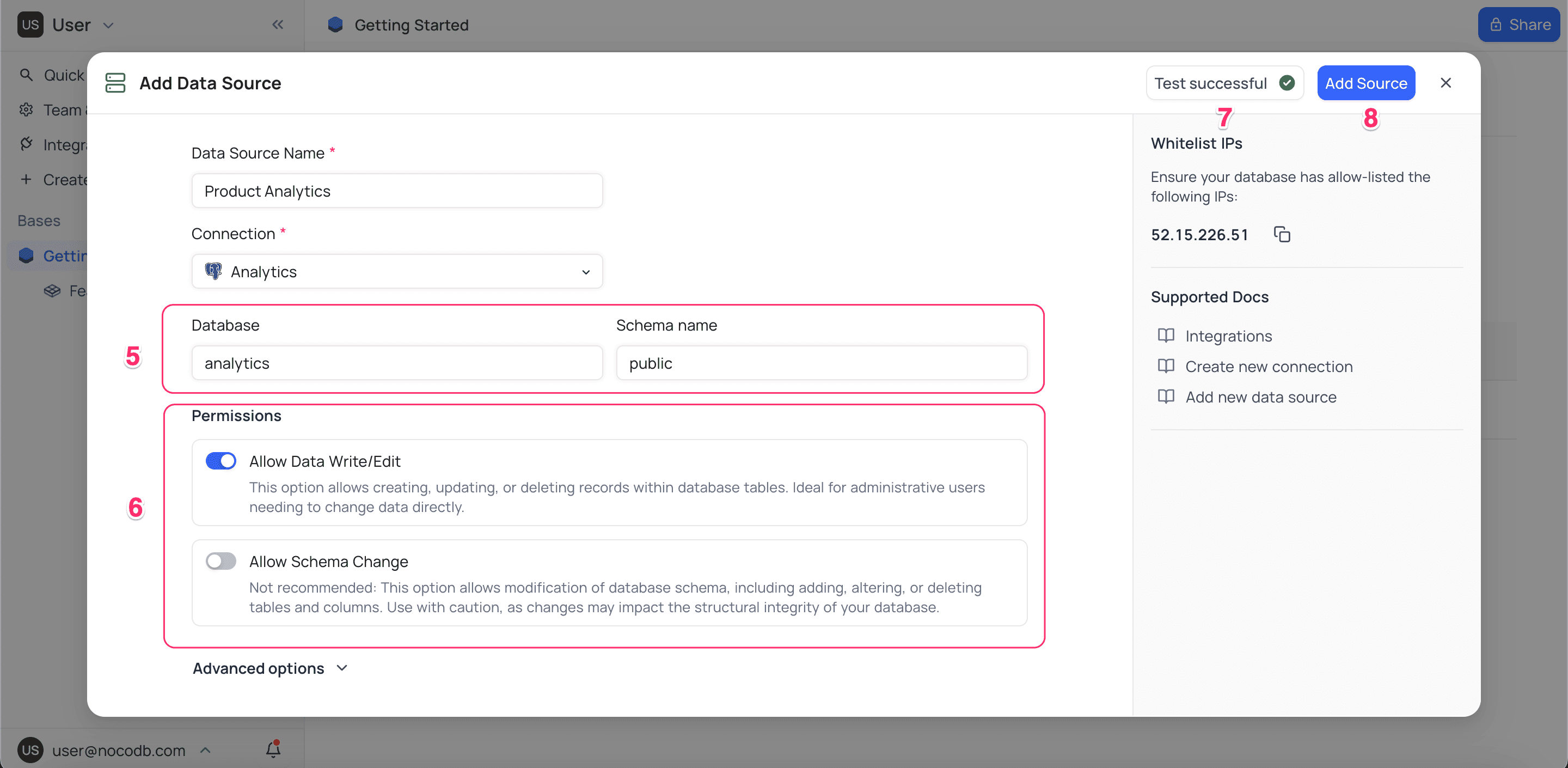
(b) To create a new connection, click the+ New connectionbutton. - Set or change the database and schema details as necessary. If you entered default database and schema details when you created the connection, these details are already filled in.
- Configure permissions for the data source.
- To verify the connection, click the
Test Database Connectionbutton. - To save the data source, click the
Add Sourcebutton.
Before you begin
For the best compatibility and performance, NocoDB recommends MySQL version 5.7 or later and PostgreSQL version 14 or later.
Configuring Permissions
Data source permissions in NocoDB set the level of access to the connected database, and the changes that users can make to it.
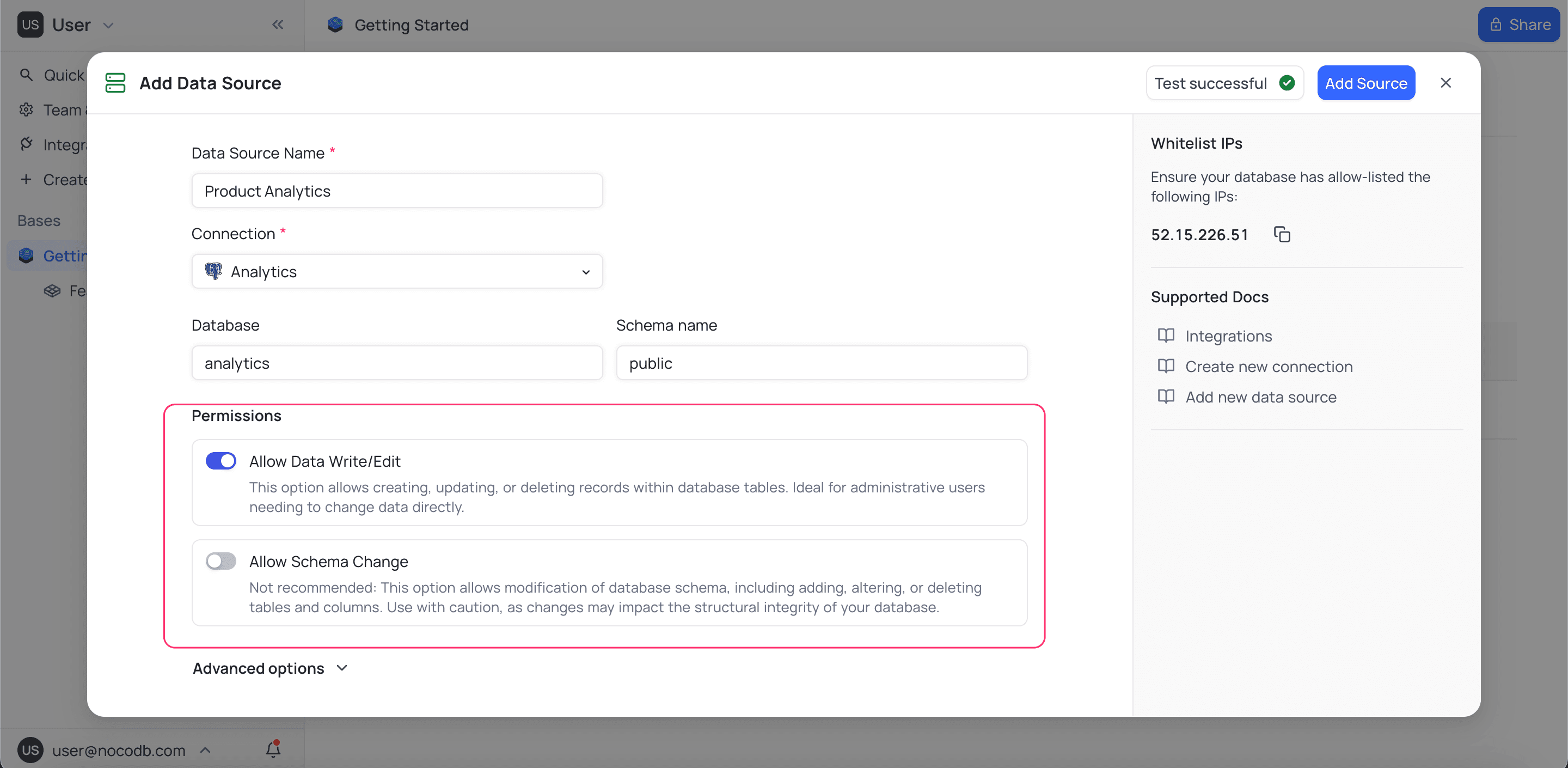
NocoDB has these options for schema and data permissions:
Allow Data Edit
When Allow Data Edit is enabled, users can insert, update and delete records in the tables. They can then manage the data directly from the NocoDB UI. Be careful with this option, so that you do not change records in the external data source by accident. This level of access is best for administrative users who must change data directly.
By default, data editing is enabled.
When data editing is disabled, users can still see the data and do read-only operations, such as filter, sort and group. Thus users can use the data for analysis and reports, with no risk of changes to the records.
Allow Schema Edit
Allow Schema Edit lets users change the structure of the database schema. When it is enabled, users can create, change and delete tables, fields and relationships (links) in the connected datasource from the NocoDB UI. They can then change the database schema design from the UI as necessary.
Do not enable the schema editing option unless it is absolutely necessary. Be very careful with it. Incorrect changes can cause severe damage to the data integrity and functions of the connected data source.
By default, schema editing is disabled.
When schema editing is disabled, users can still:
- Add (augment) virtual columns such as Lookup, Rollup and Formula. These virtual columns do not change the schema of the connected data source.
- Create views to customize how the data shows, without changes to the original tables.
- Create webhooks that start external actions when specified events occur in the connected datasource.
- Work with other users. Invite them to the base explicitly, or share views with them.
Availability
- Microsoft SQL Server is also supported as an external data source. It is an add-on for Enterprise customers. To enable it, contact the support team (support@nocodb.com).
- Oracle Database is also supported as an external data source. It is an add-on for Enterprise customers. To enable it, contact the support team (support@nocodb.com). Oracle connections require the host, port (default
1521), username, password, and a service name / SID. - Option (4b), to create a new connection, is available only to users with permission to create new connections (Workspace Creator+).
Last updated on