Actions on Connection
List
To list all the connections in NocoDB:
- In the workspace sidebar, click Integrations.
- Click Manage next to the Your connections heading.
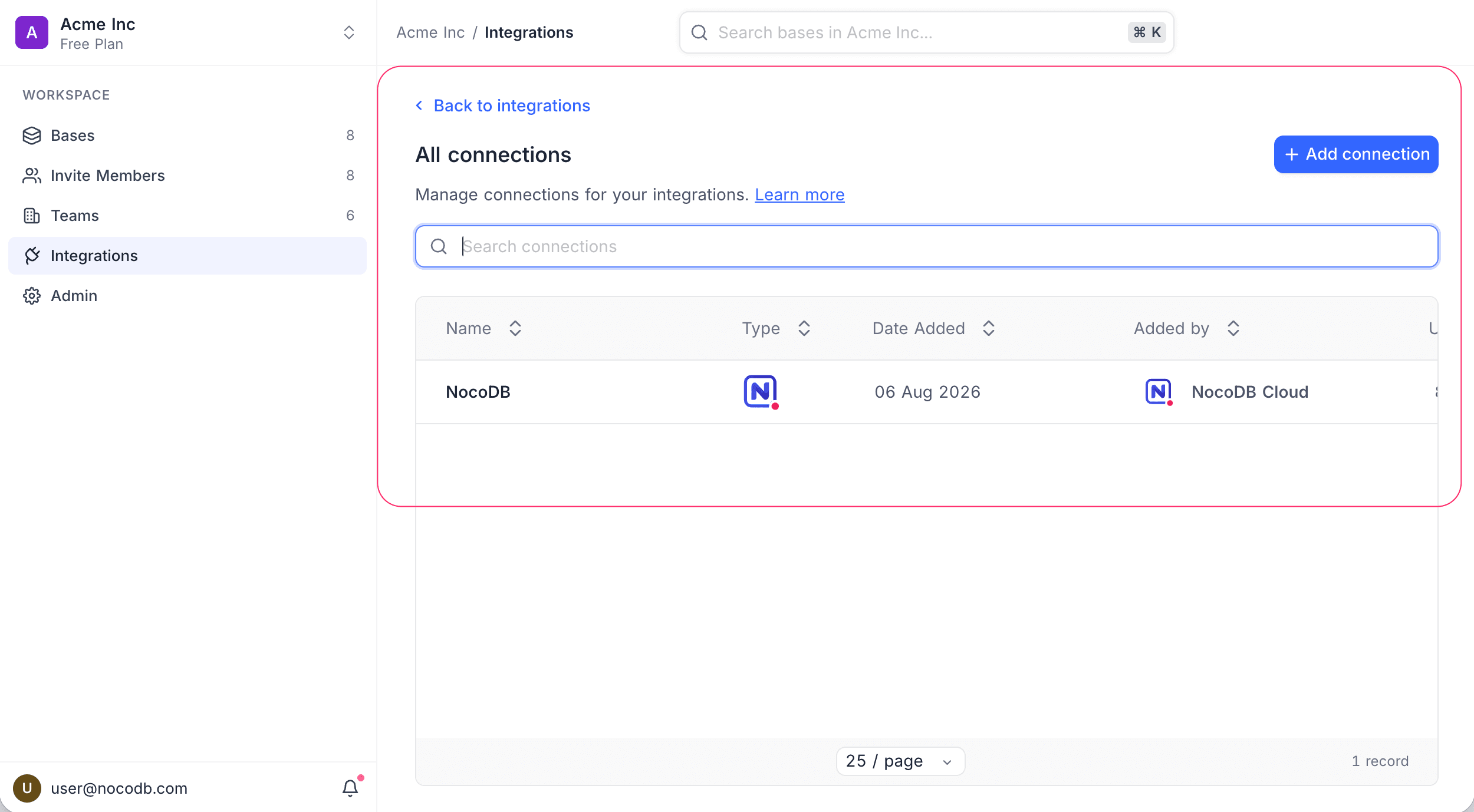
The All connections page shows all the connections in this workspace in one list. It shows these details:
| Detail | What it shows |
|---|---|
| Connection name | The name that you gave the connection when you created it. |
| Connection type | The integration type (for example: PG, MySQL). |
| Date added | The date when the connection was created. |
| Added by | The user who created the connection. |
| Usage | Depends on the type of the integration. For database integrations, it shows the number of data sources that use this connection. |
| Base access | The bases in the workspace that can use this connection. Refer to Manage integration access. |
Connections in NocoDB do not have owners. All eligible users in a workspace can use all the connections in that workspace.
- Users with Workspace Creator+ permissions can create, edit, duplicate and delete connections.
- Users with Base Creator+ permissions can create data sources that use these connections.
Manage integration access
By default, all bases in the workspace can use a connection that you create from the workspace Integrations page. You can restrict it to a set of bases that you select.
The Base access column shows the current state of each connection:
- All Bases: All bases in the workspace can use this connection, also bases that you create later.
- Restricted: Only the bases that you select can use this connection.
To change it, open the Connections list. Then do these steps:
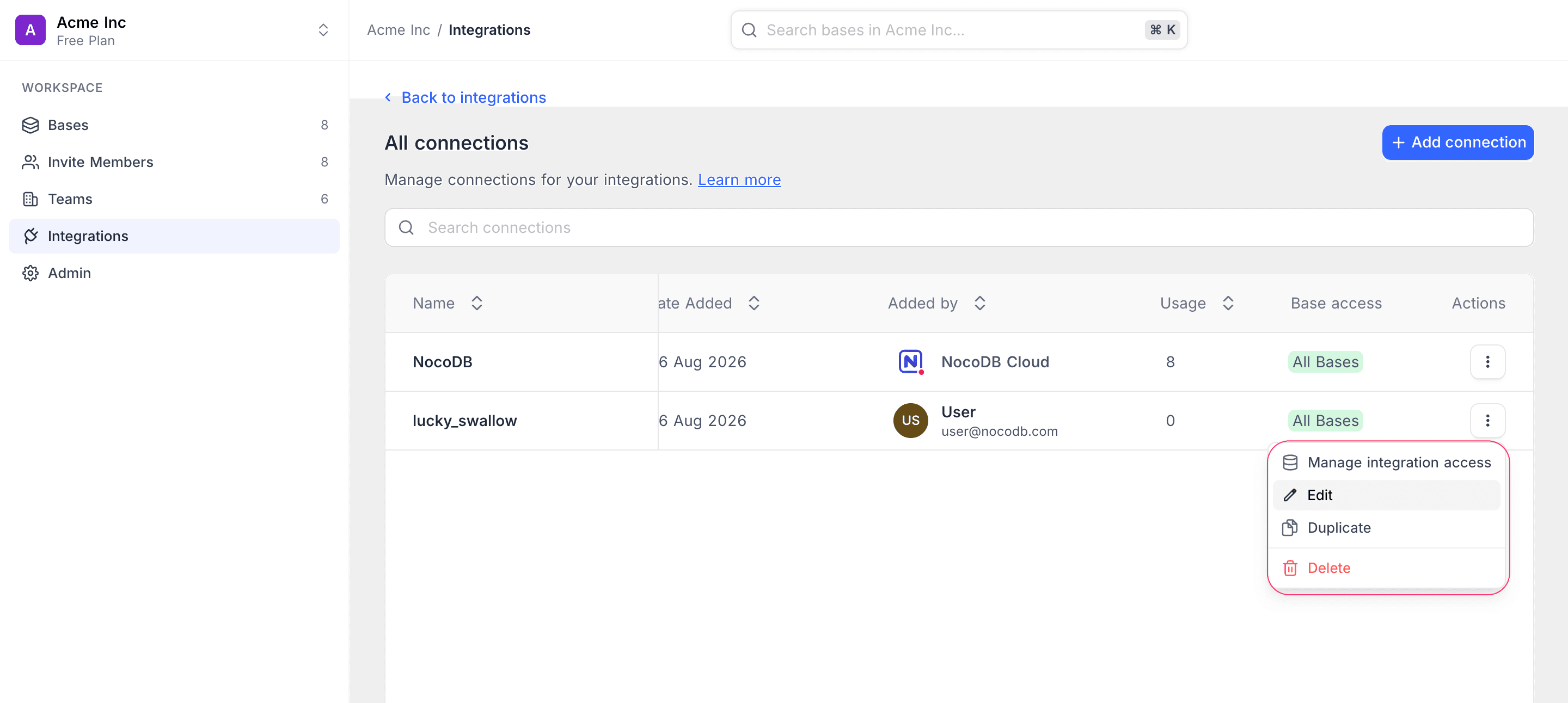
- Click the Action menu (three dots) next to the Connection.
- Select Manage integration access. Or click the Base access badge on the row.
- To restrict the connection, turn off the All Bases toggle.
- Under Select bases, select the bases that must have access.
- Click Save.
By default, a connection that you create in a base is restricted to that base. A connection that you create from the workspace Integrations page starts with access to all bases.
Manage integration access is not available for the built-in NocoDB connection. Only Workspace Owners and Workspace Creators can change base access.
Edit
To edit a connection in NocoDB, open the Connections list. Then do these steps:
- Click the Connection that you want to edit. A modal opens.
- In the modal, change the necessary details.
- If applicable, click Test connection.
- This applies if you changed the connection details for a database integration.
- To save the changes, click the Update connection button.
Duplicate
To duplicate a connection in NocoDB, open the Connections list. Then do these steps:
- Click the Action menu (three dots) next to the Connection that you want to duplicate.
- In the dropdown, select the Duplicate option.
NocoDB creates the duplicate with the same connection details as the original connection. The name of the duplicate has the suffix _copy.
Delete
To delete a connection in NocoDB, open the Connections list. Then do these steps:
- Click the Action menu (three dots) next to the Connection that you want to delete.
- In the dropdown, select the Delete option. A modal opens.
- To confirm, click the Delete button in the modal.
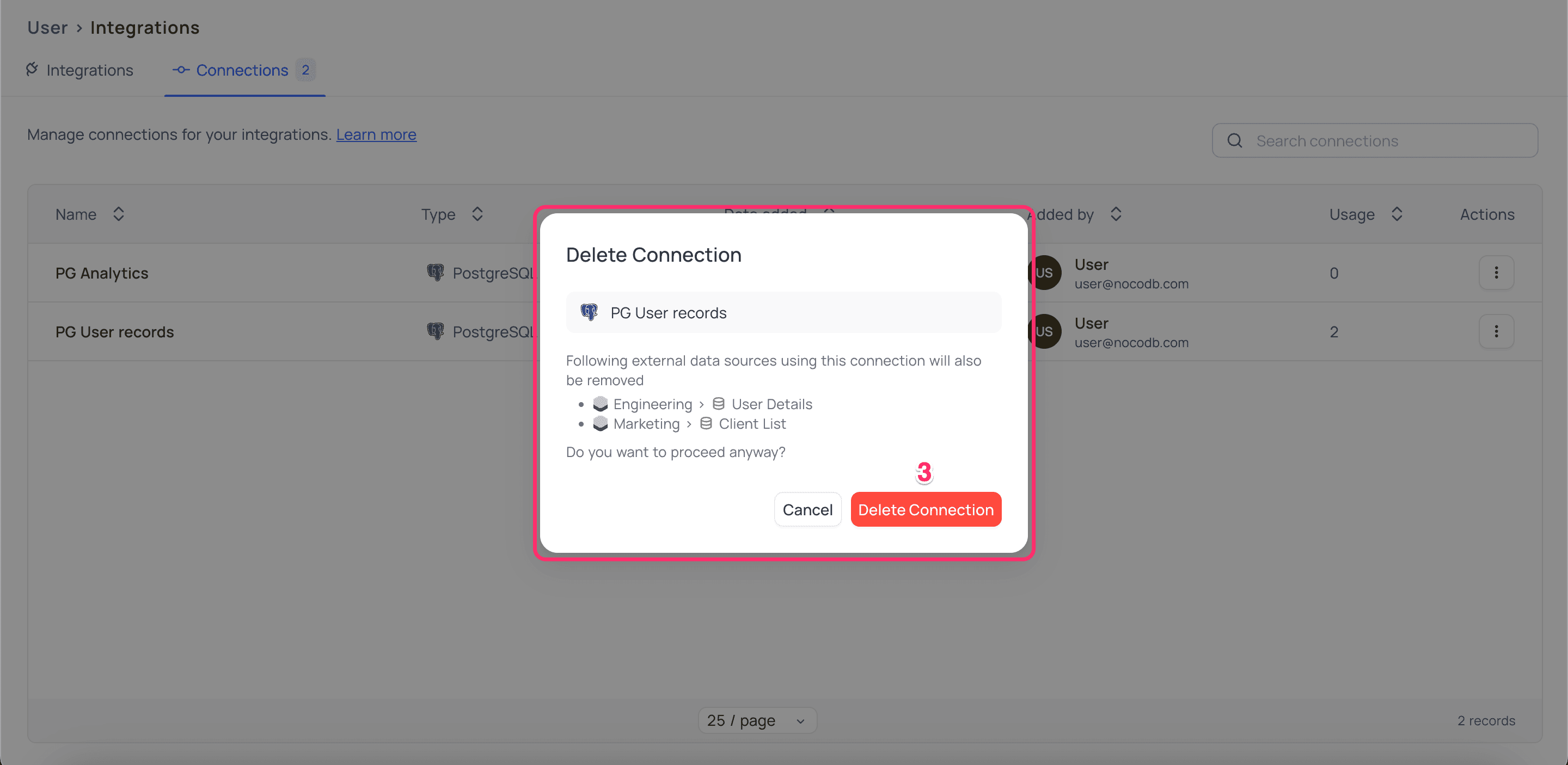
Do not delete a database connection that data sources use. The delete will remove all the associated data sources using this connection from all the bases in this workspace.
Last updated on