Actions on Data Sources
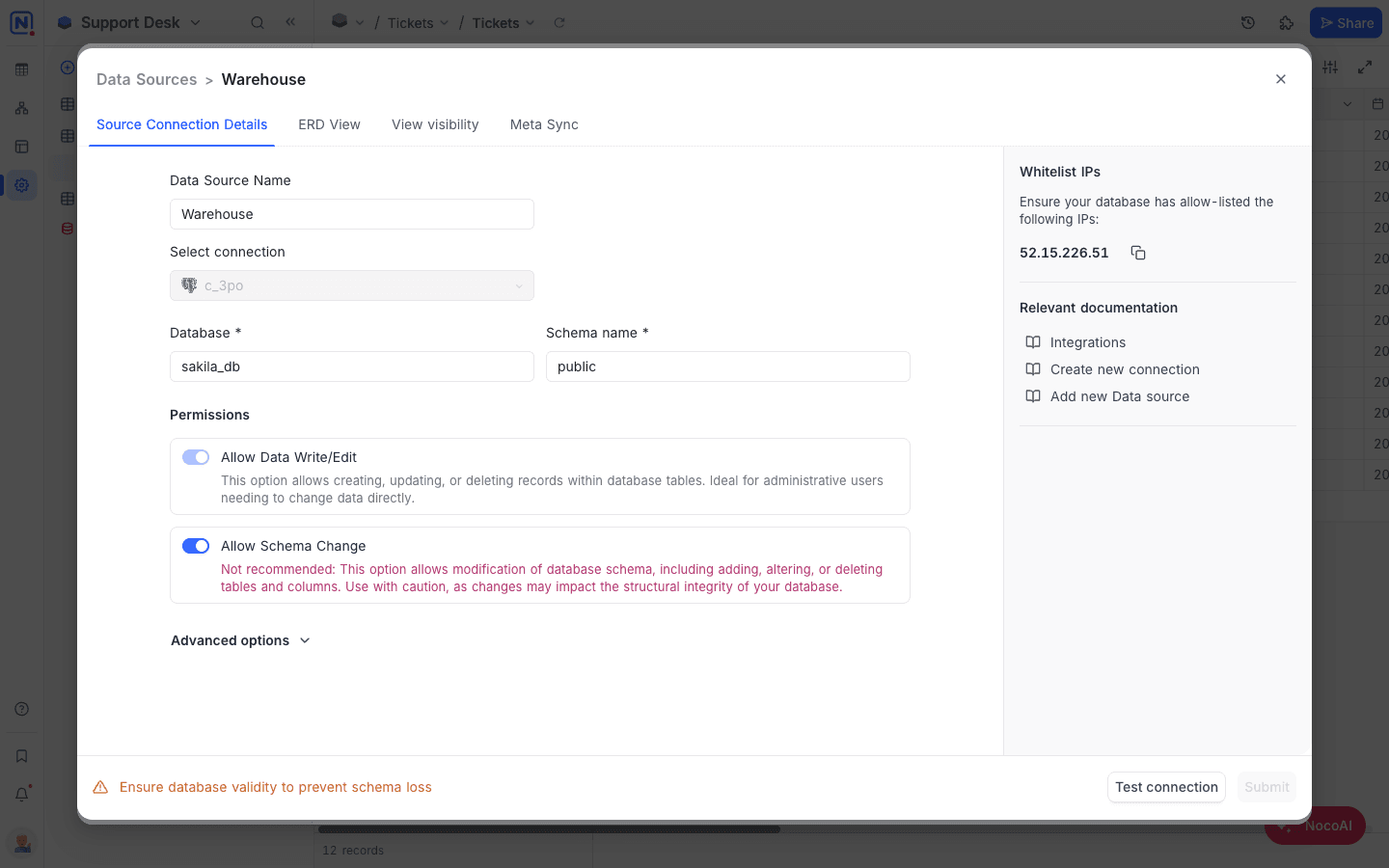
Edit Data Source parameters
- Open External Database in Base Settings → Manage.
- Click the data source that you want to edit.
- Change the data source parameters as necessary. You can edit these parameters:
- Data source name
- Database & Schema
- Data source access permissions
- To save the changes, click the
Submitbutton.
To change database connection parameters (such as host and port), use the Edit connection option. Only users with Workspace Creator+ permissions can use the Edit connection option.
Remove data source
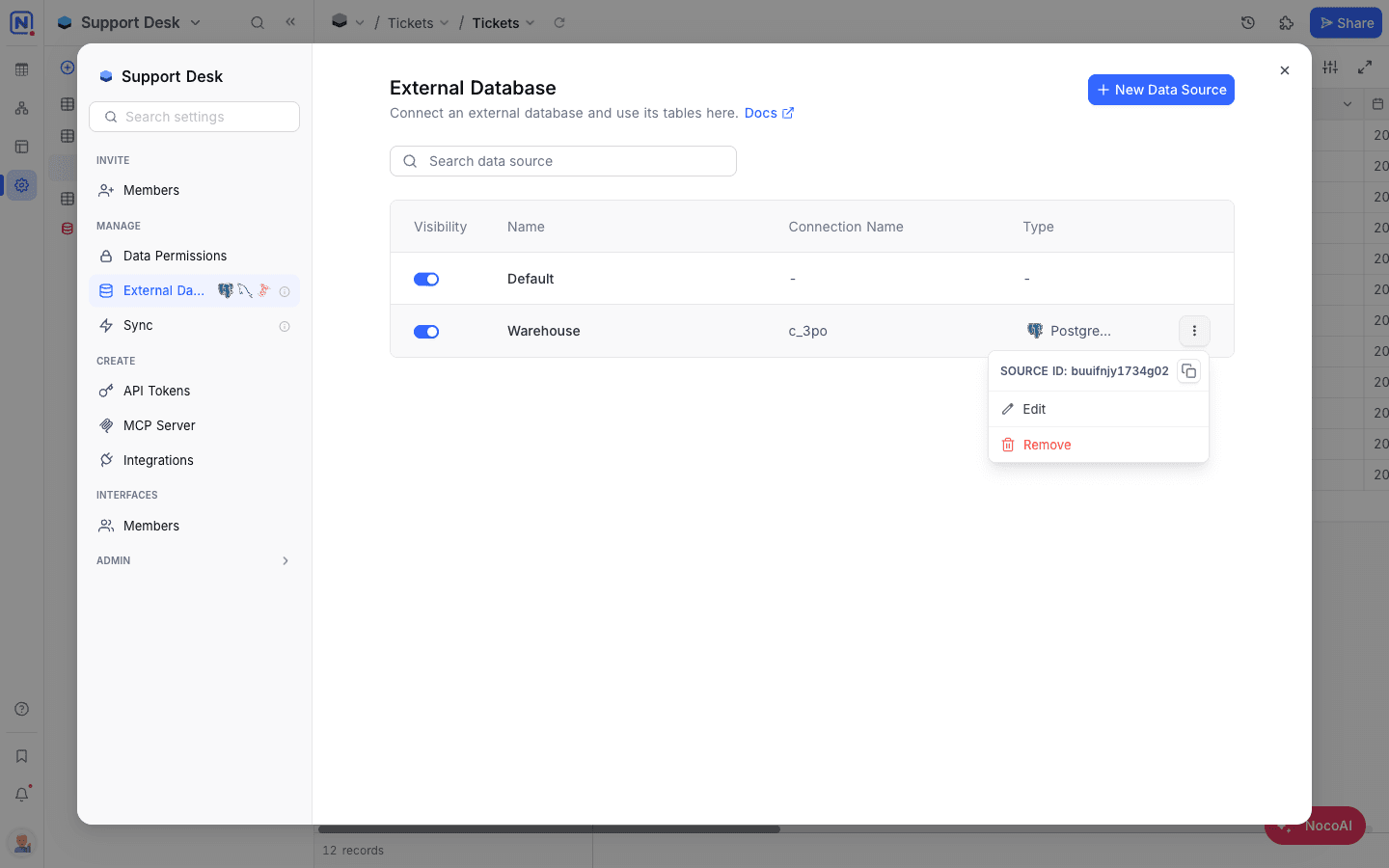
Open External Database in Base Settings → Manage. Then do these steps:
- Click the Actions button (three dots) next to the data source that you want to remove.
- In the dropdown, select the
Removeoption.
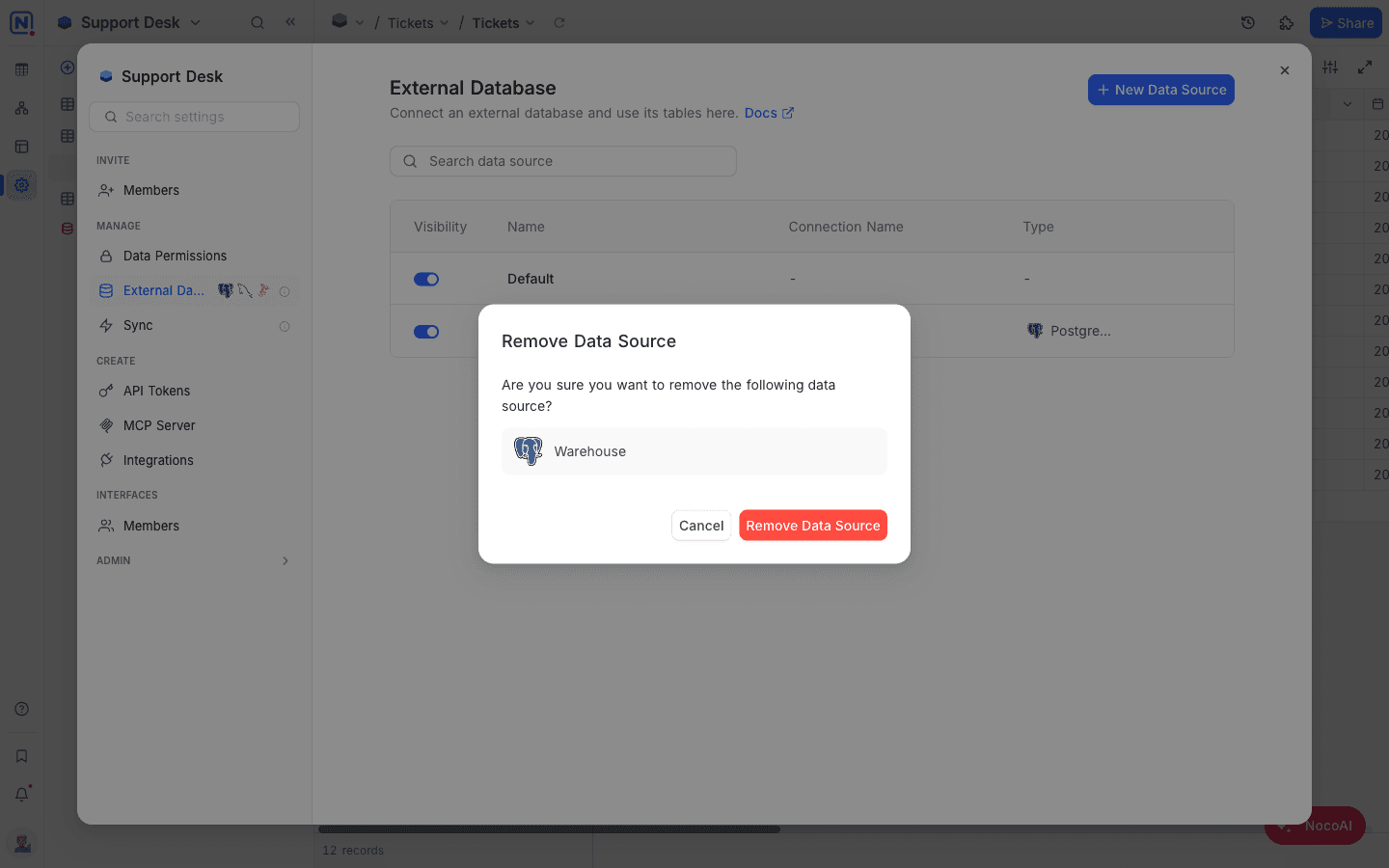
When you remove a data source, NocoDB does not delete the external data source. It only removes the data source from the current base.
You cannot remove the default source of a base. A base must always have at least one source.
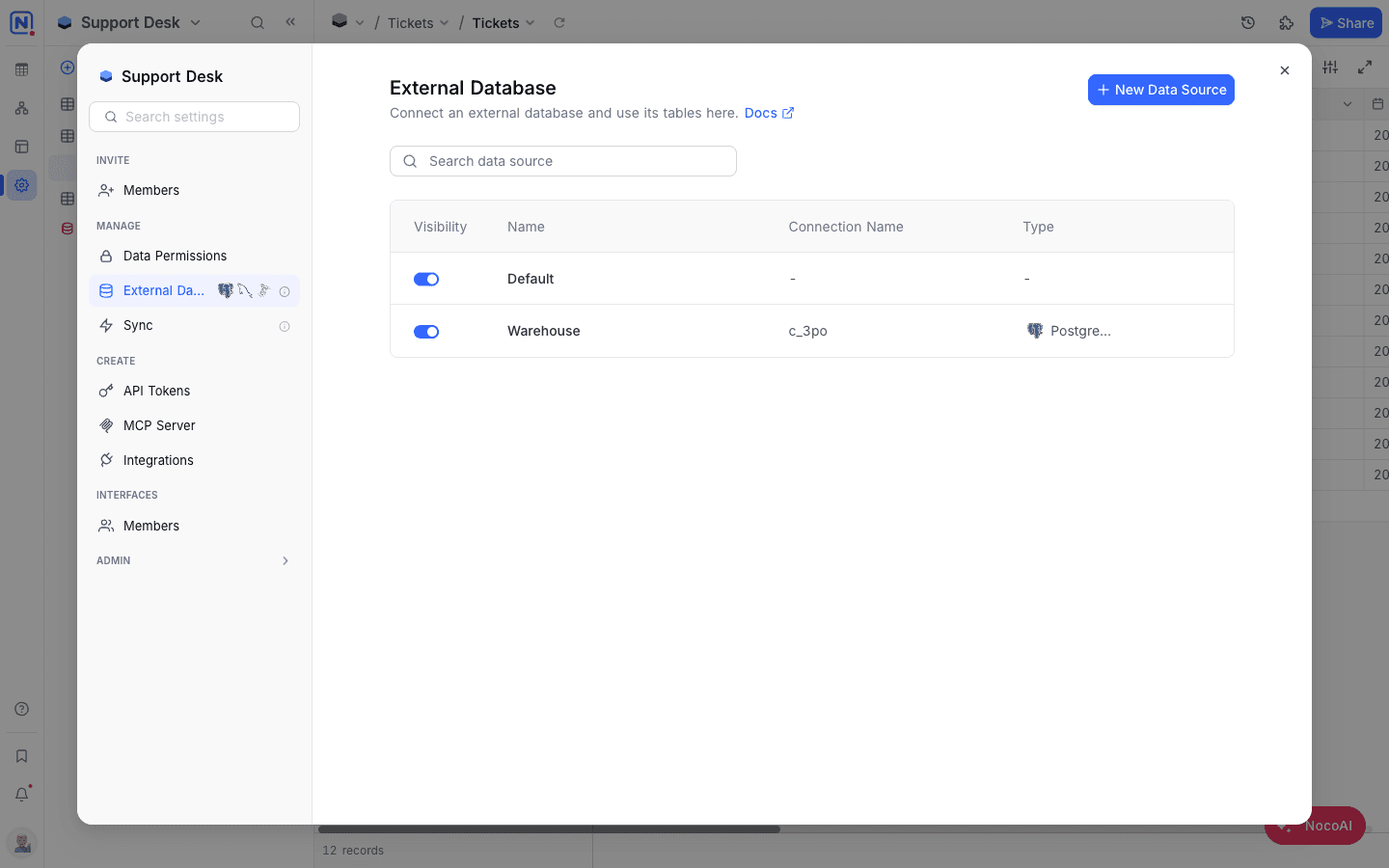
Data source visibility
- Open External Database in Base Settings → Manage.
- To hide or show a data source, use its toggle in the Visibility column.
View visibility
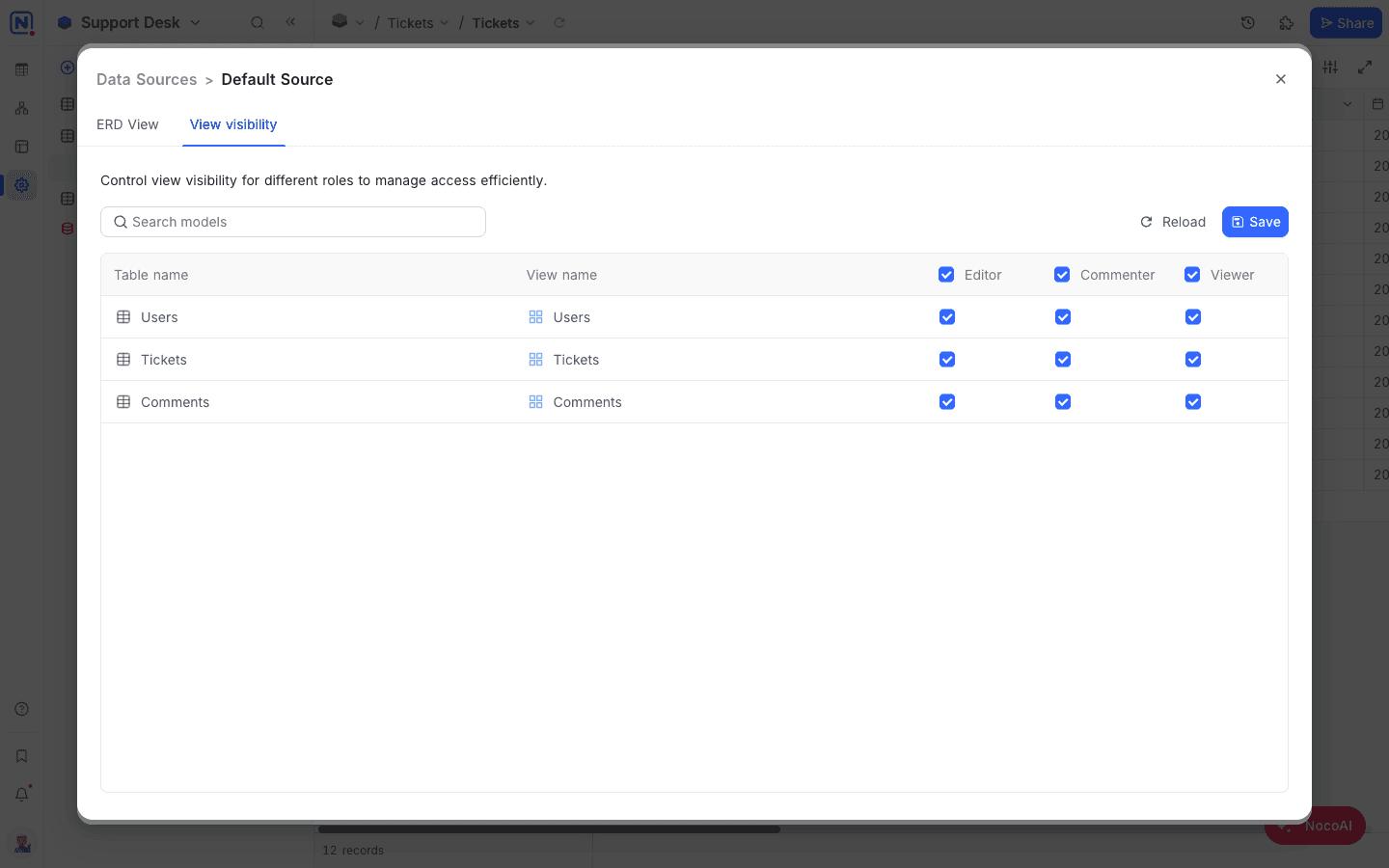
Open External Database in Base Settings → Manage. Select the data source for which you want to set view visibility. Then do these steps:
- Select the
View visibilitytab. The rows show the views and tables in the data source. The columns show the roles. - To enable or disable access to tables for a role, select or clear the checkboxes.
- To save the changes, click the
Savebutton.
Relations
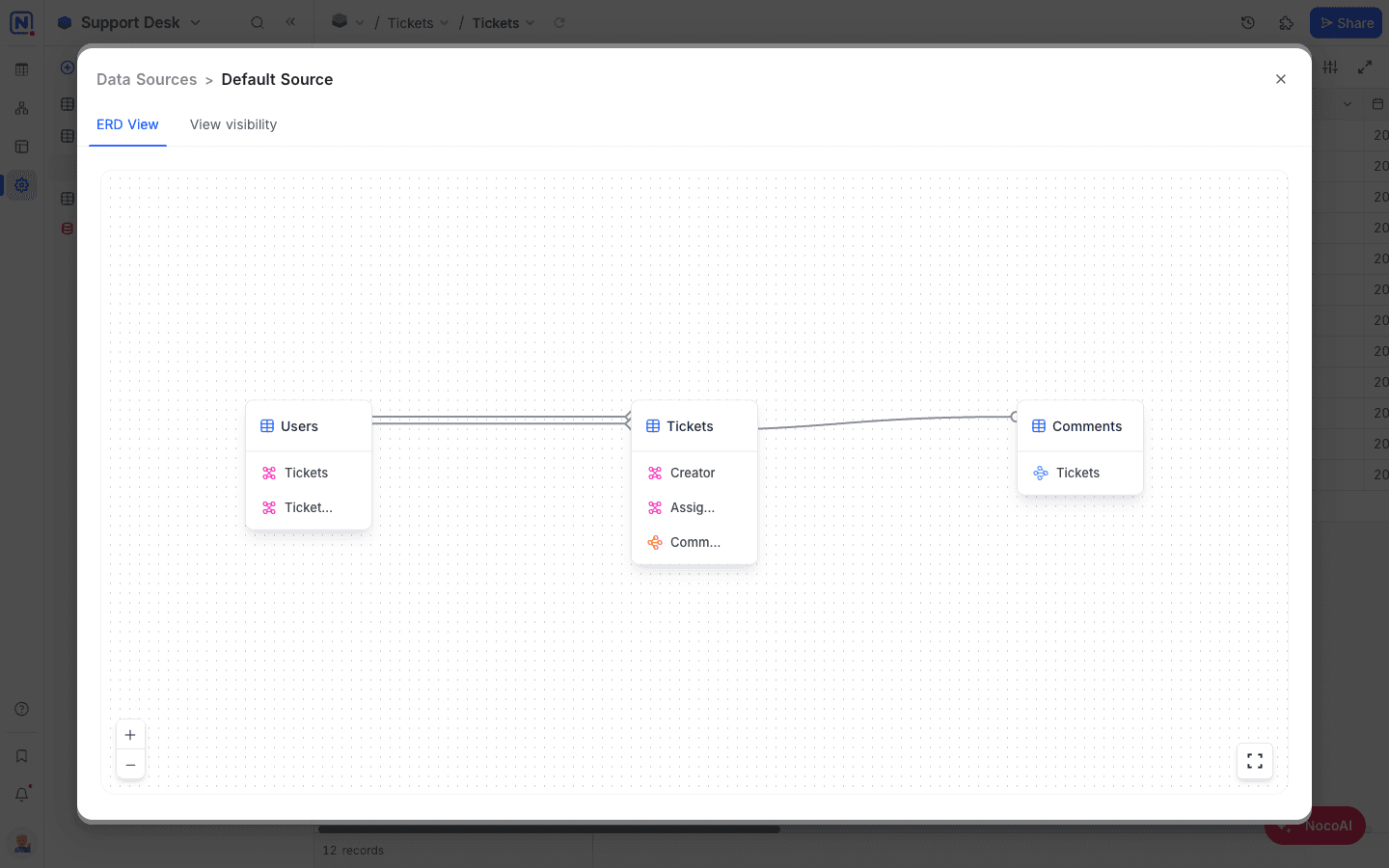
- Open External Database in Base Settings → Manage.
- Select the data source for which you want to see the ERD (Relations view).
- Click the
ERD Viewtab.
Last updated on
Latest product updates?See Changelog