Sub-Teams
You can create teams in teams to match the structure of your company. For example, an "Engineering" team can have the sub-teams "Frontend" and "Backend".
You can nest sub-teams up to 4 levels deep.
Engineering
├── Frontend
│   └── Design System
│       └── Icons              ← maximum depth
└── Backend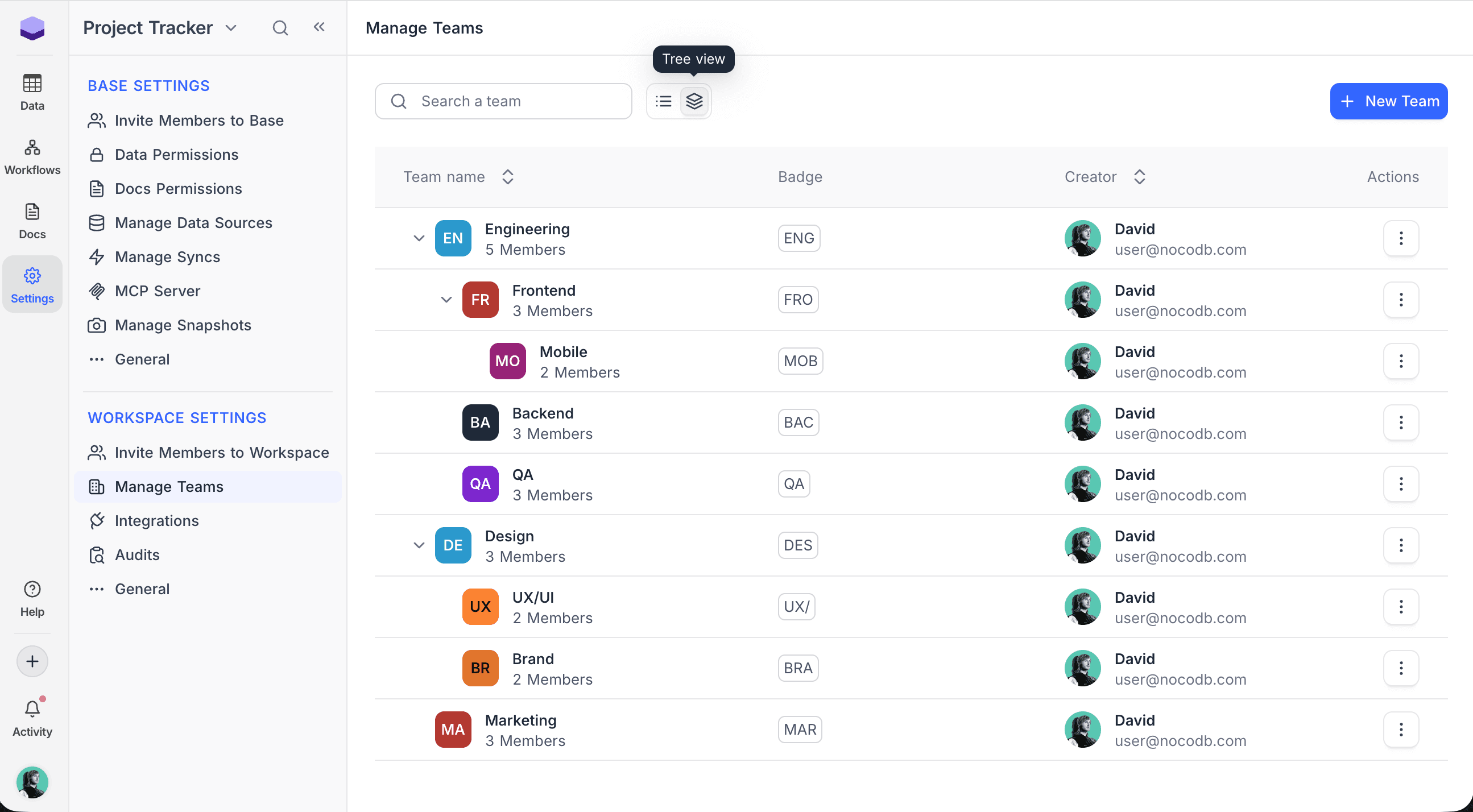
Create a sub-team
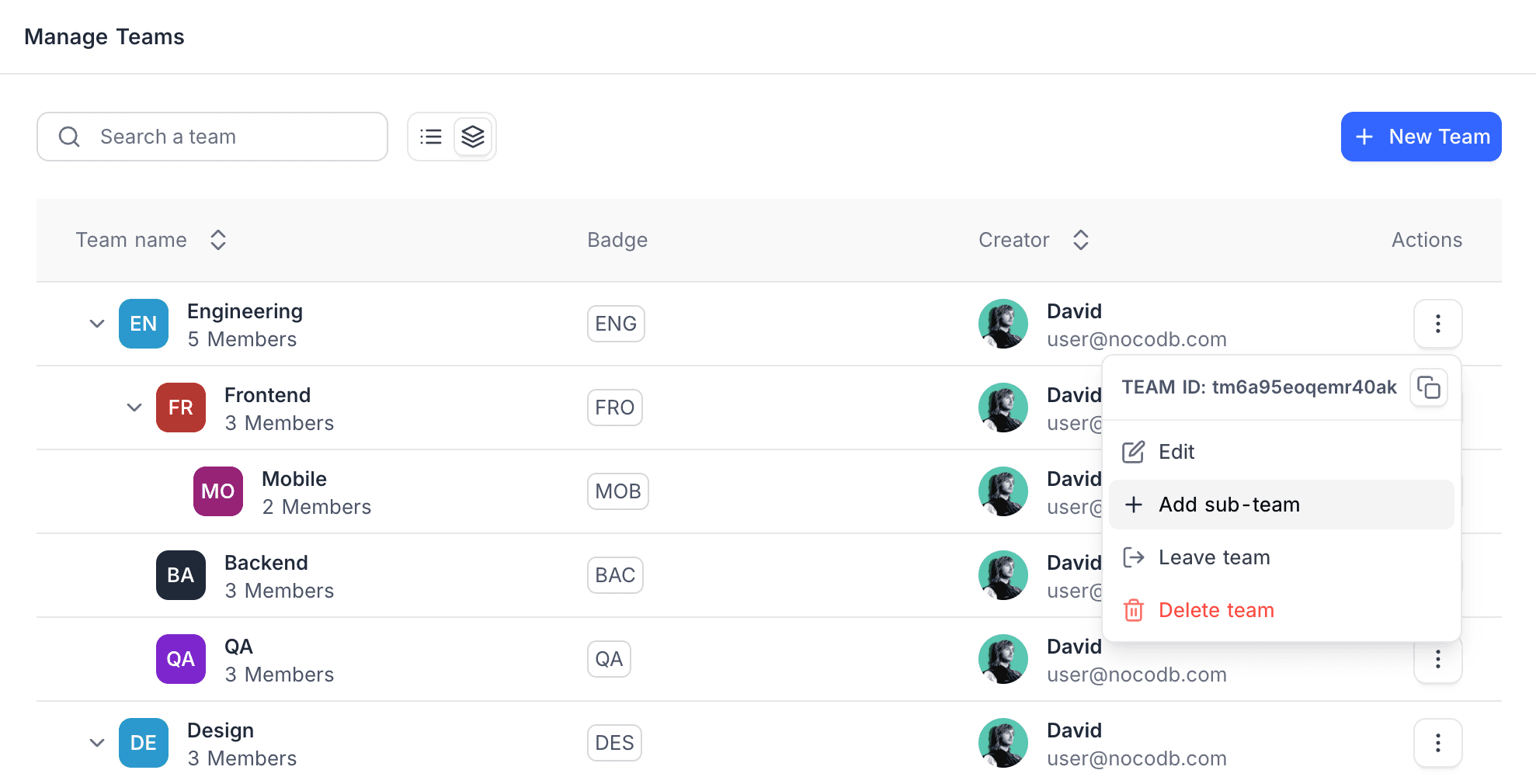
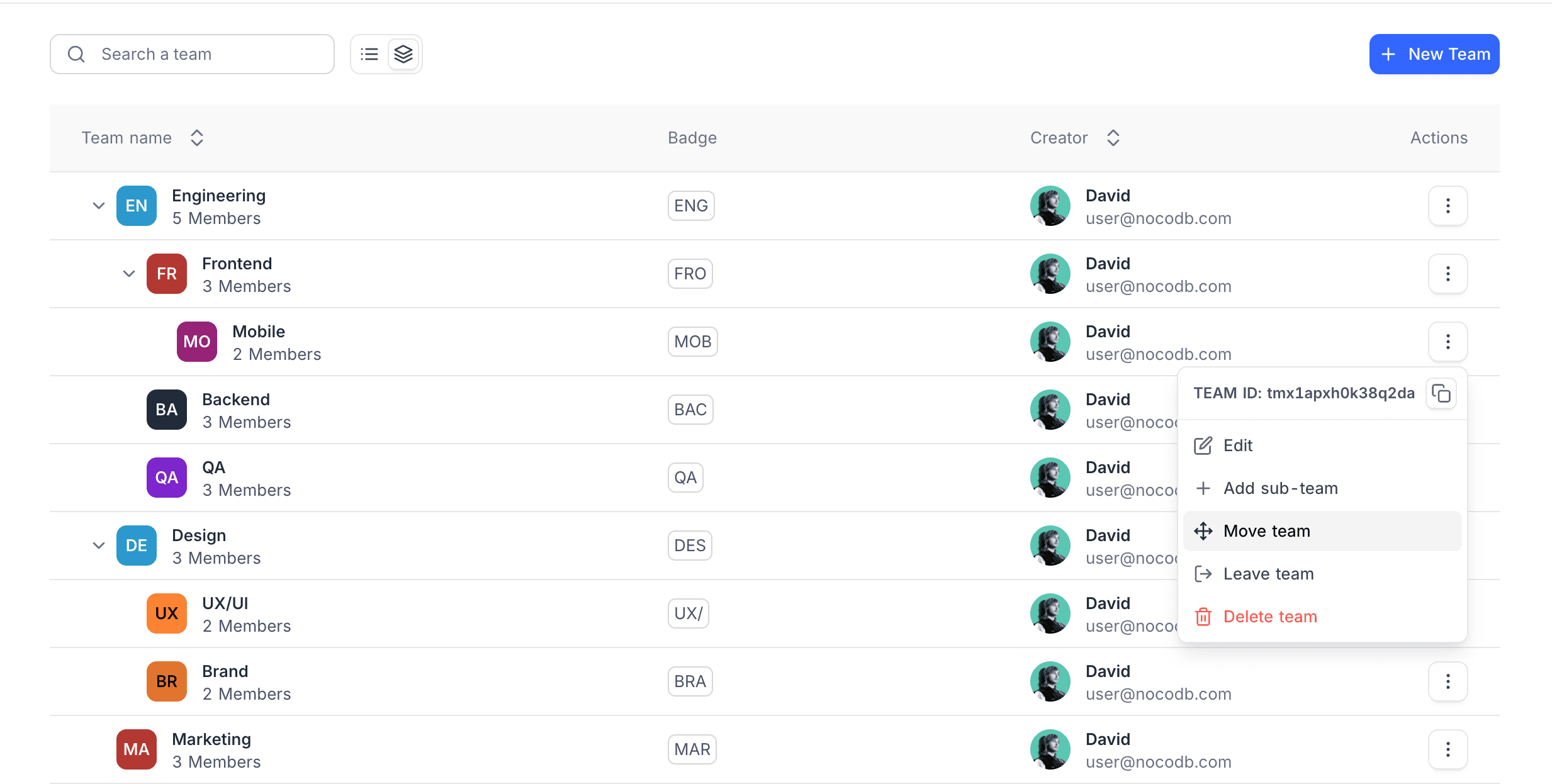
- On the Teams page, next to the parent team, click the Actions (three dots) menu.
- Select Create Sub-team.
- Enter a name for the sub-team.
- Click Create Team.
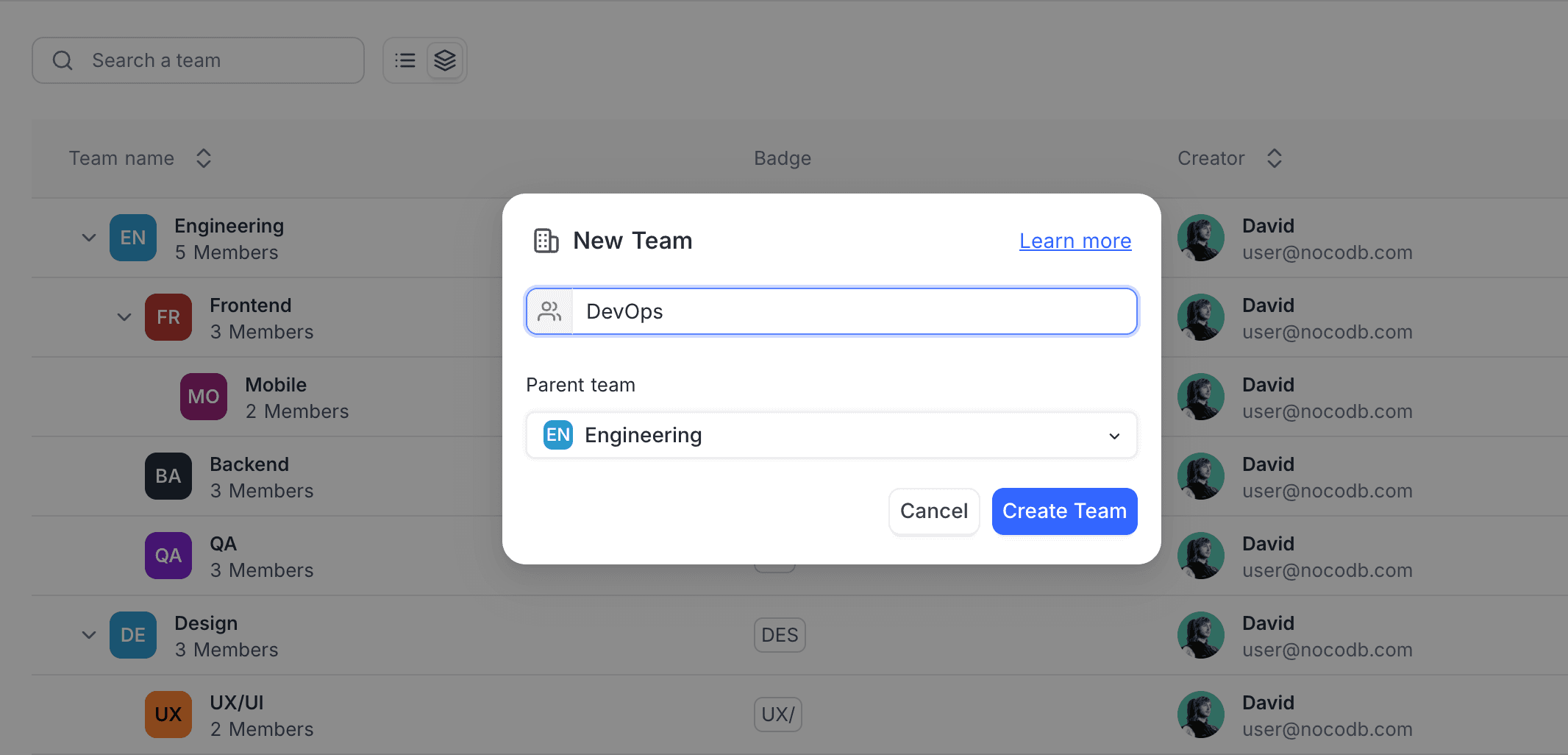
You can also use New Team:
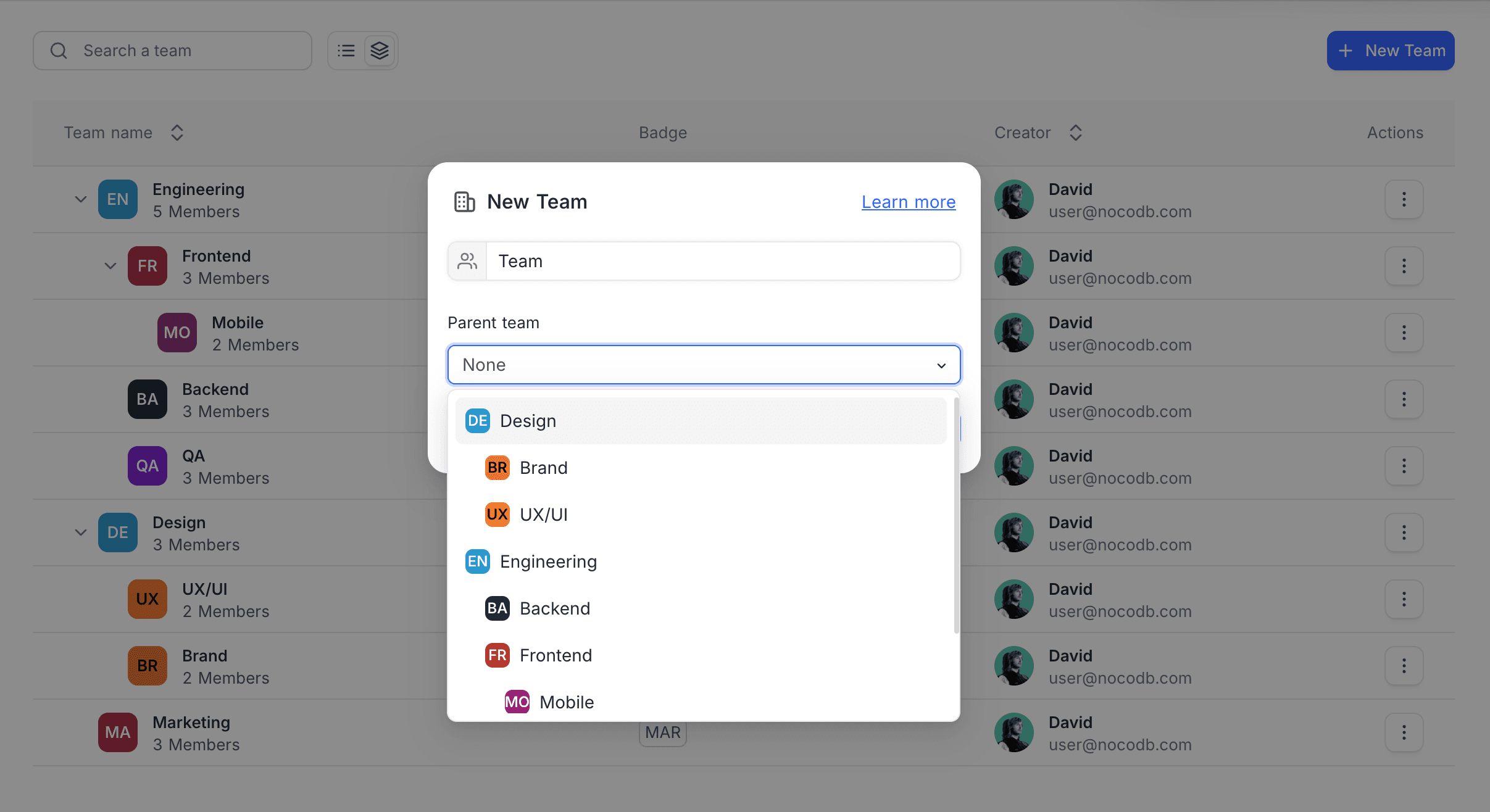
- Click New Team.
- In the Parent team list, select a parent team.
- Enter a name for the team.
- Click Create Team.
Move a team
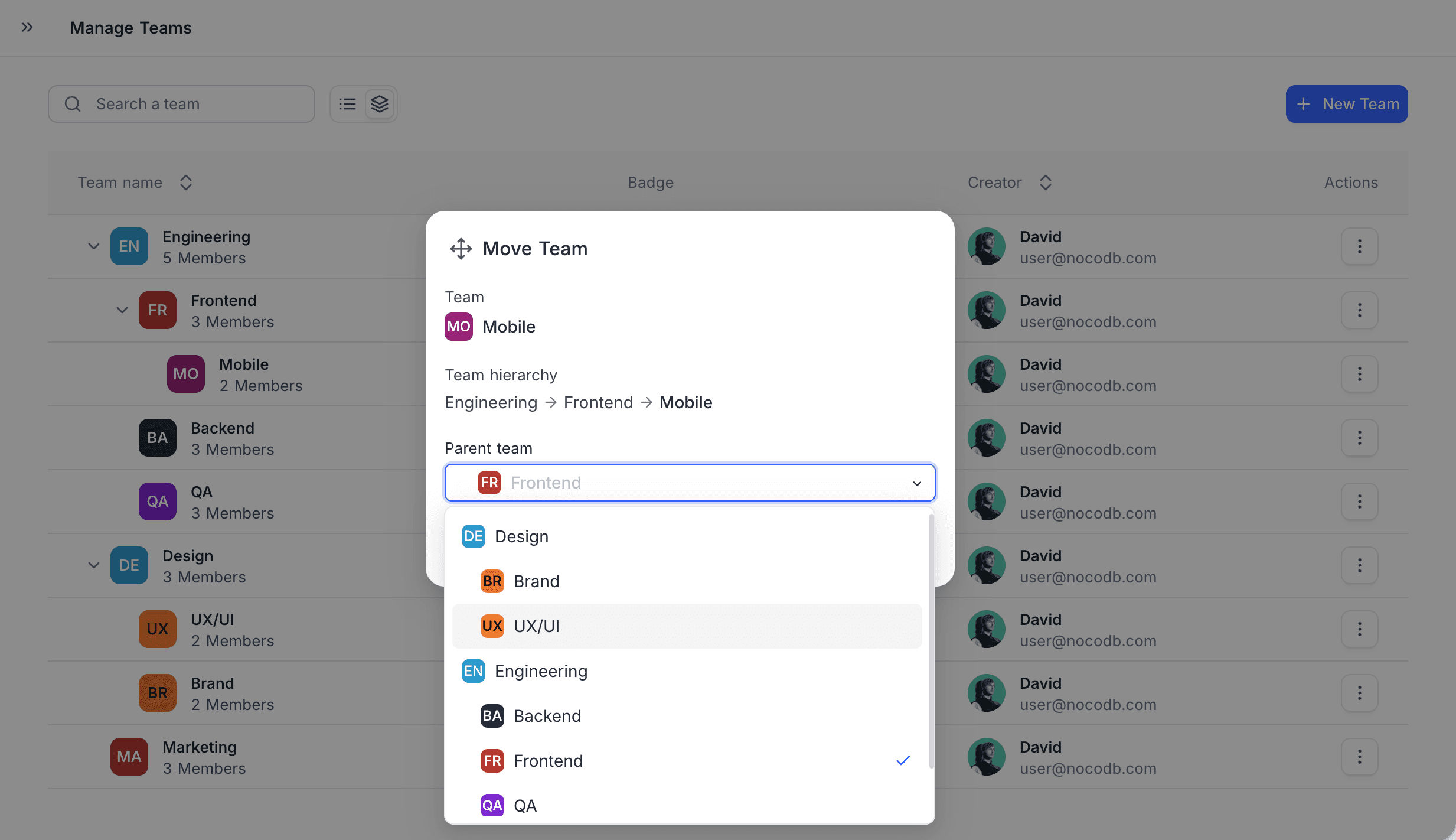
You can move a team below a different parent, or make it a top-level team.
- On the Teams page, next to the team, click the Actions (three dots) menu.
- Select Move Team.
- Select the new parent team. To make the team top-level, select no parent.
- Confirm the move.
Members in sub-teams
When you add a person to a parent team, NocoDB does not add that person to its sub-teams. You manage the members of each team separately.
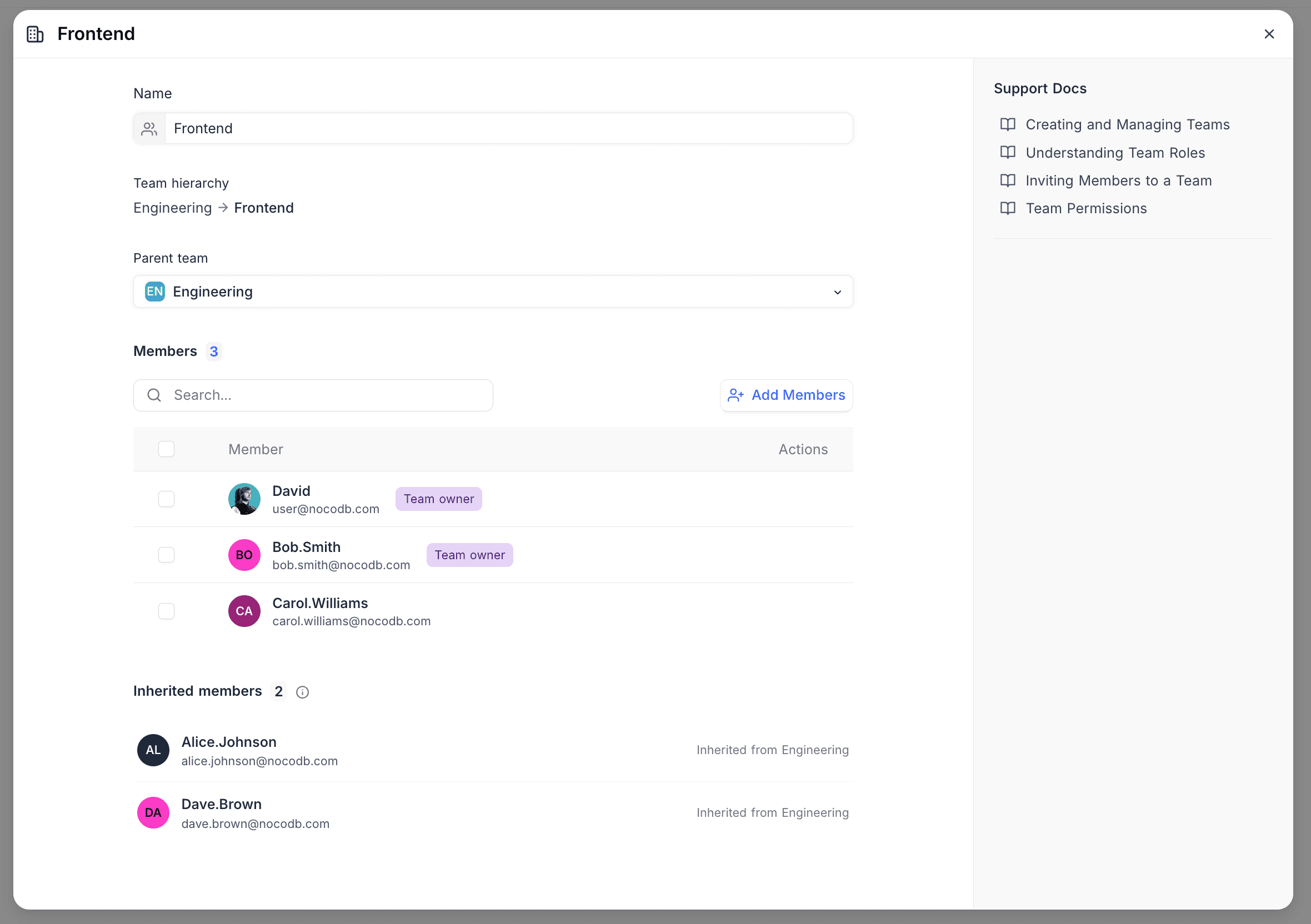
The details of a team show two groups:
| Group | Who |
|---|---|
| Direct members | The people that you added to this team. |
| Inherited members | The people from the parent teams above. They show for reference, with a label that shows their team. |
How sub-teams affect permissions
| What | Direction | How it works |
|---|---|---|
| Workspace & base roles | Upward | Parent team members automatically get their sub-team's roles |
| Table, record & field permissions | Downward | Sub-team members are included by default; you can switch to "This team only" |
Sub-teams change permissions in two ways:
1. Workspace & base roles flow upward
When you give a sub-team a role on a workspace or base, the members of the parent team also get that role automatically. Thus, managers in the parent team can always see the items that their sub-teams have access to.
Example: The "Frontend" sub-team has Editor access to Workspace X.
| Person | Team | Access to Workspace X |
|---|---|---|
| Alice | Frontend | Editor |
| Bob | Engineering (parent of Frontend) | Editor, automatically |
| Carol | Backend (sibling, not parent) | No access |
2. Table, record & field permissions flow downward
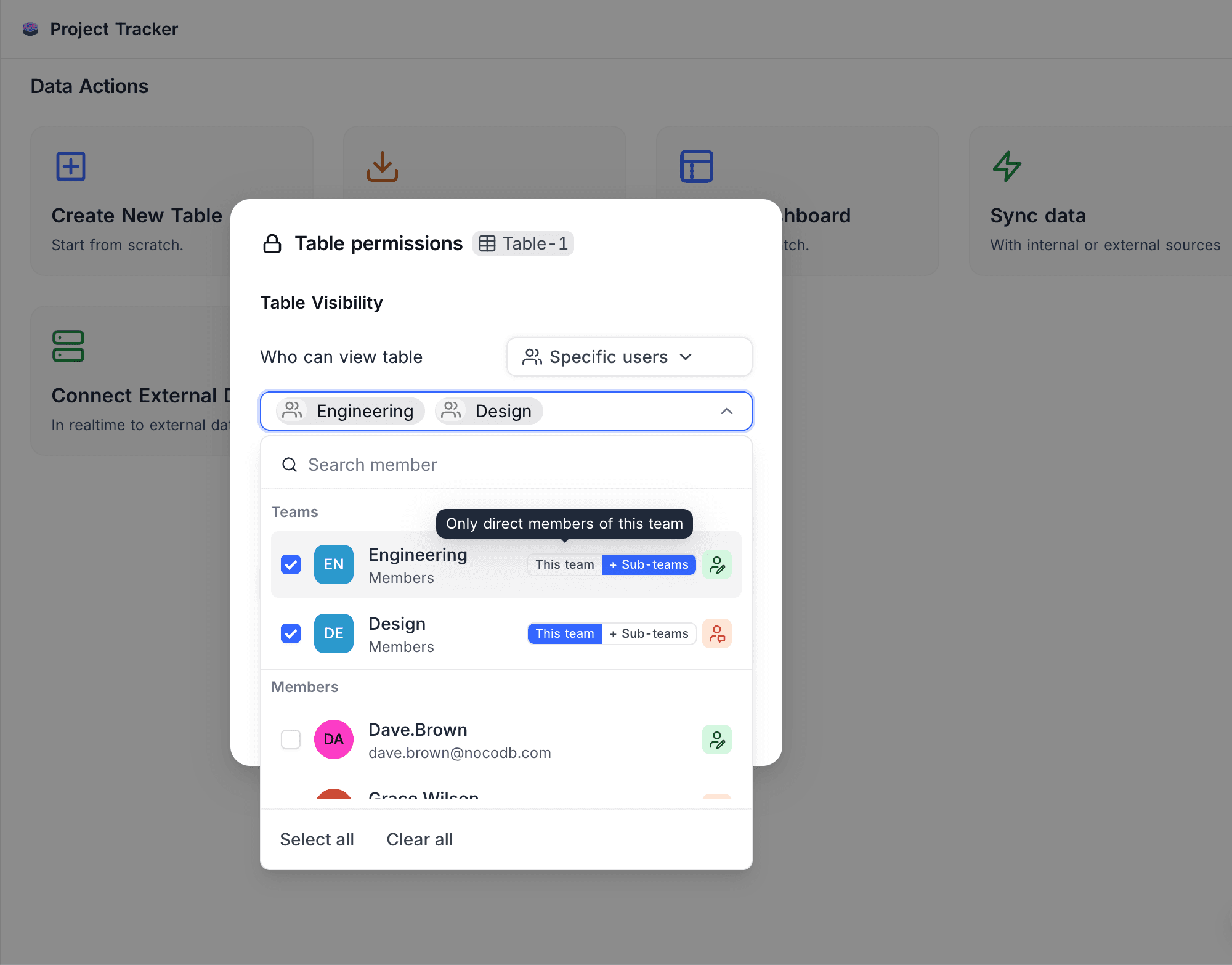
You can give a team access with "Specific users or teams" in table visibility, record permissions, or field permissions. You can then select if sub-team members also get access.
After you select a team, a segmented control shows next to the team name. It has two options:
| Option | Who gets access |
|---|---|
| This team | Only direct members of this team |
| + Sub-teams (default) | Members of this team and all sub-teams below it |
Example: The "Infrastructure" table is visible to the "Engineering" team.
With "Include sub-teams" (default):
| Person | Team | Can see "Infrastructure"? |
|---|---|---|
| Alice | Engineering | Yes |
| Bob | Frontend (sub-team) | Yes |
| Carol | Design System (sub-sub-team) | Yes |
| Dave | Marketing | No |
With "This team only":
| Person | Team | Can see "Infrastructure"? |
|---|---|---|
| Alice | Engineering | Yes |
| Bob | Frontend (sub-team) | No |
| Carol | Design System (sub-sub-team) | No |
This toggle is available in all places that show the "Specific users or teams" option:
- Table visibility: who can see a table
- Record permissions: who can create or delete records
- Field permissions: who can edit a field
Last updated on