Members and Teams
Copy a prompt, paste it into NocoAI in any base, and replace the words in [brackets] with your own.
- Add a [Managers] team that can [approve and reject requests]
- Let the [Members] team see only the [tickets] assigned to them
- Add a screen in the app where admins can invite people
A NocoDB app uses teams to control access. A team is a group of people in the app. Each team has a list of grants: the actions that its members can run. A person can open the app only when they are in a team that has at least one grant. You manage teams in App Settings → Access.
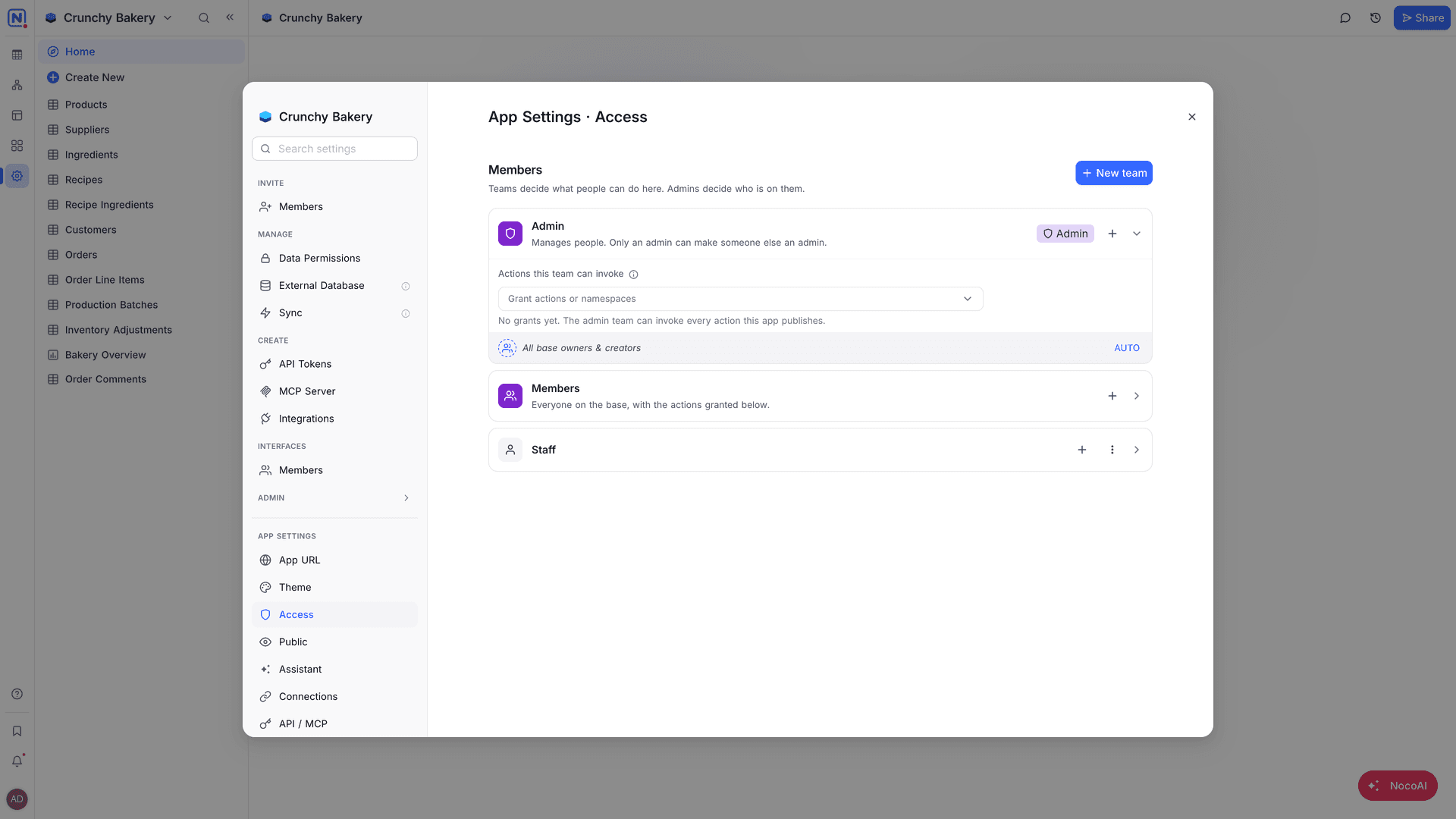
Built-in teams
Every app starts with two teams:
| Team | Who is in it | What they can do |
|---|---|---|
| Admin | All base owners and creators, and the people you add. "Manages people. Only an admin can make someone else an admin." | Every action that the app publishes, and the grants you add on top. |
| Members | "Everyone on the base, with the actions granted below." | Only the actions that you grant to the team. |
The Everyone on this base toggle on the Members team controls whether base members can use the app. Turn it off to close the app to base members. The grants of the team stay, so you can turn it on again later.
Create a team
- Open App Settings → Access.
- Click New team.
- Type a Team name. You can also type a description: "What is this team for? (optional)".
- Click Create. Then add members and grants to the team.
To rename or delete a team, open the team menu and select Rename or Delete team. Members of a deleted team keep their base access.
Add members to a team
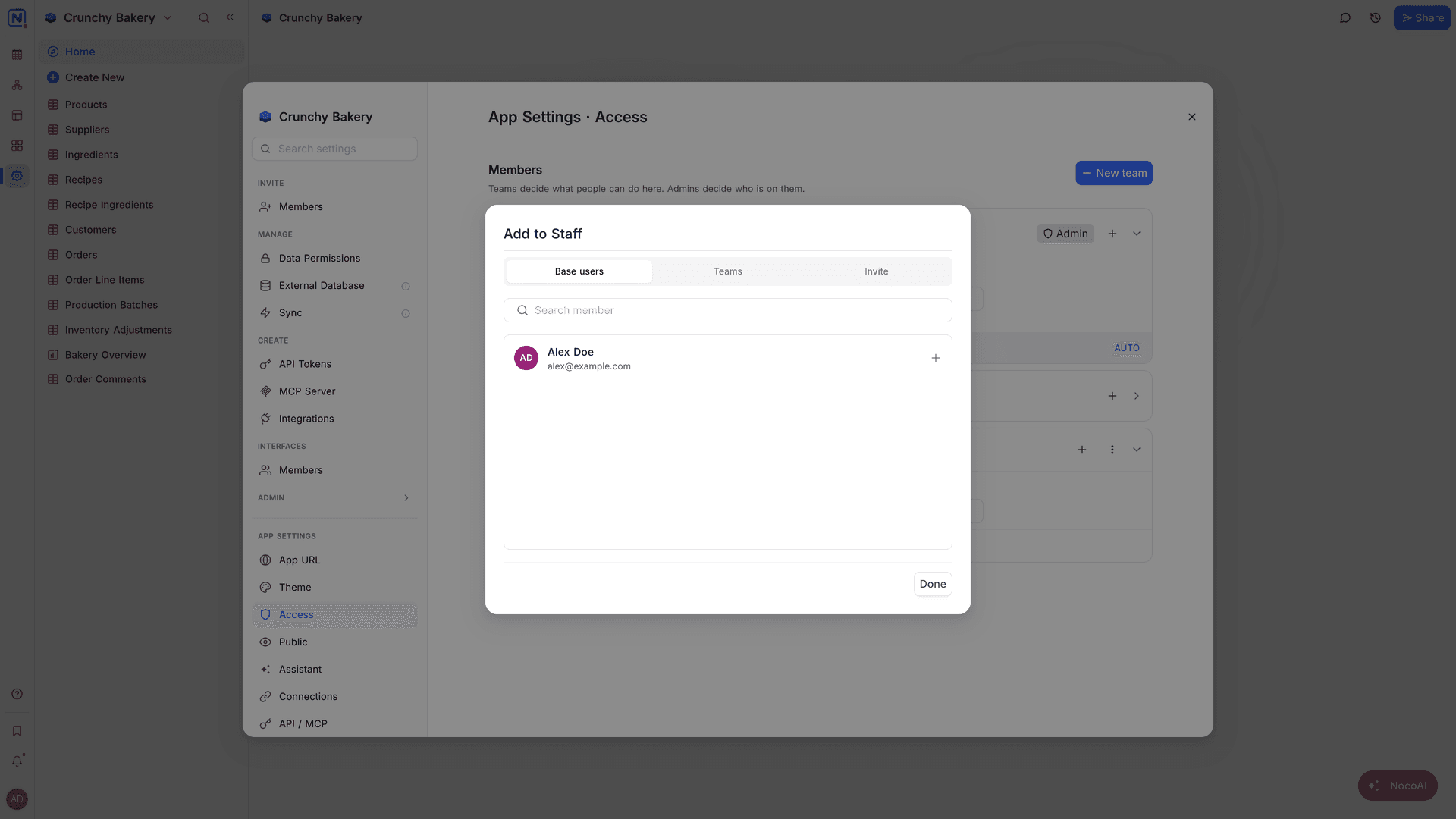
- On the team card, click Add members. A dialog opens.
- Select a tab:
- Base users: click a person who already has access to the base.
- Teams: click a workspace team. All members of the workspace team join the app team.
- Invite: type the email address of a person outside the base, then click Invite. "Give someone outside this base access to only this app. They get no other base access."
- Click Done. The people and teams show on the team card.
People without a NocoDB account get an invite email with a sign-up link.
Grant actions to a team
Actions are the operations that the app can run, for example "create booking" or "send invoice". NocoAI creates them when it builds the app. A grant lets the members of a team run an action.
- On the team card, find Actions this team can invoke.
- Search for an action, and select it. To grant all actions of one group, select Every action in [namespace].
- Deploy the app. "Grants take effect the next time you publish this app."
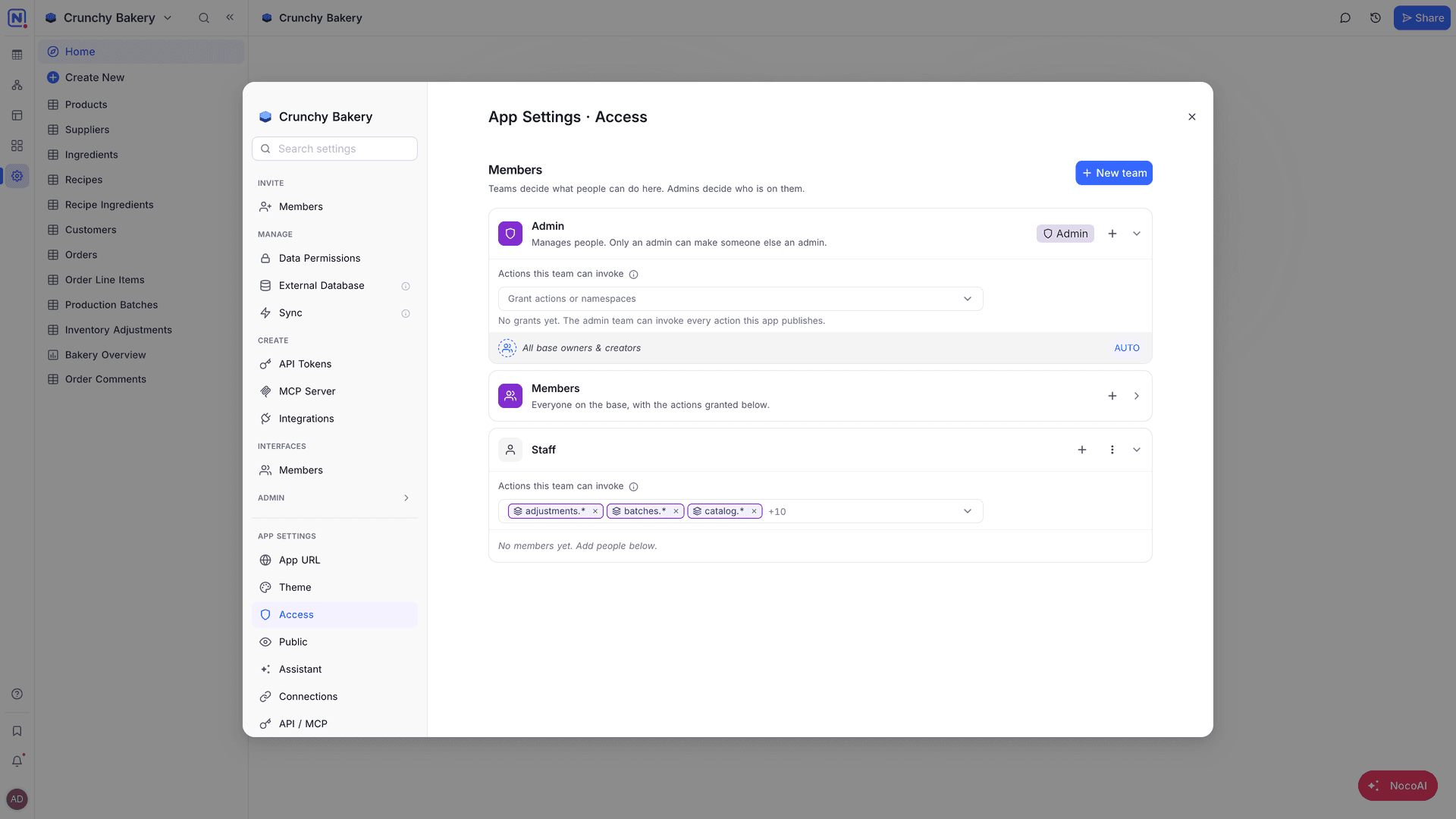
A team with no grants cannot run any action. Its members cannot open the app.
How people open the app
| Person | How they open the app |
|---|---|
| Base member | Click App in the mini sidebar of the base, or open the app address. |
| Person invited to the app only | Open the app address and sign in with their NocoDB account. |
NocoDB checks the team of the person when they open the app. When they are not in a team with grants, the app shows "You don't have access to this app."
Limit records for each team
Teams can see only part of the data, for example "members see only their own requests". Ask NocoAI for the rule in the AI app builder. NocoAI adds a record-level security policy for the team. App teams also show as App teams in the policy editor of record-level security.
Good to know
- A person is in only one team of an app, plus Admin. When you add a person to a second team, NocoDB moves them out of the first team.
- Base owners and creators can always build and use the app, with every action allowed.
- Visitors who do not sign in use the grants on the Public tab. See Public access.
- Removing a person from a team removes only what that team allows in the app. Their base access does not change.
Availability
- Workspace teams in app teams are available on the Business plan and above.
- Record-level security for app teams is available on the Scale plan and above.
Related
Last updated on