Create an App
Copy a prompt, paste it into NocoAI in any base, and replace the words in [brackets] with your own.
- Build an app for [the front desk] to book [appointments] and see [today's schedule]
- Build this base as an app for [the field team], with a page to log [site visits]
- Build an app where [customers] can see the status of their [orders]
You can create a NocoDB app in three ways:
- From the App tile in a base.
- With Build with AI when you create a base.
- By asking NocoAI in the chat.
All three ways open the AI app builder. There, NocoAI builds the app from your description.
Before you begin
- You need the Owner or Creator role in the base.
- Each base has at most one app. To build a second app, use a different base.
- The app uses the name of the base. To change the name of the app, rename the base.
- NocoAI uses credits when it builds the app.
Create an app in a base
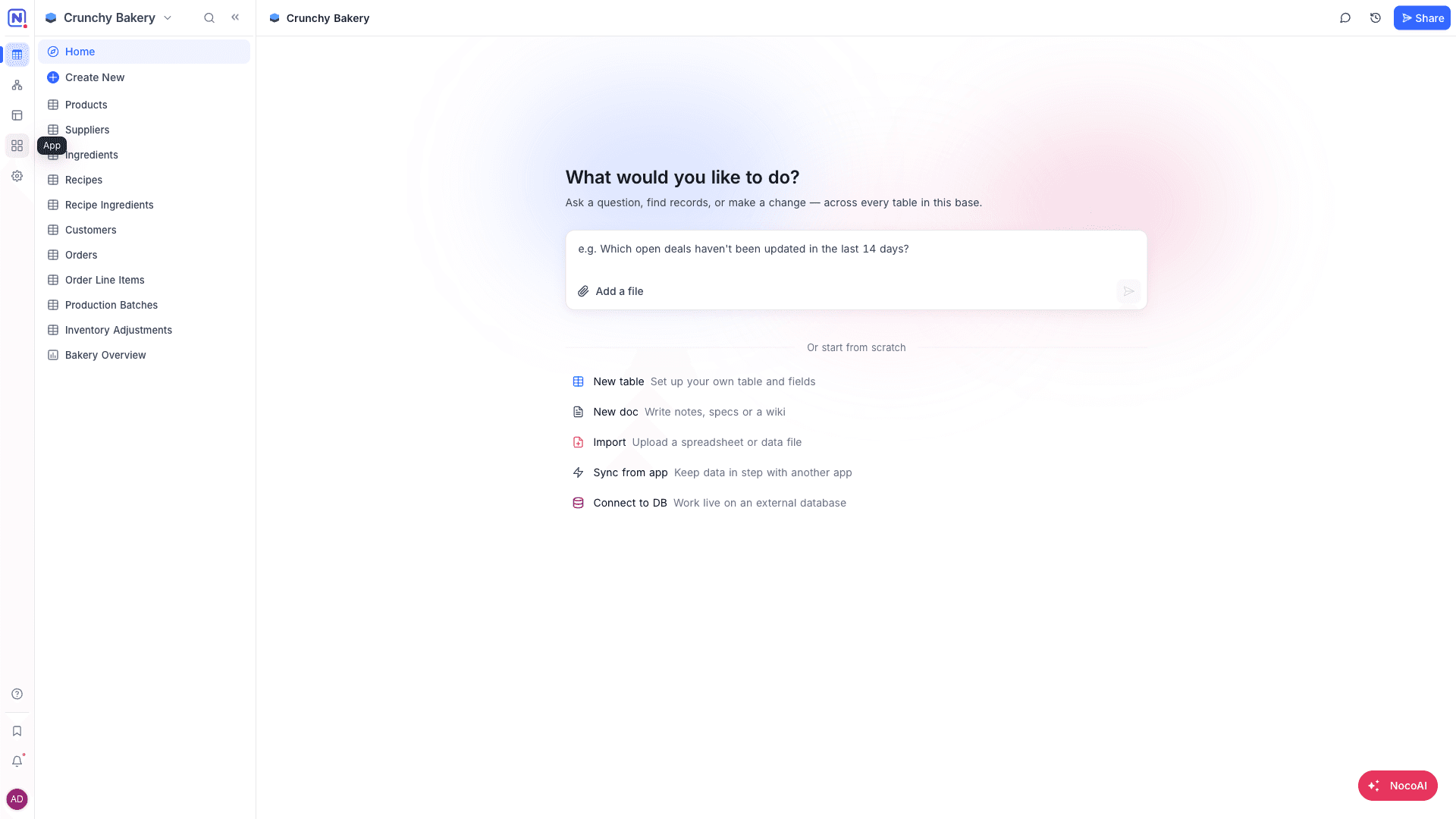
- Open the base.
- In the mini sidebar, click App. NocoDB creates the app and opens the AI app builder.
- In the chat, describe what the app must do and who uses it.
When the base already has an app, the App tile opens that app.
Create a base and an app with AI
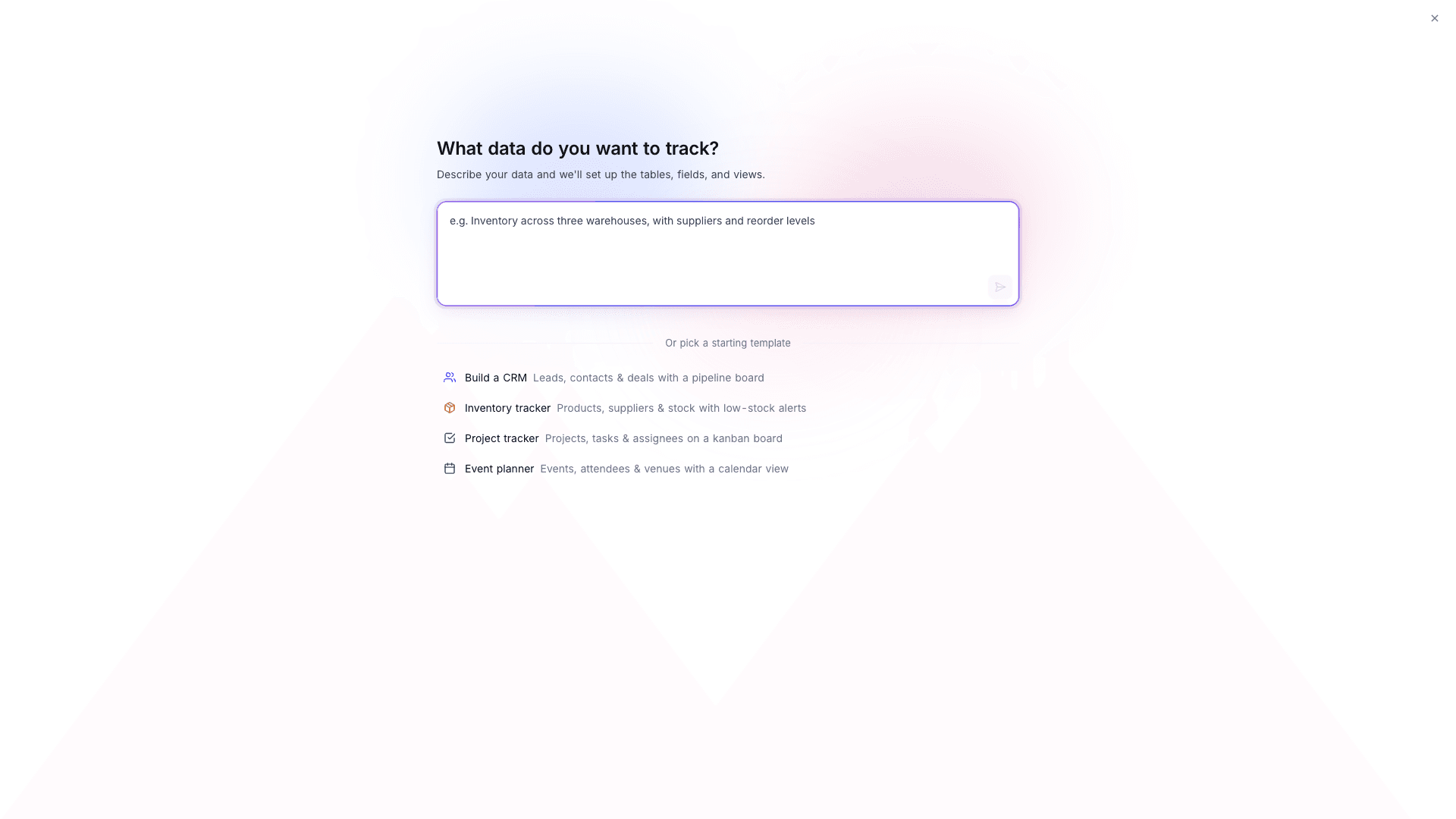
Build with AI creates the tables, the views and the app together, from one description.
- On the workspace Projects page, click New Project → Build with AI.
- Describe what you need, for example "A CRM to track leads, deals, and contacts for my agency". You can also select a starter, for example Build a CRM.
- Click Send. NocoDB shows the progress of each step: Design the data model, Create tables, Add fields, Set up views and Assemble the app.
- When the build is complete, click Open your app.
Ask NocoAI to build an app
-
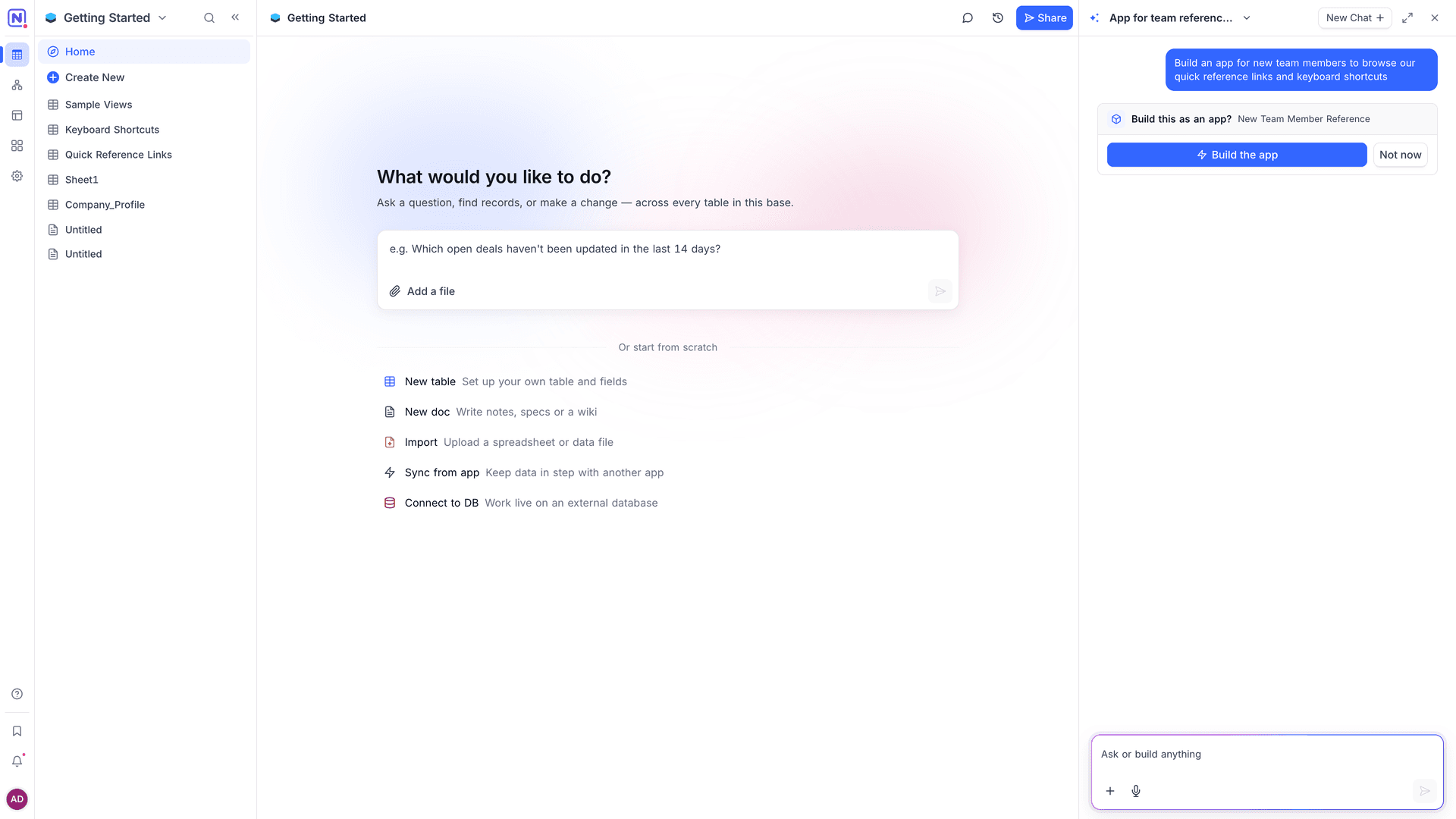
Open a base and open the NocoAI chat.
-
Ask NocoAI to build an app. NocoAI shows the Build this as an app? card.
-
Click Build the app. NocoAI starts to build and the AI app builder opens.
To stop, click Not now.
After the app exists, you do not have to approve each change. Ask NocoAI for a change and it changes the app.
Describe the app well
NocoAI builds a better app from a clear description. Tell it:
| Topic | Example |
|---|---|
| Who uses the app | "The front desk staff and the clinic manager." |
| What they must do | "Book, move and cancel appointments. See today's schedule." |
| Which data it uses | "The Patients, Appointments and Dentists tables." |
| What is public | "Patients can book a visit without an account." |
| Which services it calls | "Send a confirmation email when a booking is made." |
You can add and change things later. Each message in the chat changes the same app.
Show the app first in the sidebar
By default, the App tile shows after Interfaces in the mini sidebar. To show it above Data:
- Open the base context menu → Settings.
- Go to Admin → Data Display.
- Turn on Show app first in the sidebar.
Related
Last updated on