App Settings
App Settings is the section of the base settings where you manage a NocoDB app. To open it, go to the base context menu → Settings → App Settings. You need the Owner or Creator role in the base.
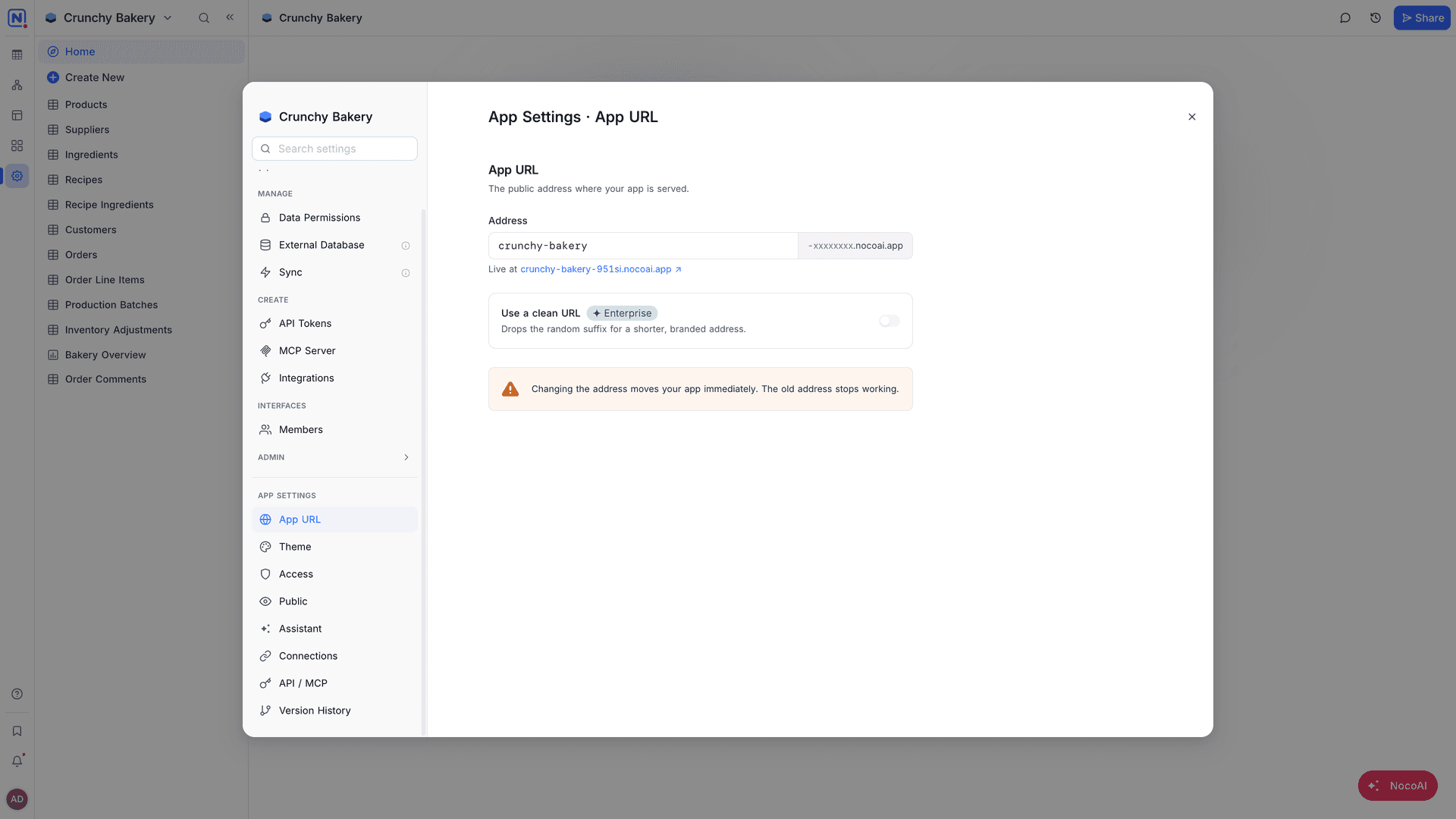
App Settings tabs
| Tab | What you manage |
|---|---|
| App URL | The address of the app and the clean URL. See App URL. |
| Theme | The colors and style of the app. See Theme. |
| Access | The teams of the app, their members and the actions they can run. See Members and teams. |
| Public | The pages and actions that people can use without signing in. See Public access. |
| Assistant | An AI chat inside the deployed app. See Assistant. |
| Connections | The external services that the app needs. See Connections. |
| API / MCP | Tokens for the app API and MCP server. See API and MCP. |
| Version History | Every deployed version, and restore. See Version history. |
Theme
The Theme tab sets the colors and style of the app. It has a gallery of preset themes and a search field.
- Open App Settings → Theme.
- Find a theme in the gallery, or search for one by name.
- Select the theme. The preview changes at once.
The deployed app uses the new theme from the next page load. You do not have to deploy.
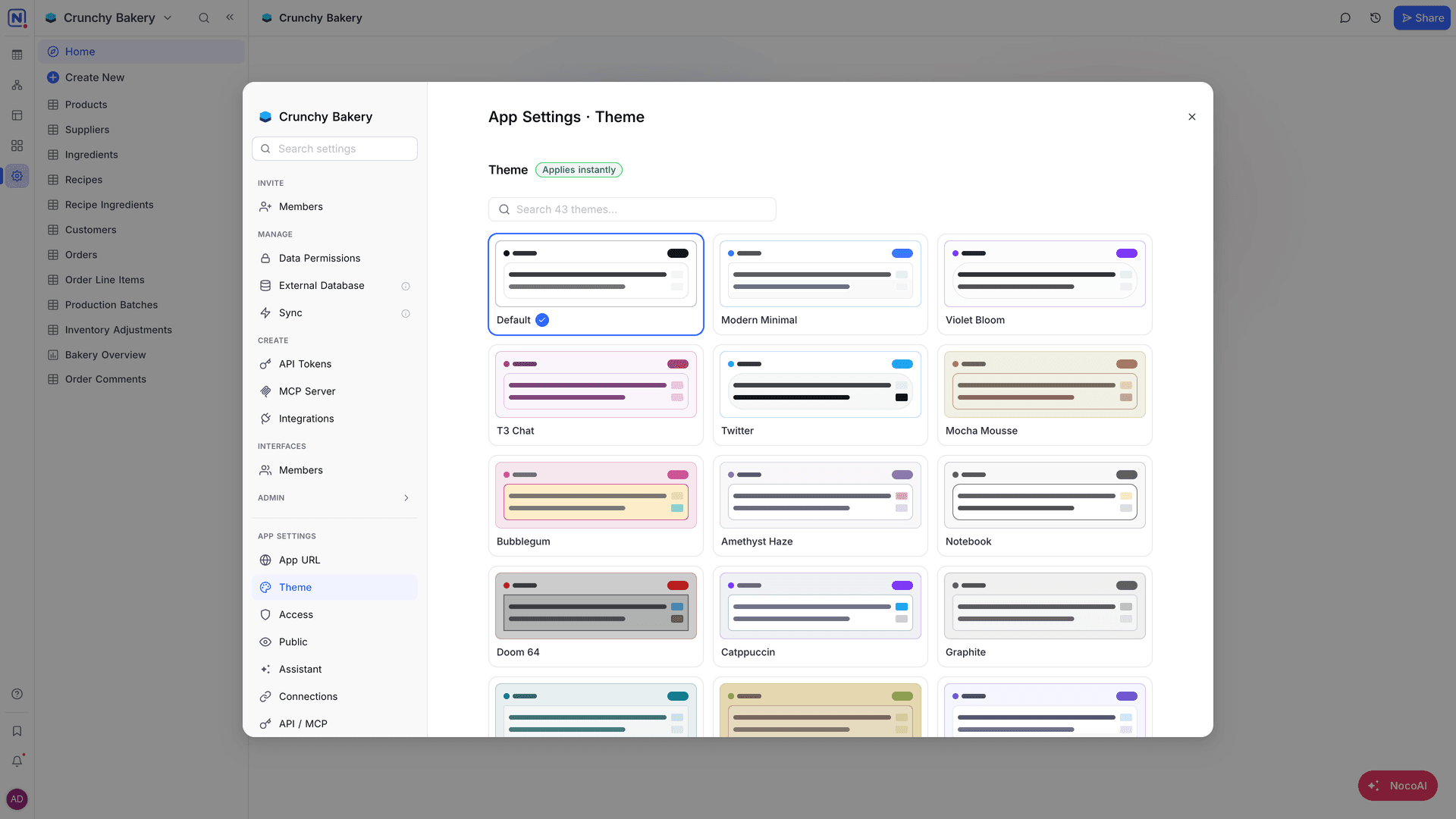
To change the style beyond the presets, ask NocoAI in the AI app builder, for example "Use our brand color #1F6FEB for buttons".
Good to know
- Changes to Theme and Assistant apply without a deploy. Changes to Access and Public take effect at the next deploy.
Related
Last updated on
Latest product updates?See Changelog