App URL
Each NocoDB app has its own web address. People open the app there after you deploy it. You manage the address in App Settings → App URL: "The public address where your app is served."
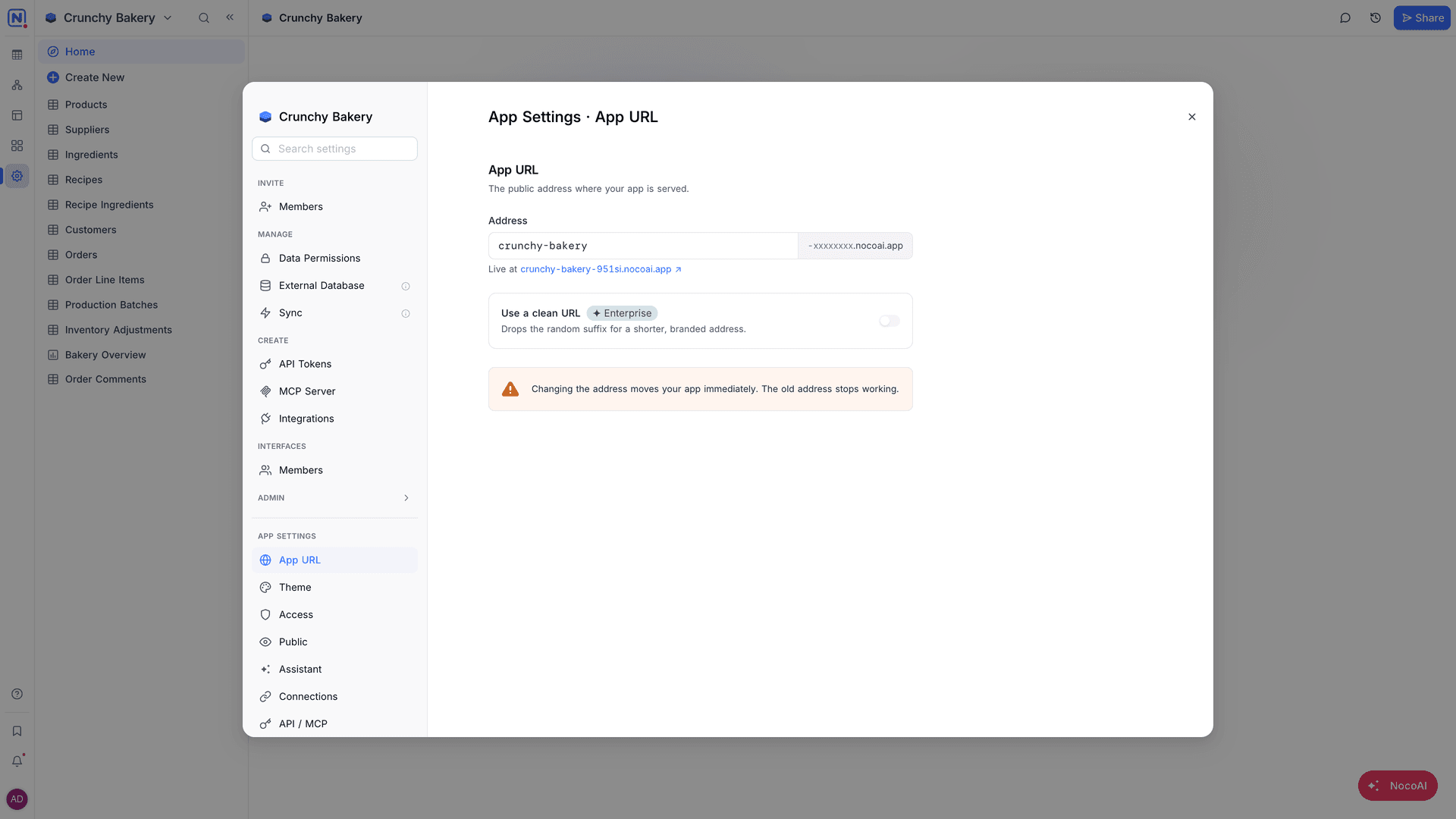
Change the app address
The app address has three parts: a name that you choose, a random code, and the NocoDB apps domain. For example: bookings-k3x9a.<apps domain>. "A random code completes the address when you publish."
- Open App Settings → App URL.
- In Address, type a name for the app. NocoDB changes it to lowercase letters, numbers and hyphens, up to 40 characters.
- Click Save changes. To cancel, click Discard.
Live at shows the address that serves the app now. Click it to open the app.
Use a clean URL
Use a clean URL removes the random code from the address. "Drops the random suffix for a shorter, branded address." For example, bookings.<apps domain> instead of bookings-k3x9a.<apps domain>.
- Open App Settings → App URL.
- Turn on Use a clean URL.
- Click Save changes.
Some names are reserved and cannot be used as a clean URL. When a name is not available, choose a different one.
Availability
Use a clean URL is available on the Enterprise plan.
Related
Last updated on