Record Review
A Record review page shows records from the connected table one at a time. A list of records is on one side, and the full detail of the selected record is on the other side. Use it when someone works through a queue, for example to approve requests, triage tickets or review submissions.
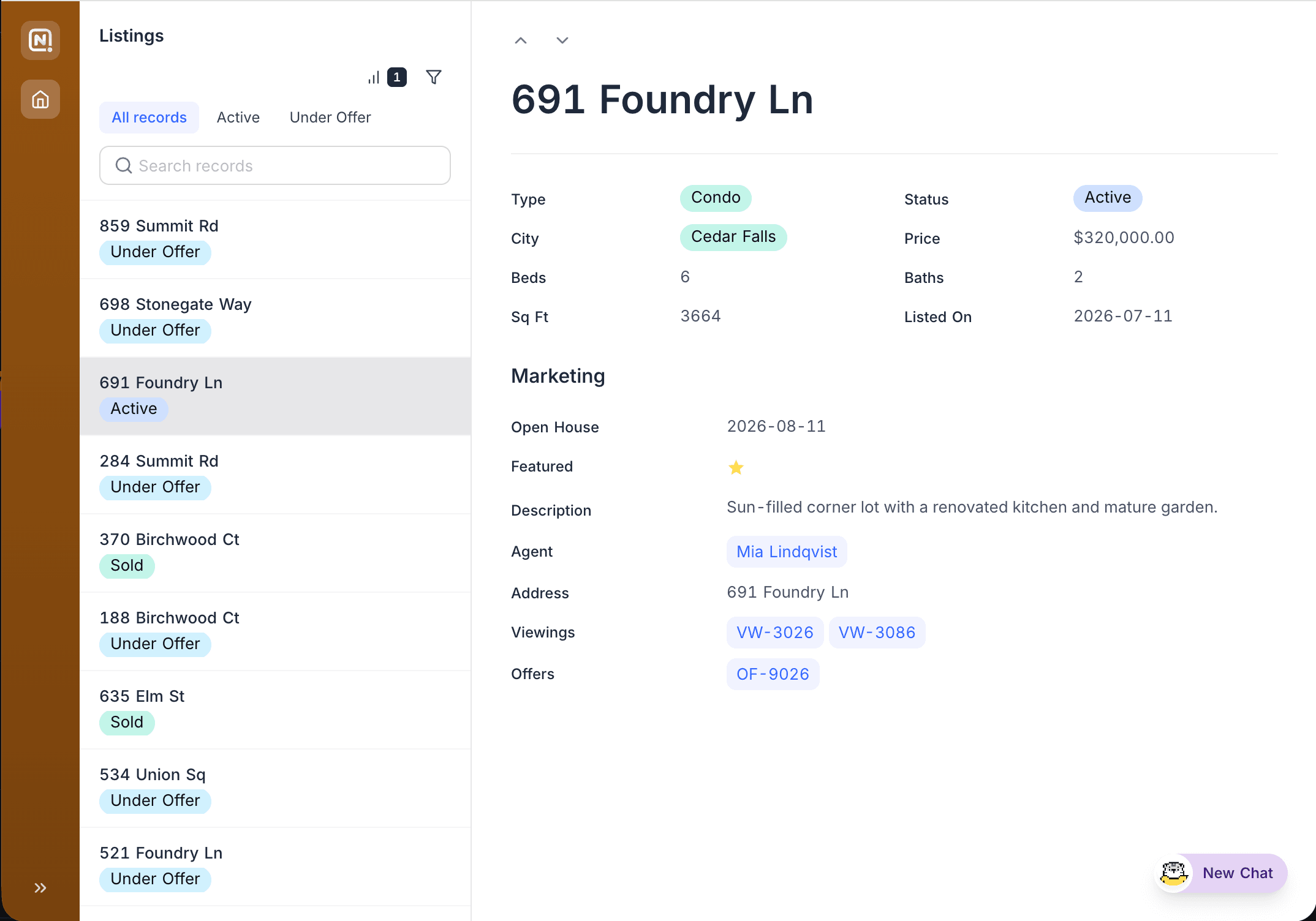
Configuring the page
| Setting | What it does |
|---|---|
| Filters and sorts | Control which records go into the queue, and their order. For example, filter to records where Status is "Pending review". |
| Fields | Select the fields that show in the record detail and put them in groups and rows. Control which fields are editable. See Fields, buttons & filters. Link fields in the detail pane can also show their related records as an embedded view. See Linked records. |
| Buttons | Add action buttons, for example Update record, next to the record title. Reviewers can then approve or reject with one click, with an optional confirmation dialog. The list toolbar can have its own buttons. They open a creation form, go to a page, open a URL or run an automation without a record. See Buttons. |
| Edit fields | Sets if reviewers can change the record from the detail pane. Off makes the record read-only. Inline lets them edit a field in place. Form opens a form page that writes back into the selected record. See Form. |
| Comments & revision history | Optionally lets reviewers discuss a record and see its change history. |
When creating a record review page, you can seed its filters, sorts, grouping, and field visibility from an existing view of the table. See Copy settings from a view.
The record list
Reviewers have their own controls above the list. These controls are separate from the filters and sorts that you configure for the page:
- Sort and Group by each support up to three levels. You can turn off a sort row without removing it from the editor.
- Grouping shows nested headers that you can collapse. Each level is indented below its parent. Groups with the same value below different parents collapse separately.
- The counts of active sorts, filters and groups show as pills next to their icons.
- When the page allows users to create records, the add-record button is at the top right of the title row.
Combine a record review page with user filters (for example, tabs for "Pending", "Approved", "Rejected") so reviewers can move between queues without leaving the page.
Last updated on
Latest product updates?See Changelog