Record Detail
A Record detail page sets how one record from a table shows. You do not open it from the interface navigation. Other pages refer to it. When a table page has Click into details turned on, a click on a record opens the linked record detail page as a modal or side sheet.
Record detail pages are reusable. You design the record layout one time. Then all pages that show records from that table show them in the same way.
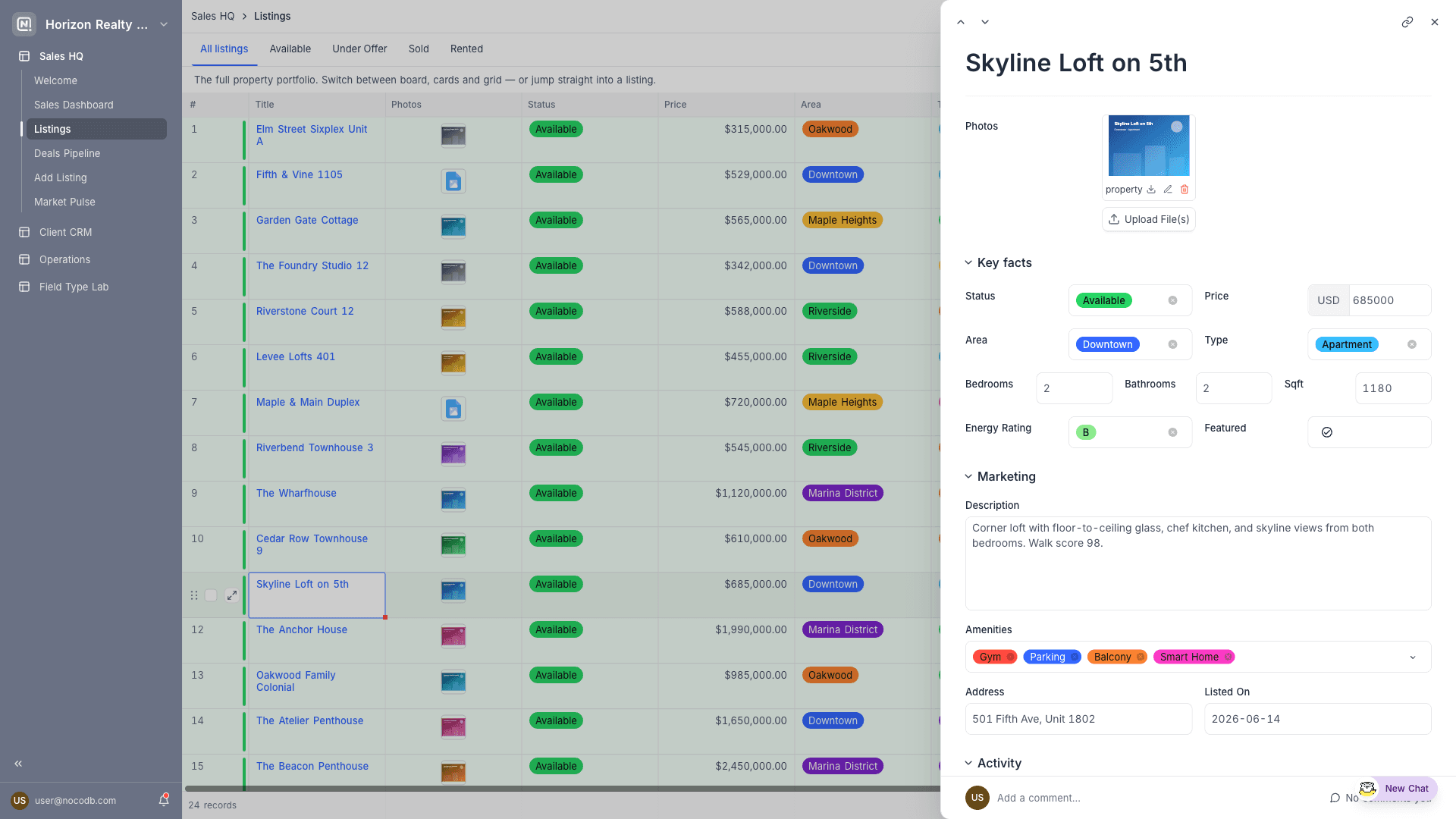
Designing the page
| Setting | What it does |
|---|---|
| Fields | Select the fields that show and put them in groups and rows. You can replace labels and set each field as view-only or editable. A field marked Required applies when the page opens as a form to create a record. See Fields, buttons & filters. |
| Buttons | Add actions next to the record title, for example Update record, Copy link to record, Delete record, Go to URL in record, Run automation or navigation to a different page. Field groups can have their own buttons, to the right of the group title. See Buttons. |
| Edit fields | Sets if users can change the record from the sheet, and how. Off makes the record read-only. Inline lets users edit a field in place. Form opens a form page that writes back into the open record. The first time you select Form, NocoDB creates the form. After that, you can connect the sheet to a different form, duplicate the current form or open it to edit. See Form. |
| Comments & revision history | Optionally shows the comment thread and change history of the record next to the fields. |
| Linked records | Link fields show related records, inline or as an embedded view. See Linked records below. |
Linked records
A link field on a record detail page can show its related records in two ways. This also applies to the detail pane of a record review page. The Show as option in the field properties controls the way:
| Show as | Result |
|---|---|
| Field | The linked records show inline, as Pills or Cards. Where editing is allowed, users can link or unlink records. |
| View | The link field becomes an embedded visualization of the linked records: List, Grid, Gallery, Kanban, Calendar or Timeline. |
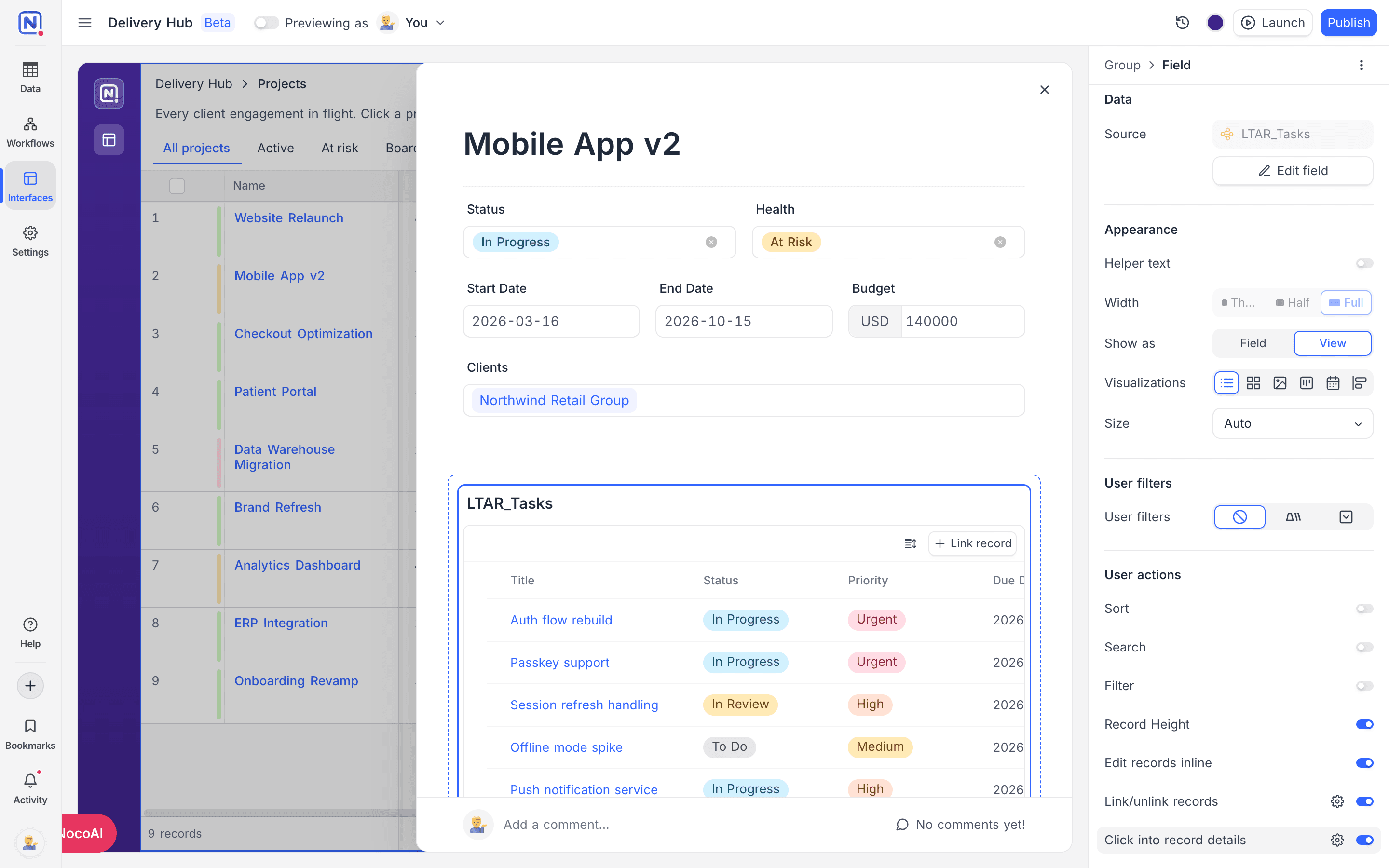
For embedded views, the properties panel has these settings:
| Setting | What it does |
|---|---|
| Size | Sets the height of the embed. Auto (the default) fits the number of records that show. Small, Medium and Large set a fixed height. |
| User actions | Turn on Sort, Search, Filter, Group (Grid) and Record height (Grid and List) to give viewers a toolbar on the embed. Viewers cannot use the actions that you leave off. |
| User filters | Tab or dropdown filters in a strip on the embed. They work the same way as page-level user filters. |
| Edit records inline | Lets users edit cells directly in the embedded view. |
| Link/unlink records | Adds a Link record button that opens the record picker. The picker obeys the Limit record selection condition, if there is one. Also adds an Unlink record action on each row. |
| Click into record details | A click on a row opens the record detail page of the linked table, on top of the current sheet. Users can go from a project to a task and back. |
Changes to column width, order and visibility that you make in the builder stay with the element. Changes that viewers make apply only to their session.
When a record no longer matches the page
The detail sheet reads the open record through the page that opened it. Thus, the user filters of the page also limit what the sheet can read.
| Situation | Result |
|---|---|
| An edit saves, but moves the record outside the current selection | The sheet closes and goes back to the list, where the record now belongs. |
| The page can no longer read the record, because the record was deleted or an edit moved it out | The sheet shows a notice, not the usual errors. Editing stays off until the page can read the record again. Retry checks the record again. |
Related
Last updated on