Nodes
In NocoDB workflows, nodes are the core building blocks that you use to design and run automation. Each node has one defined function. It starts a workflow, runs an operation, applies execution logic, or connects to external services.
When you connect nodes, you define when a workflow runs, what it does, and how it continues. Nodes send data to each other. Thus workflows can respond to data with conditions, loops, delays and integrations. This modular structure keeps workflows easy to read, maintain and extend when requirements change.
Copy a prompt, paste it into NocoAI in any base, and replace the words in [brackets] with your own.
- Build a workflow that [emails the owner] when [a record is added to Orders]
- Build a workflow that runs every [morning] and [emails me the overdue tasks]
- Which steps can a workflow use to [notify my team]?
Types of nodes
NocoDB workflows use these node types. Each type has a specific role:
| Node type | What it does |
|---|---|
| Trigger Nodes | Start the workflow when an event or condition occurs, such as a record change, a form submission, a scheduled time or a manual run. |
| Action Nodes | Do operations in the workflow: create, update, delete or get records, and send notifications. |
| Flow Nodes | Control the execution logic with conditional branches, iteration and time-based pauses. |
| Integration Nodes | Connect workflows to external services, APIs or AI capabilities, to exchange data outside NocoDB. |
Node inputs and outputs
Nodes can get inputs and make outputs. Thus data moves between the steps of a workflow. Later nodes can use the outputs of a node as inputs. This lets automation and decisions use the context of the run.
For example, a trigger can output the details of a new record. An action node can then use these details to update related records or send notifications.
Configuring inputs
You can configure node inputs in two ways:
| Input type | What it is |
|---|---|
| Static values | Fixed values that you set when you design the workflow. They work like grid cells: select fields use dropdowns, date and datetime fields use pickers, and boolean fields use toggles. |
| Dynamic values | Values that come from the outputs of previous nodes. With them, workflows change their behavior based on runtime data and the execution context. |
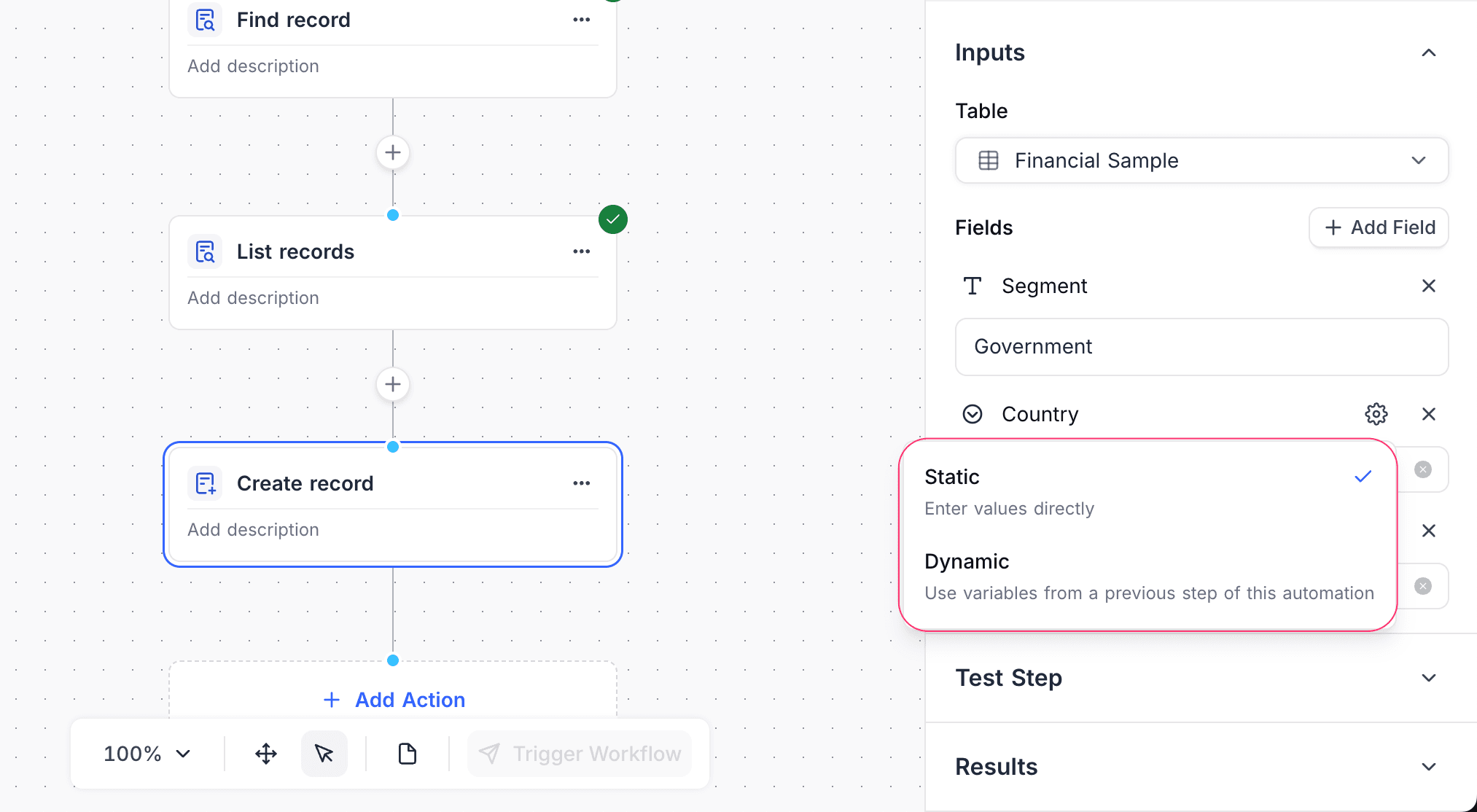
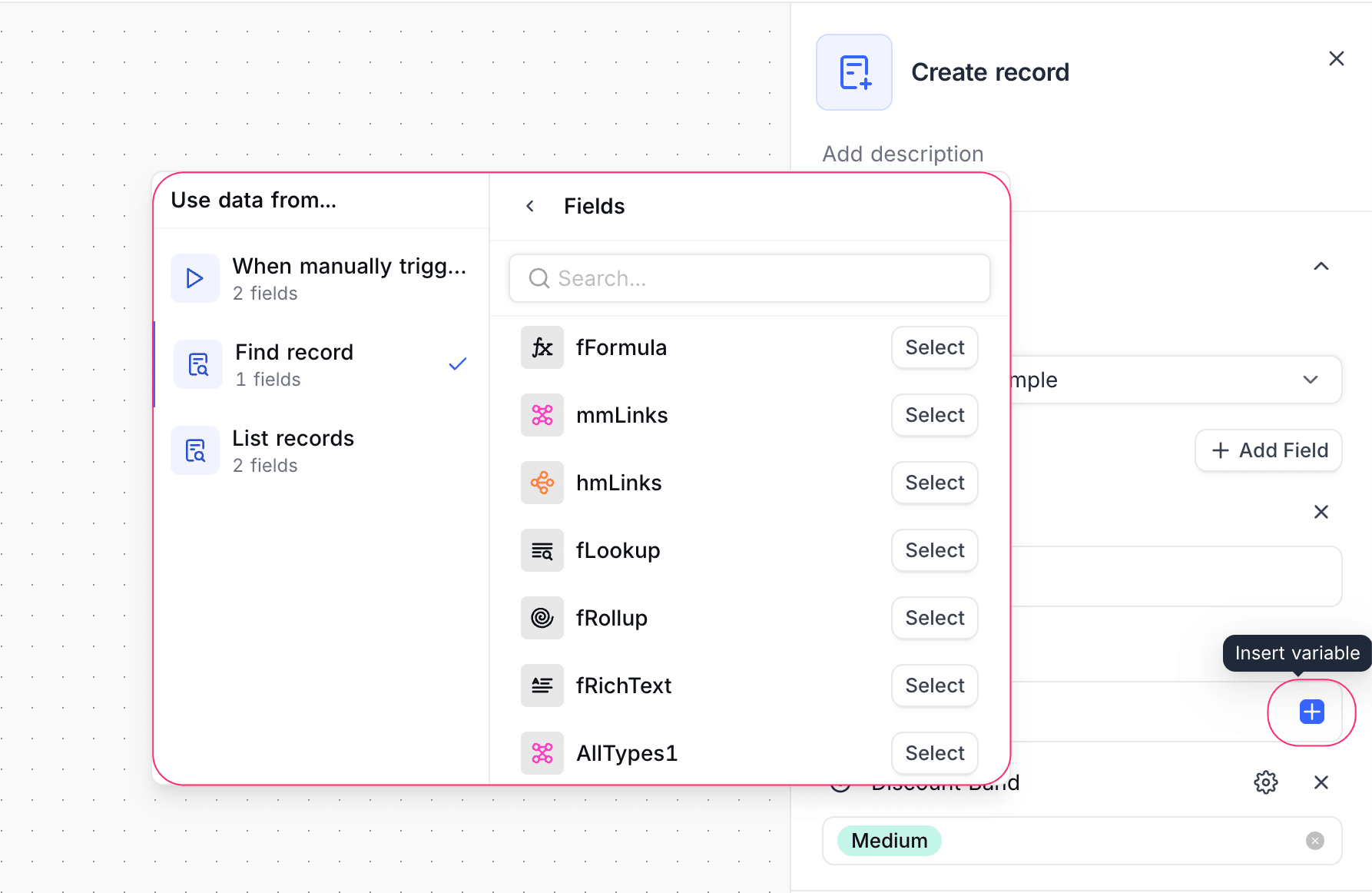
To configure a dynamic value:
- Click the + icon next to an input field.
- Select an output of an earlier node in the workflow.
Execution data and logs
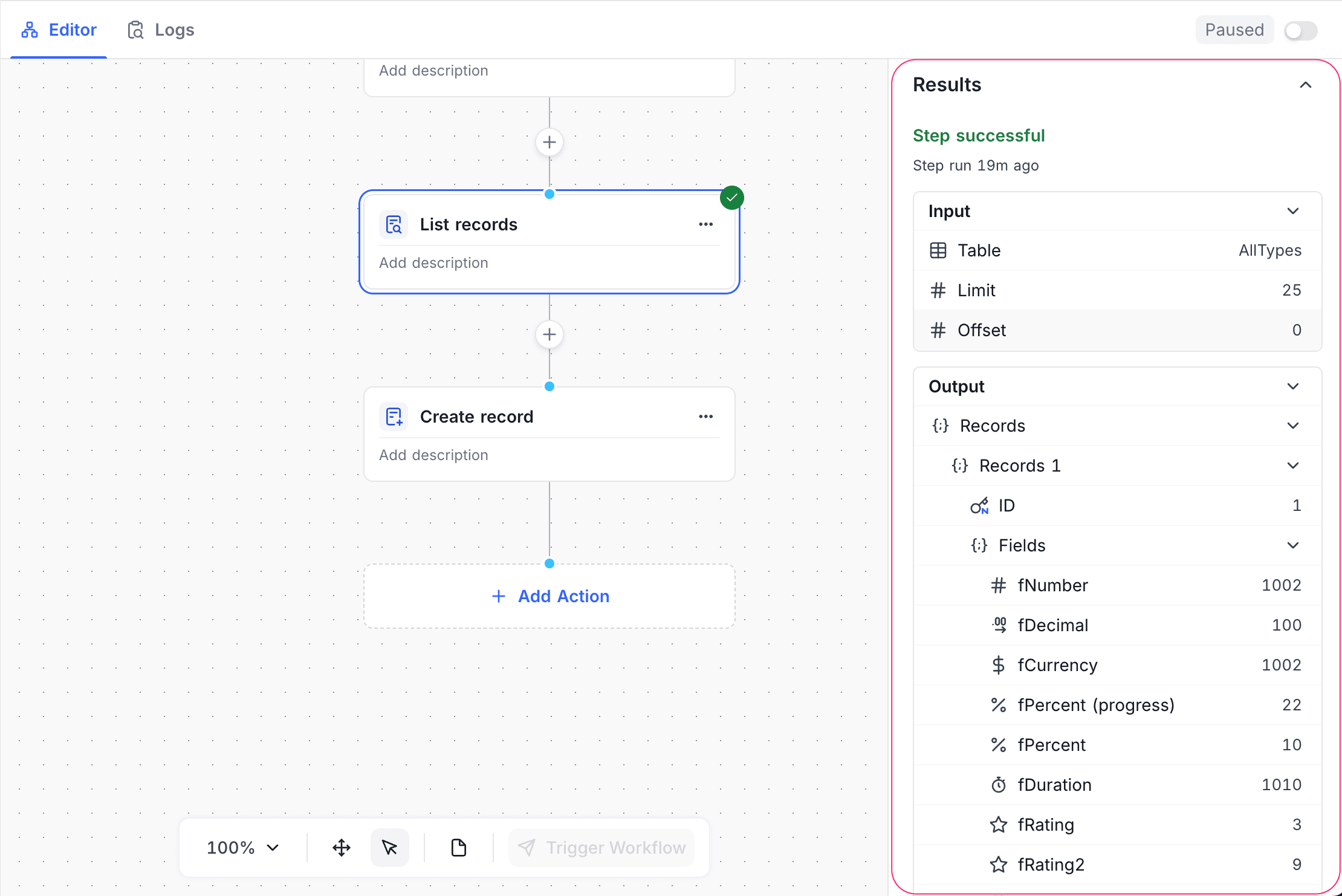
NocoDB records the execution output of each node as part of the workflow run. You can see it in the execution logs. Use these logs to follow the execution flow, examine data and find the cause of failures at the node level.
When you test a workflow, nodes show sample data based on their current configuration. Use it to make sure that the logic and data mapping are correct before you enable the workflow.
On error behavior
By default, if a node has an error during execution, the workflow run stops immediately. NocoDB logs the error. The execution logs show the error details for troubleshooting. Learn more.
NocoDB does not support custom error handling or retry mechanisms at the node level yet. Future updates can add advanced error handling features.
Good to know
- You can add an unlimited number of nodes to a workflow. But complex workflows with many nodes can be slower and take more execution time.
Availability
- Some node types are available only on some plans. For plan details, refer to the page of each node.
Last updated on